
What Otter keeps for each meeting
An Otter conversation has several parts, and they don't all export the same way.
- The transcript, with speaker names and timestamps.
- The Summary. Otter's help article lists its sections as Overview, Action Items, Insights, Outline, and Custom Prompt. Which sections appear depends on the template applied to the conversation.
- Highlights and comments added by you or your team.
- The audio.
The transcript and summary are what Claude can use. The audio isn't something you'd bring into a Claude project, and Otter exports it separately as MP3.
What you can export from Otter
Otter's export article starts with the basics: "You can export conversations, including ones shared with you, in multiple formats (audio and text)."
Text formats. From a conversation's three-dot menu, select Export and choose a format: TXT, DOCX, PDF, or SRT, or copy to the clipboard. Options include showing speaker names, timestamps, and highlights, and combining paragraphs. A preview shows what the file will look like.
Plan limits. "Basic plan users can export conversations only as TXT files." Other formats need a paid plan.
Bulk export. "The bulk export feature is only available on the Otter Business and Enterprise plans." You select conversations in My Conversations, a channel, a direct message, or a folder, choose formats, and Otter emails you a link to a ZIP file. One detail is easy to miss: Select all only selects conversations loaded on the current page, so to export everything, scroll to load all conversations first.
The Summary. You can export the full summary from the desktop app or the web, but the article notes: "Export summary is not yet available on mobile." You can also bulk export summaries.
What can't be exported as a file. Two parts of the summary need copying instead:
- "The Outline can’t be exported as a file, but you can copy the full summary and pull out the individual Outline items."
- "Action Items can’t be exported directly, but you can copy them manually."
Shared conversations. If a meeting was shared with you, you need the right permission: "Only Collaborators, or Viewers with export enabled, can export conversations."
Route 1: Bring meetings into a Claude project
A Claude project is the closest match for a set of meetings that belong together. Anthropic's help article describes projects this way: "Projects allow you to create self-contained workspaces with their own chat histories and knowledge bases."
You upload the exported transcripts and summaries to the project's knowledge base. The article says Claude uses that knowledge "to better understand the context and background for your individual chats within that project", and you can add project instructions to tell Claude how to use them.
A few details from Anthropic's documentation shape how this works:
- Large archives. On paid plans, projects use retrieval when project knowledge approaches context limits, so a project can hold more than fits in a single conversation.
- Sharing. On Team and Enterprise plans, projects can be shared with specific members or your whole organization, with view or edit permissions.
- Project memory. "Each project has its own memory." While you work in a project, Claude uses the project's memory alongside your memory from chats outside projects, but not memory from other projects.
This route works best for a bounded set: the kickoff and planning meetings for one product, or every call with one customer. The meetings become part of the project's context for every chat inside it.
Route 2: Connect Otter to Claude
Otter also offers an MCP server, which Claude can use as a connector. Otter's help article describes what it lets an assistant do:
- Search your meeting transcripts across all time periods
- Analyze patterns and themes across multiple meetings
- Generate content using your actual meeting data
- Surface insights without leaving your AI workflow
The setup in Claude, according to Otter's article: go to Settings, then Connectors, then Browse connectors. Find Otter.ai and select Connect, sign in to your Otter account, review the details, and select Authorize access. If your workspace admin has already added Otter.ai, it appears as an available connector.
To use it in a chat, open the search and tools menu in the chat box and toggle on Otter. Claude asks for permission when it uses Otter's tools, and you can manage those permissions from the connector's settings.
The connector has three tools, described in Otter's article:
- Search: "Search for meetings and get an overview of information."
- Fetch: "Retrieves a full speech transcript of a meeting or conversation."
- Get user info: your name and email from your Otter account.
On access, Otter's article says: "Your AI assistant can only access meetings you explicitly authorize." It also describes the scope: "You can access all meetings that you have captured in Otter, as well as any meetings shared with you from other users in your Workspace." For a specific conversation link, "The conversation must be shared with you for your AI application to access the content."
The difference from Route 1 is where the meetings stay. With the connector, your meetings remain in Otter, and Claude searches or fetches them when a chat calls for it. Nothing needs to be exported, but you need an Otter account that stays connected.
Which route to use for which meetings
The two routes suit different needs.
Use project files for meetings that define a project. If a set of decisions should shape every chat about a product, upload those transcripts and summaries to the project. They're always part of the project's context, even if your Otter access changes.
Use the connector for the long tail. For questions like which meetings discussed a feature, or what a customer said last quarter, the connector can search across everything you have access to in Otter.
Combine them. Upload the handful of meetings that matter most, and keep the connector on for the rest.
Going forward: Claude Meetings
If your organization is on a Claude Team or Enterprise plan, Claude can take notes on new calls itself. Claude Meetings, in beta, lets you add Claude to a Google Meet call. Anthropic's help article says it "takes the notes, answers questions, and builds artifacts, such as docs, whiteboards, and slides, live during the call."
After the call, the meeting page has the notes, including a summary and action items, along with the transcript. It saves "a transcript, summary, and screen descriptions, not audio." And later, "in a regular chat, you can ask Claude about past meetings you have access to."
Two points matter for a migration:
- It's for new meetings. Your Otter archive still needs one of the two routes above.
- Otter is on the partner list. Anthropic's announcement says it's working with partners including Otter "so you’ll soon be able to send a meeting’s transcript to the tools your team already uses." That describes sending Claude's transcripts out to those tools, and it's listed as coming soon.
We covered Claude Meetings in more detail, including who can see the meeting page, in our guide to what Claude Meetings is.
What to check before you start
Your Otter plan. Basic plans export TXT only, and bulk export needs Business or Enterprise.
Permissions on shared meetings. You can only export conversations shared with you if you're a Collaborator or a Viewer with export enabled.
Your summary template. The summary sections you can export depend on the template applied to each conversation.
Your Claude plan. Projects are available on every plan, with a limit of five for Free users. Larger project knowledge, sharing, and Claude Meetings depend on your plan.
Consent. If you plan to use Claude Meetings, Anthropic's article says to make sure everyone on the call is okay with being transcribed before you add Claude or turn on auto-join.
What people try first
Exporting everything into one project. Keep a project to a focused set, and use the connector for the rest.
Expecting the Outline and Action Items as files. Otter says to copy them from the summary.
Pressing Select all once. It only selects conversations loaded on the page.
Exporting summaries from the phone. Summary export isn't available on mobile yet.
Assuming Claude Meetings brings in old Otter calls. It records new calls.
The manual migration
Step 1: Choose the meetings that define each project
List the meetings whose decisions should shape every chat, such as kickoffs, planning sessions, and key customer calls.
Step 2: Export transcripts with speaker names
In Otter, export each conversation as TXT or DOCX with speaker names and timestamps turned on. On Business or Enterprise, use bulk export and load all conversations before selecting them.
Step 3: Export or copy the summaries
Export the Summary from the web or desktop app, and copy the Outline and Action Items into a document.
Step 4: Create a Claude project and upload the files
Create a project, upload the transcripts and summaries to its knowledge base, and write project instructions explaining what the files are and which decisions are current.
Step 5: Connect Otter for everything else
Add the Otter.ai connector in Settings, authorize access, and toggle it on in chats where you need older meetings.
Step 6: Test with a real question
Ask Claude about a decision from one of the uploaded meetings, and another from a meeting you didn't upload, to confirm both routes work.
The Better Way: Keep the decisions from your meetings in one place
Meeting transcripts are long, and the parts you need later are short: what was decided, who owns it, and what changed since. Those decisions are what Claude and your other assistants need.
MemoryLake is a memory layer for that kind of meeting context, such as decisions, owners, and follow-ups, kept in one place you maintain and available to the assistants you connect, such as ChatGPT, Claude Code, and Codex.
You write the entries yourself, in your own words. Nothing is read out of, written to, or deleted from your Otter conversations, their summaries or audio, the Otter connector, your Claude projects, your Claude meeting pages, or any vendor's store. Otter's exports and connector, and Claude's projects and Meetings, work the way Otter and Anthropic describe them.
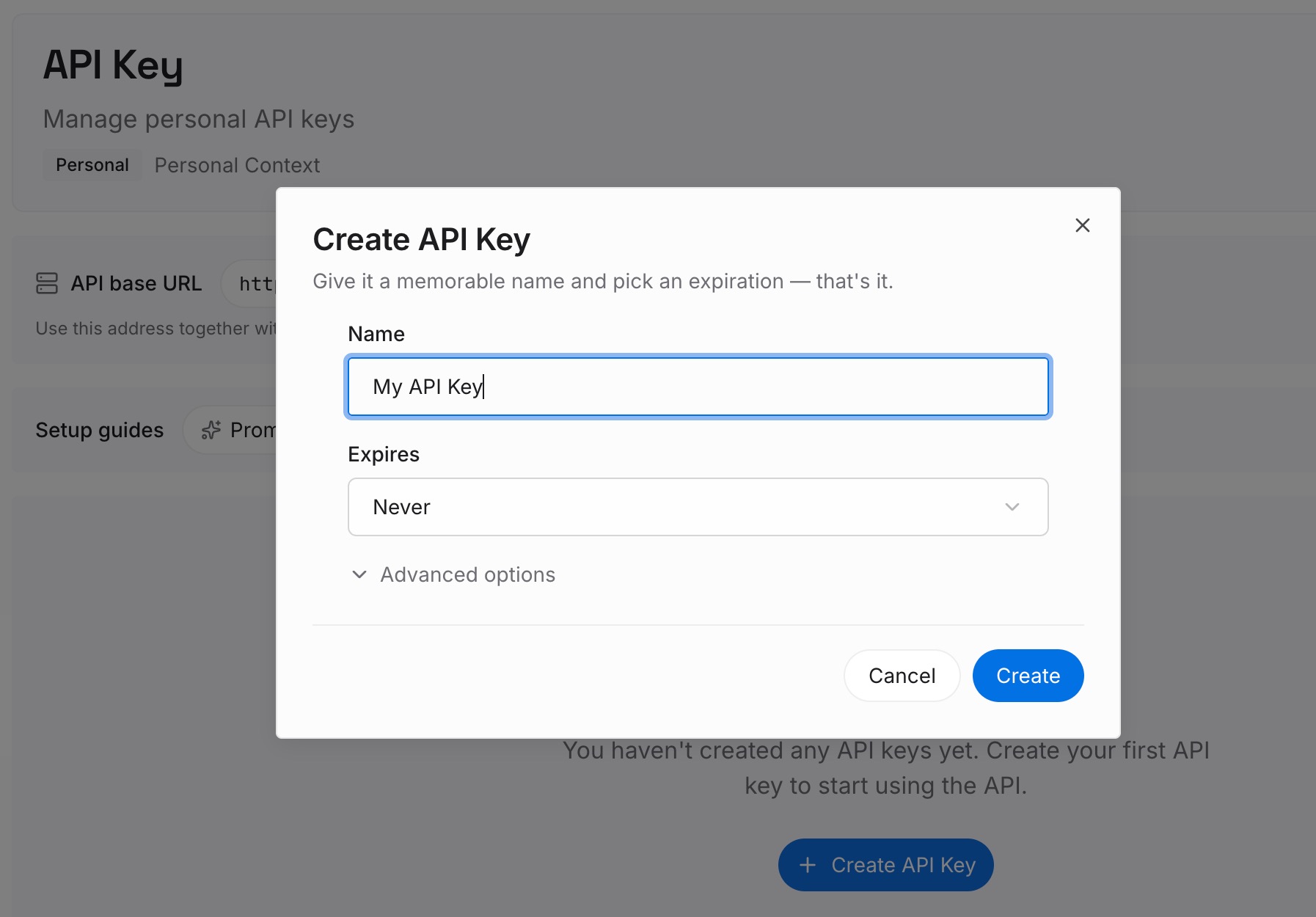
Step 1: Create an API key
Sign in and generate a key from the dashboard. Store it somewhere private, like any other credential.
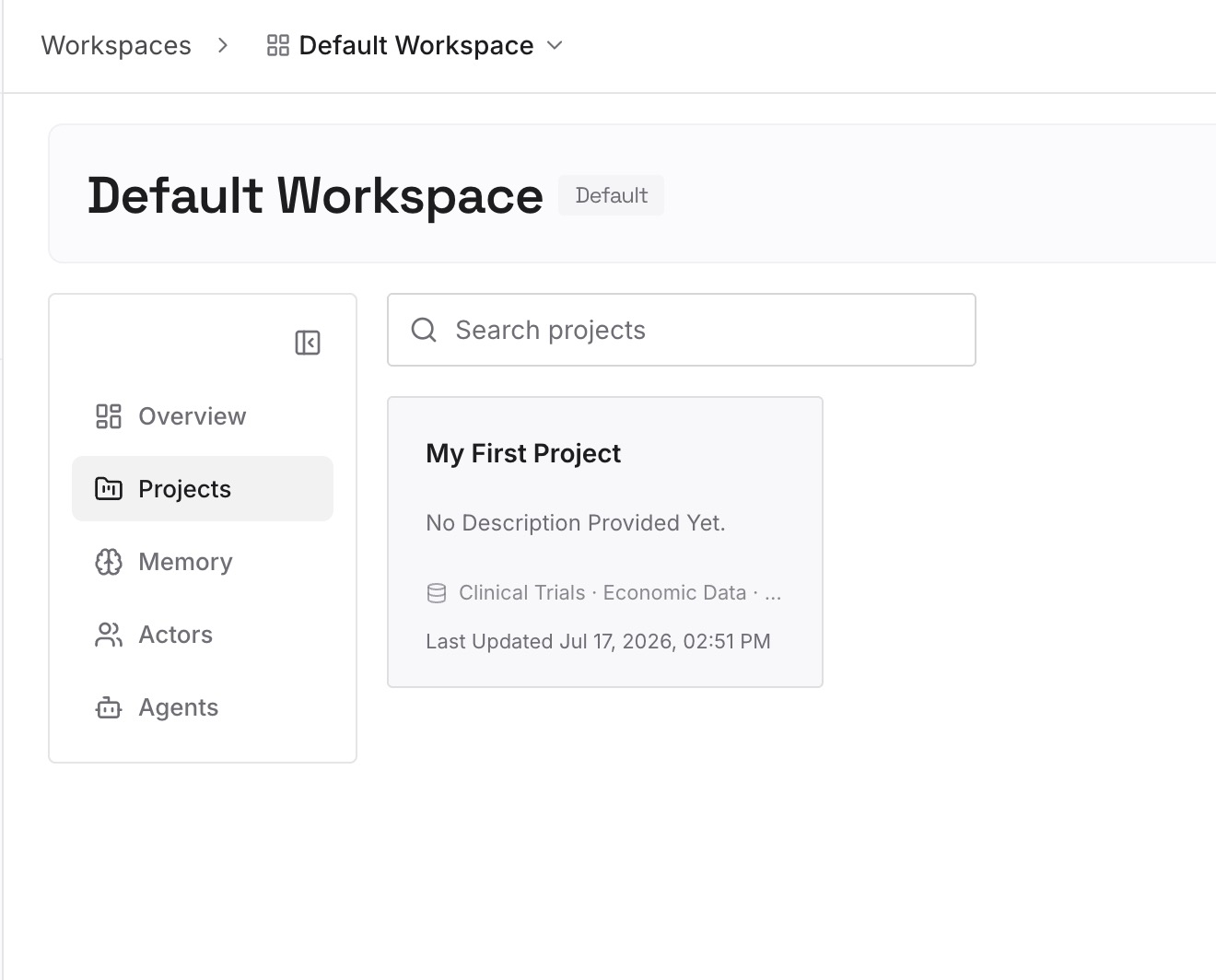
Step 2: Upload your first memories
Start with the decisions from the meetings you chose in Step 1 of the manual migration. One decision per entry, with the meeting date and the owner.
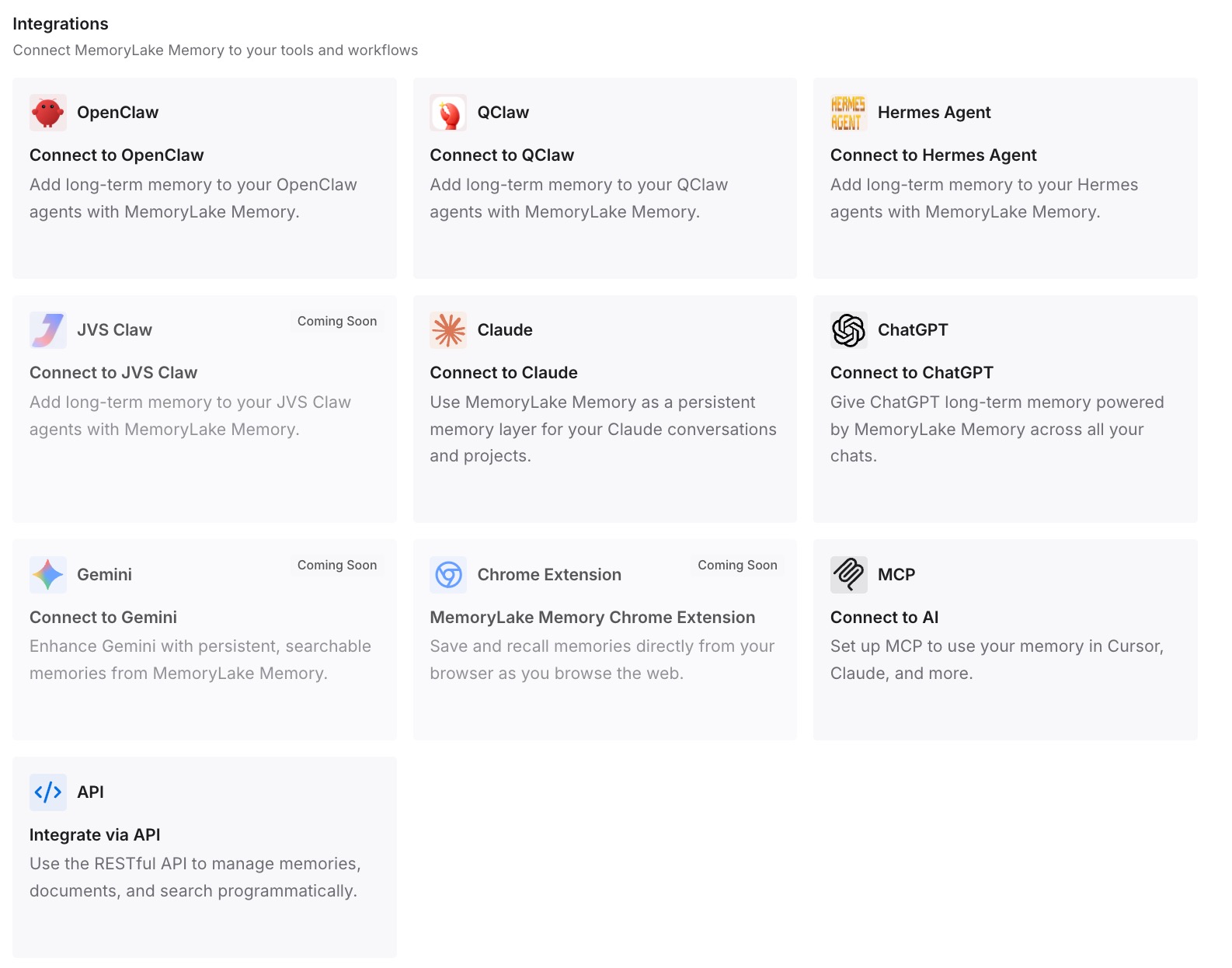
Step 3: Connect your AI & agents
Connect the assistants you use. Each can draw on the same decisions, whichever tool recorded the meeting.
What this changes in practice
The first difference is that decisions are easy to find. You don't search a transcript to learn what was agreed.
The second is that changes are visible. When a later meeting reverses a decision, you update one entry.
The third is that the note-taker can change. Moving from Otter to Claude Meetings, or to another tool, doesn't affect what you've written down.
Best practices for moving meeting notes from Otter to Claude
Upload a focused set. Put the meetings that define a project into that project.
Turn on speaker names. They make transcripts easier to follow.
Copy the Outline and Action Items. They can't be exported as files.
Load everything before bulk export. Select all only covers the loaded page.
Use the connector for the archive. It searches meetings you've authorized.
Ask for consent before Claude Meetings. Everyone on the call should be okay with transcription.
Write the decisions down. They're the part you'll need again.
Conclusion
Moving Otter meeting notes to Claude works best in two parts. Export the meetings that define a project as TXT or DOCX, with the summary and copied Outline and Action Items, and upload them to a Claude project, where they shape every chat. Connect the Otter.ai connector so Claude can search and fetch the rest of your archive, which stays in Otter.
For new calls, Claude Meetings on Team and Enterprise plans takes notes and keeps a transcript and summary on each meeting page. Whichever tool records the meeting, keep the decisions themselves somewhere you maintain.