
What Prism was, and why the move is to Codex
OpenAI's troubleshooting article describes Prism as "a collaborative, AI-native LaTeX workspace built on frontier models—designed to help researchers think, write, and iterate faster." It had a shared real-time editor, hosted compilation, a built-in assistant that worked from your document, inline comments, and a live Zotero connection.
Codex covers the core work. The migration guide says "Codex supports many features available in Prism. It can work across the files in an exported project and help you edit, troubleshoot, and build it, but it does not reproduce Prism’s shared real-time editor."
The practical shift is from a hosted workspace to a local folder. Codex works on files on your computer, and the guide notes that "Most multi-file LaTeX projects also need a local TeX toolchain." Codex access and usage limits depend on your ChatGPT plan and workspace controls.
What a Prism project holds
A typical project has more context in it than its .tex files:
- Source. The LaTeX files, figures, bibliography files, and custom packages.
- The build. Prism compiled the project for you, so the engine and build steps may never have been written down.
- History. Earlier versions of the manuscript.
- Comments. Inline notes from you and your collaborators, sometimes where decisions were argued out.
- Conversations. What you asked Prism's assistant and what it suggested.
- Connections. Collaborators, their permissions, and your Zotero library.
Only the first item moves cleanly. The rest needs a decision before shutdown.
What the export carries
The migration guide's table lays out each capability side by side. These rows matter most for context:
| In Prism | What OpenAI says to expect |
|---|---|
| LaTeX source, figures, and bibliography files | Codex can read and edit the exported files in a local folder |
| Project history and inline comments | They are not part of the project-file export |
| Prism conversations | Some all-project exports include conversation JSON for reference |
| Zotero connection | The live connection and account metadata do not move with the files |
| Collaborators and permissions | They are not recreated in Codex |
| Backups | Codex works on the folder you select; it is not the project backup |
The conversations row deserves a closer look. The guide says "The all-project archive may include a conversations folder for some projects. Keep those JSON files for reference; they do not recreate Prism chats in Codex automatically." Its advice in the table is to "treat them as an archive rather than an imported chat history".
Shared projects have a gap of their own. "For a shared project that you do not own, the project-menu ZIP preserves the project files but does not include your Prism conversation history."
Before Prism shuts down: export everything
OpenAI's steps are short. In Prism, open Settings from the user or workspace menu, go to Data Controls, select Export all projects (zip), then Download zip. You can also export a single project from its project-title menu with Export (zip).
Then unzip the archive. For each important project, the guide suggests opening it, making sure its latest successful PDF preview is loaded, and selecting Download PDF in the PDF viewer. Keep that PDF. It's your reference for checking the Codex build later.
If an export fails, the guide says to "Check export-errors.json and retry using the project menu’s Export (zip) action." If a project is still missing, it points you to OpenAI support.
Two more things to save while you still can, because the export doesn't include them:
- Inline comments that hold decisions. The table's advice for history and comments is "Copy important context and save milestone versions before shutdown".
- Your bibliography. For Zotero, it says "Refresh or export the .bib file and manage Zotero separately".
Move one project into Codex
The guide walks through one project at a time.
- Extract the project into its own folder and keep the directory structure.
- Open the ChatGPT desktop app, sign in, and select Codex.
- Choose Add new project, or press Cmd+O on macOS, and select the project's root folder.
- Start the chat as Local / This computer, so Codex works with the files on your machine. The guide says to keep Ask for approval on while you're getting started.
Then ask Codex to look before it touches anything. OpenAI provides the prompt, which begins: "Inspect this LaTeX project without changing it."
The rest of the prompt asks Codex to identify the root document, the TeX engine, the existing build command, the bibliography workflow, figures, custom packages, and missing prerequisites, and to report back in plain language.
After the audit, compile with the project's existing build workflow. OpenAI's guidance is to ask Codex to explain the first actionable error and propose the smallest fix, to ask before installing software or changing files, and to avoid rewriting the manuscript to hide a build error.
One limit trips people up. "Codex can preview local files, but its built-in LaTeX compiler is for standalone .tex files, not a complete multi-file Prism project." A multi-file project needs the local toolchain or the project's documented container.
Finally, compare. Open the new PDF beside the one you saved from Prism and check the title and authors, section order, figures, tables, equation numbering, citations, bibliography, and page count. The guide asks Codex to report every difference before you edit any source file.
Where Prism's context goes in Codex
In Prism, the assistant worked from the document in front of it. Codex also reads the files in your project, but some context lives outside the manuscript itself, like how to build it, the conventions you follow, and decisions you made along the way. Codex has a place for each of these.
The build goes in a README
OpenAI's guide includes a useful first prompt: "Create a short README that explains how to compile this project, including the main file, TeX engine, bibliography tool, required packages, and validation steps. Show me the draft before saving it."
That README replaces what Prism's hosted compiler knew silently. Any future chat, and any collaborator, can read it.
Conventions go in AGENTS.md
Codex has a file it reads before it starts. OpenAI's instructions guide says "Codex reads AGENTS.md files before doing any work." A project-level AGENTS.md is the place for rules every chat should follow, such as notation choices, citation style, the journal template, or sections that must not change.
The projects guide gives the same advice for local work: "Keep durable project guidance in AGENTS.md or checked-in documentation so it is available to future chats." If Codex seems to ignore a rule you added, our guide to Codex skipping AGENTS.md rules covers the size limit and the order files load in.
Decisions go in a notes file
Inline comments can hold the reasoning behind a choice: why you cut a section, why a figure uses one scale, what a reviewer asked for. The export doesn't carry them, so copy the ones that matter into a short notes file in the project and link it from AGENTS.md.
Old conversations stay as an archive
Keep the conversation JSON files in a folder of their own. They're a record of what you asked Prism and what it answered, not a chat Codex will continue. If something in them still matters, move the conclusion into the notes file. Regular ChatGPT chats are a different case, and our guide to migrating ChatGPT chats to Codex covers how those reach Codex.
Memories are optional and local
Codex has local memories, but OpenAI says "Local Codex memories are off by default." Even when they're on, OpenAI advises: "Treat memories as a helpful recall layer, not as the only source for rules that must always apply." Our guide to Codex memories v2 explains where they're stored.
Collaboration and backups after the move
Prism gave everyone a shared, live copy. A local Codex folder doesn't. The guide says collaborators should agree how files will be exchanged and avoid editing the same copy at the same time unless their chosen tool safely supports it.
For backups, OpenAI is direct: "Codex edits the files in the folder you select. Before the first editing task, keep an untouched export and create a working copy." A simple approach is dated milestone copies or an approved institutional backup. The guide adds that "For teams comfortable with version control, Git can provide a more precise history, but it is optional."
If your TeX setup already lives on a remote machine, Codex can work there too. Our guide to Codex handoff explains how chats move between your computer and a connected remote host.
What people try first
Waiting for an automatic transfer. The guide describes an export and a manual move. After shutdown, the data is deleted.
Expecting Prism chats to appear in Codex. The conversation JSON files are for reference and don't recreate chats.
Relying on Codex's built-in compiler. It handles standalone .tex files, not complete multi-file projects.
Editing before the build matches. OpenAI says to resume editing only after the project builds and the output matches what you expect.
Treating the Codex folder as the backup. The guide says Codex works on the folder you select and is not the project backup.
Forgetting the comments. History and inline comments aren't in the export.
The manual migration
Step 1: Export, then save what the export misses
Export all projects, download the last good PDF for each important one, and refresh your .bib file. Then go through the inline comments and history of each project and copy the decisions you'll need into a notes file.
Step 2: Set up and verify each project in Codex
Add the folder as a project, start a Local chat with Ask for approval, run OpenAI's audit prompt, and compile with the existing build. Compare the result with the saved PDF before you change any source.
Step 3: Write the context into files
Ask Codex for the README with OpenAI's prompt, add an AGENTS.md with your conventions, and link the notes file. Put the conversation JSON in an archive folder. Once you're working in Codex, our guide to exporting a Codex chat shows how to keep a copy of what each session figured out. If you reuse prompts across projects, our guide to turning Codex custom prompts into skills shows how to save them.
The Better Way: Keep your research decisions in one list you control
The manual migration keeps each project's context inside that project's folder, which works well for builds and conventions. The decisions that cut across projects are harder: how you handle a recurring reviewer request, which notation you settled on for a series of papers, or what a co-author prefers. Those end up copied into several notes files, or in none.
MemoryLake is a memory layer for keeping that list in one place you maintain, available to the assistants you connect, such as ChatGPT, Claude Code, and Codex.
You write the entries yourself, in your own words. Nothing is read out of, written to, or deleted from your Prism projects, your Prism export, your Codex chats, your Codex memories, your AGENTS.md files, or any vendor's store. The export and the move to Codex work the way OpenAI describes them.
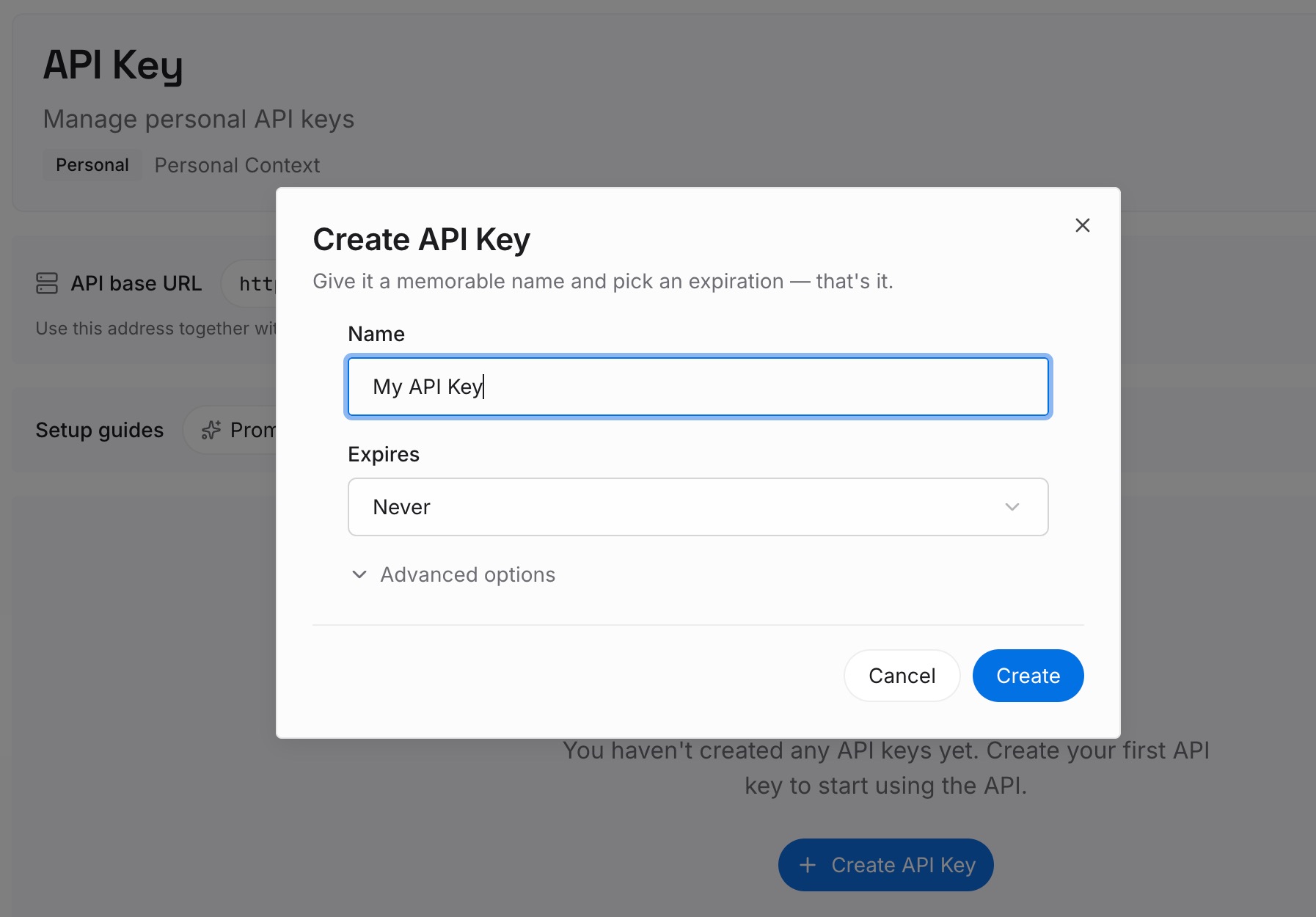
Step 1: Create an API key
Sign in and generate a key from the dashboard. The key belongs to your MemoryLake workspace and is separate from your OpenAI account.
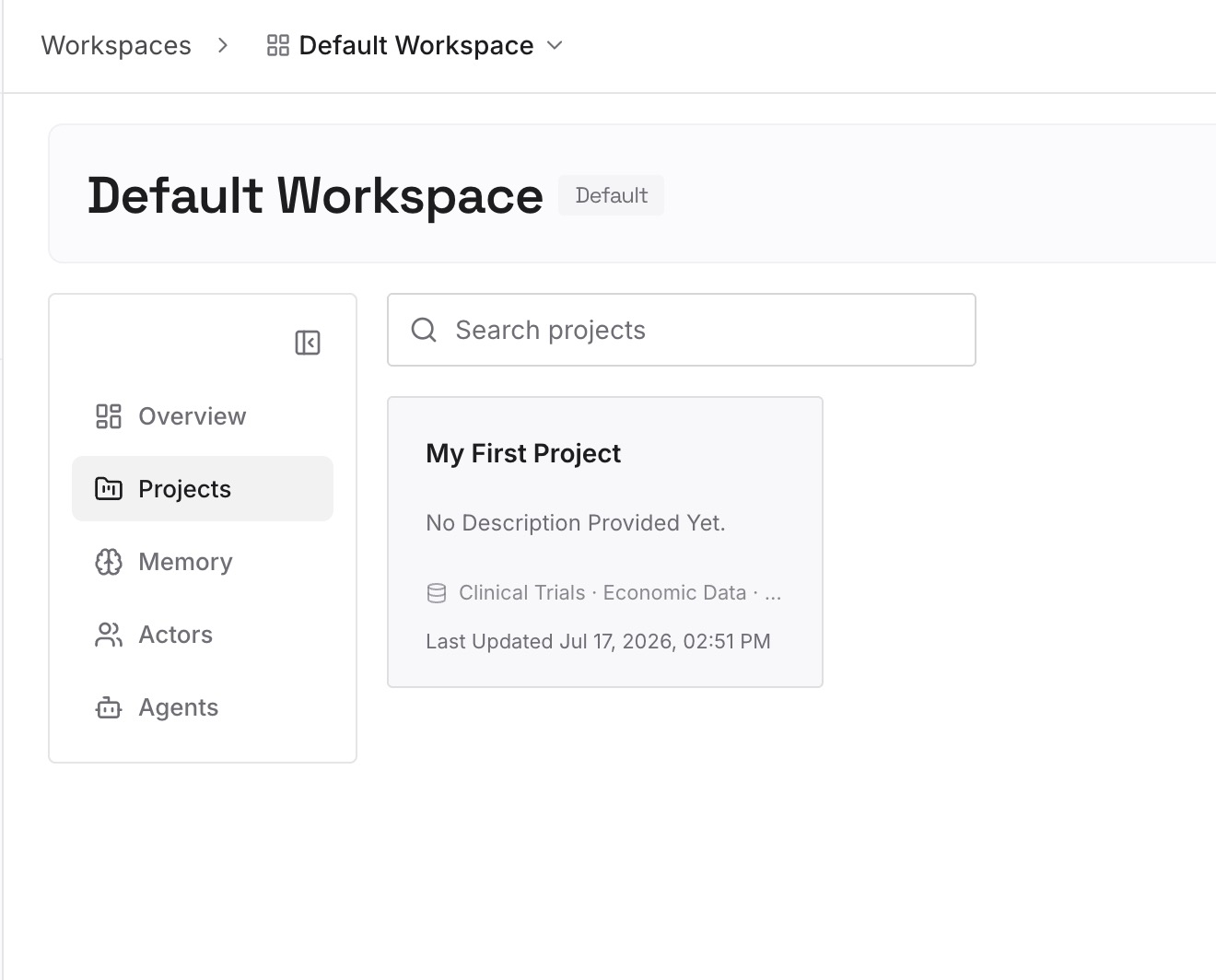
Step 2: Upload your first memories
Start with the decisions you copied out of Prism's comments in Step 1 of the manual migration. One decision per entry, with the paper or project it came from and the date.
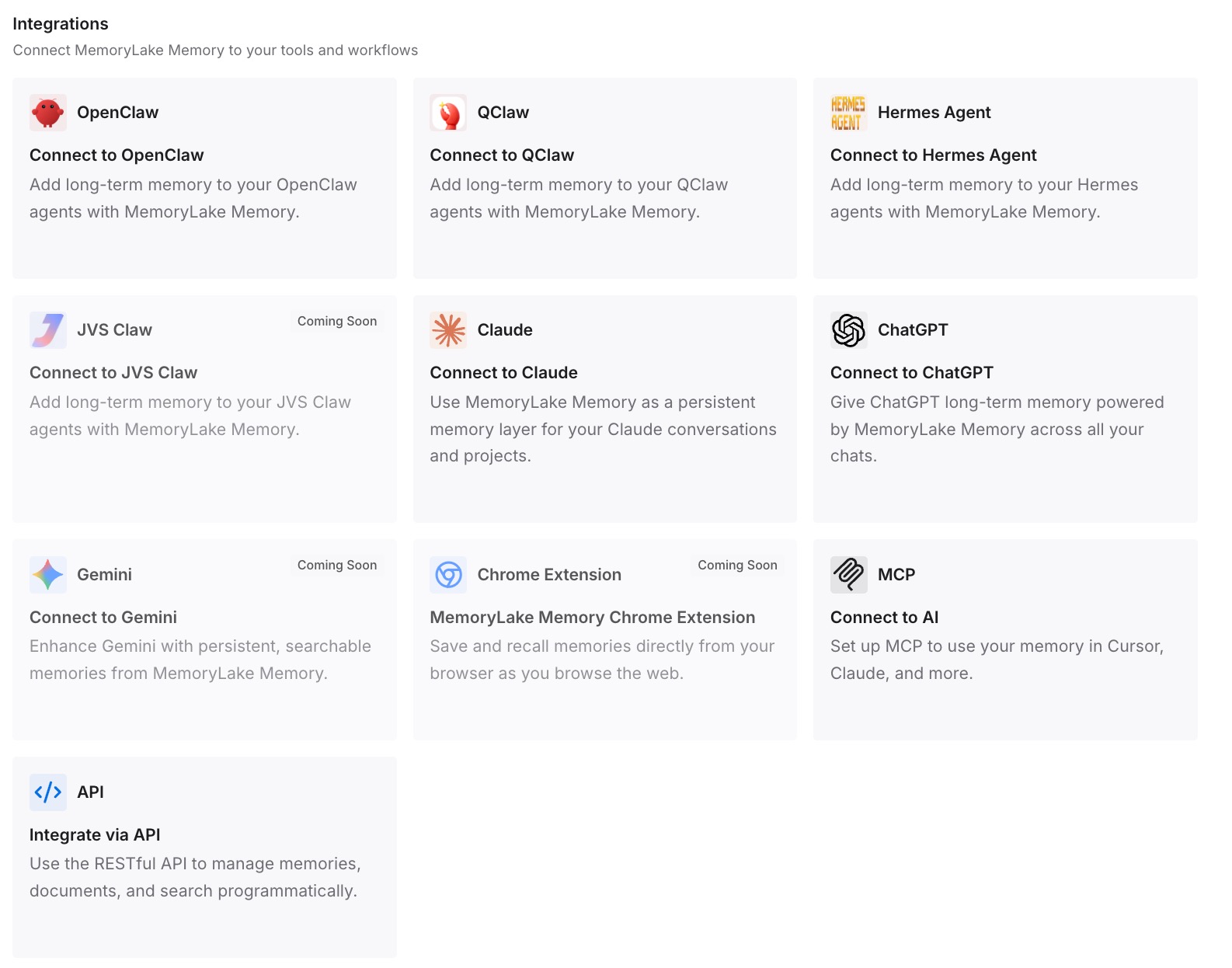
Step 3: Connect your AI & agents
Connect Codex and any other assistants you use for writing or analysis. The same entries are available whether you're compiling in Codex or drafting somewhere else.
What this changes in practice
The first difference is that a new project starts with your conventions. You don't have to remember which notes file had the notation decision.
The second is that decisions survive the next migration. Prism's comments didn't travel with the export. A list you keep yourself doesn't depend on any one workspace.
The third is less repetition in prompts. When Codex has AGENTS.md for the project and your decisions are a lookup away, the first message of a chat can be about the task.
Best practices for moving from Prism to Codex
Export before the deadline, not near it. After shutdown, OpenAI says the data cannot be recovered.
Save the last good PDF of every important project. It's your reference for the new build.
Copy decisions out of comments. History and inline comments aren't in the export.
Keep an untouched export. Work on a copy, as OpenAI recommends.
Audit before editing. Use OpenAI's inspect-only prompt first.
Write the build down. A README replaces what Prism's compiler handled for you.
Keep rules in AGENTS.md. Codex reads it before doing any work.
Archive conversation JSON. Treat it as a record, not a chat to continue.
Conclusion
Prism's retirement deletes all Prism-related data after shutdown, so the first step is an export and a backup. The export carries your LaTeX source, figures, and bibliography files, and for some projects a folder of conversation JSON for reference. It doesn't carry project history, inline comments, collaborator permissions, or the live Zotero connection.
Codex can work across the exported files and help you edit, troubleshoot, and build them, as long as the project has a local toolchain. What Prism held implicitly, from the build to the reasoning in its comments, now needs to be written into files Codex reads: a README, an AGENTS.md, and a notes file.