
How to move a Claude chat into a project
Anthropic's projects article describes the steps:
- Open the chat you want to move.
- Click the dropdown arrow next to the chat name and select Add to project.
- In the Move chat window, browse or search for the project, then click it.
The same dropdown menu lets you remove a chat from a project or move it to a different one. Anthropic says "You can also remove chats from projects, or move them between projects, using the same dropdown menu within the chat".
You need a project to move it to. Projects are available on every plan, and Anthropic notes "Free users can create a maximum of five projects."
What changes when the chat is in a project
It follows the project's instructions and knowledge
A project has two kinds of shared context. Project knowledge is the files you upload: "Anything you upload to this space will be used across all of your chats within that project." Project instructions set how Claude behaves: "Claude will use these instructions for all the chats within the project."
Once a chat is in the project, those apply to it. That's the point of moving it. Your next message in that chat can draw on the project's reference files and follow its instructions.
The move works in that direction. The help article describes adding chats to a project, not adding a chat's content to the project's knowledge. If the chat produced something you want every chat in the project to use, such as a summary, a style guide, or a decision list, add it to project knowledge yourself.
It uses the project's memory
Each project has its own memory. Anthropic's memory article says "While working in a project, Claude uses the project's memory alongside your memory from chats outside of projects, but not memory from other projects. New memory is saved to the project, and if you have memory turned on, Claude can reference it in chats outside of projects too."
So after the move, what Claude learns in that chat goes to the project's memory. If you want the project kept fully separate from your other chats, open the project's page and turn off Use account memory under Memory.
One thing the documentation doesn't describe is what happens to memory already saved from the chat before the move, so don't assume it moves into the project's memory. And a chat's memory setting is fixed when it starts: "Your memory setting is set when the task starts and can't be changed later." The documentation doesn't describe moving a chat as an exception.
The projects article also includes this note: "Context is not shared across chats within a project unless the information is added into the project knowledge base." The same article describes project memory as well. Read together, project knowledge is the reliable way to give every chat in the project the same information, and project memory adds what Claude picks up along the way. Our guide to Claude projects rebuilt around shared memory covers how Anthropic is changing that.
It moves to a different search pool
This change is easy to miss until later. Claude's chat search covers two kinds of boundaries, according to Anthropic:
- "All chats outside of projects."
- "Individual project conversations (searches are limited to within each specific project)."
Before the move, the chat was in the first pool, and Claude could find it from any chat outside a project. After the move, it's in the project's pool, and a search finds it only from chats in that project. If you later ask about it from a standalone chat, Claude searches the standalone pool. Our guide to which past chats a search reaches inside a project covers those boundaries in detail.
The same applies to Claude Duet, Anthropic's proactive agent in research preview. Its help article says "It searches your Claude Duet chats and your chats in Claude outside of projects." A chat you move into a project leaves Duet's search. Our guide to Claude Duet covers what else it reads.
Sharing the project doesn't share the chat
On Team and Enterprise plans, you can share a project with people in your organization. That doesn't include your chats in it. Anthropic's project visibility article says "Even if a project is public, your chats within that project will be private and inaccessible to other members of your organization unless you manually share them."
When you add someone to a project, "This will share the project and knowledge base with the member, but your chats will remain private unless you choose to share them." If the point of moving the chat was so a colleague could see it, share the chat itself. Our guide to sharing a Claude chat covers what a shared chat includes and leaves out.
It goes where the project goes
Once the chat is in a project, it follows the project's life. If you archive the project when the work is done, the chat stays reachable: Anthropic says "You can still access conversations from archived projects." Archiving also leaves sharing as it was. "Archiving a project doesn't reset its sharing permissions or remove members."
Projects also work in Cowork tasks. Anthropic's Cowork projects article says "Projects work the same way in Cowork and in Claude." So the project you move a chat into can also hold the Cowork tasks you run for the same work.
On Enterprise plans, it changes retention
Enterprise organizations can set custom retention periods, and chats and projects can have different ones. Anthropic's retention article covers the move directly: "Moving a chat into a project places it under the project's retention period; moving a chat out of a project makes it standalone again, and it becomes eligible for deletion under the chat retention period based on its last activity."
It also explains which one wins: "Project retention always takes precedence over chat retention for chats inside a project." By default, "projects are retained indefinitely, so chats inside projects are not deleted by your chat retention period."
So in an Enterprise organization with custom retention, moving a chat into a project can keep it longer, and moving it out can put it on a shorter clock. If you're tidying up an old chat by taking it out of a project, check your organization's retention period first.
What people try first
Copying the chat into a new project chat. That creates a second conversation. Moving keeps the original, with its history.
Expecting the project to learn the chat's content. Project knowledge is what you upload. Add the chat's useful output to it if every project chat should use it.
Searching for the chat from a standalone chat after the move. Searches are limited to within each project, so ask from inside the project.
Sharing the project so a colleague can read the chat. Project sharing doesn't include your chats. Share the chat separately.
Moving chats out of a project to clean up. In Enterprise organizations with custom retention, that can make a chat eligible for deletion sooner.
The Fix: Move the chat, add what it produced to the project, then keep the conclusions where any chat can reach them
Step 1: Move the chat and check where it landed
Use the dropdown next to the chat name, choose Add to project, and pick the project. Open the project and confirm the chat is listed there. If you work across several projects, check that it's in the right one, because chat search will now only find it from inside that project.
Step 2: Add the chat's output to project knowledge
Moving the chat gives it the project's context. The help article doesn't describe it adding the chat to the project's knowledge. Ask Claude in the moved chat for a short summary of the decisions, definitions, and current state, then add that summary to the project knowledge. Every chat in the project can use it from then on, and it doesn't depend on memory or search.
If the project is getting large, our guide to working with a Claude project in RAG mode covers how Claude reads big knowledge bases.
Step 3: Keep the conclusions where other chats can reach them
A chat in a project is reachable from that project. The conclusions in it may matter elsewhere: in standalone chats, in another project, or in another assistant. Keep a short record of the conclusions outside the project too, so you aren't relying on which search pool a chat ended up in.
Setting this up in MemoryLake
Moving a chat into a project is a choice about scope. The chat gets the project's instructions, knowledge, and memory, and in return it leaves the search pool your other chats use. The decisions in it are now easiest to reach from one project.
MemoryLake is a memory layer for keeping those decisions in one list you maintain, available to ChatGPT and the other assistants you connect, such as Claude Code and Codex.
You write the entries yourself, in your own words. Nothing is read out of, written to, or deleted from your Claude chats, your projects, your project knowledge, your Claude memory, or any vendor's store. For work projects, follow your organization's policy on what you keep outside them.
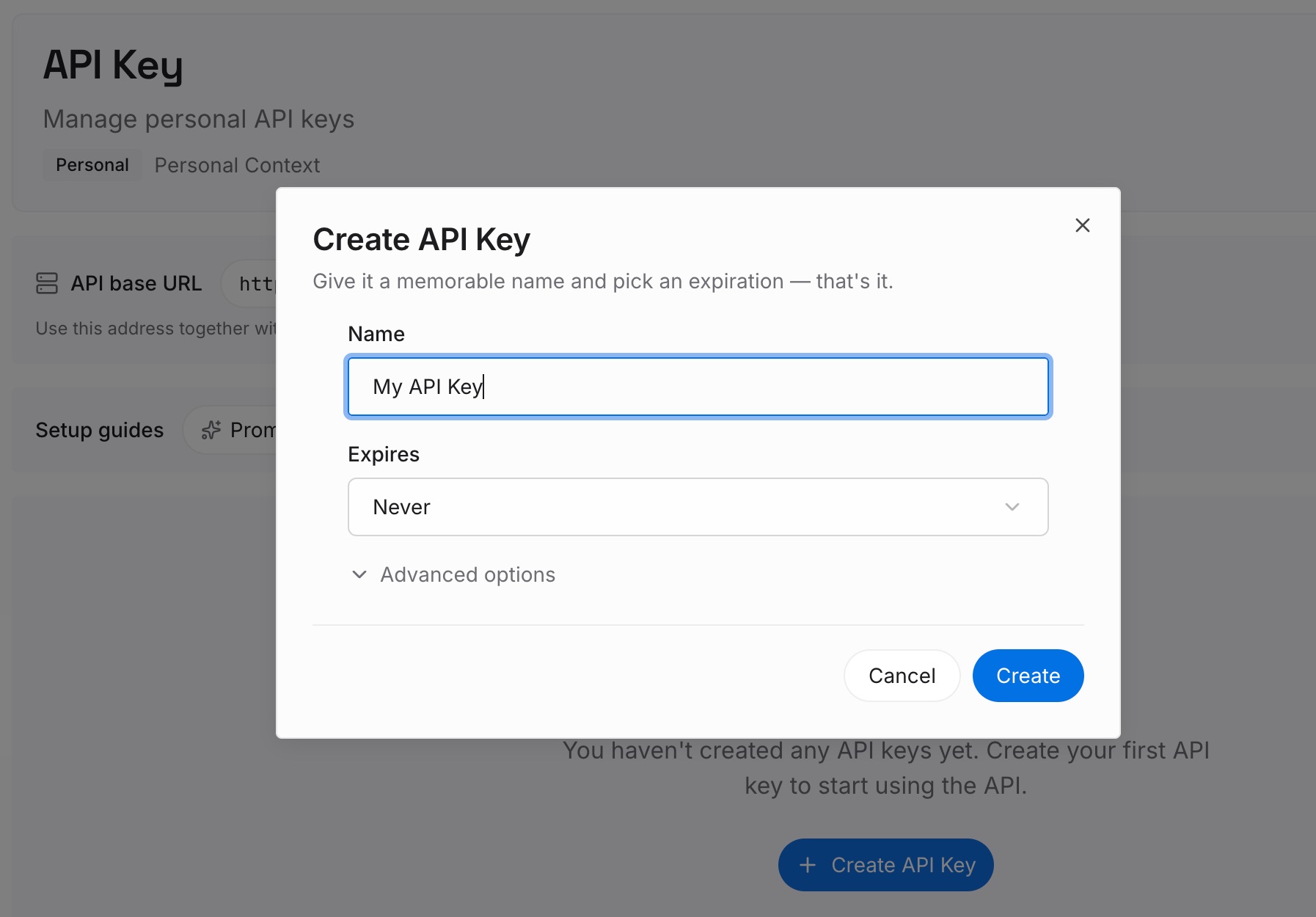
Step 1: Create an API key
Sign in and generate a key from the dashboard. The key belongs to your MemoryLake workspace and is separate from your Claude account.
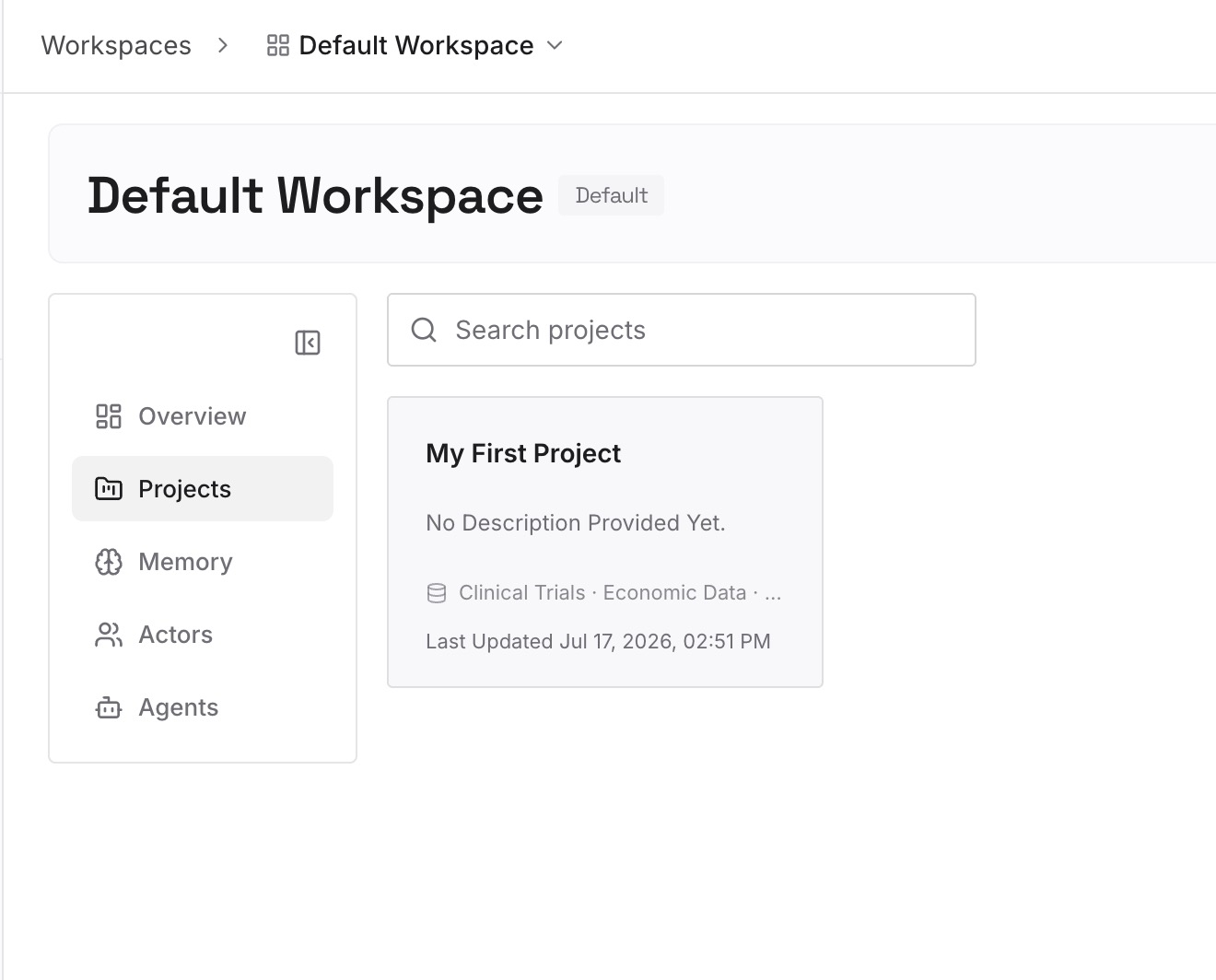
Step 2: Upload your first memories
Start with the summary from Step 2 of the fix: the decisions, definitions, and current state the moved chat settled. One point per entry, dated, and labeled with the project it came from.
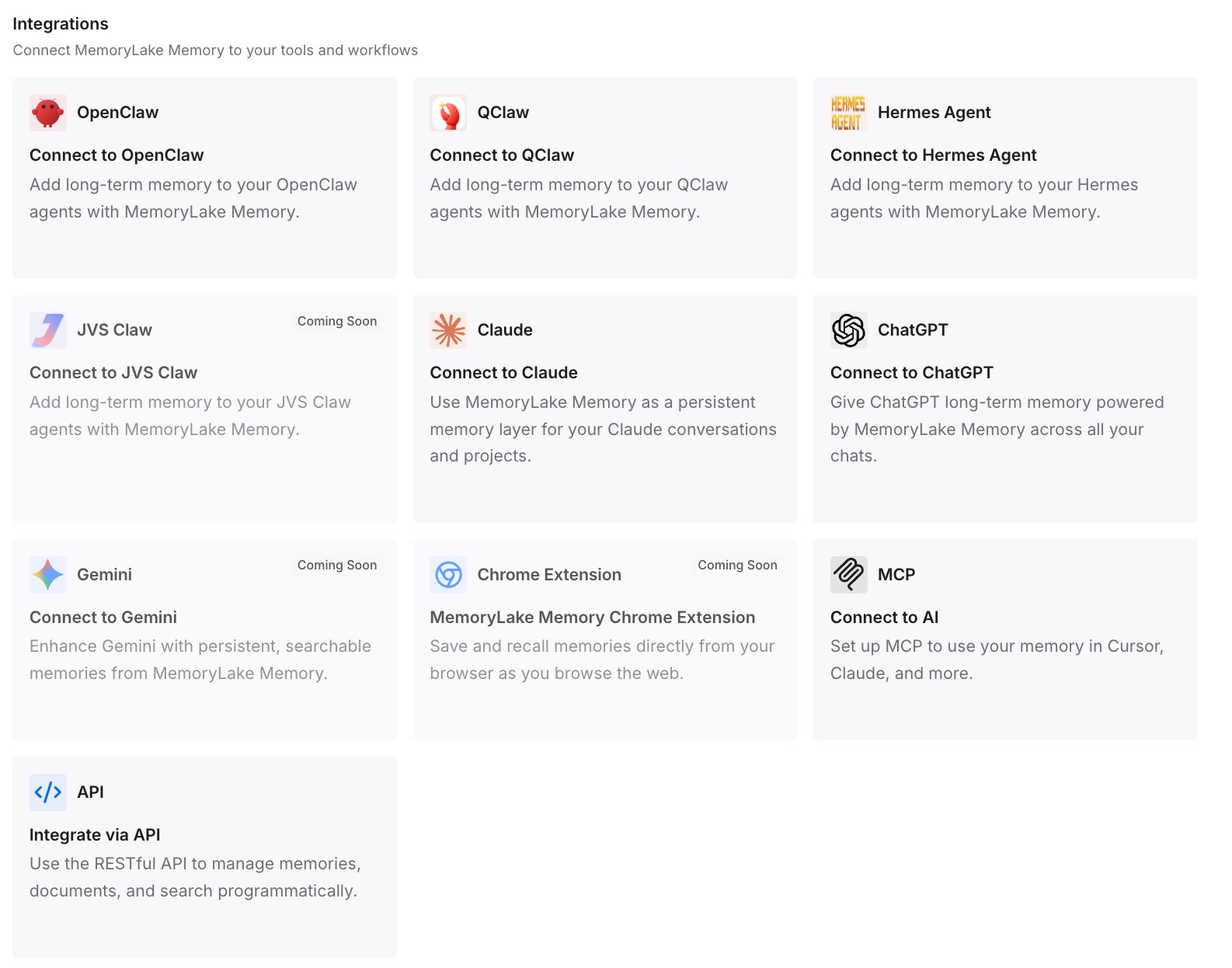
Step 3: Connect your AI & agents
Connect ChatGPT and the other assistants you use. The conclusions are available wherever you're working, inside the project or out of it.
What this changes in practice
The first difference is that the chat is where it belongs. It follows the project's instructions and can use the project's files and memory.
The second is that you know where to find it. Chat search reaches it from inside the project, so you ask there.
The third is that the useful part doesn't depend on the move. The summary is in project knowledge for every chat in the project, and the conclusions are written down for everywhere else.
Best practices for moving Claude chats into projects
Move chats early. The sooner a chat is in the project, the sooner it follows the project's instructions and saves memory there.
Add the chat's output to project knowledge. The move doesn't do that for you.
Search from inside the project. Project chats are searchable only within their own project.
Decide whether the project should use account memory. Turn off Use account memory to keep it fully separate.
Share chats, not just projects. Project sharing keeps your chats private.
Check retention before moving chats out. In Enterprise organizations, standalone chats follow the chat retention period.
Keep the conclusions somewhere every chat can reach. Write them down outside the project as well.
Conclusion
Moving a Claude chat into a project takes a few clicks: the dropdown next to the chat name, Add to project, and the project you want. After the move, the chat follows the project's instructions and knowledge and uses its memory. It becomes searchable only from inside that project, it stays private when the project is shared, and on Enterprise plans with custom retention it follows the project's retention period.
Move the chat, add what it produced to the project knowledge, and keep its conclusions somewhere you can reach from any chat.