
The short answer
No AI assistant natively shares memory with a competitor's product. To get a single memory that works across ChatGPT, Claude, and Gemini, connect all three to one MemoryLake Project over MCP — you load your context once, and every tool reads the same store on demand.
Why each AI's built-in memory falls short
Every major assistant now offers some form of memory, but each one is deliberately siloed. ChatGPT Memory stores facts about you, but those facts are invisible inside Claude or Gemini. Google Gemini tracks context across Google Workspace, but that context stays inside the Google ecosystem. Claude's Chat Memory summarizes your past conversations, but the summaries don't transfer to any other tool.
The deeper problem is structural. These tools are competitors, and none of them has any incentive to share your profile with a rival platform. Even if you carefully build up rich context in one app, switching tools means starting from zero. You're not dealing with a technical gap — you're dealing with a business boundary.
What you actually need is a neutral memory layer that sits outside all three products and speaks a protocol each one can connect to. MCP (Model Context Protocol) is that protocol. With one MemoryLake Project exposed over MCP, ChatGPT, Claude, and Gemini each read the same context independently, and you update it in one place.
Before you start
You'll need:
- A free MemoryLake account
- At least one MCP-compatible client (Claude Desktop, a ChatGPT MCP connector, or a Gemini-capable MCP tool)
- The context you want to share — role, preferences, standing rules, or reference files (PDF, Word, Excel, PowerPoint, Markdown, or images)
How to set up one shared memory across all three AIs (step by step)
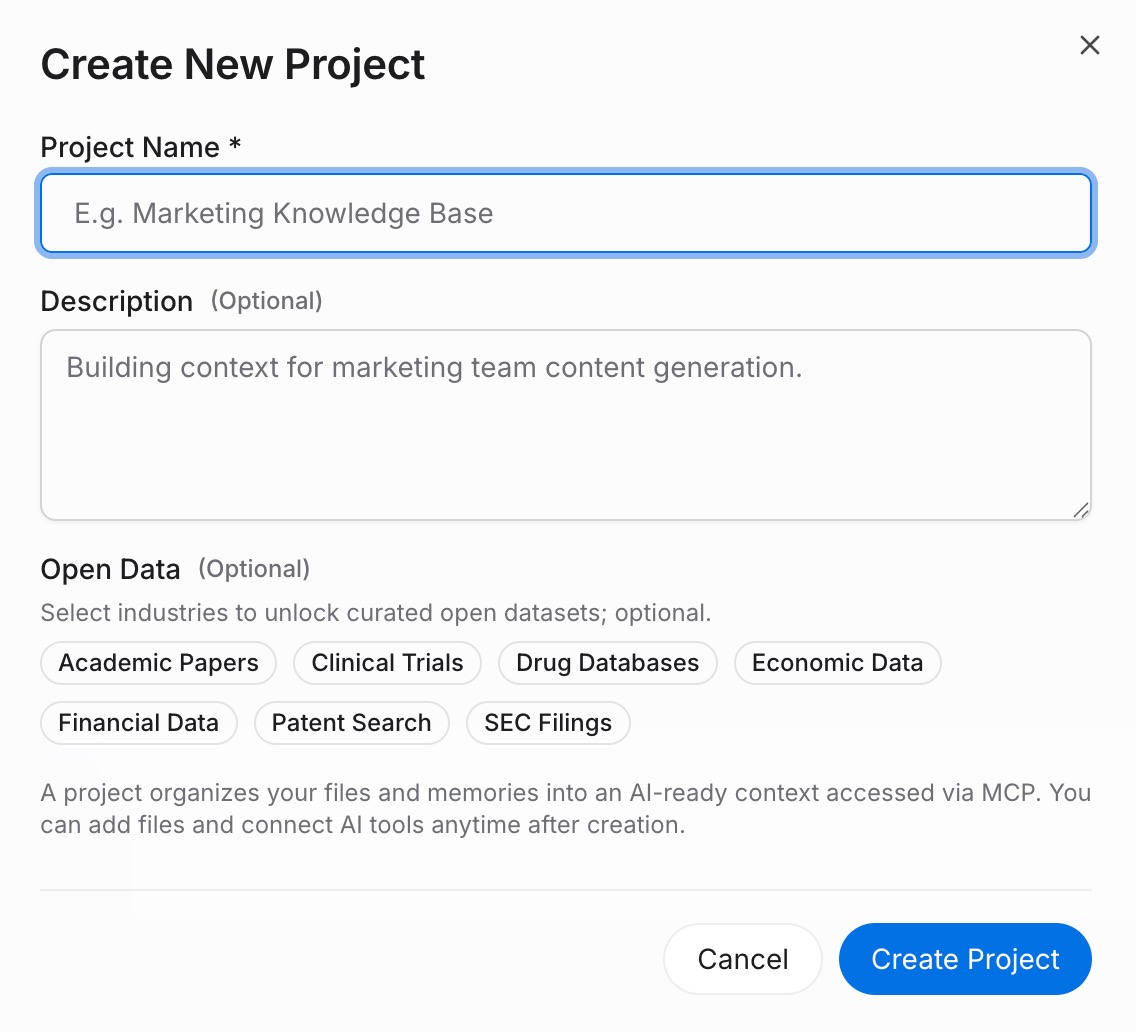
Step 1: Build a memory Project
Sign in to MemoryLake and open Project Management. Click Create Project and give it a clear name, such as "Shared AI memory — all tools." Inside the Project, open the Document Drive, click Upload, and add any reference files you want all tools to access. Then go to Documents Tab → Add Documents → Confirm to attach them to the Project. For standing rules or preferences, open the Memories Tab → Add Memory, type each rule, and click Save. This single Project becomes the source of truth every tool will read.
Step 2: Generate an MCP Server endpoint
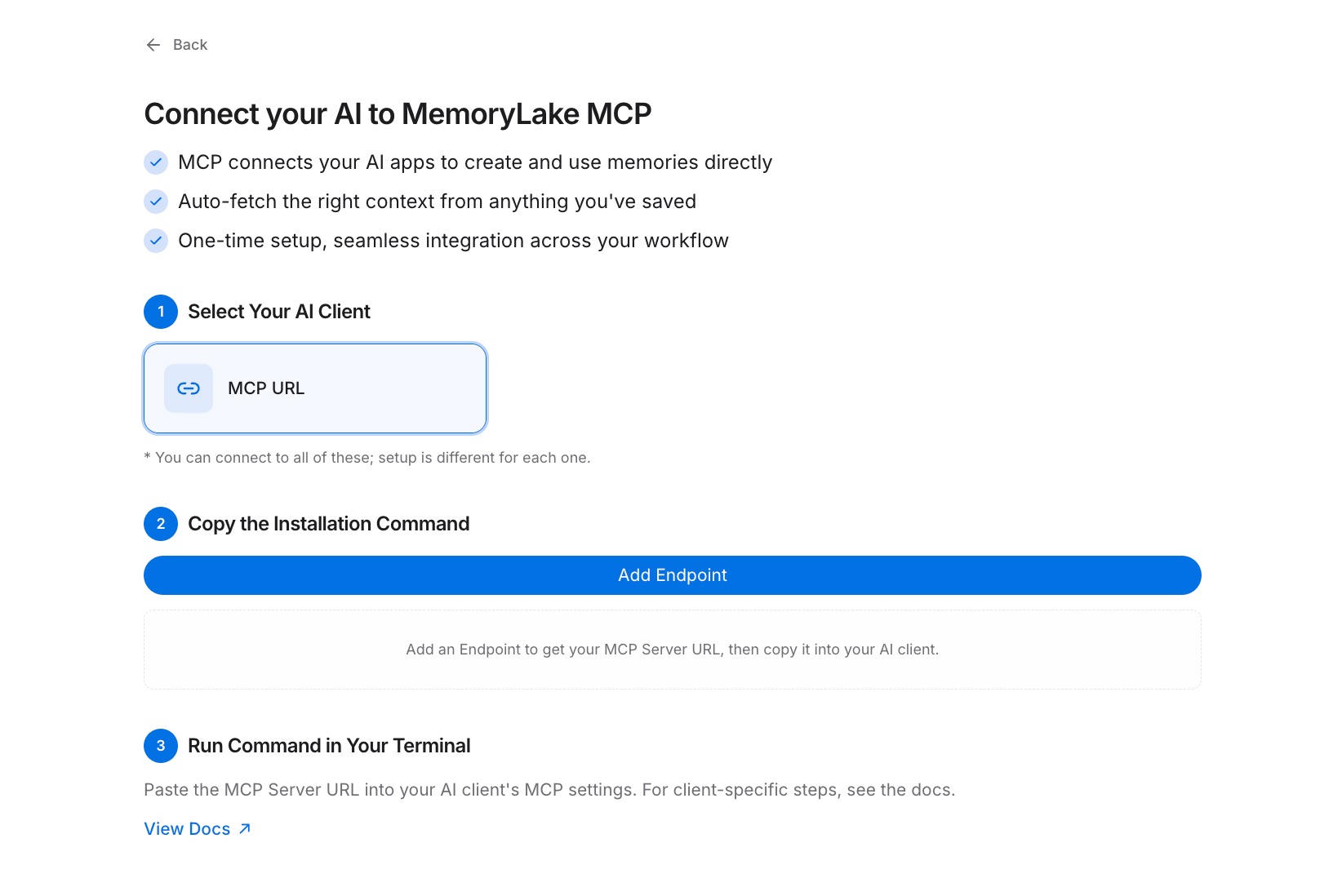
Open the MCP Servers Tab → Add MCP Server, enter a label such as "Cross-AI memory endpoint", then click Generate. MemoryLake creates a Key ID, a Secret, and an Endpoint URL. Copy the Secret immediately — it is displayed only once. Store it in a password manager before leaving the screen.
Step 3: Connect each AI tool over MCP
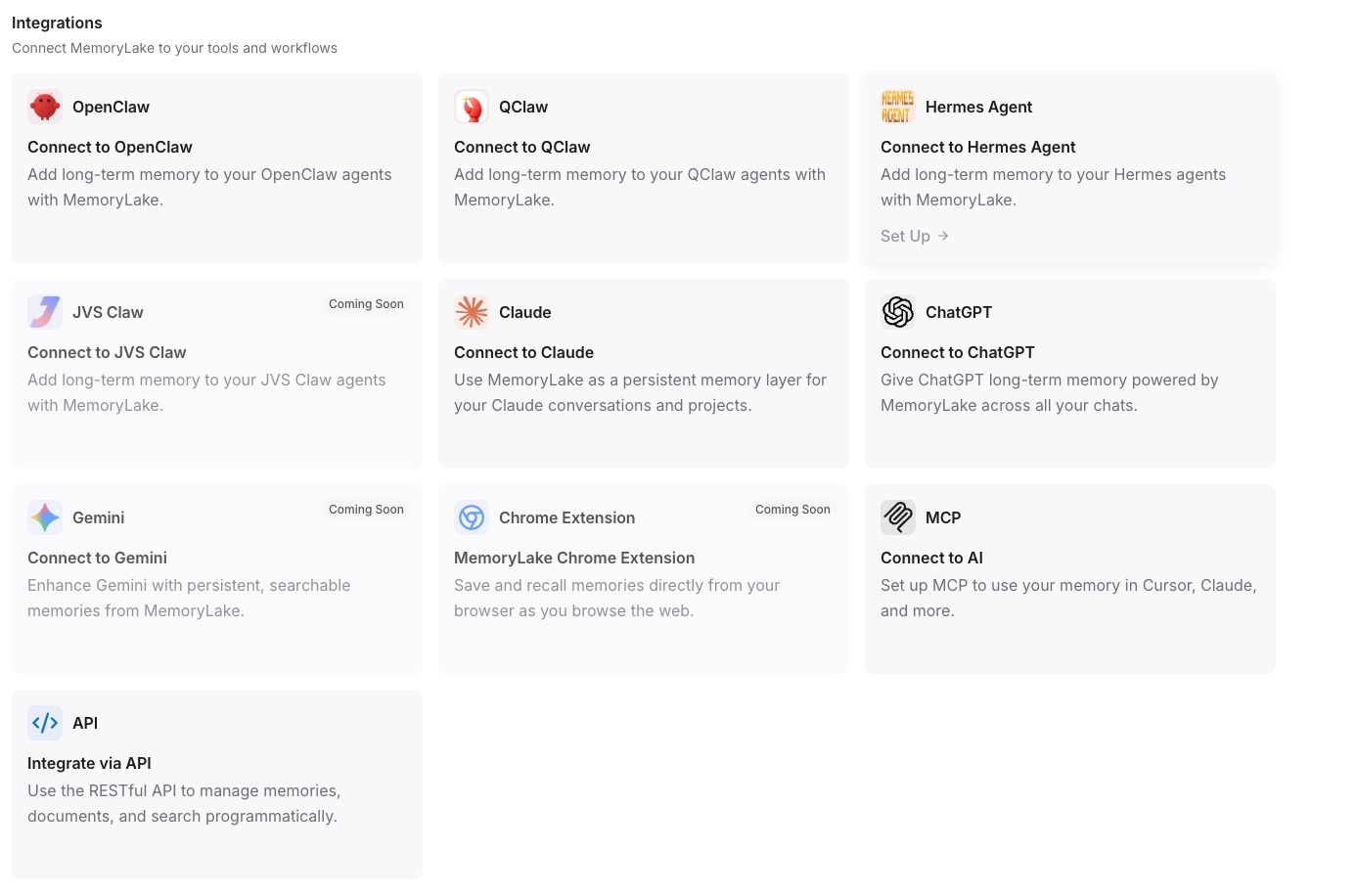
For each MCP-compatible client (Claude Desktop, a ChatGPT MCP plugin, or a Gemini-connected MCP tool), add a new MCP server entry: paste the Endpoint URL as the server address and authenticate using the Secret as a Bearer token, then reload or restart the client. Once connected, the tool can query your Project context on demand. See the MCP setup guide for the exact configuration reference and client-specific fields. Repeat this step for each tool — they all point to the same Endpoint URL, so they all read from the same Project. [Try MemoryLake free]
Per-tool built-in memory vs MemoryLake
| Dimension | ChatGPT / Claude / Gemini built-in | MemoryLake |
|---|---|---|
| Persists across sessions | Yes, within that tool only | Yes, across all connected tools |
| Works across other AIs | No — each silo is separate | Yes (any MCP-compatible client) |
| Capacity | Platform-capped summaries | Full files and explicit rules |
| Version control | No | Yes (Git-style history) |
| Data ownership | Platform-held | You own it (AES-256, export or delete) |
| Benchmark | — | LoCoMo #1 — 94.03% |
Tips & best practices
- Write standing rules as individual Memory entries rather than uploading a single long document — discrete entries give each AI a precise fact to retrieve rather than a wall of text to scan.
- Keep one Project for shared personal context and create separate Projects for distinct domains (a client engagement, a long-running research topic) so each AI only retrieves what's relevant to the current task.
- Update your Project in MemoryLake whenever a preference changes; all connected tools pick up the update immediately without any reconfiguration.
- Re-generate the MCP key if you ever rotate credentials or suspect a leak — the old Bearer token stops working at once and your new key takes effect immediately.
Troubleshooting
- Tool shows "server not found" or can't connect: confirm the Endpoint URL is pasted exactly — no trailing slash, no extra spaces — and that the MCP entry is saved before restarting the client.
- Authentication fails with a 401 error: verify the Secret is set as a Bearer token (not a query parameter or basic auth header) and that you copied it before leaving the generation screen.
- "Secret not found" or token invalid: the Secret is shown only once. Go to the MCP Servers Tab, revoke the current key, and click Generate to issue a new one; update the Bearer token in each connected client.
One place to update, every AI stays current
Set up a single MemoryLake Project and the context you've built up doesn't stay trapped in any one tool. Update your preferences once — every AI you use reads the change the next time it queries your Project.