
The short answer
Create a MemoryLake Project, load it with your facts and files, generate an MCP Server endpoint, then paste the Endpoint URL and Secret into each AI tool's MCP config as a Bearer token. One memory store, every AI, persistent across sessions.
Why each AI's built-in memory falls short for cross-model work
Most AI tools ship with some form of memory, but each one is a silo. ChatGPT's memories live in ChatGPT. Claude's project notes are invisible to Gemini. Cursor's rules stay inside Cursor. When your workflow spans two or more tools — drafting in one, reviewing in another, executing code in a third — none of them share what the others know.
The gap compounds fast. You switch from Claude to ChatGPT to verify a calculation, and it doesn't know the constraint you told Claude an hour ago. You open Gemini for a second opinion, and it has no idea about the project naming conventions you set up weeks earlier. Every handoff costs time, and the risk of a tool acting on outdated context is real.
What's missing is a memory layer that sits outside any single AI — one that any tool can query, and one where you control the data. That's the architectural gap MCP's resource-access pattern was designed to fill, and it's what this guide covers.
Before you start
You'll need:
- A free MemoryLake account
- At least two AI tools you want to share context between (for example, ChatGPT and Claude Code, or any MCP-compatible agent)
- The context you want to persist — facts, rules, reference documents (PDF, Word, Excel, PowerPoint, text/Markdown, or images)
How to set up cross-AI memory with MCP (step by step)
Step 1: Build a memory Project
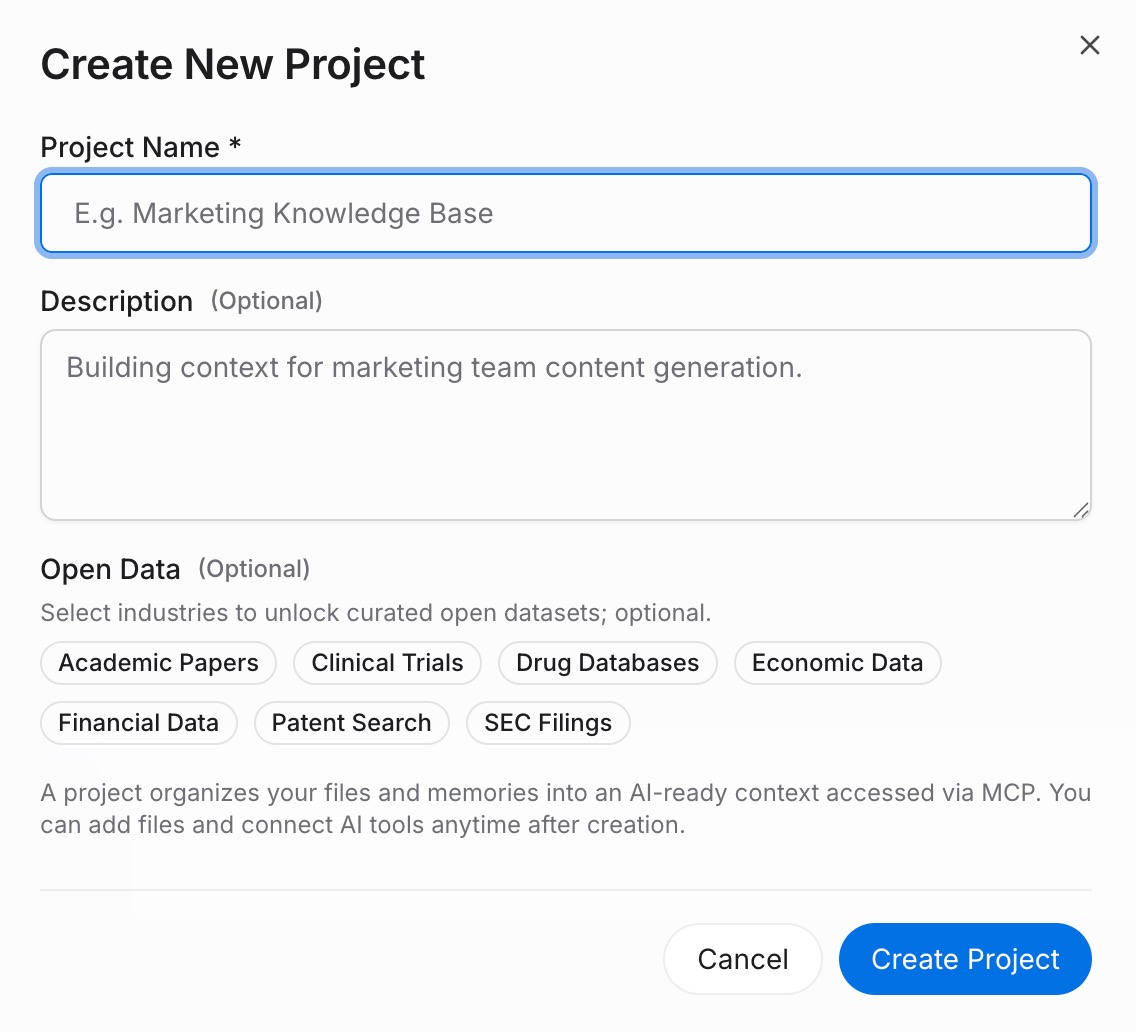
Sign in to MemoryLake and open Project Management. Click Create Project and give it a descriptive name — for example, "Shared AI context" or your project name. Open Document Drive and click Upload to add any reference files. Go to Documents Tab → Add Documents → Confirm to attach them to the Project. Then open the Memories Tab → Add Memory to capture standing rules, preferences, or facts your AIs should always know → Save.
Step 2: Generate an MCP Server endpoint
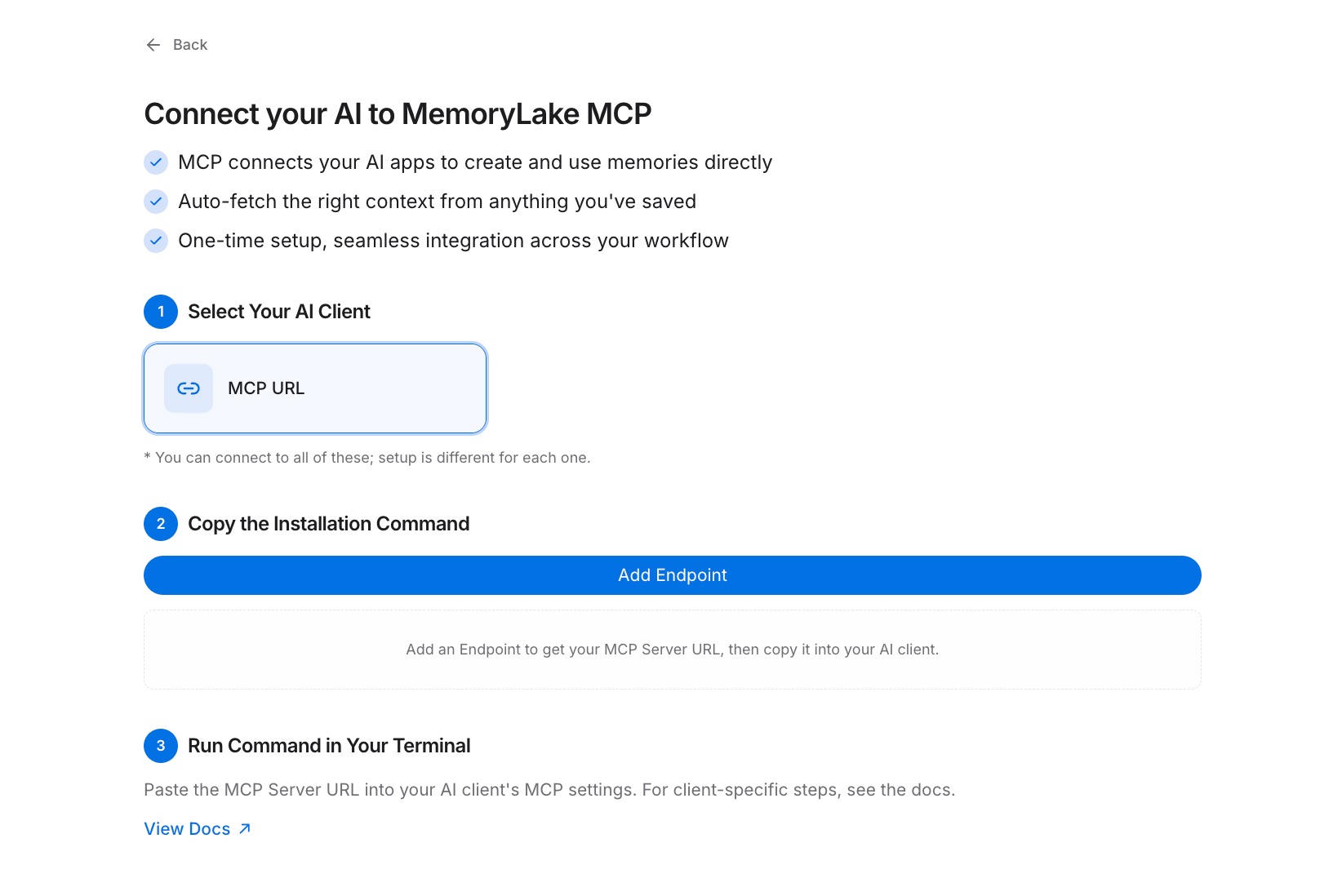
Navigate to MCP Servers Tab → Add MCP Server. Give the server a label that reflects its scope — for example, "Cross-AI memory endpoint" — then click Generate. MemoryLake returns three values: a Key ID, a Secret, and an Endpoint URL. Copy the Secret now; it's displayed only once. Store it in your password manager or secrets vault before closing the dialog.
Step 3: Connect each AI tool over MCP
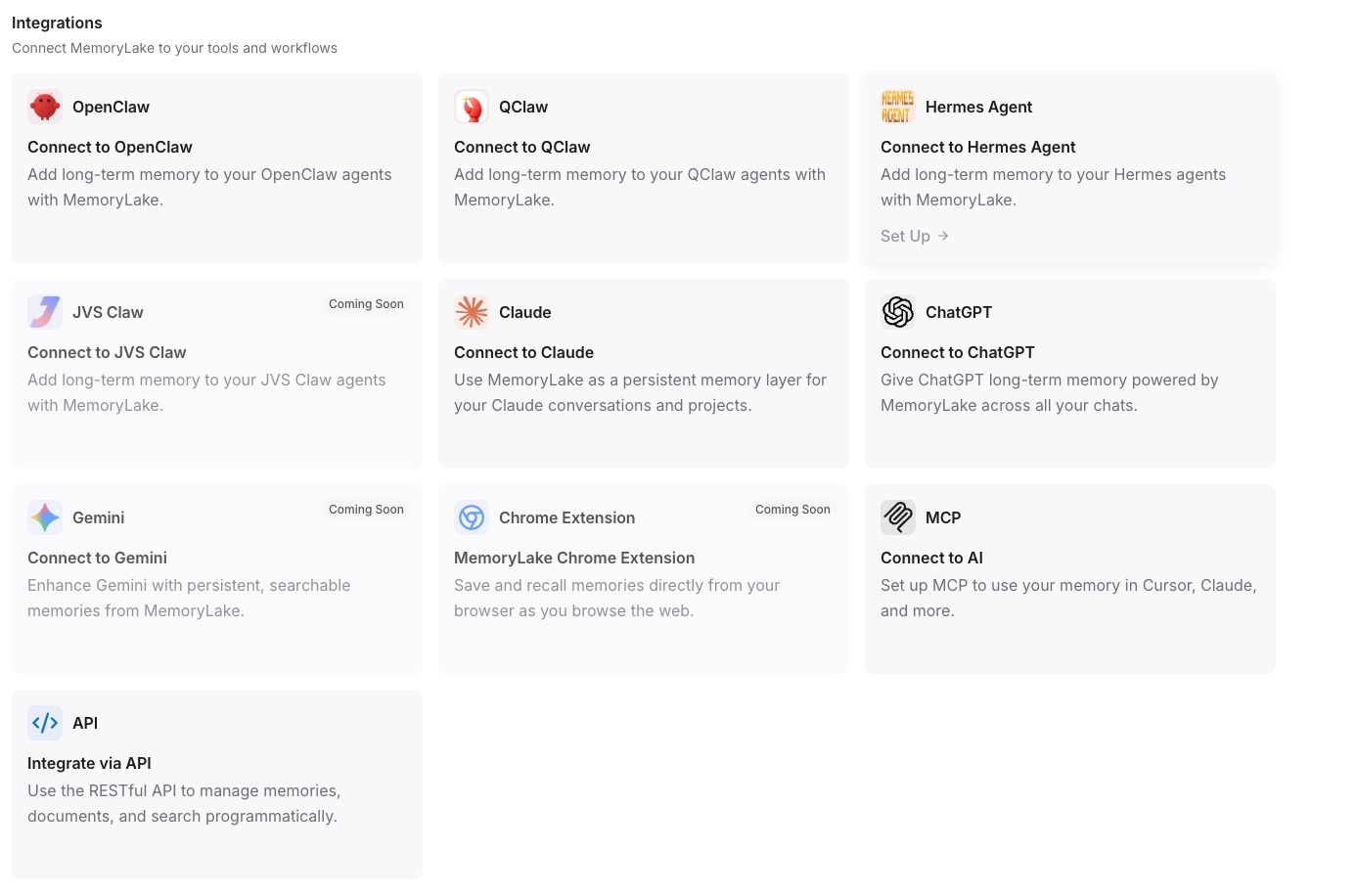
Open the MCP configuration for each AI tool you want to connect. Paste the Endpoint URL into the server URL field and enter the Secret as a Bearer token in the authentication header. Repeat for every tool in your workflow — each one now reads from and writes to the same MemoryLake Project. See the MCP setup guide for the exact configuration syntax. If you use Claude Code specifically, the Claude Code integration page has dedicated setup steps. [Try MemoryLake free]
AI built-in memory vs MemoryLake
| Dimension | Per-tool built-in memory | MemoryLake |
|---|---|---|
| Persists across sessions | Sometimes (varies by tool) | Yes, always |
| Works across other AIs | No — siloed per tool | Yes — any MCP-connected tool |
| Capacity | Limited (tool-defined) | Scales with your Project |
| Version control | No | Yes (Git-style history) |
| Data ownership | Tool vendor controls | You own it (AES-256, export/delete) |
| Benchmark | — | LoCoMo #1 — 94.03% |
Tips & best practices
- Organize by context domain, not by tool. Name your Projects around topics or clients, not around the AI that first created the content — every tool should be able to use every Project.
- Keep standing rules in Memory entries and reference material in Document Drive. Short Memory entries retrieve quickly on each query; large documents belong in the Document Drive where they're indexed and chunked efficiently.
- Rotate the Secret on a schedule. Generate a new key in the MCP Servers Tab, update each tool's config, and the old credential stops working without any disruption to stored context.
- Add a document version note when you update a file. Because MemoryLake tracks Git-style history, adding a brief note when you replace a document makes it easy to audit which version an AI acted on.
Troubleshooting
- One AI sees stale context while another sees the update: confirm all tools point at the same Endpoint URL and Project ID. A mismatch in the URL means they're reading different Projects.
- Authentication rejected after rotating the Secret: the old Bearer token is revoked at rotation. Update every tool's MCP config with the new Secret generated in the MCP Servers Tab.
- "Secret not found" error on first connection: the Secret was only shown once at generation time. Revoke the existing key and click Generate again in the MCP Servers Tab to issue a fresh credential.
One memory layer, every AI
Stop re-introducing yourself every time you switch tools. Connect once, and every AI in your workflow shares the same persistent context.