
What changed for Business workspaces
Sign in with ChatGPT has two layers. The first is identity: you use your ChatGPT account to create or open an account somewhere else. The second is plan usage: the app's AI requests use the allowance included in your ChatGPT plan.
The second layer is now open to Business. OpenAI's availability section sets out who gets what: "Business Standard and Premium members have included allowance subject to workspace controls; usage-based members use workspace credits only, with permission."
Two more lines from the same section matter if you're comparing plans:
- Apps decide too. "Availability also depends on the app's own plan requirements." An app can offer plan usage only on some of its own tiers.
- Open-source tools are broader. "Supported open-source tools remain available to all ChatGPT users."
For the current list of apps, the article points to a partner directory that "lists apps that support ChatGPT plan usage, sign-in-only apps, and open-source integrations." OpenAI's separate article on identity sign-in names the first group of sign-in partners: "Initial participating partners include Airtable, GitLab, HubSpot, Notion, Supabase, and Vercel."
Signing in and sharing your plan are two decisions
The most useful thing to know before you click is that you can say yes to one and no to the other. OpenAI says so directly: "You can sign in with ChatGPT without letting the app use your ChatGPT plan."
For Business, the article repeats the point as a rule: "Permission to sign in and permission to use your plan are separate."
Here's how the flow works, in OpenAI's steps:
- Open the participating app or site and choose the ChatGPT sign-in option in its sign-in flow.
- Sign in to the ChatGPT account you want to use.
- Review the basic account info the app will receive.
- If offered, choose separately whether to use your ChatGPT plan for AI requests in that app.
If you already use the app, the option may be in its own account or billing settings instead. If you turn plan usage off, "AI requests in the app won't count toward your ChatGPT plan through this sign-in connection."
What the app receives
For the sign-in itself, the answer is short. OpenAI's identity sign-in article says: "For identity sign-in, the external application receives only your name, email address, and profile picture, if you have one."
The same article lists what sign-in doesn't hand over on its own:
- Your ChatGPT conversations or memory
- Your files or tokens
- Your billing information or other ChatGPT account data
Sharing your plan adds one thing: eligible AI requests in the app draw on your included ChatGPT Work and Codex allowance or applicable credits. It doesn't add access to your conversations or memories.
An app can still ask for more. OpenAI notes that "An application can separately request delegated access to specific data and actions." Its examples are a ChatGPT Site asking for access to your connected apps, and HubSpot asking for access to a ChatGPT Ads account. Each request comes through its own permission screen. Our guide to what ChatGPT Sites can carry over from your chats covers how a Site uses connected apps.
For organizations, OpenAI draws the same line: "Identity sign-in and delegated data access are separate permissions." Allowing an app to sign members in doesn't automatically let it reach connected apps or Ads data.
Why the app can't see your chats or memories
This is the part that surprises people who assume a ChatGPT login brings their ChatGPT along with it. OpenAI states it in both articles. The identity article says: "Subscription sharing does not give the tool access to your ChatGPT conversations or memory." The plan-usage article adds that it "does not share an OpenAI API key."
In practice, that means the app gets your identity and, if you allow it, your allowance. It doesn't get the context ChatGPT has built up about you: your saved memories, the preferences it learned in past chats, the projects you set up, or the files you uploaded.
So if you move a piece of work from ChatGPT into a coding tool or a writing app that runs on your plan, the app's model starts with what that app gives it, plus whatever you type, paste, or connect there. The app can't pull in your ChatGPT history. If it needs some of that background, you bring the relevant parts over yourself.
The upside is privacy: a tool you try once doesn't walk away with months of conversations. The cost is that every tool you connect has to be told the same background again.
How app limits work
Sharing your plan doesn't hand an app your whole allowance. For Go, Plus, and Pro, OpenAI says Settings > Usage "shows how much ChatGPT usage came from each app and lets you set a weekly usage limit for that app."
To set one:
- In ChatGPT, go to Settings > Usage.
- Under App limits, find the app and select Manage limits.
- Review or change the app's weekly usage limit.
- Select Save.
Three details keep the numbers honest:
- A limit is a ceiling. "An app limit is a cap - not a separate pool of usage. It does not reserve usage for the app or increase your overall plan limits."
- The app can stop before you do. "The app can reach its limit while you still have ChatGPT usage remaining."
- Retrying doesn't help. "Signing in again or repeatedly retrying does not restore your usage." Check your usage settings to see when the limit resets.
OpenAI also notes that "Usage settings do not show details about your actions in the app." If usage looks higher than expected, ask the app provider what activity produced it. For limits inside Codex itself, our guide to Codex's usage limit message explains where to see the reset.
Credits after you reach your plan limits
On a personal plan, there's a separate switch for letting apps continue on credits once your included usage runs out. OpenAI says: "This is off by default and applies across participating apps, subject to each app's limit."
Two conditions apply. The app's own weekly limit has to be at its highest setting, and raising it there doesn't turn credit use on by itself. And the article separates two actions people tend to blur: allowing apps to use credits, and buying more credits. "If automatic purchases are enabled, continued usage can result in automatic charges."
If an app can't use your plan or credits, OpenAI says "it won't automatically switch to another paid option." The app may offer one, with its own pricing.
What Business admins control
On a Business workspace, three layers decide whether an app can run on the plan: the organization, the workspace, and the member.
The organization allows the app. An admin opens Admin Console, goes to Tenant settings > External access, selects the app, and sets Use ChatGPT plan to Allowed. This is repeated for each app the organization permits.
The workspace sets a sharing limit. In the Business workspace, the admin goes to Usage limits > ChatGPT plan, and under Usage in other services chooses how much of each member's included allowance approved services can use. OpenAI notes that this "does not create a separate pool of usage for each app."
The member sets their own limits. In Settings > Usage, members can set app limits or turn off plan usage for apps they've connected. But "Your settings do not override your organization's app permissions or workspace sharing limit."
Credits work differently on Business. Members use workspace credits according to their membership and credit permissions, and the personal-plan credit switch doesn't apply.
Identity sign-in has its own admin setting. OpenAI's identity article says: "By default, Sign in with ChatGPT is enabled for organizations that have not set an explicit identity policy." Global admins manage it under External access, and "A workspace owner or admin does not automatically have permission to change these tenant-level settings."
Disconnecting an app
Ending a connection takes more than signing out. OpenAI is clear on the difference: "Signing out of the app ends your session there, but does not disconnect it from ChatGPT or stop its authorized use of your plan."
To disconnect, where the controls are offered:
- In ChatGPT, go to Settings > Security and login.
- Under Login connections, select Sign in with ChatGPT.
- Select the app or site, then select Disconnect under Manage connection.
- Confirm by selecting Disconnect again.
A sign-in-only connection may not show these controls yet. In that case, sign out in the app to end your session there.
Two limits on what disconnecting does:
- "Disconnecting does not reverse usage already recorded."
- "Disconnecting an app and deleting information it already received are separate actions." To remove what the app holds, use its own data controls or contact its provider.
When the app can't use your plan
The troubleshooting section of OpenAI's article separates conditions that look alike from inside the app:
- You signed in but didn't share your plan. You can be signed in while requests don't count toward your plan. Look in the app's settings for the option, or sign in again and review your choices.
- The app hit its own limit. It can stop while your ChatGPT plan still has usage left.
- Your Business admin hasn't allowed it. "Signing in successfully does not mean the app has permission to use your plan." Ask your admin to check the app's permission, the workspace sharing limit, and your credit permission.
What people try first
Assuming the app knows what ChatGPT knows. It receives your name, email, and profile picture, plus your allowance if you share it. Your conversations and memory stay in ChatGPT.
Treating sign-in and plan sharing as one switch. They're separate. You can sign in without letting the app spend your plan.
Signing out to stop usage. Signing out doesn't disconnect the app or stop its authorized use of your plan. Disconnect it in ChatGPT's settings.
Expecting a limit to reserve usage. An app limit caps what that app can use. It doesn't set any aside.
Buying credits to fix an admin restriction. On Business, an administrator restriction isn't overridden by signing in again or buying credits.
The Fix: Connect an app on your terms
Step 1: Decide what the app should get
Sign in with ChatGPT if you want the account link. Share your plan only if you want the app's AI requests to count against your allowance.
Step 2: Set a weekly limit right away
In Settings > Usage, give the app a limit you're comfortable with. On Business, check with your admin that the app is allowed and how much of your allowance other services can use.
Step 3: Give the app the context it needs
The app doesn't receive your ChatGPT conversations or memory. Write down the background it needs for the work, such as project details, preferences, and decisions, and provide it in the app.
Step 4: Disconnect what you stop using
Disconnect it in Settings > Security and login, and use the app's own controls to delete what it already received.
Setting this up in MemoryLake
OpenAI's design keeps your ChatGPT history private from every app you sign in to. That's the right default, and it means each tool you add needs to be told the same background again.
MemoryLake is a memory layer for the working context you choose to share, such as project details, preferences, and decisions, kept in one place you maintain and available to the assistants you connect, such as ChatGPT, Claude Code, and Codex.
You write the entries yourself, in your own words. Nothing is read out of, written to, or deleted from your ChatGPT account, your conversations, your ChatGPT memory, your login connections, your usage settings, or any vendor's store. Sign in with ChatGPT and plan sharing work the way OpenAI describes them.
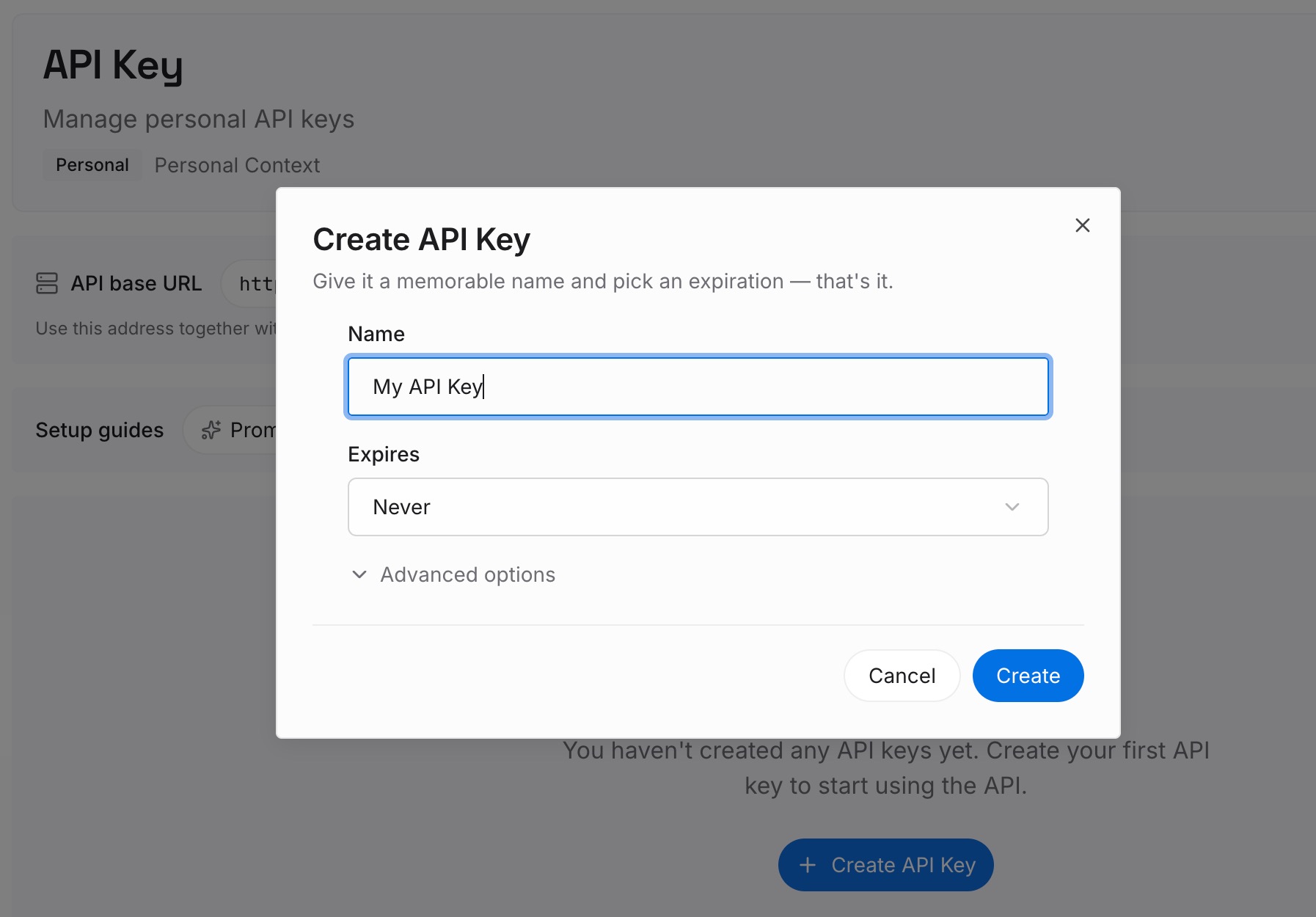
Step 1: Create an API key
Sign in and generate a key from the dashboard. The key belongs to your MemoryLake workspace and is separate from your ChatGPT account and any app you've connected to it.
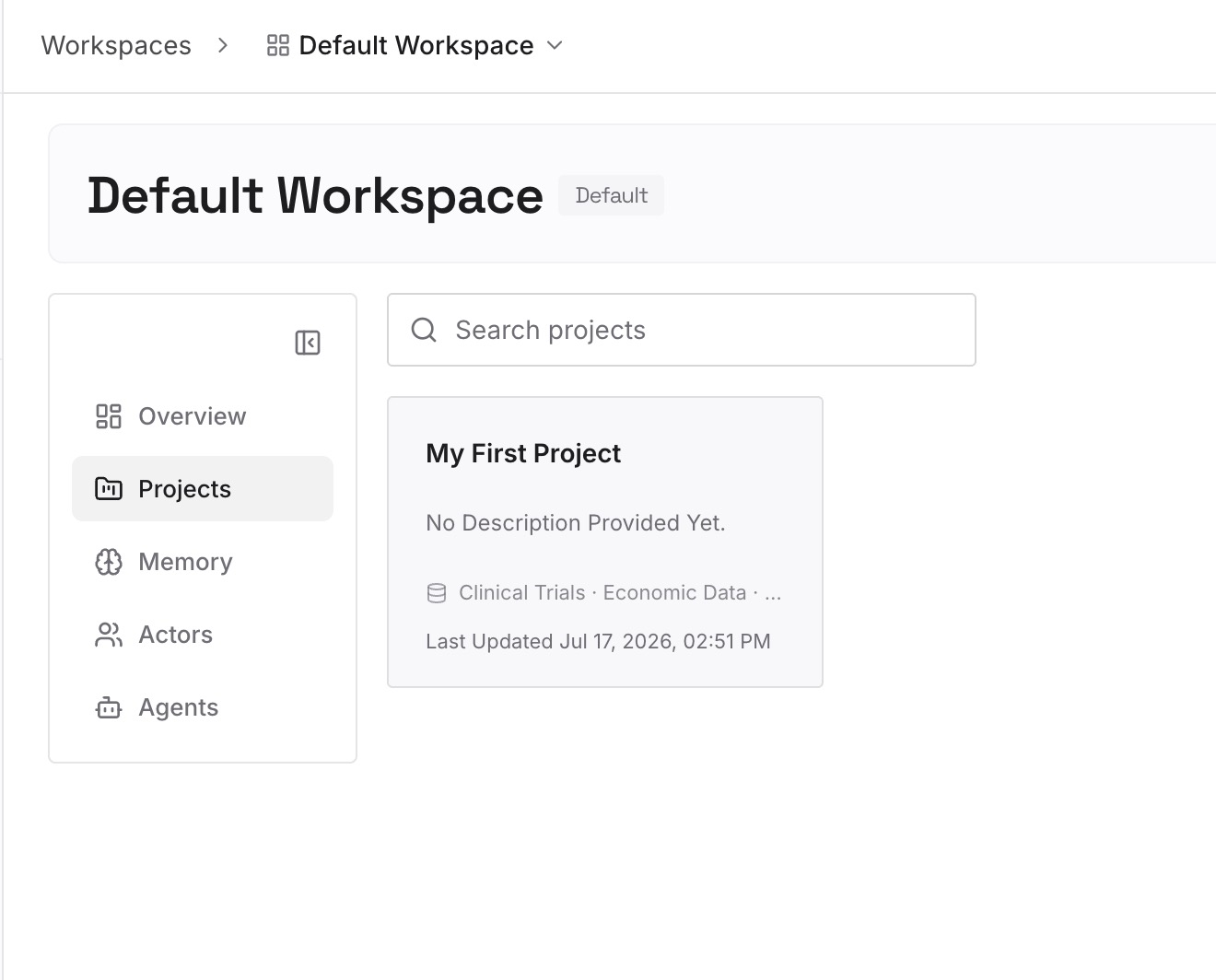
Step 2: Upload your first memories
Start with what you wrote in Step 3 of the fix: the project details, preferences, and decisions a new tool would otherwise ask you for. One item per entry.
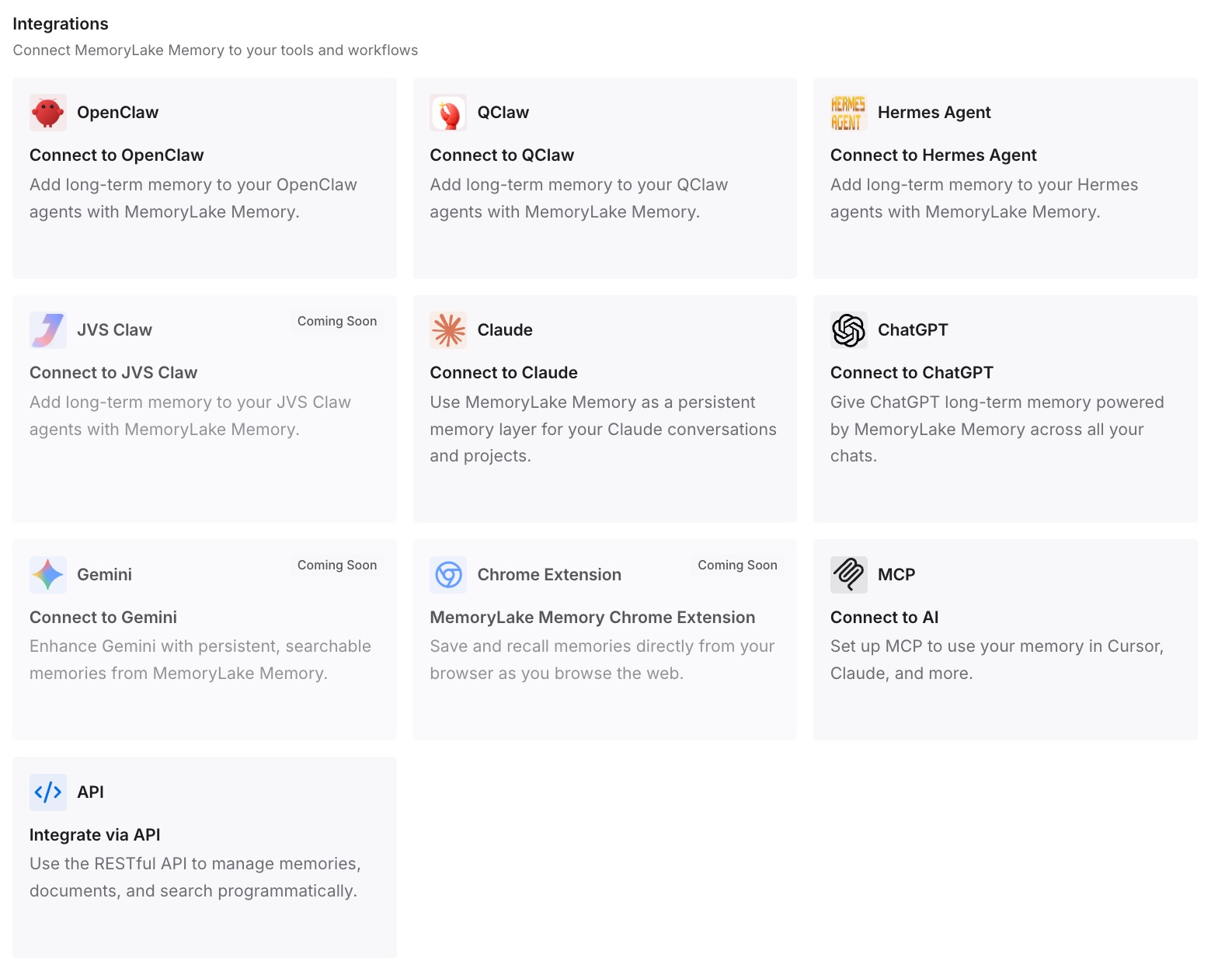
Step 3: Connect your AI & agents
Connect ChatGPT, Codex, and any other assistants you use. The same entries are available wherever you work, and you decide what goes into them.
What this changes in practice
The first difference is a shorter setup for each new tool. The background you'd otherwise retype is already written down.
The second is a clear line around your ChatGPT history. The context you share is the context you wrote, not your conversations.
The third is consistency. Each assistant you connect draws on the same entries.
Best practices for Sign in with ChatGPT
Read the second screen. Sign-in and plan sharing are separate choices.
Set a weekly limit for each app. It caps the app without reserving usage.
Leave credit use off unless you need it. It's off by default, and automatic purchases are a separate setting.
Check with your admin on Business. The organization, the workspace, and you each set a limit.
Disconnect, don't just sign out. Signing out leaves the connection and plan use in place.
Give apps context on purpose. They don't receive your ChatGPT conversations or memory.
Conclusion
Sign in with ChatGPT now lets Business members, as well as Go, Plus, and Pro subscribers, run participating apps on their ChatGPT plan. The sign-in shares your name, email, and profile picture. Sharing your plan lets the app's AI requests use your included allowance or credits. Neither one gives the app your ChatGPT conversations or memories, and neither shares an API key.
Set a weekly limit for each app, remember that a limit is a cap rather than a reserve, and disconnect apps in ChatGPT's settings when you're done. On Business, the organization and the workspace have to allow the app first. And because your ChatGPT context stays in ChatGPT, write down what each tool should know and give it to that tool yourself.