
The short answer
Every AI chat session starts with an empty context window by default, so tools forget everything when the session ends. Store your rules, background, and reference files in a MemoryLake Project, expose it over MCP, and any AI tool you connect will read your context on demand — no re-explaining, no copy-pasting, one source of truth.
Why AI tools' built-in context handling falls short
Most AI tools handle context in one of two ways: they hold it in the active session only, or they store a compressed summary tied to a single account. Both approaches create the same daily frustration.
Session-only context is the most common. Open a new chat in ChatGPT, Claude, Gemini, or almost any AI coding assistant and you start cold. The tool has no record of what you told it yesterday, last week, or last year. You re-introduce yourself, paste your style guide, re-explain the constraints — every single time.
Account-level summaries help at the margin, but they're shallow and siloed. The summary belongs to one product on one platform. Switch tools — say, from ChatGPT to Claude to a coding agent — and each one is running a completely separate memory. Your expertise, preferences, and project context live in three different places, all slightly out of sync.
The underlying problem isn't any one tool's quality. It's architecture. AI tools are designed to be stateless by default, and their optional memory features are bolt-ons that don't communicate with each other. Fixing this requires a layer that sits outside the tools — a single persistent store they all read from.
Before you start
You'll need:
- A free MemoryLake account
- At least one MCP-capable AI tool (Claude Desktop, Cursor, OpenClaw, Hermes, or any other MCP client)
- Your context ready to load — documents (PDF, Word, Excel, PowerPoint, Markdown, or images) and any standing rules or preferences you keep repeating
How to stop re-explaining context to your AI (step by step)
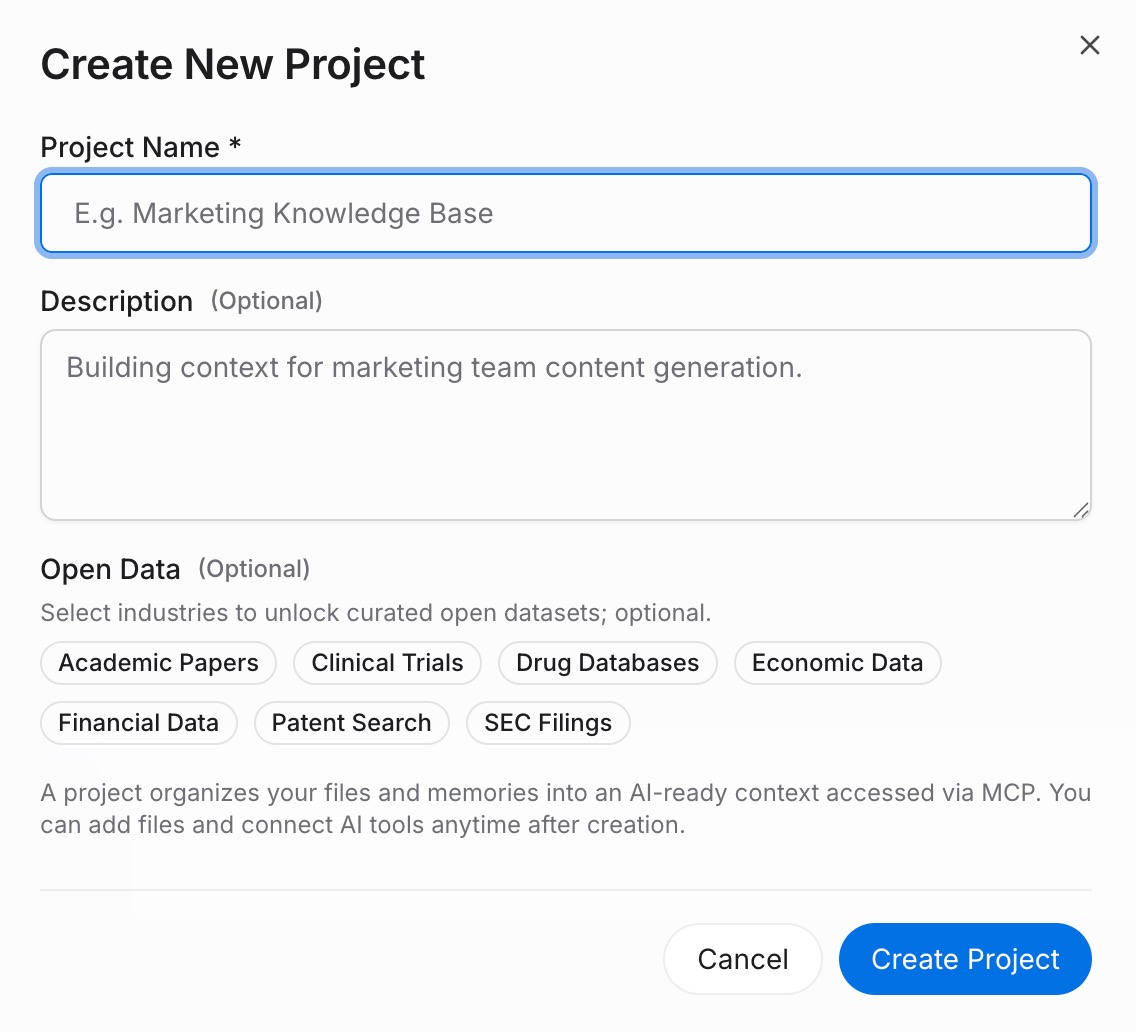
Step 1: Build a memory Project
Sign in to MemoryLake and go to Project Management. Click Create Project and give it a descriptive name — something like "My AI context" or "Work background." Inside the project, open the Document Drive and click Upload to add reference files such as your resume, style guide, or technical specs. Then go to Documents Tab → Add Documents → Confirm to attach them to the project. For standing rules — your communication style, recurring instructions, personal preferences — use the Memories Tab → Add Memory → Save for each one. Think of the Memories Tab as your AI's permanent briefing notes.
Step 2: Generate an MCP Server endpoint
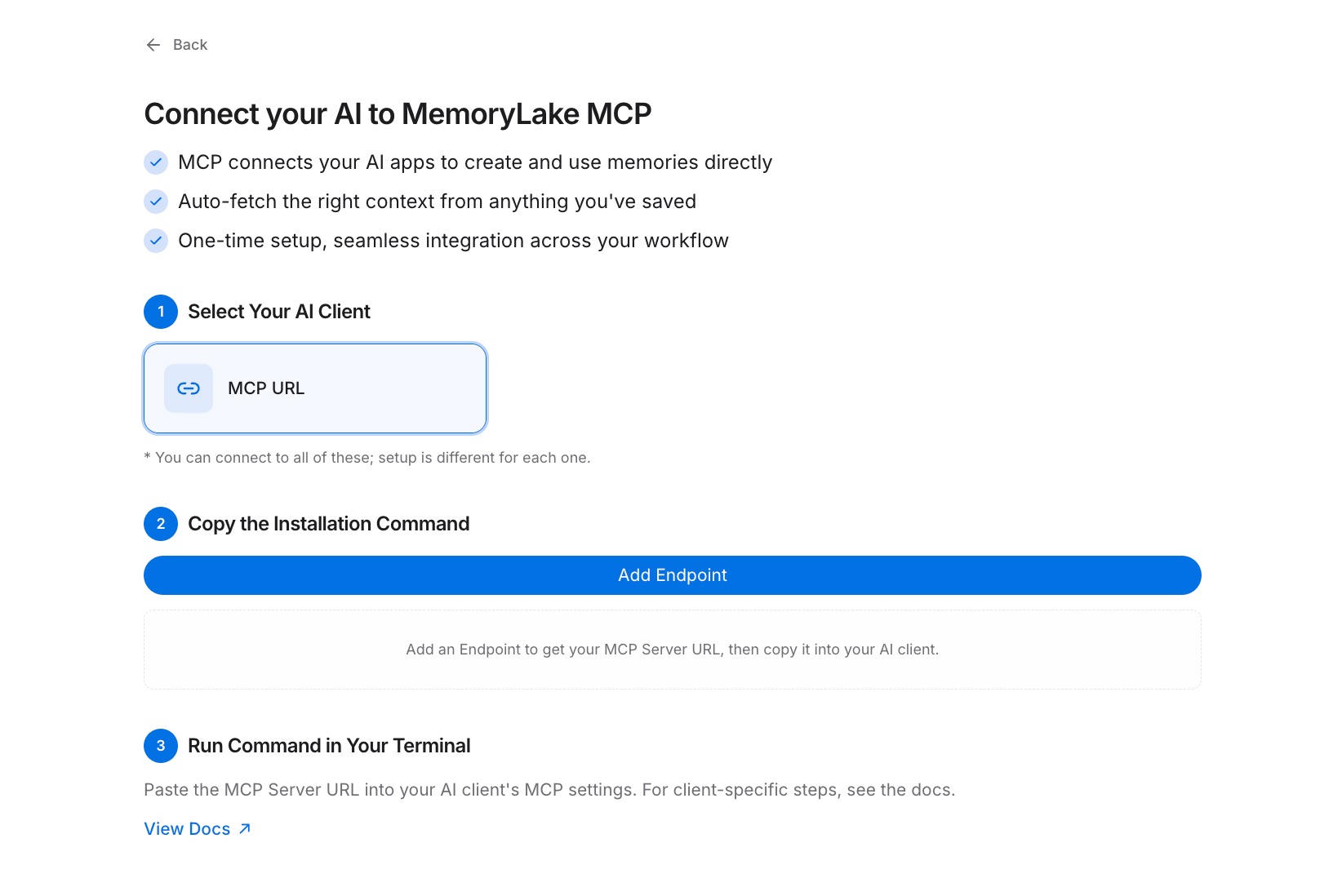
Navigate to the MCP Servers Tab and click Add MCP Server. Name the server (for example, "Personal context layer") and click Generate. MemoryLake creates a Key ID, a Secret, and an Endpoint URL. Copy the Secret immediately — it is displayed only once. Store it somewhere safe before you close the panel.
Step 3: Connect your AI tool over MCP
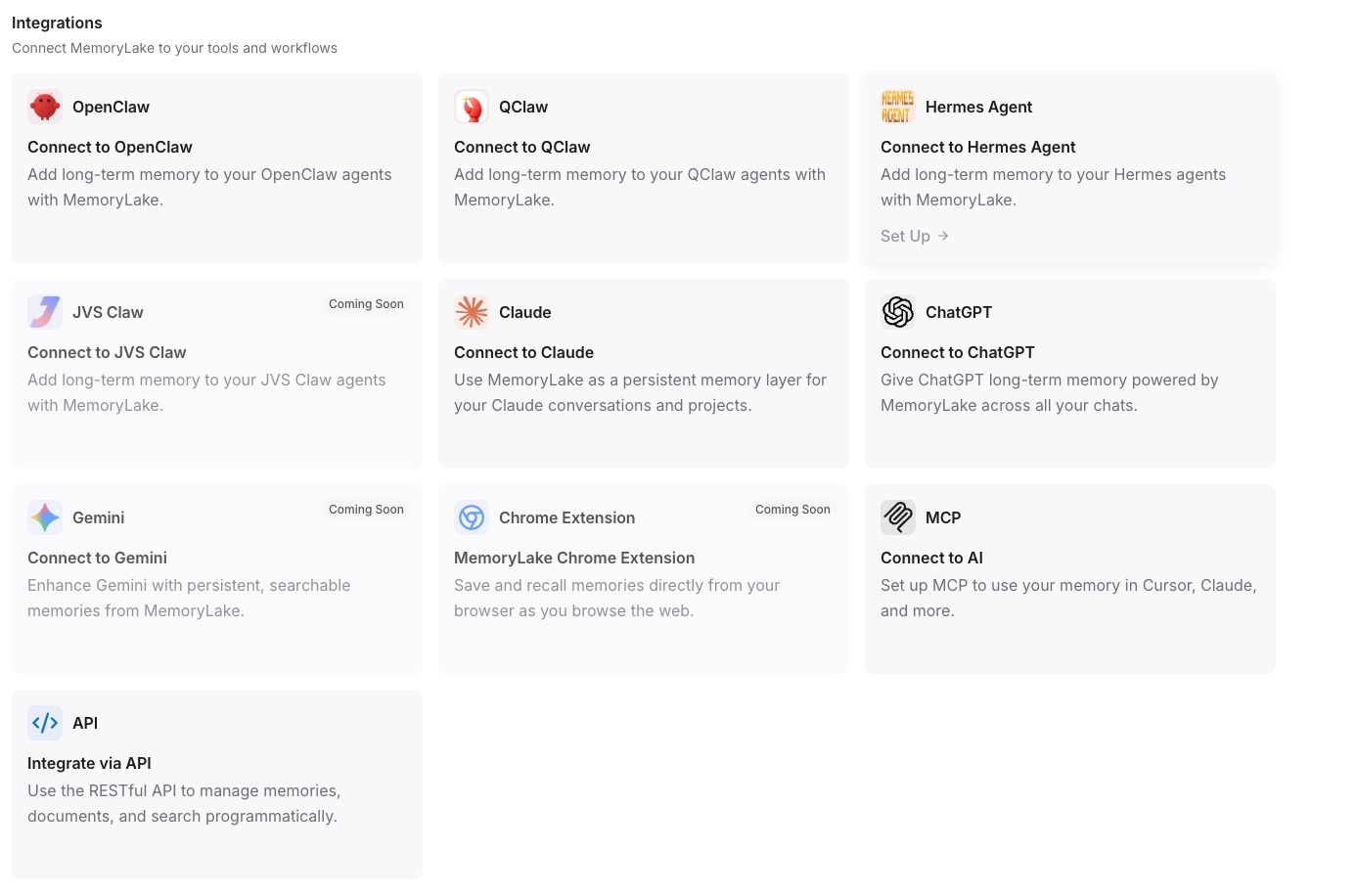
Open the MCP configuration in your AI tool of choice and register MemoryLake as an MCP server. Paste the Endpoint URL as the server address and set the Secret as a Bearer token for authentication. Save the configuration and restart the tool. From this point, the tool reads your stored context on demand. Repeat this step for every AI tool you use — they all point to the same Project, so your context stays consistent everywhere. See the MCP setup guide for the exact configuration format. [Try MemoryLake free]
AI built-in context vs MemoryLake
| Dimension | AI built-in context | MemoryLake |
|---|---|---|
| Persists across sessions | No (or partial summary) | Yes — full verbatim storage |
| Works across other AIs | No — siloed per product | Yes (ChatGPT, Claude, Gemini, any MCP tool) |
| Capacity | Limited (session or thin summary) | Full documents + discrete memories |
| Version control | No | Yes (Git-style history) |
| Data ownership | Platform-held | You own it (AES-256, export or delete) |
| Benchmark | — | LoCoMo #1 — 94.03% |
Tips & best practices
- Write memory entries as direct instructions ("Always use British English" or "I'm a senior backend engineer at a fintech company") rather than passive descriptions — AI tools act on instructions more reliably than they parse profiles.
- Create separate Projects for separate contexts. A "freelance clients" Project and a "personal learning" Project prevent irrelevant context from surfacing in the wrong conversation.
- Load reference documents — architecture diagrams, brand guidelines, technical specs — into the Document Drive rather than pasting them into every chat. The tool retrieves them when needed without inflating your context window.
- Audit your Memories Tab every few weeks. Outdated rules compete with current ones, and removing stale entries keeps retrieval sharp.
Troubleshooting
- The AI tool doesn't seem to use any stored context: verify the MCP server entry is saved in the tool's config and that you restarted the tool after adding it.
- Authentication is rejected: confirm the Secret is entered exactly as copied (no leading or trailing spaces) and that it's configured as a Bearer token, not a basic password.
- "Secret not found" or credential error after some time: the Secret is shown only once. If it's lost, go to the MCP Servers Tab, revoke the existing server, and click Generate again to issue a new Key ID, Secret, and Endpoint URL.
Never start a conversation from scratch again
One Project, one endpoint, every AI tool on the same page. Set it up once and the context you've spent months building travels with you.