
What moves and how
Here's the short version, by type of context:
- Memory: Claude has an import flow. You ask ChatGPT to list what it knows about you, then paste the result into Claude.
- Custom instructions: you copy them into Claude's Instructions setting.
- Projects: you recreate them as Claude projects, with project instructions and project knowledge.
- Conversations: you export them from ChatGPT. Anthropic's help center doesn't describe importing ChatGPT conversations into Claude, so they stay as an archive you can upload selectively.
- Custom GPTs: you rebuild what they did as a Claude project or skill. OpenAI is also retiring custom GPTs.
The rest of this guide goes through each one.
Getting your memory out of ChatGPT
Claude's import starts in the other app. Anthropic's article on importing memory recommends a specific prompt to run in your current AI service. It begins: "I'm moving to another service and need to export my data. List every memory you have stored about me, as well as any context you've learned about me from past conversations."
The prompt asks for everything in a single code block, one entry per line, covering instructions about how to respond, personal details, projects and goals, tools you use, and corrections you've made. Anthropic says the prompt is "written specifically to help you get all of your context in one chat."
Before you paste the result anywhere, read it. Anthropic notes: "You can customize this prompt to exclude any sensitive information before importing into Claude."
It also helps to know what ChatGPT's memory draws on. OpenAI's memory article lists past chats, saved memories, custom instructions, saved files in Library or Space, and content from connected apps. The same article warns that "Memory does not retain every detail from every conversation", so the list you get back is ChatGPT's current picture of you, not a full record.
Importing memory into Claude
Memory import is available on Free, Pro, Max, Ultra, Team, and Enterprise plans, on the web and Claude Desktop.
To start it, go to Settings > Your Claude and select Start import. The flow shows the same prompt and a text box. Paste what ChatGPT gave you and click Add to memory. Anthropic explains what happens next: "Claude will extract key information and store it as individual memory entries."
Two cautions from the same article matter here.
Claude focuses on work. "Claude's memory is designed to focus on work-related topics to enhance its effectiveness as a collaborator. As a result, Claude may not retain imported personal details unrelated to work."
The import is still experimental. The article says: "Memory imports are experimental and still in active development, and at this stage, Claude may not always successfully incorporate imported memories."
So after importing, check the result. Anthropic suggests asking Claude what it learned, and you can review the entries in the memory panel. Anything missing can be added through the Tell Claude what to change or remove box under Your memory, or by asking Claude in chat.
Moving your custom instructions
ChatGPT's custom instructions are account-wide guidance. OpenAI says they're "applied immediately to all chats."
Claude's equivalent is Instructions. Anthropic's personalization article describes them as "account-wide settings that help Claude understand your general instructions that Claude should consider in responses." You set them under Settings > Your Claude, in the Instructions field.
Copy your ChatGPT instructions over and then reread them. Some will refer to ChatGPT features by name, and some may already be covered by the memory you just imported. Keep the instructions short and about how you want answers, and let memory hold facts about you.
If you no longer have your custom instructions handy, OpenAI confirms they're part of your data export.
Rebuilding a ChatGPT project in Claude
A ChatGPT project groups chats, files, and instructions. Claude projects do the same, with a few differences worth planning for.
Instructions and knowledge. In Claude, you click Set project instructions to tell Claude how to behave in that project, and upload files to the project knowledge base. Anthropic says: "Anything you upload to this space will be used across all of your chats within that project."
Context between chats. Anthropic's project article has a note that surprises people coming from ChatGPT: "Context is not shared across chats within a project unless the information is added into the project knowledge base." Project memory helps, since "Each project has its own memory." But if a decision matters for every chat in the project, put it in the knowledge base.
Limits. Free users can create up to five projects. Project files have their own size limit, which is lower than for files attached to a single chat.
We walked through the project move in detail in our guide to migrating ChatGPT projects to Claude projects.
What to do with your chat history
Your ChatGPT conversations are the part that doesn't import.
Start by exporting them. In ChatGPT, go to Settings > Data controls and select Export under Export data. OpenAI sends an email or SMS message when it's ready, and says: "Exports can take up to 7 days to arrive." The download link expires 24 hours after you receive it.
The export is a ZIP file. OpenAI describes the contents: "conversations in JSON format, plus other data that may use CSV or other formats", along with an export viewer you open in your browser.
There are two limits to plan around:
- Business and Enterprise. OpenAI says self-service export "is not available in these workspaces." Ask your workspace owner.
- Deleted chats. OpenAI notes that "An export cannot restore chats that have already been deleted."
Once you have the export, use it as an archive. When a past conversation matters for current work, find it in the viewer and upload that conversation to the relevant Claude project as a file, or summarize the decisions it reached in your project knowledge. Claude accepts JSON, HTML, and TXT files.
What to do with custom GPTs
OpenAI is retiring custom GPTs. Its GPTs article says: "Standard retirement is scheduled for December 11, 2026." OpenAI's own path is plugins.
If you're moving to Claude instead, a GPT's parts map to Claude features. A GPT's instructions become project instructions, its knowledge files become project knowledge, and a repeatable procedure can become a skill. Copy the GPT's instructions and download its files before the retirement date.
What Claude remembers after the switch
Once you're in Claude, memory works a little differently from ChatGPT.
Anthropic says Claude "saves memory as a set of individual topics as you chat, rather than summarizing conversations after they end." Memory is on by default for Free, Pro, Max, and Ultra plans. On Team and Enterprise plans, owners control whether it's available.
Claude also skips some topics by default. The chat search and memory article says: "By default, Claude does not store topics related to personal or sensitive subject matter," with an option to include them.
Searching past chats is available on paid plans. That search covers your Claude conversations. Your ChatGPT history stays in the export unless you upload pieces of it. To keep a single Claude chat out of memory, turn off Memory in the + menu before you send the first message.
What people try first
Waiting for a full import. Claude imports memory. Conversations stay in your ChatGPT export.
Pasting memory without reading it. The export prompt can surface sensitive details. Edit before importing.
Assuming personal details will stick. Claude's memory focuses on work and may not keep the rest.
Recreating a project without a knowledge base. Context isn't shared across project chats unless it's in project knowledge.
Leaving custom GPTs for later. Standard retirement is scheduled for December 11.
The manual migration
Step 1: Export your ChatGPT data
Request the export from Data controls and download it within 24 hours of the email.
Step 2: Get your memory as text
Run Anthropic's export prompt in ChatGPT and save the result.
Step 3: Edit and import it into Claude
Remove anything you don't want carried over, then paste the rest into Start import.
Step 4: Copy your custom instructions
Paste them into Instructions in Claude and trim anything ChatGPT-specific.
Step 5: Rebuild each project
Create a Claude project, set its instructions, and upload its key files to project knowledge.
Step 6: Move what your custom GPTs did
Copy each GPT's instructions and files into a project or skill before December 11.
Step 7: Check what Claude learned
Ask Claude what it knows about you and fill any gaps through memory or instructions.
The Better Way: Keep your context outside both apps
Every route above copies context from one app's format into another's. The decisions, preferences, and project background are what you actually need, and they're easier to keep current when they live in one place you control.
MemoryLake is a memory layer for that kind of context, kept in one place you maintain and available to the assistants you connect, such as ChatGPT, Claude Code, and Codex.
You write the entries yourself, in your own words. Nothing is read out of, written to, or deleted from your ChatGPT chats, your ChatGPT memory, your export, your Claude memory, your Claude projects, or any vendor's store. Exports and imports work the way OpenAI and Anthropic describe them.
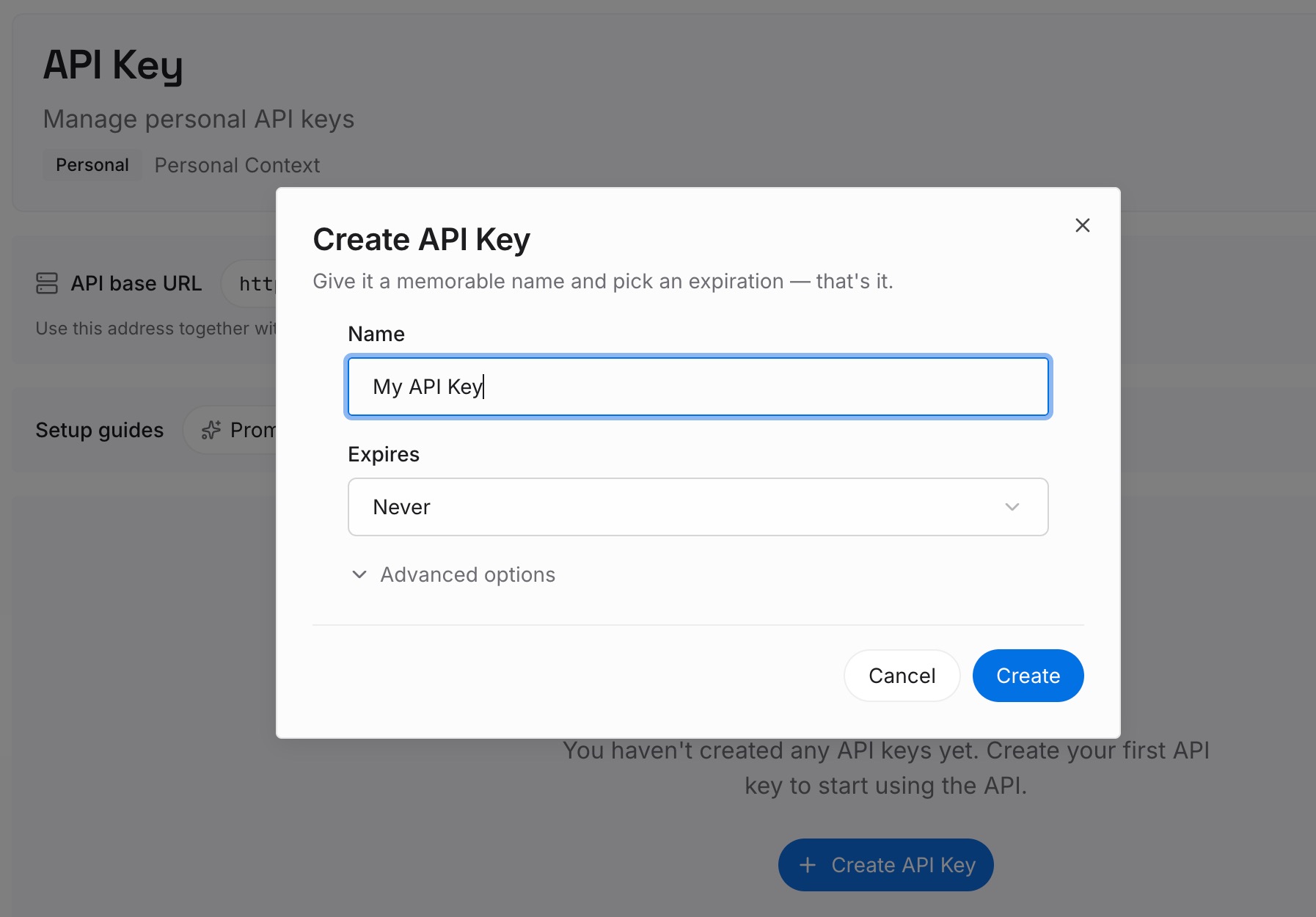
Step 1: Create an API key
Sign in and generate a key from the dashboard. Keep it somewhere private.
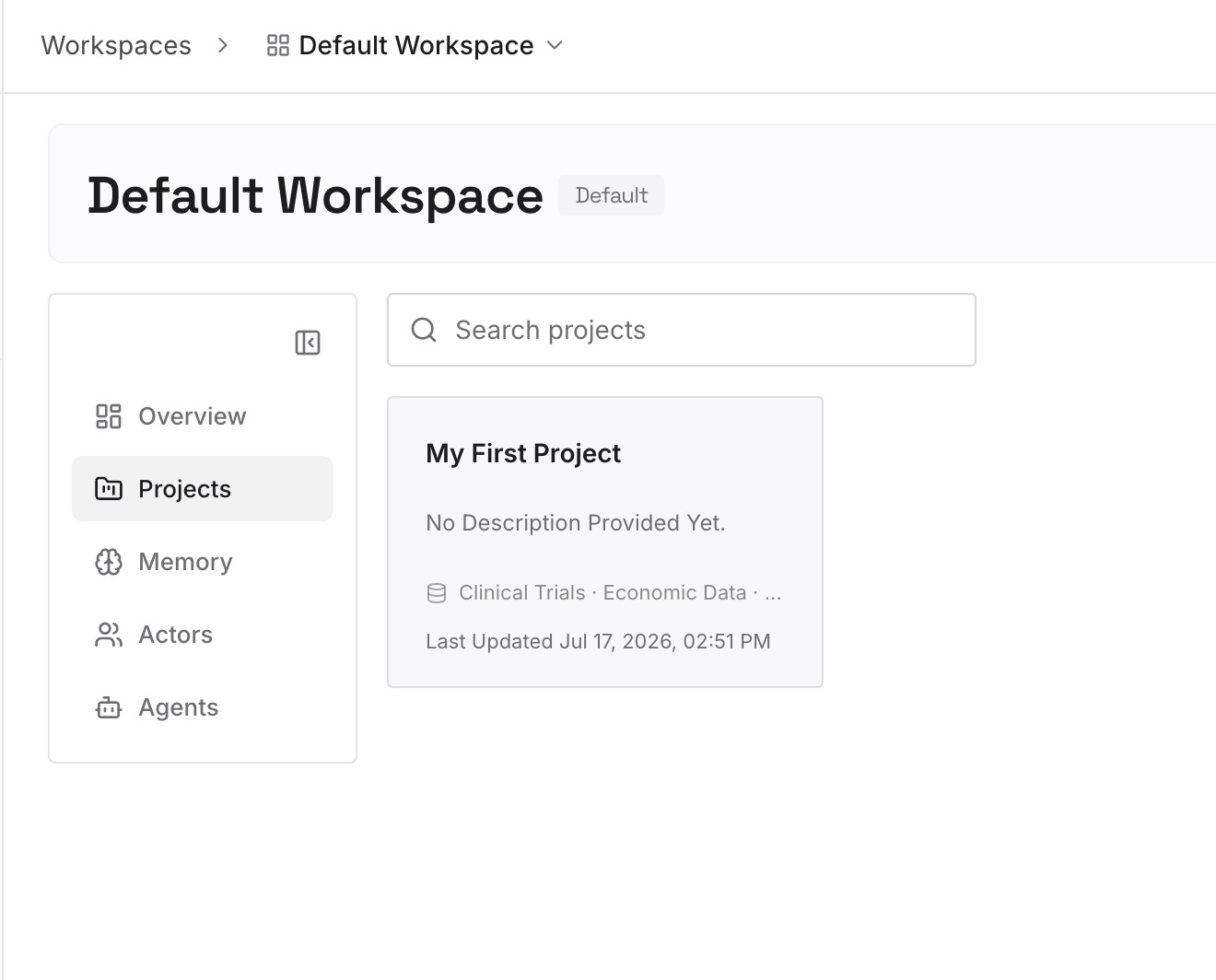
Step 2: Upload your first memories
Start with the parts of your memory export that still matter: preferences, recurring projects, and decisions. One topic per entry.
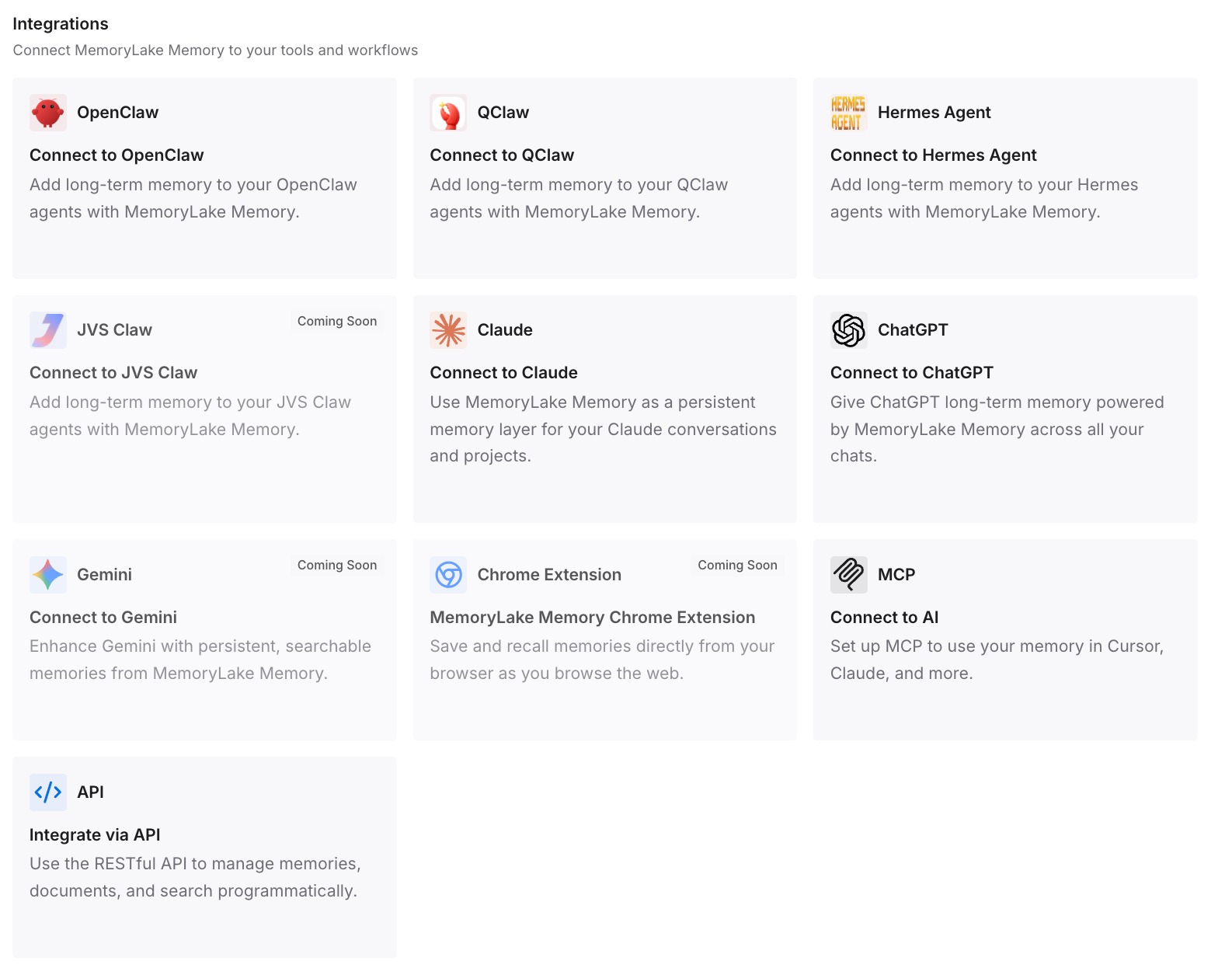
Step 3: Connect your AI & agents
Connect ChatGPT, Claude Code, Codex, and the other assistants you use, so the same context is there whichever one you open.
What this changes in practice
The first difference is a shorter switch. The context you care about is already written down.
The second is a cleaner record. You decide what carries over instead of relying on an extraction.
The third is freedom to use both. You can keep ChatGPT for some work and Claude for other work without maintaining two versions of yourself.
Best practices for switching from ChatGPT to Claude
Export first. Get your ChatGPT data before you delete chats or close an account.
Read the memory list. Remove anything sensitive or outdated before importing.
Separate instructions from facts. Instructions describe how to answer. Memory holds what Claude should know.
Use project knowledge. It's the shared context for every chat in a Claude project.
Handle custom GPTs early. Standard retirement is December 11.
Verify the import. Ask Claude what it learned and fix the gaps.
Conclusion
Switching from ChatGPT to Claude means moving each kind of context separately. Memory can come across through Claude's import flow, using Anthropic's prompt in ChatGPT, though the import is experimental and focuses on work topics. Custom instructions go into Claude's Instructions setting, and projects are rebuilt with project instructions and project knowledge.
Your conversations come out of ChatGPT as an export, which Claude doesn't import, so treat it as an archive and upload what you need. Custom GPTs have a standard retirement date of December 11, so move their instructions and files first. Checking what Claude learned, and keeping the context that matters in one place you control, makes the switch hold.