
What moves and how
Here's the short version, by type of context:
- Memory: Claude shows you its memory as text, and you can ask it to write its memories out. In ChatGPT, you ask it to remember the parts you want.
- Instructions: you copy Claude's account-wide Instructions into ChatGPT's custom instructions.
- Projects: you recreate them as ChatGPT projects, with project instructions and files.
- Conversations: you export them from Claude and keep them as an archive.
- Uploaded files: you gather the originals yourself, because Claude's export doesn't include them.
The rest of this guide goes through each one.
Getting your memory out of Claude
Claude lets you see what it remembers. Anthropic's memory article says to go to Settings > Your Claude and select Manage next to Your memory, which shows your memory "exactly how Claude sees it". In the older Settings layout, it's Settings > Memory.
You can also ask in a chat. Anthropic suggests a specific prompt: "Write out your memories of me verbatim, exactly as they appear in your memory."
The same article describes what to do with the result: "You can save this exported memory as a backup or bring it to another AI service by copying and pasting it into a local file on your computer."
Projects keep their own memory, so check those too. Anthropic's projects article says: "Each project has its own memory." While you work in a project, Claude uses that project's memory alongside your memory from chats outside projects. Asking inside each project gives you what it learned there.
Before you go further, read the list. Remove anything outdated, anything sensitive, and anything that only made sense for Claude.
Bringing memory into ChatGPT
OpenAI's help center doesn't describe a tool for importing memory from another assistant. ChatGPT builds its memory from what you tell it.
OpenAI's memory article describes saved memories as "details that you explicitly ask ChatGPT to remember or that ChatGPT saves as useful context when that behavior is available."
So the practical route is to tell ChatGPT what you want it to know. Paste the edited list into a chat and ask it to remember the items that matter, or add them over time as they come up.
Set your expectations from the start. OpenAI's article says: "Memory does not retain every detail from every conversation." It also says ChatGPT "decides which available information is relevant to a response".
Afterward, check what stuck. You can ask ChatGPT what it remembers about you, and depending on your account you can review saved memories or a memory summary under Settings > Personalization > Memory.
Moving your instructions
Claude's Instructions apply everywhere. Anthropic describes them as "account-wide settings that help Claude understand your general instructions that Claude should consider in responses." You'll find them under Settings > Your Claude.
ChatGPT's equivalent is custom instructions. OpenAI says: "Custom instructions allow you to share anything you'd like ChatGPT to consider in its response." On web and desktop, open Settings, select Personalization, make sure Enable customization is on, and enter your text in the Custom Instructions field.
There's a length limit. OpenAI says Free and Go users can save up to 1,500 characters, and Plus, Pro, Enterprise, Business, and Education users up to 5,000. If your Claude Instructions are longer, trim them to how you want answers, and move facts about you into memory instead.
Reread them after you paste, and remove lines that mention Claude features by name.
Rebuilding a Claude project in ChatGPT
A Claude project has instructions and a knowledge base. A ChatGPT project has instructions and files. The structure maps closely.
Create the project. In ChatGPT, select New project in the sidebar, then enter a name.
Add files. OpenAI says you can add reference material "by uploading PDFs, spreadsheets, docs, images, or by pasting text." The number of files you can upload depends on your plan. Upload the documents that were in your Claude project knowledge.
Add instructions. Select the more options menu, then Project settings. OpenAI notes: "Project instructions apply only within that project and override your global custom instructions." Paste your Claude project instructions there.
Choose the memory setting. ChatGPT projects can use default memory or project-only memory. Shared projects always use project-only memory.
One habit from Claude carries over well. In Claude, Anthropic warns that "Context is not shared across chats within a project unless the information is added into the project knowledge base." If you kept a summary file of decisions in your Claude project for that reason, upload it to the ChatGPT project too.
If your team shares projects
The opening example involves a team, and shared projects in ChatGPT have their own rules. OpenAI's projects article says: "Shared projects automatically use project-only memory and cannot access an individual member's memories or context from outside the project."
That matters for what you move. Personal preferences you taught ChatGPT won't reach a shared project, so anything the whole team needs belongs in the project's instructions or files.
Sharing also has limits that depend on the owner's plan. OpenAI lists up to 40 files and 100 collaborators for Pro users, up to 25 files and 10 collaborators for Plus and Go users, and up to 5 files and 5 collaborators for Free users. If your Claude project had a large knowledge base, choose the files that matter most.
What to do with your chat history
Your Claude conversations don't move into ChatGPT's chat history. Export them to keep a record.
In Claude, go to Settings > Privacy and select Export data. Anthropic says you'll get a download link by email, and adds: "The download link will expire 24 hours after it's created, and it may work only once, so download the file right away."
A few limits apply:
- You can export from the web app or Claude Desktop, not from Claude for iOS or Android.
- Anthropic says exports "don't include the original files you uploaded." Gather those from wherever you keep them.
- On Team and Enterprise plans, members can export their own chats only after an owner turns on the setting for the organization.
The export includes conversation data and your saved monthly recaps. Keep it as an archive. When an old conversation matters for current work, find the decisions it reached and add them to the right ChatGPT project as a short file, or tell ChatGPT the parts it should remember.
What ChatGPT remembers after the switch
Once you're in ChatGPT, memory works from several sources. OpenAI's article lists past chats, saved memories, custom instructions, saved files in Library or Space, and content from connected apps, depending on your plan and region.
Two settings shape how it uses your history. Reference chat history lets ChatGPT draw on your past ChatGPT conversations. Saved memories hold the details you ask it to keep.
Projects add their own boundary. With project-only memory, OpenAI says chats can reference other conversations in the same project, but not conversations outside it.
For a single conversation you don't want remembered, use a temporary chat. OpenAI says: "Temporary chats do not create or update memories, even with personalization on."
What people try first
Looking for a one-click import. You carry memory over by telling ChatGPT what to remember.
Pasting Instructions without trimming. Custom instructions have a character limit.
Expecting files in the export. Claude's export doesn't include the originals you uploaded.
Recreating projects without the decisions file. Upload the summary you kept in project knowledge.
Waiting too long to download. The export link expires 24 hours after it's created.
The manual migration
Step 1: Read out your Claude memory
Open Manage under Your memory, or ask Claude to write its memories out, and save the text.
Step 2: Check each project's memory
Ask inside each Claude project what it remembers, and save that too.
Step 3: Export your Claude data
Request the export from Settings > Privacy and download it within 24 hours.
Step 4: Edit the list
Remove anything outdated, sensitive, or specific to Claude.
Step 5: Set custom instructions
Paste your Instructions into ChatGPT's Custom Instructions field and trim to the limit.
Step 6: Rebuild each project
Create a ChatGPT project, add its instructions, and upload its key files.
Step 7: Teach ChatGPT the rest
Ask ChatGPT to remember the facts that matter, then check what it saved.
The Better Way: Keep the context you care about in one place
Every step above copies context from one app's format into another's. What you need is the context itself: your preferences, your projects, and the decisions behind them. That's easier to keep current when it lives in one place you control.
MemoryLake is a memory layer for that kind of context, kept in one place you maintain and available to the assistants you connect, such as ChatGPT, Claude Code, and Codex.
You write the entries yourself, in your own words. Nothing is read out of, written to, or deleted from your Claude chats, your Claude memory, your Claude projects, your export, your ChatGPT memory, or any vendor's store. Exports and memory work the way Anthropic and OpenAI describe them.
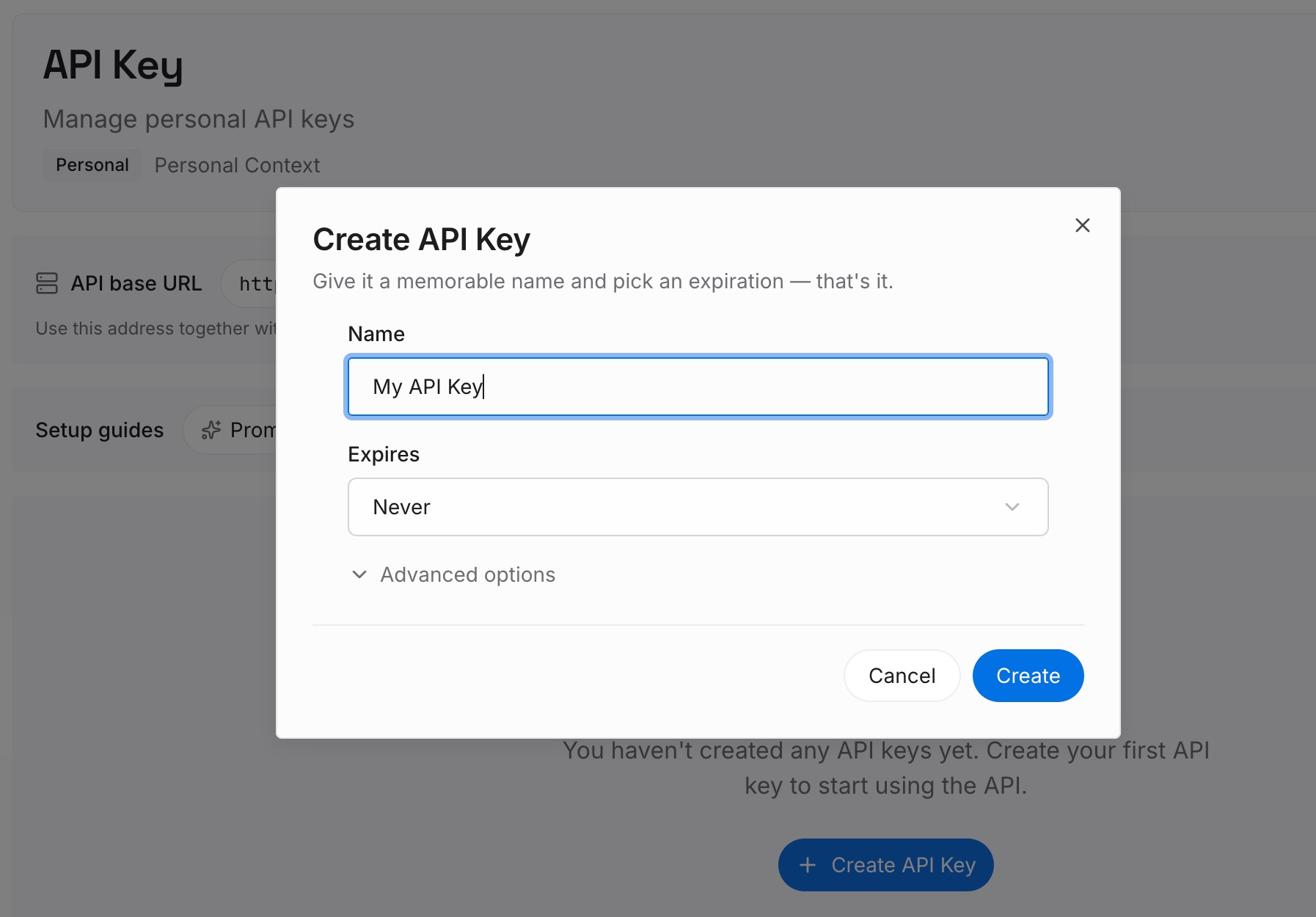
Step 1: Create an API key
Sign in and generate a key from the dashboard. Keep it somewhere private.
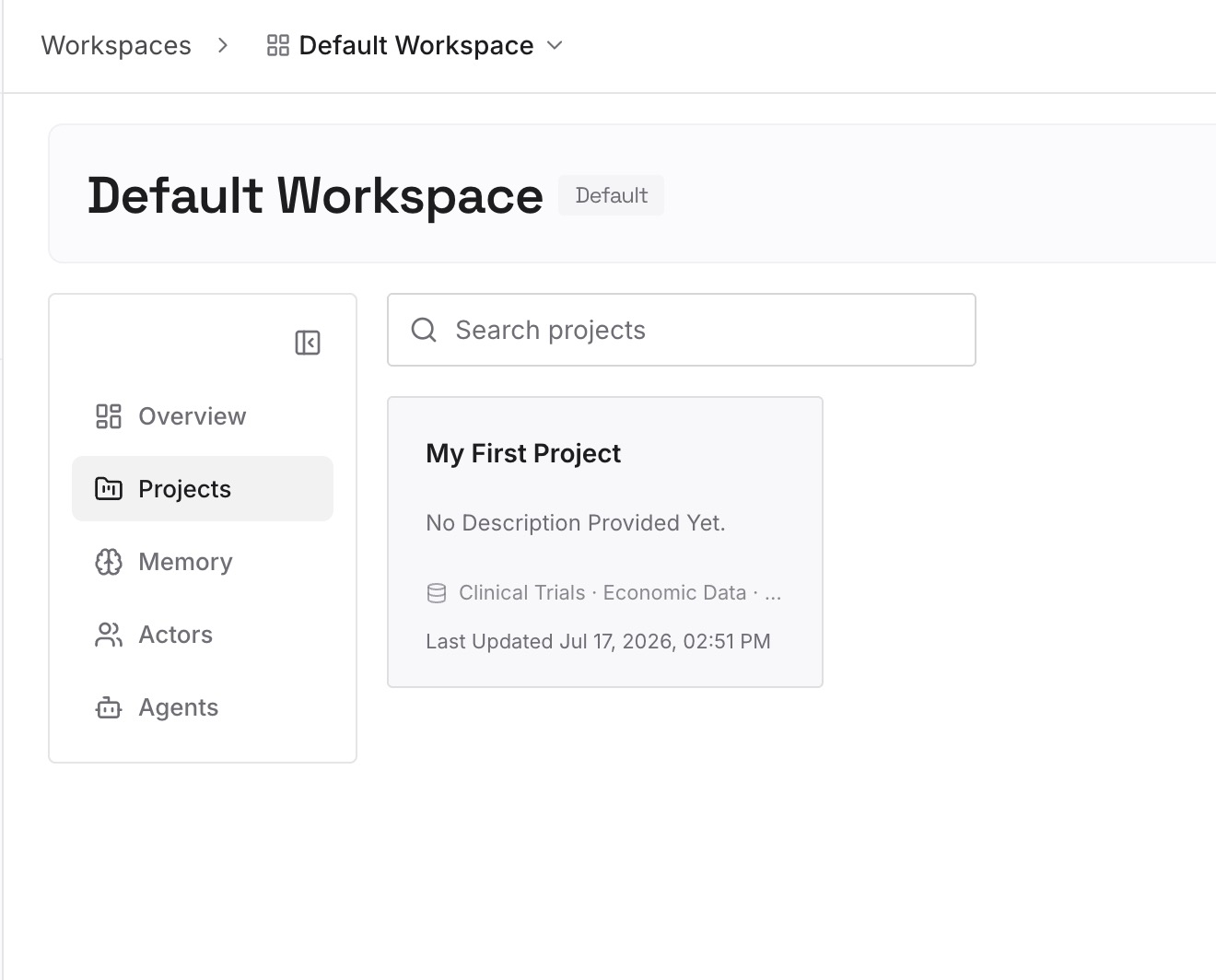
Step 2: Upload your first memories
Start with the list you edited in Step 4 of the migration: preferences, projects, and decisions. One topic per entry.
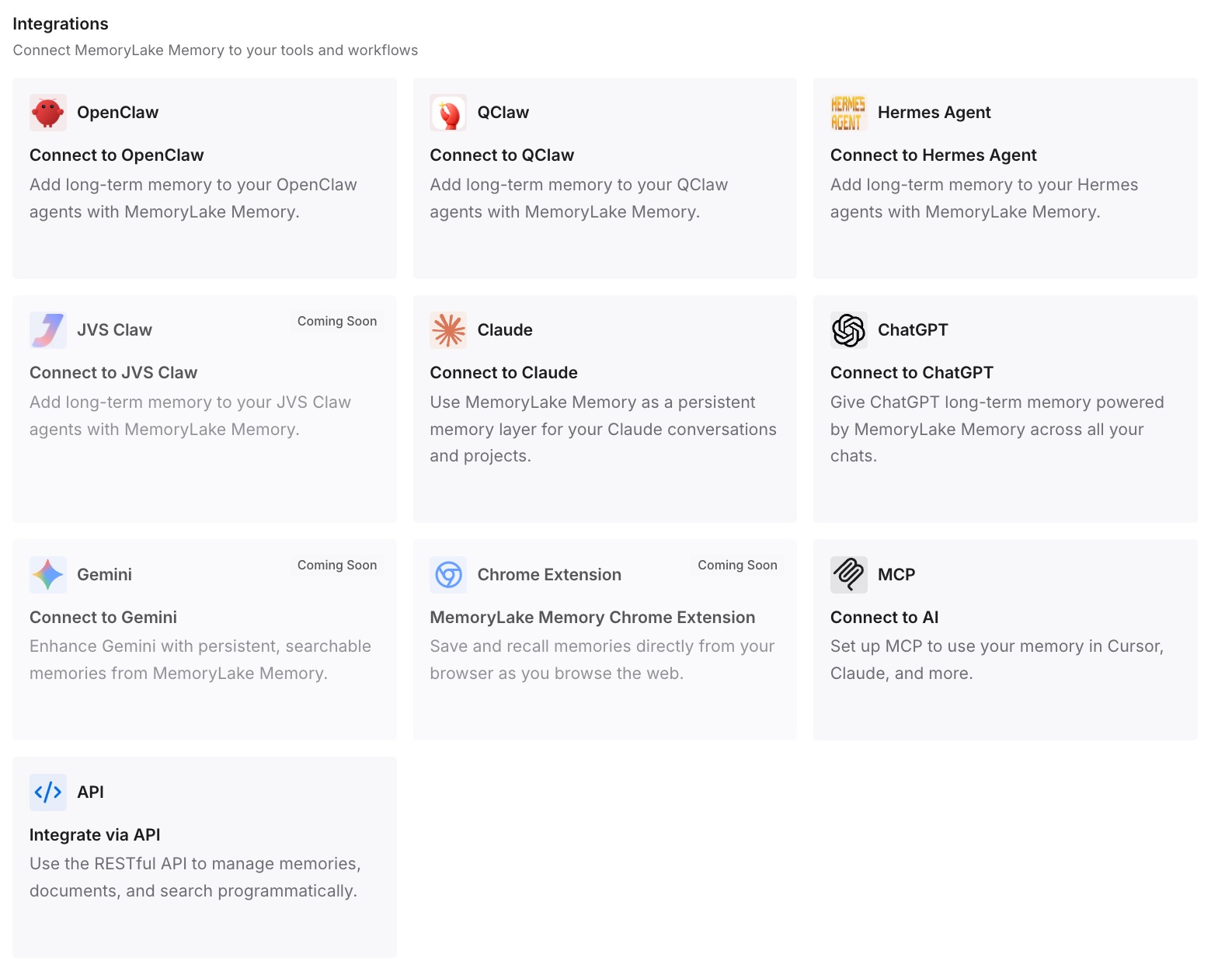
Step 3: Connect your AI & agents
Connect ChatGPT, Claude Code, Codex, and the other assistants you use, so the same context is there whichever one you open.
What this changes in practice
The first difference is a shorter switch. The context you care about is already written down.
The second is a cleaner record. You decide what carries over instead of relying on what each app extracted.
The third is freedom to use both. You can keep Claude for some work and ChatGPT for other work from the same notes.
We went the other direction in our guide to switching from ChatGPT to Claude.
Best practices for switching from Claude to ChatGPT
Read out memory first. Do it before you change settings or close an account.
Check every project. Each Claude project has its own memory.
Download the export promptly. The link expires after 24 hours.
Keep instructions short. Custom instructions have a character limit.
Separate how from what. Instructions describe how to answer; memory holds what ChatGPT should know.
Verify what ChatGPT saved. Ask what it remembers and fill the gaps.
Conclusion
Switching from Claude to ChatGPT means moving each kind of context separately. Claude lets you view its memory and write it out as text, and each project's memory is worth checking on its own. ChatGPT builds memory from what you tell it, so you bring that list over by asking it to remember the parts that matter. Claude's Instructions go into ChatGPT's custom instructions, within its character limit.
Projects map closely: instructions become project instructions, and knowledge files become project files. Your conversations come out of Claude as an export that doesn't include your original uploads, so keep it as an archive and move the decisions you need. Checking what ChatGPT saved, and keeping the context that matters in one place you control, makes the switch hold.