
The short answer
Every major AI tool stores context in its own private silo, so switching tools means starting over. To sync memory across all of them, create a single MemoryLake Project, expose it as an MCP Server endpoint, and point each tool at that endpoint — your preferences, rules, and documents become one shared source every tool reads on demand.
Why each AI's built-in memory falls short for cross-tool workflows
Built-in memory features are designed around one tool, one account. ChatGPT remembers things you told ChatGPT. Claude's Chat Memory stays in Claude. Cursor's context stays in your editor. When you move between them, you carry nothing.
Beyond siloing, the memory models differ: some tools summarize (losing precision), some use vector search (losing structure), and some simply clear the window after a session ends. There's no standard for sharing that state, no version history, and no way to audit what each tool actually knows about you.
The practical cost adds up fast. Re-pasting system prompts, re-uploading reference documents, re-specifying the same code style guide — these aren't edge cases, they're the norm for anyone running a multi-tool workflow. And because each tool's memory is platform-held, you have no guarantee it persists, no way to export it, and no recourse if the feature is deprecated.
A cross-tool memory layer solves this at the root: one Project holds everything, and every tool that supports MCP reads from it directly.
Before you start
You'll need:
- A free MemoryLake account
- At least one AI tool that accepts MCP server connections (Claude Desktop, Cursor, Copilot, or any MCP-compatible client)
- The context you keep repeating across tools — rules, style guides, project notes, or reference files (PDF, Word, Excel, PowerPoint, Markdown, or images)
How to sync your AI memory across every tool (step by step)
Step 1: Build a memory Project
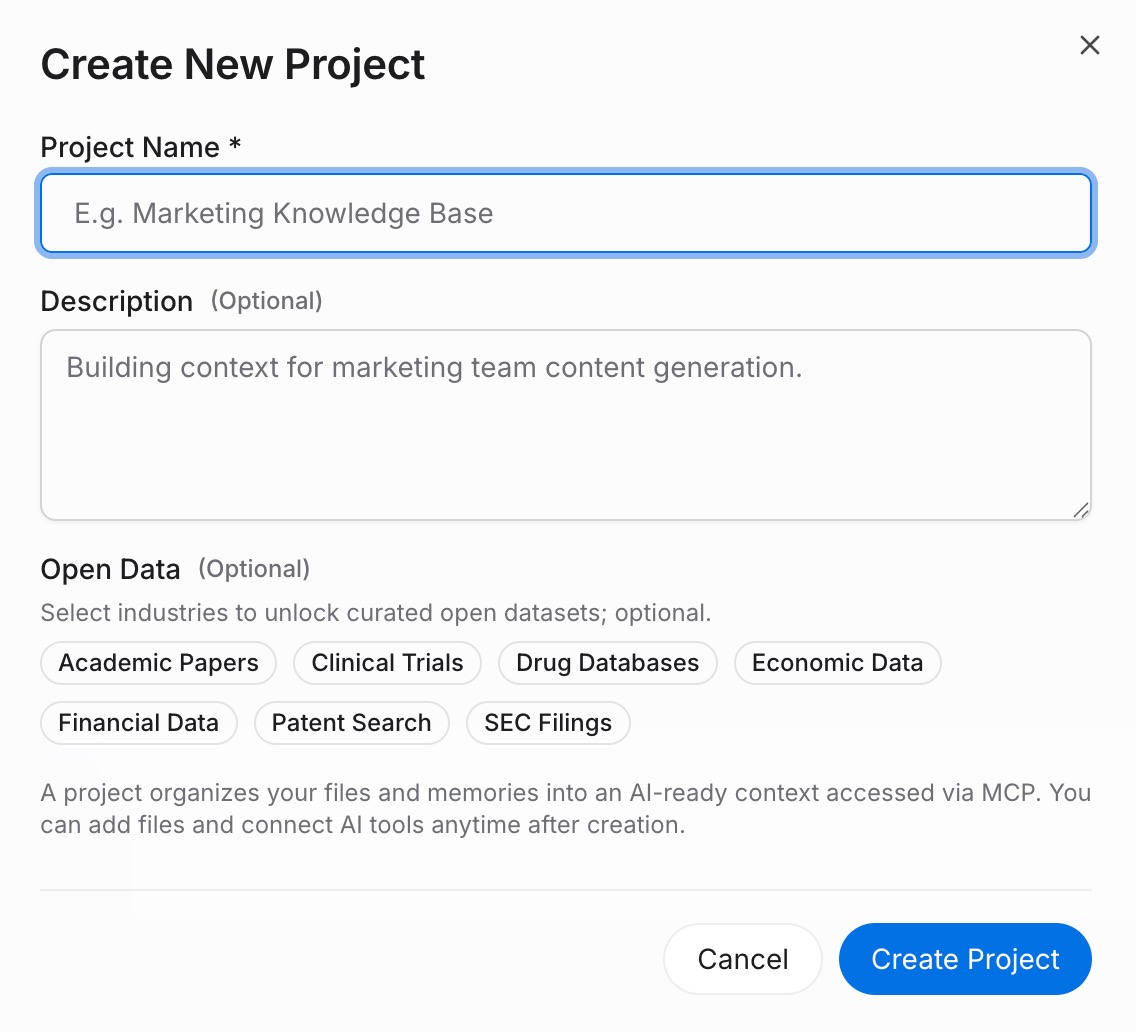
Sign in to MemoryLake and go to Project Management. Click Create Project and give it a name that reflects its scope — "Shared AI context" or "Work rules" works well. Open the Document Drive, click Upload to add your reference files, then navigate to the Documents Tab → Add Documents → Confirm to attach them to the Project. For standing rules and preferences that don't live in a file, open the Memories Tab → Add Memory, type the rule, and click Save. Repeat for each piece of context you'd otherwise paste into every new chat.
Step 2: Generate an MCP Server endpoint
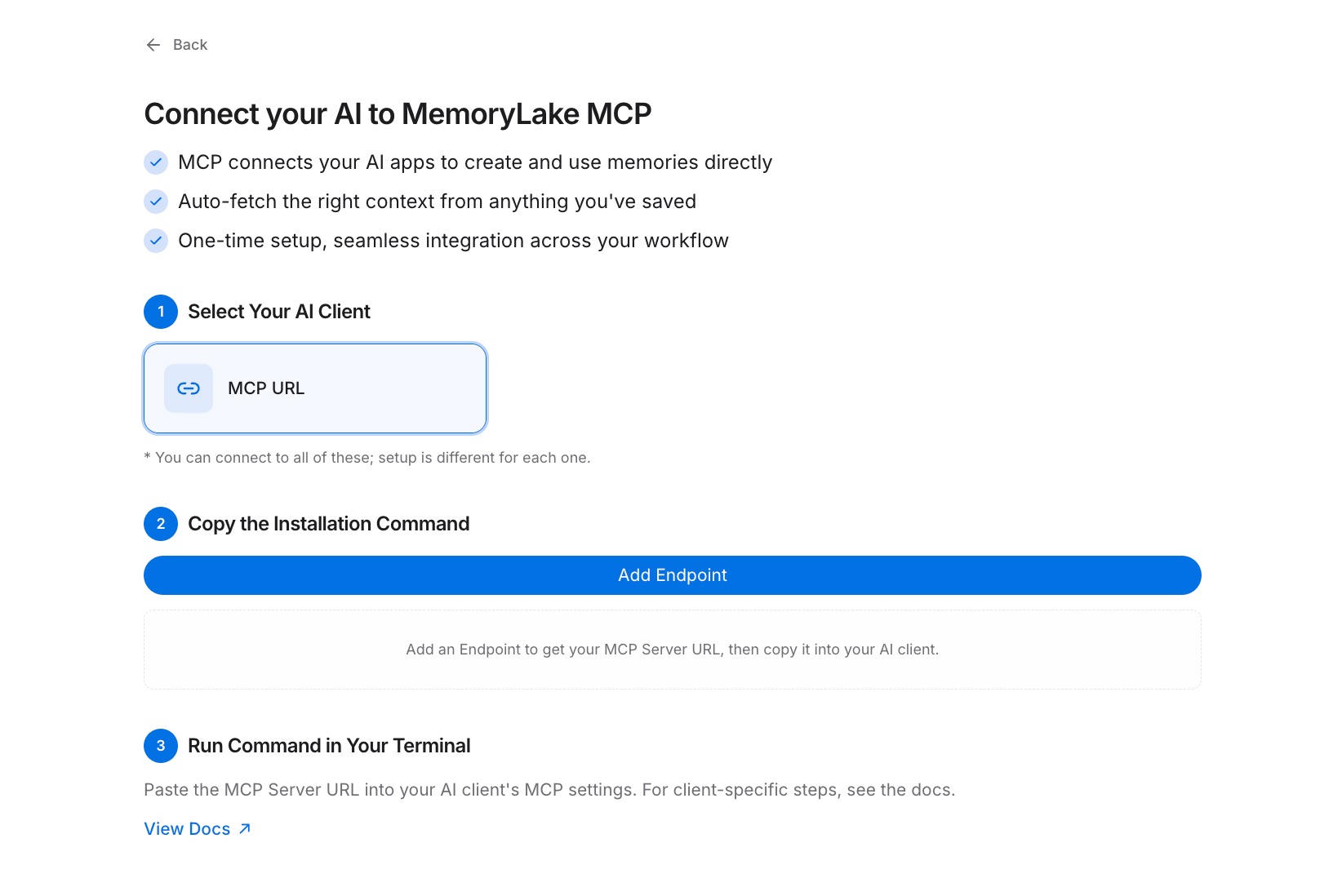
Navigate to the MCP Servers Tab → Add MCP Server and name the server (for example, "Cross-tool memory"). Click Generate. MemoryLake returns three values: a Key ID, a Secret, and an Endpoint URL. Copy the Secret immediately — it is displayed only once and cannot be retrieved later.
Step 3: Connect each tool over MCP
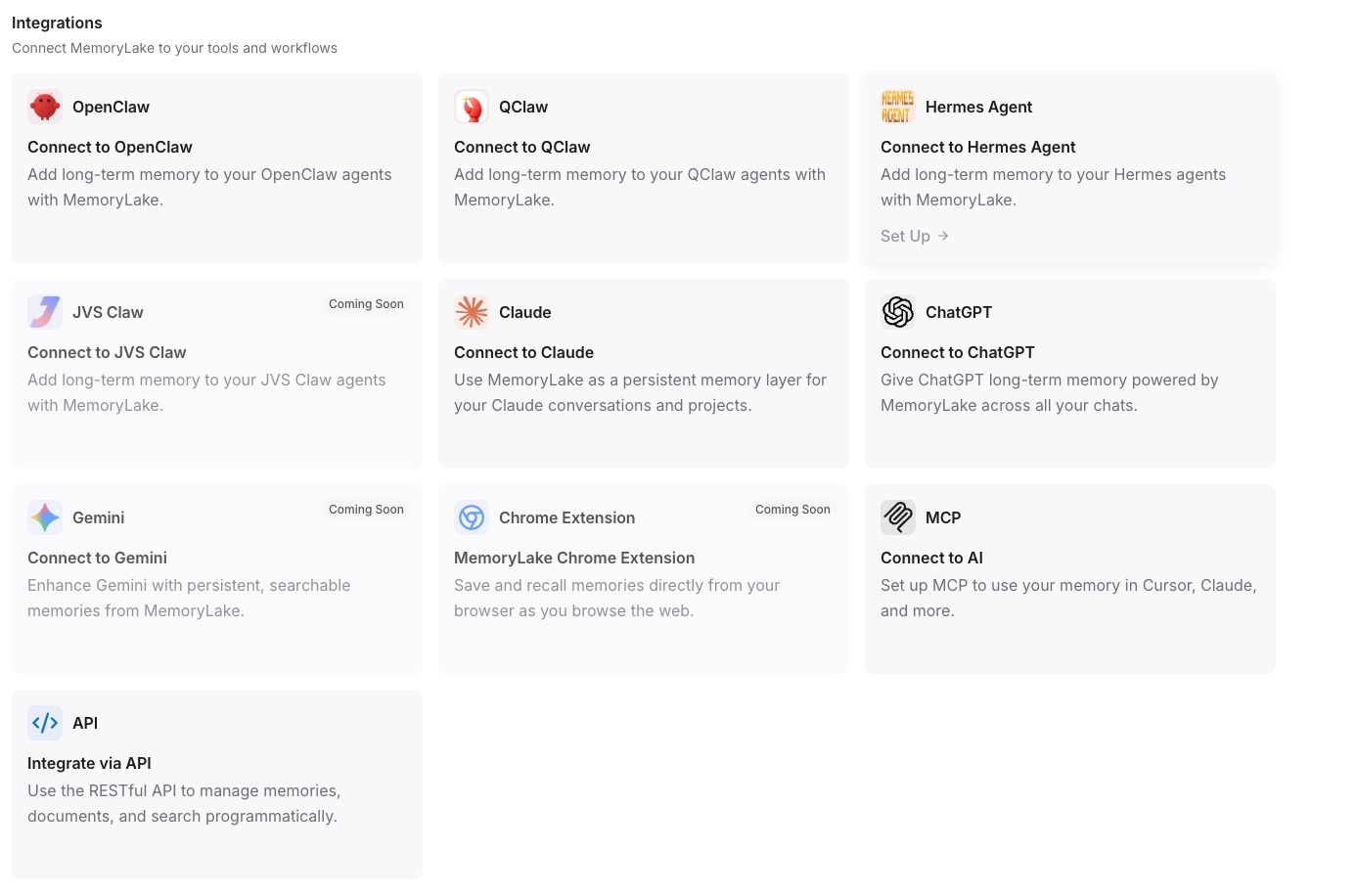
In each AI tool's MCP configuration panel, register the Endpoint URL as an MCP server and set the Secret as a Bearer token to authenticate. Restart the tool after saving. See the MCP setup guide for the exact configuration reference. Once connected, the tool queries your Project on demand — and every other tool you connect to the same endpoint reads identical context, with no copying or syncing required. [Try MemoryLake free]
Per-tool memory vs MemoryLake shared layer
| Dimension | Per-tool built-in memory | MemoryLake shared layer |
|---|---|---|
| Persists across sessions | Varies — some tools clear it | Yes — stored in your Project |
| Works across other AI tools | No — siloed per platform | Yes — one Project, any MCP tool |
| Capacity | Capped by each platform | Scales with your Project |
| Version control | None | Yes (Git-style history) |
| Data ownership | Platform-held | You own it (AES-256, export or delete) |
| Benchmark | — | LoCoMo #1 — 94.03% |
Tips & best practices
- Keep one Project per distinct context — a "Work" Project and a "Personal writing" Project keep ChatGPT from pulling your Rust code conventions into a travel itinerary.
- Use the Memories Tab for rules you want retrieved precisely (tool preferences, formatting standards) and the Documents Tab for files you want the AI to search inside.
- When you update a rule, edit the existing Memory entry rather than adding a duplicate — conflicting entries confuse retrieval.
- Revoke and regenerate a key the moment it's compromised; the old Bearer token stops working immediately, and you can issue a new one without rebuilding the Project.
Troubleshooting
- The tool reports it can't reach the MCP server: verify the Endpoint URL is pasted without trailing spaces and that the MCP entry is saved before restarting the tool.
- Authentication is rejected: confirm the Secret is entered as a Bearer token (not as a username or API key field), with no extra whitespace.
- "Secret not found" after closing the setup screen: the Secret is shown only once. Open the MCP Servers Tab, revoke the entry, and click Add MCP Server → Generate to issue a new key.
One Project, every tool, zero re-explaining
Set up a shared MemoryLake Project and your context follows you into every AI tool you open — no more pasting the same rules into every new chat.