
What actually transfers
Exporting your history as a CSV
Granola's export lives in your profile settings. Its help center says: "Open Settings > Profile, then click Generate CSV to export your historical data." The file arrives later: "This will generate a CSV emailed to you within a few hours. The CSV includes the title, note summary, transcript, and other basic details for each note."
The export has boundaries worth knowing before you count on it:
- Ownership. "The export is based on the workspaces you select and only includes notes you own in those workspaces." Notes others shared with you are not in your file.
- Summaries. "The export only includes notes that have a summary. Deleted notes and notes without a summary are not included." Granola notes that the count in your export may be lower than the count in the app.
- The link. The email link is valid for 24 hours, and Granola asks you to open it while signed in to the same account that requested it. You can generate a new export at any time.
- Plans. "Data export is enabled by default on Business and Basic plans. On Enterprise plans, data export is disabled by default," and only workspace admins can switch it on.
- Teams. Granola is direct about this: "There is no company-wide or admin-level export." Each person exports their own notes.
Granola also describes the CSV as the way to satisfy a GDPR data portability request, which makes it the closest thing to a complete copy of your Granola history.
Copying one note at a time
For a handful of important meetings, the share menu is quicker. Granola says "Copy notes will copy your AI-enhanced notes onto your clipboard in markdown format," and is clear about what that covers: "This copies the summary Granola generated — not the transcript." The transcript has its own copy button in the transcript panel.
Markdown is a good format for ChatGPT. It keeps headings and lists intact, and you can paste or save it as a file without cleanup.
Connecting instead of moving
There is a second option that isn't a migration at all. Granola offers an MCP server and a ChatGPT connection. Its documentation says you can "Connect your AI tools to your Granola meeting notes with Granola MCP," and the ChatGPT steps end with: "You can now @Granola or just ask to reference your meetings in ChatGPT."
A connection reads your notes where they are. Its reach depends on your Granola plan. The documentation's table gives Basic (Free) "Personal notes from the last 30 days," Business "Personal notes and public notes," and Enterprise whatever scopes your workspace admins enable. It also follows one workspace at a time: "MCP follows the active workspace selected in the Granola app," and "MCP does not combine notes across multiple workspaces."
That makes the connector a good fit if you are keeping Granola and want ChatGPT to look things up in it. If you are leaving Granola, or you are on the free plan and need older meetings, the connector depends on notes that stay in Granola, so export as well. For how connectors fit next to memory more generally, see MCP and the missing memory layer.
Clocks to watch before you start
Two Granola settings can remove material on a schedule.
The first is transcript auto-deletion. Individual users can set a retention period from one day to one year, and the documentation warns: "Transcript deletion is permanent and irreversible." Your notes survive it, "Notes are not affected," but other things change: Granola says "Regenerating notes will not work properly" once a transcript is gone. For individuals, a one-week cooldown applies after the setting is first enabled or changed. Enterprise policies have no cooldown: "All existing transcripts older than the retention period are deleted immediately when the policy is activated."
The second is the trash. "Notes in the trash for over 30 days will be automatically deleted permanently."
If transcripts matter to your migration, check Settings > Preferences for the auto-deletion period before anything else, and export while they still exist.
If you plan to close your Granola account
Account deletion reaches further than your private notes. Granola's documentation says that for folders you created with other members, the folder may remain, but "all notes you owned that were in those folders are permanently deleted when you delete your account." Notes you transferred to another account beforehand stay with that account.
So if colleagues rely on meeting notes you own in a shared folder, transfer those notes or agree on who keeps them before you close anything. Teammates who received a shared link see the summary; Granola says that "For privacy reasons, they won't be able to read the full transcript."
What ChatGPT now offers for meetings
The destination has changed recently. ChatGPT's Meetings plugin, in beta in the macOS desktop app for Pro and Business plans, takes notes during a meeting. OpenAI describes the result: "Meetings uses the transcript, your notes, and relevant context from connected apps you've authorized to add a personalized summary and suggested action items to the same page." Pages live in ChatGPT Space, and OpenAI notes that "Meetings is separate from the Record feature in the older ChatGPT desktop app." If you used Record, our guide to Record mode history covers what it kept.
ChatGPT also accepts audio uploads on paid plans, where it can "transcribe and discuss an audio recording." OpenAI cautions that "Transcripts may contain errors, and speaker identification may be unreliable."
Consent is your responsibility on either side. OpenAI's Meetings article says: "Tell everyone in the meeting that you'll be taking notes from the meeting and get everyone's consent before you start." The same applies to notes you already took in Granola before you copy them anywhere else.
The manual migration
Step 1: Export your Granola history and choose what is worth carrying
Check transcript auto-deletion first, then generate the CSV from Settings > Profile and download it within the 24-hour window. Keep that file somewhere safe and outside Granola. It is your backup.
Then decide what to bring. Most meeting notes are routine: standups, status calls, meetings whose outcomes are already done. Open the CSV in a spreadsheet and sort by title and date. Mark the meetings that hold decisions, commitments, customer requirements or reasoning you will need again.
For each marked meeting, decide whether you need the summary or the transcript. Usually the summary is enough. Bring the transcript only when the exact wording matters, such as a customer's stated requirement or an agreed term.
Before anything leaves your hands, remove what shouldn't travel. Transcripts capture other people's words. Strip personal details, anything confidential that your organization doesn't allow in another tool, and meetings you don't have permission to move. If your notes belong to a company workspace, check its policy first.
Step 2: Rebuild each account or topic in a ChatGPT project, with a summary you wrote
Create one ChatGPT project per client, team or topic. Choose its memory setting before you add anything; project-only memory keeps meeting material inside the project, as explained in our guide to default and project-only memory.
Write a short summary for each project yourself: who the stakeholders are, what was decided and when, what was promised, and what is still open. Put the standing parts in project instructions. Then add the selected meeting notes as files, one file per meeting or one per month, named by date and topic.
Test before you rely on it. Ask the project about a commitment from a specific meeting. If ChatGPT can't find it, move the commitment into the summary. If notes from client calls keep slipping, why ChatGPT forgets sales call notes explains the usual causes.
Then decide how future meetings will work. You can keep Granola and connect it to ChatGPT, move to ChatGPT's Meetings plugin, or keep taking notes in Granola and export periodically. Whichever you choose, keep updating the project summaries; they are what carries forward.
The Better Way: Keep the decisions from your meetings in one place every assistant can use
The manual migration works, and the summaries are why. But meetings keep happening, in whichever tool you use that week, and the decisions in them matter long after the transcript stops being useful.
The decisions are the durable part. A transcript is mostly the path to an agreement. The better approach is to keep the agreements in one place you maintain and let each assistant draw on them.
MemoryLake is built for that: a memory layer you keep once and connect to the assistants you use.
You write the entries yourself, in your own words. Nothing is read out of, written to, or deleted from your Granola account, your ChatGPT account, or any vendor's store. Check your organization's policy and your meeting participants' consent before copying meeting content anywhere.
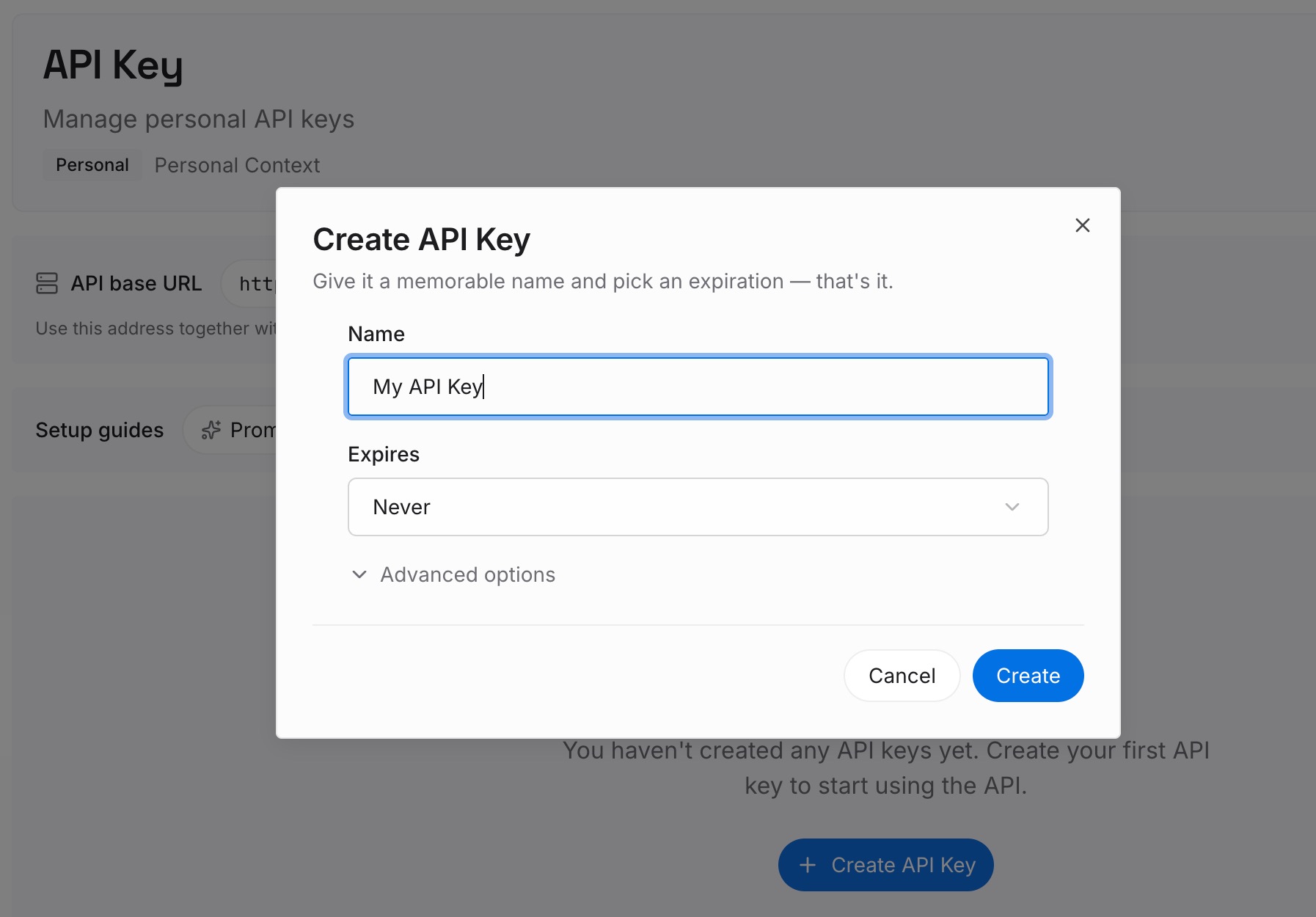
Step 1: Create an API key
Sign in and generate a key from the dashboard. The key belongs to your MemoryLake workspace, separate from your Granola and OpenAI accounts.
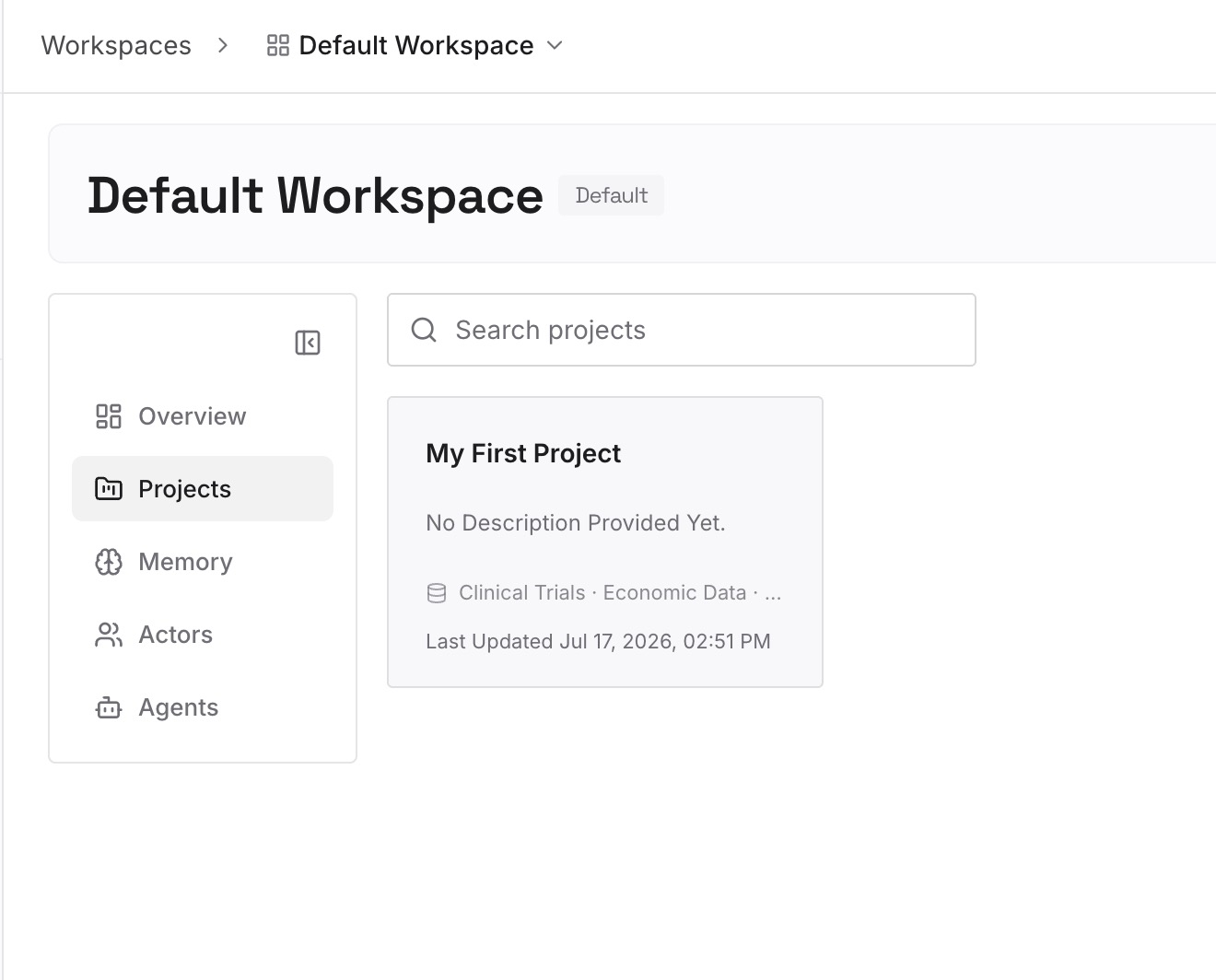
Step 2: Upload your first memories
Start with the summaries you wrote in Step 2 of the manual migration. One decision or commitment per entry, dated, with the meeting it came from.
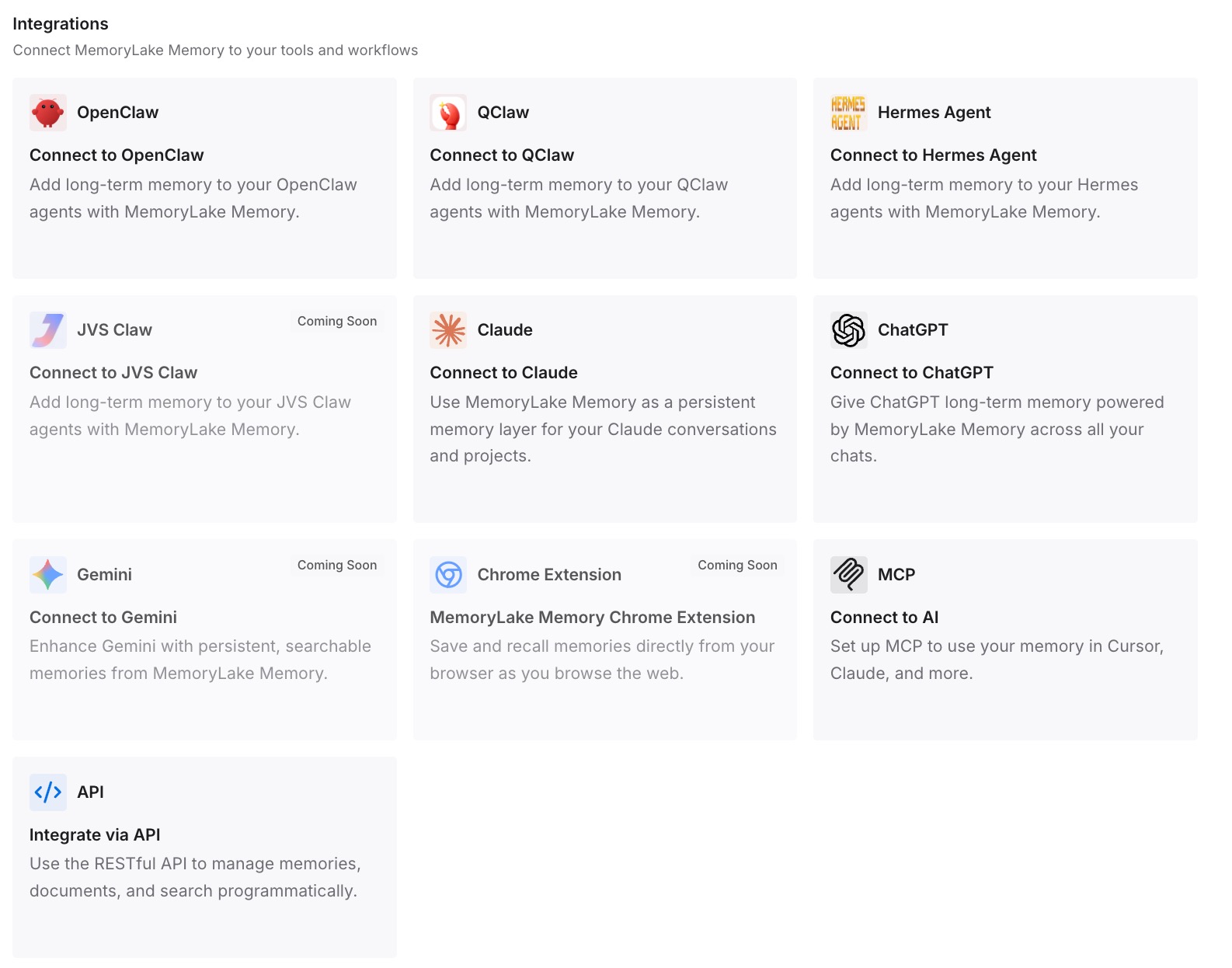
Step 3: Connect your AI & agents
Connect ChatGPT and the other assistants you use. The same decisions are then available in each, whichever tool took the notes.
What this changes in practice
The first difference is a usable history. Instead of a CSV with hundreds of rows, ChatGPT starts each project with a short picture of what was decided.
The second is that transcript retention stops being a risk. Once the decisions are written down, a transcript deleted on schedule takes nothing important with it.
The third is that switching note-takers is easier. Granola, ChatGPT Meetings or anything else can take the notes; the decisions live somewhere you control. If you are still choosing, our roundup of AI tools that remember your meetings compares the options.
The fourth is that research and meetings meet. Notes about a customer and research about their market can sit in the same ChatGPT project, a pattern also covered in why ChatGPT forgets research notes.
Best practices for moving Granola meeting notes to ChatGPT
Check transcript auto-deletion first. Deleted transcripts can't be recovered.
Export the CSV and keep it. It is the closest thing to a full copy.
Know what the CSV leaves out. Notes without a summary, deleted notes and notes you don't own.
Bring summaries, not every transcript. Use transcripts only where exact wording matters.
Write a summary per project. It does more work than any file.
Use the connector if you are staying. It reads notes in place, within your plan's scope.
Get consent and follow policy. Meeting notes contain other people's words.
Conclusion
Granola lets you export your history as a CSV with titles, summaries and transcripts, copy individual notes as Markdown, or connect ChatGPT to your notes through Granola MCP. Each route has limits: the CSV includes only notes you own that have a summary, the free plan's connector sees the last 30 days, and transcripts can be deleted on a schedule.
The migration that holds up is selective. Check retention, export everything, choose the meetings with decisions in them, and rebuild each topic in a ChatGPT project with a summary you wrote and the notes as reference.
Keep those summaries current, and the next tool change will start from what was agreed rather than from everything that was said.