
What changed
OpenAI's help article on the feature is now titled Using multiple ChatGPT accounts on web and mobile. It opens with the rollout status: "Account switching is rolling out on iOS and Android. If you don’t see Switch account in Settings, it may not be available to you yet."
The availability section lists the platforms: "Account switching is available on ChatGPT web and in the ChatGPT iOS and Android apps." The article doesn't mention the ChatGPT desktop app or Codex, so check those separately if you use them.
On the web, there's one condition for work accounts. OpenAI says account switching "can be used with all plan types, but your organization may control whether it is available for your managed workspace." If you don't see the option in a managed workspace, the article points you to your workspace administrator.
How account switching works
The basic rule is simple. "You can stay signed in to up to 2 ChatGPT accounts at a time and switch between them without signing out. Only one account is active at a time."
You can own more than two accounts. The limit is on how many stay signed in together: "If 2 accounts are already signed in, log out of one before adding another."
On the web
Open the account menu and select Add account, then sign in or create a new account. To switch later, open the account menu and pick the account you want. The active account is marked with a checkmark.
On iPhone and Android
Open Settings, select Switch account, then Add account, and sign in. To switch, go back to Settings, select Switch account, and choose the other account. One detail is specific to mobile: "If 2 accounts are already signed in, Add account is hidden." You'll need to log out of one account before the option comes back.
A second account starts free
If you're creating a second account to keep work and personal use apart, there's no charge to start. "Creating a second account does not require payment. Your newly created account will start on the Free plan by default."
What each account keeps to itself
OpenAI's article lists what follows the active account: chats, memory, files, and settings. Each one matters differently.
Memory
This is the part that shapes your answers in the background. Each account has its own memory, built from what you've told ChatGPT in that account. When you switch, ChatGPT uses the memory of the account you switched to.
That includes all of memory's parts. OpenAI's memory documentation says your controls "may include Memory, Reference saved memories, Reference chat history, Memory summary, Manage, or Saved memories." Each account has its own set, with its own settings. The same documentation notes that "Memory features and controls can vary by plan, region, platform, and workspace settings", so a work account and a personal account on different plans may not even show the same controls.
The practical effect is that ChatGPT knows different things about you depending on which account is active. Your work account may know your role, your team's conventions, and the project you're on. Your personal account may know none of that, and the reverse is true too. Our guide to what ChatGPT's memory summary leaves out shows how to see what each account currently holds.
Chats and history
Each account has its own chat list. A conversation you started in your work account stays there. Switching accounts doesn't move it, and it isn't part of the other account's history.
Files
Uploads belong to the account that received them. OpenAI lists "Share files or uploads" among the things switching doesn't do. A document you uploaded in your personal account isn't available when you switch to your work account.
Settings
Custom instructions, personalization, and data controls are per account. If you've turned off memory or model training in one account, that choice applies to that account only. Our guide to memory settings versus data controls explains what each of those switches does.
Workspaces and projects
OpenAI says "Workspaces, where available, are scoped to that account." Projects sit inside the account and workspace where you created them, along with their own memory setting. Our guide to project memory modes covers how a project's memory relates to the rest of the account.
Billing
Each account keeps its own plan. OpenAI says "Switching accounts does not transfer or share a subscription." If you want a paid plan on both accounts, you need two subscriptions.
What switching doesn't do
OpenAI's article includes a short list of things switching does not do. Each item is worth reading on its own:
- "Move chats between accounts"
- "Share memory or conversation history"
- "Share files or uploads"
- "Combine billing or subscriptions"
- "Merge accounts or workspaces"
The article's FAQ also separates two similar-sounding actions: "Switching accounts changes which ChatGPT account you are using. Switching workspaces changes the workspace within an account." If your work account has more than one workspace, those are switched separately from accounts.
Where the two accounts touch
The accounts don't share data, but on a phone they share a device, and a few behaviors connect them.
Notifications
You can get notifications from both signed-in accounts, depending on each account's settings and your device permissions. Tapping one can change your active account: "Selecting a notification for the other account switches to that account and opens the relevant content."
That's convenient, and it's also a way to end up typing in the account you didn't mean to use. After you open a notification, check which account is active before you start a new conversation.
Logging out
On mobile, logging out moves you to the other account. "On mobile, logging out of the active account opens the other signed-in account." Logging out of the last account returns you to the sign-in screen.
The active account
OpenAI's advice is short: "Check the active account before starting a conversation or making a purchase." It matters for memory as much as for billing. A preference you state in the wrong account gets remembered in the wrong account.
Work accounts and personal accounts
If your organization manages one of your accounts, its rules don't change when you switch. OpenAI's article says, for workspace-managed accounts on the web:
- "Your administrator may be able to access and manage data tied to that account."
- "Data created in your managed account is governed by your organization’s policies."
- "Switching accounts does not change which policies apply."
That cuts both ways. Personal details you mention in the work account fall under your organization's policies. Work material you paste into your personal account falls outside them, which your organization may not allow. Account switching makes it easier to keep the two apart, as long as each conversation happens in the right one.
Some features carry account-level settings of their own. Locked chats, for example, use a PIN tied to your OpenAI account, so a second account has a separate PIN. Our guide to locked chats and memory covers how that works. Connected apps are set up per account too; our guide to why ChatGPT connectors don't remember explains what they keep.
What people try first
Expecting the work account to know personal preferences. Each account's memory is built from that account's conversations. If you told your personal account how you like answers formatted, the work account hasn't heard it.
Switching to reach an old conversation. Switching changes which account you're using. It doesn't bring the other account's chats with you. Look in the account where the chat was started.
Treating switching as a merge. OpenAI lists "Merge accounts or workspaces" among the things switching doesn't do. Two accounts signed in together are still two accounts.
Following a notification without checking. Tapping a notification from the other account switches you to it. The next new chat starts there unless you switch back.
Paying twice by mistake. Each account has its own plan. OpenAI recommends checking for existing subscriptions before purchasing to avoid duplicate charges.
The Fix: Decide what each account should know
Step 1: Check what each account remembers today
Open Settings in each account and review its memory controls. Read the memory summary or saved memories, and note what's there. Delete anything that belongs in the other account, or that shouldn't be stored at all.
Step 2: Decide which facts belong where
Some facts belong to one account only: client details in the work account, family details in the personal one. Others you want in both, such as how you like answers written, your time zone, or the tools you use. Write the shared ones down in one list so they say the same thing in both places.
Step 3: Set each account up on purpose
In each account, add the facts that belong there through custom instructions or by asking ChatGPT to remember them. Keep anything that needs to survive changes to the account itself backed up outside ChatGPT. Our guide to backing up ChatGPT memory covers what the export includes.
Setting this up in MemoryLake
Two accounts means two memories that drift apart. The facts you want in both, your preferences, your current projects, the decisions you rely on, have to be maintained twice, and switching won't sync them.
MemoryLake is a memory layer for keeping that shared list in one place you maintain, available to the assistants you connect, such as ChatGPT, Claude Code, and Codex.
You write the entries yourself, in your own words. Nothing is read out of, written to, or deleted from either ChatGPT account, its memory, its chats, its files, or any vendor's store. Account switching keeps working the way OpenAI describes it.
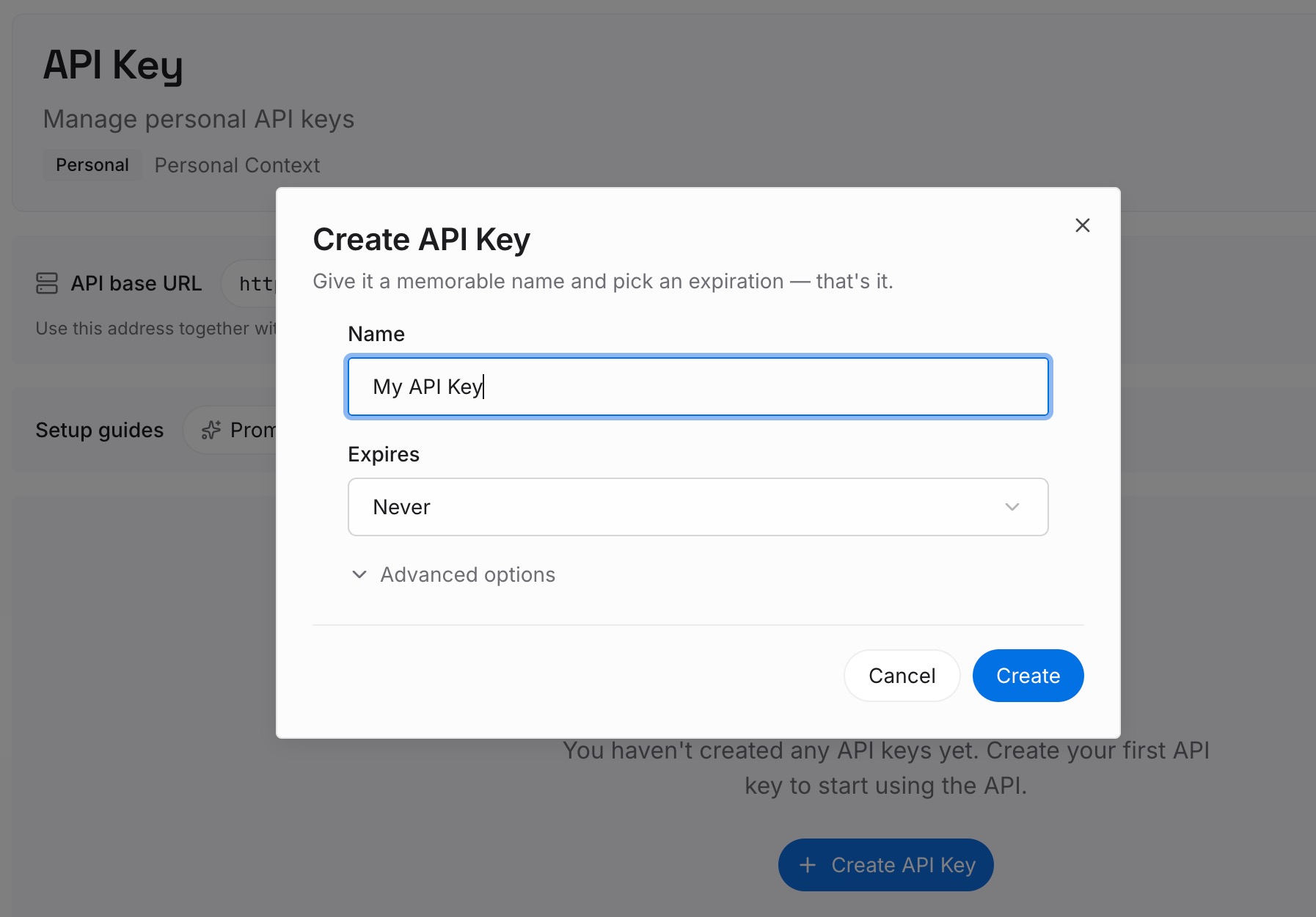
Step 1: Create an API key
Sign in and generate a key from the dashboard. The key belongs to your MemoryLake workspace and is separate from both ChatGPT accounts.
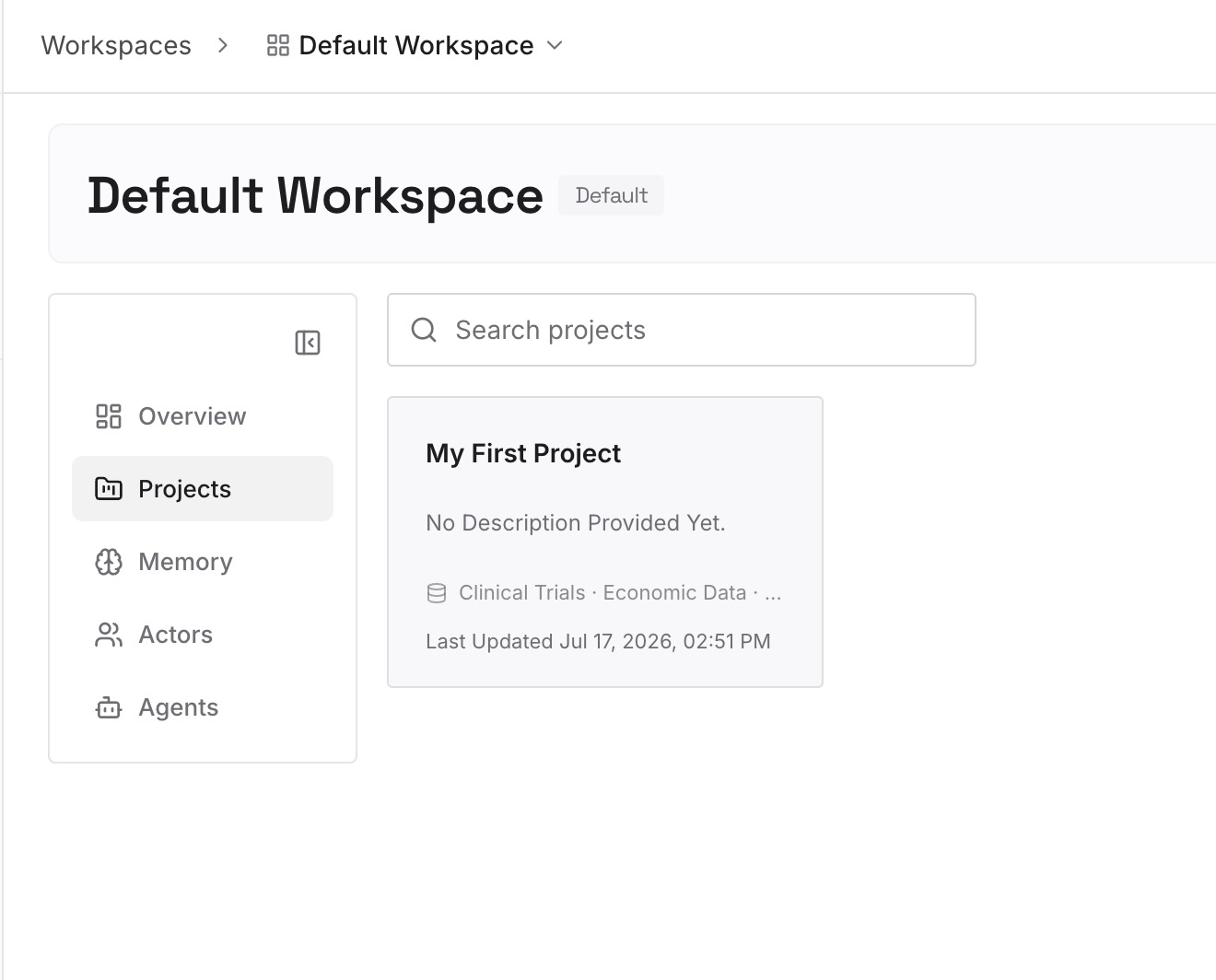
Step 2: Upload your first memories
Start with the shared list from Step 2 of the fix: the facts you want in both accounts. One point per entry. Keep work material only where your organization's policy allows it.
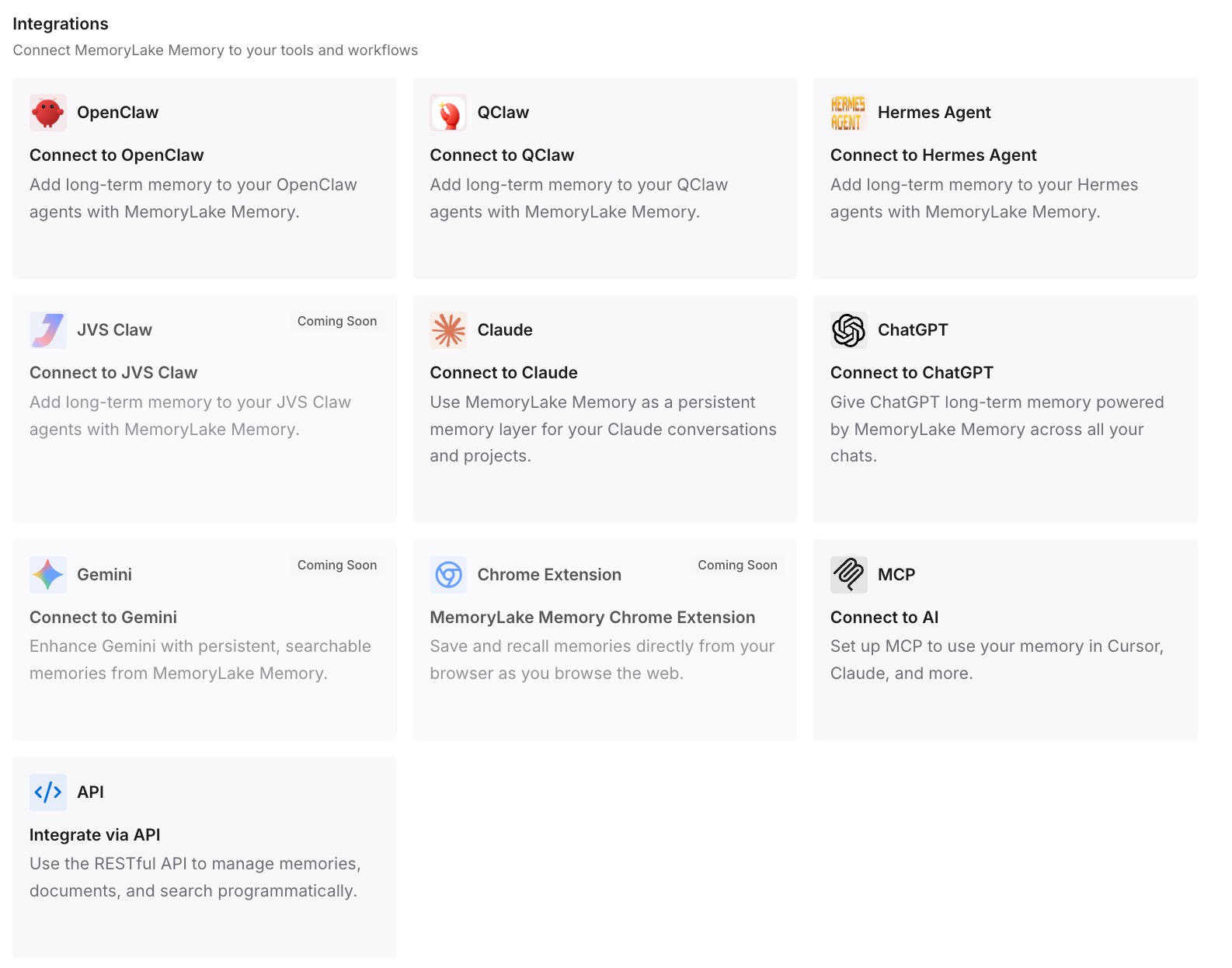
Step 3: Connect your AI & agents
Connect the assistants you use. If you connect ChatGPT, do it in each account where you want those facts available, and only where your organization allows it.
What this changes in practice
The first difference is fewer surprises. When the work account doesn't know something you told the personal one, you know why, and you know where to fix it.
The second is cleaner separation. Client details stay in the work account, personal details stay in the personal one, and you check the active account before starting a conversation.
The third is one version of the facts you need everywhere. Your preferences and current projects read the same way in both accounts, because they come from one list rather than two memories that drift apart.
Best practices for using two ChatGPT accounts
Check the active account first. Look for the checkmark before a new conversation.
Recheck after opening a notification. It may have switched accounts for you.
Review both memories. Each account remembers different things.
Keep work material in the work account. Your organization's policies apply there and not in your personal account.
Write shared preferences down once. Then set them up in both accounts the same way.
Check subscriptions before buying. Plans don't transfer between accounts.
Don't treat switching as a migration. Chats and memory stay where they were created.
Conclusion
ChatGPT's account switching now works on iPhone and Android as well as on the web. You can stay signed in to two accounts and move between them without signing out, but only one is active at a time, and each keeps its own chats, memory, files, settings, and plan.
That separation is the point, and it also means each account knows different things about you. Check the active account before you start, review what each one remembers, and keep the facts you need in both written down in one place.