
How moving a chat is supposed to work
OpenAI's projects article describes two ways: "drag a chat onto your project, or open a chat’s menu and choose Move to project." Pinned chats aren't a problem: "Pinned chats can be moved when Move to project is available."
Moving back is just as simple. "When the option is available, select Remove from project from the chat’s more options menu (•••) to move it back to your chat history."
Both sentences carry a condition: the option has to be available. OpenAI's guidance for when it isn't: "If you don’t see Move to project for a chat, the chat may not be eligible; start a new chat in the project instead."
What blocks a move
The chat was created with a GPT
This is the one OpenAI names directly. "Chats created with a GPT can’t be moved into a project."
It also explains how a GPT chat ends up outside a project in the first place. In the projects FAQ, OpenAI says you can use a custom GPT for messages in an existing project chat, but "If the first message uses a custom GPT, the conversation starts as a chat with that GPT and appears outside the project." So a conversation you meant to start inside a project can land outside it, and then it can't be moved in.
Custom GPTs are also being retired. OpenAI's retirement FAQ says "Custom GPTs are scheduled to retire on Dec 11, 2026", and that "Your existing conversations with custom GPTs will remain accessible after retirement." Our guide to moving custom GPTs to ChatGPT plugins covers the replacement. Our guide to why custom GPTs don't remember covers how their context works.
The chat is locked
Locked chats, added on October 20, 2026, can't be organized while they're locked. OpenAI's locked chats article says "You cannot archive, pin, move, or share a locked chat. Permanently unlock it before using any of these actions."
The reverse direction matters too. Locking a chat that's already in a project takes it out: "If you lock an eligible chat from a project, it leaves that project and no longer uses its instructions, files, or memory." And when you unlock it later, "If the chat originally came from a project, it returns to regular history rather than the previous project." You have to move it back yourself.
The chat is still temporary
OpenAI's projects FAQ answers this one directly: "You cannot add a chat to a project while it is temporary." The temporary chat article explains the way out: "You can save a temporary chat to your chat history if you want to return to it later." Saving converts it into a regular chat that follows your normal settings, and then you can try moving it.
Shared project rules or workspace settings limit it
In shared projects, moving depends on the project and the workspace. OpenAI says "Members can move eligible chats when the relevant action is available. Project memory settings and workspace restrictions can limit which chats can be moved."
So if Move to project is missing for one project but not another, check whether the target is a shared project, what its memory setting is, and whether you're in a managed workspace with restrictions. On Business and Enterprise plans, your workspace admin can tell you what's configured.
It's a Codex chat, or you're looking at the wrong project list
In the new ChatGPT desktop app, Codex is a separate view. OpenAI's article on the new app says "Codex remains a separate view; its workflows are unchanged, and its history remains separate from ChatGPT history." ChatGPT projects and Codex projects are different lists. The Codex app has its own option for this, which its changelog describes as "Added the option to move selected chats to a project at once."
What moving a chat changes
A successful move isn't just filing. It changes what the chat has access to.
It picks up the project's instructions and files
OpenAI says "After moving, the chat inherits the project’s instructions and file context." If the project's instructions say to answer in a certain format, or its files include a style guide, your old chat now works with those. That's the point of moving it. It can also surprise you if the instructions don't fit the conversation.
Its memory scope can change
Projects use one of two memory settings, default memory or project-only memory. In a project-only memory project, OpenAI lists the rules:
- "Your previously saved memories are not referenced in project chats."
- "Chats can reference other conversations within the same project."
- "Chats cannot reference conversations outside the project, such as general ChatGPT conversations or conversations in another project."
- "Chats outside the project cannot reference conversations from the project."
Moving a chat into a project-only project puts it inside that boundary. Your general chats can no longer reference it, and it no longer draws on your saved memories. Moving a chat out puts it back on the other side. Our guide to ChatGPT project memory modes explains both settings.
Shared projects are always project-only. OpenAI says "Shared projects are automatically set to project-only memory and cannot be switched to default memory."
In a shared project, other members can see it
This is the change to think about before you move anything. OpenAI's projects FAQ says "When you share a project, members can view its chats, files, and other members, and they can create or branch conversations." A chat you move into a shared project becomes visible to the people in it. Check what's in the conversation first.
Members who don't want to edit your chat can branch it, which our guide to branching ChatGPT chats covers.
What people try first
Dragging the chat again. If Move to project isn't in the menu, the chat may not be eligible. Repeating the drag won't change that.
Assuming every chat can be moved. GPT chats can't, locked chats can't until you unlock them, and temporary chats have to be saved first.
Expecting a locked chat to return to its project on unlock. It returns to regular history, not the previous project.
Moving a sensitive chat into a shared project to keep it organized. Members of a shared project can view its chats.
Moving a chat into a project-only project and expecting your saved memories to apply. In project-only memory, previously saved memories are not referenced.
The Fix: Find out why the chat is blocked, clear the block or start fresh, then check what the move changed
Step 1: Identify which kind of chat it is
Open the chat's more options menu and look for Move to project. If it's missing, work out which case applies:
- Started with a GPT? If the first message used a custom GPT, the chat can't be moved.
- Locked? Locked chats live under Projects > Locked chats.
- Temporary? A temporary chat stays temporary until you save it.
- Shared project or managed workspace? Try moving the chat into a different project. If that works, the target project's settings are the limit.
- Codex? Switch to the Codex view and use its project options.
Step 2: Clear the block, or carry the content over
For a locked chat, permanently unlock it, then move it. For a temporary chat, save it first. For a chat blocked by a shared project's settings, ask the project owner or your workspace admin.
For a GPT chat, or any chat that still can't be moved, follow OpenAI's suggestion and start a new chat in the project. Bring the useful part with you: summarize what the old chat established and paste that summary as the first message, or add it to the project's files or instructions if it's something every chat in the project should know.
Step 3: Check what the move changed
After a successful move, look at the project's instructions and files and confirm they fit the chat. Check the project's memory setting. If it's project-only, the chat is now outside your general chats' reach and no longer uses your saved memories. If the project is shared, confirm the chat is something the other members should see. If anything's wrong, use Remove from project to move it back.
Setting this up in MemoryLake
A project gives a chat context, but only while the chat is inside it. GPT chats can't get in, locked chats come out, and project-only memory keeps what's inside from reaching the rest of your account. The decisions in those chats end up in whichever container they happened to land in.
MemoryLake is a memory layer for keeping those decisions in one list you maintain, available to ChatGPT and the other assistants you connect, such as Claude Code and Codex.
You write the entries yourself, in your own words. Nothing is read out of, written to, or deleted from your ChatGPT chats, your projects, your project files, your ChatGPT memory, or any vendor's store. Leave out anything you wouldn't put in a shared project, and follow your workspace's policy for work content.
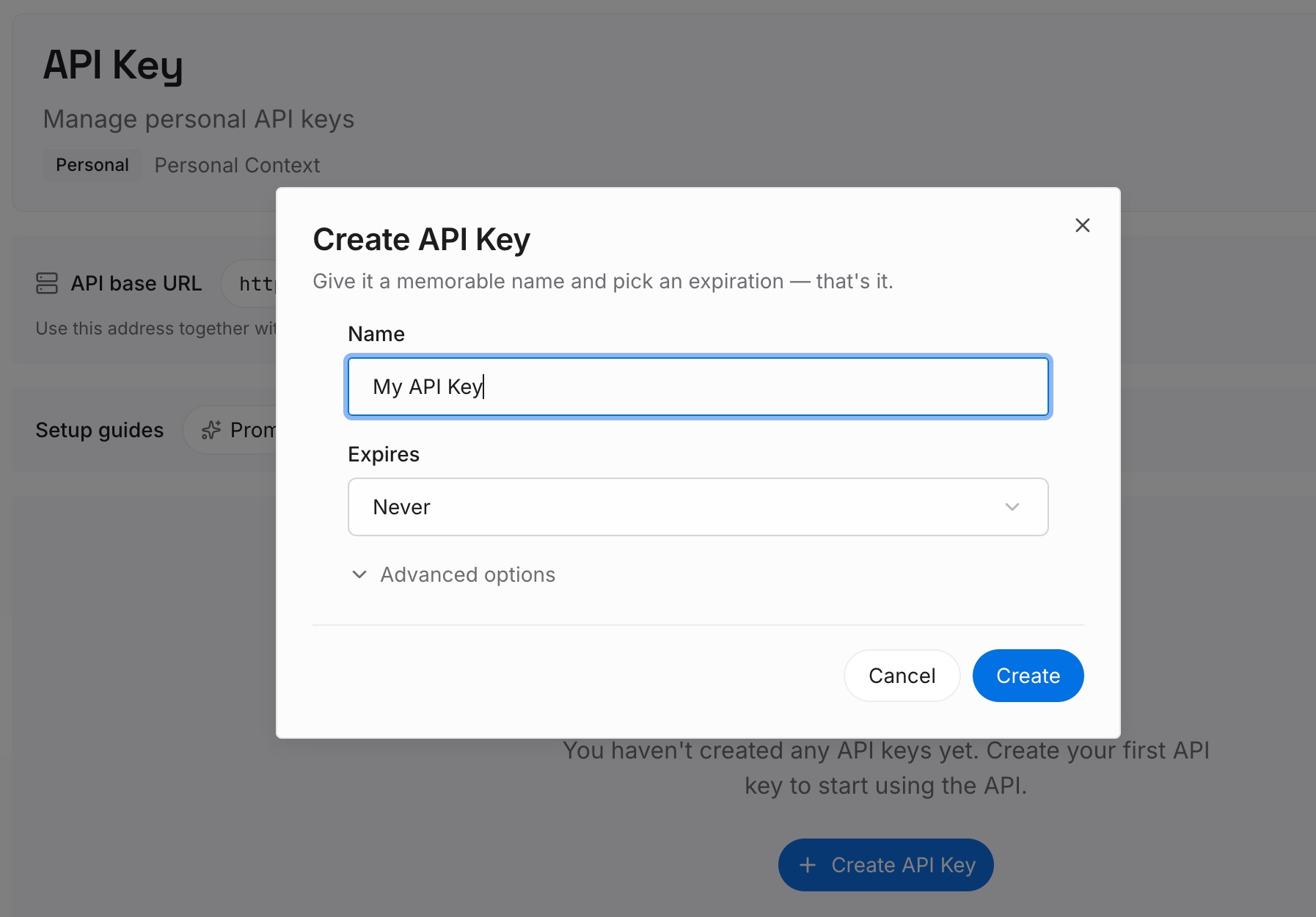
Step 1: Create an API key
Sign in and generate a key from the dashboard. The key belongs to your MemoryLake workspace and is separate from your ChatGPT account.
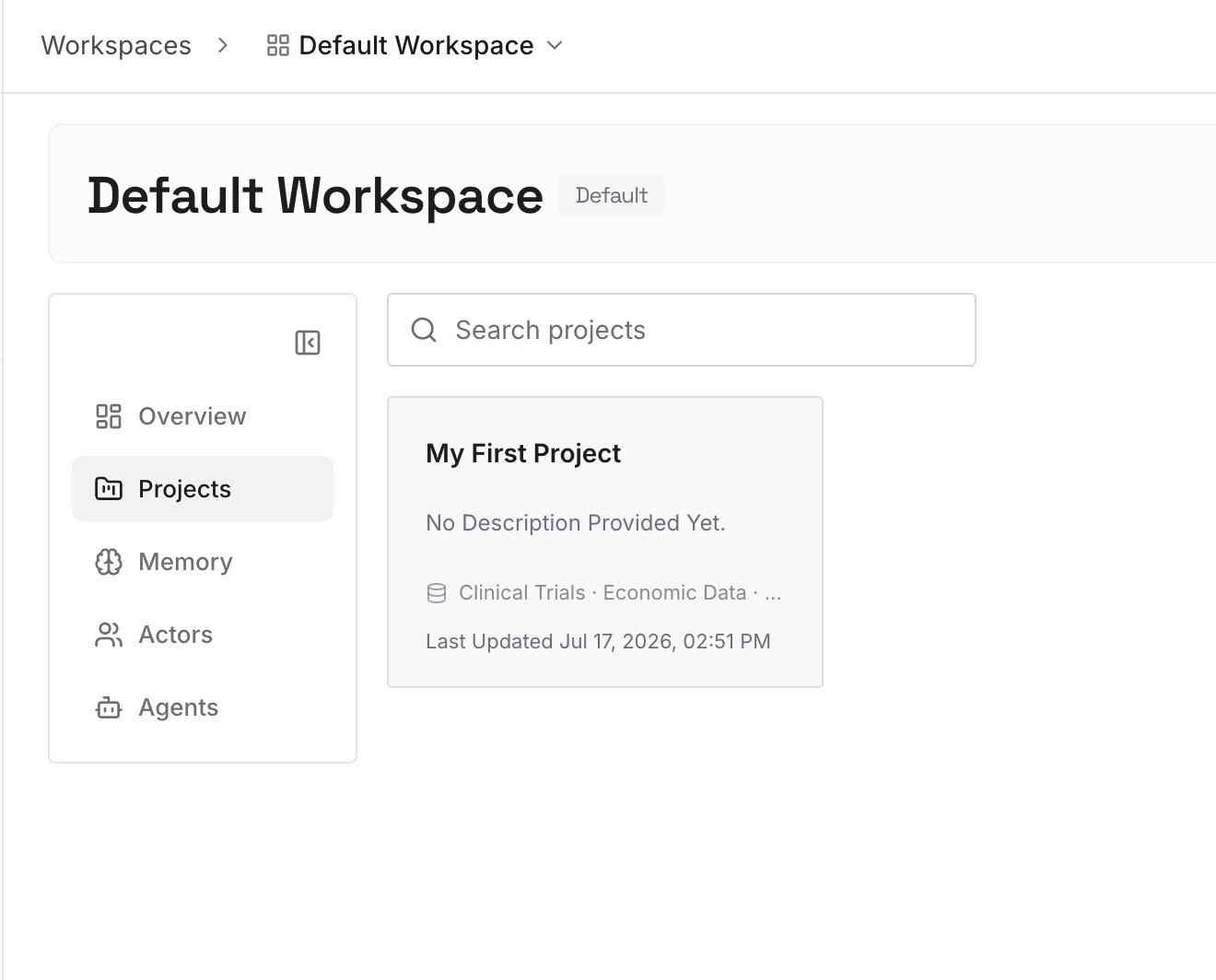
Step 2: Upload your first memories
Start with the summaries from Step 2 of the fix: what the chats you couldn't move had established. One point per entry, dated, and labeled with the project it relates to.
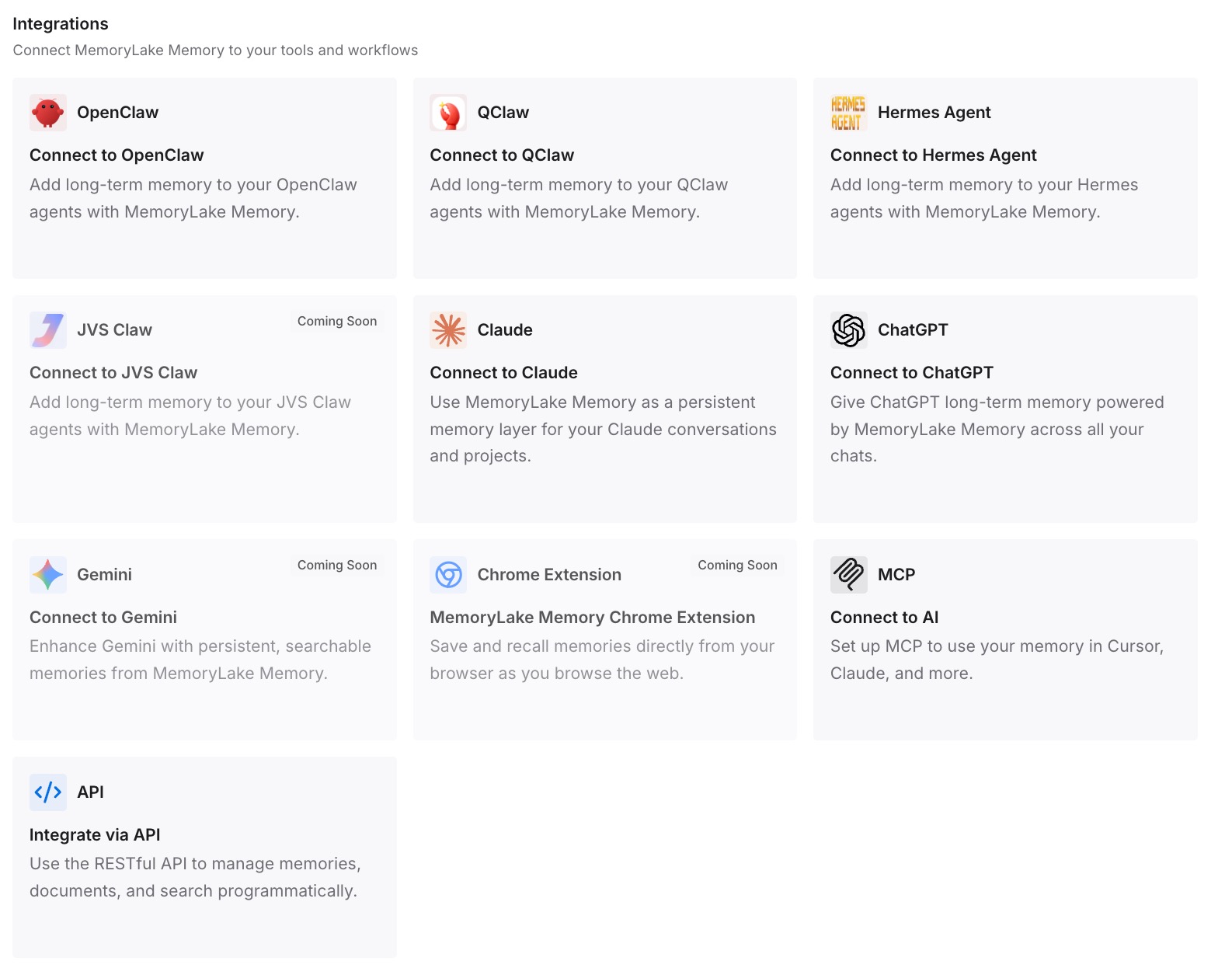
Step 3: Connect your AI & agents
Connect ChatGPT and the other assistants you use. The context is available whether a chat sits in a project, outside it, or behind a lock.
What this changes in practice
The first difference is that a missing Move to project option has an explanation. You can tell a GPT chat from a locked one, a temporary one, or a shared project's restriction.
The second is that moving becomes deliberate. You check the project's instructions, memory setting, and audience before a chat goes in.
The third is that a chat you can't move stops being a dead end. Its conclusions go into a new project chat or into your own list, and the project gets the context without the original conversation.
Best practices for moving chats into ChatGPT projects
Start project conversations inside the project. A GPT as the first message starts the chat outside it.
Unlock before you organize. Locked chats can't be moved, pinned, archived, or shared.
Save temporary chats you want to keep. Then move them.
Check the memory setting before moving. Project-only memory changes what the chat can reference.
Check the audience before moving into a shared project. Members can view its chats.
Use Remove from project to undo. It puts the chat back in your general history.
Summarize what you can't move. Paste the summary into a new chat in the project.
Conclusion
When Move to project is missing, OpenAI says the chat may not be eligible. GPT chats can't be moved, locked chats have to be unlocked first, temporary chats have to be saved, and shared projects and workspace settings can limit what moves. Codex chats have their own projects in a separate view.
A move also changes the chat. It inherits the project's instructions and files, a project-only memory setting changes what it can reference, and in a shared project other members can see it. Check those before you move, and for chats that can't be moved, carry the conclusions into a new project chat.