
What OpenAI changed on October 9
The ChatGPT account summarized the change the same day: "Your dot can now start work in Codex and follow up on existing threads, drawing on your ChatGPT conversations, Codex threads, and automations."
Dots themselves are still limited in availability. OpenAI's dots overview lists Pro 100, Pro 200 and Pro 500 "For users over 18 outside the European Economic Area, United Kingdom, and Switzerland," Business Premium "Rolling out worldwide," and Enterprise with dots "off by default" until a workspace administrator enables them.
It is worth reading the weekly note next to the standing documentation, because the two describe the dot's reach in different terms. As of October 10, the standing Tasks and memory page still says: "Connecting a computer doesn't grant access to every existing ChatGPT or Codex conversation." The dots overview says: "Connecting your computer lets your dot work with its tasks and files. It doesn't give your dot access to every conversation in every app."
These are not necessarily in conflict. The standing pages are about what connecting a computer grants. The weekly note describes a capability: searching your ChatGPT conversations and drawing on Codex threads and automations. The safe reading is that your dot can now look things up across more of your work, and that connecting a computer is still not, by itself, what grants that. Until the standing pages are reworded, treat the weekly note as the newer description and plan as if your dot may draw on any ChatGPT conversation or Codex thread relevant to the work.
How context moves from your dot into a Codex thread
Three kinds of task, three places the work runs
The Tasks and memory page lays out where a dot's coding work can run, in a small table:
- New local Work or Codex task: "Create a task on a computer connected to your dot. Keep that computer online with the ChatGPT app open."
- Existing local Codex task: "Continue the task on a connected computer. Identify the task and what you want to change."
- New cloud coding task: "Create a task in a Codex cloud environment you have already set up. Your computer can be offline."
Cloud work depends on setup you do first: "For cloud coding work, create the environment in Codex first, including its repository and setup configuration." If you have not built one yet, our guide to Codex cloud environments covers what an environment carries into each task.
One detail matters if you work on more than one machine: "Changing your dot's selected computer doesn't move an existing task to that computer." A task stays where it started.
What the thread receives is a briefing
The documentation is precise about what a new task gets from your dot: "A new task receives instructions and context from your dot for that work. It has its own conversation; it doesn't automatically receive every conversation you've had with your dot."
So the hand-off is a briefing. Your dot decides what the Codex thread needs, writes it into the task, and the thread works from that plus whatever its own environment provides. It starts from the briefing rather than from your dot's whole history.
That is a sensible design. A coding thread with your entire dot history would be noisy, and some of that history is private. The cost is that anything the briefing leaves out is missing from the thread, unless the thread can find it somewhere else.
Which memory each side uses
This is where the three products meet, and each one documents its own memory.
Your dot, per the overview, "draws on the conversation, relevant ChatGPT memory, and its own saved notes about your preferences, decisions, and ongoing work."
Codex on your computer uses a different store. OpenAI's Memories page says "ChatGPT web uses ChatGPT memory, while local Codex clients use a separate local memory store and controls." That local store is "off by default," lives under your Codex home directory, and is described as generated state. Our guide to turning on Codex's local memories walks through the controls.
ChatGPT Work sits on the ChatGPT side of the line: it "uses the memory settings available to your account and workspace; it doesn't use a local Codex memory store or local memory controls."
Put together, when your dot starts a local Codex task, three memories are in play. Your dot works from ChatGPT memory and its own notes. The briefing carries what the dot chose to pass on. The local Codex task can draw on that machine's Codex memory store, if you have turned it on. A cloud coding task works from its environment and repository. The documentation describes each store separately; what crosses between them on a hand-off is the briefing.
OpenAI's own advice about Codex memory applies with extra force here: "Keep required team guidance in AGENTS.md or checked-in documentation. Treat memories as a helpful recall layer, not as the only source for rules that must always apply." A rule that lives only in your dot's notes depends on the dot including it in the briefing. A rule in AGENTS.md travels with the repository, so it is there for any thread that works in it. If your rules seem to go missing anyway, our guide to Codex skipping AGENTS.md rules covers the usual causes.
And back: what your dot now reads from Codex
Existing threads and automations
The October 9 change runs the other way too. Your dot can "follow up on existing threads" and "use context from your existing Codex threads and automations." It can also continue an existing local Codex task, which the standing documentation already allowed.
Automations are the part that crosses product lines most visibly. ChatGPT's scheduled tasks can run inside an existing chat, and OpenAI explains why you would do that: "The scheduled task uses the chat's existing context instead of starting from a new prompt each time." Your dot can now "read and edit ChatGPT Work automations," which means it can see that recurring work and change it. Our guide to scheduled tasks that start over every run explains how a schedule's context is set up in the first place.
Where what it reads can end up
OpenAI's dots privacy FAQ describes the link between your dot and ChatGPT memory in both directions: "Your dot can receive memories and recent conversation context from ChatGPT, and conversations with your dot can contribute to memory in ChatGPT."
Read that next to the October 9 change. Details your dot draws from a Codex thread can come up in a conversation with your dot, and conversations with your dot can contribute to ChatGPT memory. The FAQ also says turning off Memory in ChatGPT "stops that sharing" and "does not delete information that your dot has already received."
Your dot's own notes have a further limit, which the same FAQ states plainly: "You currently cannot view, delete or directly modify individual dot memories, including specific details that enter the dot's context from plugins." Deleting the dot is the documented way to clear its context, and what it created survives that: "Files, Codex threads, and ChatGPT conversations your dot created are stored separately. Deleting your dot does not delete them."
Permissions are still separate
Reach into Codex is not the same as access to your machine. The computers page says "Your dot's local-computer permission is separate from connecting a computer to Codex or enabling Work Sync. Neither connection alone gives your dot access." You grant it from your dot's profile, one personal computer at a time.
Usage is separate too: "Conversations with your dot don't count toward your ChatGPT usage limits. Tasks your dot starts or manages in Work or Codex count toward those products' usage limits as usual."
What people try instead
Assuming the Codex thread knows the whole conversation. It receives a briefing for that work, not your dot history.
Assuming local Codex memories are on. They are off by default, and they belong to one machine.
Keeping team rules in memory. OpenAI recommends AGENTS.md or checked-in documentation for rules that must always apply.
Switching your dot's selected computer to move a task. The documentation says that doesn't move an existing task.
Turning off ChatGPT memory to clear what the dot knows. That stops sharing going forward and leaves what the dot already received.
Treating a connected computer as full access. The dot's local permission, a Codex connection and Work Sync are separate grants.
The Fix: Decide what crosses the line, write it where each side reads it, then check the hand-off
Step 1: Put the rules every thread needs where Codex reads them
Before you let your dot start coding work, move anything that must always apply into the repository: AGENTS.md for conventions and commands, checked-in docs for architecture decisions. For cloud tasks, make sure the Codex environment has the repository, setup script and secrets the work needs.
This removes the dependency on the briefing for the things that matter most. Your dot can still pass along task-specific context, but the standing rules arrive with the repository, whichever thread opens it.
Step 2: Ask your dot to show the briefing before work starts
When you hand your dot coding work, ask it to tell you which thread it plans to use, whether it is continuing an existing thread or starting a new one, and what context it will pass along. The weekly note says the dot is better at that decision now; checking it costs one message.
If the work belongs in an existing thread, name the thread. If it needs a clean start, say so. If the briefing leaves out a decision you care about, add it before the thread begins. For local work, also confirm which machine the task will run on, since moving your dot's selected computer won't move a task later.
Step 3: Review what comes back, on both sides
When a Codex thread finishes, open it from your dot's Activity view and read the result yourself. OpenAI's guidance is that "A completed run doesn't by itself confirm that the requested result was achieved or delivered."
Then check the other direction. If your dot edited a ChatGPT Work automation, look at the new version in Scheduled. Periodically review ChatGPT memory for details that came in through dot conversations and no longer belong there. If you use Computer History on a Mac, our guide to what Computer History turns into memories is worth a read, since it is one more source feeding memory on the same machine.
Setting this up in MemoryLake
Your dot, ChatGPT memory and Codex's local store each hold part of what you have decided, and each surface reads its own. If you want the decisions behind your coding work to be in one place you maintain, independent of which surface starts the task, MemoryLake is a memory layer you write yourself and connect to the tools you use.
You write the entries yourself, in your own words. Nothing is read out of, written to, or deleted from your dot, ChatGPT memory, Codex's memory store, or any vendor's store.
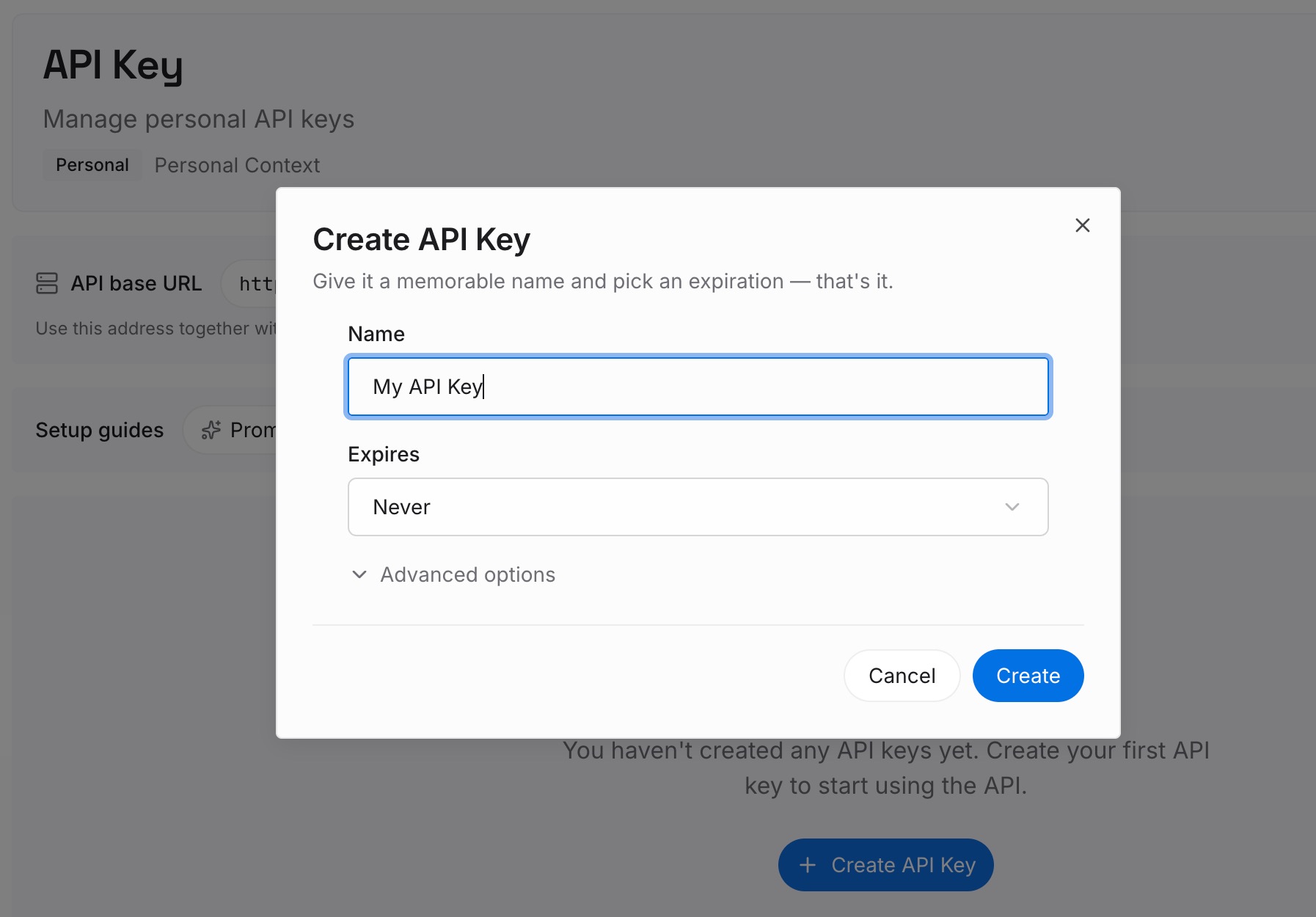
Step 1: Create an API key
Sign in and generate a key from the dashboard. The key belongs to your MemoryLake workspace and is separate from your OpenAI account.
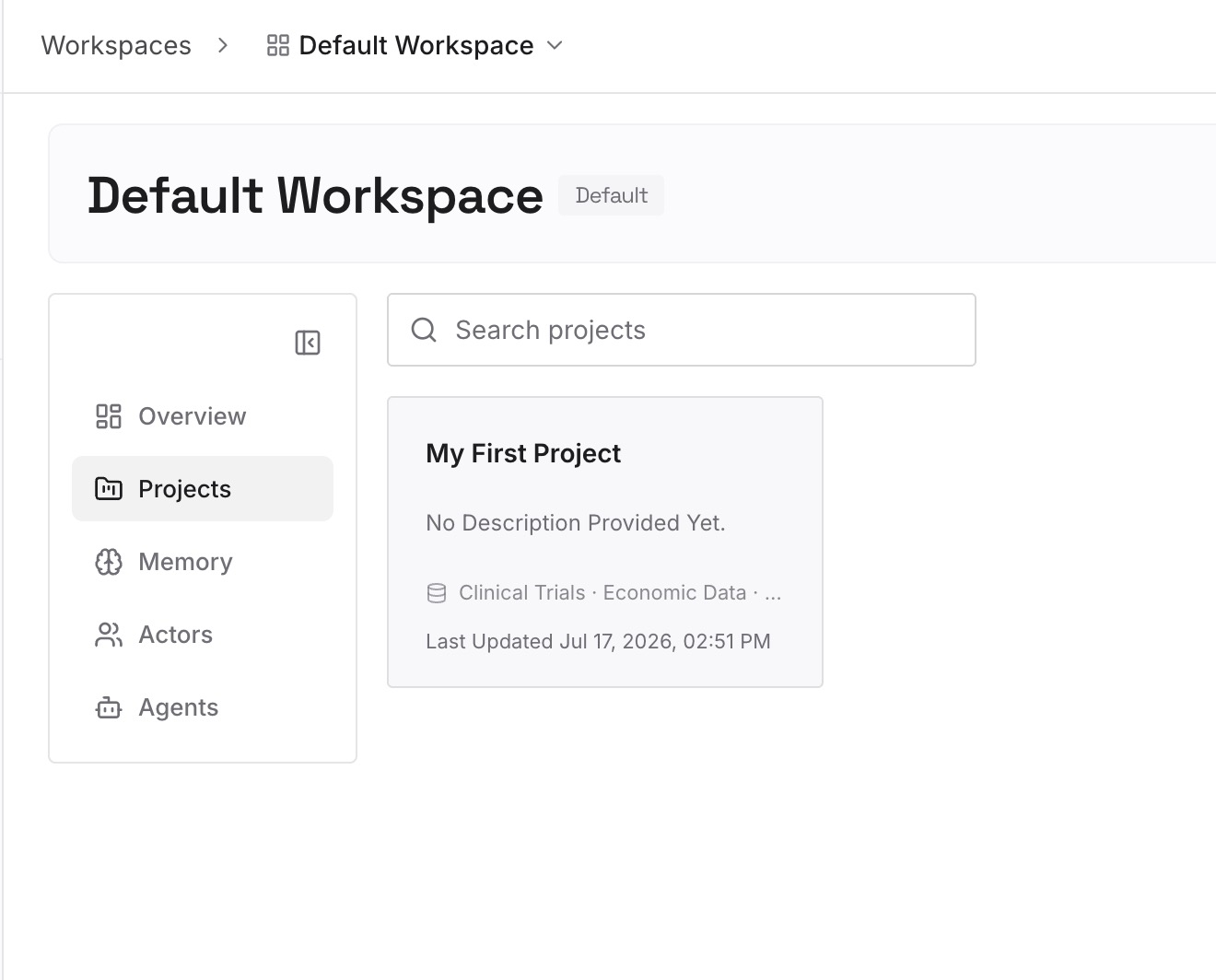
Step 2: Upload your first memories
Start with the decisions your coding threads keep needing: architecture choices, naming rules, constraints from past incidents. One decision per entry, dated, so a newer entry visibly replaces an older one.
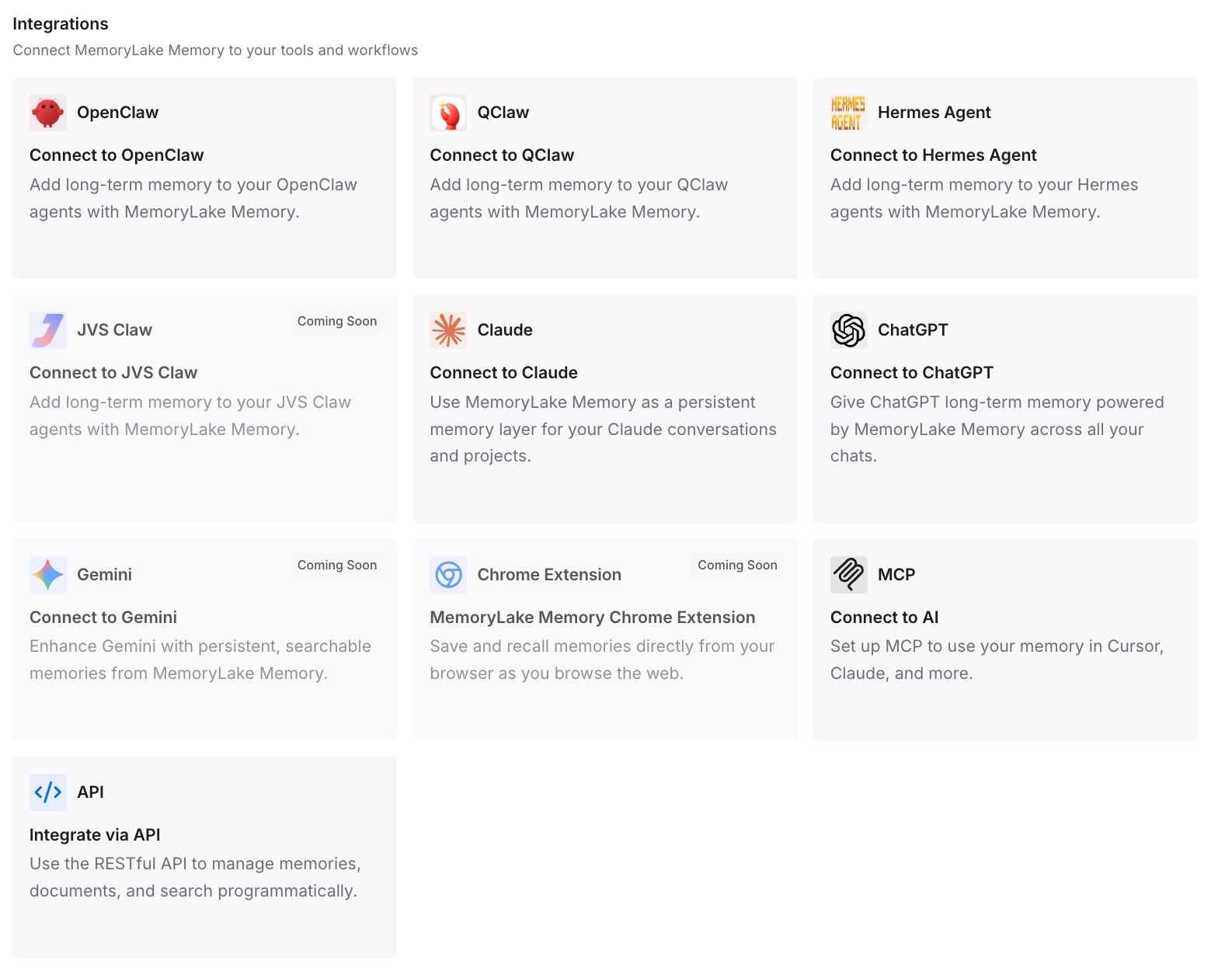
Step 3: Connect your AI & agents
Connect Codex and the other assistants you use. The same decisions are then available whether a task starts from your dot, from a Codex thread you open yourself, or from another tool.
What this changes in practice
The first difference is fewer silent gaps. When standing rules live in AGENTS.md and the environment, a thread started by your dot gets them even if the briefing is short.
The second is threads that stay organized. Naming the thread, or asking your dot which one it will use, keeps related work together instead of scattered across new threads.
The third is a clearer picture of where details go. You know a detail from a Codex thread can surface in a dot conversation, and that dot conversations can contribute to ChatGPT memory, so you review memory with that path in mind. If you also move between cloud and local work in ChatGPT Work, our guide to keeping context between Work cloud and local covers that boundary.
The fourth is fewer surprises in recurring work. Knowing your dot can edit automations, you check Scheduled after asking it to change plans.
Best practices for working with your dot in Codex
Commit rules to AGENTS.md. Every thread that opens the repository reads them.
Set up the Codex environment before delegating cloud work. The dot uses the environment you have already created.
Ask for the briefing and the target thread. Confirm continue-or-new before work starts.
Pick the machine up front. Changing the dot's selected computer doesn't move an existing task.
Read results yourself. A completed run is not proof the result was delivered.
Check Scheduled after automation changes. Your dot can now edit ChatGPT Work automations.
Review ChatGPT memory periodically. Dot conversations can contribute to it.
Conclusion
On October 9, 2026, OpenAI extended dots into Codex. Your dot can start Codex work, follow up on existing threads, draw on your ChatGPT conversations, Codex threads and automations, and edit ChatGPT Work automations.
The context moves in a specific shape. Going out, a Codex task receives a briefing from your dot and works from that plus its own environment, repository and, on your computer, Codex's local memory store if you have enabled it. Coming back, your dot can read Codex threads and automations, and what surfaces in dot conversations can contribute to ChatGPT memory.
Put the rules that must always apply where Codex reads them, check the briefing before work starts, and review what comes back on both sides. Then the new path helps you instead of quietly reshaping what each surface remembers.