
What OpenAI actually published
The help center describes a dot this way: "Your dot is an always-on agent in ChatGPT that can take on ongoing responsibility and keep making progress between conversations." Setup happens on desktop. You create the dot in the ChatGPT desktop app or desktop web, give it a name, connect apps, and then you can talk to it from mobile, Slack or Teams.
Availability is staged. "Dots are rolling out today in ChatGPT to Pro users in markets excluding the European Economic Area, Switzerland, and the UK." Business Premium users get access across supported regions, and Enterprise, Edu and Healthcare workspaces can try a beta that is off until an admin enables it. OpenAI adds that "Dots are rolling out gradually. Access may take several days to reach your account."
Then there is memory, which the getting-started article introduces in one sentence: "It starts with context from ChatGPT memory and learns how you like to work."
The documentation on learn.chatgpt.com spells out the parts. "Your dot uses the conversation it is working in, relevant ChatGPT memory, and its own saved notes to keep track of your preferences and ongoing responsibilities." Three sources, then: the current conversation, your existing ChatGPT memory, and a notes store that belongs to the dot.
Where a dot's memory comes from, and where it goes
Each of those three sources behaves differently, and the differences are where people will get surprised.
It inherits from ChatGPT, and it gives back. OpenAI's privacy FAQ for dots says: "Your dot can receive memories and recent conversation context from ChatGPT, and conversations with your dot can contribute to memory in ChatGPT. Memory can continue to be shared between ChatGPT and your dot after setup." The flow runs both ways. Something you tell your dot can show up later in an ordinary ChatGPT chat.
It keeps its own notes, separate from ChatGPT's. The tasks and memory page is explicit: "These notes are separate from ChatGPT's saved memory and are not a complete transcript of everything you've said." The dot updates them as decisions and priorities change.
It learns from connected apps, including when you are not asking. The help article says your dot "receives memories from ChatGPT and can create its own memories, including from connected apps." It goes further: "Your dot can also review that information proactively and form memories from it, even when you haven't asked a specific question about it." OpenAI calls the background part proactive research, in which the dot can "keep private notes about useful findings." Those notes have their own training rule. The launch post says, "We don't train directly on proactive research or your dot's notes to itself," and the privacy FAQ adds that if a dot brings that information into an eligible conversation or task, it may be used for training depending on your settings.
It follows you across channels. "ChatGPT, Slack, and Teams are ways to reach the same dot." Another page adds that changing where you talk to it "doesn't start a new dot or reset its memory." The visible conversations stay separate, but what the dot learns in one can inform its work in another. OpenAI draws a line on disclosure: "Your dot's ability to use information also doesn't grant permission to disclose it to another audience."
Tasks get a briefing, not your whole history. When a dot starts delegated work, "A new task receives instructions and context from your dot for that work." The same paragraph continues: "It has its own conversation; it doesn't automatically receive every conversation you've had with your dot."
Now the controls. This is where a dot differs most from ChatGPT's memory.
On settings, OpenAI writes: "Changing a ChatGPT saved-memory setting doesn't necessarily change the notes your dot has already made." The privacy FAQ is more specific: "Turning off Memory in ChatGPT stops that sharing. It does not delete information that your dot has already received."
On apps: "Disconnecting an app does not delete information your dot has already obtained from it. To delete that information, you need to delete your dot."
On individual memories, the privacy FAQ answers the question directly. "You currently cannot view, delete or directly modify individual dot memories, including specific details that enter the dot's context from plugins."
And on removal as a whole, the getting-started article puts it in one line: "To delete your dot's own saved memories, you need to delete your dot." The help center calls the action Reset, and describes it this way: "Reset deletes your dot, including its conversations, saved memories, and scheduled tasks." The newer documentation labels the same control Delete and warns: "Save any results you need before confirming; the action cannot be undone."
What survives that reset is listed too. "Files, Codex threads, and ChatGPT conversations your dot created are stored separately. Deleting your dot does not delete them." And "Memories from your other ChatGPT conversations remain in place."
One more boundary is worth knowing: "Your dot's context does not retain credentials, images, or screenshots."
What people will take from this, and what they shouldn't
The launch coverage points readers toward continuity, and that part is real. A dot does start with your ChatGPT context rather than from zero. But a few conclusions are easy to draw and wrong.
Assuming ChatGPT memory settings control the dot. They control the sharing. OpenAI's own wording is that turning ChatGPT memory off stops the flow and leaves in place what the dot has already received.
Assuming that disconnecting Gmail makes the dot forget your email. Disconnecting stops new access. The help center says it "does not delete information your dot has already obtained from it."
Planning to prune its memory the way you prune ChatGPT's. ChatGPT gives you a memory summary and saved-memory controls. For a dot, OpenAI says individual memories cannot currently be viewed, deleted or edited. The choice is keep the dot or reset it.
Assuming a reset wipes everything the dot touched. It deletes the dot's own context, conversations, memories and scheduled tasks. Files it created, Codex threads, and ChatGPT conversations stay, and so does anything it contributed to ChatGPT memory, which you manage separately.
Assuming each delegated task knows everything the dot knows. A task gets the instructions and context the dot chooses to pass it. If a fact matters for the task, it has to be in that briefing.
None of this is a flaw in the design. A notes store the agent maintains for itself is what makes it useful between conversations, and OpenAI documents the boundaries clearly. The practical consequence is simple: the moment to shape what a dot learns is before it learns it.
The Fix: Decide what a dot should learn before it starts learning it
A dot gets useful by accumulating context. Since the tools for removing that context are coarse, the work goes into choosing the inputs.
Step 1: Review your ChatGPT memory before you create the dot
Your dot starts from ChatGPT memory, so review that first. Open Settings, then Personalization, then Memory, and read the memory summary or saved memories. You can also ask ChatGPT what it remembers about you. Correct anything outdated and delete anything you would not want an always-on agent to act on.
Think about old projects, former employers, health or family details you mentioned once, and preferences that no longer hold. For how ChatGPT's memory decides what to keep in the first place, see what ChatGPT's dreaming memory changes. If you use Computer History on a Mac, review what it turns into memories as well, since OpenAI describes it as another source of memories that ChatGPT can reference.
Do this now because the cleanup is easy in ChatGPT and much harder once the information has flowed into a dot's own notes.
Step 2: Connect apps on purpose, and write the boundaries down
Every app you connect is a source the dot can read and form memories from, including through proactive research. Connect the ones that serve the work you plan to give it, rather than everything ChatGPT already has access to. Plugin connections are shared across dots, ChatGPT, ChatGPT Work and Codex, so review them in the Plugins tab with that in mind.
Then write instructions. OpenAI lets you add guidance for how the dot works and set Custom Rules for specific actions. Use instructions to say what is in scope: which projects, which channels, which kinds of information it should leave alone. If your dot will sit in Slack or Teams, say what it may share there; OpenAI notes it asks before sharing private information with others, and clear instructions make those questions rarer.
A connector on its own is a way to look things up, as ChatGPT connectors that don't remember explains. A dot that reads through it can turn what it finds into memories. That is the difference to plan for.
Step 3: Keep the decisions that should outlive the dot somewhere you control
A dot's notes are tied to that dot. If you reset it to clear one bad memory, the good ones go too. If you later move work to another assistant, the notes stay behind.
So keep a short record of the things you would want any agent to know: settled decisions with their reasons, project definitions, people and owners, preferences you have stated deliberately. Write them in your own words, date them, and review them. When you brief a dot on a new project, start from that record. When you reset a dot, re-brief the new one from the same record instead of starting over.
This also helps with delegated tasks. Since a task receives a briefing rather than your full history, a clean written record gives the dot something precise to pass along. The same discipline applies to recurring work in ChatGPT, where scheduled tasks start over every run unless the context travels with them.
Setting this up in MemoryLake
Step 3 describes a layer of context that belongs to you rather than to one agent. MemoryLake is built for that job: long-term memory you maintain once and bring to ChatGPT, a dot's briefings, and the other assistants you use.
You write the entries yourself, in your own words. Nothing is read out of, written to, or deleted from your dot, your ChatGPT memory, or any vendor's store.
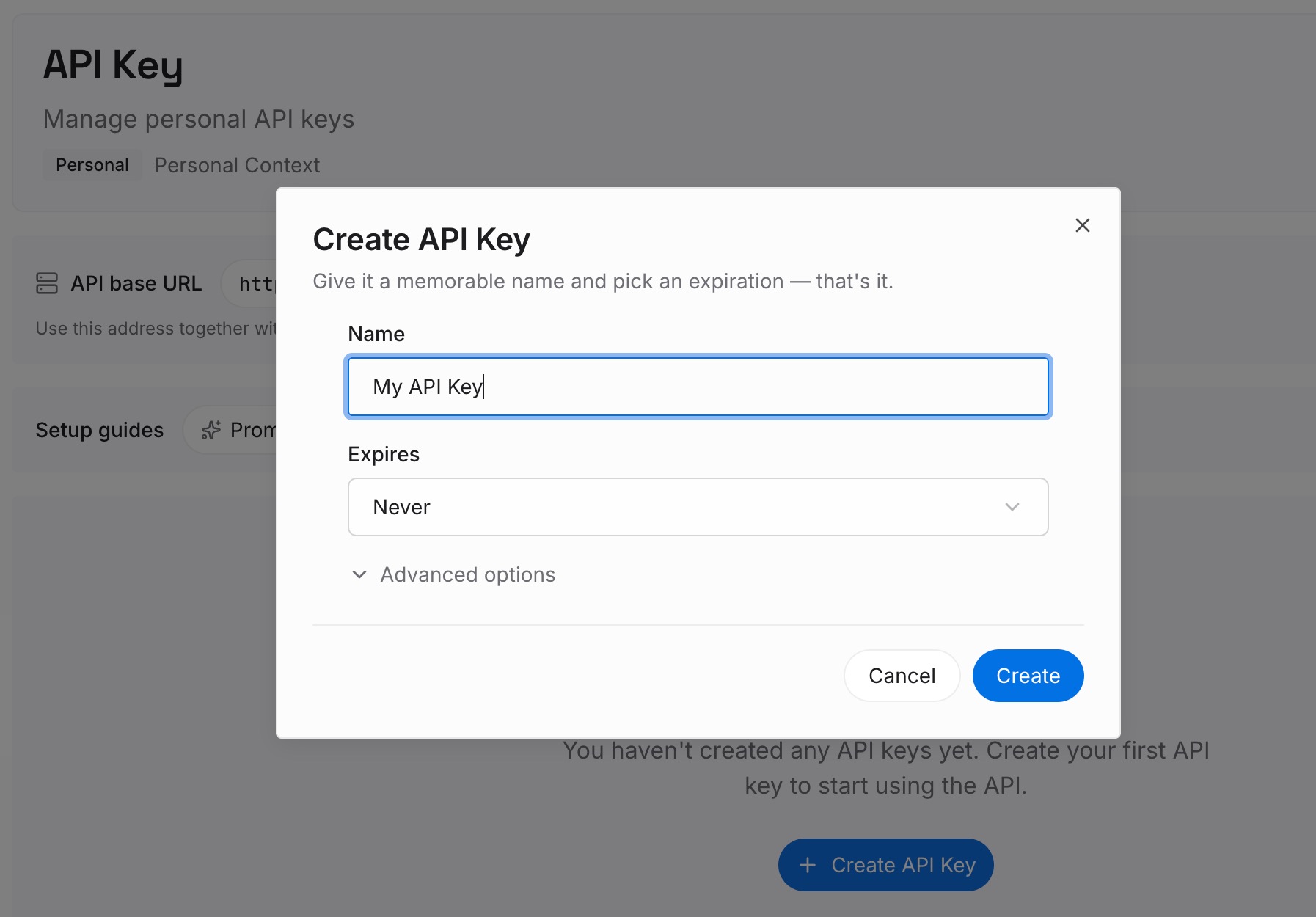
Step 1: Create an API key
Sign in and generate a key from the dashboard. The key belongs to your MemoryLake workspace, separate from your ChatGPT account and any dot.
Step 2: Upload your first memories
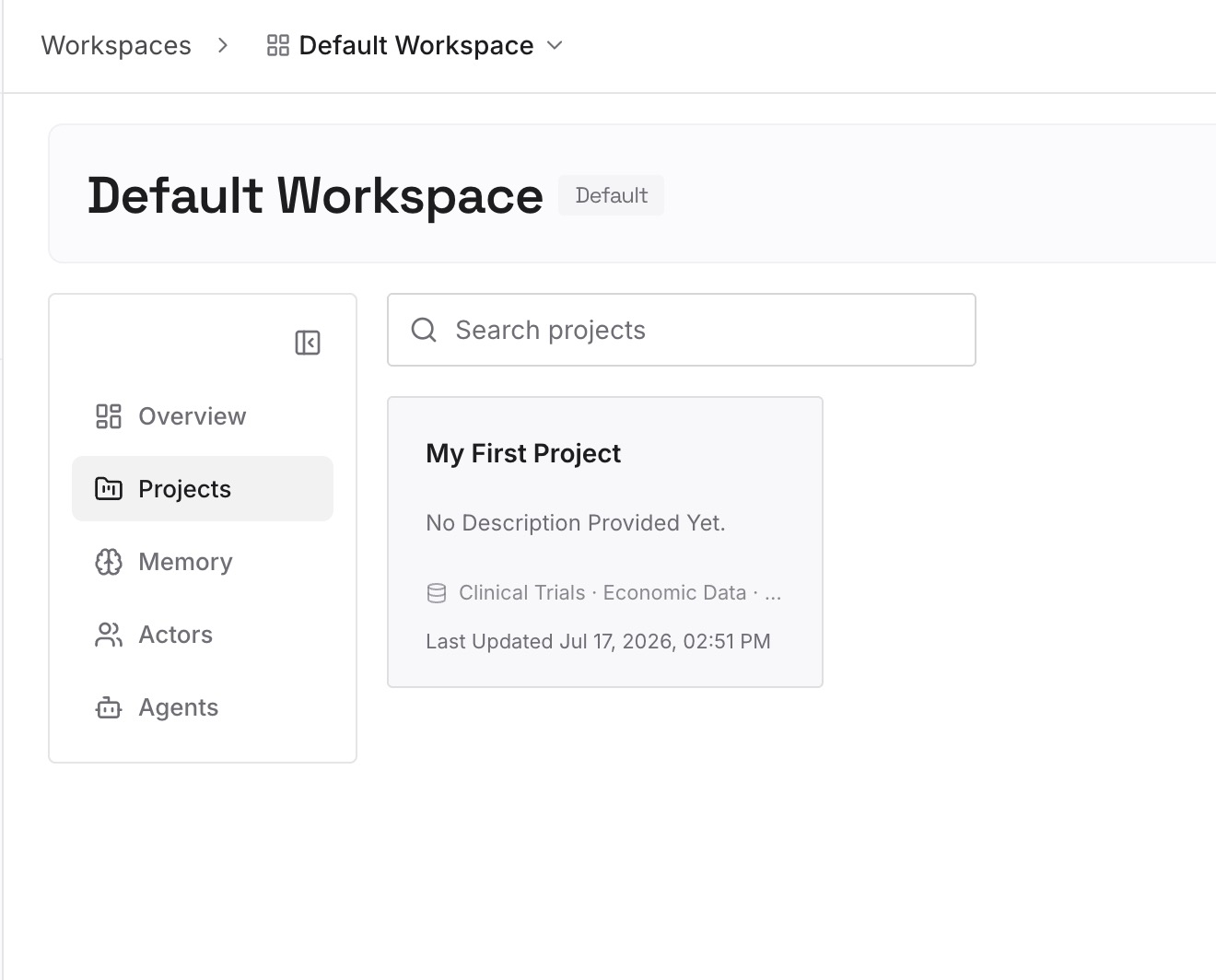
Start with what Step 1 and Step 3 surfaced: the decisions, definitions and preferences you want every agent to start from. One fact per entry, dated, with the reason attached.
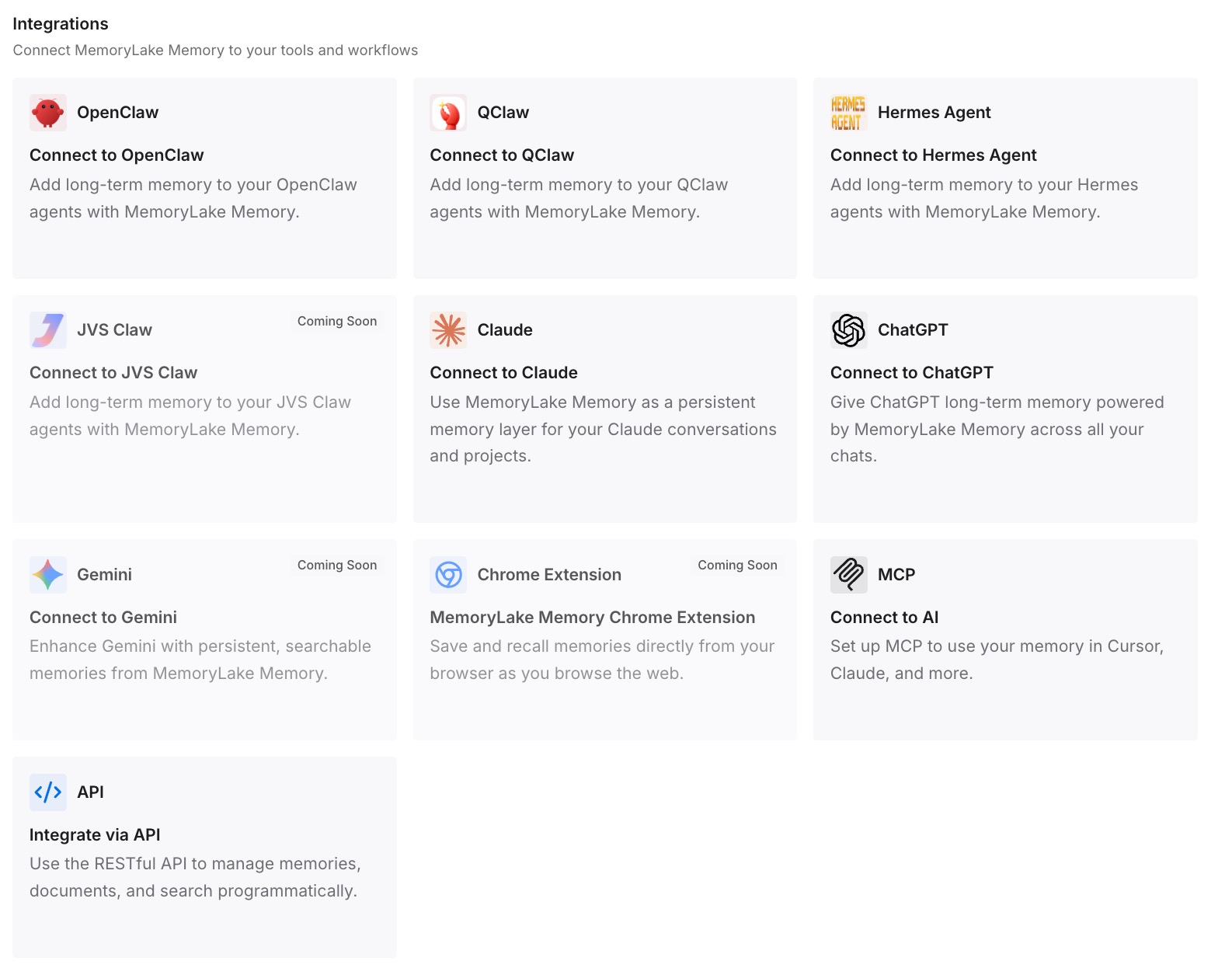
Step 3: Connect your AI & agents
Connect the assistants you use. When you start or reset a dot, or move a project elsewhere, the same entries are there to brief it.
What this changes in practice
The first difference is that the dot starts clean. Reviewing ChatGPT memory before setup means the agent's first impressions of you are current.
The second is that reset stops being costly. When the decisions that matter live in a record you keep, resetting a dot to remove something unwanted is a small step rather than a loss of months of context.
The third is that you can answer the question of what your assistant knows about you A dot's individual memories are not viewable today, but your own record is, and it is the part you chose deliberately. For a broader version of that check, see how to audit what your AI remembers.
The fourth is that context stops depending on one product's container. A dot, a project and an ordinary chat each hold context differently, which is why ChatGPT can seem to forget previous conversations in one place and remember them in another. A record you own sits above all of them.
Best practices for ChatGPT dots
Review ChatGPT memory first. The dot inherits from it.
Remember the flow runs both ways. Conversations with your dot can contribute to ChatGPT memory.
Connect apps for the work, not by default. Each one is a source the dot can learn from.
Write scope into the instructions. Say which projects and channels are in bounds.
Brief delegated tasks explicitly. A task gets the dot's briefing, not every conversation.
Save results before a reset. The action cannot be undone.
Keep a record you control. It makes resets cheap and moves painless. Whether memory should belong to the tool at all is a bigger question, taken up in whether AI memory is a feature or lock-in.
Conclusion
Dots are OpenAI's clearest move yet toward an assistant that works continuously, and memory is central to that. A dot starts with your ChatGPT memory, keeps its own notes, learns from connected apps in the background, and can feed what it learns back into ChatGPT.
OpenAI documents the boundaries plainly. Turning off ChatGPT memory stops the sharing but leaves what the dot already has. Disconnecting an app stops new access but leaves what the dot already learned. Individual dot memories cannot currently be viewed or edited, and removing them means resetting the dot.
So shape the inputs. Review ChatGPT memory before setup, connect apps deliberately, write the boundaries down, and keep the decisions that should outlive any one agent in a record you control.