
What Intelligent UI is
OpenAI's help article defines it in one sentence: "Intelligent UI lets ChatGPT shape each answer with the right layout, visuals, and interactivity for what you want to understand or do, directly in the conversation."
The format is chosen per answer. According to OpenAI, GPT-6 was trained to compose responses from text, visuals, and interactive elements, and to choose how they fit together based on your question. "Responses can include graphics, tappable buttons, forms, charts, and interactive experiences you can use directly in your conversation."
The examples OpenAI gives: a comparison might work best side by side, and an explanation might be easier to follow through an interactive diagram. And plain text is still on the table: "And when a simple text answer is the most useful response, ChatGPT can give you that."
You don't have to ask for it. The models article says "Ordinary text answers are still possible, and no special prompt is required." It also notes that "A response may begin while ChatGPT continues thinking, followed by more detail."
When answers turn interactive
Because ChatGPT chooses the format for each question, the same chat can mix plain answers and interactive ones. OpenAI gives two examples of how the question shapes the layout:
- Comparisons might work best side by side.
- Explanations might be easier to understand through an interactive diagram.
Beyond those, the help article lists the building blocks an answer can use: graphics, tappable buttons, forms, charts, and interactive experiences. Checklists come up in OpenAI's answer about saved progress, as an example of a component that can keep its state.
When plain text is the most useful answer, OpenAI says ChatGPT can give you that. The layout follows the question, not a setting you pick each time.
Which models and plans support it
Intelligent UI comes with GPT-6 in Chat. OpenAI's article explains the plan split: "GPT-6 in ChatGPT is based on GPT-6 Sol for Plus, Pro, Business, and Enterprise, and GPT-6 Luna for Free and Go." Both support Intelligent UI.
The reasoning level matters too. "Intelligent UI works from Instant through Extra High reasoning levels." The exception is Pro: "The Pro reasoning option uses GPT-6 Astra and does not support Intelligent UI."
The models article adds rollout details. These capabilities are rolling out on the web and in supported, updated apps, and availability depends on your plan and workspace access. One practical note: "The older ChatGPT desktop apps for macOS and Windows do not support these capabilities; use ChatGPT on the web instead."
It doesn't cost extra. "Intelligent UI has no separate usage quota." Your existing model, tool, and plan allowances still apply.
Where you won't see it
Three places don't use Intelligent UI:
The Work tab. "Intelligent UI is available in Chat, not in the Work tab."
Voice. "Intelligent UI is not available in Voice."
Pro reasoning. As above, the Pro option uses GPT-6 Astra and doesn't support it.
Plugins aren't affected. The article says "Plugins you've connected, such as Gmail, Health, and Finance, will continue to work in ChatGPT."
If you don't see interactive answers
If your answers are always plain text, a few documented reasons are worth checking before you assume the feature isn't there.
Your model selection. OpenAI's models article says that in the model menu, GPT-6 replaces Latest: "Existing Latest selections move to GPT-6 at the same effort; explicit GPT-5.6 Sol selections stay on GPT-5.6." The Intelligent UI capabilities are described for GPT-6, so an explicit GPT-5.6 selection is worth checking.
Your reasoning level. Pro effort uses GPT-6 Astra and doesn't support Intelligent UI.
Your app version. The models article says to "Update your mobile app to the latest available version", and recommends the web over the older desktop apps.
Your workspace. Availability depends on your plan and workspace access, and "Enterprise customers may continue to see the existing model picker until the new controls reach their workspace."
One naming detail differs between the two help articles. The Intelligent UI article says GPT-6 for Free and Go is based on GPT-6 Luna, while the models article describes the Instant level for Free and Go as using GPT-5.6 Luna. If you're on Free or Go and don't see interactive answers, check what the model menu shows on your account.
What it saves, and what it doesn't
This is the part that surprises people who use interactive answers for real work.
OpenAI's answer to whether your inputs or progress are saved: "That depends on the experience. Some components, such as checklists, can retain their state when you refresh the chat thread. State is not retained across chat threads."
Three things follow from that.
Within one chat, some progress survives a refresh. If you tick items on a checklist and reload the page, those ticks can still be there. OpenAI says this depends on the component, so not every element works the same way.
Across chats, nothing carries over. A new chat doesn't know what you ticked, selected, or typed into a component in another chat.
The layout is per conversation. The models article puts it this way: "Changes to a conversation's appearance don't change your other chats."
What about ChatGPT's memory? The help articles describe Intelligent UI state in terms of the chat thread. They don't describe component state, such as which checklist items you ticked, as something that goes into memory. If you want ChatGPT to know your progress in another chat, the reliable route is to state it in words: tell ChatGPT what's done and what's left, or copy the list as text.
How to ask for a different style
If you prefer certain formats, you can say so. OpenAI's article says you can add preferences in Custom Instructions to tell ChatGPT how you'd like it to respond, with examples such as "keep answers concise" and "use tables when comparing options".
You can also ask for a different style in a single conversation. The caveat: "These preferences guide the response; the exact layout can vary."
Custom Instructions apply across your chats, so they're the place for formatting preferences you always want. Requests in one chat apply to that chat. Tone and personality are separate settings again, which we covered in our guide to what Base style and tone changes in ChatGPT.
How to switch to a simpler layout
If interactive answers get in your way, you can reduce them, though not turn them off completely. The two OpenAI help articles describe the setting slightly differently.
The Intelligent UI article says to choose a simpler response style in your ChatGPT settings on the web, under Personalization, then Layout and Visuals, then Simple. It adds that this "reduces visual and interactive elements, though some may still appear".
The models article describes it as a switch: on ChatGPT on the web, open Settings and turn off Layout and visuals to reduce visual elements. It's explicit about the limit: "Some visual elements may still appear; this setting does not switch the entire answer experience to a classic or text-only mode."
Either way, the setting is on the web, and the result is fewer visual elements rather than none. If you need plain text for a specific answer, you can also ask for it in the conversation, though the exact layout can vary.
What people try first
Opening a new chat to continue a checklist. State is not retained across chat threads.
Expecting memory to track progress. The help articles describe component state per chat, not as memory.
Looking for it in the Work tab or Voice. It's available in Chat only.
Using Pro reasoning for an interactive answer. The Pro option doesn't support Intelligent UI.
Expecting the Simple setting to remove everything. Some visual elements may still appear.
Using an older desktop app. OpenAI recommends the web for these capabilities.
The Fix: Keep your progress from getting stuck in one chat
Step 1: Finish multi-session work in one chat
If you're using an interactive checklist across several days, keep returning to the same chat, where a refresh can keep its state.
Step 2: Turn progress into text before you switch
Before starting a new chat, ask ChatGPT to summarize what's done and what's left in plain text, and paste that into the new chat.
Step 3: Set formatting preferences once
Put the formats you always want, such as tables for comparisons, in Custom Instructions.
Step 4: Keep long-running plans outside the chat
For projects that span weeks, write the plan and its status somewhere you maintain, so any chat or tool can pick it up.
Setting this up in MemoryLake
An interactive checklist is good for working through a task in one sitting. A project that runs for weeks needs its decisions and status somewhere that doesn't depend on a single chat thread.
MemoryLake is a memory layer for that kind of working context, such as project decisions, preferences, and status notes, kept in one place you maintain and available to the assistants you connect, such as ChatGPT, Claude Code, and Codex.
You write the entries yourself, in your own words. Nothing is read out of, written to, or deleted from your chats, Intelligent UI components, checklists, your Custom Instructions, your ChatGPT memory, or any vendor's store. Intelligent UI and the layout settings work the way OpenAI describes them.
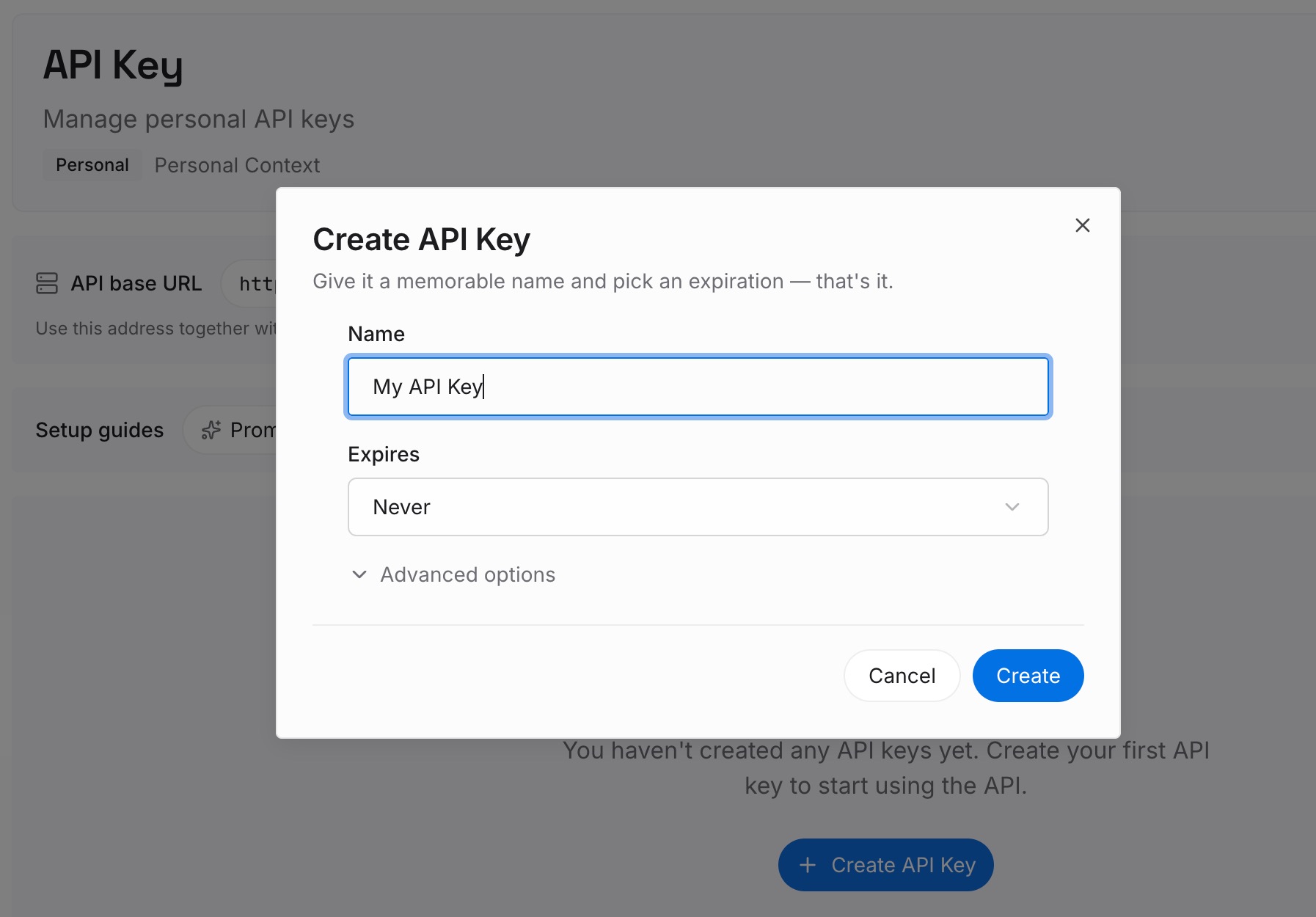
Step 1: Create an API key
Sign in and generate a key from the dashboard. The key belongs to your MemoryLake workspace and is separate from your ChatGPT account.
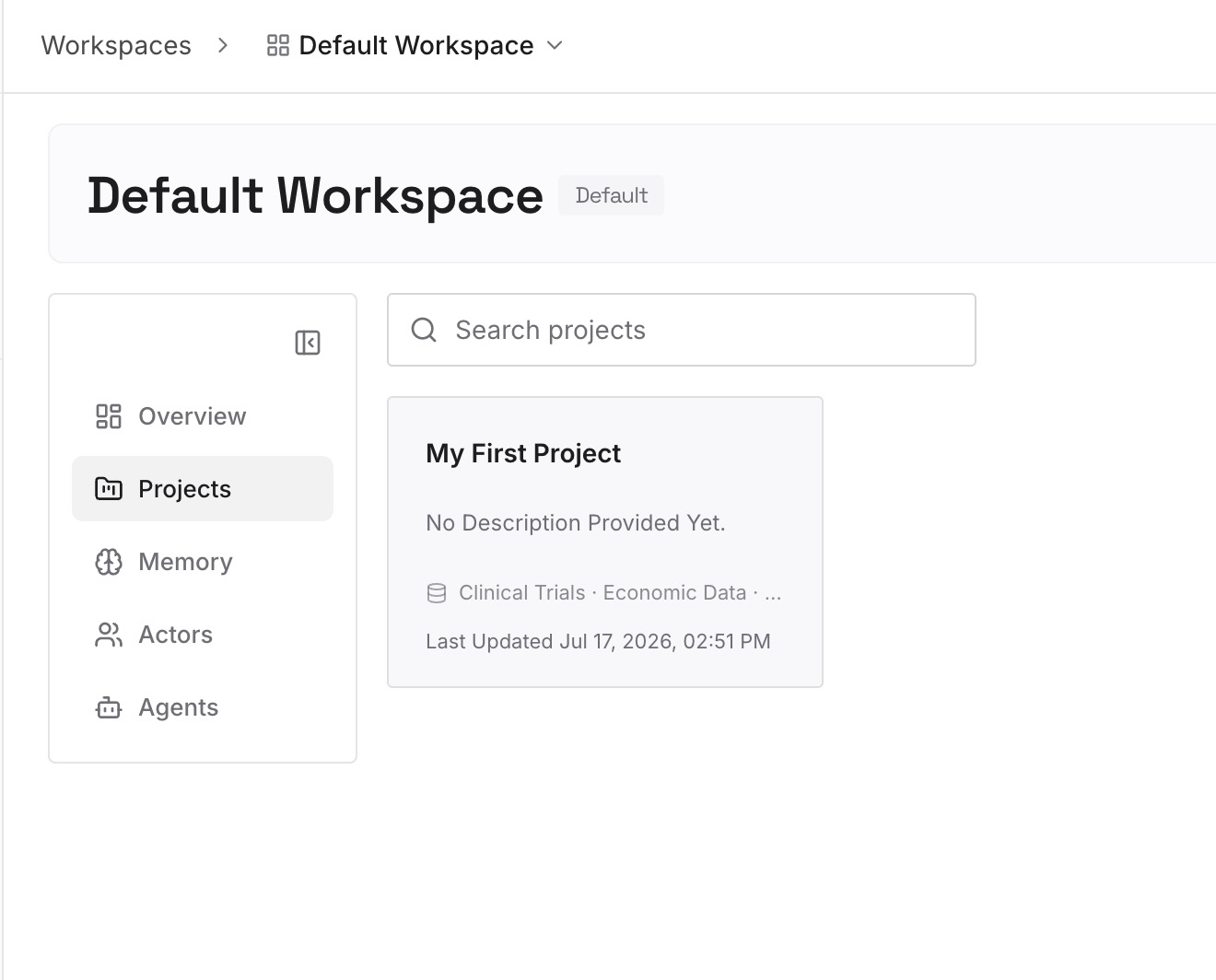
Step 2: Upload your first memories
Start with what you wrote in Step 4 of the fix: the plan for a long-running project, the decisions you've made, and where things stand. One decision or status note per entry.
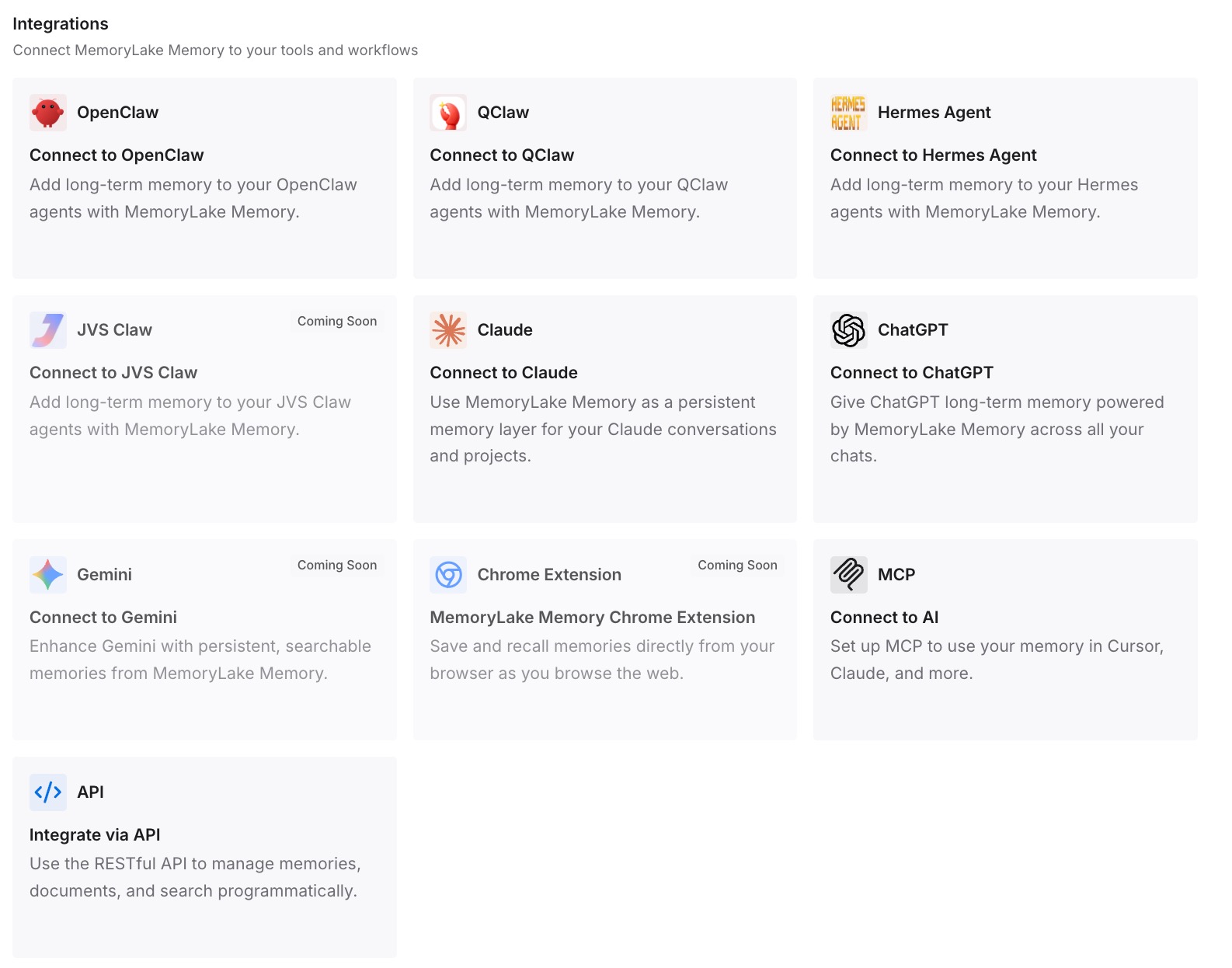
Step 3: Connect your AI & agents
Connect ChatGPT and the other assistants you use. A new chat can draw on the same notes, whichever layout its answers use.
What this changes in practice
The first difference is that a new chat doesn't mean starting over. The status of your project is written down, not held in a component.
The second is less re-explaining. You don't paste the same background into every new conversation.
The third is consistency across tools. The same plan is available when you continue in a different assistant.
Best practices for Intelligent UI in ChatGPT
Let ChatGPT choose the format. No special prompt is needed.
Use the same chat for ongoing checklists. Some components keep their state on refresh, but not across chats.
Summarize before switching chats. Turn interactive progress into text you can carry.
Put standing format preferences in Custom Instructions. They guide responses across chats.
Use the web if your desktop app is older. OpenAI recommends it for these capabilities.
Use Simple when you want fewer visuals. Expect some elements to remain.
Keep long projects outside any one chat. A record you maintain outlasts a component's state.
Conclusion
Intelligent UI lets ChatGPT build answers from text, visuals, and interactive elements such as checklists, forms, buttons, and charts, choosing the format for each question. It works with GPT-6 in Chat from Instant through Extra High, but not with Pro reasoning, in the Work tab, or in Voice.
What it doesn't do is carry state between chats. Some components keep their state when you refresh, but "State is not retained across chat threads", and changing one conversation's appearance doesn't change your others. To reduce visual elements, use the Layout and Visuals setting on the web, and to keep a project's progress available in any chat, write it down outside the component.