
What Luna Reserve is
Luna Reserve is extra usage on one model, available after your regular allowance runs out. OpenAI describes it as "a fallback mode, not a separate model you need to buy." It also sets two limits right away: "It doesn't restore regular usage or unlock our most capable models."
Put simply, when your plan's regular usage is used up, selected accounts can keep working on GPT-5.6 Luna instead of waiting. Luna Reserve isn't a subscription, an upgrade, or a way around your limits for other models.
Who has Luna Reserve
Not everyone. The article opens with a note: "Luna Reserve is only available to select accounts, and is not available to every account. Availability can change."
The availability section narrows it further:
- It's available to selected personal ChatGPT Plus and Pro accounts.
- "It isn't available in ChatGPT Business or Enterprise workspaces."
- It depends on your account and a supported app version.
The troubleshooting section adds a point that answers an obvious question: "Reaching a regular usage limit doesn't by itself guarantee access, and availability can change." If a friend on the same plan sees Luna Reserve and you don't, that's consistent with how OpenAI describes it.
Where Luna Reserve applies
The article says: "Luna Reserve applies to supported Codex and ChatGPT Work experiences." It continues: "It is separate from ordinary ChatGPT Chat and doesn't add API credits to your account."
So you'll see it in Codex and in ChatGPT Work, in the desktop app, or in ChatGPT Work on the web. You won't see it in a regular chat. If you're not sure which surface you're in, our guide to ChatGPT Work mode explains how Work differs from Chat and Codex.
How Luna Reserve shows up
OpenAI's steps are short. If Luna Reserve is available in your account, open Codex or ChatGPT Work, and when you reach your regular usage limit, "look for a notice about Luna Reserve or a moon indicator in the usage warning." Then continue your conversation with Luna.
The indicator also has options. The article says you can open it "to see your options for accessing our most capable models." Which options appear depends on your plan and account.
One detail is easy to miss: "Dismissing the notice doesn't turn off Luna Reserve or restore regular usage." Closing the message doesn't change which model you're on.
How the two allowances work
Regular usage and Luna Reserve are counted separately. The article puts it this way:
- Regular usage supports the models available with your plan.
- Luna Reserve provides additional usage only with Luna after regular usage is exhausted.
While you're on reserve, other models may not be available. The article says: "Other models may be unavailable while your regular usage is exhausted."
Reserve isn't unlimited either. OpenAI says "Luna Reserve has its own usage limit and isn't unlimited", and points you to the usage information in your account for your remaining allowance and reset timing.
If you use it all up: "If you use all of your reserve before regular usage becomes available again, you'll need to wait for usage to become available or use an option offered in your account."
Getting back to regular usage
When your regular allowance resets, you can switch back. The article says: "When regular usage becomes available again, you can return to the models available with your plan."
Depending on your plan and account, you may also see options to get back to the most capable models sooner: upgrading, adding credits, or applying an available reset. OpenAI says you may see one or more of these, and to use the ones shown in your account.
What changes for your conversation
The help article covers this part in one line, and it's the part that matters during a long task. You continue the same conversation with Luna. The chat, its earlier messages, and the work so far are still there. What changes is the model reading them and doing the next step.
The help article doesn't describe how a conversation's context is handled when it moves to Luna, and it doesn't compare Luna with the models you were using. So it's worth treating the switch the way you'd treat any model change mid-task:
The new model reads what's in the conversation. If key decisions were made several hours ago and have since been summarized or pushed far back in a long chat, the model that picks up from here works from whatever the conversation still holds. Our guide to Codex's context left indicator explains how a long chat fills up and when compaction steps in.
Instructions in files still load. For Codex, OpenAI's instructions guide says "Codex reads AGENTS.md files before doing any work." Conventions and rules you've written into AGENTS.md are part of what the work is based on, whichever model is active.
Model choice is a setting you can see. The /model command in Codex lets you see and choose the active model when options are available. When regular usage returns, that's where you switch back.
Our guide to switching between AI models without losing context covers the general version of this problem, across tools.
Plan for the limit before it arrives
Luna Reserve helps when you hit the limit unexpectedly, but a long task goes more smoothly if the switch isn't a surprise. A few habits make the difference.
Check your usage before a long session. OpenAI points to the usage information in your account for remaining allowances and reset timing. If you're close to the limit, start the bigger task after the reset, or split it.
Break long work into stages. A task with clear stages, each ending in a short written summary, is easier for any model to pick up at the next stage.
Keep lasting instructions out of the chat. Rules that live only in early messages can end up summarized when a long Codex chat is compacted. Files like AGENTS.md are loaded each time Codex starts work.
What Luna Reserve isn't
Because the notice appears at a stressful moment, a few misreadings come up.
It isn't a paid model. OpenAI says it's a fallback mode, not a separate model you need to buy.
It isn't extra regular usage. It doesn't restore your regular allowance.
It isn't API credit. It doesn't add API credits to your account.
It isn't in Chat. It applies to supported Codex and ChatGPT Work experiences.
It isn't guaranteed. Reaching your limit doesn't by itself give you access.
If Luna Reserve disappears or behaves unexpectedly
The troubleshooting section covers two cases. If you don't see Luna Reserve, your account may not be included. If you had it and it disappeared, or you notice unexpected reserve usage, contact OpenAI Support with:
- Your plan and the product where you saw Luna Reserve.
- The date, time, and time zone of the issue.
- A screenshot of the usage indicator and any message shown.
- The app version and model you were using.
OpenAI also sets expectations for that contact: "OpenAI Support can help investigate unexpected access or usage behavior, but support cannot add Luna Reserve to your account if you never had the feature."
What people try first
Dismissing the notice to get the old model back. Dismissing doesn't restore regular usage.
Looking for Luna Reserve in Chat. It applies to Codex and ChatGPT Work.
Assuming everyone on the plan has it. It's available to selected accounts, and availability can change.
Expecting the same results from a different model. The conversation continues, but a different model is reading it.
The Fix: Keep a long task steady across the switch
Step 1: Write a short checkpoint before you continue
When the Luna Reserve notice appears, ask for, or write yourself, a short summary in the conversation: the goal, what's done, the decisions made, and the next step. It gives the model that picks up a clear starting point inside the same chat.
Step 2: Put lasting rules in files, not just in the chat
If you're in Codex, move conventions and constraints you've repeated in the conversation into AGENTS.md. Codex reads those files before doing any work, so they apply after a model change too. Our guide to the 500k context default for GPT-6.1 Sol in Codex covers how to restate essentials after compaction.
Step 3: Switch back when regular usage returns
Check the usage information in your account for reset timing. When regular usage is available again, return to your usual model and review the work done on Luna before you build on it.
Setting this up in MemoryLake
Luna Reserve keeps your conversation going, which is the point. But it also shows where your context lives: inside one conversation, read by whichever model is active. Decisions and preferences that only exist in that chat are only as available as the chat is. Our guide to keeping context between ChatGPT Work cloud and local shows the same issue across environments.
MemoryLake is a memory layer for keeping those decisions and preferences in one place you maintain, available to the assistants you connect, such as ChatGPT, Claude Code, and Codex.
You write the entries yourself, in your own words. Nothing is read out of, written to, or deleted from your Codex chats, your ChatGPT Work conversations, your AGENTS.md files, your usage settings, or any vendor's store. Luna Reserve and your regular usage work the way OpenAI describes them.
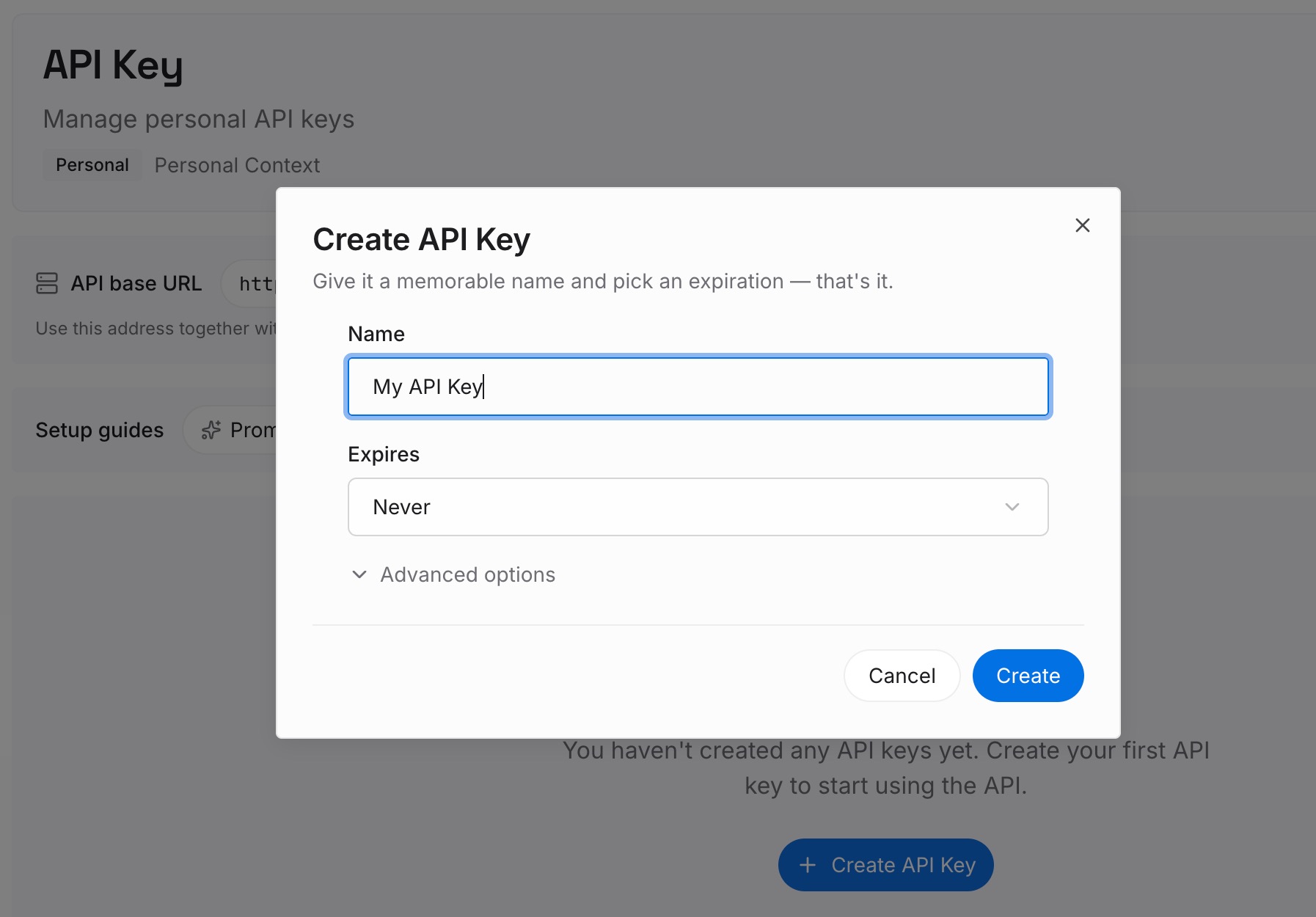
Step 1: Create an API key
Sign in and generate a key from the dashboard. The key belongs to your MemoryLake workspace and is separate from your OpenAI account.
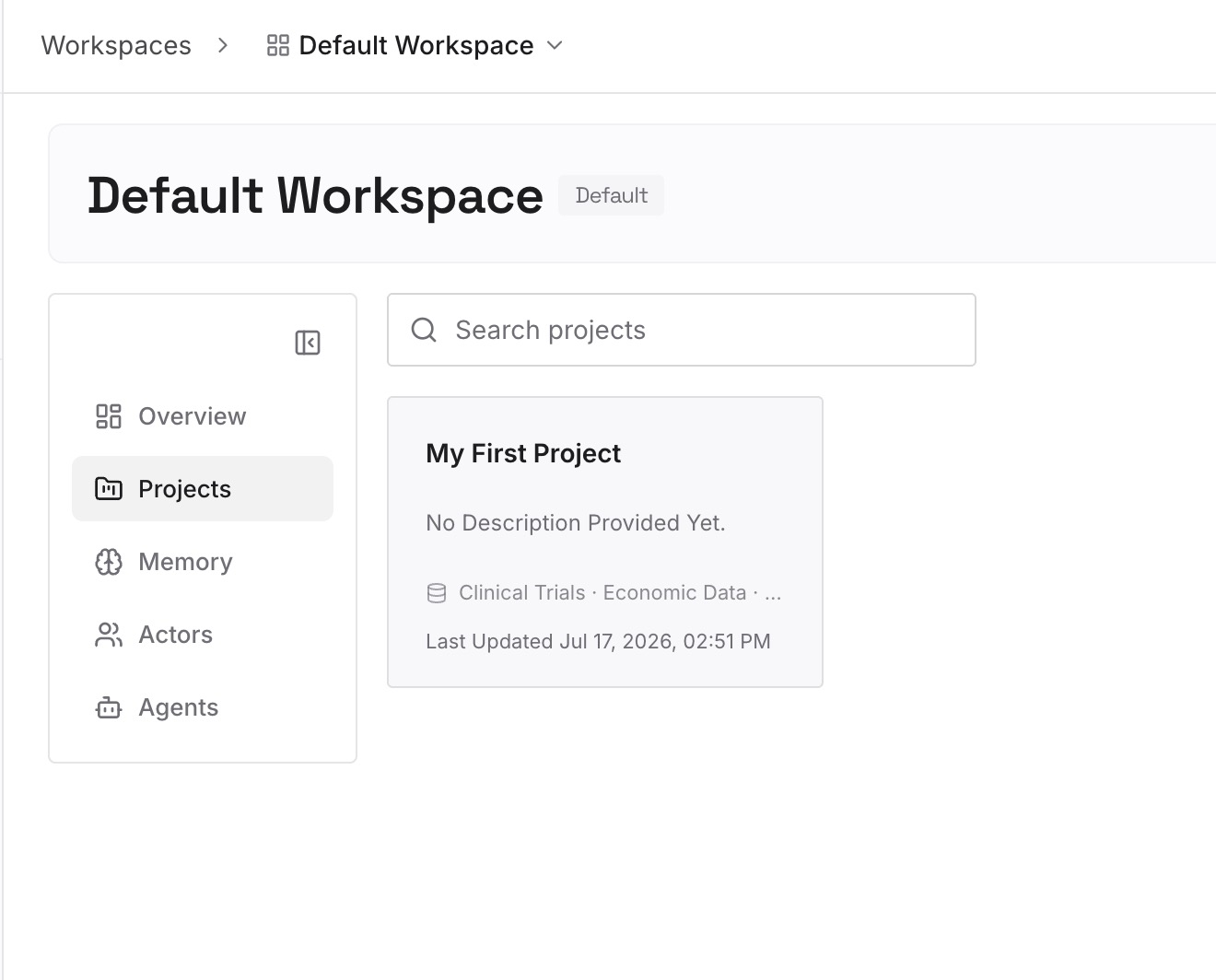
Step 2: Upload your first memories
Start with the checkpoint from Step 1 of the fix: the goal, the decisions, and the constraints. One decision per entry, so you can update one without rewriting the rest.
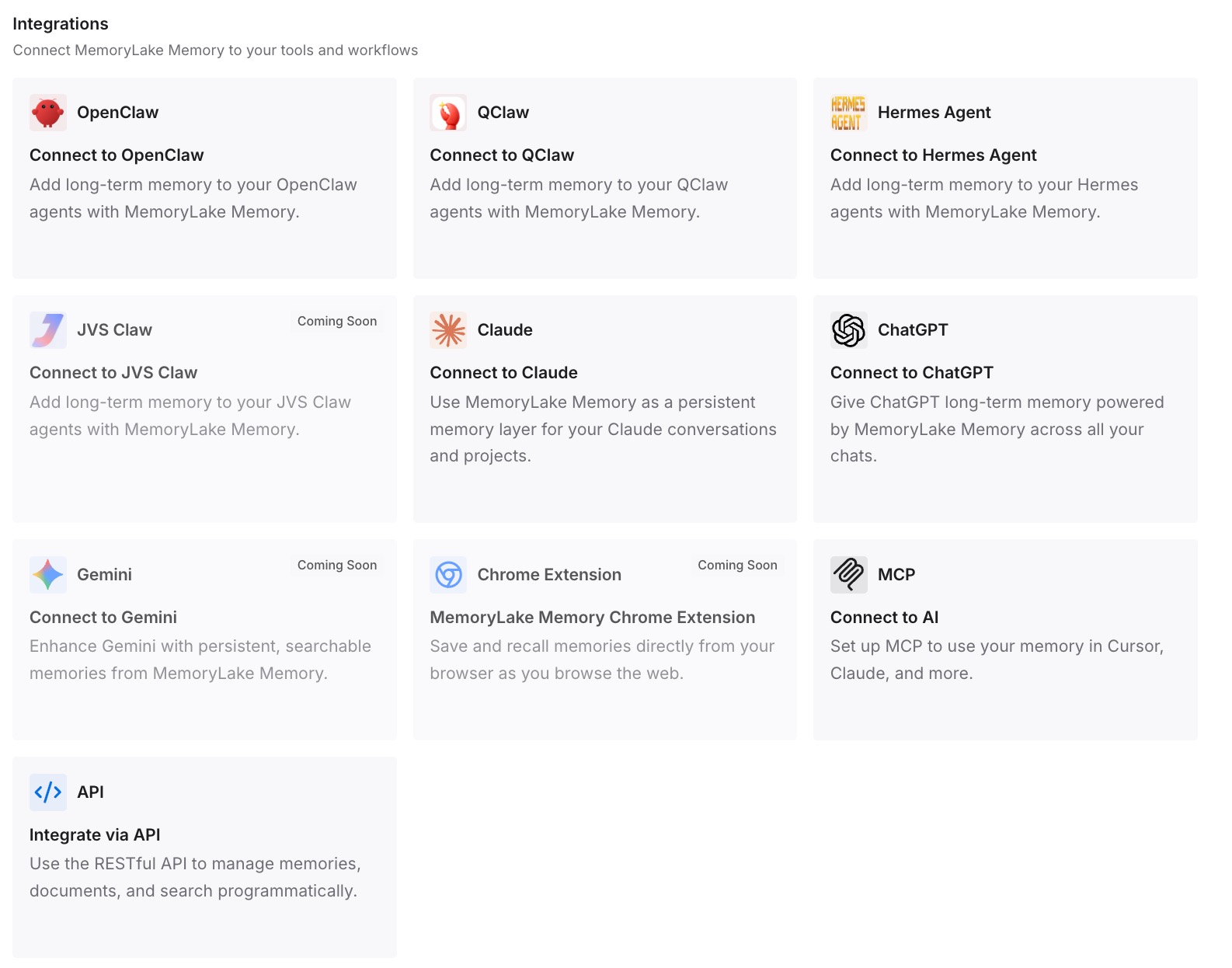
Step 3: Connect your AI & agents
Connect Codex and any other assistants you use. The same entries are available whichever model is active, and in a new conversation if you start one.
What this changes in practice
The first difference is a calmer model switch. The decisions behind the task don't depend on one conversation's history.
The second is a cleaner restart. If you start a new chat after regular usage returns, you don't have to reconstruct what was decided.
The third is less repetition. Constraints you'd otherwise restate to each model are written once.
Best practices for working with Luna Reserve
Check that it applies to you. It's for selected personal Plus and Pro accounts, in Codex and ChatGPT Work.
Watch the usage indicator. The moon indicator shows you're on reserve.
Don't rely on dismissing the notice. It doesn't change your usage.
Write a checkpoint at the switch. Give the next model a clear starting point.
Keep rules in AGENTS.md. Codex reads them before doing any work.
Review Luna's work before building on it. Then return to your usual model when usage resets.
Conclusion
Luna Reserve is a fallback mode for selected personal ChatGPT Plus and Pro accounts. After regular usage runs out, it lets you continue your conversation in Codex or ChatGPT Work with GPT-5.6 Luna, on its own separate allowance. It doesn't restore regular usage, unlock the most capable models, apply to ordinary Chat, or add API credits.
For your work, the key fact is that the conversation continues on a different model. A short checkpoint, rules kept in files, and a review when you switch back keep a long task steady across that change.