
Why a ChatGPT project leaves your sidebar
You're in a different account or workspace
Each account and each workspace has its own projects. OpenAI's account switching article says switching keeps "chats, memory, history, billing and workspaces fully separate", and lists what it doesn't do, including "Move chats between accounts" and "Merge workspaces".
Workspaces inside one account work the same way. OpenAI's article on Enterprise workspaces says "Switching workspaces simply changes which environment you are working in; it does not move or copy data across workspaces." If you have a personal workspace and a Business or Enterprise one, the project may be in the other.
It's a shared project you left or lost access to
Shared projects have more ways to leave your sidebar. If you leave one yourself, OpenAI's projects article says users "will be given the option to make a copy of their chats within the project prior to leaving." Copied chats go into a new project in your sidebar with the original name and the word Copy in front of it. Look for that name.
If someone else made the change, the article lists three possibilities. The owner can remove you: "Project owners have full visibility and control over everyone that was invited, and can modify their access levels, or remove them from the project anytime". Workspace owners can do the same. And an owner can delete the project, which "will make all chats, files and resources in the project unavailable to collaborators unless previously copied".
Group sharing has its own gap. When a project is shared with a group, members at that moment see it in their sidebar, but "Users added to the group later won't be notified and will not see the shared projects automatically". They can open the project's URL if someone sends it, and it pins to their sidebar after they interact with it.
A workspace migration skipped it
If you migrated a personal workspace into ChatGPT Business or Enterprise, not every project comes along. OpenAI's migration article says "Projects you created transfer with their settings, instructions, and supported project files." The exception: "Projects you participate in that are owned by other users are not migrated, even if you have access to them."
You also can't pick what goes. "The migration flow does not let you select individual chats, projects, or files to transfer." Our guide to moving a personal workspace to Business covers what transfers in detail.
You're looking in the wrong view of the new desktop app
The new ChatGPT desktop app combines Chat, Work, and Codex. OpenAI's article on moving to it says "Your existing ChatGPT Projects also appear under Projects." But Codex is separate: "Codex remains a separate view; its workflows are unchanged, and its history remains separate from ChatGPT history."
So look for ChatGPT projects in the ChatGPT view and Codex projects in the Codex view. Switch between ChatGPT and Codex from the top-left menu. If you still have the old app installed as ChatGPT Classic, it's a separate app. Our guide to moving from ChatGPT Classic to the new desktop app covers the switch.
It was deleted
This is the one exit you can't reverse. OpenAI says "Deleting a project permanently removes its chats and instructions, along with files stored only in the project." Two details soften it slightly: "Files saved separately in Library are not deleted", and in a shared project, collaborators who copied chats before deletion keep those copies. For the project itself, OpenAI is plain: "This action cannot be undone."
Search hasn't caught up, or there's an incident
Two simpler causes are on OpenAI's troubleshooting list for search. One is timing: "Allow time for recently created or deleted items to update in search." The other is an outage: "Check OpenAI Status for an active incident." If a project you used an hour ago is missing everywhere, check the status page before anything else.
When the project is there but its chats are missing
A project that looks emptier than it should has its own set of causes.
Chats were moved out. When the option is available, Remove from project in a chat's more options menu takes it back to general history.
Chats were locked. OpenAI's locked chats article says "If you lock an eligible chat from a project, it leaves that project and no longer uses its instructions, files, or memory." Locked chats live under Projects > Locked chats behind your account PIN.
Chats were archived. Archive all chats in Settings affects your current account or workspace, and OpenAI says these actions can affect chats "including chats in projects." Archived chats stay searchable.
Chats were deleted. Delete all chats also reaches into projects, and "The Delete all chats action cannot be undone." In a shared project, OpenAI says members "can archive or delete chats they own", and once a chat is removed, "other members, including the project owner, can no longer see it."
What people try first
Scrolling the sidebar. Search covers more. OpenAI says sidebar search covers "chats, projects, images, and files", and the Projects filter narrows results to projects.
Assuming the project was deleted. Deletion is one documented exit. Accounts, workspaces, shared-project access, migrations, and app views come first.
Asking support to bring back a deleted project. OpenAI says "You cannot restore a deleted chat in ChatGPT or through OpenAI Support", and deleting a project permanently removes its chats.
Creating a new project with the same name. A new project starts without the original's chats, files, instructions, and memory. Check the other places first.
Looking for a shared project after leaving it. Leaving takes it out of your sidebar. If you copied your chats, they're in a project with Copy in front of the name.
The Fix: Search, check the places projects move to, then keep a copy of what matters
Step 1: Search with the Projects filter, then All
Open Search from the sidebar. On the web you can press Ctrl+K or Cmd+K. Type the project's name or a word from its chats, and select the Projects filter if it's available. If nothing comes up, OpenAI's tip is to "select All to search across available content types."
Search reflects the account and workspace you're in. OpenAI notes that "The content available in search depends on your account, workspace, connected sources, and permissions."
Step 2: Check accounts, workspaces, views, and access
Work through the places a project can be:
- The active account. Check the account menu. On ChatGPT web you can stay signed in to two accounts and switch between them.
- The active workspace. Select your profile icon and look at the list of workspaces.
- The right app view. In the new desktop app, check ChatGPT and Codex separately.
- A copied project. If you left a shared project, look for one named with Copy in front.
- The project owner. If it was shared with you, ask the owner whether you were removed or the project was deleted. If you joined a group after the project was shared, ask for its URL.
If a chat is missing from inside a project, also check Projects > Locked chats and Settings > Data controls > Archived chats.
Step 3: Keep a copy of what the project holds
Once you've found the project, protect the parts you'd rebuild from scratch. Copy its instructions into a text file. Keep your own copies of its files, or save them to Library, which OpenAI says isn't affected when a project is deleted. Write down the decisions you reached in its chats, especially if it's a shared project you don't own.
Personal accounts can also export their data from Settings > Data controls. Business, Enterprise, and ChatGPT for Healthcare workspaces don't offer self-service export, so for a work project, keep copies in a place your organization allows.
Setting this up in MemoryLake
A project is a container, and it depends on things outside your control: the account you're in, the workspace, an owner's decision, a migration's rules. When the container goes, the instructions and decisions inside it go too.
MemoryLake is a memory layer for keeping that context in one list you maintain, available to ChatGPT and the other assistants you connect, such as Claude Code and Codex.
You write the entries yourself, in your own words. Nothing is read out of, written to, or deleted from your ChatGPT projects, your project files, your chats, your Library, or any vendor's store. For work projects, follow your organization's policy on what you keep outside the workspace.
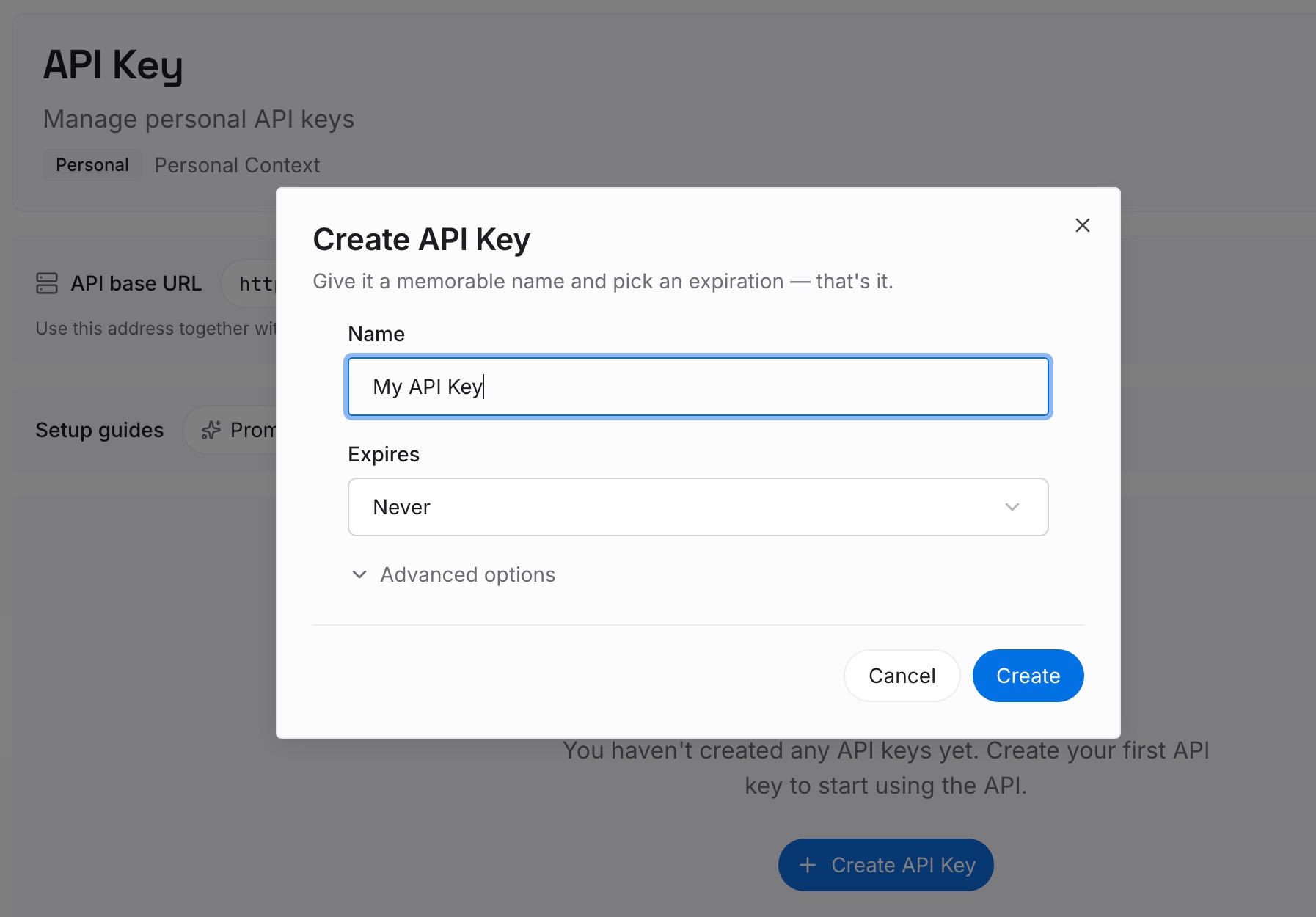
Step 1: Create an API key
Sign in and generate a key from the dashboard. The key belongs to your MemoryLake workspace and is separate from your ChatGPT account and workspaces.
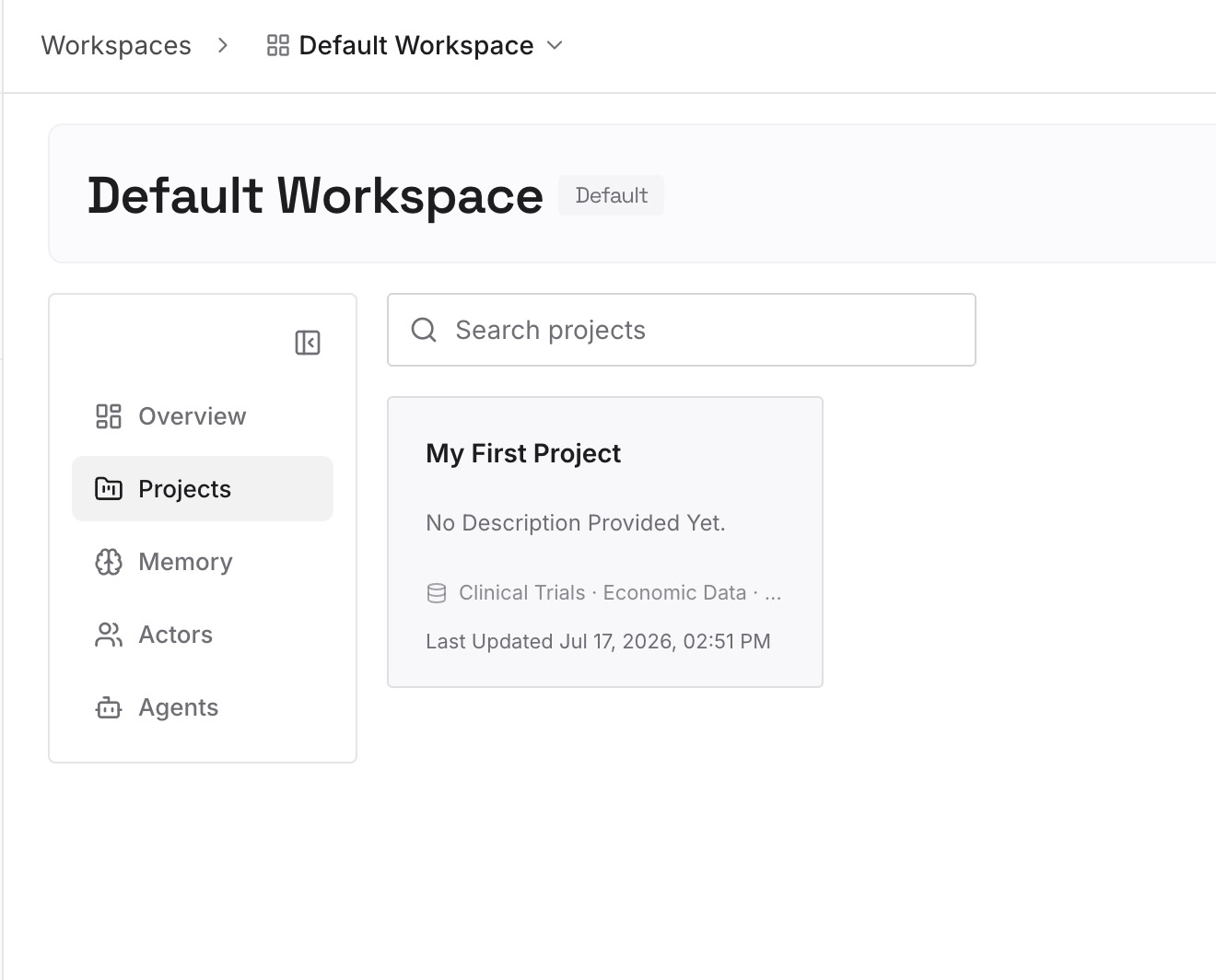
Step 2: Upload your first memories
Start with what you saved in Step 3 of the fix: the project's instructions and the decisions from its chats. One point per entry, dated, and labeled with the project it came from.
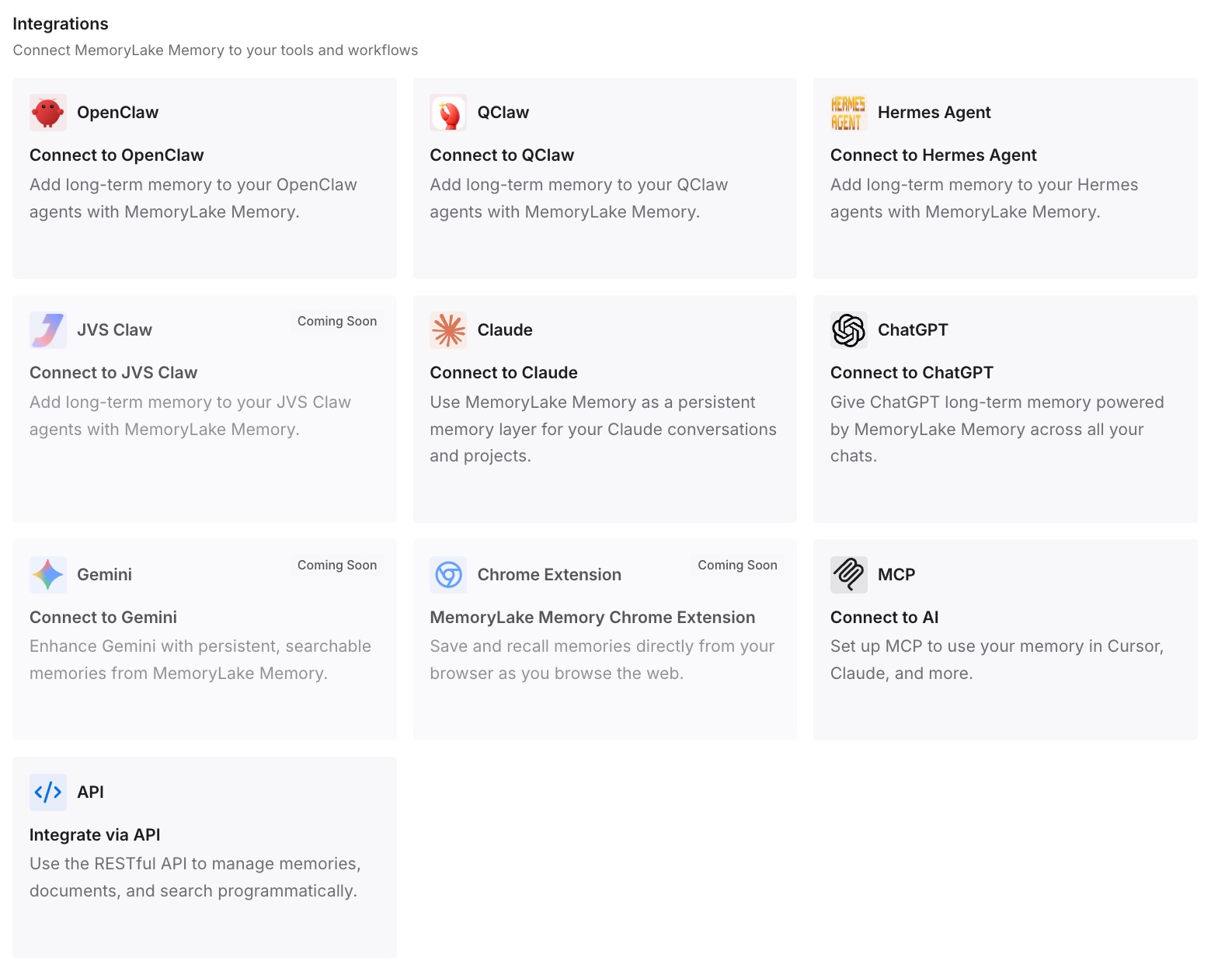
Step 3: Connect your AI & agents
Connect ChatGPT and the other assistants you use. If the project leaves your sidebar again, the context it held is still in hand.
What this changes in practice
The first difference is that you know where to look. Search, the active account and workspace, the app view, and the owner cover the documented places a project goes.
The second is that you can tell recoverable from final. Account, workspace, and view problems are fixed by switching, and access problems by asking the owner. A deleted project can't be restored, and its chats go with it.
The third is that a shared project is less of a risk. If the owner deletes it or removes you, the decisions you relied on are already written down. For how project memory settings affect what a project's chats can see, our guide to ChatGPT project memory modes explains the options.
Best practices for keeping ChatGPT projects findable
Search with the Projects filter. Then switch to All.
Check the active account and workspace. Each keeps its own projects.
Copy your chats before leaving a shared project. You're offered the option when you leave.
Ask for the URL if you joined a group late. Group members added later don't see shared projects automatically.
Know what a migration skips. Projects owned by other people don't migrate.
Save important files to Library. Library files aren't deleted with a project.
Write down decisions from shared projects you don't own. Our guide to why ChatGPT projects don't share memory covers what each project keeps to itself.
Conclusion
A ChatGPT project that's gone from your sidebar may be in another account or workspace, in a view of the desktop app you aren't using, in a copy you made when leaving a shared project, or out of reach because an owner removed you. A personal workspace migration skips projects owned by other people. Deletion is the only exit that can't be reversed, and it takes the project's chats and instructions with it.
Search with the Projects filter, then check the account, workspace, app view, and owner. Once you find the project, keep its instructions, files, and decisions somewhere you control.