
Why "it's just a snapshot" is only half true
The snapshot model holds for personal accounts. Create the link, and it captures what existed at that moment; keep typing, and the recipient does not see it. If you want them to, OpenAI's instruction is explicit — "open the conversation, select Share, and select Update link" — which replaces the snapshot with a newer one.
In a managed workspace, the default runs the other way. A workspace conversation link "can include messages added after sharing," and OpenAI attaches the warning directly: "Review the sharing notice before adding new information to a shared workspace conversation." So a link you sent to a colleague on Monday can show them what you added on Thursday, without any further action from you.
The audiences differ too. A personal-account link is open: "Anyone who has a link created from a personal account can view the shared conversation or scheduled task." A workspace link is closed: one "created in a ChatGPT Business, Enterprise, or Edu workspace, or in a ChatGPT for Healthcare workspace, can be opened only by eligible members of the same workspace. People outside that workspace cannot view the shared content."
Combine those and you get a genuinely useful rule of thumb. Personal links are wide but frozen. Workspace links are narrow but live. People who work across both, and most people do, are carrying one mental model into two different systems.
One more sentence deserves its own line, because it is the one that most often gets misread in the other direction: "Shared link pages are not intended for search-engine indexing, but this does not make a link private. Anyone who can access a link can also forward it." That is OpenAI declining to let "not indexed" be heard as "unlisted equals safe," which is the correct framing and worth keeping in mind.
What people try instead
Assuming memory and instructions travel with the conversation. They do not, and for shared scheduled tasks OpenAI publishes the full exclusion list: a shared task "does not include the creator's profile name, chat history, previous task results, saved memories, custom instructions, uploaded or local files, connected-app data, or connected-app credentials. Recipients use their own account and app permissions." So the recipient sees the artifact, not the context that produced it — which is exactly why a shared chat can look confusing to someone who was not in it. The general problem of context not travelling with output is one we set out in keeping one set of facts across the tools you use.
Deleting the link to take it back. Deletion stops future access and does not reach anything already taken. OpenAI: "Deleting a shared link stops future access to that link but does not delete the original conversation or task. It also does not remove a conversation or task another person already saved." And what a recipient does with a link creates their own copy — "Continuing a shared conversation creates a separate, private conversation in the recipient's account."
Setting an expiry. There is not one to set: "Shared links do not have configurable expiration dates. Delete a link when access is no longer needed."
Restricting a link to specific people. Also not the mechanism: "Shared links do not offer recipient-by-recipient access controls. Personal-account links are available to anyone who has the link. Managed-workspace links are limited to members of the originating workspace."
Changing data-training settings and expecting links to close. Separate control entirely: "For a personal account, changing Improve the model for everyone does not delete existing shared links or change who can open them. Manage or delete shared links separately." Which controls touch which surface is the same question we untangled for ChatGPT's history and activity controls.
Sharing mid-generation. Small but real: "A response that is still generating may not appear until it is complete. Review the entire shared preview before sending the link."
Forgetting that files ride along. A shared conversation "can include conversation history, an individual assistant response, supported images, or uploaded files." Files behave as their own surface in ChatGPT generally, which is why uploaded files drop out of context separately from chats — and why they are worth a second look in a share preview.
The Fix: Run a three-part check before the link leaves your hands
Thirty seconds, every time, in this order.
Step 1: Confirm which account created the link
This decides whether you are sending a snapshot or a window. A link from your personal account is frozen at creation or last update, and open to anyone who has it. A link from a Business, Enterprise, Edu or Healthcare workspace is restricted to that workspace and may keep including what you write afterwards.
If you are about to continue a conversation you have already shared from a workspace, that is the moment the difference bites. OpenAI's instruction — review the sharing notice before adding new information — is there for exactly this case.
Step 2: Read the preview, not the conversation
The preview is the artifact; the conversation is your memory of it. Look for three things: a name, a file, and a passage that only makes sense with context you have and the recipient does not.
On names, OpenAI notes that "Shared conversation links are anonymous by default" but that "Some existing or older sharing experiences may display the creator's name, so review the preview before sending a link." Anonymous by default is not anonymous always, and the preview is where you find out which you have.
On files: uploaded files and supported images can appear in a shared conversation. A document you pasted in for one question is part of the artifact unless you check.
Step 3: Decide the link's lifetime at the moment you create it
Since expiry is not configurable, the lifetime is whatever you remember to do later. Make it a decision rather than a default: is this link permanent, or does it get deleted when the thread of work closes?
The management screen is where that happens — "Go to Settings. Select Data controls. For Shared links, select Manage." From there you can delete an individual link, or "open More actions and select Delete all shared links." A useful habit is to open that list once a quarter and read it; most people are surprised by its length, which is the same surprise behind auditing what your assistant is holding about you.
For anyone who wants the inventory in a file rather than a screen, personal-account exports carry it: "A personal-account data export includes shared conversation metadata in shared_conversations.json. Each record includes the shared-link ID, conversation ID, title, and anonymity setting."
Setting this up in MemoryLake
Most shares happen because a conversation contains a conclusion someone else needs, and sending the whole conversation is the only obvious way to send it. MemoryLake is a store you write those conclusions into on purpose, separate from any transcript, so what you pass on can be the finding rather than the thread that produced it. You write the entries yourself, in your own words. Nothing is read out of, written to, or deleted from OpenAI's systems or any other vendor's store — your conversations, shared links and memory stay entirely under ChatGPT's own controls.
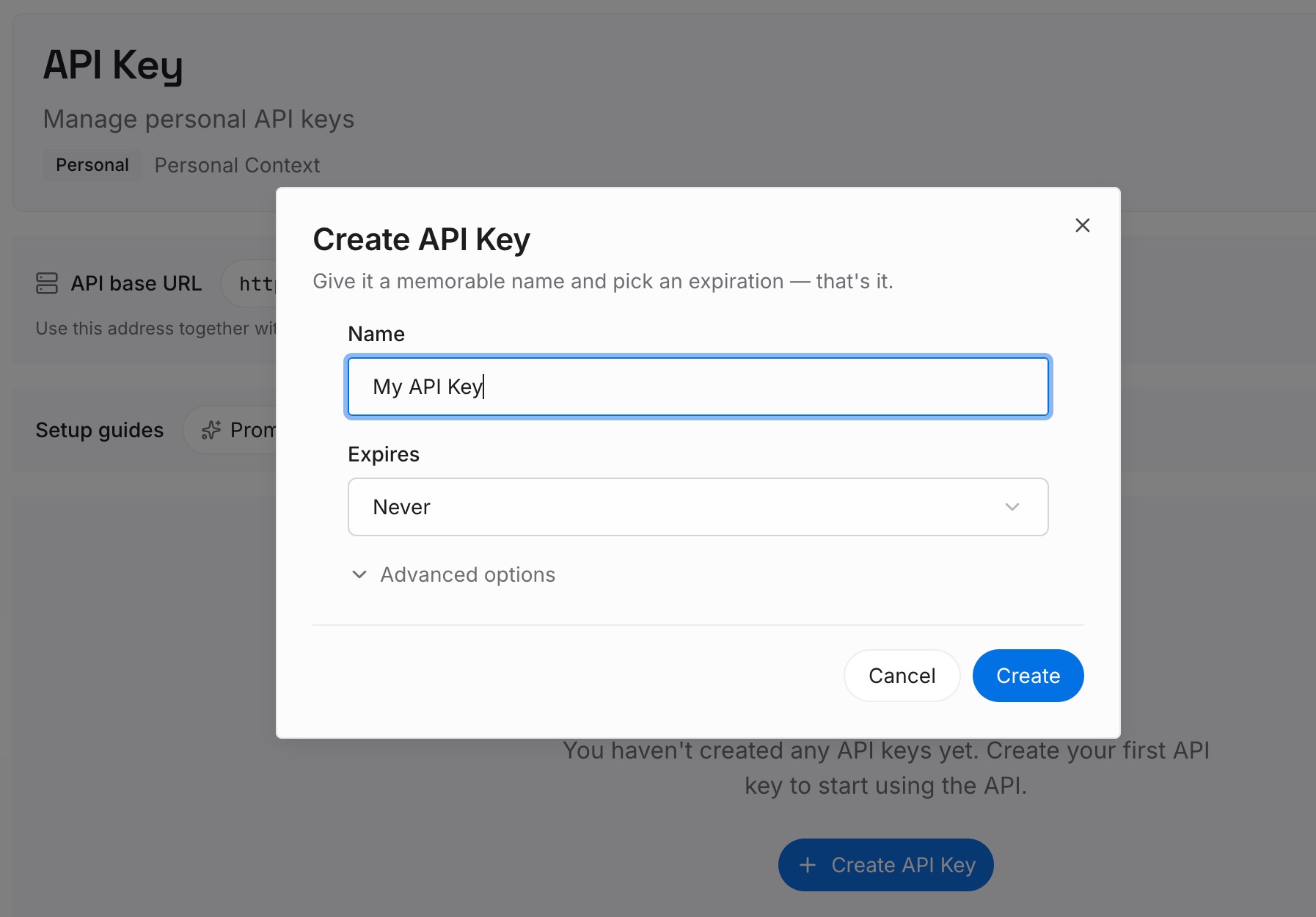
Step 1: Create an API key
Generate a key from the dashboard. It is what lets the assistant that produced a finding and the assistant your colleague uses reach the same set of facts.
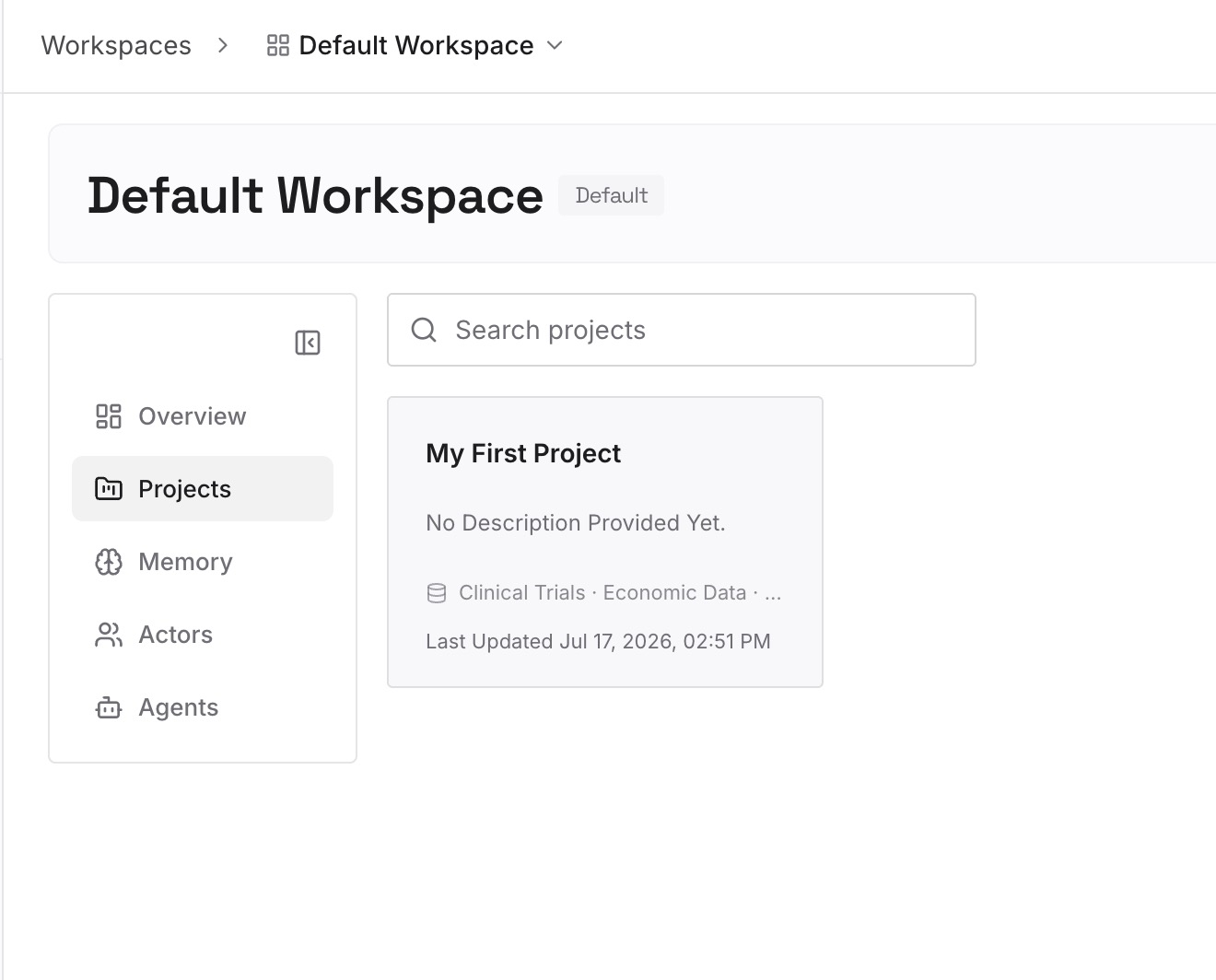
Step 2: Upload your first memories
Start with the things you have shared a whole conversation to convey: the decision and its reason, the figure and its source, the wording that was signed off. A dozen short entries usually covers a project. Write them as statements, not as a narrative of how you got there.
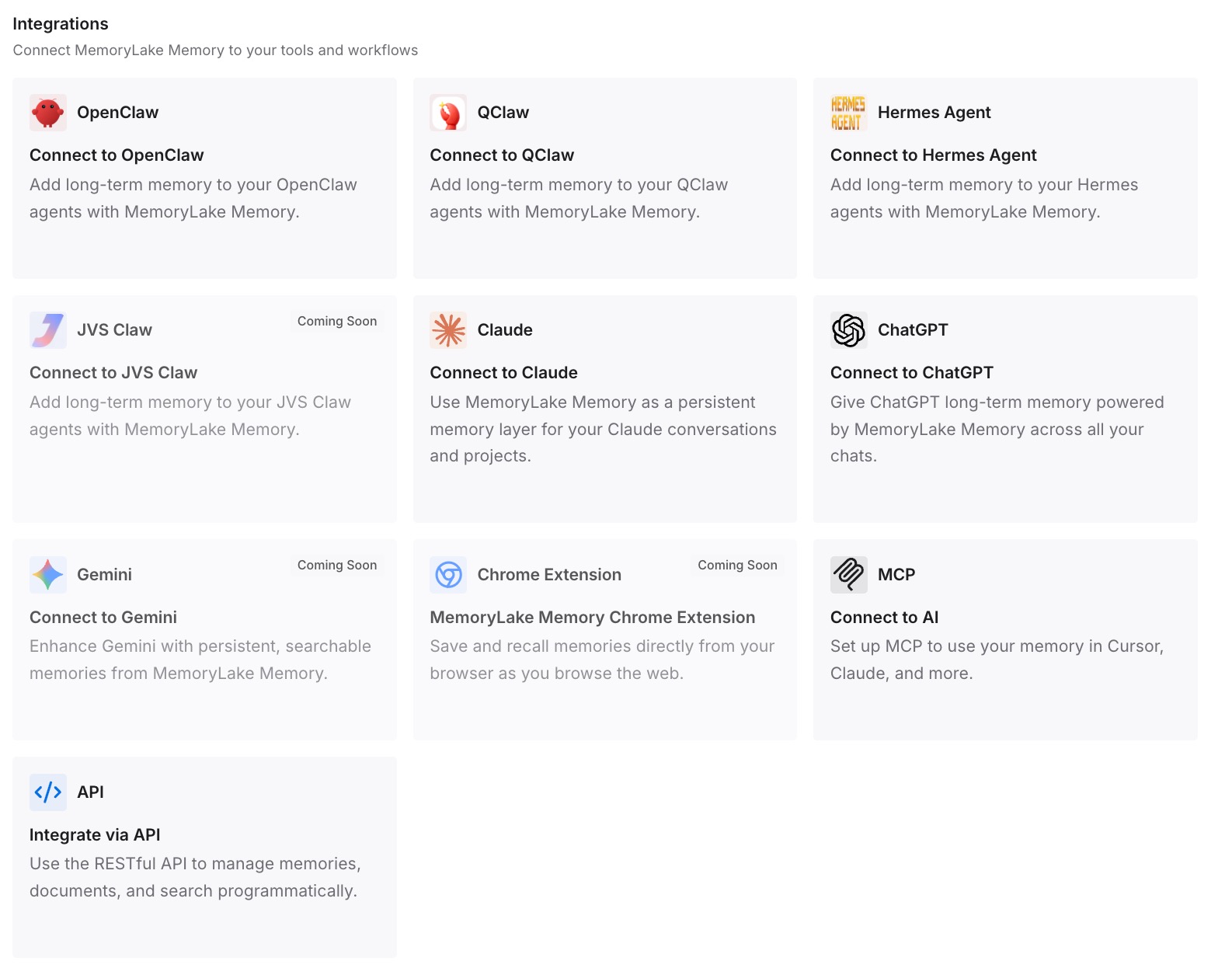
Step 3: Connect your AI & agents
Point your tools at the layer so those facts load at the start of a conversation rather than being re-explained through a link. Then test it: open a fresh chat and ask for one of the facts back. If it answers, sharing a link becomes a choice rather than the only way to hand something over.
What this changes in practice
The first change is that the personal-versus-workspace difference stops being a trap. Once you know a personal link is a snapshot and a workspace link can keep updating, you stop guessing and start checking which account you are in — a one-second question with a consequential answer.
The second is that deletion gets used for what it does. It closes a door; it does not recall what walked through. Knowing that makes people delete links earlier, when it still accomplishes something, rather than treating deletion as an undo.
The third is that the share preview becomes a habit. It is the only place that shows you what the recipient sees, including whether a name appears and which files came along, and it takes ten seconds.
The fourth is that the exclusion list for shared tasks becomes a useful template. Profile name, chat history, previous results, saved memories, custom instructions, files, connected-app data and credentials all stay behind. That is a good description of what you should assume never travels with anything you share — and a good argument for keeping the parts that do need to travel somewhere that was designed to be read by someone else. The same question decided how we framed what a temporary chat does and does not carry.
Best practices for ChatGPT shared links
Check the account type first. Personal links are open and frozen; workspace links are restricted to the workspace and can include later messages.
Read the preview before sending. It is where you catch a displayed name, an attached file, or a passage that needs context the recipient lacks.
Update deliberately. A personal link only moves when you select Update link; a workspace conversation may move on its own as you keep typing.
Delete when the work closes, not when you regret it. Expiry is not configurable, and deletion does not remove copies someone already saved.
Review Settings > Data controls > Shared links quarterly. The list is usually longer than people expect, and bulk deletion is available there.
Send the finding, not the thread, when the finding is the point. A link carries a conversation; most of the time your colleague needed one paragraph of it.
Conclusion
A ChatGPT shared link is a real publishing action with documented mechanics. From a personal account it is a snapshot, open to anyone holding the URL, and it moves only when you update it. From a managed workspace it is restricted to that workspace and can include what you add afterwards. Neither offers per-recipient controls or a configurable expiry, and OpenAI is direct that pages not being intended for search-engine indexing "does not make a link private."
The most portable lesson is in the exclusion list published for shared tasks: profile name, chat history, previous results, saved memories, custom instructions, files and connected-app data stay with you. What you send is the artifact, stripped of the context that made it make sense.
None of this is a flaw; it is a sharing feature behaving like one and describing itself accurately. The practical response is a thirty-second habit — check the account type, read the preview, decide the lifetime — and a longer-term one: keep the conclusions somewhere you can hand over directly, so that sharing a whole conversation stops being the default way to pass on a single fact.