
What composer predictions are
OpenAI's description: "Composer predictions is a beta feature that suggests what you might want to say next, based on the conversation in your current Codex thread."
After Codex finishes a response, a suggestion may appear in the message box. It's a full next message, not autocomplete. The FAQ says predictions "suggest a complete next message. They don’t update word by word as you type."
A prediction won't appear after every response. The article says the composer may skip one, and a missing prediction "alone does not mean something is wrong."
Who can use them
The availability is narrow during the beta. "Composer predictions is in beta for users aged 18 and older on personal ChatGPT Pro plans in all supported regions. It’s available in local and SSH threads in the Codex desktop app with GPT-6 Astra, GPT-6.1 Sol, and GPT-6.1 Terra."
A few boundaries follow from that:
- Personal Pro plans only. The FAQ says predictions "aren’t available on other plans on the web, or in Chat."
- The Codex desktop app. Local and SSH threads with a supported model.
- Not in Chat. "Predictions are not available in Chat on web or Desktop."
- Work, partly. "In Work, predictions may appear if you use local Work threads and conversations."
If you're on a supported plan and don't see predictions, check that the app is up to date, Show predictions is on, and your account, model, and thread type are supported.
What a suggestion is based on
This is the part worth understanding. The article's section on context is short and precise.
"Predictions use the conversation in your current thread. If context from past work or connected apps is already in that thread, it can inform a prediction."
Then the boundary: "Predictions don’t look up memories or retrieve information from connected apps on their own. You can use predictions with memory off."
So the input to a prediction is the thread you're in. That includes what you asked, what Codex did, and anything that was brought into the thread along the way. It doesn't include a separate search of your memories or your connected apps made just to produce a suggestion.
That explains the opening example. In a long thread about a refactor, the conversation itself holds the context, so the suggestion fits. In a fresh thread, there's little conversation yet, so there's less to go on.
How predictions relate to Codex memories
Predictions and memories connect through the thread, not directly.
The article says: "Memory context already in your thread can personalize predictions." If Codex used a local memory while answering you, that context is now part of the conversation, and a prediction can draw on it. What a prediction doesn't do is go and look up memories itself.
To turn memories on, the article points to Settings, then Personalization, and Enable Codex memories. OpenAI's memories documentation describes how local Codex memories work:
- They're local. "ChatGPT web uses ChatGPT memory, while local Codex clients use a separate local memory store and controls."
- They're built from earlier chats. After you enable memories, Codex can turn useful context from eligible prior chats into local memory files.
- They update later. "Memories may not update right away when a chat ends." Codex waits until a chat has been idle long enough.
- You control them per chat. In the desktop app,
/memorieslets you choose whether a chat can use local memories or contribute to future ones.
So if you want predictions to reflect what Codex knows about a project, the route is to have that context in the thread. Predictions follow whatever the thread contains.
When a new thread changes what predictions see
Because predictions use the current thread, anything that resets the thread resets their context too.
Starting a new chat, for example, gives predictions only that new conversation to work from. Codex's plan mode has an option that does the same thing deliberately: it starts a fresh thread from your approved plan. We covered what that fresh thread receives in our guide to Codex's clear context and implement option.
Long threads have the opposite effect on speed. "Predictions can take several seconds to appear after Codex finishes responding, and longer in long conversations."
You don't need a new conversation to get predictions. The FAQ says they can appear in existing conversations that meet the eligibility requirements.
How to accept, edit, or ignore a prediction
The controls are simple:
- Accept: press Tab. The suggestion goes into the message box.
- Edit: change the text before sending.
- Ignore: start typing your own message. You don't have to wait for a prediction.
The important detail: "Accepting a prediction adds text to the message box - it does not send the message for you." You always send it yourself.
The FAQ is just as clear about automation: "Composer predictions don’t automatically accept or send follow-up messages." You should review each prediction before sending it.
If you want to keep a suggestion for later, the FAQ says you can copy it yourself: press Tab, copy the text somewhere you can refer to, then replace it with the message you want to send now.
How predictions differ from new conversation suggestions
Codex shows suggestions in two places, and they do different jobs. "Suggestions on the new conversation page help you start a task. Composer predictions suggest your next message in an existing conversation, after Codex finishes responding."
The Show predictions setting controls composer predictions.
What predictions cost
During the beta, predictions don't cost extra for eligible Pro users. The FAQ adds: "During the beta, generating predictions doesn’t count toward your Codex usage limits or consume credits."
Once you send a message, normal rules apply. "When you send a message, including an accepted prediction, normal Codex usage limits and billing apply."
On privacy, the article says: "Messages you send follow Codex’s retention and deletion policies." It points to OpenAI's data controls articles for details.
How to turn predictions off
"Composer predictions are on by default for eligible users." To turn them off:
- Open Settings in the Codex desktop app.
- Go to General, then Composer.
- Turn off Show predictions.
You can turn it back on in the same place.
The FAQ also answers a question about permissions: predictions don't require additional keyboard permissions on macOS. If macOS shows a permission request, check which app feature is asking.
If predictions aren't appearing
The article's troubleshooting section lists what to check, in order:
- The app version. Update the Codex desktop app.
- The setting. Make sure Show predictions is on.
- Your account. Predictions need a personal ChatGPT Pro account during the beta.
- The model. Select GPT-6 Astra, GPT-6.1 Sol, or GPT-6.1 Terra in the thread.
- The thread type. Use a local or SSH thread.
If everything checks out and a suggestion is wrong or unhelpful, you can ignore it, or turn predictions off. To report a problem, the FAQ says to contact OpenAI Support and "Include what the prediction suggested, what you expected instead, the model you were using, and your desktop app version." If you attach a screenshot, it asks you to remove personal or sensitive information first.
What people try first
Expecting predictions to know your project from memory. They use the current thread. Memory helps only if it's already in the conversation.
Waiting for a prediction before typing. You can keep typing without waiting.
Pressing Tab and expecting it to send. Accepting only adds text to the message box.
Looking for predictions in Chat. They're in the Codex desktop app's local and SSH threads.
Assuming a missing prediction means something broke. A prediction won't appear after every response.
The Fix: Make the thread carry the context you want
Step 1: Keep related work in one thread
Predictions build on the conversation, so a focused thread gives better suggestions.
Step 2: Bring context into the thread on purpose
If you want predictions to reflect a decision or constraint, state it in the thread or have Codex use the relevant memory.
Step 3: Review before sending
Treat every prediction as a draft. Edit it or write your own.
Step 4: Keep project context somewhere you can bring into any thread
Write down the decisions and constraints you want every new thread to start with.
Setting this up in MemoryLake
Predictions only see what's in the current thread. The decisions and constraints you'd like every thread to start with, such as which module is being replaced or which tests must pass, are project context you can keep in one place and bring in when a thread starts.
MemoryLake is a memory layer for that kind of project context, such as decisions, constraints, and current priorities, kept in one place you maintain and available to the assistants you connect, such as ChatGPT, Claude Code, and Codex.
You write the entries yourself, in your own words. Nothing is read out of, written to, or deleted from your Codex threads, your predictions, your local Codex memories, your settings, or any vendor's store. Composer predictions and Codex memories work the way OpenAI describes them.
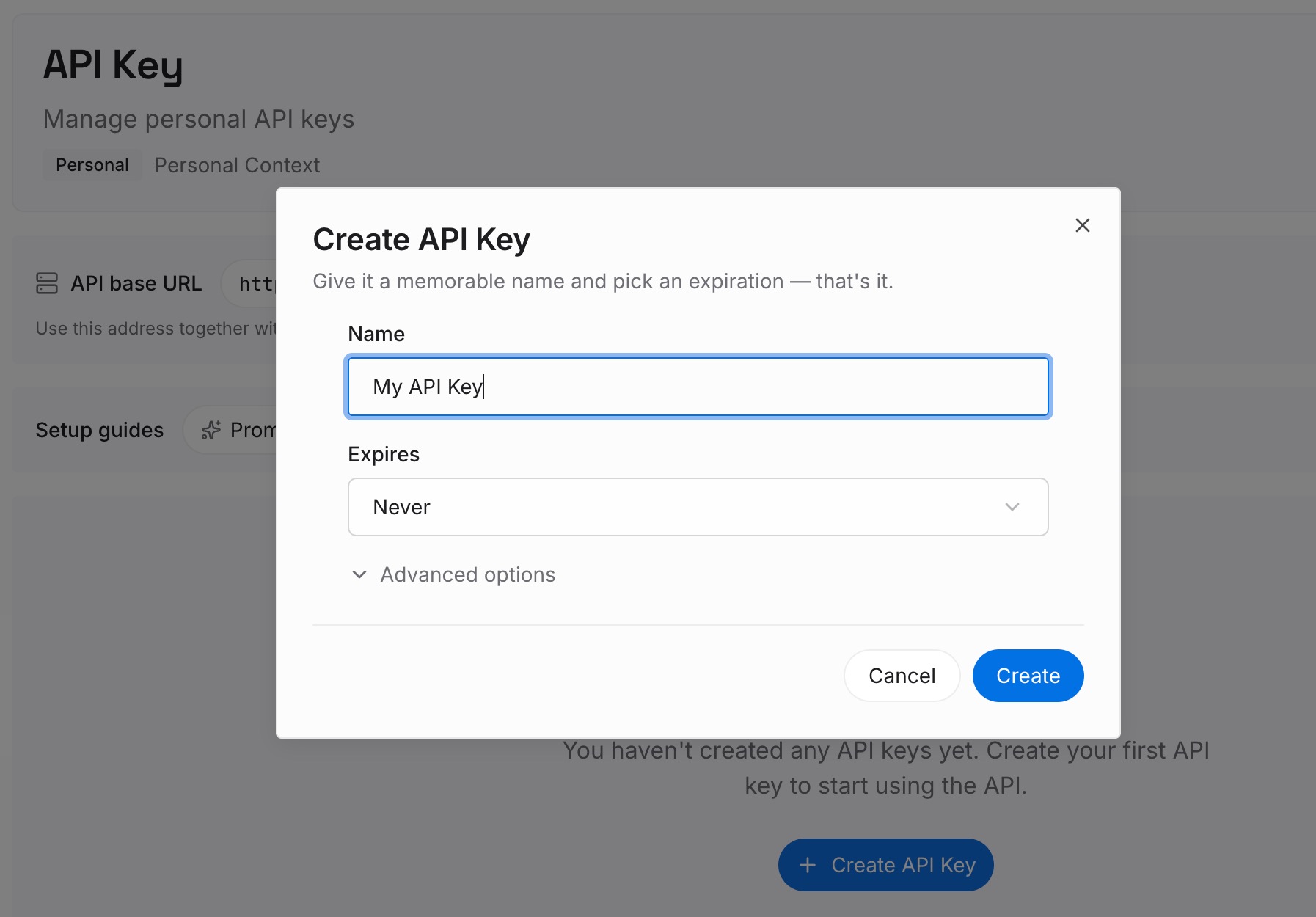
Step 1: Create an API key
Sign in and generate a key from the dashboard. Store it outside your repositories, like any other credential.
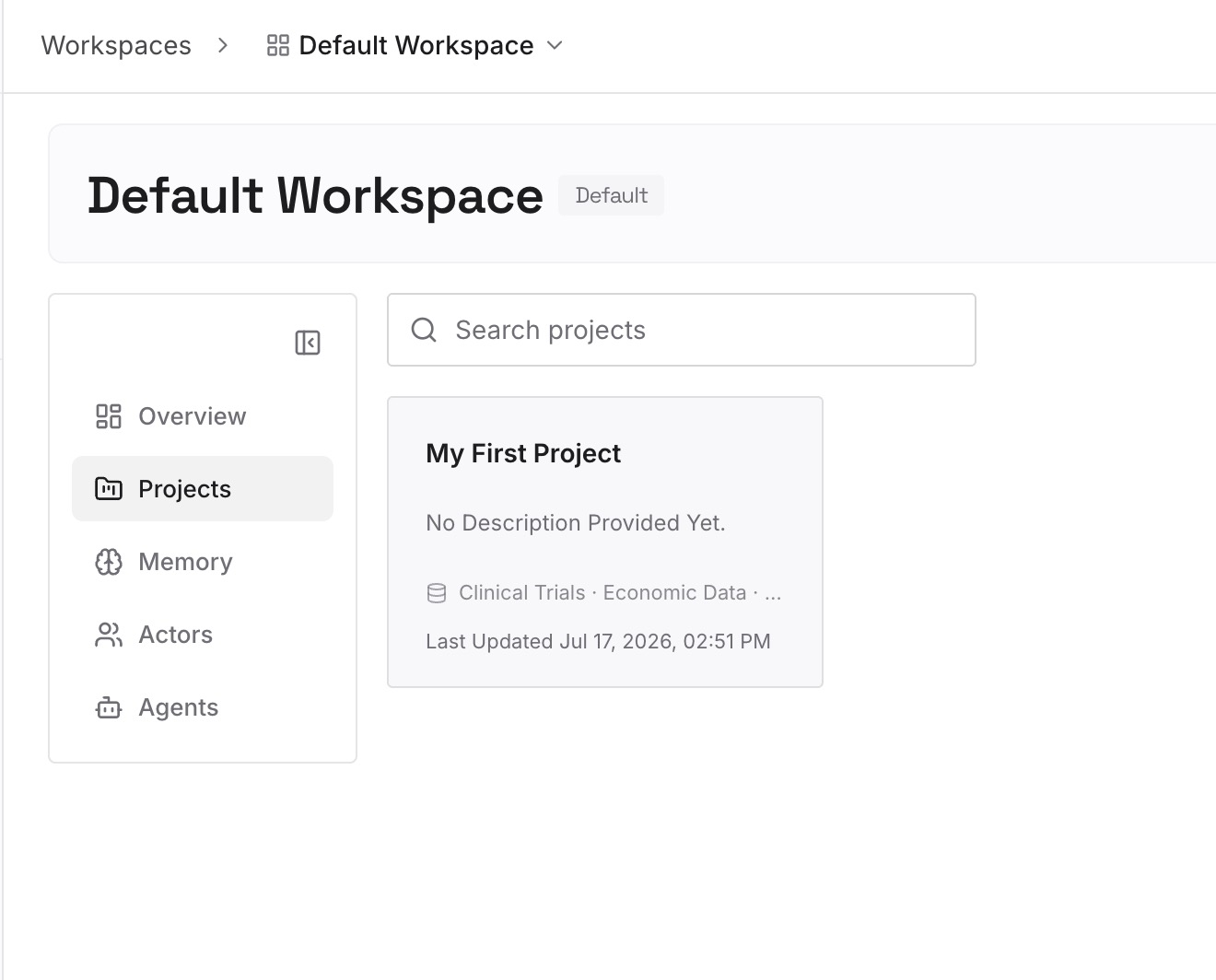
Step 2: Upload your first memories
Start with what you wrote in Step 4 of the fix: the decisions and constraints every new thread should know. One decision per entry.
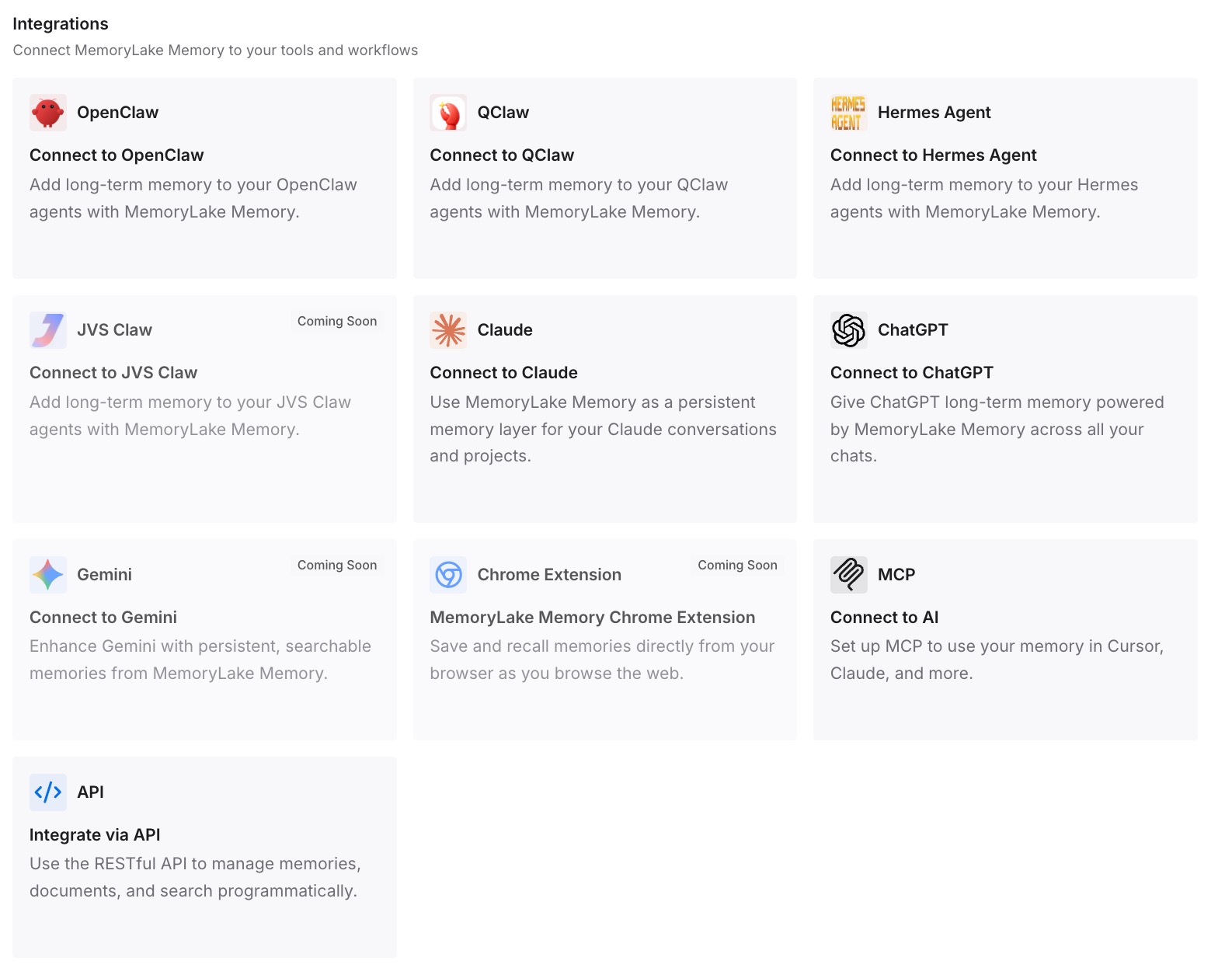
Step 3: Connect your AI & agents
Connect Codex, Claude Code, and the other assistants you use. A new thread can draw on the same decisions from the start.
What this changes in practice
The first difference is a better start to new threads. The context is available without retelling it.
The second is consistency across tools. The same decisions are there when you switch between Codex and another assistant.
The third is fewer stale assumptions. When a decision changes, you update one entry.
Best practices for composer predictions
Keep threads focused. Predictions use the current conversation.
Bring context in deliberately. Predictions don't look up memories on their own.
Review every suggestion. Accepting adds text, and you send it.
Don't wait for one. Type your own message whenever you like.
Expect gaps. A prediction won't appear after every response.
Turn it off if it distracts you. Settings, General, Composer, Show predictions.
Keep long-term context outside the thread. Threads start fresh.
Conclusion
Composer predictions suggest your next message in the Codex desktop app, based on the conversation in your current thread. They're in beta for personal ChatGPT Pro users in local and SSH threads with supported models. They don't look up memories or connected apps on their own, though memory context already in the thread can shape a suggestion, and they work with memory off.
Accepting a prediction only adds text to the message box. Predictions don't count toward usage limits during the beta, and you can turn them off in Settings under General and Composer. Because they follow the thread, the best way to improve them is to make sure the thread carries the context you care about.