
What context left measures
Every Codex chat has a context window: the amount of conversation, tool output, and instructions the model can consider at once. Codex's configuration reference describes the window setting as "Context window tokens available to the active model."
The context left figure shows how much of that window is still unused in the current chat. It goes down as the chat grows. It goes back up when the chat is compacted or when you start a new one.
It's a per-chat number. A second chat in another terminal has its own figure, and starting a new chat gives you a fresh window.
What it isn't
It isn't your account usage. Codex tracks that separately, and its command reference lists /usage to "View account token usage or use a rate-limit reset." The status line has its own items for rate limits. A chat can have room left while your account is close to a limit, and the other way around.
How Codex calculates the number
Codex's terminal client is open source, and the calculation is in its code. Two details explain why it can be confusing.
A fixed baseline is set aside
The calculation sets aside a fixed baseline of 12,000 tokens. Codex subtracts it from the window and from the tokens in use before working out the percentage. The effect is that the first 12,000 tokens of a chat don't move the figure.
That's why a new chat starts at the top even though it already holds something before your first message. Codex reads AGENTS.md files and its own instructions before it does any work. The documentation says "Codex reads AGENTS.md files before doing any work." That material takes space, but within the baseline it doesn't show as used.
So the number is relative. It measures the room left in the part of the window above the baseline, not a raw fraction of the whole window.
It follows the active model's window
The percentage is measured against the context window of the model you're using. A larger window makes the same conversation take a smaller share. That's the reason the figure can look different after you switch models, or after a default changes.
When the client has no percentage to show, it shows a count of tokens used instead.
What fills the window
The figure drops whenever something new enters the chat, including things you don't type yourself.
- Tool output. Test runs, logs, file reads, and command output all land in context. A long debugging session can add more from tool output than from your own messages.
- Files Codex reads. Each file Codex opens to understand your code takes space.
- The conversation. Your messages and Codex's replies, including plans.
- Reasoning. Models that reason use tokens to do it, and those are part of the accounting.
What happens as it drops
Compaction
When a chat gets close to its limit, Codex compacts it: it summarizes earlier turns so the chat can continue. You can also run it yourself. The command reference describes /compact as "Summarize the visible chat to free tokens." and the expected result as "Codex replaces earlier turns with a concise summary, freeing context while keeping critical details."
After compaction, the figure goes back up. The earlier turns are now a summary.
Compaction may come before the bottom
The point where automatic compaction runs is a separate setting from the window. Codex's configuration reference describes model_auto_compact_token_limit as "Token threshold that triggers automatic history compaction (unset uses model defaults)."
The documentation doesn't say that threshold matches the point where the footer reads zero. Treat the figure as a guide to how much room is left, not as an exact countdown to compaction. If you're waiting for the number to hit the bottom before acting, compaction may already have happened.
There's a related setting for how the threshold is counted. The reference says model_auto_compact_token_limit_scope "Controls whether the auto-compaction threshold counts the full active context (total, the default) or only growth after the carried compaction-window prefix (body_after_prefix)."
A recent fix to the accounting
Codex 0.166.0, released on October 29, 2026, includes a fix in this area. Its release note says it "Preserved reasoning-token accounting across resume and fork to avoid premature compaction." If you saw a resumed or forked chat compact sooner than expected on an earlier version, updating is the first step.
Checking the number in more detail
/status
The footer gives you one number. /status gives you more. The command reference says it shows "session configuration and token usage", and lists its use as confirming "the active model, approval policy, writable roots, and remaining context capacity."
Run it when the footer surprises you. It also confirms which model is active, which explains a lot of sudden changes in the figure.
/statusline
You choose what the footer shows. The /statusline command opens a picker, and the documentation lists the items: "Available status-line items include model, model+reasoning, context stats, rate limits, git branch, token counters, session id, current directory/project root, and Codex version." Your choice is saved to tui.status_line in config.toml.
If you work in long sessions, keep the context stats item and the model item next to each other. Then a jump in the number has its explanation right beside it.
What to do before it runs low
The figure dropping isn't a problem on its own. The risk is what gets summarized away when the chat compacts: the details you didn't write down.
Write down what the chat figured out
Decisions, the reasons behind them, and the constraints you discovered are the things a summary may compress. Before a long chat compacts, put the ones you'll need into AGENTS.md if they apply to the repository, or into notes you keep elsewhere.
Export a copy
/export saves the conversation. The documentation says "Codex exports the complete conversation as Markdown." You can copy it to the clipboard or save it to a file. Our guide to exporting a Codex chat covers what to do with the transcript afterward.
Recap without compacting
If you want a summary for yourself without changing the chat, use /recap. The command reference describes it as a way to "Catch up on the chat without compacting its context."
Compact at a natural break
Running /compact yourself at the end of a step is better than letting it happen mid-step. You choose a moment when the important parts are already settled.
Branch or start fresh
For a new direction, /fork copies the chat into a new one; our guide to forking a Codex chat covers what carries over. For a quick question that shouldn't add to the main chat, /side starts an ephemeral side chat. For unrelated work, start a new chat with /new.
If you're tracking a long task, /goal keeps a target attached while the chat moves; our guide to Codex goal mode explains what it holds.
What people try first
Reading the figure as a usage limit. It's room in this chat's window. Account usage is under /usage.
Expecting a new chat to show what instructions cost. The baseline hides the first 12,000 tokens, so a new chat starts at the top.
Waiting for zero before acting. Compaction runs at its own threshold. Act while there's room.
Comparing the number across models. It's measured against each model's window, so the same chat reads differently on different models.
Keeping everything in one chat. One chat per task keeps the figure meaningful and the summary focused.
The Fix: Treat context left as a prompt to save your work
Step 1: Put context stats where you can see them
Run /statusline and keep the context stats and model items in the footer. Check /status when the number moves unexpectedly.
Step 2: Save decisions before compaction
When the figure gets low, or at the end of a step, write down what the chat settled: decisions, reasons, and constraints. Put repository rules in AGENTS.md. Export the chat if you'll want the full record.
Step 3: Compact or start fresh on purpose
Run /compact at a natural break rather than waiting for automatic compaction. For a new task, start a new chat. Keep each chat to one piece of work.
Setting this up in MemoryLake
The context left figure measures one chat. When the chat compacts or ends, what stays is what you wrote down. Decisions that apply beyond one repository, or that you'll need in another tool, need a place outside the chat and outside any single AGENTS.md.
MemoryLake is a memory layer for keeping those decisions in one list you maintain, available to Codex and the other assistants you connect, such as ChatGPT and Claude Code.
You write the entries yourself, in your own words. Nothing is read out of, written to, or deleted from your Codex chats, your AGENTS.md files, Codex's local memories, or any vendor's store. Compaction and the context left figure keep working the way OpenAI describes them.
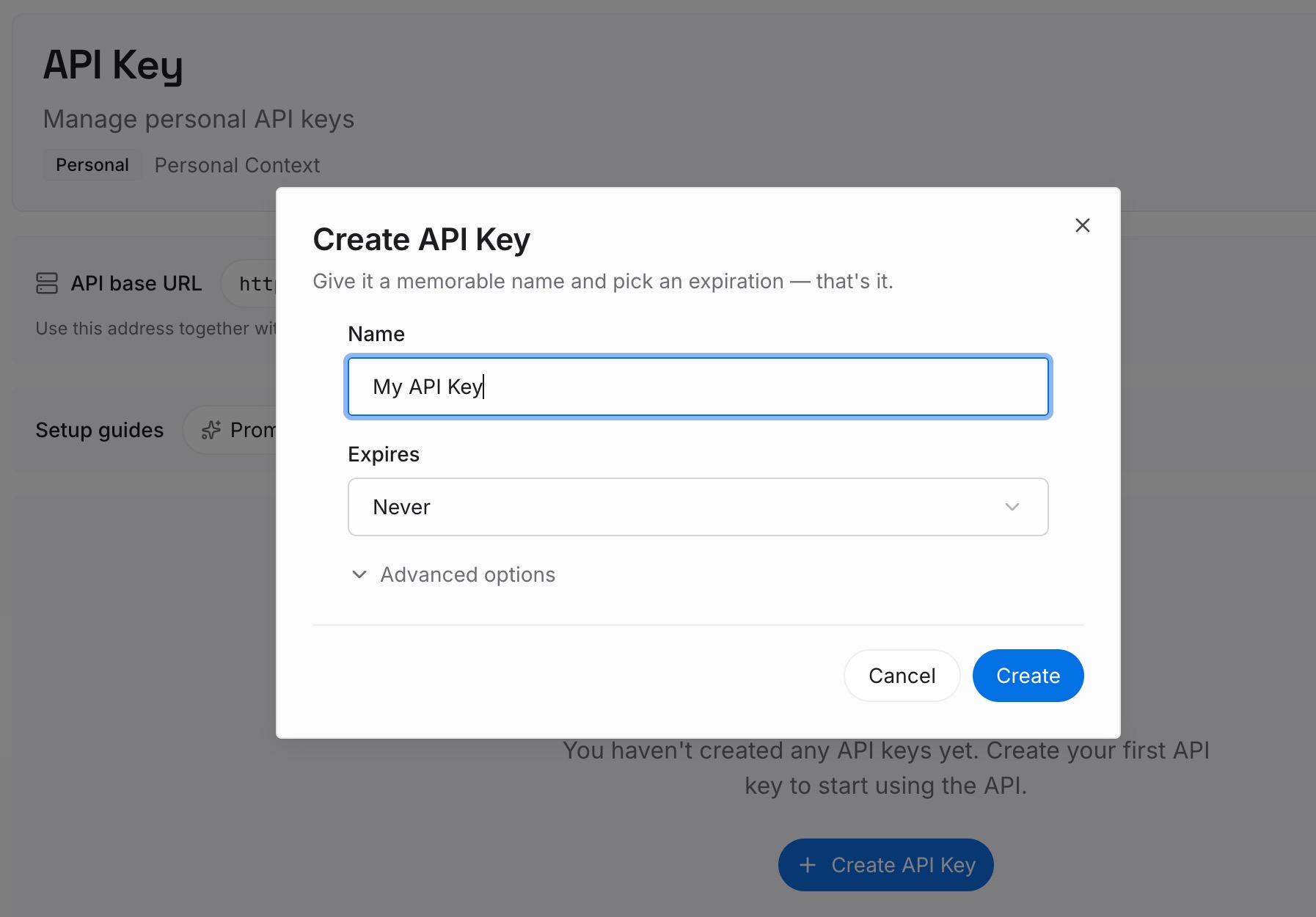
Step 1: Create an API key
Sign in and generate a key from the dashboard. The key belongs to your MemoryLake workspace and is separate from your ChatGPT and Codex sign-in.
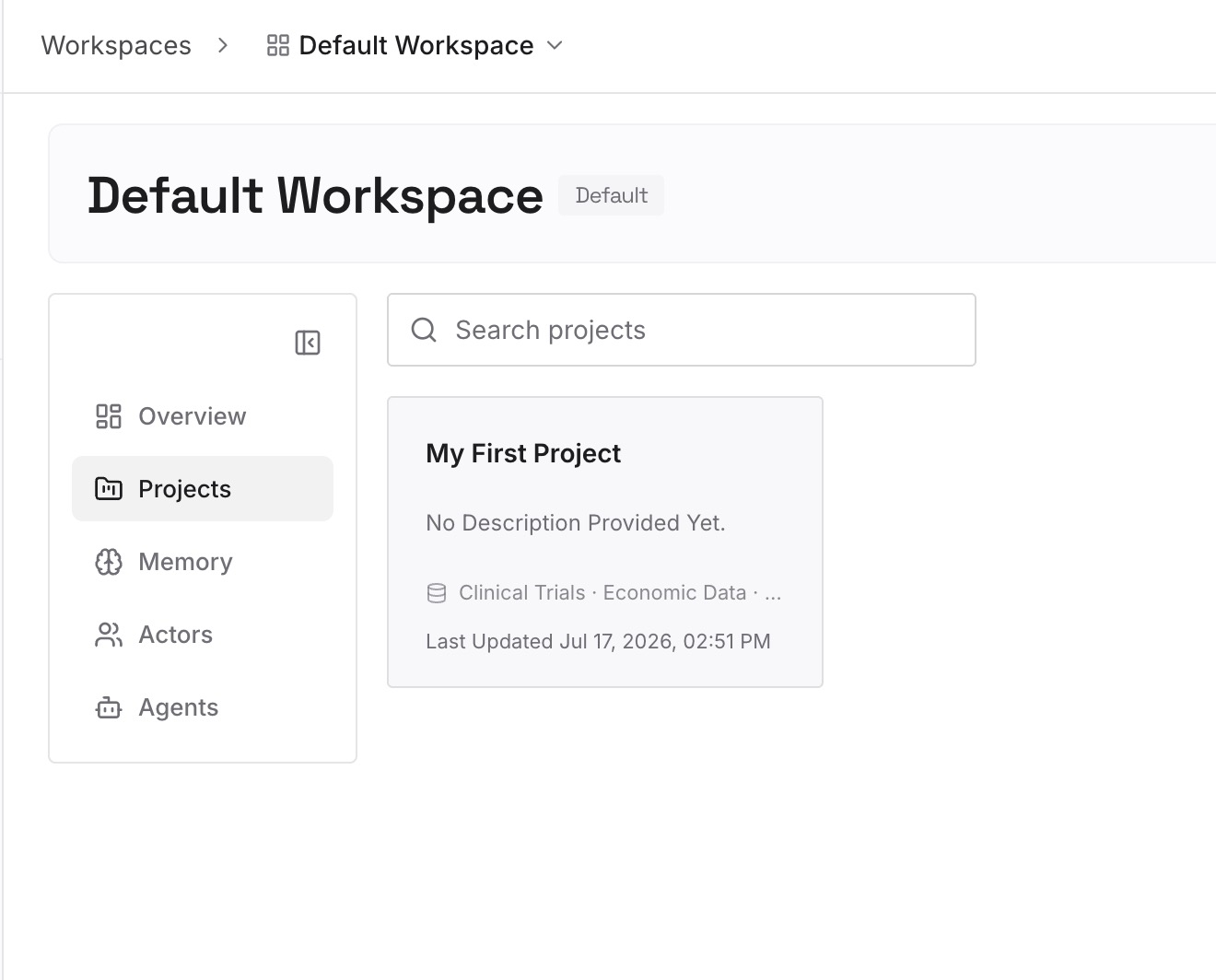
Step 2: Upload your first memories
Start with what you wrote down in Step 2 of the fix that applies beyond one repository: decisions, reasons, and constraints. One point per entry, dated.
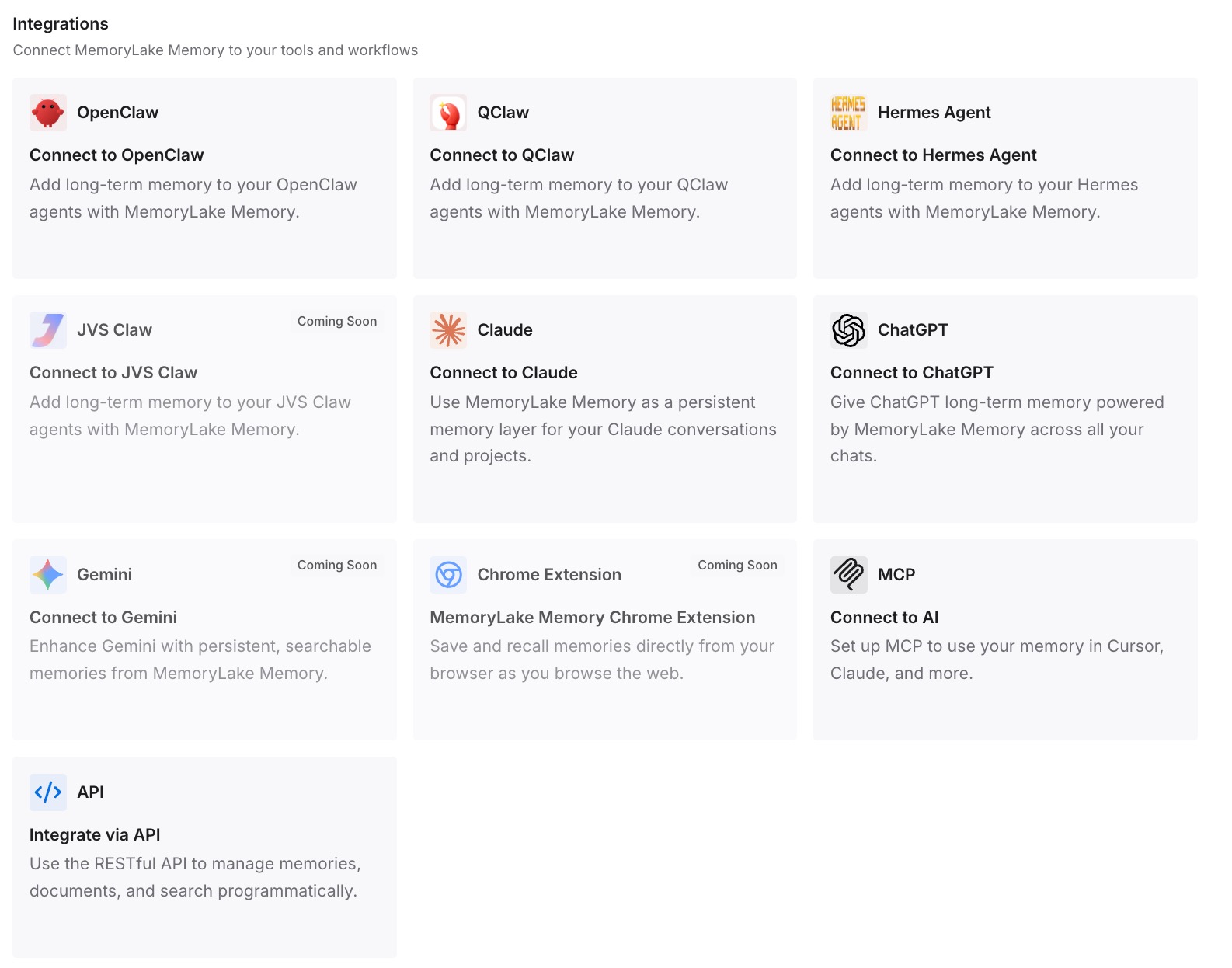
Step 3: Connect your AI & agents
Connect Codex and the other assistants you use. The decisions are available in the next chat, after a compaction, and in other tools.
Our guide to Codex memories v2 covers what Codex itself keeps on your machine, which works alongside a list you maintain.
What this changes in practice
The first difference is that the number stops being alarming. You know it measures room in one chat, above a baseline, against the active model's window.
The second is that compaction stops costing you decisions. You save what matters at natural breaks, so the summary doesn't have to carry it.
The third is shorter, more focused chats. One task per chat keeps the figure meaningful and the work easy to pick up again.
Best practices for context left in Codex
Show context stats in the footer. Use /statusline.
Check /status when the figure jumps. A model change is the first thing to rule out.
Don't confuse it with usage. Account limits are under /usage.
Act before it's low. Automatic compaction has its own threshold.
Save decisions at natural breaks. AGENTS.md for repository rules, notes for the rest.
Export long chats you'll want later. /export saves the complete conversation as Markdown.
Update Codex. Version 0.166.0 fixed accounting that could cause early compaction after resume or fork.
Conclusion
Context left in Codex is an estimate of the room remaining in the current chat's context window. The open-source client measures it against the active model's window after setting aside a fixed baseline, so a new chat starts at the top and the figure differs between models.
As it drops, compaction gets closer, and automatic compaction runs at its own threshold rather than at zero. Treat the number as a prompt: save the decisions the chat has made, export it if you'll want the record, and compact or start fresh at a moment you choose.