
Copying a chat on claude.ai
Anthropic's help articles on sharing, exporting, and managing conversations don't describe an option that duplicates a chat into a new one you can keep working in. What they describe are three ways to get a conversation's content out, plus one way to bring its context into a new chat.
Sharing a snapshot
Sharing is the closest thing to a copy for another person, but it's a copy they can only read.
Claude has two ways to share. The default is sharing with specific people by email. Anthropic's help article says: "Invited people can view a snapshot of the chat but can't reply, copy it into their own account, or continue the conversation."
The other is a public link, available on Free, Pro, Max, and Ultra plans. The public links article says it "shares a snapshot of the chat as of the moment you shared it." It's also view only: "Viewers can't continue the chat."
What the snapshot includes:
- all messages in the chat up to the moment you share, including artifacts
- your name as the person who shared it
What it leaves out:
- messages you send after sharing, unless you update the shared chat
- files you attached, unless sharing was done within your organization
- raw data from connectors or MCP tool calls, with only Claude's final responses shown
The article sums it up: "Shared chats are view only. Recipients can't continue the chat, copy it to their account, or download files from it."
If you keep working and want the other person to see the new messages, open the share dialog and update the shared chat. The help article says this "replaces the old snapshot with the current one for everyone who has access."
So sharing works for showing someone a conversation. It doesn't give them a conversation of their own to continue.
Exporting your data
The data export copies your conversations out of Claude as a file.
Anthropic's export article says: "Data exports include conversation data and the user data for your account, along with any voice recordings you've shared with Anthropic. They don't include the original files you uploaded."
To export on the web app or Claude Desktop:
- Go to Settings > Privacy.
- Click Export data.
- Download the file from the link you receive by email.
A few details matter:
- Not from mobile. The article says you can't run an export from Claude for iOS or Android.
- The link expires. The article says it will expire 24 hours after it's created and may work only once.
- Team and Enterprise. Members can export their own chats once an owner turns on the setting that allows it.
An export is a copy you can keep, but it isn't something you can load back into Claude. The article says: "Exported data can't be imported into another personal Claude account, and we don't support migrating data between personal accounts."
Carrying the context into a new chat
If what you want is to keep working from where a conversation left off, but in a fresh chat, Claude's chat search is the documented route.
Anthropic's chat search and memory article says: "You can prompt Claude to search through your previous conversations to find and reference relevant information in new chats."
It gives example prompts, including "Let's continue where we left off with [project]." When Claude searches, you see it as a tool call in the chat.
There are limits:
- Plans. Searching past chats is available on paid plans (Pro, Max, Ultra, Team, and Enterprise).
- Projects. Claude searches all chats outside of projects. For project conversations, the article says "searches are limited to within each specific project".
- A setting. You can turn off Search and reference chats in Settings > Your Claude. If it's off, Claude can't search past chats.
This doesn't copy the conversation. It lets Claude find and reference relevant information from it, so check the tool call to see what it found. Memory adds to this. The same article explains that Claude saves memory as topics as you chat and carries context into new conversations when memory is on. We covered these controls in our guide to Claude's memory settings.
If you plan to start many conversations from the same material, a project is the more durable option. Anthropic describes project knowledge as a way to provide context for the chats within that project.
Copying a Claude Code session with /branch
Claude Code makes copying a session a first-class feature. The sessions documentation says: "Branching creates a copy of the conversation so far and switches you into it, leaving the original intact. Use it to try a different approach without losing the path you were on."
From inside a session, run /branch, optionally with a name, as in the documentation's example /branch try-streaming-approach.
If you don't give a name, the documentation says Claude Code names the new branch after the first prompt in the conversation.
From the command line, combine --continue or --resume with --fork-session, as in claude --continue --fork-session.
The confirmation shows two session IDs: the new branch you're now in and the original. The documentation says: "The original is unchanged on disk and remains in the session picker". To go back, run /resume with the original's name or ID.
Both copies show up as separate sessions. The documentation notes: "Sessions created with /branch or --fork-session get their own session IDs and appear as separate rows."
What a branch inherits
A branch isn't a full clone of everything around the session. The documentation explains that /branch copies the transcript and switches the running process to write to it, and lists what that means:
- Conversation history: copied into the branch up to the point you ran
/branch. - Session permission grants: carried over, because the branch runs in the same process. If you fork into a separate process with
--fork-session, the new process starts without them and you approve again. - Background work: background subagents and background Bash commands keep running, and their output appears in the new branch, not the original session.
- Remote Control: a connected phone or browser follows you into the branch.
That third point surprises people. If you branch while a background task is running, its result lands in the branch you switched into. We looked at forking sessions started from the Claude app in our guide to forking a Claude Code remote session.
Why you shouldn't copy a session by opening it twice
It might seem simpler to open the same session in two terminals. The documentation warns against it: "If you resume the same session in two terminals or two claude -p runs at the same time, both write to one transcript."
That doesn't give you two copies. When you resume that session later, messages from one of the two can be missing. The documentation's fix: "To keep both conversations, add --fork-session to each claude command."
Exporting a Claude Code conversation
To get a readable copy out of Claude Code, use /export. The documentation says it opens "a menu that lets you copy the current conversation to your clipboard or save it as a plain-text file."
You can also pass a filename to write straight to a file. On recent versions, the documentation notes that the file can't already exist.
The raw transcripts are stored as JSONL files under ~/.claude/projects/, but the documentation advises against building on them directly, because the format is internal and changes between versions.
What people try first
Sharing a chat so someone can continue it. Recipients can only view a snapshot. They can't reply or copy it into their account.
Expecting attachments in a shared chat. Attached files aren't part of the snapshot, except when sharing within your organization.
Importing an export into another account. Exports can't be imported into another personal account.
Opening one Claude Code session in two terminals. Both write to one transcript. Use --fork-session.
Expecting --fork-session to keep approvals. A separate process starts without your session permission grants.
The Fix: Pick the right kind of copy
Step 1: Decide who the copy is for
For someone else to read, share a snapshot. For yourself to keep, export. For yourself to keep working, branch in Claude Code or start a new chat on claude.ai.
Step 2: Branch before you change direction
In Claude Code, run /branch with a clear name before trying the new approach, so the original stays as it was.
Step 3: Start the new claude.ai chat with a search
Ask Claude to find the earlier conversation and continue from it, and check the tool call to see what it found.
Step 4: Write down what the copy needs to carry
Before you branch or start over, list the decisions, constraints, and open questions the new conversation must know.
Setting this up in MemoryLake
Every way of copying a Claude conversation copies something different: a snapshot, an export file, a search result, or a branch on one machine. What matters in a copy is the conclusions: what was decided, what was ruled out, what's still open.
MemoryLake is a memory layer for that kind of context, kept in one place you maintain and available to the assistants you connect, such as ChatGPT, Claude Code, and Codex.
You write the entries yourself, in your own words. Nothing is read out of, written to, or deleted from your Claude chats, your shared snapshots, your exports, your Claude Code sessions, your Claude memory, or any vendor's store. Sharing, exporting, and branching work the way Anthropic describes them.
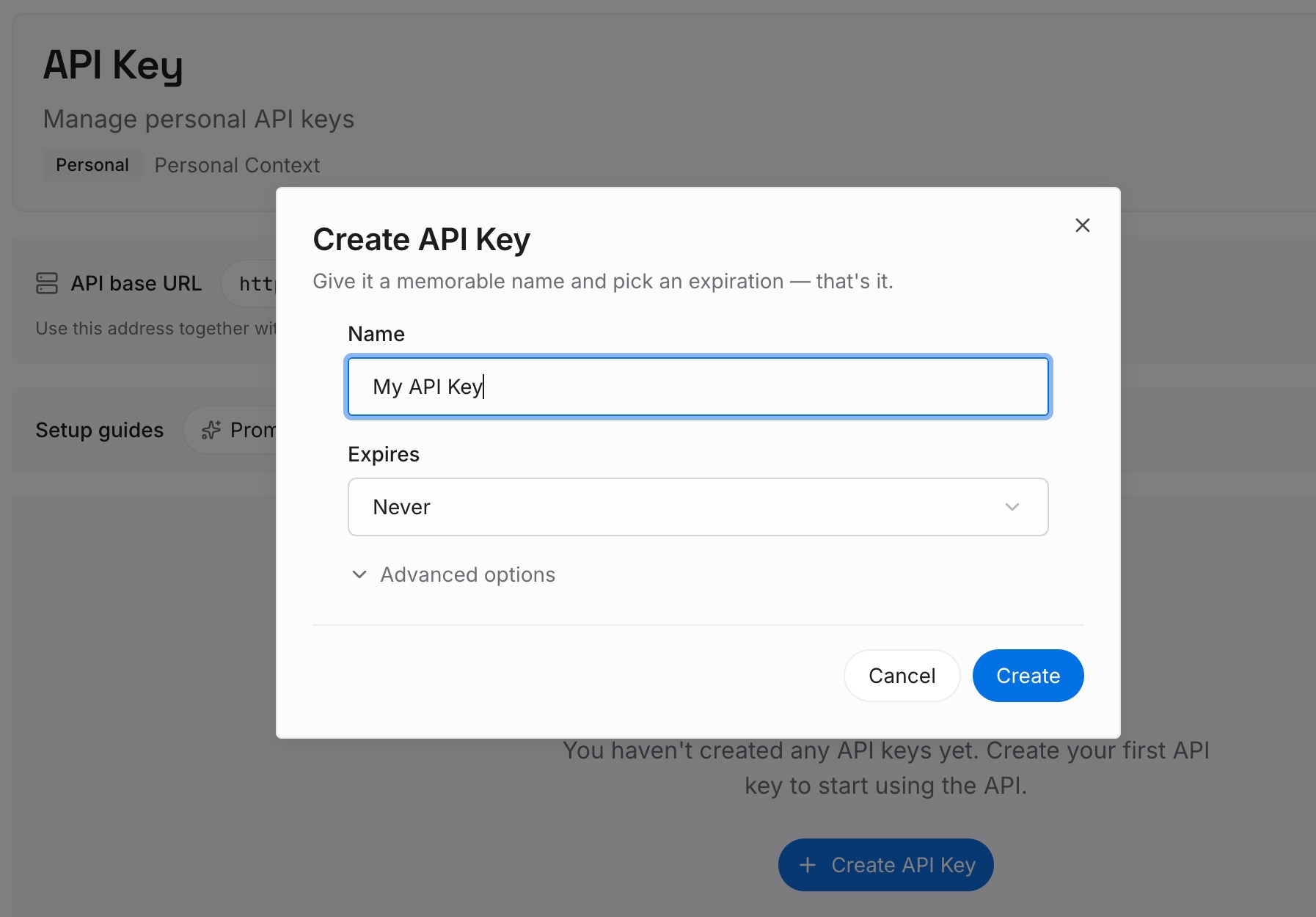
Step 1: Create an API key
Sign in and generate a key from the dashboard. Keep it somewhere private.
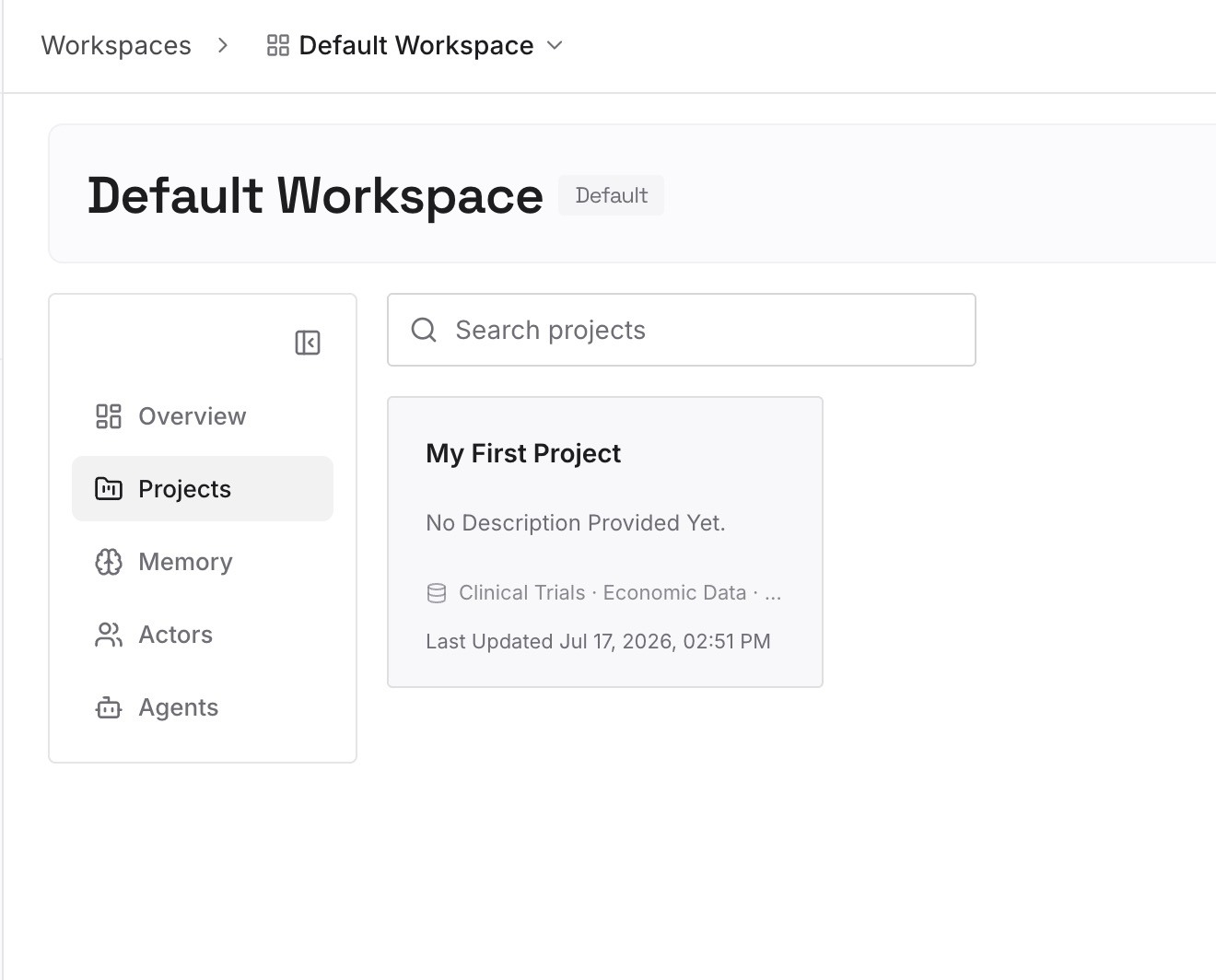
Step 2: Upload your first memories
Start with what you wrote in Step 4 of the fix: the decisions, constraints, and open questions from the conversation. One topic per entry.
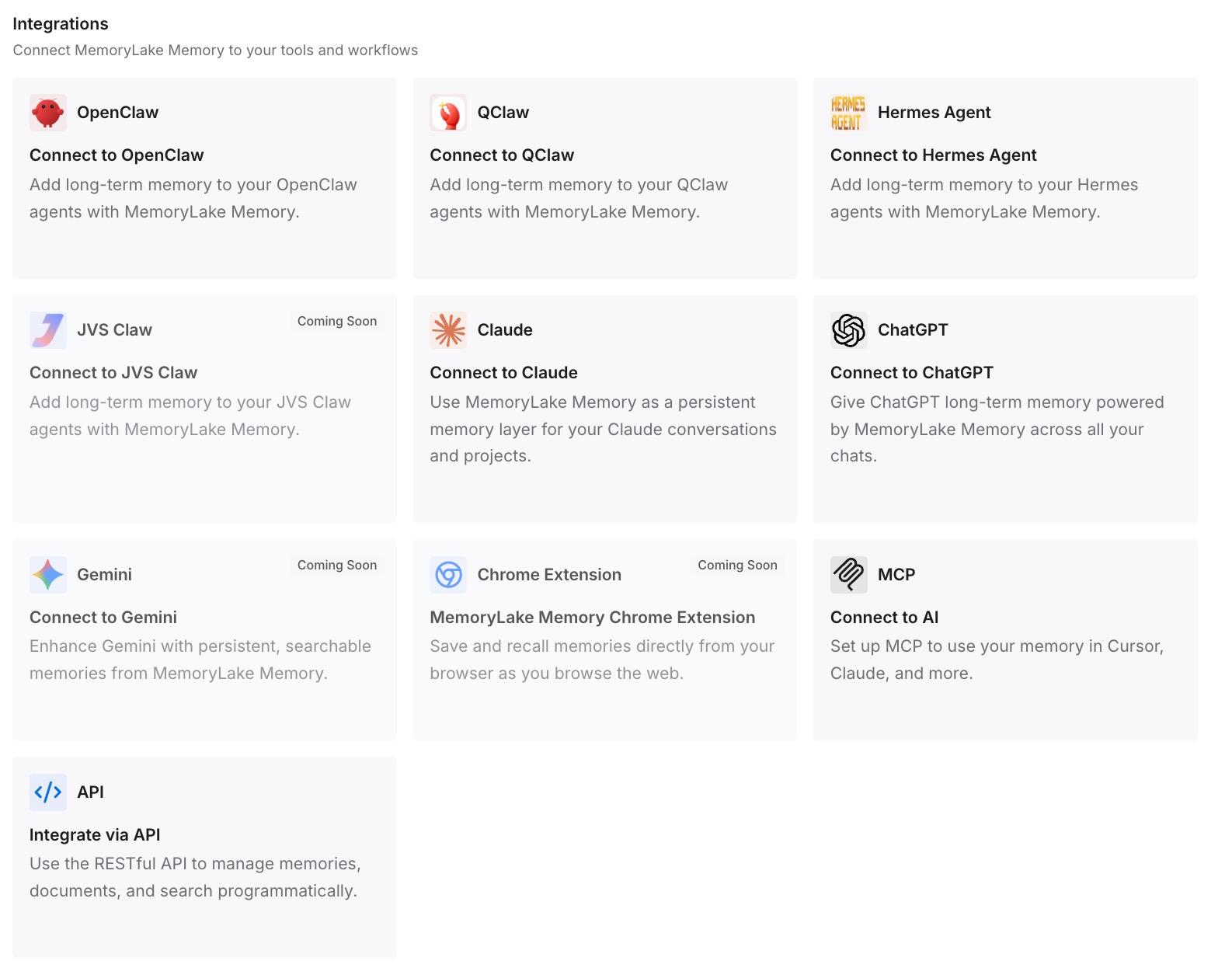
Step 3: Connect your AI & agents
Connect Claude Code, ChatGPT, Codex, and the other assistants you use, so a new conversation in any of them can start from the same notes.
What this changes in practice
The first difference is that starting over costs less. A new chat or branch can pick up from your notes.
The second is easier handoffs. A colleague gets the conclusions, not only a read-only snapshot.
The third is continuity across tools. The same notes work in Claude Code and the other assistants you connect.
Best practices for copying Claude conversations
Use sharing for reading, not continuing. Snapshots are view only.
Update a shared chat when it changes. Otherwise people see the old snapshot.
Download exports right away. The link expires.
Branch with a name. Named branches are easier to find.
Use --fork-session for parallel work. Don't open one session twice.
Remember that background output follows the branch. Check the branch you switched into.
Conclusion
On claude.ai, Anthropic's help articles describe sharing, exporting, and searching past chats, but not duplicating a chat to keep working in. A shared snapshot lets others read a conversation up to the moment you shared it, without attached files or raw tool data, and they can't continue it or copy it to their account. An export gives you your conversation data but can't be imported into another personal account. Chat search on paid plans lets a new chat draw on earlier ones.
Claude Code does support copying a session. /branch and --fork-session create a new session with the conversation so far and leave the original unchanged. A branch keeps your session's permission grants, but a forked process doesn't, and background work reports to the branch. Opening one session in two places writes to one transcript, so fork instead.