
Where Copilot keeps what it knows about you
Microsoft lists the ways Copilot Chat personalizes its responses. Copilot does it by saving memories to Copilot Memory, making inferences from your chat history, using insights from your work content, using your custom instructions, and forgetting what was discussed in a temporary chat. Each of those works differently, and each has its own control.
Saved memories
These are the details Copilot stores on purpose. "When Copilot Memory is turned on, Copilot automatically saves key information to its memory from your Copilot Chat conversations." Microsoft adds that "Saving memories is On by default in Microsoft Copilot." Copilot also manages them over time: "Copilot manages your saved memories intelligently, merging related ones, updating outdated details, or removing ones when you ask."
You can see and delete them in Chat settings, under Personalization, in the Saved memories tile.
Inferences from chat history
This part is easy to miss. Separately from saved memories, "Copilot can make inferences about what matters to you using previous conversations to respond to subsequent conversations." Microsoft treats them separately from saved memories, and they're removed a different way.
Work insights
On a work or school account, Copilot may also learn from your work. "Work insights are details learned from your Microsoft 365 work content, such as your emails, Team chats, and meeting transcripts." Whether you have them depends on your organization's Copilot plan. Microsoft notes that you can ask Copilot to forget a specific work insight, and "Copilot won't use that to personalize future responses." That stops its use. Removing work insights fully is tied to the chat history step below.
Custom instructions
These are the preferences you write yourself, in Chat settings under Personalization, in the Custom instructions tile. Microsoft describes how to switch them off: "You can turn off custom instructions by moving the Custom instructions toggle to the Off position." If you want them gone rather than paused, edit them and remove the text.
Temporary chats
A temporary chat starts without memory. "These conversations won't access or store any personalized information." There's a caveat for work accounts: "However, your organization's data retention policy might require retaining temporary chat data. Your IT administrator might be able to access this data during the retention period."
Why turning memory off isn't deleting it
Microsoft's article on managing Copilot Memory puts the off switch and the delete controls next to each other, and says plainly that they do different things. The Saved memories toggle turns Copilot Memory off. The memories already saved stay, and "If you want to delete memories, you have to delete them one by one or use the Delete all memories button in the next step."
Even deleting every saved memory isn't the whole job. Microsoft's guidance for removing something completely is a two-step process: "If Copilot Memory is turned on and you want to completely remove something Copilot has remembered, you need to take two steps". The first is deleting the saved memory. The second is about chat history: "Delete memories from your chat history by turning off the Chat history toggle. Doing that deletes inferences Copilot has made from previous Copilot Chat conversations."
On a work or school account, that toggle "might say Chat history & work insights. In that case, memories that Copilot made based on your work content are also deleted along with memories from your chat history."
Then there's the window. "If the Chat history toggle is turned back on within 30 days after the deletion, Copilot adds back the deleted memories from your chat history (and from work content, if work insights are available to you)." Turning the toggle off and then back on the next day undoes the second step.
What people try first
Turning off Saved memories. It turns Copilot Memory off. It doesn't delete the existing memories.
Deleting saved memories and stopping there. That removes what Copilot stored on purpose, but not the inferences it draws from your chat history, or, on a work account, from your work content.
Asking Copilot to forget. For work insights, Microsoft says Copilot won't use a detail you ask it to forget for future personalization. For chat history, Microsoft describes asking Copilot not to use certain information as the option for people who want to keep the Chat history toggle on. Both are ways to stop something being used. Neither is described as deletion.
Using a temporary chat. It keeps a new conversation out of memory. It does nothing about what Copilot already knows, and your organization may still retain the conversation.
Deleting old conversations. Microsoft's Microsoft 365 memory articles don't describe this as a way to remove what Copilot inferred. The method they document is the Chat history toggle.
For a broader look at checking what any assistant has stored about you, our guide to auditing what your AI remembers walks through the same questions across tools.
The Fix: Review what Copilot knows, delete saved memories, then turn off chat history and leave it off
Step 1: Review what Copilot knows about you
Before you delete anything, look at all of it. Microsoft suggests asking Copilot what it knows about you, which "provides a summary of the important information, including work insights, that Copilot uses to personalize responses."
Then open Copilot Chat, select the Settings and more menu at the top right, choose Chat settings, and go to Personalization. Look at two tiles:
- Saved memories: select Manage saved memories to see the list.
- Custom instructions: read what you've written there.
Copy anything you want to keep before you delete it. If you're moving to another assistant, our guide to migrating Microsoft Copilot conversations to ChatGPT covers what to take with you.
Step 2: Delete saved memories, and clear custom instructions you don't want
In the Saved memories pane, Microsoft's documented options are to "Select Delete next to any memory to remove it from Copilot Memory." or to "Select the Delete all memories button to delete all memories from Copilot Memory."
Delete the specific entries you want gone, or use Delete all memories for a full reset. If you also want Copilot Memory off, move the Saved memories toggle to Off afterward. The toggle doesn't do the deleting for you, so delete first.
Then edit your custom instructions and remove anything you don't want Copilot to keep using. Switching the toggle off pauses them. Editing the text is what removes them.
Step 3: Turn off the Chat history toggle, and keep it off for 30 days
This is the step that removes what Copilot inferred from your past conversations, and from your work content if the toggle reads Chat history & work insights.
Microsoft's article names the toggle without giving a separate click path for it. Look in the same Personalization section of Chat settings where the other memory controls sit. If you can't find it, or your organization manages it, Microsoft's alternative is direct: "You can also contact the IT admin of your organization."
Once it's off, leave it off for at least 30 days. Turning it back on sooner brings the deleted memories back.
If you'd rather keep the toggle on and only stop one detail being used, Microsoft's option is to ask in chat that Copilot not use that information for personalization. Treat that as a preference, not a deletion.
Finally, ask Copilot again what it knows about you, and compare the answer with what you saw in Step 1.
If you use the Copilot app with a personal account
The consumer Copilot app, at copilot.com, on Windows and macOS, and on mobile, has its own controls, and they behave differently. Microsoft's consumer privacy article says "If you turn off personalization and memory, Copilot will forget its memories of your conversations." The setting is under your profile, in Memory, then Personalization and memory.
To clear everything at once, the same article points to Delete all Memory under Memory, and notes "Your conversation history will not be deleted." You can also ask Copilot to forget specific things, and "If you do not want Copilot to use specific conversations for personalization, you can delete them from your conversation history."
So on a personal account, turning memory off does clear what Copilot remembers. On Microsoft 365, it doesn't. If you use both, check which one you're signed in to before you assume the off switch did the work. Our comparison of ChatGPT's memory switch and data controls covers a similar distinction in another assistant.
Setting this up in MemoryLake
Deleting Copilot's memory happens in Copilot's own settings, as above, and removes what it learned without your involvement. The other half is deciding what an assistant should know, in words you choose. MemoryLake is a memory layer for keeping that kind of context in one list you maintain, available to the assistants you connect, such as ChatGPT and Claude Code.
You write the entries yourself, in your own words. Nothing is read out of, written to, or deleted from your Copilot Memory, your Copilot chat history, your Microsoft 365 work content, or any vendor's store. Leave out sensitive personal details, and follow your organization's policy for anything work-related.
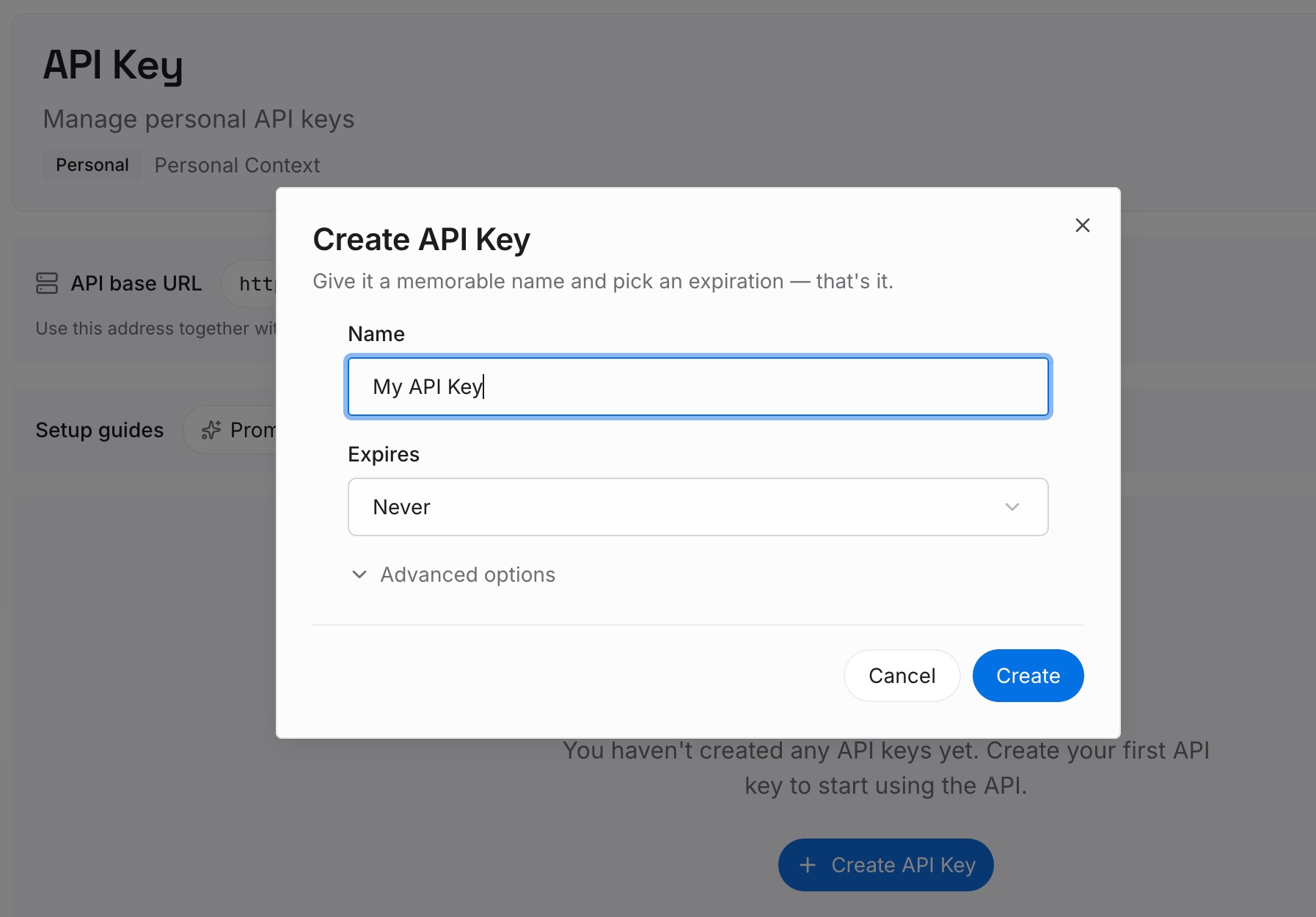
Step 1: Create an API key
Sign in and generate a key from the dashboard. The key belongs to your MemoryLake workspace and is separate from your Microsoft account.
Step 2: Upload your first memories
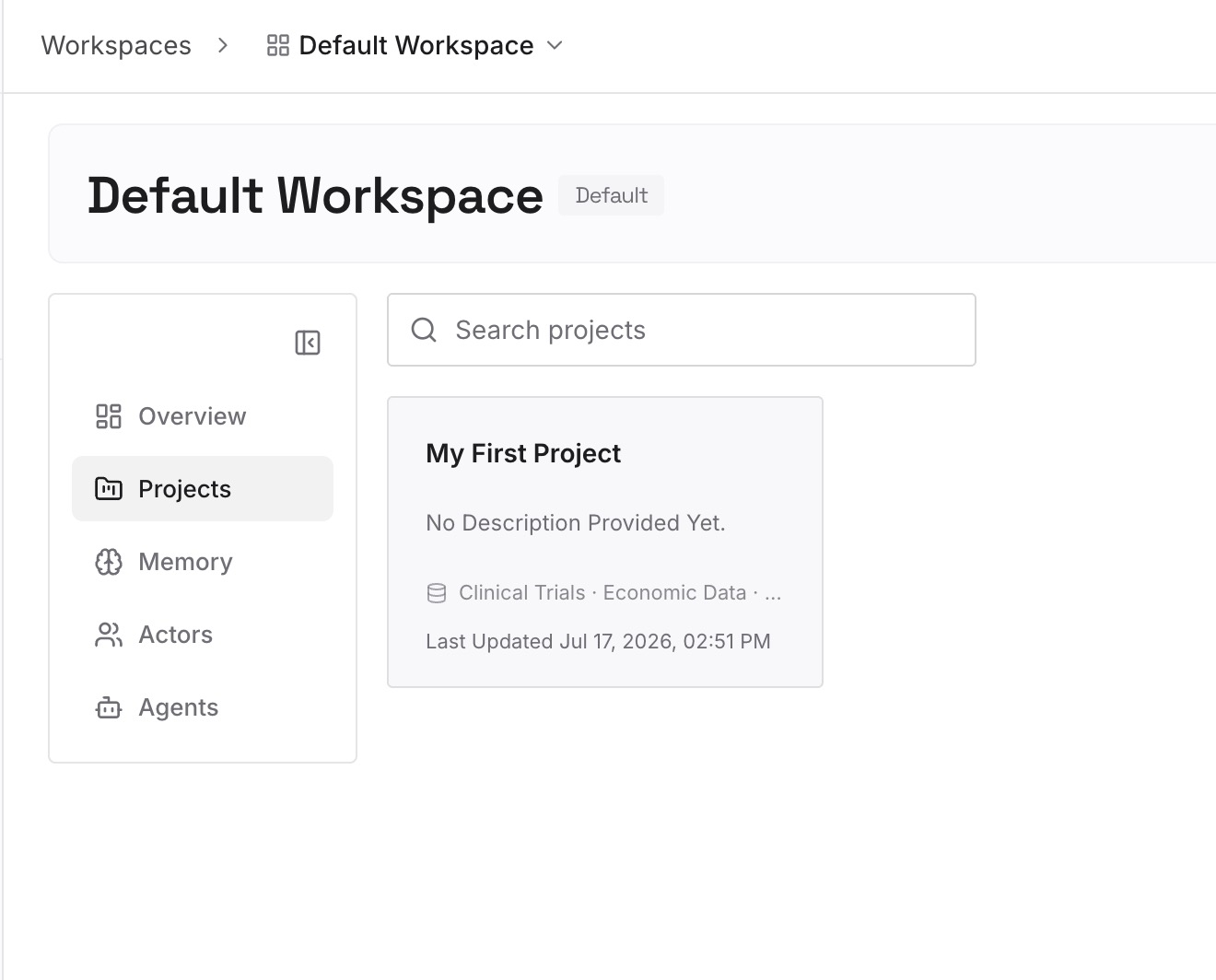
Start with the details you saved from Step 1 that you still want an assistant to use: your role, your preferences, the projects that are current. One fact per entry, dated, so outdated ones are easy to spot and remove.
Step 3: Connect your AI & agents
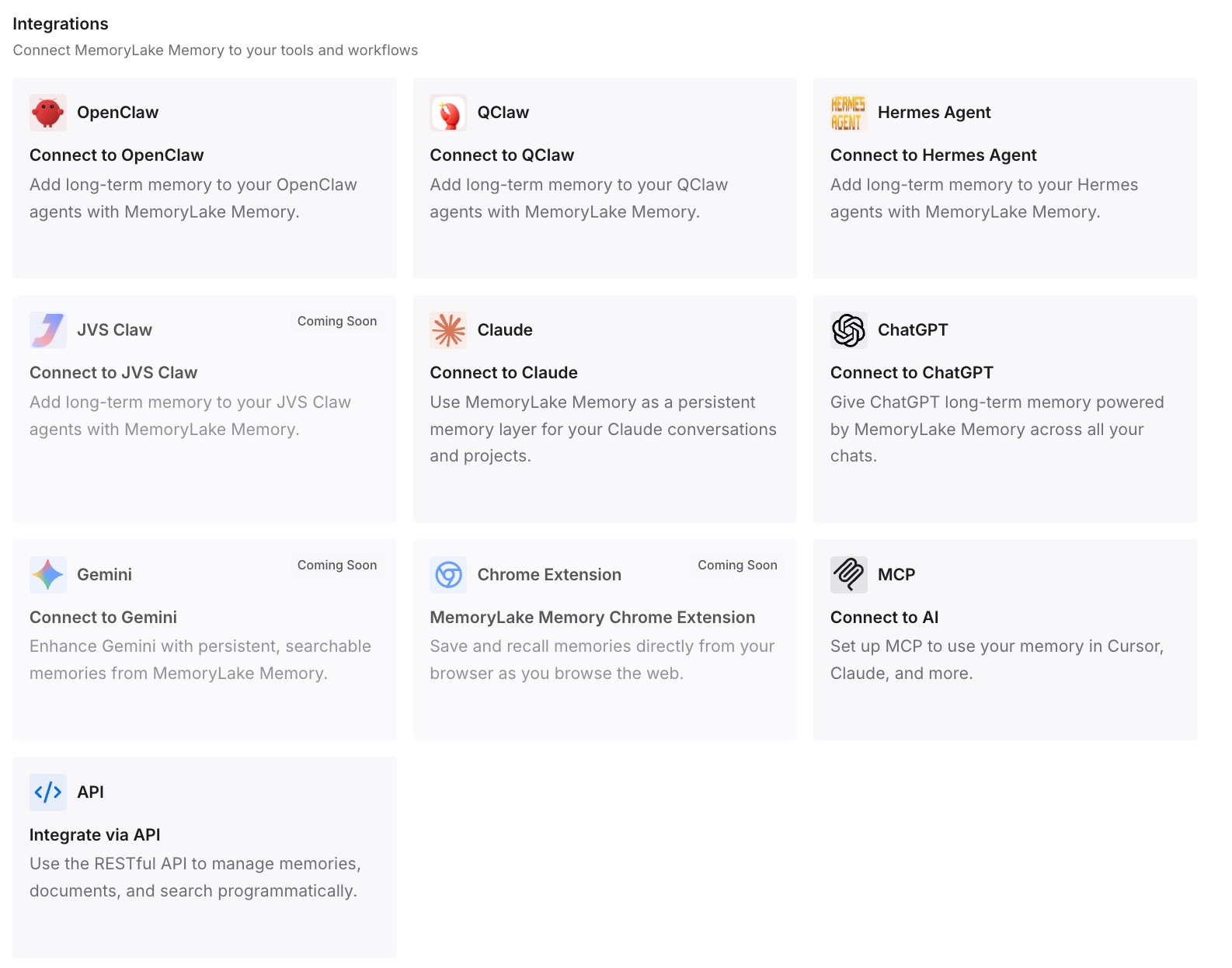
Connect the assistants you use. Each one then works from the same list you wrote, and changing an entry is an edit you make yourself.
What this changes in practice
The first difference is that a deletion actually holds. With saved memories deleted and the Chat history toggle left off past the 30-day window Microsoft describes, the restore that window allows no longer applies.
The second is knowing what's left. Reviewing first, then asking Copilot what it knows afterward, shows the before and after instead of leaving you to guess.
The third is fewer surprises in answers. Assistants that draw on outdated details about you can produce confident, wrong responses, which our explainer on why AI invents facts about you looks at in more detail.
Best practices for clearing Microsoft 365 Copilot memory
Review before deleting. Copy anything you want to keep.
Delete, don't just switch off. The Saved memories toggle doesn't remove existing memories.
Do both steps. Saved memories and chat history inferences are removed separately.
Wait out the 30 days. Turning the Chat history toggle back on sooner restores what was deleted.
Check which Copilot you're in. The consumer app's off switch behaves differently.
Know your organization's rules. Its retention policy may keep temporary chat data that an IT administrator can access. If you rely on temporary chats, our guide to temporary chat memory covers how that mode works in another assistant.
Verify at the end. Ask Copilot what it knows about you again.
Conclusion
Turning off Microsoft 365 Copilot's memory switches Copilot Memory off, and it leaves what's already saved in place. Microsoft's documentation describes a two-step deletion: delete the saved memories in Chat settings, then turn off the Chat history toggle to delete the inferences Copilot made from your conversations and, on a work account, from your work content. Turning that toggle back on within 30 days brings those inferences back.
Review what Copilot knows first, delete what you don't want, clear custom instructions you no longer need, turn off chat history and leave it off, then check the result. On a personal Copilot account, the controls are different, so confirm which one you're using.