
Personal and Business are separate workspaces
Start with how OpenAI describes the setup. The members article says "Your ChatGPT account can give you access to a personal workspace and organization workspaces." It continues: "Your personal workspace contains your chats, memory, context, apps, and other personal content." A Business workspace contains the organization's content, settings, and member access.
So the same sign-in can open two workspaces. You switch between them from the profile menu on the web or from the sidebar on mobile. Each one keeps its own chats.
What happened when you joined Business decides where you're starting from:
- You kept your personal workspace separate. It's still there, with whatever you had in it before joining. Your Business chats stayed in Business.
- You merged your personal workspace into Business. Your personal content was copied into Business, and your personal workspace was deactivated and hidden from the switcher. OpenAI notes its data was not deleted as part of the merge.
- You only ever used a work account. If your organization created the account for you, there may be no personal workspace to go back to, and you'll set up a separate personal account.
If you're not sure which applies, open the profile menu and look at the workspace switcher. A separate personal workspace appears there unless it was merged.
Why Business chats don't come with you
Three facts from the help center explain the limit.
There's no self-service export in Business. The data and privacy article for Business says "Members cannot export their own ChatGPT Business workspace data through Settings > Data controls." It adds: "If you need an export of your Business workspace data, contact your workspace owner."
Leaving doesn't copy anything. The members article says "After you leave, you cannot access the workspace's data unless you are invited back."
A merge doesn't undo. The Business FAQ says "There is no undo option that moves Business content back into your personal workspace."
There's a reason behind this. Business data is governed by the organization. OpenAI's article on managed accounts says your administrator "may be able to access, export, audit, retain, delete, and opt-in to share data tied to this account with OpenAI to improve OpenAI's models." It also notes that switching accounts "does not move chats, files, or settings between accounts."
That's also why the first step of any move is checking your organization's policy. Work chats may contain information you're not allowed to keep. If the Business workspace belongs to your employer, ask before copying anything out.
What happens to your Business chats after you leave
OpenAI has a separate article on data retention when a member is removed from a workspace. For Business workspaces, it says: "Chats, files, and canvas documents are retained indefinitely." And: "If the member is re-added, their content is restored."
Projects and GPTs work differently. The article says that on removal, a member's projects and GPTs "are reassigned to a workspace owner, and are not flagged for deletion." It then clarifies what that reassignment covers: "Conversations and files created by the removed member are not transferred, and are not visible to the workspace owner."
So leaving doesn't delete your Business chats, and it doesn't hand them to the owner. It removes your access. That's different from deleting a chat, which our guide to recovering deleted ChatGPT chats covers. If you're re-added later, the content comes back with your membership. None of that gives you a copy on the personal side.
If the whole workspace is canceled rather than you leaving it, it can be deactivated, which is a separate situation with its own rules. And if you use a work account and a personal account side by side, our guide to ChatGPT account switching covers what each account keeps to itself.
What an export can and can't do
For a personal workspace, export works from Settings, and our guide to fixing a ChatGPT data export covers the details. For Business, OpenAI describes one route: workspace owners can export a member's data from the Members page, using an Export data option "if available."
Even with an export file, OpenAI's account transfer article sets clear limits. It says you can upload exported conversations to a new conversation in another personal account, where "ChatGPT can use the uploaded file as reference in that conversation." It lists what that doesn't do, including merging accounts, recreating previous conversations as separate chats, and moving "subscriptions, settings, memories, GPTs, files, or workspace access to another account."
The same article lists where exported files can come from: a personal account, or an eligible Edu workspace with export enabled. It adds: "You cannot export data from ChatGPT Business or Enterprise workspaces through ChatGPT settings." It doesn't describe using a Business owner's export with this flow. If your owner gives you a file, treat it as a reference archive, and check with them what you're allowed to do with it.
What your personal workspace already has
If you kept your personal workspace separate, it may hold more than you remember. The memory FAQ for Business says that if you choose not to merge, "your personal workspace, conversations, and memories will remain separate and private from your Business workspace."
Memory doesn't cross workspaces. The same FAQ says memories are "Tied to each individual account" and "Not transferable to other users, even within the same Business workspace." Anything ChatGPT learned about you inside Business stays with Business.
If you merged and the Business workspace is later deactivated, there's a recovery path. The migration guide says that in the Create a personal workspace flow for this situation, "your original personal workspace and its data are reactivated." It also sets the limit: "Reactivating your personal workspace does not restore Business access or copy your Business activity back."
So the recovered workspace holds what you had before the merge. Everything you did in Business after that stays in Business.
What people try first
Looking for Export data in Settings. In Business, members can't export from Settings > Data controls.
Leaving the workspace and expecting the chats to appear in personal. Leaving doesn't move Business content.
Creating a new Business workspace to keep the old data. The Business FAQ says a new account or workspace "does not transfer the existing workspace's subscription, membership, or data."
Assuming the owner can see and send your chats. On removal, your conversations aren't visible to the owner. An owner export, where available, is the documented route.
The manual migration
Step 1: Check what you're allowed to keep
Before you copy anything, read your organization's policy or ask your manager or workspace owner. Separate what's clearly yours, like your own working preferences and general methods, from client material, internal data, and anything under confidentiality terms. This move is about the first group.
Step 2: Write down your context while you still have access
Open your recent Business chats and projects and note what you'd want a personal ChatGPT to know. Focus on what you'd otherwise explain again: your role and the kind of work you do, writing style preferences, formats you like, recurring tasks, and decisions about how you work. Leave out company-specific details you're not allowed to take. Write it in your own words rather than pasting chat text.
Check your Business memory and custom instructions too. They stay with the Business workspace, so read them now and decide which describe you rather than your employer.
Step 3: Set up the personal side and add the context back
Switch to your personal workspace, or create a personal account if you don't have one. If you merged earlier and the Business workspace has been deactivated, follow the personal-workspace option OpenAI shows to reactivate your original personal workspace.
Then add your notes back where they'll be used. Put stable preferences in custom instructions. Create a project for each ongoing area of work and put the relevant notes in its instructions or files. Our guide to project memory modes in ChatGPT explains how project memory settings affect what a project can see. Finally, ask ChatGPT what it knows about you in a new chat, and correct what's missing. If memory doesn't seem to pick things up, our guide to ChatGPT memory not working covers the settings to check.
The Better Way: Keep your working context in one place you own
The manual migration works, but it shows a pattern. The context that made ChatGPT useful lived inside a workspace you didn't control, and getting it out depended on what you'd written down. The next change, whether a new job or a new plan, will raise the same problem.
MemoryLake is a memory layer for keeping your own working preferences and decisions in one place you maintain, available to the assistants you connect, such as ChatGPT, Claude Code, and Codex.
You write the entries yourself, in your own words. Nothing is read out of, written to, or deleted from your Business workspace, your personal workspace, your ChatGPT memories, your custom instructions, your chats, or any vendor's store. Your organization's controls over Business data stay exactly as OpenAI describes them.
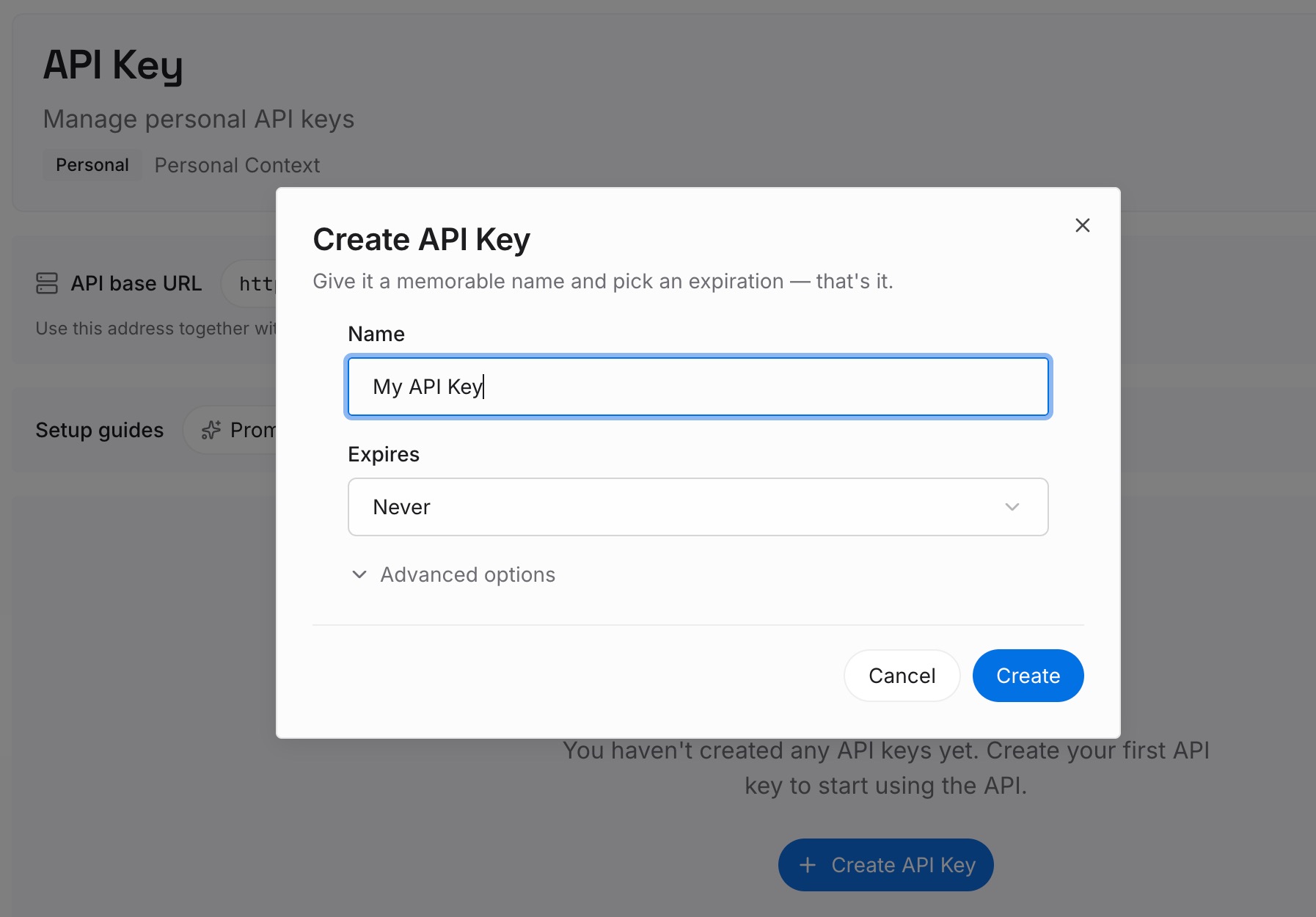
Step 1: Create an API key
Sign in and generate a key from the dashboard. The key belongs to your MemoryLake workspace and is separate from your OpenAI account and from your employer's workspace.
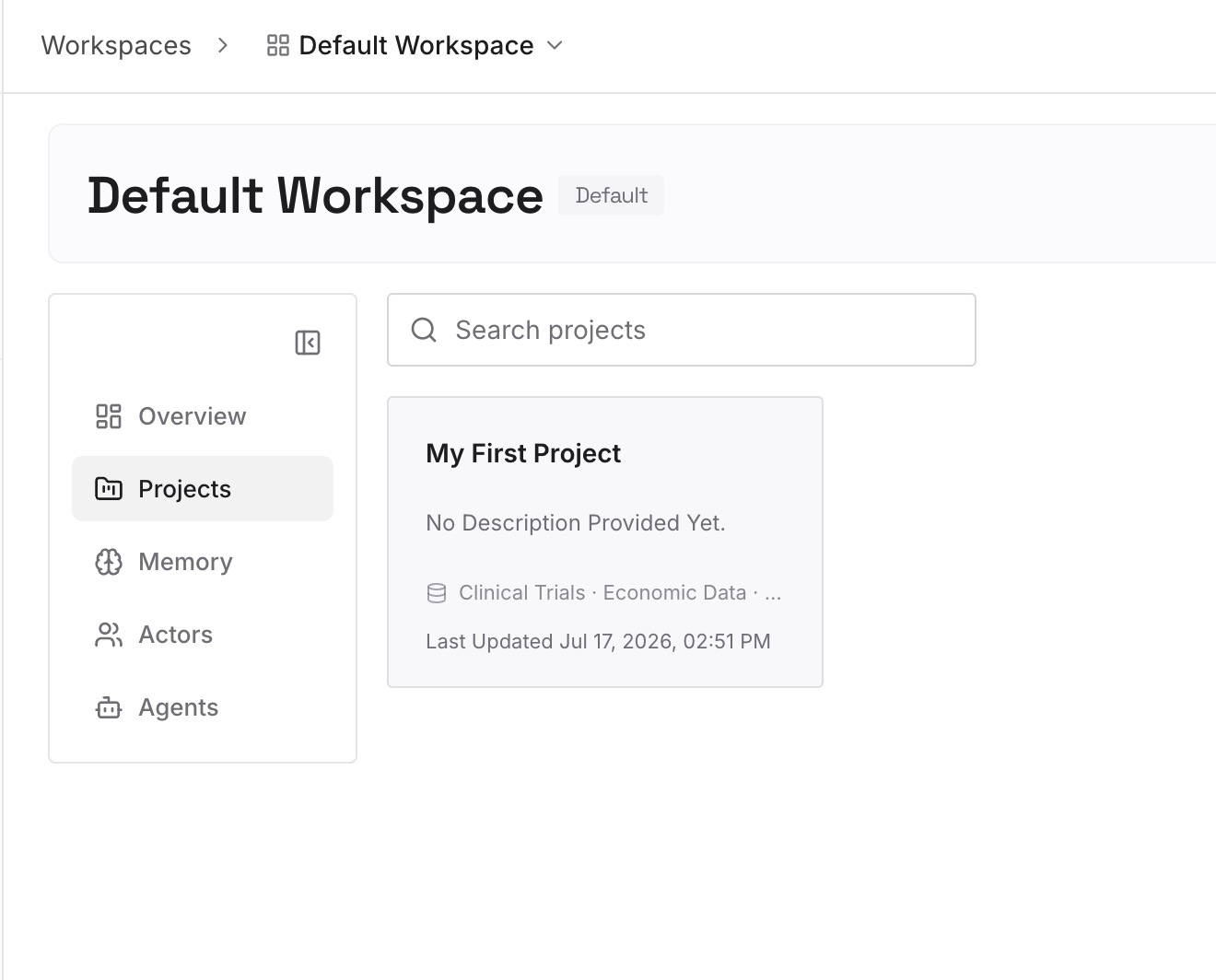
Step 2: Upload your first memories
Start with the notes from Step 2 of the manual migration, after you've removed anything your organization doesn't allow you to keep. One preference or decision per entry, so you can update one without rewriting the rest.
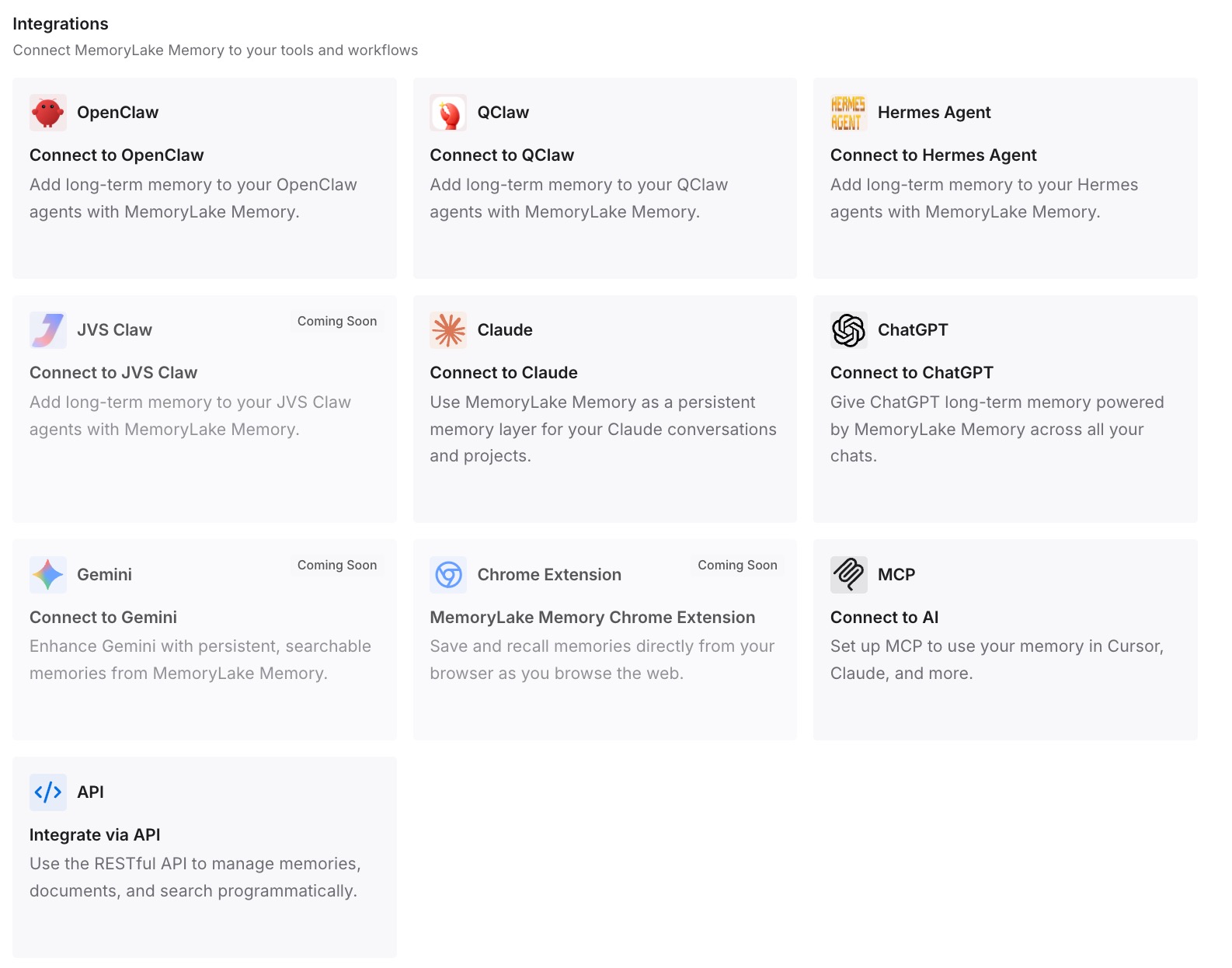
Step 3: Connect your AI & agents
Connect ChatGPT and any other assistants you use. The same entries are available on your personal plan now and in whatever you use next.
What this changes in practice
The first difference is that a job change doesn't reset your setup. Your personal preferences live outside any one employer's workspace.
The second is a cleaner line between work and personal. Company material stays in the company's workspace, and your own way of working lives in entries you wrote.
The third is fewer repeated explanations. A new personal account, or a new tool, can start with the context you already wrote down.
Best practices for leaving a ChatGPT Business workspace
Check your organization's policy first. Business data is governed by the organization.
Write your context down before you leave. After you leave, you can't access the workspace's data unless you're invited back.
Don't expect an export from Settings. Ask the workspace owner if you need one.
Look for your separate personal workspace. If you didn't merge, your earlier chats and memories are still there.
Use the recovery flow if you merged. It reactivates your original personal workspace, without your Business activity.
Rebuild memory on purpose. Memories don't move between workspaces, so add what matters in custom instructions and projects.
Conclusion
ChatGPT Business chats don't move into a personal workspace. Members can't export them from Settings, leaving doesn't copy them, and a merge into Business can't be undone. After you leave, Business keeps your chats and restores them if you're re-added, but you lose access until then.
What you can take is your own context, within what your organization allows. Write it down while you still have access, set up or recover your personal workspace, and put that context back into custom instructions and projects, so a personal ChatGPT starts with it.