
What actually transfers
Start with what OpenAI describes the new app as. "The new ChatGPT desktop app includes Chat and Work under ChatGPT, alongside Codex, on macOS and Windows." Chat is "for fast, conversational assistance and everyday questions," Work is "an agent designed for longer, multi-step work and finished deliverables," and Codex "remains dedicated to software development and technical work."
Now the two starting points, because they migrate differently.
If you used the previous ChatGPT desktop app. OpenAI's instruction is to download the new app and "sign in with the same ChatGPT account." The two can coexist: "ChatGPT Classic: The previous ChatGPT desktop app. You can continue using it; no migration is required at launch." Classic keeps receiving "model updates, bug fixes, security patches, and support for its existing Enterprise capabilities." The qualifier is the part that decides the timing for most people: "New agent features may be available only in the new app."
If you used the Codex app. "Update the Codex app as usual. After the update, it becomes the new ChatGPT desktop app with Chat, Work, and Codex." OpenAI adds: "Existing Codex chats and projects should remain after the update."
Then the mechanics, piece by piece.
Your chat history comes with your account. In the new app, "Chat and Work chats appear together in Recents, where you can sort, filter, and pin chats." Because the history belongs to the account rather than the app, signing in is the migration.
Your projects appear, and Work can use them. "Your existing ChatGPT Projects also appear under Projects. From a project, choose Chat to start a new chat, or choose Work to start a Work chat using the project's context." The desktop documentation adds that "The same project can contain chats started with Chat or ChatGPT Work."
Codex history stays separate, on purpose. This is the line most people skim past. "Codex remains a separate view; its workflows are unchanged, and its history remains separate from ChatGPT history." The Remote tab on mobile can reach supported desktop Codex chats, "but those chats do not become web or mobile chat history."
Memory follows the same split. OpenAI's memories documentation puts it plainly: "ChatGPT web uses ChatGPT memory, while local Codex clients use a separate local memory store and controls." Work sits on the ChatGPT side of that line: "ChatGPT Work uses the memory settings available to your account and workspace; it doesn't use a local Codex memory store or local memory controls." How the Codex side behaves is covered in turning on Codex's local memories.
Local does not always mean local-only. For Work, OpenAI notes: "Local chats run on your computer. Messages and task context may be stored in the cloud, even when work runs locally." The distinction between Work's cloud and local modes is its own topic, set out in keeping context between ChatGPT Work cloud and local.
Some models live only on one side. The ChatGPT Work help article states that "GPT-6 Sol and GPT-6 Luna are models for ChatGPT Work and Codex. They are not available in regular ChatGPT conversations." If a model is the reason you are switching, it also decides which view you will be working in.
The short version: your ChatGPT history and projects move by signing in; your Codex history moves by updating; and the two remain two histories, with two memory systems, inside one app.
The manual migration
Step 1: Take stock of what lives where before you switch
Before you rely on the new app, spend ten minutes on an inventory. The goal is to know which of your context is account-level, which is Codex-level, and which only ever existed in your head during a long conversation.
Open ChatGPT Classic and list the projects you actively use. For each, note the project instructions and the files that matter. These should appear under Projects in the new app, and you will check them against this list.
If you use Codex, list the repositories and local folders you work in, and whether local memories are on. Codex memories live in your Codex home folder; OpenAI's documentation describes the files under ~/.codex/memories/ as "generated state" that you can inspect but should not treat as your primary control surface. Knowing whether they exist tells you what the Codex view will and will not remember.
Then list the conversations whose conclusions you still depend on. A long chat is where decisions accumulate, and a new app with a different layout is exactly when people stop finding them. The pattern of ChatGPT losing context between sessions is not caused by the app change, but the app change is a good moment to catch it. Write each decision down in one sentence, with the reason.
Finally, note which features you use in Classic and whether you need them to keep working unchanged. OpenAI says no migration is required at launch and that Classic keeps receiving updates, so nothing in its guidance forces the move today.
Step 2: Sign in, check each item, then decide where each kind of work lives
Install the new app and sign in with the same account. If you are coming from the Codex app, update it instead; the updated app opens in Codex for existing Codex users, and you "can keep Codex as the default when the app opens" if that is how you work.
Now check against your Step 1 list, in this order.
Recents: confirm your recent Chat conversations appear. Use search for the older ones you listed; if one seems missing, remember that archived chats live in a separate place.
Projects: open each project from your list and confirm its instructions and files. Start one Work chat from a project to confirm it picks up the project's context.
Codex: switch to the Codex view and confirm your chats and local projects are there. Do not look for them in Recents — they are kept apart by design.
Memory: open Settings, then Personalization, and confirm Memory is on for the ChatGPT side if you use it. If you use Codex locally, check the Codex memory setting separately, because it is a separate store.
Then make one decision explicitly: which kind of work goes in which view. Quick questions in Chat, long deliverables in Work, code in Codex is OpenAI's own framing. The consequence worth remembering is that a decision reached in Codex does not automatically appear in your ChatGPT history, and the reverse is also true.
The Better Way: Keep the decisions in one place both halves of the app can read
The new app is genuinely more convenient. It is also, by OpenAI's own description, two histories and two memory systems sharing a window. That is a sensible design: code work and conversational work produce different kinds of context and deserve different handling. It does mean that the decisions which span both — the product choice made in Chat that the code in Codex depends on — have no single home inside the app.
So keep them somewhere of your own. That is what MemoryLake is for. You write the entries yourself, in your own words. Nothing is read out of, written to, or deleted from ChatGPT Classic, the new desktop app, your Codex home folder, or any vendor's store.
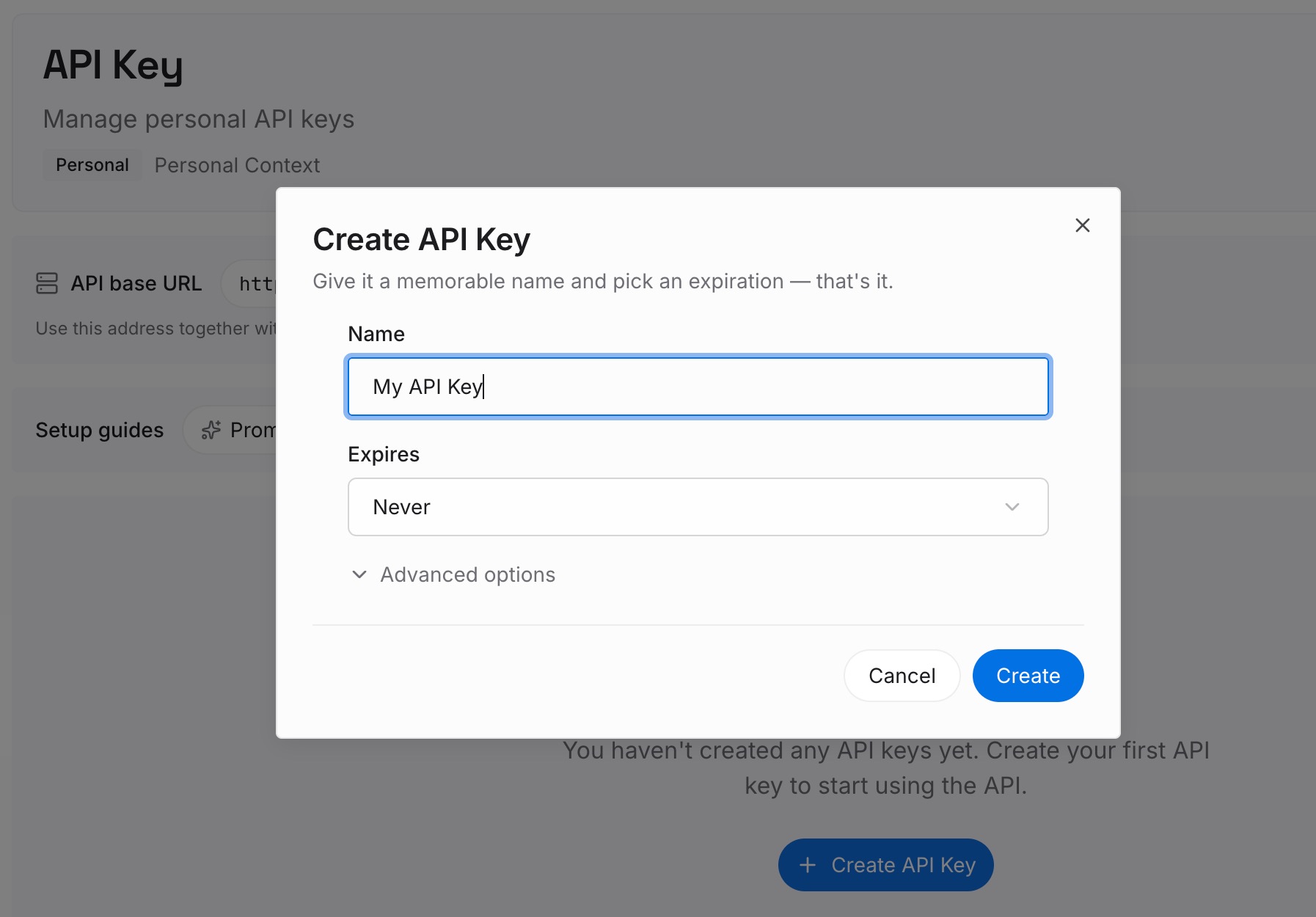
Step 1: Create an API key
Sign in and generate a key from the dashboard. The key is what lets each assistant read the same entries, whether the task is running in Chat, Work or Codex.
Step 2: Upload your first memories
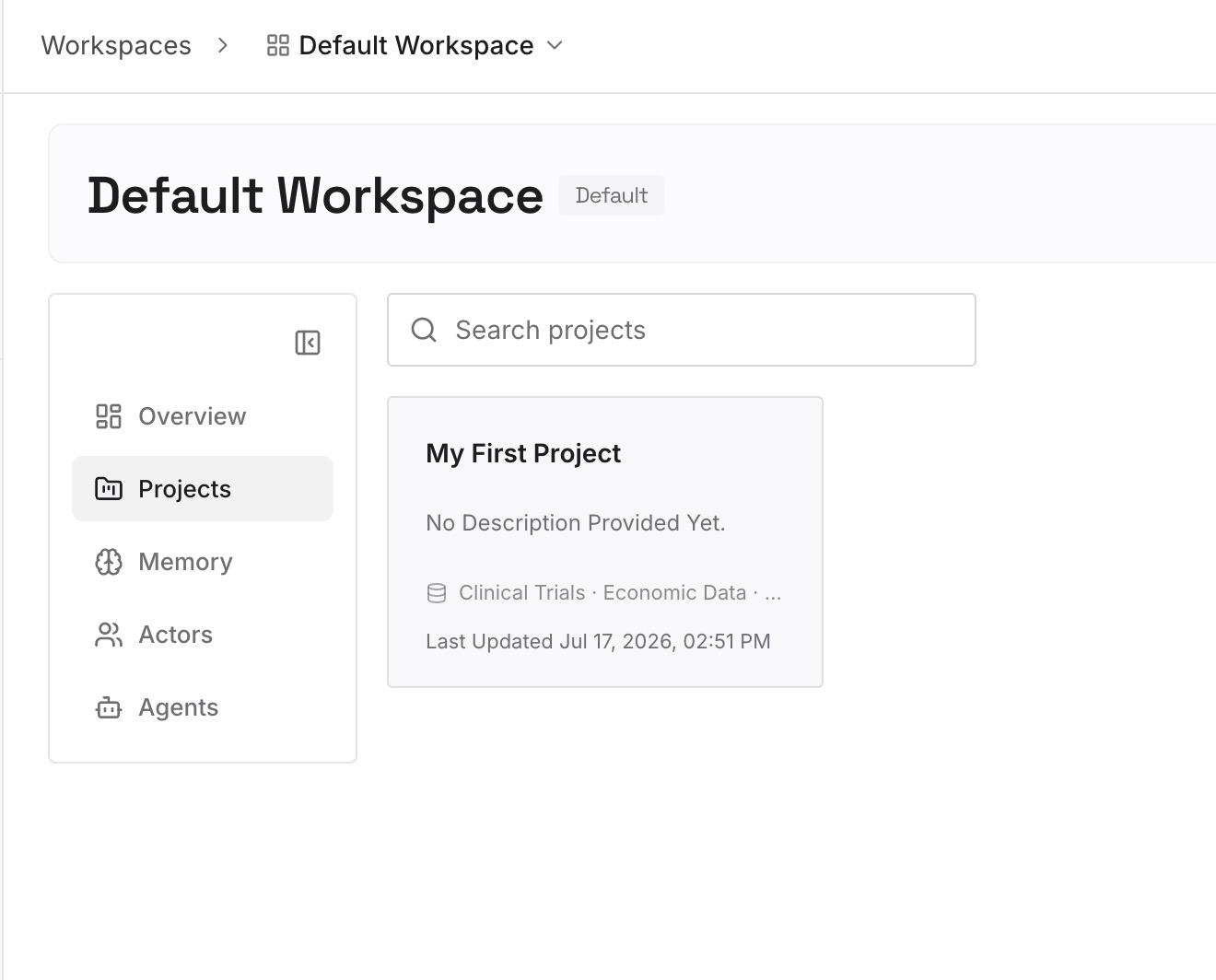
Start with the decisions from your Step 1 list, one per entry, with the reason attached. Add the project facts that both a writing task and a coding task would need.
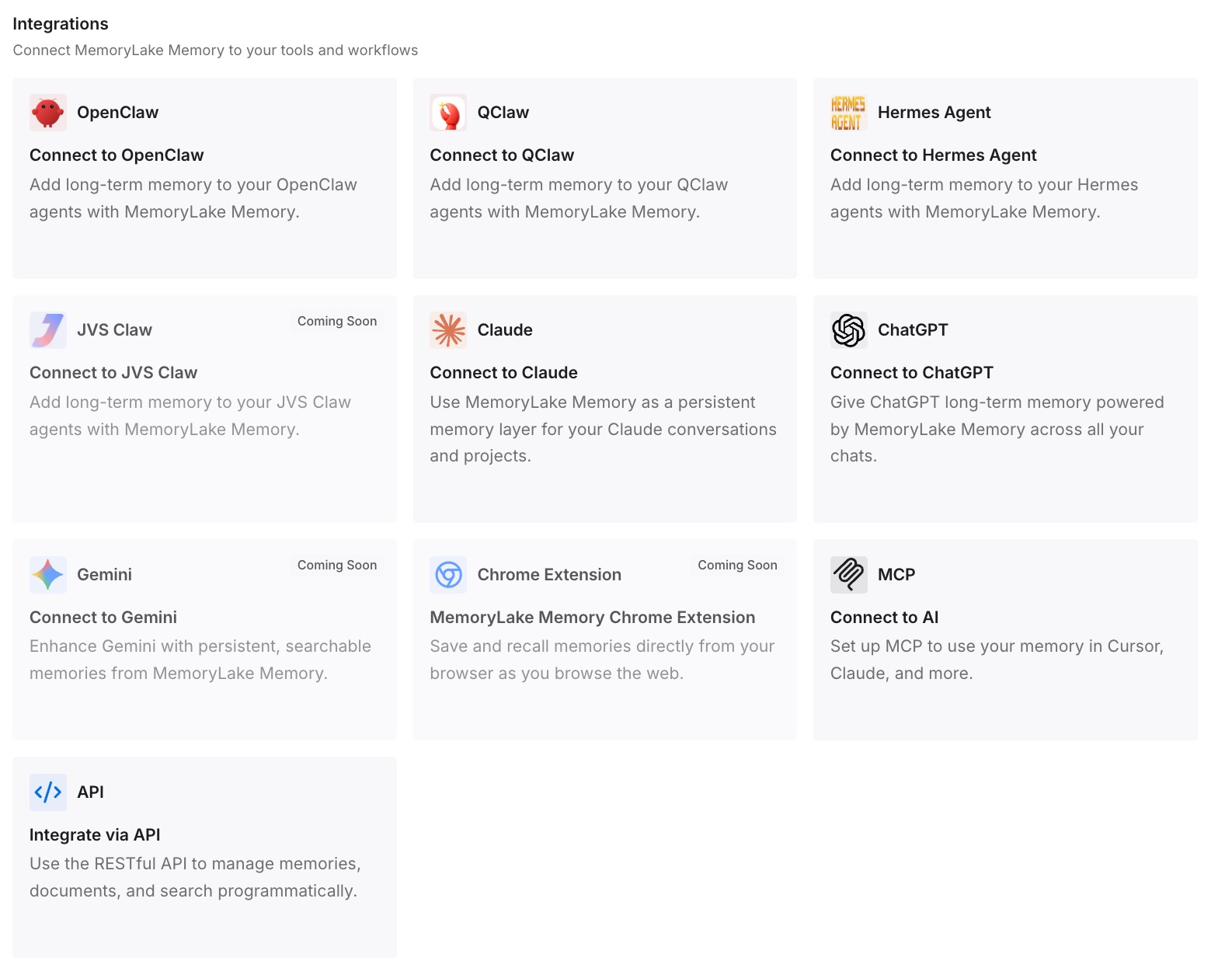
Step 3: Connect your AI & agents
Connect ChatGPT and your coding agents. The same decisions are then available on both sides of the app, which is the one thing the app itself is designed not to merge.
What this changes in practice
The first difference is that the Codex boundary stops being a surprise. Once you know OpenAI keeps Codex history "separate from ChatGPT history," you can plan around it instead of discovering it when a conversation you remember is nowhere in Recents.
The second is that projects become the real unit of continuity on the ChatGPT side. A project carries files and instructions across Chat and Work chats. OpenAI describes Codex as a separate view with its own history, so a ChatGPT project's context is not something to assume inside Codex, and project memory has scoping rules of its own — the subject of why ChatGPT projects don't share memory.
The third is that "local" becomes a word to read carefully. Work's local mode runs on your machine, and OpenAI notes that messages and task context may still be stored in the cloud. That is useful to know when you decide what to paste into a conversation.
The fourth is that the move stops being a one-time event. There will be another app, another model or another view. Anyone who has handled what Codex can import from other tools knows that the settings move more easily than the reasoning behind them.
Best practices for switching desktop apps
Do not uninstall Classic on day one. OpenAI says no migration is required at launch and Classic keeps receiving updates. Run both until you have checked your list.
Inventory projects before you switch. Projects are the part of your context most likely to hold instructions and files you have forgotten you rely on.
Treat Codex as a separate history. Look for Codex chats in the Codex view, and write down anything decided there that the rest of your work depends on.
Check both memory settings. ChatGPT memory and local Codex memory are separate stores with separate controls.
Write decisions down as you make them. Recents is a list of conversations, not a list of conclusions, and ChatGPT forgetting previous conversations is easier to live with when the conclusions are recorded elsewhere.
Keep temporary work temporary. A temporary chat is excluded from memory by design; how temporary chat and memory interact is worth checking before you use one for anything you will need later.
Conclusion
The new ChatGPT desktop app is a reorganisation rather than a reset. Your ChatGPT history and projects follow your account, your Codex chats follow the update, and Classic stays available while you decide. OpenAI's instructions are accurate: sign in, and most of what you had is there.
What OpenAI also says, clearly, is that Codex history "remains separate from ChatGPT history," that the two sides use different memory systems, and that new agent features may appear only in the new app. None of that is hidden. It is simply easy to miss on the day you see two icons.
Take the inventory, check it item by item, and keep the decisions that span both halves of the app somewhere that does not care which view you are in.