
What OpenAI's transfer route does, and what it doesn't
The article is titled "Transfer exported conversations between ChatGPT accounts", and it is careful about the word transfer. It says: "This is not a full account migration."
The process has two halves. In the original account, you request a data export. In the account you want to keep, you start a new conversation and upload the conversation file from that export. The uploaded file then works as reference material in that conversation.
OpenAI lists what this doesn't do. Uploading exported conversations doesn't:
- "Merge two ChatGPT accounts."
- "Recreate previous conversations as separate chats."
- "Restore your original chat sidebar."
- "Move subscriptions, settings, memories, GPTs, files, or workspace access to another account."
The limitations section repeats the point for account settings, adding that uploading doesn't "Transfer custom instructions, memories, GPTs, or other account settings."
So the result is not your old sidebar in a new place. It's a file of your old conversations that ChatGPT can read when you ask it to. That's useful, but only if you plan around it.
Which accounts can use it
The route starts with an export, and exports aren't available everywhere. The export article says self-service export from settings is "Available for ChatGPT Free, Go, Plus, Pro, and eligible ChatGPT Edu workspaces." It is "Not available for ChatGPT Business, Enterprise, or ChatGPT for Healthcare workspaces."
The transfer article adds that the destination must be "another personal ChatGPT account", and that you can use exports from a personal account or "An eligible ChatGPT Edu workspace, when a workspace admin has enabled data export." If your old history is in a Business or Enterprise workspace, the article says: "You cannot export data from ChatGPT Business or Enterprise workspaces through ChatGPT settings." Ask your workspace owner about organization-managed data access instead.
Account switching isn't a transfer either
ChatGPT on the web lets you stay signed in to two accounts and switch between them. OpenAI's account switching article is clear that this keeps them apart: "Switching is not merging." It lists what switching doesn't do, starting with "Move chats between accounts" and "Share memory or conversation history".
Switching is still handy during a migration. With both accounts signed in, you can read the old account's settings and paste them into the new one without logging out. The switcher allows "a maximum of two accounts active in the switcher per session", and it's "currently available on ChatGPT web".
Where each part of your old account goes
Conversations
Conversations travel through the export. The export arrives as a ZIP. The transfer article says to "Find conversations.json. Larger exports may contain numbered conversation JSON files instead."
Exports can be slow and the link is short-lived. The export article says "Exports can take up to 7 days to arrive" and "The download link expires 24 hours after you receive it." You also need to "Download the export while you are signed in to the same account that requested it." Check the ZIP before you rely on it: "An export cannot restore chats that have already been deleted."
If the conversation file is too large to upload, OpenAI suggests three options: "Upload the numbered conversation JSON files separately, if your export includes them", "Split the JSON file into smaller files before uploading", or "Upload only the conversations you need to reference." OpenAI's upload limits apply too: "Text and document files are capped at 2 million tokens per file."
Memory
Memory doesn't come with the conversation file. The new account's memory holds only what that account has already learned, plus what you add.
Before you leave the old account, open Settings, then Personalization, then Memory, and copy what's there. OpenAI's memory article also says "You can also ask ChatGPT what it remembers about you." Save the answer as text. In the new account, add the points you still want, either by asking ChatGPT to remember them or by putting standing preferences in custom instructions. Our guide to backing up your ChatGPT memory walks through getting a complete copy.
Custom instructions
Custom instructions are in your export, according to the custom instructions FAQ, which answers "Are custom instructions included in my ChatGPT data export?" with "Yes." Copying them directly from Settings, under Personalization, is quicker. Check the length limit in the new account if you're moving between plans: "Free and Go users can save up to 1,500 characters in custom instructions. Plus, Pro, Enterprise, Business, and Education users can save up to 5,000 characters."
Projects and project files
Projects don't transfer. In the new account, recreate each project you still use: its name, its instructions, and its files. Download the files from the old account first. The projects article says that from a project's sources list you can "preview, download, or delete" each file.
Check file limits for your new plan. OpenAI lists "Free: 5 files per project", "Go, Plus: 25 files per project", and "Edu, Pro, Business, Enterprise: 40 files per project", and notes that "only 10 files can be uploaded at the same time."
Library files
Files saved to Library are separate from chats and need their own download. The Library article says "You can download files by selecting one or more files in Library and clicking the Download button." Upload the ones you need to the new account, in a project or a chat.
GPTs
GPTs are listed among the things that don't move. If you built custom GPTs in the old account, note that OpenAI has also scheduled them for retirement: "Custom GPTs are scheduled to retire on Dec 11, 2026." Copy their instructions and knowledge files out now, whatever you plan to rebuild them as.
Subscription
A paid plan stays with the account that bought it. OpenAI's subscription article says "We do not support transferring your ChatGPT subscription from one account to another." To move your plan, cancel it on the old account and buy it on the new one. The transfer article suggests reviewing "any active Plus or Pro subscriptions across your accounts so you do not keep a subscription you no longer need."
The manual migration
Step 1: Export, download, and copy everything out of the old account
Work through the old account in this order, while you can still sign in:
- Request the export. Go to Settings, then Data controls, and under Export data select Export, then Confirm export. Watch your email or SMS for the link and download it within 24 hours, signed in to the same account.
- Check the ZIP. Open it and confirm the conversations you need are in
conversations.jsonor the numbered conversation files. - Copy your memory. Open Personalization, then Memory, and save what's listed. Ask ChatGPT what it remembers about you and save that answer as well.
- Copy your custom instructions. Paste them into a text file.
- Download project files and Library files. Note each project's name and instructions.
- Copy each GPT's instructions and knowledge files, if you have any.
- Deal with the subscription last, after you've confirmed the export works.
Step 2: Rebuild the new account around what you'll actually reference
In the new account, start with settings. Paste your custom instructions, then add the memory points you still want. Ask ChatGPT what it remembers afterwards to check.
Then decide how to bring in the conversations. OpenAI's route is a single conversation with the uploaded file, and that works for occasional lookups. If your old history covers several areas of work, split it first. Pull the conversations for each topic into their own file, named so you can tell them apart, and upload each one where it belongs: a project for each area you're continuing, with that area's files and instructions alongside. The projects article describes adding reference material "by uploading PDFs, spreadsheets, docs, images, or by pasting text". Uploading only "the conversations you need to reference" is also OpenAI's own suggestion for large exports.
Test it before you rely on it. Ask about a decision from an old conversation and check that ChatGPT finds it in the file and answers from it. If an answer is vague, the conversation may be in a file you didn't upload, or the file may be too broad to search well. For how ChatGPT draws on earlier chats once you're working in the new account, our guide to why ChatGPT forgets previous conversations covers the settings involved.
The Better Way: Keep the context that belongs to you somewhere no single account holds
A move between accounts is a good moment to notice how much of what you know is stored as a byproduct of where you happened to chat. Your preferences sit in one account's memory. Your project decisions sit in one account's chats. When you change accounts, each piece has to be exported, copied, or rebuilt.
MemoryLake is a memory layer for keeping the context you'd want in any account in one list you maintain, available to the assistants you connect, such as ChatGPT, Claude Code, and Codex.
You write the entries yourself, in your own words. Nothing is read out of, written to, or deleted from your ChatGPT accounts, your data export, your memory, your projects, or any vendor's store. If an account is managed by your organization, follow its policy for what you keep outside it.
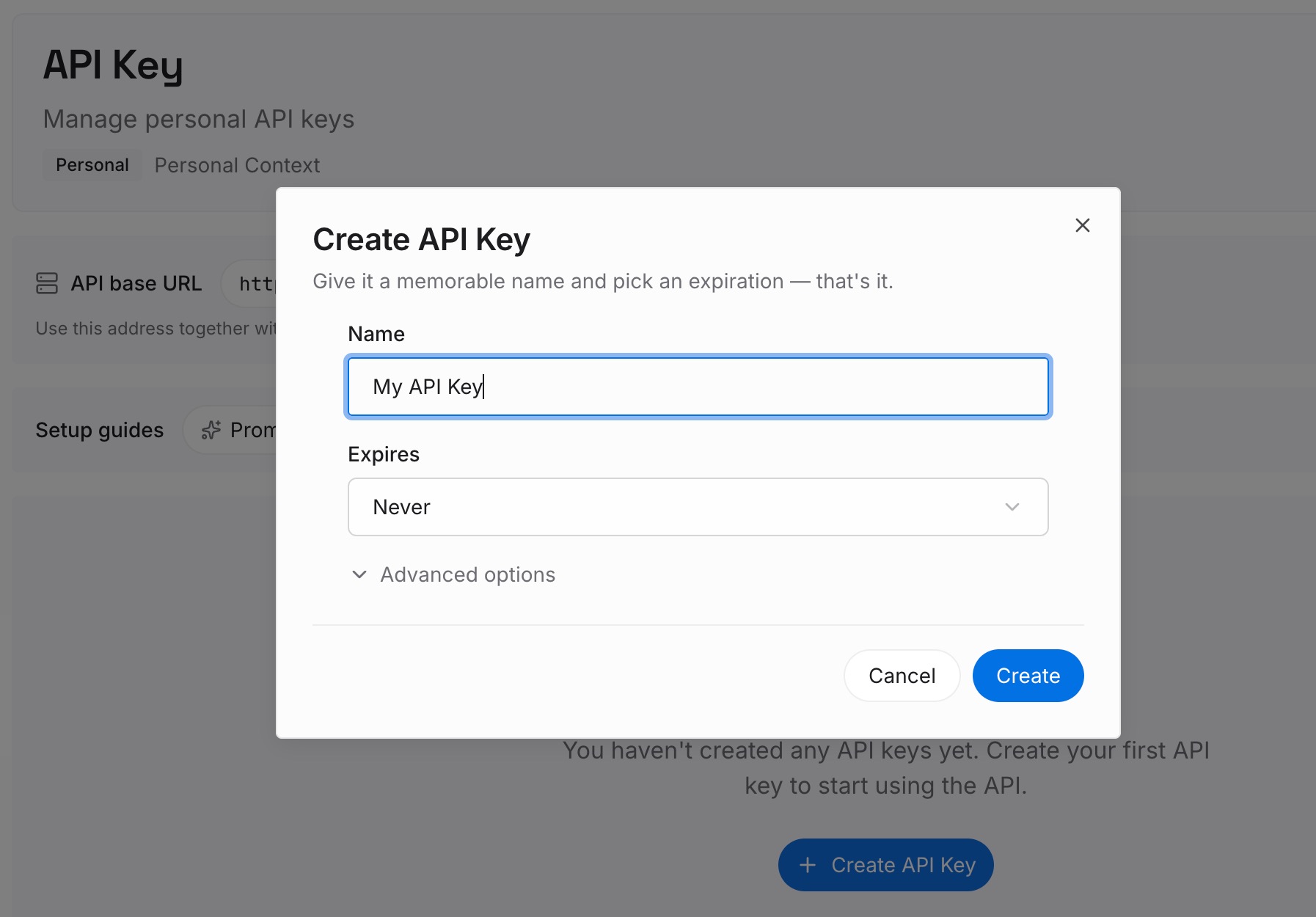
Step 1: Create an API key
Sign in and generate a key from the dashboard. The key belongs to your MemoryLake workspace and is separate from both ChatGPT accounts.
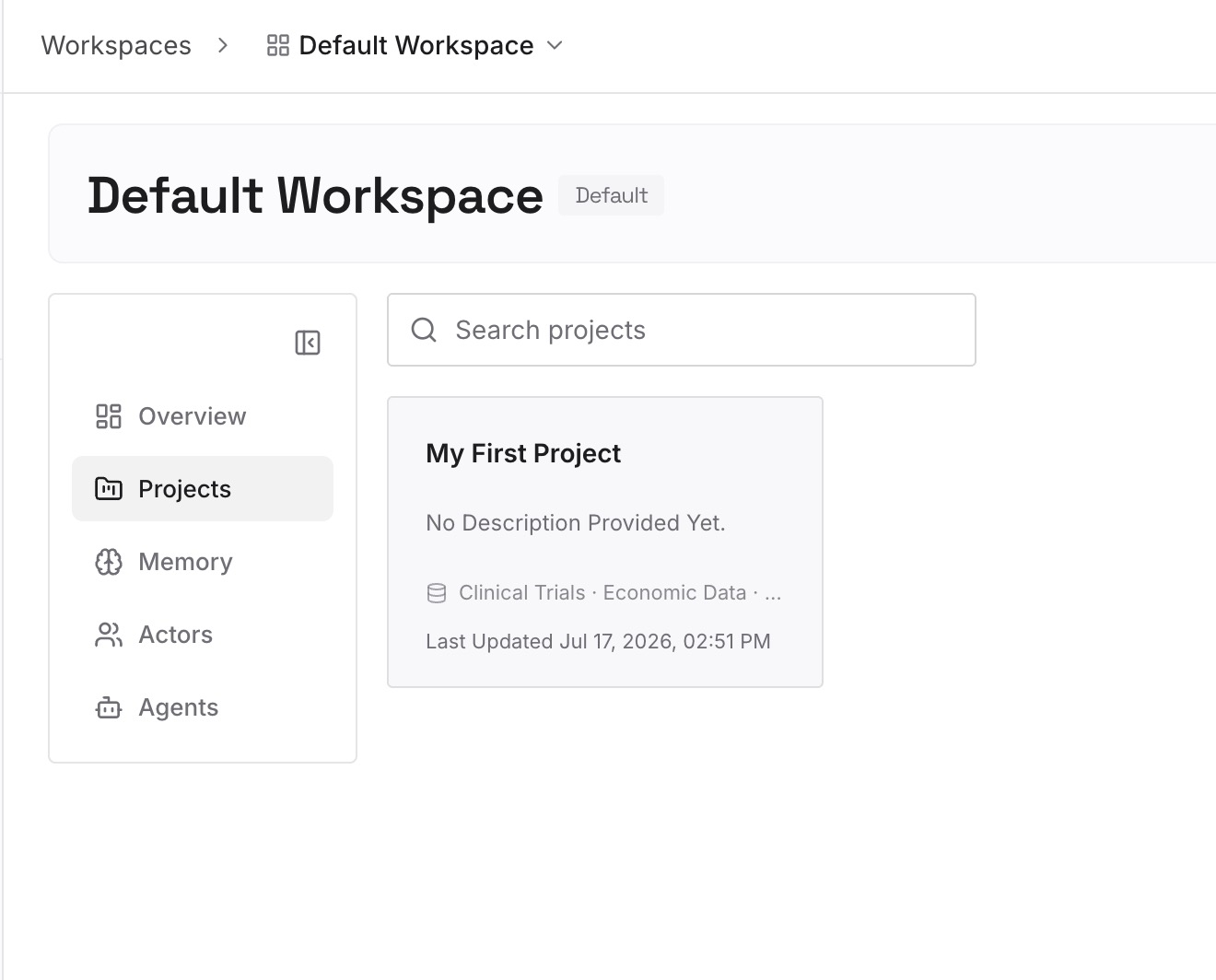
Step 2: Upload your first memories
Start with what you copied out in Step 1 of the manual migration: the preferences from your old memory and the decisions from the conversations you still use. One point per entry, dated, in your own words.
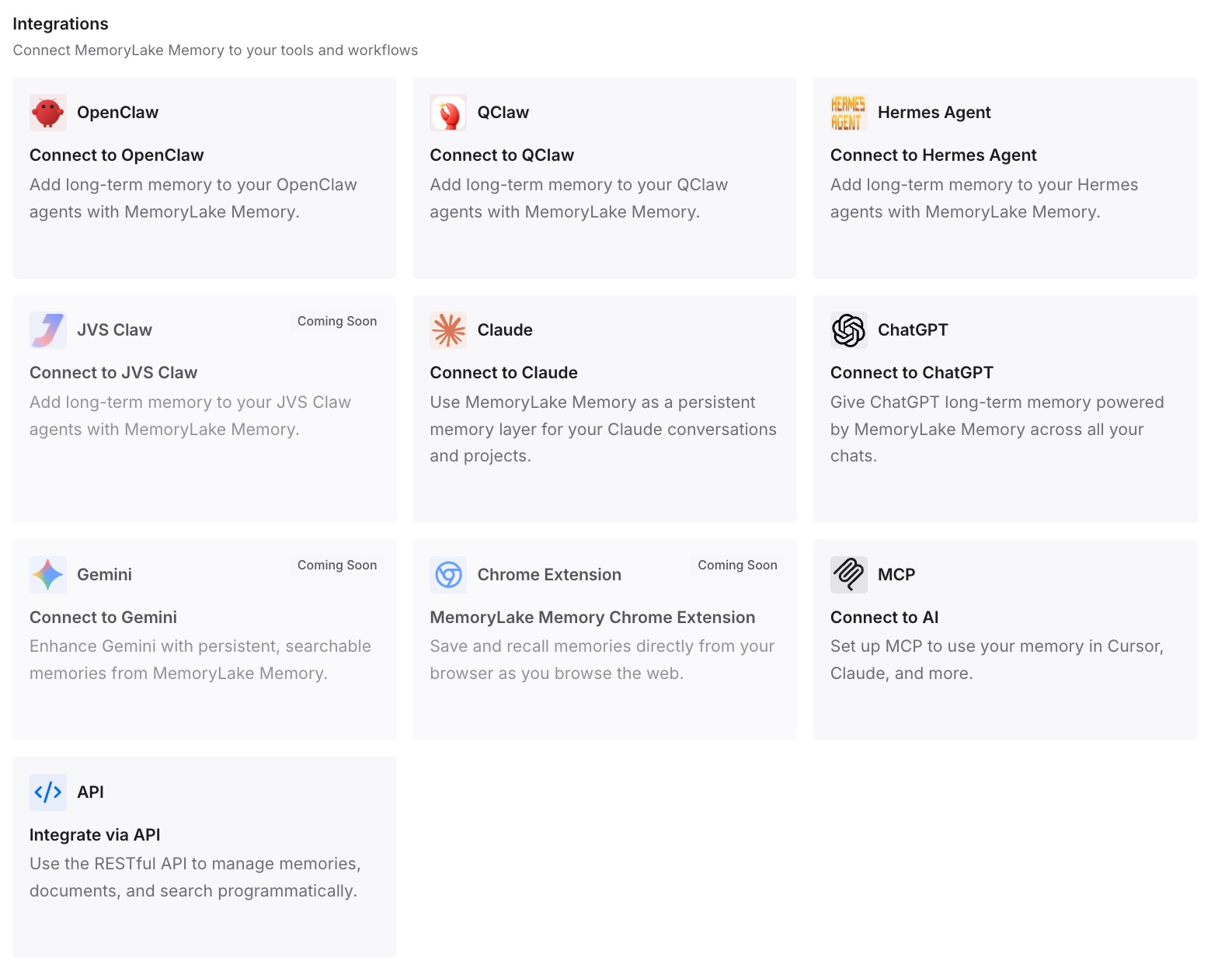
Step 3: Connect your AI & agents
Connect the assistants you use. The next time you change accounts, the context you rely on is already outside both of them.
What this changes in practice
The first difference is that your old conversations become reference material instead of history. You won't see them in the sidebar, but ChatGPT can answer from them when the right file is in the conversation or project.
The second is that splitting by topic makes them findable. One large export file is hard to work with. Several named files, each in the project it belongs to, are easier for you and for ChatGPT to use.
The third is that the settings you rebuilt are yours to check. Memory and custom instructions don't come with the export, so you set them up deliberately in the new account, and you can see exactly what's there. For how projects keep their context separate, our explainer on ChatGPT project memory modes covers the two settings.
Best practices for moving ChatGPT conversations between accounts
Export before you change anything else. The export is the one record of your conversations you can take with you.
Download within 24 hours. The link expires, and you need to be signed in to the account that requested it.
Copy memory and custom instructions by hand. They don't move with the conversation file.
Split the export by topic. Smaller, named files are easier to upload and to search.
Use projects for ongoing work. Put each area's conversations, files, and instructions in one place.
Keep both accounts signed in while you work. Account switching on the web lets you copy settings across without logging out.
Cancel the old subscription last. Do it after you've confirmed the export and the new setup.
Conclusion
ChatGPT doesn't merge accounts or move conversations between their chat histories. OpenAI's documented route is to export from the old account and upload the conversation file in the new one, where ChatGPT can use it as reference. Memory, custom instructions, projects, files, GPTs, and your subscription each need their own step.
Export first and check the ZIP. Copy your memory and instructions, download your files, and rebuild the new account with projects that hold the conversations you'll actually reference. If you're also considering a move to a different assistant, our guide to migrating ChatGPT conversations to Claude uses the same export. Our explainer on what a shared ChatGPT link carries covers the other way people try to pass a single conversation along.