
What actually transfers
Start with the decision OpenAI puts first. In ChatGPT Business, "you can keep your personal workspace separate or merge it into Business." Keeping them separate is a real option: "If you keep them separate, you can switch between them, but their content stays separate and any personal subscription continues until you cancel it." For ChatGPT Enterprise the choice may not be yours — "your organization's onboarding requirements determine whether you can keep your personal workspace separate or must merge it."
If you do merge, the first constraint is scope. "The migration flow does not let you select individual chats, projects, or files to transfer." It is all supported content or nothing.
The second constraint is permanence. OpenAI's Business memory FAQ states it in six words: "Merging is permanent and cannot be undone." The migration guide adds the specific consequence: "Migration does not provide an undo option that moves content from your organization's workspace back into your personal workspace."
Now the mechanics, piece by piece.
Conversations move, with a caveat about older ones. "Supported conversations saved in your personal workspace's cloud history transfer to the destination workspace." But the guide also warns: "Some older or long-running conversations may not be retrievable afterward, and unsupported content does not transfer."
Projects you own move; projects you were invited to do not. "Projects you created transfer with their settings, instructions, and supported project files." Then: "Projects you participate in that are owned by other users are not migrated, even if you have access to them."
Saved memory moves, but only the account-wide part. "Supported saved memories that apply across your chats are eligible to transfer to the destination workspace. Transferred memories are added to existing destination memories without replacing them. Memories scoped to a particular project or other restricted context are not included in this saved-memory transfer." If you have been using project-only memory, that context stays behind. How that setting behaves in the first place is covered in ChatGPT's project memory modes.
Memory arriving is not memory switched on. "Transferring saved memories does not turn Memory on." Whether it works depends on your own settings and your organization's controls.
Custom instructions move, unless the destination already has some. "Your custom instructions, profile details such as your name and role, selected personality, and supported response-style preferences are eligible to transfer. If you have already configured personalization in the destination workspace, those existing preferences take precedence and are not overwritten. Memory settings and tool settings are not copied as part of personalization."
Custom GPTs you built move; public sharing does not carry over. "Custom GPTs you created transfer with their configuration, instructions, and supported knowledge files." A GPT you had shared publicly needs sharing again: "share it again after migration if you want it to remain publicly available and your destination workspace allows it."
Some things do not move at all. "Custom plugins do not transfer." "Custom connectors, connections already requiring reauthentication, and unsupported sign-in methods do not transfer." And: "Sites do not transfer."
Afterwards, the organization holds the keys. "Your organization controls access to migrated content. If you leave, are removed, or lose access to the destination workspace, you may also lose access to that content." And that content "does not move back to your personal workspace."
One more fact changes the order of operations. "Self-service data export is not available in ChatGPT Business or Enterprise workspaces." OpenAI's export guide spells out the timing: "After a personal workspace is removed, you may no longer be able to open an earlier export link or request another export from that workspace." The export has to happen first, or it may not happen at all.
The manual migration
Step 1: Export and read your personal workspace before you merge
Request a data export from your personal workspace while it still exists. OpenAI's guidance is to "request, download, and check your data export before the personal workspace is removed." Check means open it and confirm it contains what you expect, not just that the download finished.
Then do the part the export cannot do for you: an inventory of the context that is about to change shape.
List your project-only memories and the projects they sit in. These will not transfer as memories, so decide which facts in them still matter and write those down.
Copy your custom instructions into a text file. If your destination workspace already has personalization configured, the migrated version will not overwrite it, and you will want to compare the two.
List the projects you were invited to but do not own. They stay behind. If something in one of them is yours — notes you wrote, a decision you recorded — save it now.
List your custom connectors, custom plugins and any Sites. None of those transfer, and a published Site may stay online while you lose the ability to edit it.
Finally, read your saved memories as they stand. Backing up your ChatGPT memory covers how to capture them in a form you can reread later, which matters because after the merge they will sit alongside whatever the Business workspace already holds.
Step 2: Merge, then check the destination item by item
To start the migration, OpenAI's steps are to switch to the destination Business workspace, go to "Settings > Data Controls," and next to "Merge data from your personal workspace," select Merge. A migration prompt may also appear when you first open the Business workspace.
Content does not arrive all at once. "Content may appear gradually while migration completes. Seeing some conversations does not mean every file or other data type is ready." Give it time, then check against your Step 1 list rather than against your impression.
OpenAI's own checklist is the right order: "review your conversations, GPTs, projects, Library, automations, saved memory, personalization, plugins, and connected apps." If a conversation seems missing, its suggested steps include using chat search and checking "Archived chats" — archived chats are easy to overlook, and how archiving interacts with memory is worth knowing before you conclude something is gone.
Check two settings explicitly. First, whether Memory is on in the Business workspace for your account, since the transfer does not switch it on. Second, your custom instructions: if the destination already had some, yours were not applied, and you may want to merge the two by hand.
Last, re-share any GPT that needs to stay public, and reconnect the apps that did not carry over.
The Better Way: Keep the context that belongs to you in one place you control
Look at what the migration guide describes as fragile. Project-only memory stays behind. Custom instructions yield to whatever the destination already had. Access to migrated content depends on staying in the organization. And the Business memory FAQ adds one more: "If a workspace owner turns off Memory for the workspace, existing saved memories for members in that workspace are deleted."
None of that is a flaw in how Business is designed. It is what a managed workspace is for. It does mean the context you built up over months now lives under someone else's retention policy, and the working knowledge that is genuinely yours — how you like to work, the conventions you follow, the lessons that were not about any one employer — deserves a home of its own. Check your organization's policies before storing anything that belongs to the company.
That is what MemoryLake is for. You write the entries yourself, in your own words. Nothing is read out of, written to, or deleted from your ChatGPT personal workspace, your Business workspace, or any vendor's store.
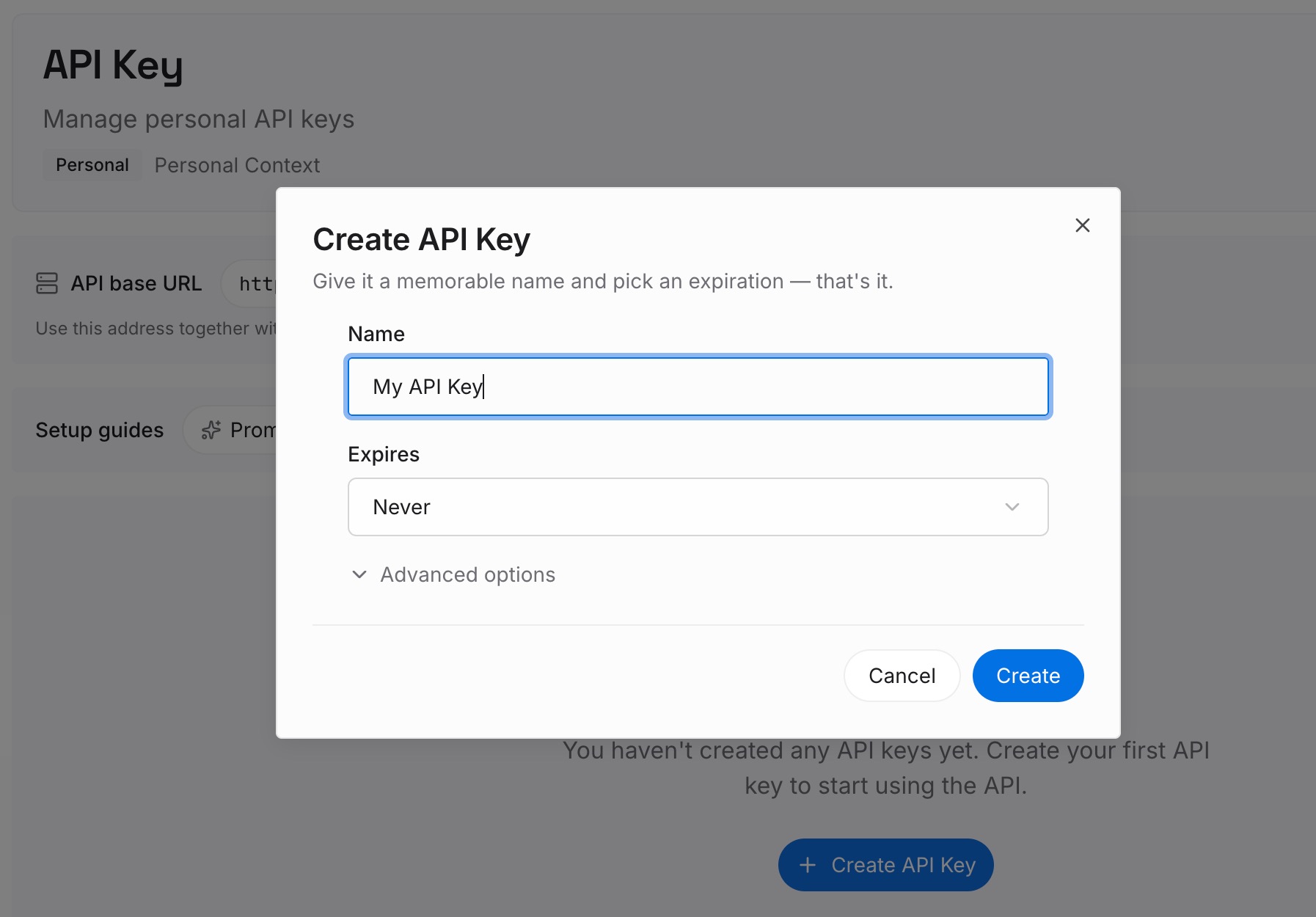
Step 1: Create an API key
Sign in and generate a key from the dashboard. The key belongs to your workspace in the memory layer, not to any ChatGPT workspace, so a change of employer or plan does not touch it.
Step 2: Upload your first memories
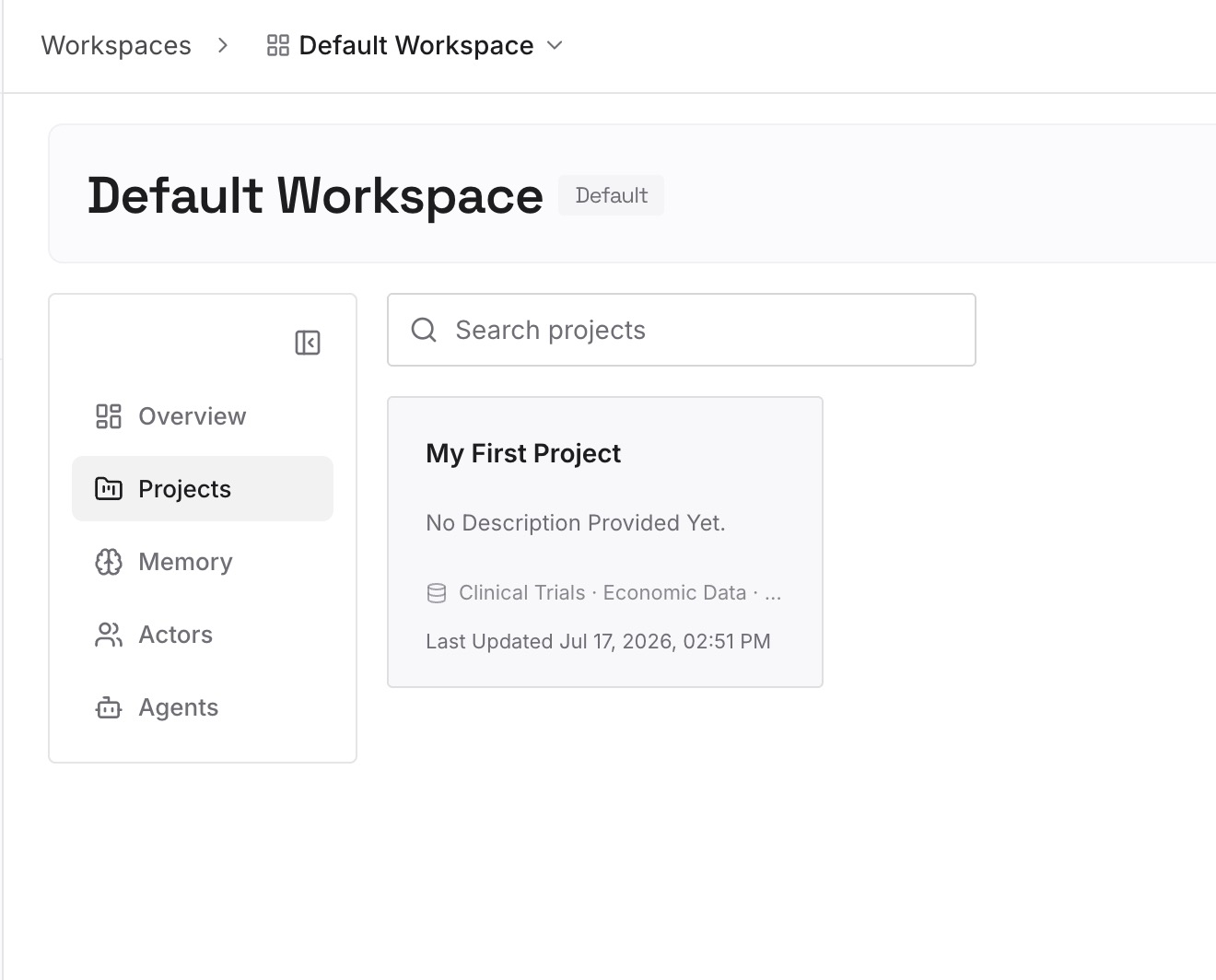
Start with the Step 1 inventory: the project-only facts that would not transfer, your custom instructions, and the working preferences you would otherwise re-explain. One fact per entry, phrased the way you would say it to a new colleague.
Step 3: Connect your AI & agents
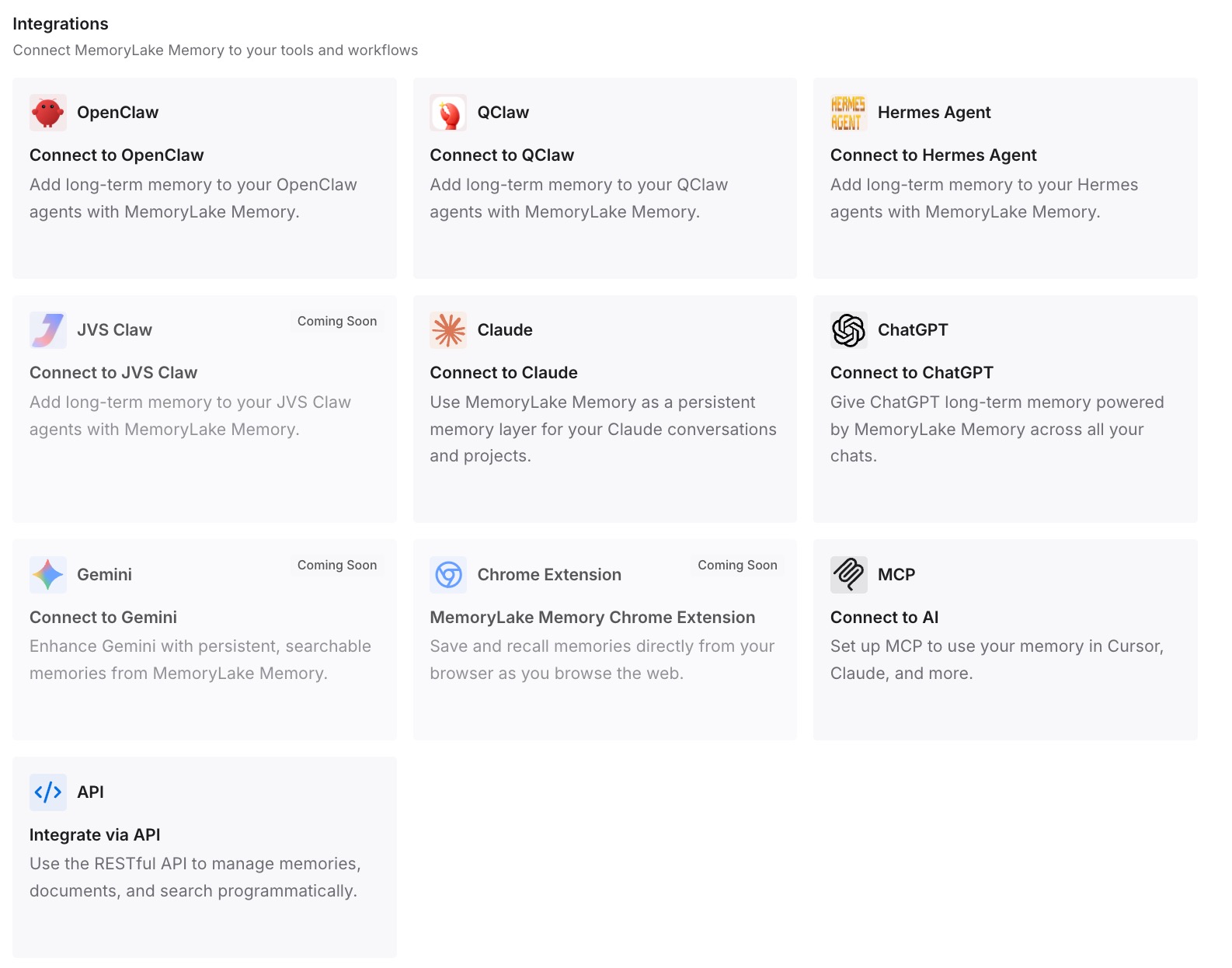
Connect ChatGPT and the other assistants you use. The same set of facts is available in each, whichever workspace you happen to be signed into.
What this changes in practice
The first difference is that the merge stops being a leap of faith. When the facts you care about are written down elsewhere, a project that arrives thinner than expected is an inconvenience rather than a loss.
The second is that personalization conflicts become visible. The migration guide is clear that existing destination preferences "take precedence and are not overwritten." If you know what your own instructions said, you can reconcile the two deliberately. The broader pattern — instructions quietly not applying — is the subject of why ChatGPT forgets custom instructions.
The third is that the personal and the organizational stop blurring. A Business workspace is where team knowledge belongs, and there are good ways to set up shared AI memory for a team. Your own working context is a different thing, and keeping it separate means neither has to be untangled from the other later.
The fourth is that leaving stops being expensive. OpenAI states that migrated content "does not move back to your personal workspace," and that self-service export is not available in Business. Context you kept yourself is unaffected by either.
Best practices for moving from a personal workspace to Business
Decide whether to merge at all. Business lets you keep the personal workspace separate and switch between them. If most of what you have is personal, that may be the better choice.
Export first, and open the export. Self-service export is unavailable once you are working inside Business, and an earlier export link may stop working after the personal workspace is removed.
Rescue project-only memory by hand. It is explicitly excluded from the saved-memory transfer. Anything in it that still matters has to be written down.
Save what lives in other people's projects. Projects owned by others are not migrated even if you had access.
Compare custom instructions after the merge. If the destination had its own, yours were not applied. Settings differ across workspaces in the same way memory off and data controls cover different things.
Treat shared links and public GPTs as separate work. Public sharing does not survive the move, and what a shared link actually carries was never the same as the conversation itself.
Conclusion
OpenAI's migration guide is thorough, and its thoroughness is the warning. Conversations transfer, with exceptions for some older ones. Projects transfer if you own them. Saved memory transfers if it was account-wide, arrives without being switched on, and can be deleted later by a workspace owner's setting. Custom instructions transfer unless the destination already has some. And the whole thing "is permanent and cannot be undone."
The order that protects you is simple: export and read first, inventory what will not survive, merge, then check item by item against your list.
The context that is genuinely yours is worth keeping somewhere that does not depend on which workspace you are signed into this year.