
What actually transfers
What a ChatGPT project holds
OpenAI's help center says "Projects keep related chats, files, and instructions together." In practice that's four things:
- Sources. Files you uploaded, links from Google Drive or Slack, and chat responses you saved with the save-to-project option.
- Instructions. "Project instructions apply only within that project and override your global custom instructions."
- Chats. Every conversation started in the project, which can reference each other.
- Project memory. Depending on the setting, chats draw on other chats in the project, and with default memory, on your saved memories too.
That last one is the hardest to move, because you can't see it. The help center's FAQ asks "Can I see a list of my project memories?" and answers: "No. Project memory does not show a list of memories like personal memory." What the project has learned is spread across its chats. Our guide to ChatGPT's project memory modes explains the default and project-only settings in detail.
What Codex reads instead
Codex starts from a folder. In the desktop app, "A local project gives chats access to one or more folders on your computer, such as a collection of source files or a codebase." In the terminal, "Codex CLI treats the directory where you start it as the project for the chat."
Instructions come from files, not a settings field. "Codex reads AGENTS.md files before doing any work", and "Codex builds an instruction chain when it starts (once per run; in the TUI this usually means once per launched session)." The chain has a size cap: Codex "stops adding files once the combined size reaches the limit defined by project_doc_max_bytes (32 KiB by default)." Our guide to Codex skipping AGENTS.md rules covers what happens when you go over it.
Reusable procedures can become skills. "A skill is a directory with a SKILL.md file plus optional scripts and references", and "For repositories, Codex scans .agents/skills in every directory from your current working directory up to the repository root."
OpenAI's own guidance points the same direction for anything that needs to last: "Keep durable project guidance in AGENTS.md or checked-in documentation so it is available to future chats."
Where the two meet in the desktop app
The desktop app shows both kinds together. "The Projects view in the ChatGPT desktop app includes ChatGPT projects and local projects that connect to folders on your computer." That's convenient, but showing them in one view doesn't make them the same thing.
The documentation draws several lines between them:
- "A ChatGPT project doesn't provide direct access to a folder on your computer, so upload or connect the sources you want ChatGPT to use."
- In Codex, "ChatGPT chats don't appear in the Codex sidebar, which contains your Codex chats and projects."
- "Work conversation history remains separate from Codex history."
- Outside the desktop app, "The CLI doesn't expose the ChatGPT Projects view", and the IDE extension "doesn't expose the ChatGPT Projects view from the web or desktop app."
OpenAI also describes the two agent experiences as overlapping. Its comparison of ChatGPT Work and Codex says "If you prefer Codex, you can keep using it for research, documents, presentations, and other knowledge work." The differences it lists are mostly about presentation: Codex can "See developer details, including diff and review views", while ChatGPT in the desktop app can "Hide technical details like Git or shell commands". So moving a project to Codex isn't only for code. It suits any work where you want the agent operating on files you control.
There is one bridge for individual conversations. "From New chat, you can open an existing ChatGPT chat and add it to a Codex chat." That's useful for bringing a specific discussion into a Codex task. It's a way to reference a chat, not a way to move a project.
Memory on each side
The two sides keep separate memory. OpenAI's memories page says "ChatGPT web uses ChatGPT memory, while local Codex clients use a separate local memory store and controls." Codex builds its local memories from its own chats, in the background: it "skips active or short-lived sessions, redacts secrets from generated memory fields, and updates memories in the background". Our guide to turning on Codex's local memories walks through the controls.
Nothing in OpenAI's documentation describes Codex reading what a ChatGPT project learned from its chats. If you turn Codex memories on, they build from your Codex chats after you start.
Things to check before you start
Shared projects. If the project is shared, its memory is project-only, and it "cannot access an individual member's memories or context from outside the project." Other members' files and chats may also not be yours to copy. Ask the owner before moving shared work.
Project-only memory. If your project uses project-only memory, the help center notes that "ChatGPT Work is not available in the project." If you want an agent working on that material, a Codex local project is one way to get there.
Deleting the original. Don't clean up until you've finished. "Deleting a project permanently removes its chats and instructions, along with files stored only in the project."
Linked files. Google Drive and Slack sources are links, not copies. Download the current versions of the files you need rather than assuming the link will carry.
The manual migration
Step 1: Inventory the project and download what Codex will need
Open the project and list what's there. For each source, decide whether it belongs in the new folder. The help center says you can open a project file "from the project sources list to preview, download, or delete it", so download the files that matter and keep them together.
Copy the project instructions into a text file. Then go through the chats. You're looking for decisions, constraints, and conventions, the things the project's memory was quietly holding. Write each one down in plain sentences, with a date.
If a specific chat has context you'll want in a Codex task, note it. You can later open that chat from New chat in Codex and add it to a Codex chat, instead of pasting it in.
Before you copy anything, remove what shouldn't travel: credentials, personal details, and anything that belongs to a client or employer whose policy you haven't checked.
Step 2: Rebuild the project as a folder Codex can read
Create a folder, or use your repository, and make it the primary folder of a local project. OpenAI says "New chats start in the primary folder. Codex also uses that folder as the default for Git operations and automatic discovery of AGENTS.md, skills, and config.toml." It adds a limit worth planning around: "Codex doesn't automatically discover those project files from secondary folders." Put your instruction files in the primary folder.
Then translate each part of the ChatGPT project:
- Instructions become
AGENTS.md. Keep it short and procedural. Codex appends files from the root down, and the 32 KiB cap applies to all of them together. - Sources become files in the folder. Put reference documents in a
docsfolder with descriptive names, so Codex can find them with ordinary file search. - Decisions become a decisions file. One file, dated entries, newest at the top. Point to it from
AGENTS.md. - Repeated procedures become skills. If you kept asking the project to do the same multistep task, write it as a skill in
.agents/skills.
Start a Codex chat in the new project and ask it to summarize its instructions and the decisions file. If something is missing or out of date, fix the file rather than correcting it in chat. A fix in chat lives in that chat. If you'll also run Codex in the cloud, our guide to preparing a Codex cloud environment covers which of these files travel there.
The Better Way: Keep the project's decisions in one place both sides can use
The manual migration works because it turns hidden project memory into files you can read. That decisions file is the most valuable thing you'll produce. It's also the thing most likely to drift, because the ChatGPT project and the Codex folder will both keep going.
MemoryLake is a memory layer for keeping those decisions in one list you maintain, available to ChatGPT, Codex, and the other assistants you use.
You write the entries yourself, in your own words. Nothing is read out of, written to, or deleted from your ChatGPT projects, your Codex memories, or any vendor's store. Check your organization's policy before copying work content anywhere.
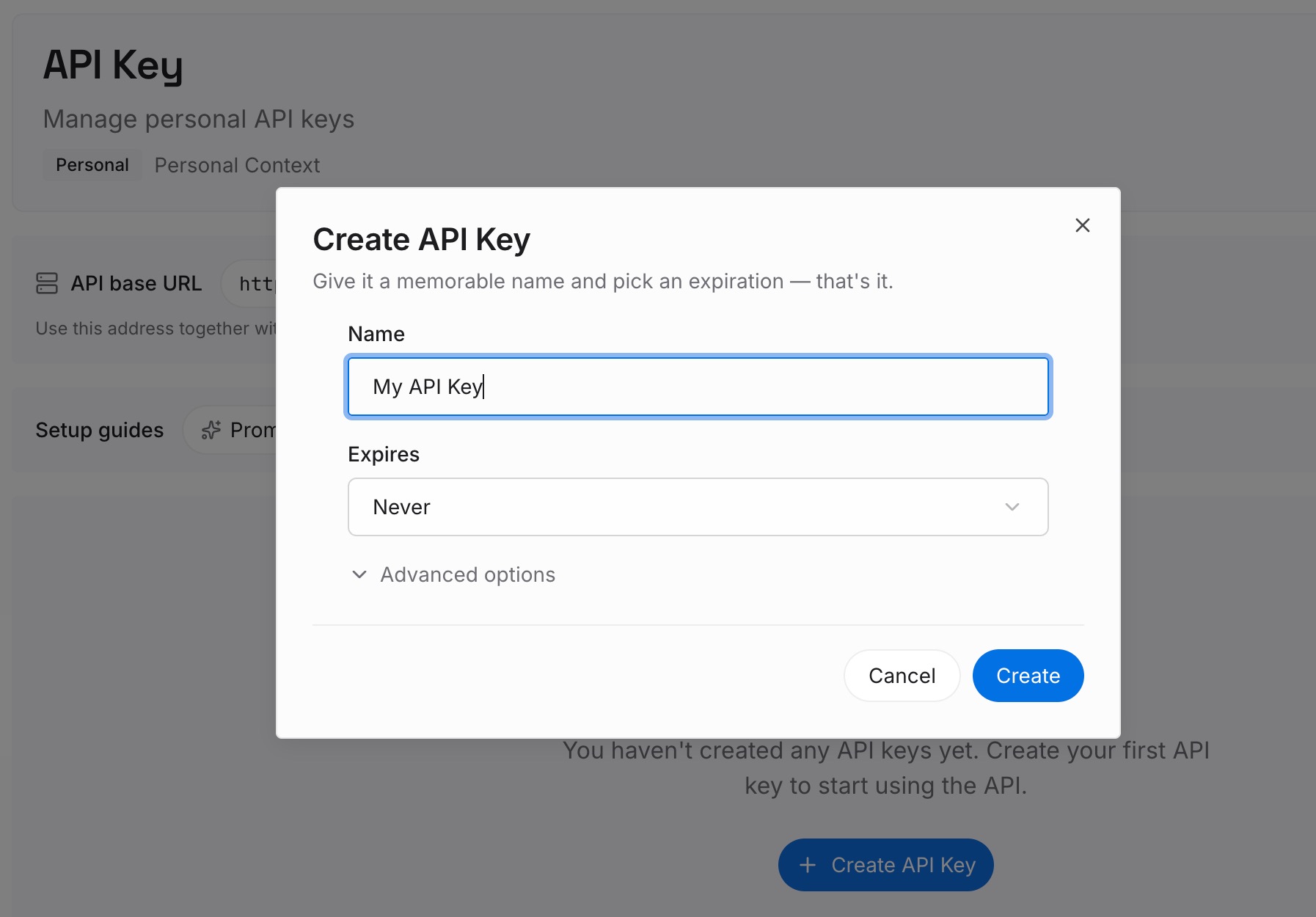
Step 1: Create an API key
Sign in and generate a key from the dashboard. The key belongs to your MemoryLake workspace, separate from your OpenAI account.
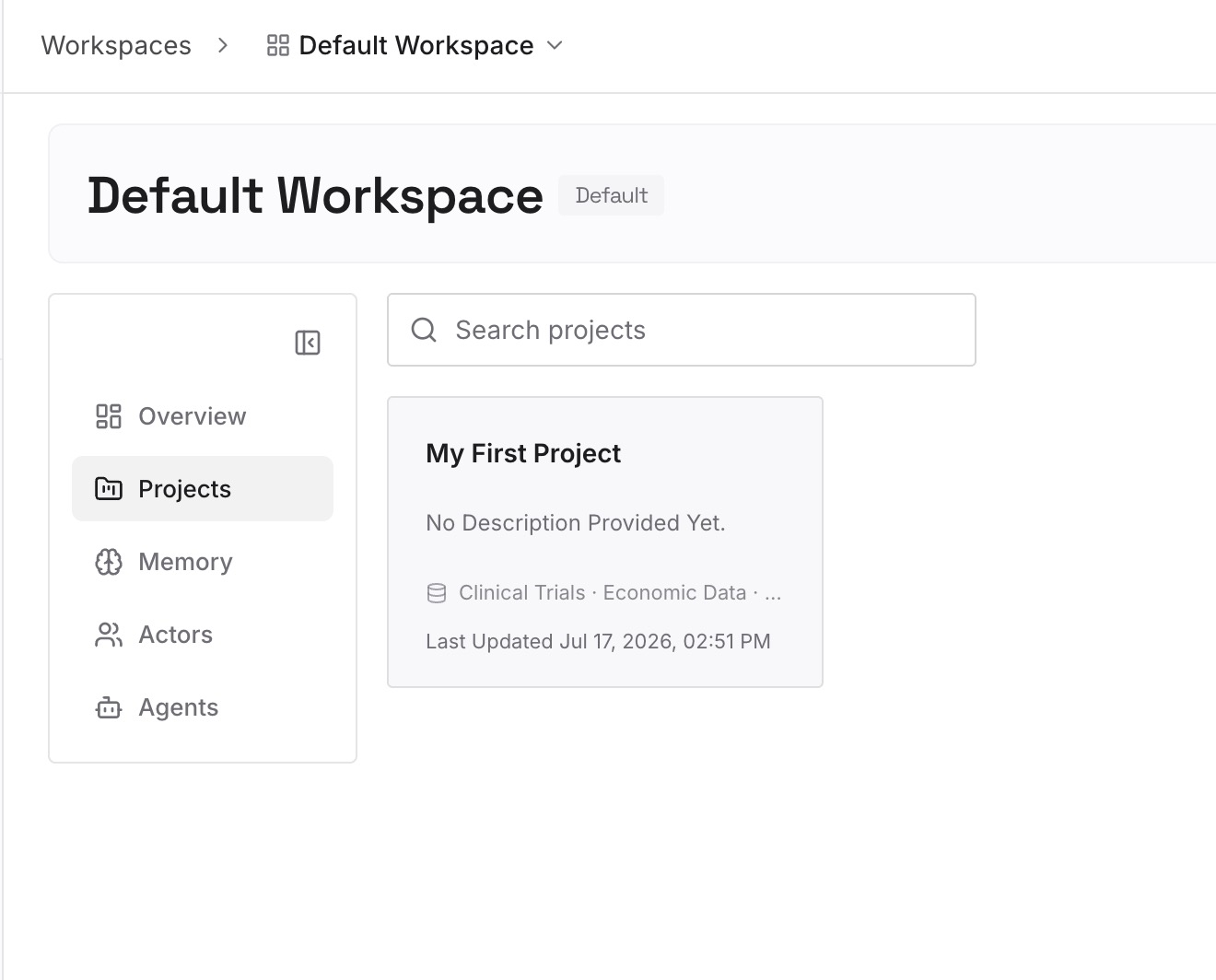
Step 2: Upload your first memories
Start with the decisions you wrote down in Step 1 of the manual migration. One decision per entry, dated, with the reason and the project it came from.
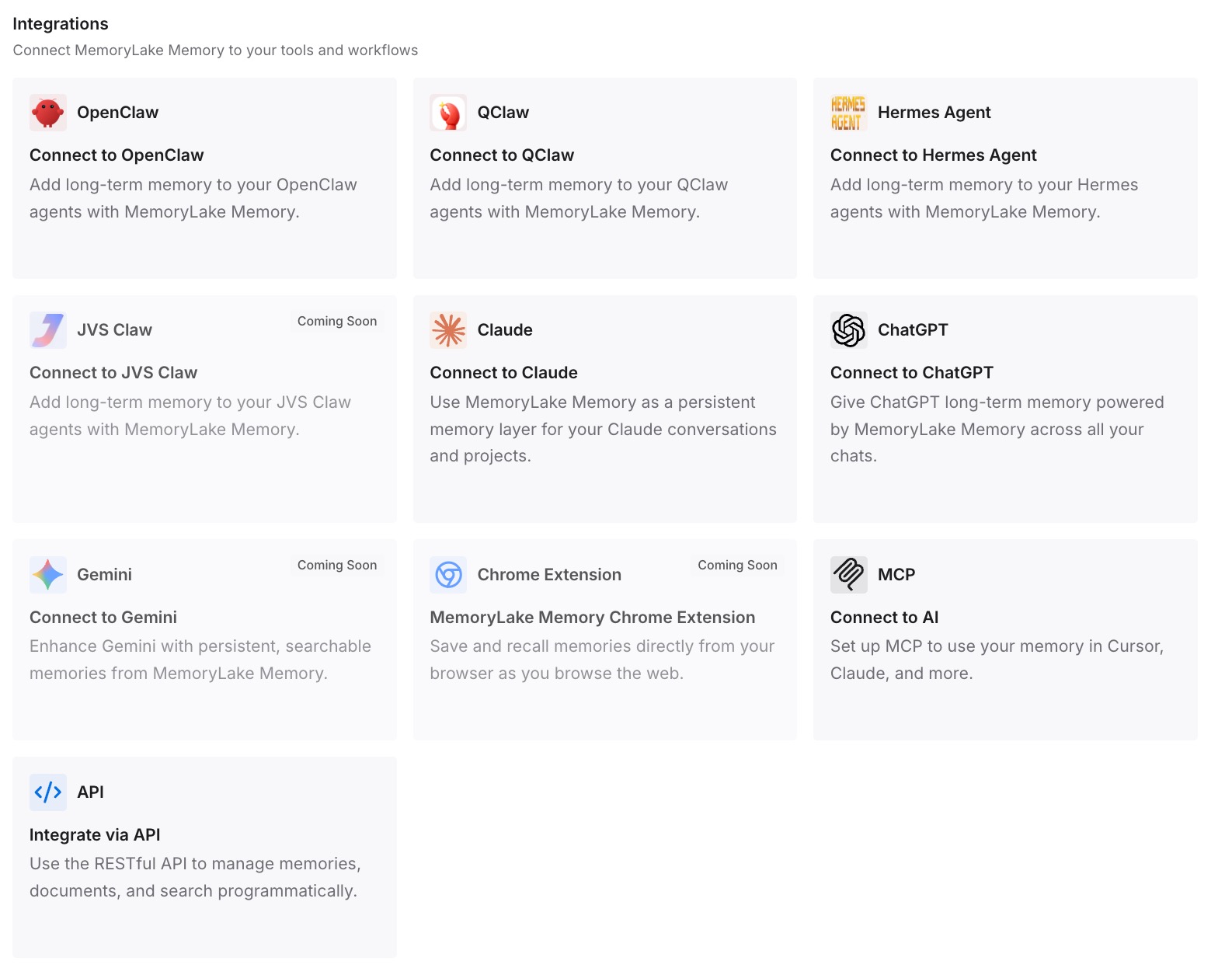
Step 3: Connect your AI & agents
Connect ChatGPT, Codex, and the other assistants you use. The same decisions are then available whether you're in the ChatGPT project or the Codex folder.
What this changes in practice
The first difference is that the project's knowledge becomes visible. OpenAI's help center says project memory doesn't show a list of memories; a decisions file can be read, reviewed, and corrected.
The second is a better start for every Codex chat. AGENTS.md loads at the start, the reference files are in the folder, and Codex doesn't depend on a project view the CLI and IDE extension don't show.
The third is less duplication of effort. When the ChatGPT project keeps going for research and planning while Codex does the building, both can work from the same decisions instead of two slowly diverging versions.
The fourth is easier moves later. The same files and decisions work if part of the project goes somewhere else, as our guide to moving ChatGPT projects to Claude projects shows.
Best practices for moving a ChatGPT project to Codex
Inventory before you copy. Sources, instructions, chats, and decisions are four different jobs.
Write down what project memory knew. The help center says it doesn't show a list, so extract it yourself.
Use the primary folder. Codex discovers instructions and skills there.
Keep AGENTS.md under the cap. Detail goes in linked docs.
Download linked files. Drive and Slack links aren't copies.
Ask before moving shared projects. The work may not be yours alone.
Don't delete the original early. Deletion removes its chats, instructions, and project-only files.
Conclusion
ChatGPT projects and Codex local projects appear in the same Projects view, but they're different things. A ChatGPT project holds uploaded sources, instructions, chats, and a project memory that doesn't show a list. Codex works from a folder, reads AGENTS.md and skills from it, and keeps a separate local memory. The CLI and IDE extension don't show ChatGPT projects at all.
The migration that works is a rebuild. Download the sources, turn the instructions into AGENTS.md, write down the decisions the project's chats were holding, and put everything in the primary folder of a local project.
Keep that decisions file current. It's the part of your ChatGPT project that will be useful in Codex, and in whatever you use next.