
What actually transfers
What Claude lets you export
Anthropic's export is the starting point. "Data exports are available to individual Claude users on Free, Pro, and Max plans." The contents are described in one line: "Data exports include conversation data and the user data for your account." Memory comes along too: "All memory data is included in data exports."
There are a few limits worth knowing before you start. Exports run from the web app or Claude Desktop, and Anthropic notes "it's not possible to run an export from Claude for iOS or Android." When the export is ready you get a download link by email, and "The download link will expire 24 hours after delivery." If it lapses, you can request a new one.
Team and Enterprise accounts are handled differently: "If you're a member of a Team or Enterprise plan, only your organization's Primary Owner can access data exports." If your Claude history belongs to an employer's workspace, the conversations are your organization's data, and the decision to move them is not yours alone.
Some conversations were never saved in the first place. On individual plans, an incognito chat in Claude opens "a temporary conversation that isn't saved to your chat history," so plan on those being absent from what you carry.
What changed with the new Claude experience
Anthropic is rolling out a new experience that merges chat and Cowork into one Claude. For your history, the key line is reassuring: "Your chats, tasks, projects, and settings come with you when your account moves over." Your chats and longer tasks now sit together in Recents.
Two details matter for a migration. First, search in the new experience "doesn't include older Cowork tasks," though you can still find them by name in Recents. Second, "Memory from Cowork tasks that ran only on your computer stays with those tasks." If some of your most useful work happened in local Cowork tasks, find those by name and check what they contain before you export.
What ChatGPT can take in
OpenAI's help center describes ways to bring files and agent setups into ChatGPT; it does not describe an importer for another assistant's account history. OpenAI's documentation about its own exports is a useful guide to what is possible. Even between two ChatGPT accounts, "ChatGPT does not support fully merging accounts or moving conversations from one account's chat history into another account's chat history." What OpenAI describes instead is uploading an exported conversation file to a new conversation, after which "ChatGPT can use the uploaded file as reference in that conversation." OpenAI is clear about the scope: "This is not a full account migration."
The same mechanism, a file used as reference, is what you have for Claude conversations. OpenAI lists what uploading exported conversations leaves out, including that it does not "Recreate previous conversations as separate chats." Your Claude conversations become material ChatGPT can read, rather than entries in your sidebar.
There is one more path for some people. ChatGPT's desktop app has an import flow, and "The desktop app can import from Claude Code, Claude Cowork, or Cursor." Its table of supported items includes "Chats from the last 30 days," imported as ChatGPT chats. OpenAI explains that "User-level setup comes from files on your machine," so this flow is built around agent setups on your computer rather than your account's cloud history. If you used Claude Cowork on your desktop, open the import screen and check what it lists. The details of that path are covered in migrating from Claude Cowork to Codex.
Where your conversations should land in ChatGPT
Projects are the natural destination. "Projects keep related chats, files, and instructions together." Files you add become project context, and "Projects can use their chats and files as context for future responses." Project instructions "apply only within that project and override your global custom instructions," which is useful for carrying a project's standing context.
Choose the project's memory setting before you upload. "Projects can use either default memory or project-only memory." Project-only memory keeps the material inside the project: "When you switch a project to project-only memory, information from that project is removed from memory used outside the project." For a project built from old Claude transcripts, that is often the safer choice, because it stops details from those conversations from shaping answers elsewhere in ChatGPT while still making them available inside the project.
Mind the limits. "The number of files you can upload depends on your plan." And memory never keeps everything: OpenAI notes "Memory does not retain every detail from every conversation." Reference files are how you keep detail that memory would compress away. If you plan to use several projects, read whether ChatGPT projects share memory before deciding how to split your material.
The manual migration
Step 1: Export your Claude conversations and choose what is worth carrying
Request the export from Claude's settings, under the Privacy section, using Export data. Download it within the 24-hour window and keep the original archive somewhere safe. That archive is your complete record; everything after this step is a working copy.
Before you upload anything, decide what to bring. An entire history is mostly noise for a new assistant: one-off questions, abandoned drafts, conversations about things that are finished. A useful migration is selective. Reading what's actually in your Claude data export walks through how to work through the archive by decision rather than by date.
Group the conversations worth keeping by project or topic. For each group, pick the conversations that contain decisions, constraints, or reasoning you will need again. A good test: would you have to re-explain this to a new colleague? If yes, it belongs.
Then remove what should not travel. Personal details you mentioned once, credentials pasted into a debugging session, other people's information, anything sensitive. Edit or exclude those conversations before they go anywhere else.
If you are using the new Claude experience, look for older Cowork tasks by name in Recents, since search does not cover them. And if you rely on Claude's ability to search your past chats, note that its scope has limits of its own, as explained in why Claude can't find your old chat.
Step 2: Rebuild each topic in a ChatGPT project, with a summary and the source conversations
Create one ChatGPT project per topic or client.
Start each project with a short summary you write yourself: what the project is, the decisions made so far and why, open questions, and the terms that have specific meanings. Put the standing parts in project instructions. This summary is the most valuable thing you carry, because it is short enough for ChatGPT to apply consistently.
Then add the source conversations as files. Use only the conversations you selected in Step 1. If a file is too large, follow the same approach OpenAI recommends for its own exports: "Split the JSON file into smaller files before uploading," or "Upload only the conversations you need to reference."
Test before you rely on it. Start a new chat in the project and ask something that depends on an earlier decision. Ask ChatGPT where the answer came from. If it cannot find the decision, add it to the summary directly rather than hoping it gets picked up from a long file.
Finally, decide what to do on the Claude side. If you are keeping Claude, leave your history where it is. If you are leaving, keep the export archive and remember that Claude's own memory and project summaries are separate from the conversations; why Claude forgets previous conversations explains how those layers relate.
The Better Way: Keep the decisions from your conversations in one place every assistant can use
The manual migration works, and the summary you wrote in Step 2 is the reason it works. But you will do this again: the next time you add an assistant, return to one, or move a project. Each time you reread old conversations to reconstruct the same decisions.
The decisions are the durable part. Conversations are long, and most of their length is the path to a conclusion. The better approach is to keep the conclusions in one maintained place and let each assistant draw on them.
MemoryLake is built for that: a memory layer you maintain once and connect to the assistants you use.
You write the entries yourself, in your own words. Nothing is read out of, written to, or deleted from your Claude account, your ChatGPT account, or any vendor's store. If your Claude history belongs to a work account, check your organization's policy before copying any of it elsewhere.
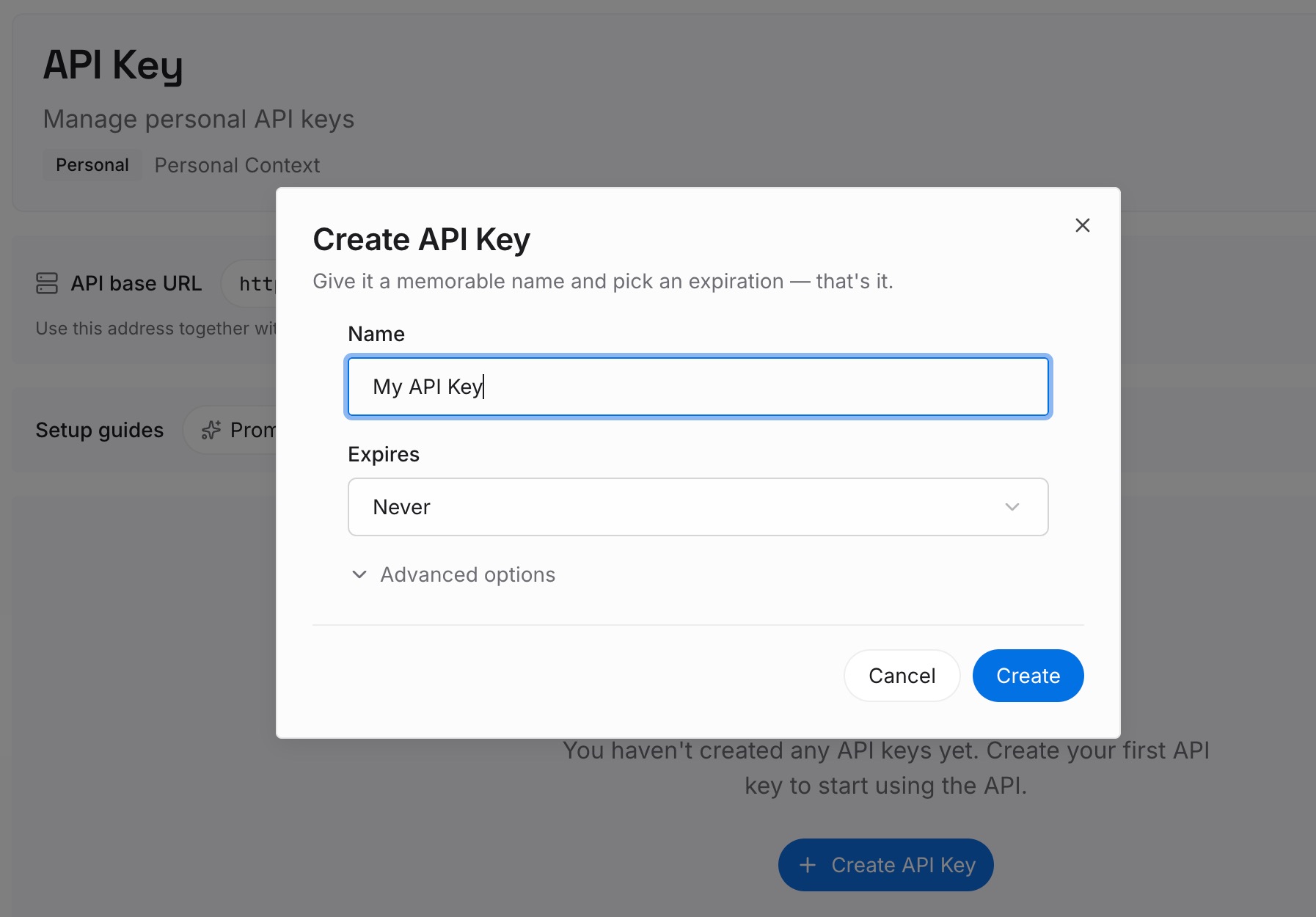
Step 1: Create an API key
Sign in and generate a key from the dashboard. The key belongs to your MemoryLake workspace, separate from your Anthropic and OpenAI accounts.
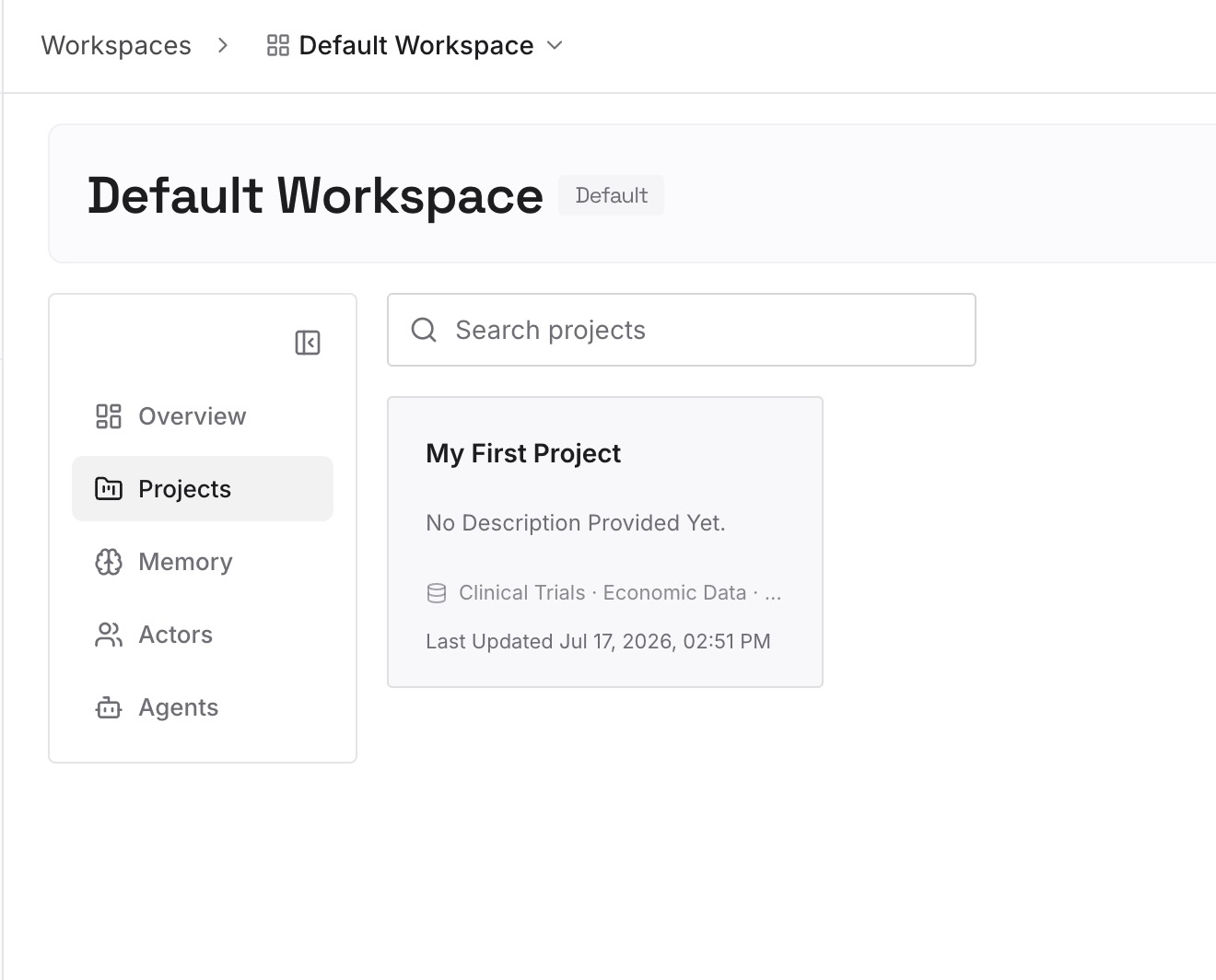
Step 2: Upload your first memories
Start with the project summaries from Step 2 of the manual migration. One decision per entry, dated, with a line on why it was made.
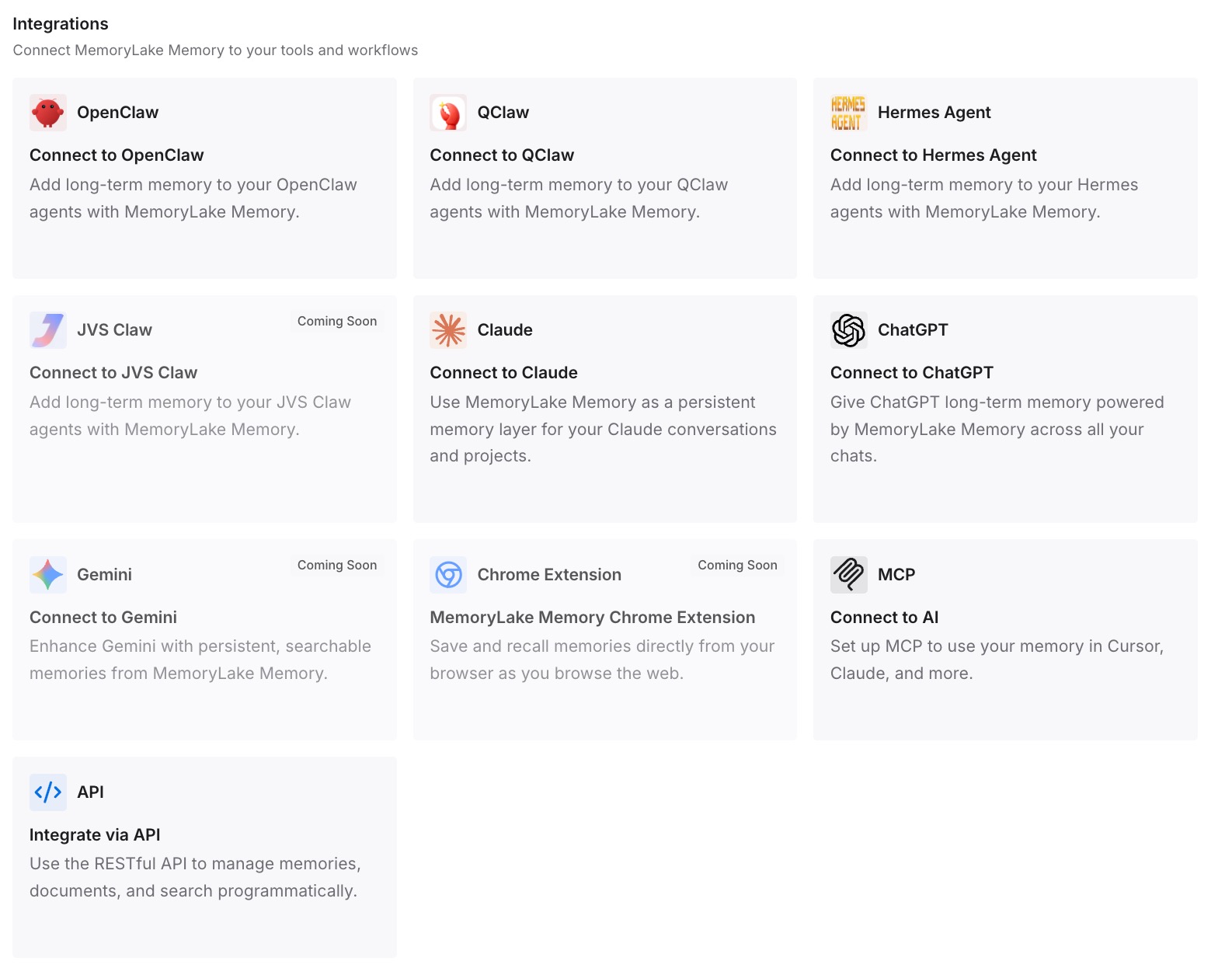
Step 3: Connect your AI & agents
Connect ChatGPT, Claude and the other assistants you use. The same decisions are then available in each, so switching stops meaning rereading.
What this changes in practice
The first difference is a cleaner start. ChatGPT begins with a curated picture of each project rather than a pile of transcripts, which makes its answers more consistent.
The second is that your full record is safe. The export archive keeps everything; the summaries keep what matters. You never have to choose between completeness and usability.
The third is that the next move is easier. The same summaries work for any destination. If you also have Claude projects to move, exporting Claude Projects to ChatGPT covers project knowledge and instructions.
The fourth is that using two assistants stops meaning two versions of your work. When decisions live in one maintained place, keeping both up to date is a single edit.
Best practices for moving Claude conversations to ChatGPT
Export first, from the web or desktop app. Download within 24 hours and keep the archive.
Be selective. Bring conversations with decisions and constraints, not your whole history.
Write a summary per project. It matters more than the source files.
Use project instructions for standing context. They override global instructions inside the project.
Consider project-only memory. It keeps old transcripts from influencing answers outside the project.
Clean sensitive details before uploading. Credentials and other people's information should not travel.
Check older Cowork tasks by name. Search in the new Claude experience does not cover them.
Respect work-account boundaries. On Team and Enterprise plans, exports belong to the organization's Primary Owner.
Conclusion
Claude lets individual users export their conversation data, with memory included, through a link that expires after 24 hours. On the ChatGPT side, the documented route for account history is a file: ChatGPT can use uploaded conversation files as reference, and its desktop app can import recent chats from agent setups on your computer, including Claude Cowork.
The migration that holds up is selective. Export everything, keep the archive, choose the conversations with decisions in them, and rebuild each topic in a ChatGPT project with a summary you wrote and the source conversations as reference.
Keep those summaries as your source, and every future move will start from what you decided rather than from everything you said.