
Where your context lives in Claude Cowork
Instructions
Cowork has two layers. Global instructions are "standing instructions that apply to every Cowork session", such as tone, output format, or background on your role. In the new unified Claude experience, Anthropic says "The Cowork Global instructions setting is now part of Instructions for Claude in Settings > General."
Folder instructions are the second layer: they "add project-specific context to Cowork when you select a local folder on desktop", and "Claude can also update these on its own during a session." So the folder instructions you have now may include lines Claude added, not only the ones you wrote.
Projects
A Cowork project has its own instructions, scheduled tasks, context, and memory. Anthropic's projects article says "New projects you create in Cowork are saved to your Claude account, so you can pick them up from your other devices." For projects made from a folder on your computer, Claude Desktop moves the project to your account, but "The project's folders and files" stay on your computer.
Project memory is scoped: "What Claude learns in one project doesn't carry over to other projects." A project also shares memory with your chats outside projects unless you've turned that off.
Memory
Claude's memory is shared between chat and Cowork. Anthropic's memory article says "Memory is shared between Chat and Claude Cowork when Cowork runs in the cloud; Cowork sessions that run locally on your computer don't use memory." The unified experience article adds that "Memory from Cowork tasks that ran only on your computer stays with those tasks."
So what Claude knows about you and your work is in three places: your account memory, each project's memory, and, for older local tasks, the tasks themselves.
Scheduled tasks
"When you create a scheduled task, Claude saves your prompt as the task's instructions and runs them at the cadence you choose." Each run "runs as its own Cowork session", and the tasks have "access to the same capabilities as regular Cowork tasks, including connected tools, skills, and installed plugins." The prompt is the part you'll recreate. Our guide to controlling whether a Cowork scheduled task uses your memory covers how memory applies to each run.
Plugins and skills
Plugins bundle "skills, connectors, and sub-agents into a single package." Skills are folders with a SKILL.md file. That format is shared: Anthropic's October 22 announcement says "More than 70 agent platforms, including ChatGPT, Cursor, GitHub Copilot, and VS Code, have integrated Agent Skills since we published the standard in December 2025."
Your tasks and their outputs
For sessions that run in the cloud, Anthropic says "your sessions and files are saved to your Claude account." Anthropic's export article says "Data exports include conversation data and the user data for your account." It doesn't list Cowork tasks separately, so check your export to see what's in it. Download the outputs you still need, such as reports, decks, and spreadsheets, from their sessions.
Where each part goes in ChatGPT Work
ChatGPT Work is "a way to delegate real work to ChatGPT", for tasks "with a clear outcome, such as a brief, deck, analysis, recurring update, workflow, or file you can review and use." Here's where the Cowork pieces land.
Global instructions become custom instructions. OpenAI says "Use custom instructions for preferences you want ChatGPT to follow across chats, such as your preferred response style."
Cowork projects become ChatGPT projects. "A ChatGPT project gives its chats access to the same uploaded files, project instructions, and connected sources." Work tasks live there alongside regular chats: "Use Chat for a quick chat or ChatGPT Work for a larger deliverable; both appear as chats in the project's Chats section."
Memory goes to ChatGPT memory. OpenAI's memories page says "ChatGPT Work uses the memory settings available to your account and workspace; it doesn't use a local Codex memory store or local memory controls." You add to it by telling ChatGPT what to remember, and OpenAI describes saved memories as "details that you explicitly ask ChatGPT to remember or that ChatGPT saves as useful context when that behavior is available."
Scheduled tasks become ChatGPT scheduled tasks. OpenAI's example is "Use scheduled tasks when you want ChatGPT Work to repeat, monitor, or refresh something over time." Its advice for keeping each run on track: "Put durable instructions in the task prompt or an attached skill, and keep required source material in an accessible project, upload, or connected service."
Connectors become plugins. "Plugins connect ChatGPT Work to tools your team uses, like Slack, Google Drive, SharePoint, email, calendars, customer relationship management systems, and project trackers." Each one needs its own authorization in ChatGPT.
Skills move as skills. A ChatGPT skill is "a directory with a SKILL.md file plus optional scripts and references." Our guide to migrating Claude skills to ChatGPT covers what to check in each one.
Local and cloud work stay separate. In the desktop app, "Choose local Work for resources on your computer, or cloud Work for tasks that don't depend on it." OpenAI's July update says "Cloud Work conversations sync across web, mobile, and desktop; local Work conversations stay on your computer." Our guide to keeping context between ChatGPT Work cloud and local covers that split.
What people try first
Exporting Claude data and importing it into ChatGPT. The Claude export is a record of your conversations. ChatGPT Work builds its context from instructions, projects, memory, and plugins, so the useful parts have to be pulled out and placed.
Copying global instructions and stopping there. Instructions are one layer. Project instructions, folder instructions, and memory hold the rest.
Assuming memory carries over. Claude's memory and ChatGPT's memory are separate systems in separate accounts.
Recreating scheduled tasks from memory. Copy each task's saved prompt first, so the new task does what the old one did.
Moving everything at once. Run the two side by side for a few tasks and compare the results before you switch your recurring work.
The manual migration
Step 1: Pull your context out of Cowork
Do this while you still have access to your Claude account.
- Instructions. Copy your global instructions from Settings, under Cowork or under Instructions for Claude in General, depending on which experience you have. Copy the folder instructions from each folder you use, and read them, since Claude may have added lines.
- Projects. For each project, copy the instructions and note the files, folders, and links in its context.
- Memory. Anthropic gives a prompt for reading it out: "Write out your memories of me verbatim, exactly as they appear in your memory." Run it in a chat outside projects, and again inside each project you're moving, since each project has its own memory. Save the results.
- Scheduled tasks. For each task, copy the saved prompt, the cadence, and the connectors it uses.
- Skills and plugins. Save your skill folders, and list the plugins and connectors you depend on.
- Outputs. Download any files from past tasks that you'll need.
Before anything goes into ChatGPT, read through what you exported and remove what you wouldn't want to carry over.
Step 2: Rebuild it in ChatGPT Work
- Set custom instructions from your global instructions, keeping preferences that apply everywhere.
- Create a ChatGPT project for each Cowork project. Add the instructions, upload the reference files, and connect the sources it needs. Put the project's memory export into the project instructions or a reference file, keeping only the points that still hold.
- Add account-level memory by telling ChatGPT the facts you want remembered, a few at a time, then check Settings > Personalization to confirm what it saved.
- Install and authorize plugins for the tools your tasks use.
- Add your skills and test each one on a task you know well.
- Recreate scheduled tasks with the saved prompts. Test each prompt in a regular chat first, as OpenAI suggests: "Before you schedule a task, test its prompt in a regular web chat."
Then run a few real tasks in both and compare. OpenAI's guidance for moving workflows elsewhere applies here too: compare familiar prompts and at least one harder case before relying on the replacement.
The Better Way: Keep your working context in one list both agents can use
The manual migration moves your context from one agent's settings into another's. It's a one-time copy. After the switch, decisions keep being made in ChatGPT Work, and if you still use Claude for some tasks, the two sides drift apart again.
MemoryLake is a memory layer for keeping the preferences, project facts, and decisions your tasks depend on in one list you maintain, available to ChatGPT and the other assistants you connect, such as Claude Code and Codex.
You write the entries yourself, in your own words. Nothing is read out of, written to, or deleted from your Claude account, your Cowork projects, your Claude memory, your ChatGPT memory, or any vendor's store. For work accounts, follow your organization's policy on what you keep outside its tools.
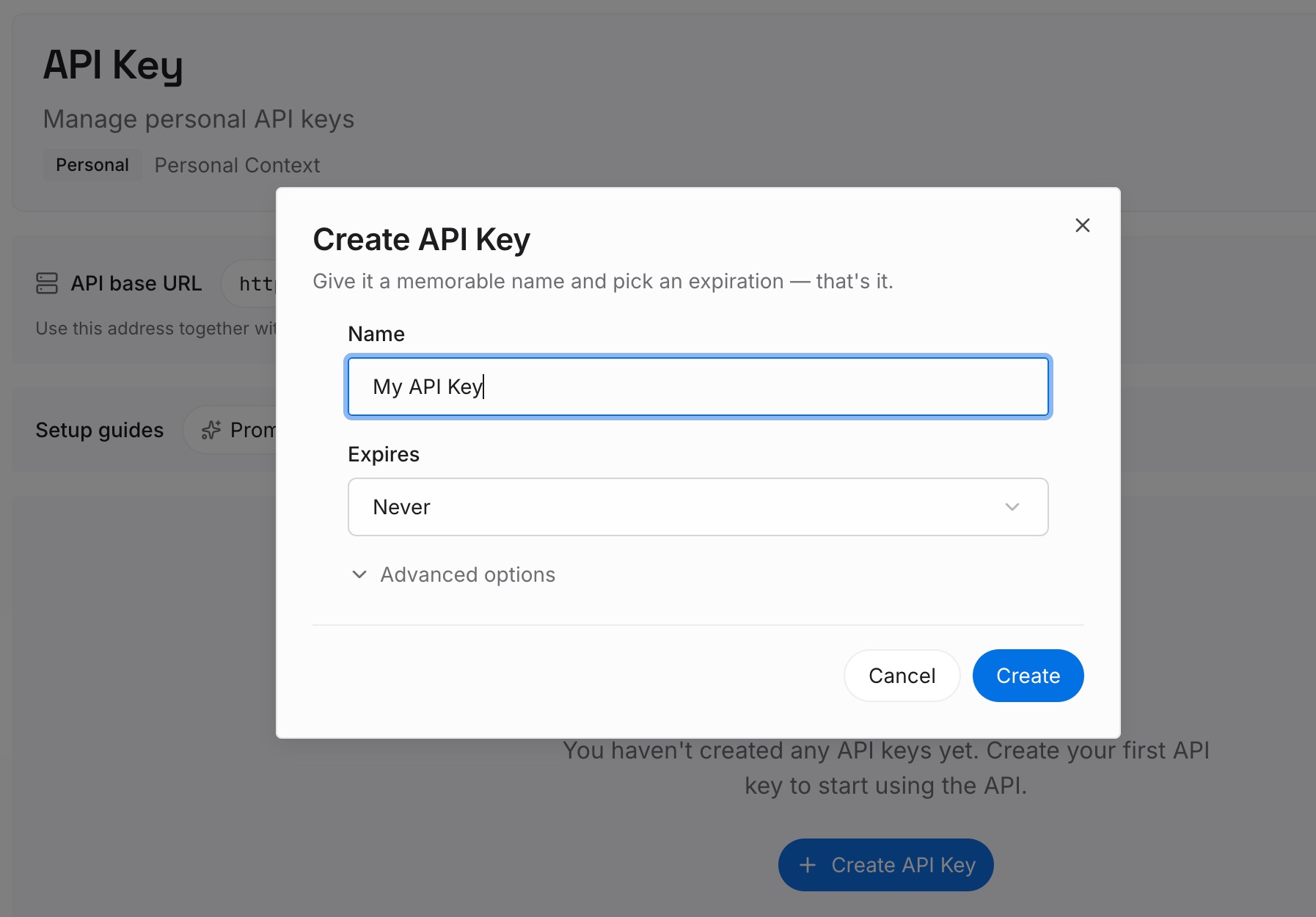
Step 1: Create an API key
Sign in and generate a key from the dashboard. The key belongs to your MemoryLake workspace and is separate from your Claude and ChatGPT accounts.
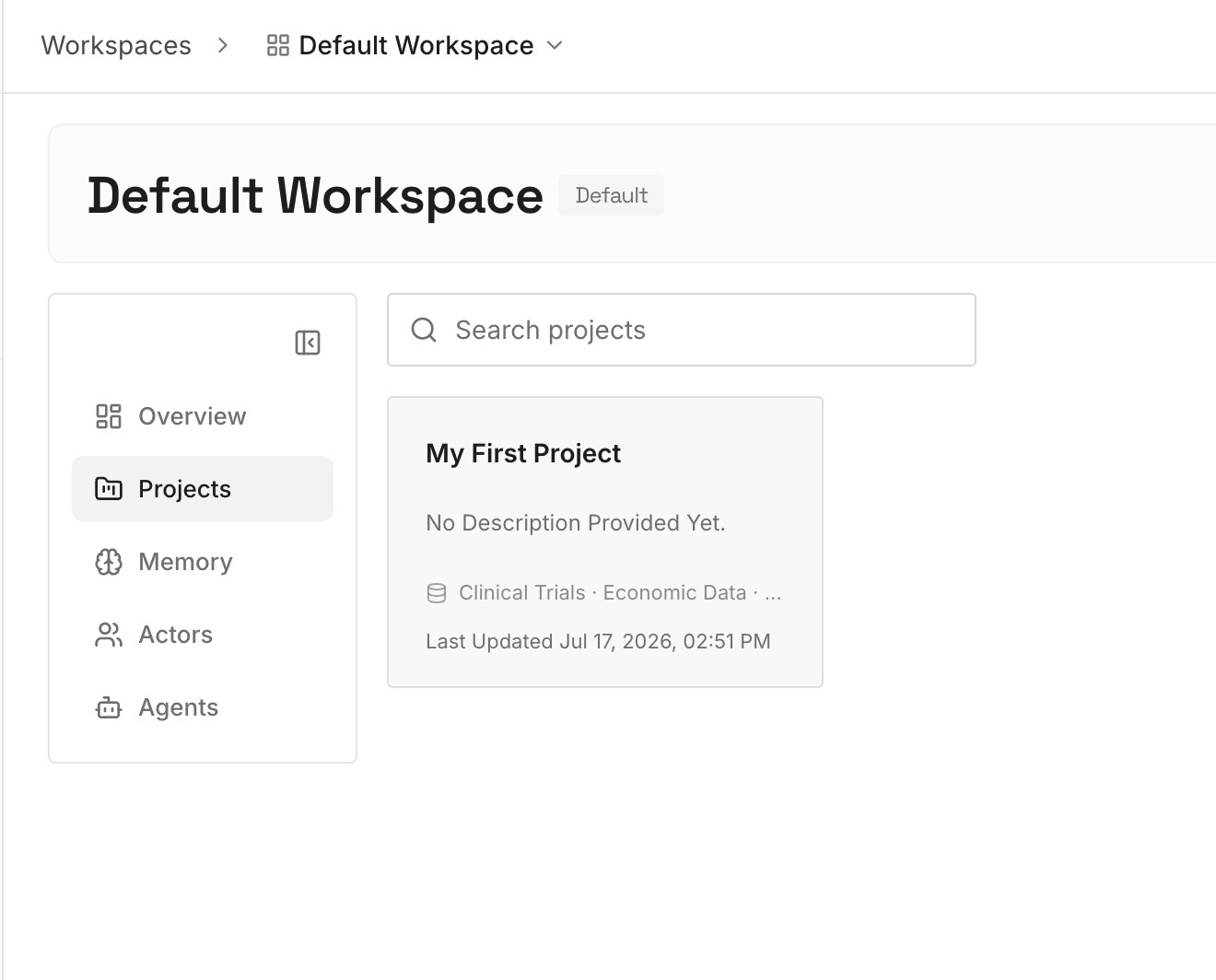
Step 2: Upload your first memories
Start with what you pulled out in Step 1 of the manual migration: the instructions, the project facts, and the memory points that still hold. One point per entry, dated, and labeled with the project it belongs to.
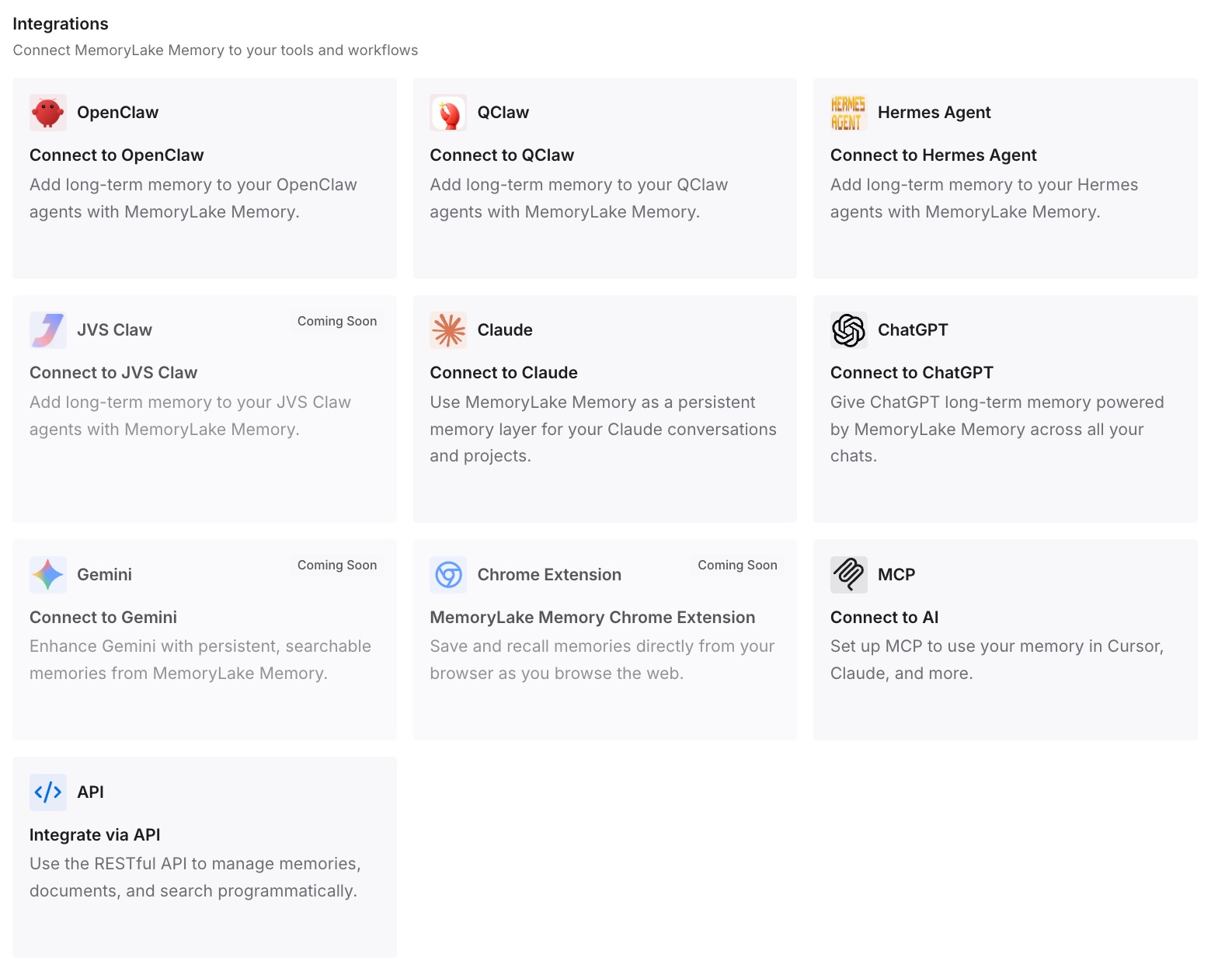
Step 3: Connect your AI & agents
Connect ChatGPT and the other assistants you use. The same context is there when a Work task starts, whichever tool you hand the task to.
What this changes in practice
The first difference is that nothing gets left in the old account by accident. Instructions, projects, memory, scheduled tasks, skills, and outputs each have a place in ChatGPT Work, and you've moved each one.
The second is that the first tasks in Work start informed. Custom instructions, project files, and memory are in place before you ask for the first deck or report.
The third is that the switch doesn't have to be all or nothing. Your working context isn't tied to one agent, so you can keep using either for the tasks it does best. Our guide to migrating Claude memory to ChatGPT covers the memory side in more depth.
Best practices for moving from Cowork to ChatGPT Work
Export before you cancel. Memory, instructions, and task prompts are easiest to collect while you have access.
Read folder instructions before copying them. Claude can update them during a session.
Move projects one at a time. Instructions, files, and the project's own memory belong together.
Recreate scheduled tasks from their saved prompts. Test each one in a regular chat first.
Keep durable instructions in the task prompt or a skill. That's OpenAI's advice for scheduled tasks.
Authorize plugins separately. Each tool needs its own connection in ChatGPT.
Run both side by side for a few tasks. Compare the outputs before moving recurring work.
If a recurring task in ChatGPT keeps losing track of earlier runs, our guide to stopping ChatGPT's scheduled tasks from starting over covers how runs carry context.
Conclusion
Moving from Claude Cowork to ChatGPT Work means moving five kinds of context: instructions, projects, memory, scheduled tasks, and skills and plugins. Global instructions become custom instructions, Cowork projects become ChatGPT projects, Claude's memory is read out and added to ChatGPT memory or project instructions, scheduled tasks are rebuilt from their saved prompts, and skills move as SKILL.md folders.
Export while you still have access, rebuild one project at a time, and test your recurring tasks before you rely on them.