
Why people are moving Cowork tasks to Claude Code
Anthropic's help center describes the October change: "On October 6, 2026, new Cowork tasks on Pro, Max, and Ultra plans run in the cloud." The Only on your computer option in Settings > General was removed, and the article adds that you can't switch back.
Tasks you started on your computer before that date stay there until they're done, each with a banner saying it runs only on this computer. New work goes to the cloud. For many people that's the point of Cowork: tasks continue when the laptop is closed, and the same session opens on web and mobile.
Others want the opposite. They want the work, the folders, and the record on one machine. For them, Anthropic's answer is Claude Code, which runs Claude in a terminal, an IDE, or the Code tab of the desktop app.
What a Cowork task holds
Before you move a task, it helps to know what's in it. A Cowork task can carry several things, and they don't all live in the same place.
- The conversation. What you asked, what Claude did, and what it reported back.
- Files Claude created. In Claude Desktop, Anthropic says "the folder Cowork saved its work to is still there." Look for Storage folder in Settings.
- Connected folders. Folders you gave Cowork access to, listed under Trusted folders. They stay on your computer.
- A project, if the task was in one. Instructions, context, scheduled tasks, and project memory.
- Account-level pieces. Connectors, skills, and plugins. Anthropic says "A plugin you add is saved to your account, so it works in chat and Claude Code as well as Cowork."
- Memory. Claude's memory from your chats and cloud Cowork tasks, plus, for older local tasks, memory that stays with the task.
Some of these move with a download. Some are already on your account. Some you'll rebuild by hand.
Anthropic's route: Download task data and /port-task-data
Anthropic's help center lists three steps for bringing a Cowork task to Claude Code:
- Open the task and select Download task data.
- Unzip the download and open the folder in Claude Code.
- "Run /port-task-data to pick up with your context."
The download gives you a folder. Opening that folder in Claude Code makes it the working directory for a new session, and the command lets Claude pick up from the task's data.
Two details are worth knowing. First, the help article is where Anthropic documents /port-task-data; Claude Code's own commands page doesn't list it as of this writing. Second, the article says the command lets you pick up with your context but doesn't list what it reads from the download. After it runs, ask Claude to summarize what it knows about the task, and compare that with what you remember.
If you want a copy of everything rather than one task at a time, the same article points to a card on the desktop home: select Export your Cowork data.
Where each piece belongs in Claude Code
Claude Code remembers in its own way. Anthropic's memory documentation starts from this: "Each Claude Code session begins with a fresh context window." Two mechanisms carry knowledge across sessions.
Instructions go in CLAUDE.md
CLAUDE.md files are "instructions you write to give Claude persistent context." They can live in a project, in your user folder for all projects, or at the organization level. If your Cowork project had instructions, rewrite them as a CLAUDE.md in the folder you'll work in. Anthropic notes that Claude treats these files "as context, not enforced configuration", so keep them short and specific.
Learnings go in auto memory
Auto memory is "notes Claude writes itself based on your corrections and preferences". Anthropic says "Each project gets its own memory directory at ~/.claude/projects/<project>/memory/." The project path comes from the git repository, so worktrees of the same repository share it. Claude builds it as you work, and you can read the files. Our guide to Claude Code auto memory covers what it saves and how to review it.
Files and folders stay where they are
Your connected folders were on your computer all along. Open the same folder in Claude Code and Claude works there directly. Copy anything you need from the Storage folder into it.
Connectors come with your account
Connectors you added in claude.ai follow your login. Claude Code's documentation says that if you've logged into Claude Code with a claude.ai account, "MCP servers you've added in claude.ai, known as connectors, are automatically available in Claude Code". So the connectors a Cowork task used are available in Claude Code too, as long as you sign in with the same claude.ai account. Local MCP servers that Cowork ran through the desktop app are a different case: add them to Claude Code's own configuration.
One caution about accounts. If you use separate Claude accounts for work and personal tasks, sign in to Claude Code with the account that owns the Cowork task, or its connectors and plugins won't be the ones you expect.
Projects need a decision
Anthropic's Cowork projects article lists a current limitation: "Projects are only available in Cowork, not in Claude Code. Support for Claude Code is planned for a future update." Claude Code has its own Projects feature for coordinating cloud threads, in public beta; our guide to Claude Code Projects and project memory covers how it stores memory. Its documentation describes earlier chat and Cowork projects separately and says "Those projects keep working as they do today until the redesigned experience reaches them."
In practice, plan to rebuild a Cowork project yourself. Rebuild its instructions as a CLAUDE.md and its reference files as files in the folder. If you're moving a chat project rather than a Cowork one, our guide to migrating Claude projects to Claude Code covers that path.
What to check before you leave Cowork
Scheduled tasks
Cowork's scheduled tasks run in the cloud on their own cadence. The help article on moving to Claude Code doesn't say scheduled tasks come with a task's data. List them, with their prompts and timing, before you stop using Cowork.
Memory that stays with old local tasks
For tasks that ran only on your computer, Anthropic says "Memory from Cowork tasks that ran only on your computer stays with those tasks." If one of those tasks taught Claude something you rely on, write it into CLAUDE.md or your own notes.
Browser logins
If your tasks signed in to websites through Cowork's built-in browser, our guide to Cowork browser logins explains what Cowork kept.
History in Claude Code has a clock
Claude Code keeps sessions on your computer, but not forever. The cleanupPeriodDays setting sets "how many days Claude Code keeps session transcripts and other application data before deleting them", and the default is 30. Anthropic adds that "The sweep deletes transcripts without showing a message". If the history is the reason you moved, raise that setting.
Deleting in Cowork
Anthropic says a deleted Cowork task is removed from your task history immediately and from its backend storage within 30 days. Since November 3, Claude Desktop's Reset App Data can also delete the signed-in account's Cowork tasks from Anthropic's servers, where its confirmation dialog says so. Download first, then clean up.
What people try first
Copying the final answer and starting over. The answer is the smallest part. The decisions and context behind it are what save you time.
Expecting the Cowork project to appear in Claude Code. Anthropic lists projects as Cowork-only for now. Rebuild the instructions as a CLAUDE.md.
Pasting old Cowork instructions into every prompt. Put them in CLAUDE.md once, and Claude Code loads them at the start of every session.
Assuming local history lasts forever. Claude Code cleans up transcripts after 30 days by default.
Deleting Cowork tasks right after the move. Check the result of /port-task-data first.
The manual migration
Step 1: List the tasks worth continuing
Go through Recents and pick the tasks that are still in progress or that you return to. Note which project each belongs to, which folders it uses, and any scheduled tasks tied to it.
Step 2: Download task data and port each task
For each task on your list, select Download task data, unzip it, open the folder in Claude Code, and run /port-task-data. Then ask Claude to summarize what it knows about the task, and correct anything it got wrong.
Step 3: Rebuild the project instructions as CLAUDE.md
Write the Cowork project's instructions into a CLAUDE.md in the folder you'll work in. Keep the rules short. Move longer reference material into files in the folder, and let auto memory collect the corrections you give Claude as you go.
The Better Way: Keep the decisions from your tasks in one list you control
The manual migration shows where the value of a Cowork history sits: in a short list of decisions, preferences, and facts about your work, spread across many tasks. You dig them out every time a tool changes how it stores things, and October was one of those times.
MemoryLake is a memory layer for keeping that list in one place you maintain, available to the assistants you connect, such as ChatGPT, Claude Code, and Codex.
You write the entries yourself, in your own words. Nothing is read out of, written to, or deleted from your Cowork tasks, your Cowork exports, your Claude account, your CLAUDE.md files, your auto memory, or any vendor's store. Download task data and /port-task-data keep working the way Anthropic describes them.
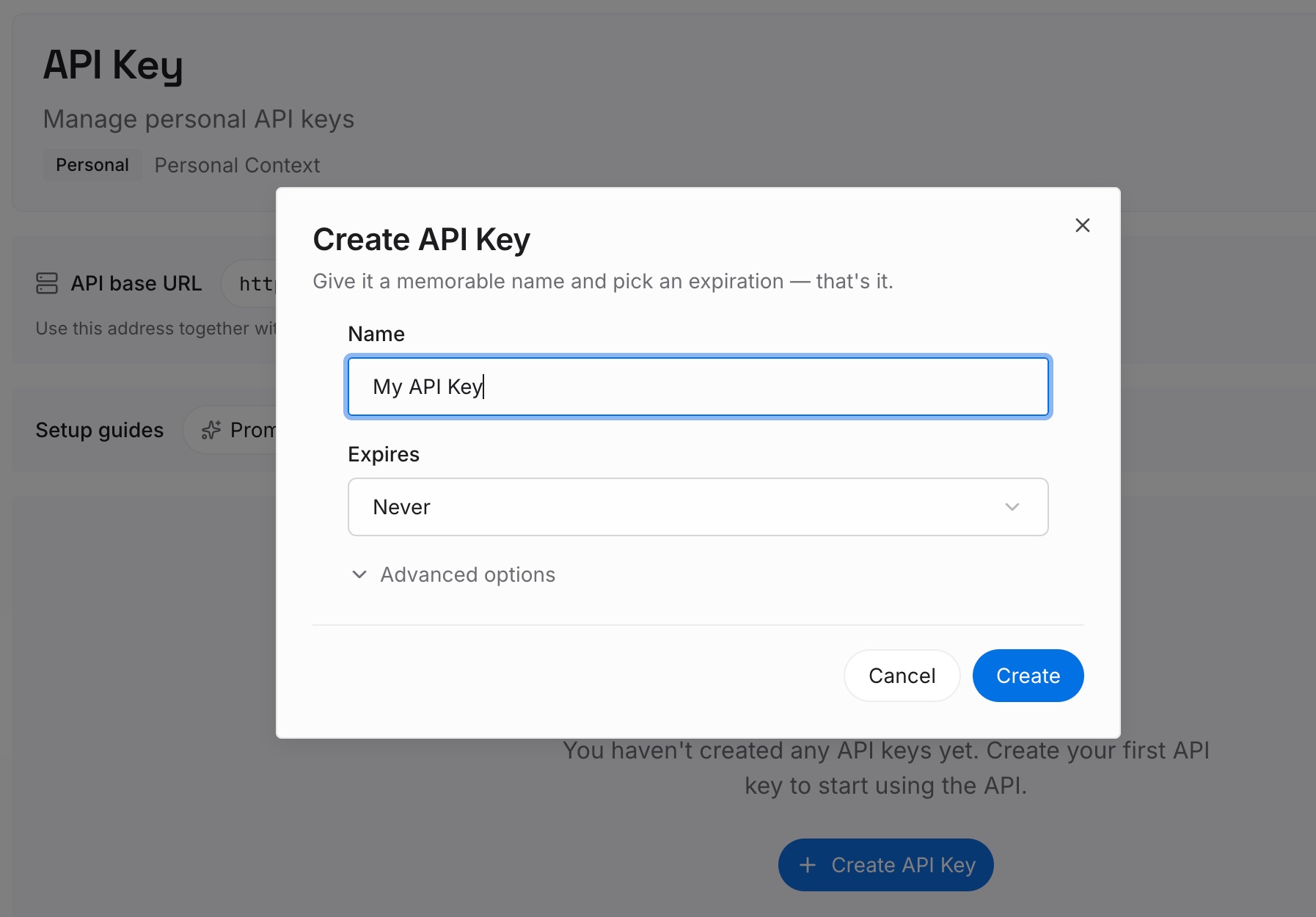
Step 1: Create an API key
Sign in and generate a key from the dashboard. The key belongs to your MemoryLake workspace and is separate from your Claude account.
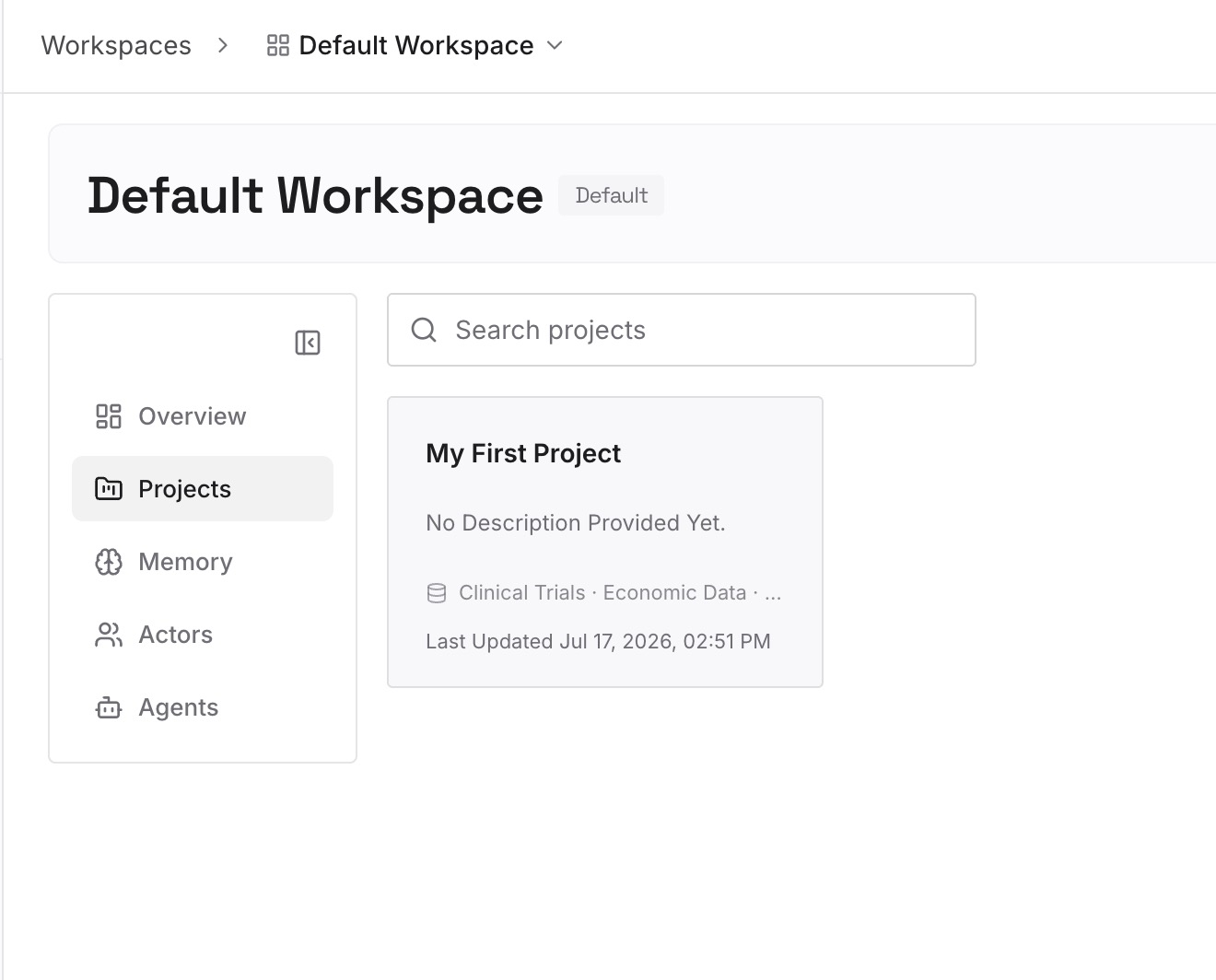
Step 2: Upload your first memories
Start with what you wrote down in Step 1 and Step 3 of the manual migration: decisions, conventions, and the facts Claude needed in Cowork. One point per entry.
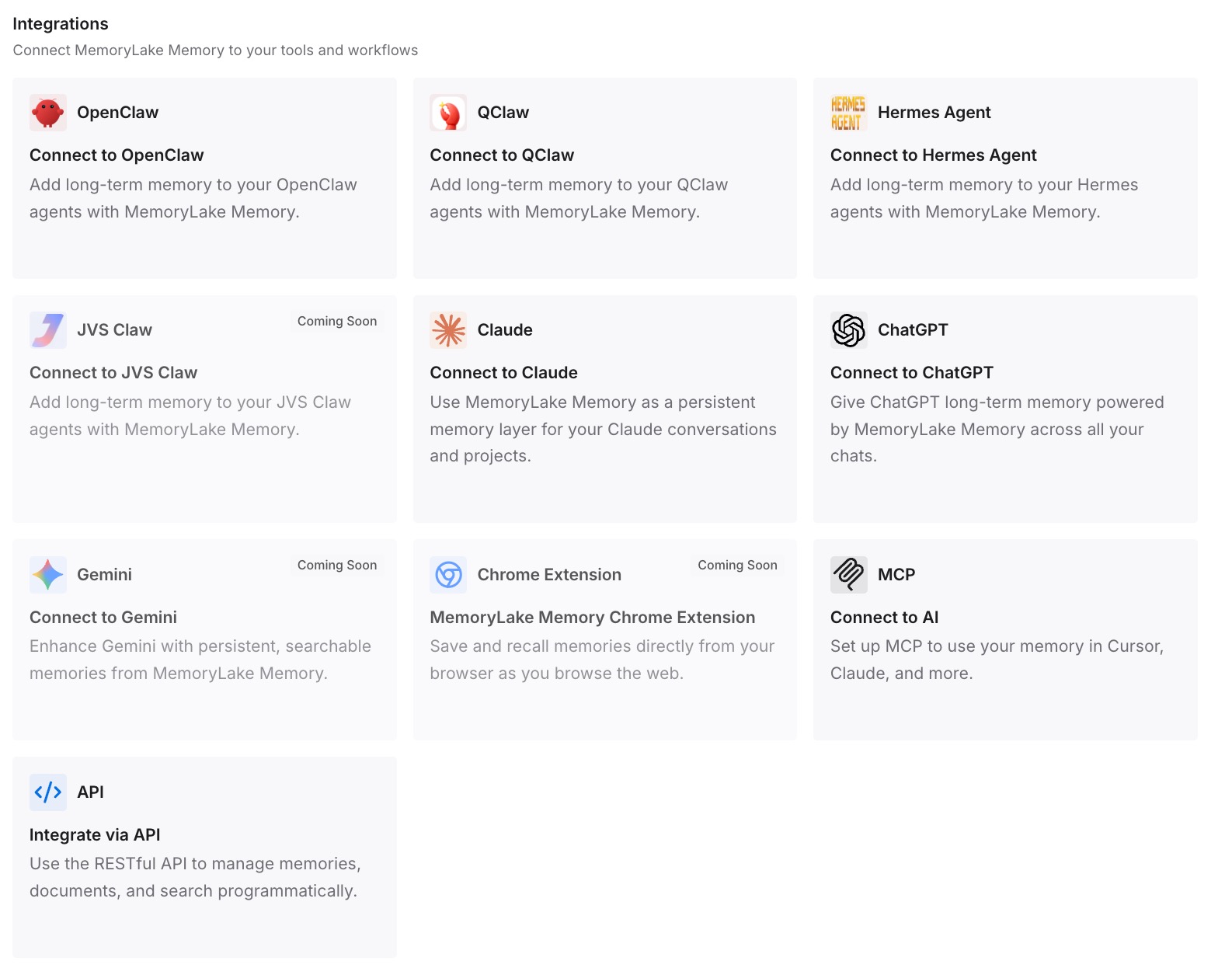
Step 3: Connect your AI & agents
Connect Claude Code and any other assistants you use. The same entries are available in each one, whether the work runs in Cowork, in Claude Code, or somewhere else later.
What this changes in practice
The first difference is a shorter migration. You port the tasks that matter and carry the decisions, not every transcript.
The second is less re-explaining in Claude Code. A fresh session starts with CLAUDE.md and auto memory, and the facts you used to give Cowork are already written down.
The third is less risk from cleanup. Claude Code's transcript sweep and Cowork's deletions don't take the decisions with them.
Best practices for moving Cowork tasks to Claude Code
Port the tasks you'll continue. Use Download task data and /port-task-data for each one.
Check what Claude picked up. Ask for a summary after the command runs.
Rebuild instructions as CLAUDE.md. Cowork projects don't move to Claude Code for now.
Copy the Storage folder. It holds the files Cowork made.
List scheduled tasks before leaving. Note their prompts and timing.
Raise cleanupPeriodDays if history matters. The default is 30 days.
Delete in Cowork last. Anthropic doesn't describe a way to restore a deleted task.
Conclusion
Anthropic's route from Cowork to Claude Code is three steps: download the task data, open the folder in Claude Code, and run /port-task-data. It works one task at a time, and the help article doesn't list what the command carries, so check the result.
Around that route, rebuild what doesn't come with a task. Project instructions become a CLAUDE.md, files come from the Storage folder, and scheduled tasks need a list. Keep the decisions themselves somewhere you control, so the next change in how Claude stores work costs less.