
Project or plugin?
OpenAI's FAQ frames the retirement around plugins: "We're planning to retire custom GPTs and help creators migrate them to plugins." The built-in migration copies your GPT's instructions into a skill and its knowledge files into the plugin's reference files.
The project route is mentioned in the overview too: "If you used a GPT to keep instructions and reference files together for ongoing work, you can also start a project in ChatGPT."
The two suit different jobs:
- A project keeps chats, files, and instructions together for work you return to. It's a place you work in.
- A plugin packages reusable instructions, reference files, and connected apps, and ChatGPT can pick a relevant skill when its description matches your request.
You don't have to choose only one. You can run the built-in migration to keep a plugin, and also set up a project for your own day-to-day use.
What a project can hold
A project covers the three parts of most GPTs: instructions, reference files, and the chats where you use them.
Instructions
In the project, open the more options menu (•••) and select Project settings to add instructions. OpenAI notes one rule that matters for a former GPT: "Project instructions apply only within that project and override your global custom instructions."
Files
You can upload PDFs, spreadsheets, docs, images, or pasted text as project sources. "The number of files you can upload depends on your plan." The project article's collaboration limits list:
- Pro: up to 40 files
- Plus and Go: up to 25 files
- Free: up to 5 files
- Business, Enterprise, and Edu projects: up to 40 files
OpenAI's GPT builder article says you can attach "up to 20 files to a GPT". By those numbers, a full GPT's knowledge fits in one project on Plus, Go, Pro, and workspace plans. On Free, you'll need to choose which files matter most. For the current figures on your plan, OpenAI points to its plans and limits page.
Links and saved responses
Projects can also take links from supported apps as sources: Google Drive files and folders, and Slack channels. And when a project chat produces something worth reusing, such as a summary or decision note, you can open the message menu and select Add to project sources.
How memory changes
This is the difference to check first. OpenAI's GPT article says: "GPTs do not use saved memory, custom instructions, or previous conversations. Each conversation starts fresh."
A project can use memory, and you choose how much. OpenAI's project article explains: "Projects can use either default memory or project-only memory. You can select a memory setting when you create a project and change it later from the project's settings."
With default memory, "your saved memories are referenced and chats can draw on other conversations within the same project." On plans other than Enterprise and Edu, project chats can also reference conversations outside the project unless the other project is set to project-only memory.
With project-only memory, the project behaves more like a self-contained GPT:
- "Your previously saved memories are not referenced in project chats."
- "Chats can reference other conversations within the same project."
- "Chats cannot reference conversations outside the project, such as general ChatGPT conversations or conversations in another project."
If your GPT relied on starting clean, for example a client-facing writing assistant that shouldn't pick up details from your other work, project-only memory is the closer match. If you'd like the project to know your general preferences, default memory brings them in. The setting is under Project settings, Memory, and OpenAI notes that "Changes may take a few hours to take effect." Our guide to ChatGPT's project memory modes compares the two settings in more detail.
What won't move
OpenAI's FAQ lists the gaps in the project route in one paragraph:
- Your existing GPT chats. "Existing chats with a GPT stay in your chat history and can't be moved into a project." OpenAI's project article repeats it: "Chats created with a GPT can't be moved into a project."
- Custom actions. "This setup doesn't transfer the GPT's custom actions or sharing settings."
- Sharing settings. People who used your GPT don't get access to your project automatically.
A few more parts of a GPT have no direct place in a project. Conversation starters, the GPT's name and description, and its recommended model are GPT configuration fields. The project has a name and icon, and you pick the model in each chat.
What happens to your GPT and its chats
The standard retirement date is December 11. "Custom GPTs are scheduled to retire on Dec 11, 2026." Some workspaces get longer: "FedRAMP workspaces and affected Enterprise workspaces with a qualifying, approved deferral have a retirement date of Feb 11, 2027."
Until then, your GPT keeps working. "Existing GPTs remain usable until the retirement date, subject to their existing access and workspace permissions." Setting up a project is a separate step, and the GPT keeps working until then.
At retirement, "custom GPTs and their GPT pages become inaccessible." Your history isn't lost with them. The FAQ says: "Your existing conversations with custom GPTs will remain accessible after retirement. You don't need to take any action to preserve them."
That means your old GPT chats stay readable, but they stay in your chat history. They won't appear inside the new project.
If you also run the plugin migration
Running the built-in migration has its own effect on the original: "After a GPT is migrated, the original remains usable until retirement but becomes read-only." Finish any edits to the GPT first, and copy its instructions and files for your project before you migrate.
Sharing the project with the people who used your GPT
If others used your GPT, you can share the project instead. OpenAI says project sharing is "available on ChatGPT Free, Go, Plus, Pro, Business, Enterprise, and Edu across the web and mobile apps."
Two access levels apply:
- Edit access lets members update instructions, upload or remove files, and invite others.
- Chat access lets members see and interact with the project's chats, files, and instructions.
Shared projects handle memory differently from your own. "Shared projects are automatically set to project-only memory and cannot be switched to default memory." OpenAI adds that "Shared projects do not have access to an individual member's context, custom instructions, or memories outside the project." For a GPT that many people used, that's close to how the GPT behaved.
Collaborator limits depend on the owner's plan. A Plus or Go owner can have up to 10 collaborators, a Pro owner up to 100, and a workspace project up to 100.
What to save before you start
Copy these from the GPT while you can still open it in the editor:
- The instructions, in full. You'll paste them into Project settings.
- The knowledge files. Download or locate the originals so you can upload them to the project.
- The conversation starters. They become notes for how to open a project chat.
- What the custom actions did. Write down each action's purpose, since it won't transfer.
- The best answers from past GPT chats. Since those chats can't move, copy the outputs and decisions you still rely on.
The last item matters most if you used the GPT for months. Months of GPT chats can hold corrections and conclusions that never made it into the instructions.
What people try first
Moving old GPT chats into the project. OpenAI says chats created with a GPT can't be moved into a project.
Expecting the project to start fresh like the GPT. With default memory, your saved memories are referenced. Choose project-only memory if you want separation.
Running the plugin migration first. It makes the original GPT read-only. Copy what you need before you migrate.
Assuming custom actions carry over. They don't transfer in either route.
Waiting until December. The GPT stops being accessible at retirement, and you'll want time to test the project.
The manual migration
Step 1: Copy everything from the GPT editor
Save the instructions, knowledge files, conversation starters, and a note on each custom action. Do this before running any plugin migration.
Step 2: Create the project and choose its memory setting
Select New project in the sidebar. Choose project-only memory if the GPT should stay separate from your other chats, or default memory if it should know your general preferences.
Step 3: Add instructions and files
Paste the instructions into Project settings and upload the knowledge files. Check your plan's file limit and prioritize if needed.
Step 4: Bring over the context from old chats
Paste the key outputs and decisions from past GPT chats into a document and add it as a project source, or save useful responses with Add to project sources as you work.
Step 5: Test with familiar prompts
Start a new chat in the project and run the prompts you used most with the GPT. Compare the answers, adjust the instructions, then share the project if others need it.
The Better Way: Keep your working context in one place you own
A project is a good home for one line of work in ChatGPT. But the context inside it, such as your style rules, client details, and the decisions you reached in old GPT chats, is also context you'd want in other places, and in the next tool if this one changes again.
MemoryLake is a memory layer for keeping that working context, such as preferences, project details, and decisions, in one place you maintain, available to the assistants you connect, such as ChatGPT, Claude Code, and Codex.
You write the entries yourself, in your own words. Nothing is read out of, written to, or deleted from your custom GPTs, their conversations, your projects, your ChatGPT memory, your plugins, or any vendor's store. GPT retirement, projects, and plugin migration work the way OpenAI describes them.
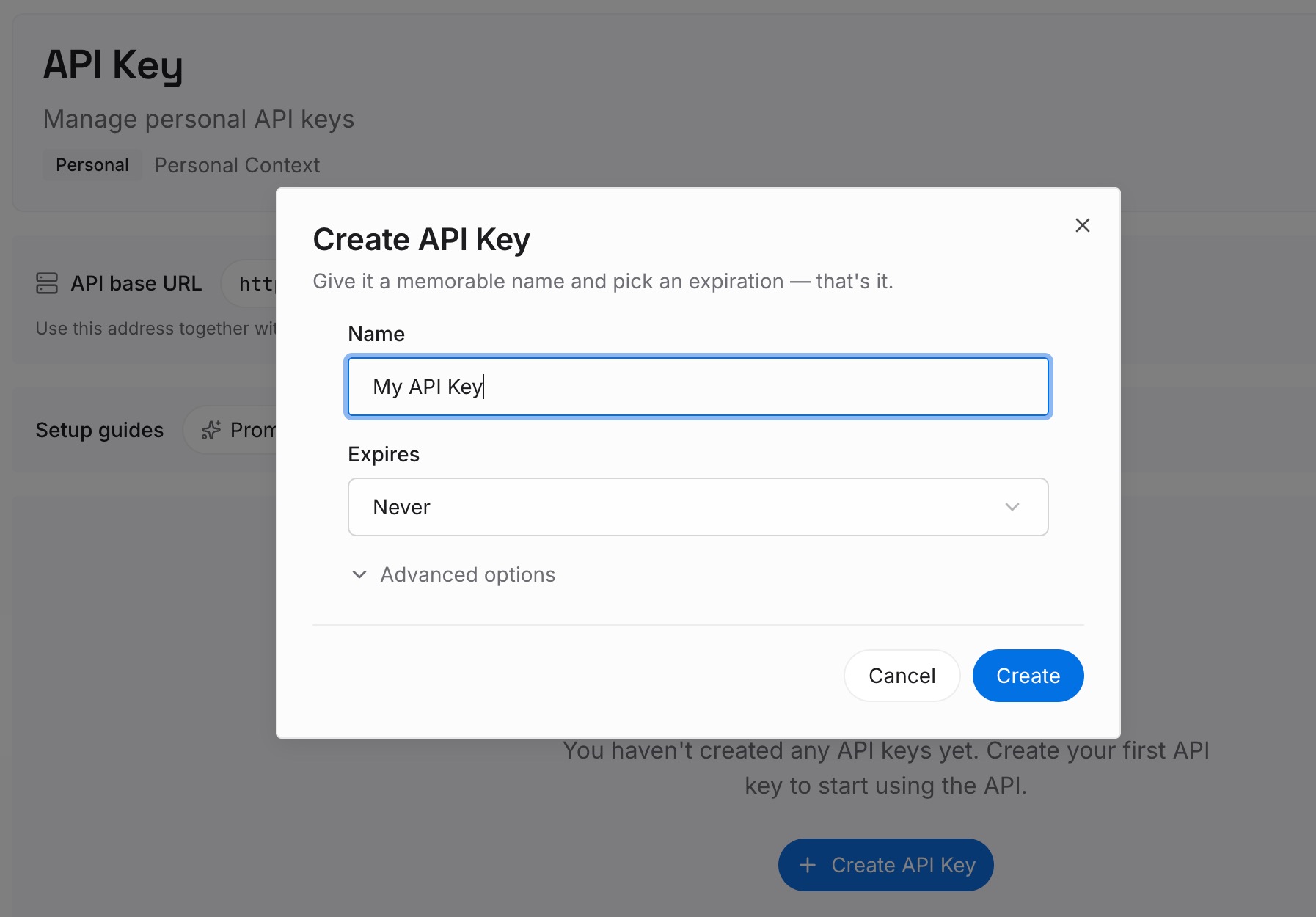
Step 1: Create an API key
Sign in and generate a key from the dashboard. The key belongs to your MemoryLake workspace and is separate from your ChatGPT account.
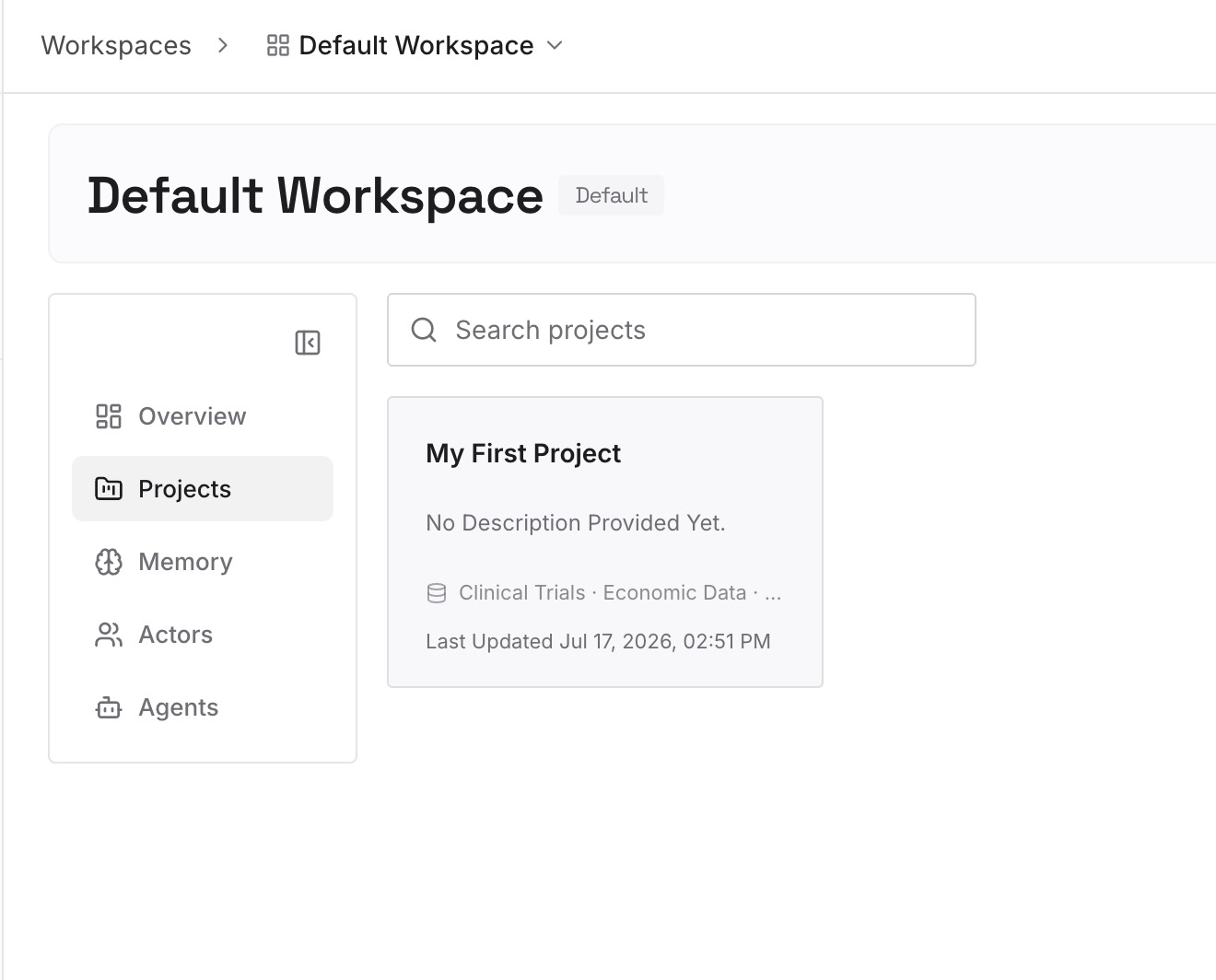
Step 2: Upload your first memories
Start with what you saved in Step 4 of the manual migration: the decisions, corrections, and conclusions from old GPT chats, plus the rules your instructions assumed. One item per entry.
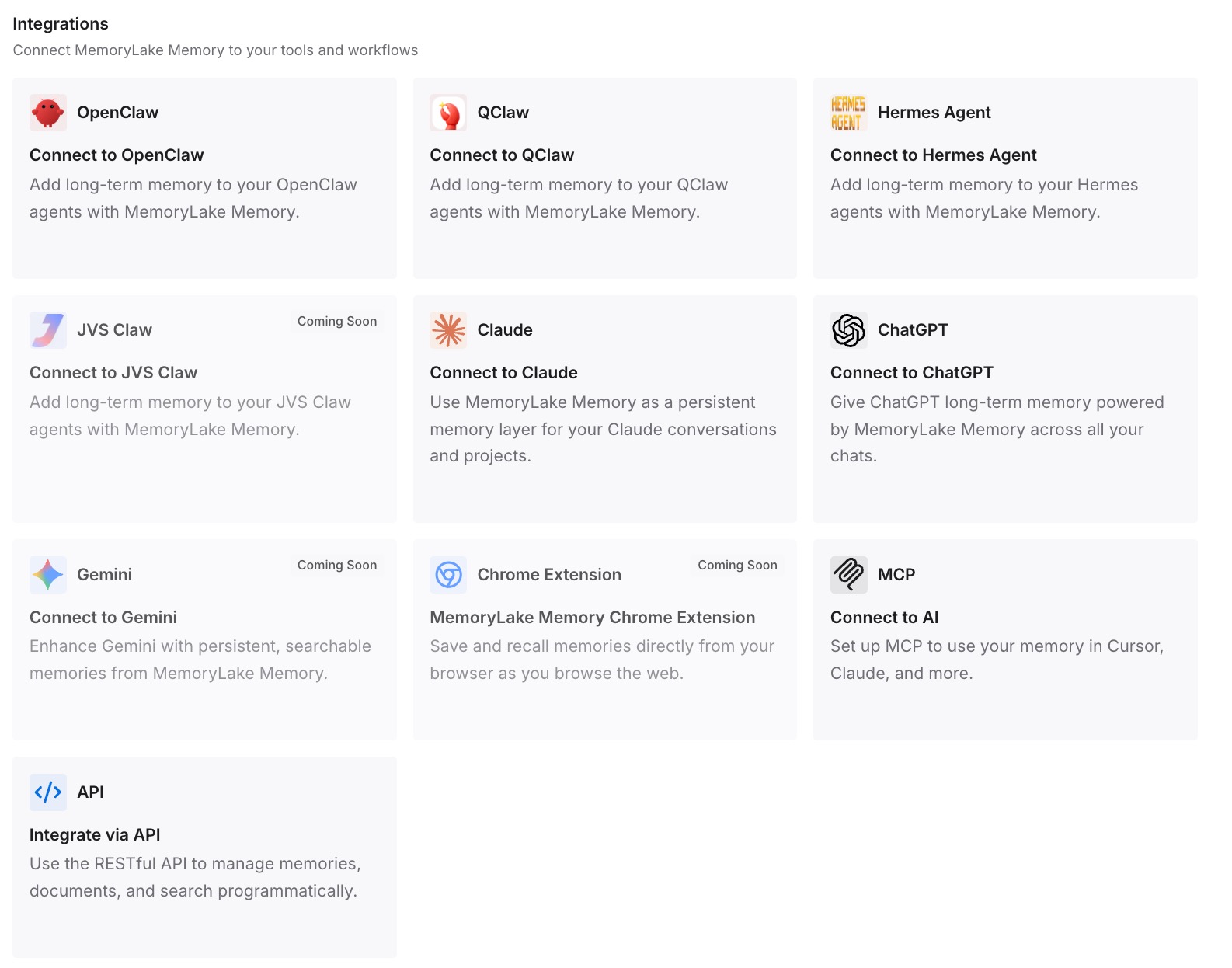
Step 3: Connect your AI & agents
Connect ChatGPT, Codex, and any other assistants you use. The same entries are available whether you work in the project, in a plugin, or in another tool.
What this changes in practice
The first difference is that the retirement date stops being a deadline for your knowledge. The context from old GPT chats is already written down.
The second is less copying between containers. Whether you use a project, a plugin, or both, the background lives in one place.
The third is an easier next move. If you change tools later, your entries come with you.
Best practices for moving a custom GPT to a project
Copy before you migrate. The plugin migration makes the original GPT read-only.
Pick the memory setting on purpose. Project-only memory keeps the project separate, and default memory brings in your saved memories.
Check your file limit. A GPT could hold up to 20 files, and project limits depend on your plan.
Rescue the context in old chats. They stay readable after retirement but can't move into the project.
Replace custom actions separately. Neither the project nor the plugin route transfers them.
Test with your usual prompts. Compare answers before you rely on the project.
Share deliberately. Shared projects use project-only memory and don't see members' outside context.
Conclusion
OpenAI's retirement FAQ now names projects as an option for GPTs you used for ongoing work. A project holds instructions, files, app links, and chats together, and project instructions override your global custom instructions inside it. Unlike a GPT, a project can use memory, so choose project-only memory if you want the separation your GPT had.
Your existing GPT chats stay accessible after the December 11 retirement, but they can't be moved into a project, and custom actions and sharing settings don't transfer. Copy the instructions and files before any plugin migration, bring the key outputs from old chats along yourself, and test the project with the prompts you used most.