
What actually transfers
Route one: download meetings one at a time
Fireflies lets you download content from each meeting's page. Open the Meetings tab, find the meeting, open it, and use the Download icon. The options are the transcript, the summary, the video, and the audio.
The transcript comes in several formats. Fireflies lists PDF, DOCX, SRT, CSV, JSON, and MD, with options to include timestamps and speaker labels. Summaries download as DOCX, PDF, JSON, or MD, and you can include the output of AI Skills. Fireflies notes that AI Skills output appears in a downloaded summary only if a skill was run after the meeting was processed. Video downloads as MP4 and audio as MP3. On paid plans, you can also remove Fireflies branding from downloaded transcripts.
If the default summary format doesn't suit what you plan to upload, Fireflies lets you create a custom summary template from your own instructions or sample meeting notes, then download that summary like any other. If you don't see the Download button at all, Fireflies' advice is to make sure the meeting is fully processed and that you have access to the recording.
There's a plan requirement: "Downloading meeting transcripts, summaries, and audio or video recordings is available on Fireflies Pro plans and higher." If you're part of a workspace, your admin may also have set or enforced the AI summary template, which affects what a downloaded summary looks like.
Route two: request a full account export
For everything at once, Fireflies offers an account data export. Its help center says "We support full data exports for all users upon request."
The process is a request rather than a button. You submit a data request form, then approve a confirmation email. Fireflies is explicit about that step: "Your data will not be processed until you approve this email." Once your request is processed, Fireflies says you'll receive the data within 24 to 48 hours, as a download link to a zipped file.
The export includes your meetings and file recordings as audio (MP3) and video (MP4) where available, transcripts in TXT format with speaker identification, AI summaries in TXT format, attendee information, and associated metadata in JSON.
One deadline matters: "The download link is valid for 7 days from when it is sent." If you miss it, you have to submit a new request.
Route three: connect Fireflies to ChatGPT
Fireflies also runs an MCP server, and its help center documents a connector for ChatGPT using OAuth, with "no API keys required." The tools it lists are get_user, get_transcript, and get_transcripts, which search across past transcripts with filters. Fireflies' article says that once connected, you can query your Fireflies data through ChatGPT's Deep Research feature.
Two cautions come with it. First, Fireflies' setup steps refer to ChatGPT's Connectors settings, and the article was last updated about eleven months ago. OpenAI now documents connected services as plugins: "Plugins bundle capabilities into reusable workflows in ChatGPT and Codex. They can include skills and MCP servers." If the menu names in Fireflies' article don't match what you see, look in ChatGPT's Plugins tab.
Second, the connector changes how your data is handled. Fireflies states that its "Zero-Day Retention (ZDR) policy applies only to data processed within Fireflies' core services." For connectors, it's direct: "Fireflies cannot guarantee deletion, storage duration, or non-training of data once it leaves the Fireflies environment." Its recommendation is to "Use connectors only if your organization's data policy allows external processing through third-party AI tools."
A connector also keeps Fireflies as the place your meetings live. That's a good fit if you're keeping your Fireflies subscription and want ChatGPT to look things up. It's not a migration if you're leaving.
What stays behind
The first thing that stays is anything you don't download. Fireflies' storage is measured in total minutes per user rather than per month: 400 minutes on Free, 8,000 on Pro, and unlimited team-wide on Business and Enterprise. Those limits shape how much history an account holds, so check what's actually in yours before you plan the move.
The second is the thread between meetings. Each summary describes one meeting. The decision made in March and revisited in May, or the client request that came up across four calls, is spread across files. An export gives you each meeting on its own; connecting them is up to you.
The third is the context that never made it into a meeting: the follow-up email, the decision made in chat, the document everyone referred to. Meeting notes are one source among several.
What ChatGPT can take in
ChatGPT's main home for meeting history is a project. OpenAI's help center describes projects as places that "keep related chats, files, and instructions together." You can upload documents, add project instructions, and choose a memory setting.
File limits shape the plan. OpenAI lists 5 files per project on Free, 25 on Go and Plus, and 40 on Edu, Pro, Business, and Enterprise. A year of weekly meetings won't fit as individual transcripts, which is why the migration below works from summaries.
Memory settings matter for meetings too. A project set to project-only memory keeps its chats from drawing on the rest of your ChatGPT history, and keeps its content out of your other chats. Our guide to whether ChatGPT projects share memory explains both directions.
Things to check before you start
Other people's words. Transcripts contain what your colleagues and clients said. Check your organization's policy and any client agreements before uploading them to another service.
Your plan. Per-meeting downloads need Fireflies Pro or higher. The full account export is available to all users on request.
The 7-day link. Plan to download the full export as soon as it arrives.
The manual migration
Step 1: Get your meetings out of Fireflies in a format ChatGPT reads well
Start with the full account export, even if you plan to use only part of it. Submit the request, approve the confirmation email, and download the zip within seven days. Keep it as your archive. Of the three routes, it's the one that hands you every meeting at once.
Then decide which meetings matter going forward. The value is often concentrated in a few recurring series: a client account's calls, a project's standups, a manager's one-on-ones. Make a list.
For those series, per-meeting downloads give you better files if you're on Pro or higher. Choose MD or DOCX for summaries, and include speaker labels and timestamps for any transcript you keep. If you rely on AI Skills, run them before downloading so their output is included.
Now do the part only you can judge. For each series, write a running log from the summaries: dated decisions, open questions, commitments, and names. Keep exact wording for figures, dates, and anything someone might quote back to you. A two-page log is easier for ChatGPT to use than forty transcripts. Our guide to ChatGPT forgetting sales call notes explains why a structured log holds up better than raw call notes.
Step 2: Turn each series into a ChatGPT project
Create one project per series or account. For each project:
- Upload the running log as the main file, plus the summaries of the most recent meetings. Put the meeting date at the start of each file name so ChatGPT and you can tell recent from old.
- Attach full transcripts only where wording matters, such as a negotiation or a requirements session.
- Write project instructions that tell ChatGPT how to use the files, for example that the log is the current state and the summaries are background.
- Set the memory option to project-only for client work, so it stays separate from your other chats.
Then test it. Start a chat in the project and ask what was decided about a specific topic over the last few meetings. Compare the answer with your log. If something is missing or wrong, fix the log and re-upload it, rather than correcting the chat. Our guide to ChatGPT forgetting research notes covers why file context sometimes gets skipped and how to make it easier to use.
If you're keeping Fireflies and your organization allows external processing, add the connector as well. The project holds the curated history. The connector lets ChatGPT look up a meeting you didn't upload.
The Better Way: Keep meeting decisions in one list you maintain
The manual migration turns a meeting archive into running logs. The logs are the valuable part, and they're also the part that needs upkeep, because every new meeting adds to them.
MemoryLake is a memory layer for keeping those decisions in one list you maintain, available to ChatGPT and the other assistants you connect.
You write the entries yourself, in your own words. Nothing is read out of, written to, or deleted from your Fireflies account, your transcripts, your data export, your ChatGPT projects, or any vendor's store. Leave out anything your organization or your clients haven't agreed can be stored elsewhere.
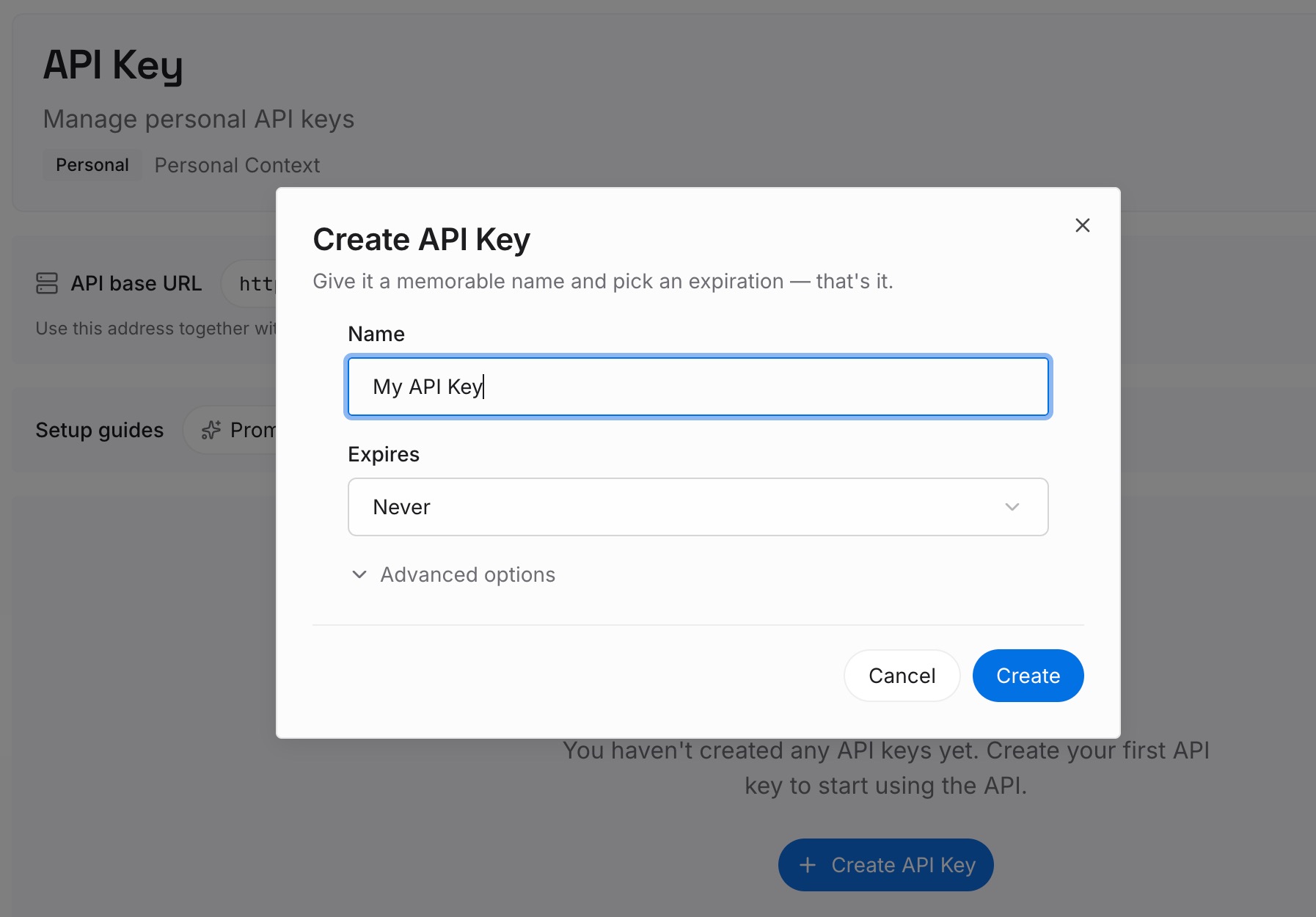
Step 1: Create an API key
Sign in and generate a key from the dashboard. The key belongs to your MemoryLake workspace and is separate from your Fireflies and OpenAI accounts.
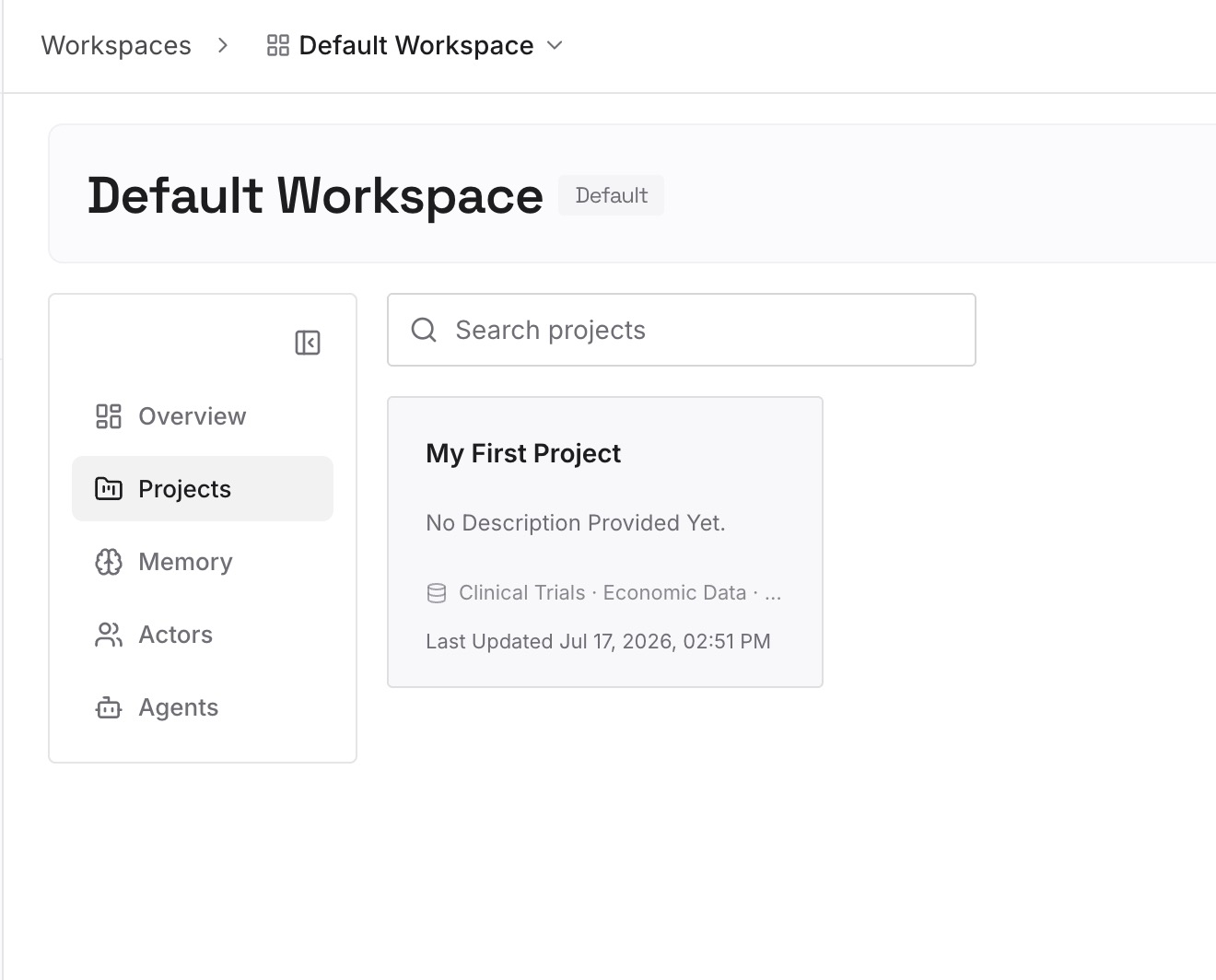
Step 2: Upload your first memories
Start with the running logs from Step 1 of the manual migration. One decision or commitment per entry, dated, with the meeting it came from.
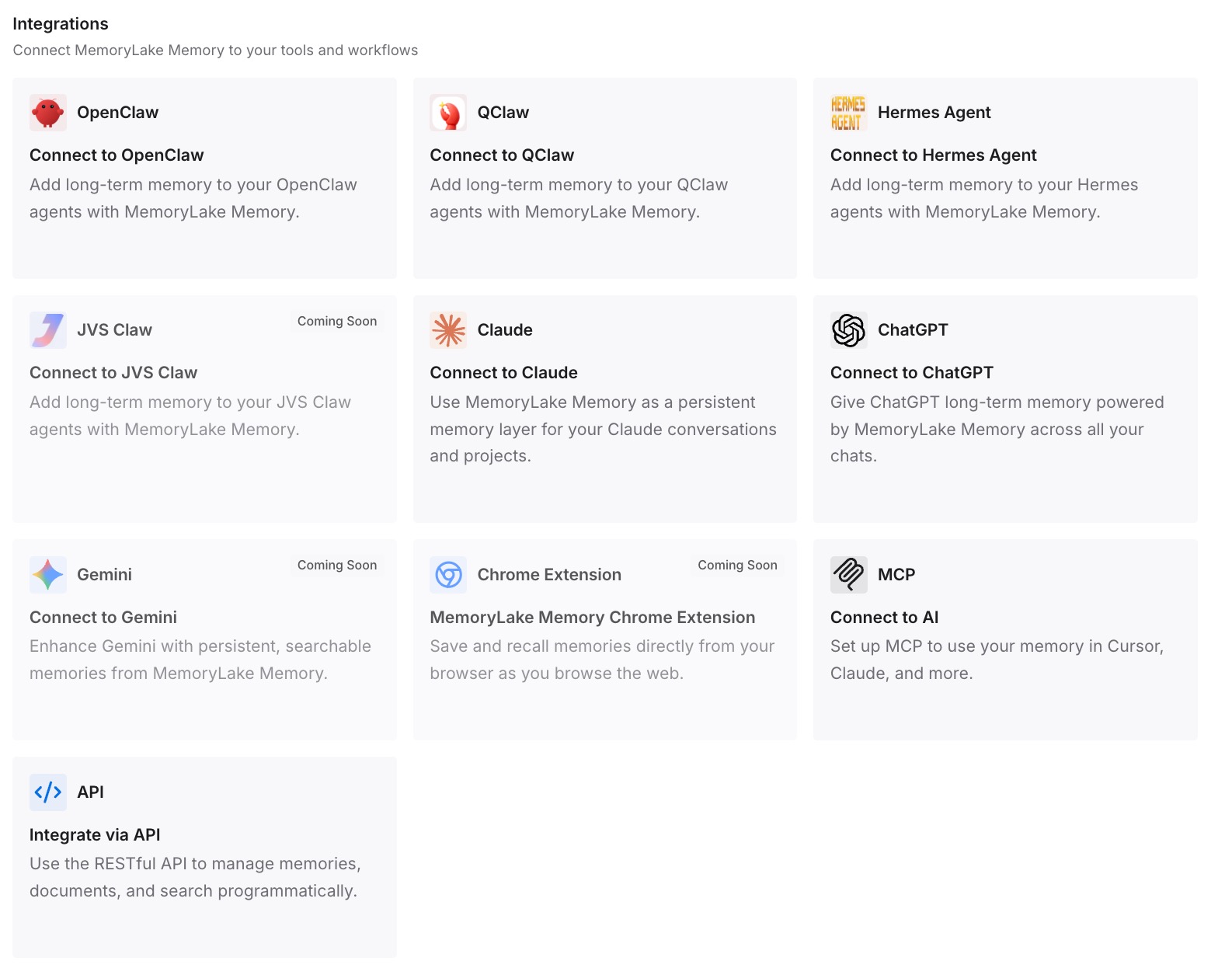
Step 3: Connect your AI & agents
Connect ChatGPT and the other assistants you use. The same meeting decisions are then available wherever you're working, not only in the project where you uploaded them.
What this changes in practice
The first difference is that meeting history becomes usable. A folder of transcripts is a record. A running log per series is context ChatGPT can answer from.
The second is fewer repeated questions. When the decisions from past calls are in the project, you don't have to search for them before every follow-up. If you work with many meeting tools, our roundup of AI tools that remember your meetings compares how they handle this.
The third is control over data handling. Uploading curated logs means you choose what leaves Fireflies, which is a different decision from connecting the whole account.
The fourth is less pressure on ChatGPT's memory. Meeting details belong in project files, not saved memories, a point our guide to ChatGPT memory being full makes for other kinds of detail too.
Best practices for moving Fireflies notes to ChatGPT
Request the full export first. Download it within the 7-day window and keep it as an archive.
Work from summaries, not transcripts. File limits and usefulness both point the same way.
Write a running log per series. It's the part that turns files into context.
Keep client work in project-only projects. It keeps meetings from mixing with unrelated chats.
Read Fireflies' connector terms before connecting. Zero-Day Retention doesn't cover data that leaves Fireflies.
Run AI Skills before downloading. Their output is included only if they've run.
Respect the people in the room. Check policy and agreements before uploading what others said.
Conclusion
Fireflies gives you three ways to take meeting content to ChatGPT. Per-meeting downloads give you well-formatted files on Pro plans and higher. The full account export gives you everything, as long as you download it within seven days. The MCP connector lets ChatGPT query your meetings without moving them, under the data handling terms Fireflies spells out.
If you're leaving Fireflies, export everything, then write a running log for each series that matters and build a ChatGPT project around it. If you're staying, the connector can complement a curated project.
Either way, the context worth keeping is the thread across meetings: what was decided, when, and why. That's what you rebuild on purpose.