
What your Granola history holds
Each Granola note is built from three inputs. Granola's documentation lists them as "The transcription captured during the meeting", the raw notes you typed, and "Information from the calendar event". From those, Granola generates enhanced notes, the summary you read afterward.
That gives you three layers per meeting:
- The enhanced notes. The summary, action items, and structure Granola generated.
- Your raw notes. What you typed during the call.
- The transcript. The full record of what was said.
The parts you'll reuse in Claude are a smaller set: decisions, commitments, open questions, and the context behind ongoing work. A year of transcripts is a lot of text with a small number of facts you'll need again.
What Granola lets you export
The CSV export
Granola's export lives in your settings. Its help center says to open Settings > Profile and click Generate CSV. The file isn't instant: "This will generate a CSV emailed to you within a few hours."
The CSV covers more than the app shows on the free plan. Granola says it "includes the title, note summary, transcript, and other basic details for each note" and that it includes "notes older than 30 days that aren't visible in the app on the Basic (free) plan".
A few limits apply:
- Only notes with a summary. "The export only includes notes that have a summary. Deleted notes and notes without a summary are not included."
- Only your notes. The export "only includes notes you own in those workspaces", based on the workspaces you select.
- A short link. "The link in the email is valid for 24 hours." You can request a new one, but only one export every 24 hours per account.
- No team export. Granola is direct about this: "There is no company-wide or admin-level export."
- Enterprise defaults. On Enterprise plans, data export is disabled by default, and only workspace admins can turn it on.
Copying a single note
For a handful of important meetings, the share menu is quicker. Granola's Copy enhanced notes option copies the AI-enhanced notes and the note link to your clipboard in markdown. Its documentation is clear about the scope: "This copies the summary Granola generated — not the transcript." To copy the transcript, use the copy icon in the transcript panel.
Notes you can't export
Notes other people shared with you don't come with your export, since it covers notes you own. If a colleague's meeting notes matter, ask them to export or share what you need.
Connecting Granola to Claude instead
If you're keeping Granola, you may not need to move anything. Granola runs an MCP server, and its documentation says you can "Connect your AI tools to your Granola meeting notes with Granola MCP." Once connected, Claude can search notes, find topics from past meetings, browse folders, and pull out action items or decisions.
In the Claude app
Granola's setup for Claude is four steps: sign in to Claude, open Settings, go to Connectors and search for Granola, then connect, authenticate, and keep the connector toggled on when you chat. Anthropic's documentation for remote MCP connectors adds that Claude connects to those servers "from Anthropic's cloud infrastructure, rather than from your local device".
In Claude Code
Granola's guide also covers Claude Code: add the Granola MCP server from your terminal, start Claude Code again, then open /mcp, select the Granola server, and choose Authenticate.
What the connector can reach
A connector reads notes that stay in Granola, and its reach depends on your plan and workspace:
- Basic (free). "Personal notes and public notes from the last 30 days."
- Business. "Personal notes and public notes."
- Enterprise. Workspace admins choose which scopes members can use.
It also follows one workspace at a time. Granola notes that "MCP follows the active workspace selected in the Granola app" and "does not combine notes across multiple workspaces".
That makes the connector a good fit if you're staying on Granola and want Claude to look things up. If you're leaving Granola, or you're on the free plan and need older meetings, export as well.
What Claude can take in
Claude has three places for meeting context, and each fits a different kind.
Projects, for ongoing work
Most meeting context belongs to a piece of work: a client, a launch, a hiring round. Claude's projects are built for that. Anthropic says, "Anything you upload to this space will be used across all of your chats within that project." You can also set project instructions that apply to every chat in the project.
One rule shapes how you set it up: "Context is not shared across chats within a project unless the information is added into the project knowledge base." A decision you mention in one project chat won't reach the next one unless it's in the knowledge base. If a project's knowledge grows large on a paid plan, Claude switches it to retrieval; our guide to Claude projects in RAG mode covers what changes.
If you already have meeting discussions in standalone chats, our guide to moving a Claude chat into a project explains what changes when you do.
Memory, for what Claude should know about you
Claude's memory import is for facts about you and your work, not meeting archives. Anthropic says you can bring memory over from other AI providers using its import flow, and that "Claude's memory is designed to focus on work-related topics to enhance its effectiveness as a collaborator." It also notes the feature is "experimental and still in active development". Your role, your clients, and how you like summaries written are good candidates. Our guide to confirming what arrives after a Claude memory import shows how to check the result.
A chat, for one meeting
For a single meeting you need to discuss once, paste the enhanced notes into a new chat. Nothing needs to persist.
Before you leave Granola
Some Granola data has a clock on it. Check these before you delete anything or cancel.
- Transcript auto-deletion. If you or your workspace enabled it, transcripts older than the retention period are deleted. Granola warns that "Transcript deletion is permanent and irreversible." Notes stay; transcripts don't.
- Trash. "Notes in the trash for over 30 days will be automatically deleted permanently."
- Account deletion. Granola says deleting your account removes it and all associated data, and notes you owned in shared folders are deleted too.
- The export link. It expires after 24 hours, so download it when the email arrives.
Consent matters on the other side as well. Meeting notes include what other people said. Check your organization's policy and your participants' expectations before you copy meeting content into another tool.
What people try first
Pasting every transcript into a project. It fills the knowledge base with text you may not need again. Summaries and decisions carry the value.
Relying on the connector after leaving Granola. The connector reads notes that stay in Granola. If you delete your account, there's nothing left to read.
Expecting the free-plan connector to reach older meetings. On Basic, the connector covers the last 30 days. The CSV export covers your full note history.
Importing meeting notes as memory. Claude's memory focuses on work-related facts about you, and import is experimental. Meeting content fits better in a project.
Forgetting shared notes. Your export covers notes you own. Notes colleagues shared with you need their own export or a copy.
The manual migration
Step 1: Export your Granola history and choose what's worth carrying
Generate the CSV from Settings > Profile and download it within 24 hours. Then sort meetings by the work they belong to. For each piece of ongoing work, mark the meetings that hold decisions, commitments, or context you'll need again.
Step 2: Write a summary for each piece of work
For each client, project, or team, write a short summary from those meetings: what was decided and when, who owns what, and what's still open. Keep the dates. A summary is easier for Claude to use than a stack of transcripts, and it's easier for you to correct.
Step 3: Rebuild in Claude
Create a Claude project for each piece of ongoing work. Add the summary to the project knowledge, along with the few enhanced notes you'll want to reference directly. Set project instructions for how you want meeting context used, such as citing the meeting date when it relies on a decision. Then decide how future meetings will work: keep Granola and connect it, or keep exporting periodically.
The Better Way: Keep the decisions from your meetings in one list that doesn't depend on the tool
The manual migration works, and it shows where the value in a meeting archive sits: in a short list of decisions and commitments, spread across many calls. Each time you change tools, you dig them out again.
MemoryLake is a memory layer for keeping that list in one place you maintain, available to the assistants you connect, such as ChatGPT, Claude Code, and Codex.
You write the entries yourself, in your own words. Nothing is read out of, written to, or deleted from your Granola account, your Granola transcripts, your Claude projects, your Claude memory, or any vendor's store. Granola's export and connector, and Claude's projects, still work the way their documentation describes.
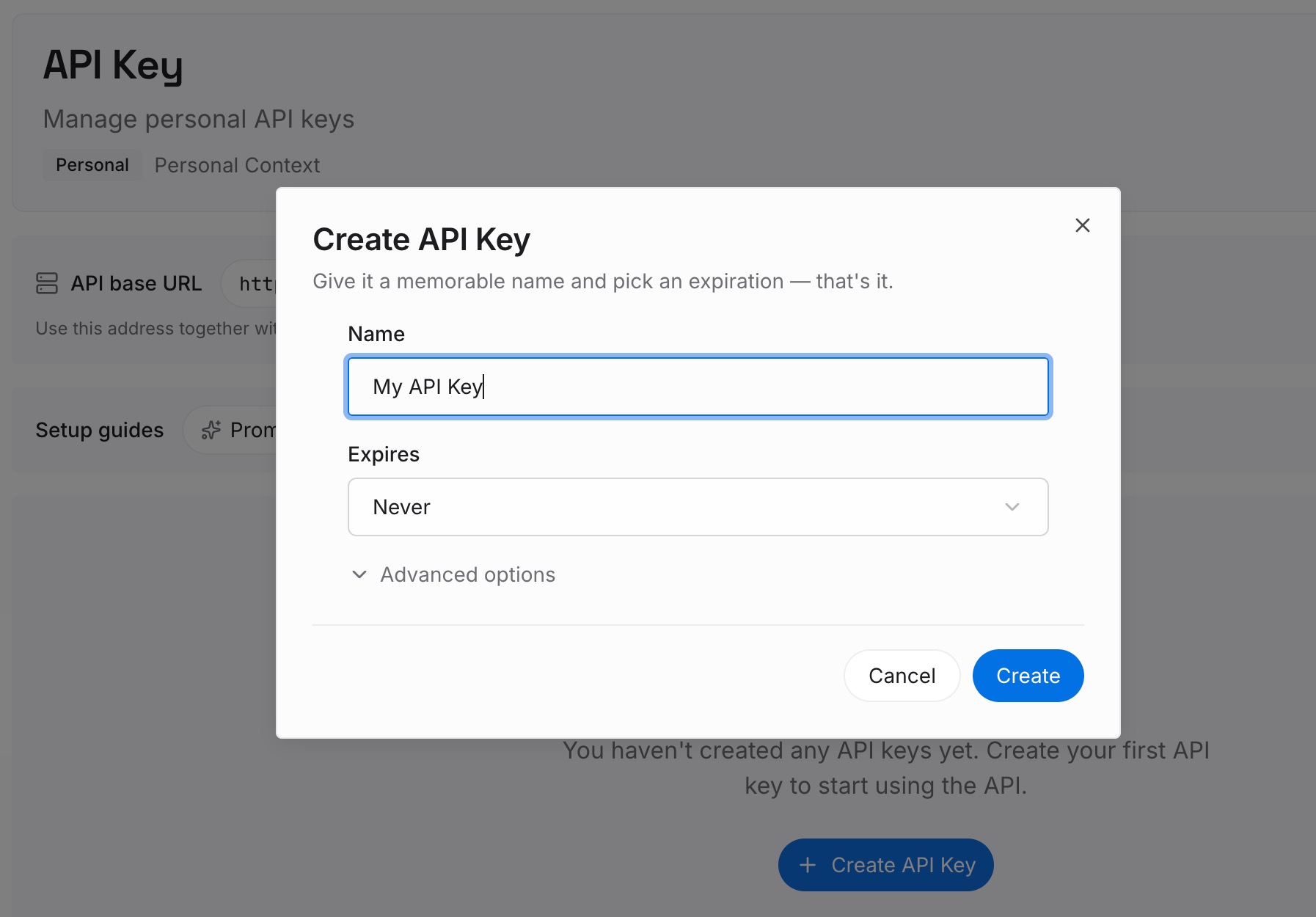
Step 1: Create an API key
Sign in and generate a key from the dashboard. The key belongs to your MemoryLake workspace and is separate from your Granola and Claude accounts.
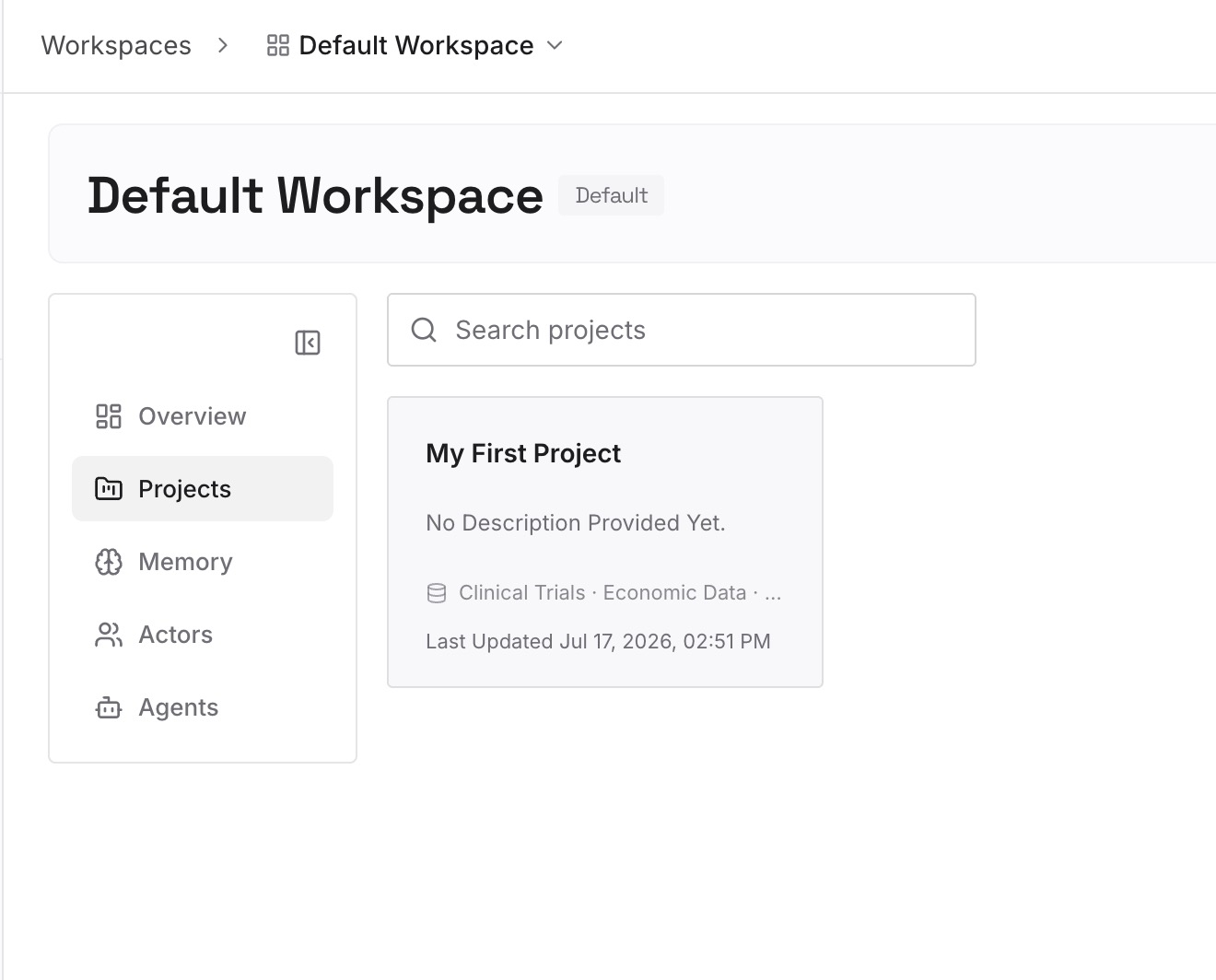
Step 2: Upload your first memories
Start with the summaries from Step 2 of the manual migration: decisions with their dates, owners, and open questions. One point per entry, and check meeting content against your organization's policy first.
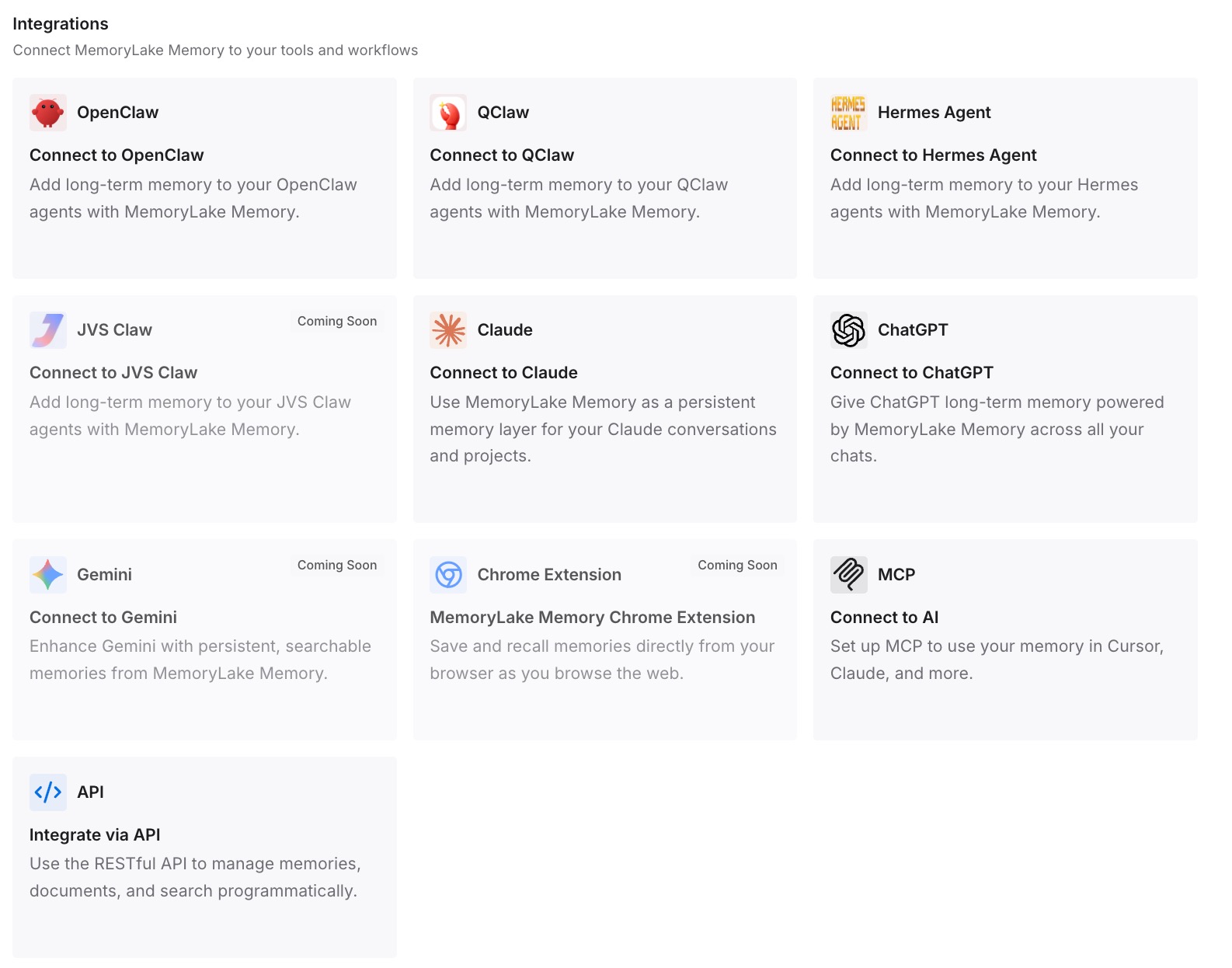
Step 3: Connect your AI & agents
Connect the assistants you use. The decisions from your meetings are available in each of them, whether or not Granola stays in your setup.
What this changes in practice
The first difference is that you choose the right route. Export if you're leaving, connect if you're staying, and do both if you're on the free plan and need older meetings.
The second is that Claude gets context it can use. A project with a dated summary is easier for Claude to work from than a year of transcripts.
The third is that the decisions outlast the tool. Once they're written down, the next move doesn't start with digging through old meetings. For a wider view of meeting tools, see our list of AI tools that remember your meetings.
Best practices for moving Granola notes to Claude
Export before you cancel. The connector depends on notes staying in Granola.
Download the CSV the day it arrives. The link lasts 24 hours.
Check transcript auto-deletion first. Deleted transcripts can't be recovered.
Summarize by piece of work. One summary per client or project, with dates.
Use projects for meeting context. Keep memory for facts about you.
Switch workspaces deliberately. The connector reads the active workspace only.
Mind consent. Meeting notes contain other people's words.
If you've moved other assistant history into Claude, our guide to migrating Microsoft Copilot conversations to Claude uses the same project-first approach.
Conclusion
Moving Granola notes to Claude starts with a choice. If you're leaving Granola, export the CSV, summarize the meetings that matter, and rebuild them in Claude projects. If you're staying, connect Granola so Claude can read your notes where they are, within your plan's limits.
Either way, the useful part of a meeting archive is small: the decisions, the commitments, and the open questions. Write those down with their dates, and they'll be ready for Claude and for whatever comes next.