
What actually transfers
What Microsoft lets you export
Microsoft's export is built around what it calls activity history. Its support article defines it: "Activity history is a record of the things you type in Copilot and the AI-assisted responses you receive from Copilot." In other words, your prompts and Copilot's answers.
To export it, sign in to the privacy dashboard with your Microsoft account and go to Privacy, then Empower your productivity, then Copilot, then Your Copilot app activity history. For Copilot apps such as copilot.microsoft.com, you can choose to export or delete all activity history. Microsoft describes the result: "If you select Export all activity history, a comma-separated values (CSV) file is downloaded to your device."
Copilot in Microsoft 365 apps has its own section on the same page, with separate export choices for Copilot in apps like Word and for Copilot Chat. Microsoft lists Excel, OneNote, Outlook, PowerPoint, Teams, and Word as the apps those steps apply to. If you've used both kinds of Copilot, export both. If your history includes images, Microsoft points to a separate article on viewing images in privacy dashboard exports.
Two limits shape what you'll get:
- It's for Microsoft accounts. The export article opens with a note that it "only applies to when you're signed in with your Microsoft account". Work and school accounts are covered by a different article.
- It covers what Copilot kept. Microsoft's conversation history article says "Copilot retains the last 18 months of interactions in your conversation history." Older conversations won't be in your history to begin with.
What stays in Copilot
The export is a record of conversations. Microsoft's export article describes prompts and responses, and it doesn't mention memories, personalization, or custom instructions. Anything Copilot has learned about you is a separate question.
Microsoft's memory documentation covers Copilot Chat in Microsoft 365. There, it says Copilot can save memories automatically: "When Copilot Memory is turned on, Copilot automatically saves key information to its memory from your Copilot Chat conversations." It also says Copilot can make inferences from your chat history, and it lists custom instructions as another source of personalization. Microsoft's suggestion for seeing all of this is simple: ask Copilot what it knows about you, and it provides a summary of the information it uses to personalize responses.
That summary is worth copying before you leave, because it isn't part of the activity history export. If you use the consumer Copilot app, keep in mind that the export article covers activity history only, so write down anything you know Copilot has been relying on about you.
Temporary chats are another gap. For Copilot Chat in Microsoft 365, Microsoft says a temporary conversation "won't appear in your chat history and can't be referenced or accessed later by you or Copilot", so there's nothing to carry over from those.
Shared links aren't a migration route either. Microsoft explains that a recipient "will see a copy of your conversation from the time the link was generated", and that anyone with the link can open it. That's useful for showing someone a single conversation, not for moving your history.
What ChatGPT can take in
OpenAI documents an import flow for moving from other agents, and Copilot isn't among the sources it lists: "The desktop app can import from Claude Code, Claude Cowork, or Cursor." For Copilot history, you bring the context in yourself, through three places.
Custom instructions hold preferences you want ChatGPT to follow everywhere. OpenAI's documentation describes them as the place for "preferences you want ChatGPT to follow across chats, such as your preferred response style".
Memory carries context forward between chats. You manage it from Settings, under Personalization.
Projects hold related chats, files, and instructions together. OpenAI's help center says "Projects keep related chats, files, and instructions together." You can upload files such as PDFs, spreadsheets, and docs, and add project instructions. "Project instructions apply only within that project and override your global custom instructions."
File limits depend on your plan. OpenAI lists 5 files per project on Free, 25 on Go and Plus, and 40 on Edu, Pro, Business, and Enterprise, and notes that "only 10 files can be uploaded at the same time." That's another reason to turn a large export into a few focused files rather than uploading everything.
How a project shares memory with the rest of ChatGPT depends on its memory setting. Our guide to ChatGPT project memory modes explains the difference between default and project-only memory.
Things to check before you start
Your account type. If you use Copilot through work or school, follow your organization's process. The privacy dashboard steps above are for personal Microsoft accounts.
What's in the file. Your activity history includes everything you typed. Before you upload any of it to another service, remove passwords, account numbers, health details, and other people's personal information.
What you actually need. Much of a long chat history tends to be one-off questions. The value is usually in a smaller number of ongoing topics and preferences.
The manual migration
Step 1: Export your Copilot activity history and sort it by what you'll keep
Sign in to the privacy dashboard with the Microsoft account you use for Copilot. Under Your Copilot app activity history, export the Copilot apps history. If you've used Copilot in Microsoft 365 apps or Copilot Chat with the same account, export those too. Each export downloads as a CSV file.
Open the file in a spreadsheet and read through it with three questions in mind:
- Is this about me? Preferences, background, how you like answers written. These become custom instructions or memory.
- Is this an ongoing topic? A house renovation, a job search, a course, a side project. Each becomes a ChatGPT project.
- Was this a one-off? A conversion, a quick fact, a recipe. Leave it behind.
For each ongoing topic, write a short summary document: what the topic is, what's been decided, what's still open, and any details you'd otherwise have to repeat. Keep the original wording for anything precise, such as figures, names, and dates. A one-page summary is easier for ChatGPT to use than a thousand rows of history.
Then capture what Copilot knows about you. If you use Copilot Chat in Microsoft 365 and your organization allows it, ask Copilot what it knows about you and copy the answer. For the consumer app, write down the preferences and background you've explained to Copilot more than once. Read the result critically; some of it may be out of date.
Step 2: Rebuild the context in ChatGPT with instructions, memory, and projects
Start with what applies everywhere. Open Settings in ChatGPT, then Personalization, and add custom instructions that cover your preferences: tone, format, background you want ChatGPT to assume. Keep it short. Long instructions are harder to maintain and easier to contradict.
Next, make sure memory is on under Personalization if you want ChatGPT to carry context between chats. Our guide to ChatGPT forgetting personal preferences covers the settings that most often get in the way.
Then create one project per ongoing topic. For each one:
- Upload the summary document you wrote in Step 1 as a project file.
- Add project instructions for anything that should apply only there, such as the format you want for a budget or the audience for a draft.
- Choose the project's memory setting when you create it. Pick project-only memory if the topic shouldn't mix with the rest of your chats, such as a work matter kept apart from personal ones.
- Start a new chat in the project and ask ChatGPT to summarize what it knows about the topic. Compare the answer with your summary.
If something is missing from the answer, fix the file, not just the chat. A correction in chat helps that conversation. A correction in the project file helps every chat in the project. Our guide to ChatGPT forgetting uploaded files covers why file context sometimes doesn't get used and what to check.
The same approach works when you move from other assistants. Our guide to migrating Claude conversations to ChatGPT follows the same pattern from a different export.
The Better Way: Keep your working context in one place you control
The manual migration turns a long Copilot history into a few summaries and instructions. Those summaries are the valuable part, and they're the part most likely to go stale, because they now live in ChatGPT's settings and project files.
MemoryLake is a memory layer for keeping that context in one list you maintain, available to ChatGPT and the other assistants you connect.
You write the entries yourself, in your own words. Nothing is read out of, written to, or deleted from your Copilot activity history, your Microsoft account, your ChatGPT memory, or any vendor's store. Leave out sensitive personal details, and check your organization's policy if any of this is work-related.
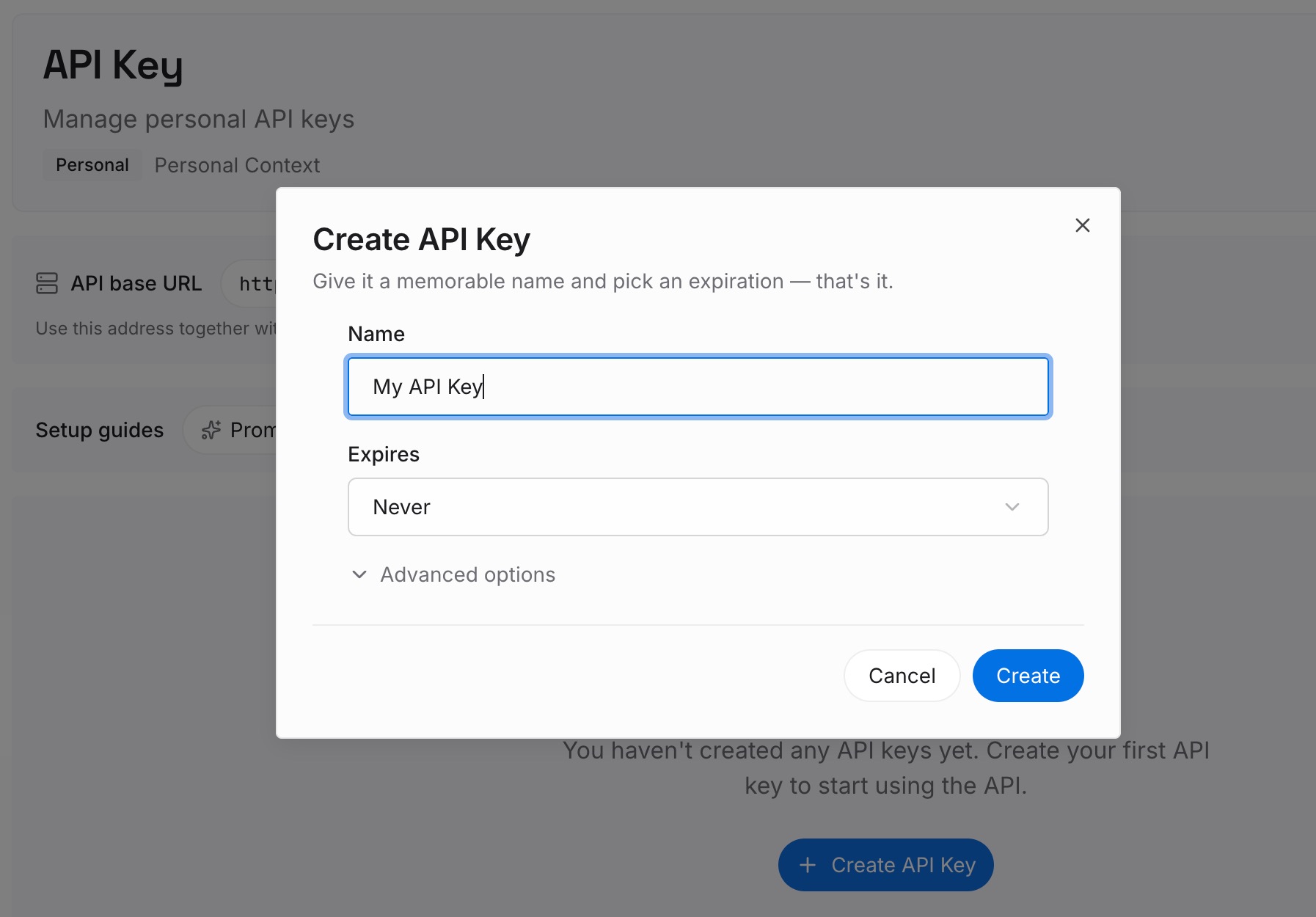
Step 1: Create an API key
Sign in and generate a key from the dashboard. The key belongs to your MemoryLake workspace and is separate from your Microsoft and OpenAI accounts.
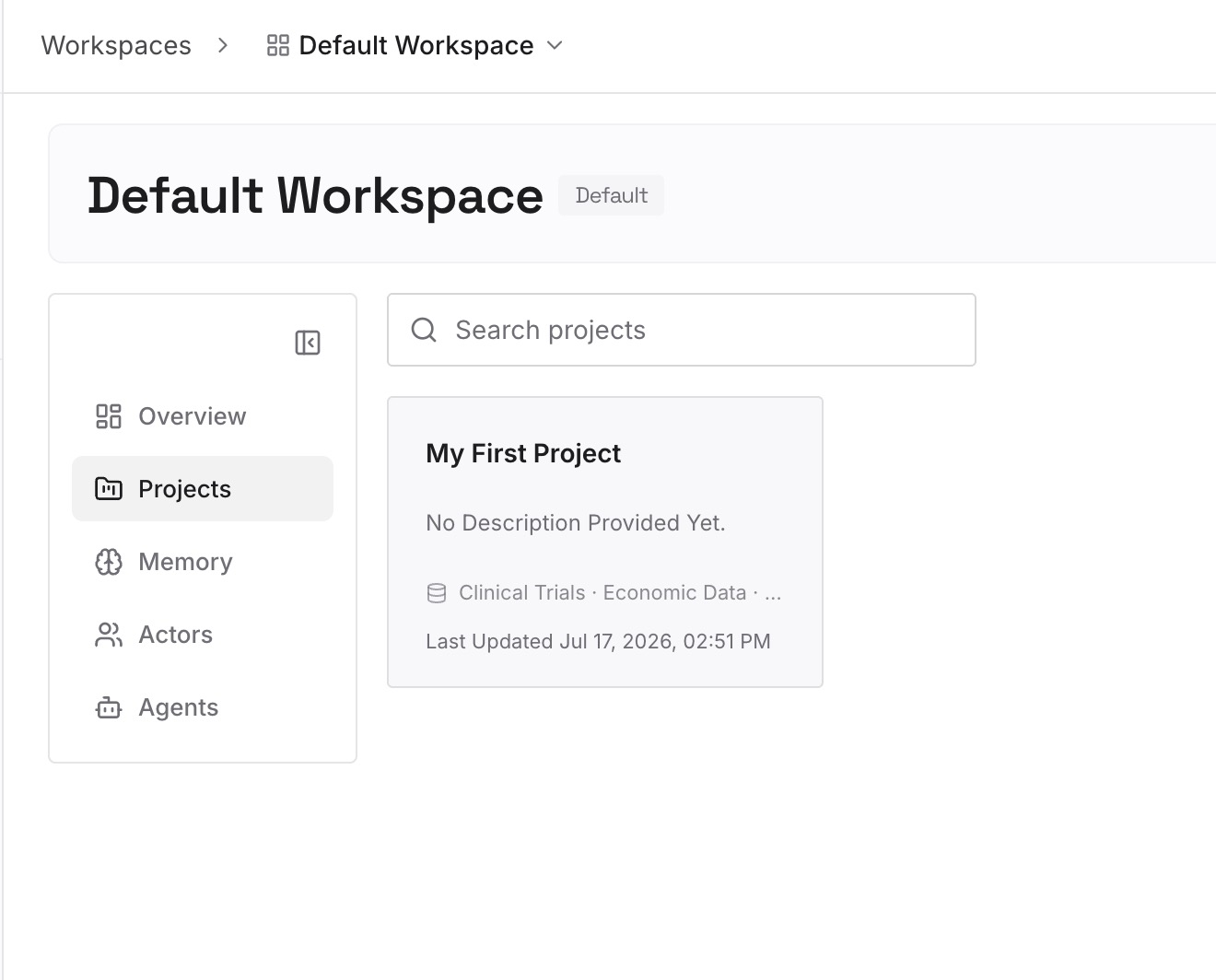
Step 2: Upload your first memories
Start with the summaries you wrote in Step 1 of the manual migration. One topic or decision per entry, dated, in plain language.
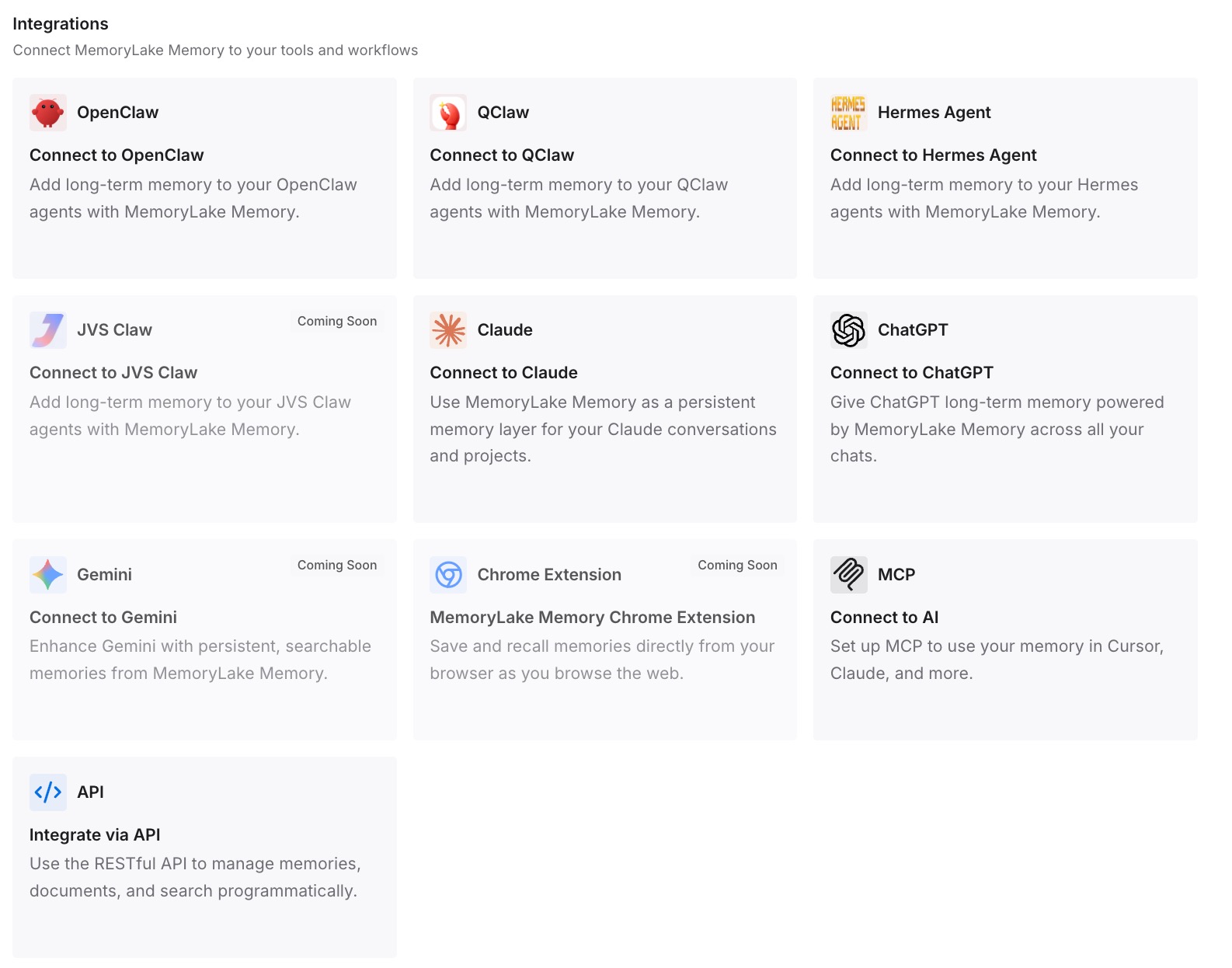
Step 3: Connect your AI & agents
Connect ChatGPT and any other assistants you use. The same context is then available in each one, instead of being rebuilt every time you change tools.
What this changes in practice
The first difference is that your history becomes something you've read. A CSV export is a record. A one-page summary per topic is context, and writing it shows you what was worth keeping.
The second is fewer repeated explanations. With your preferences in custom instructions and each ongoing topic in a project, a new ChatGPT chat starts from what you've already established. That's the problem our guide to ChatGPT forgetting previous conversations describes.
The third is cleaner separation. Projects keep a house renovation and a job search apart, with their own files and instructions.
The fourth is that the next move is easier. If you change assistants again, the summaries you wrote travel with you. Our guide to migrating Grok conversations to ChatGPT shows the same pattern from another starting point.
Best practices for moving from Microsoft Copilot to ChatGPT
Export every Copilot surface you used. Copilot apps and Copilot in Microsoft 365 apps export separately.
Don't upload the raw CSV. Summarize it by topic first.
Remove sensitive details before uploading. Your history contains everything you typed.
Copy what Copilot knows about you. It isn't part of the activity history export.
Use one project per ongoing topic. Keep unrelated work apart.
Correct the file, not the chat. Project files outlast any single conversation.
Keep your old history until you're done. Delete activity history in Copilot only after you've confirmed the summaries are complete.
Conclusion
Moving from Microsoft Copilot to ChatGPT is straightforward for the record and deliberate for the context. Microsoft's privacy dashboard exports your Copilot activity history as CSV, covering what Copilot has retained, which it puts at the last 18 months. OpenAI's import flow doesn't list Copilot, so you bring the context in yourself.
Sort the export into what's about you, what's ongoing, and what was a one-off. Turn the first into custom instructions and memory, the second into projects with a summary file each, and leave the third behind. Capture what Copilot has learned about you separately, because it isn't part of the export.
That leaves you with a ChatGPT setup that knows what Copilot knew, written in a form you can read and correct.