
Two ways to share a Claude chat
Claude has two sharing modes, and the newer help article makes one of them the default.
Specific people. "You can share a chat with specific people by inviting them by email. This is the default way to share a chat and keeps it private to the people you choose." It's "available on all plans (Free, Pro, Max, Team, and Enterprise) on claude.ai". Each person gets an email with your name, the chat title, and a link, and "The invite only works for the email address you entered."
A public link. "When you share a chat with a public link, anyone who has the link can view a snapshot of that chat." Public links are "available on Free, Pro, and Max plans", and "Anyone with the link can open it. No Claude account is required."
On Team and Enterprise plans, sharing stays inside the organization. Anthropic says "You can invite people with an email address on your organization's domain. Emails outside your organization can't be invited", and "Public links aren't available." You can also choose Anyone at your organization under General access, so any signed-in member with the link can view the chat.
One practical limit: "Sharing with specific people is available on claude.ai on the web." The FAQ answers the mobile question directly: "Can I share from the mobile app? Not yet." Recipients can open a shared chat on any device.
What a shared chat contains
The help article on sharing with specific people lists it. People you invite see "All messages in the chat up to that point, including artifacts" and "Your name as the person who shared it".
That's the conversation as text plus whatever artifacts Claude made in it. For a lot of sharing, that's enough. If you want a colleague to see how Claude explained something, or to read a draft Claude wrote, the snapshot does the job.
What a shared chat leaves out
The same article lists what invited people don't see:
- "Messages you send after sharing (unless you update the shared chat, see below)"
- "Files you attached to the chat (unless sharing was done within your organization)"
- "Raw data from connectors or MCP tool calls, only Claude's final responses"
Each of these matters for a handoff in a different way.
Later messages
"Sharing creates a snapshot of the chat at the moment you share it." If you keep working after you share, the other person sees the old version. The newer article describes a button for this. If you keep chatting and want them to see the new messages, open the share dialog and click Update shared chat. Anthropic says "This replaces the old snapshot with the current one for everyone who has access." The older share-and-unshare article describes another route for links: "if you unshare the chat and share it again, the snapshot will be updated to include any new messages."
Attached files
The older article spells this out: "If you share a chat that contains an attached file, the file itself is not included in the shared snapshot and remains private. Only the conversation and Claude's responses will be visible to anyone with the link." The newer one adds the exception for sharing inside an organization.
So if the chat was Claude analyzing a spreadsheet you uploaded, the recipient sees the analysis and the conversation. Unless you're both in the same organization, the spreadsheet stays with you.
Connector and MCP data
"When sharing chats that use MCP integrations, the raw data retrieved from MCP tool calls remains hidden in the shared snapshot. Only the final chat output and conversation will be visible to viewers. The underlying tool call data stays private."
If Claude pulled your calendar, a set of support tickets, or rows from a database through a connector, the recipient sees Claude's summary of that data, not the data. Anthropic presents this as a protection: "This ensures that sensitive information from your files and connected tools is protected, even when you share a chat snapshot." It also means the recipient can't check Claude's summary against the source.
What the other person can do with it
"Shared chats are view only. Recipients can't continue the chat, copy it to their account, or download files from it." The FAQ repeats it for edit access: "Can I give someone edit access or let them continue the chat? No. Shared chats are view only."
This is the part that matters most for a handoff. The recipient can read what you and Claude worked out. They can't ask Claude a follow-up in that conversation, and they can't bring it into their own account to keep going. If they want to continue the work, they start a new chat, and that chat begins with whatever they put into it. To keep your own full copy of a conversation, our guide to reading your Claude data export covers what the export contains.
Forwarding is also limited. "Can people I invite forward the chat to someone else? No. The link only opens for the invited email." A public link is different, because anyone with the link can open it.
Sharing in a project
Projects have their own sharing on Team and Enterprise plans, and it's separate from chat sharing. Anthropic's project sharing article says "Even if a project is public, your chats within that project will be private and inaccessible to other members of your organization unless you manually share them." When you add someone to a private project, "This will share the project and knowledge base with the member, but your chats will remain private unless you choose to share them."
So sharing a project gives people the instructions and knowledge files. Your conversations in it stay yours until you share each one. Our guide to searching past Claude chats in projects covers how chats in a project relate to each other.
Artifacts are shared differently
An artifact made in a chat can be shared on its own, and the rules aren't the same as for the chat. Anthropic's artifacts article includes a warning for Team and Enterprise plans that's worth reading before you share a chat artifact: "When you share an artifact made in a chat, viewers also get access to the attachments and files in that chat. Check for sensitive documents before you share."
Artifacts that use connected apps also behave differently for viewers: "An artifact that pulls from connected apps uses the viewer's connections, not yours." If a viewer doesn't have access to a data source, that part shows an error.
Stopping a share
To remove one person, open Share and remove them under People with access. To stop sharing completely, click Turn off in the share dialog. Anthropic says "The link stops working for everyone right away." You can see everything you've shared in Settings > Privacy under Shared chats.
Deleting the chat ends the share too: "The shared snapshot is removed and the link stops working."
For public links, there's one thing turning off can't do. "Turning it off disables the link on claude.ai. It can't remove copies, screenshots, or archives someone else already made." Anthropic's own rule for public links is direct: "treat a public link as public".
What people try first
Sharing the chat and expecting the recipient to continue it. Shared chats are view only.
Assuming the files come along. Attached files stay private unless you share within your organization.
Expecting the recipient to see the data Claude used. Raw connector and MCP data stays hidden. They see Claude's responses.
Sharing once and adding more later. The snapshot stops at the moment you share. Use Update shared chat.
Sharing a project to share its chats. Project sharing covers instructions and knowledge. Chats stay private until you share them.
Sharing from your phone. Sharing with specific people is on claude.ai on the web.
The Fix: Decide what the recipient needs, share the snapshot, then send the rest yourself
Step 1: Decide whether a snapshot is enough
Ask what the other person needs to do. If they only need to read the reasoning or see a draft, share the chat. If they need to continue the work, the snapshot is the record, and they'll need the context in a form they can bring into a new chat: the conclusions, the files, and the source data.
Step 2: Share with the right mode and check the timing
Invite specific people by email when you can. Use a public link only for content you'd post openly. Share after the chat says what you want it to say, and if you keep going, use Update shared chat so the recipient isn't reading an old version.
Step 3: Send what the snapshot leaves out
Write a short handoff note alongside the link: the decision, the reason, the open questions, and what to do next. Send the files separately through whatever your team uses. If Claude drew on connector data, say where the data came from so the recipient can check it with their own access. If they'll continue in Claude, the note is what they paste into their first message.
Setting this up in MemoryLake
A shared chat hands over the conversation. The conclusions, the files, and the data behind it are what you send separately, and they're also what you need yourself the next time you pick up the work in another chat or another assistant.
MemoryLake is a memory layer for keeping that context in one list you maintain, available to ChatGPT and the other assistants you connect, such as Claude Code and Codex.
You write the entries yourself, in your own words. Nothing is read out of, written to, or deleted from your Claude chats, your shared snapshots, your attached files, your connectors, or any vendor's store. Leave out anything you wouldn't put in a shared chat, and follow your organization's policy for work content.
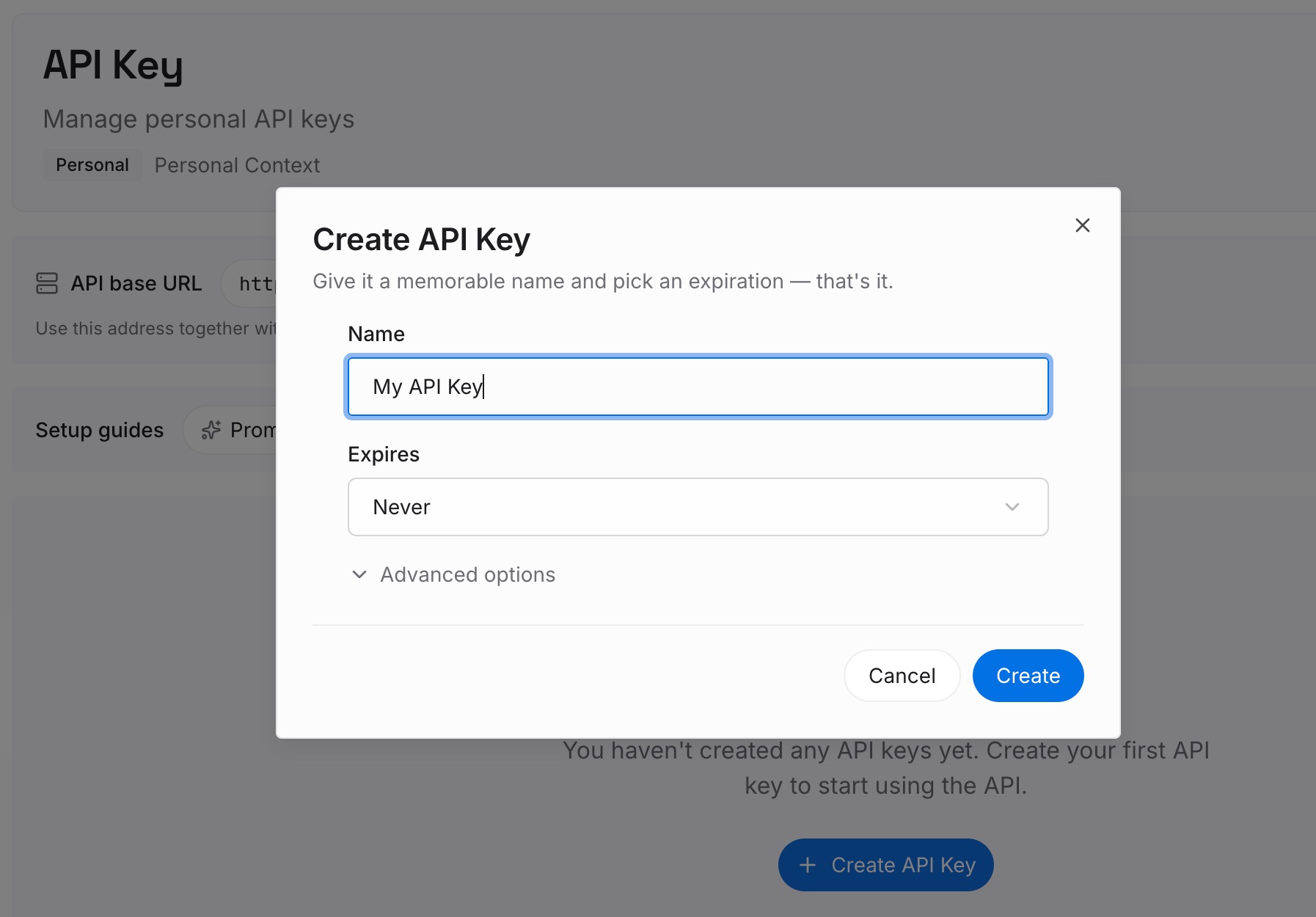
Step 1: Create an API key
Sign in and generate a key from the dashboard. The key belongs to your MemoryLake workspace and is separate from your Claude account.
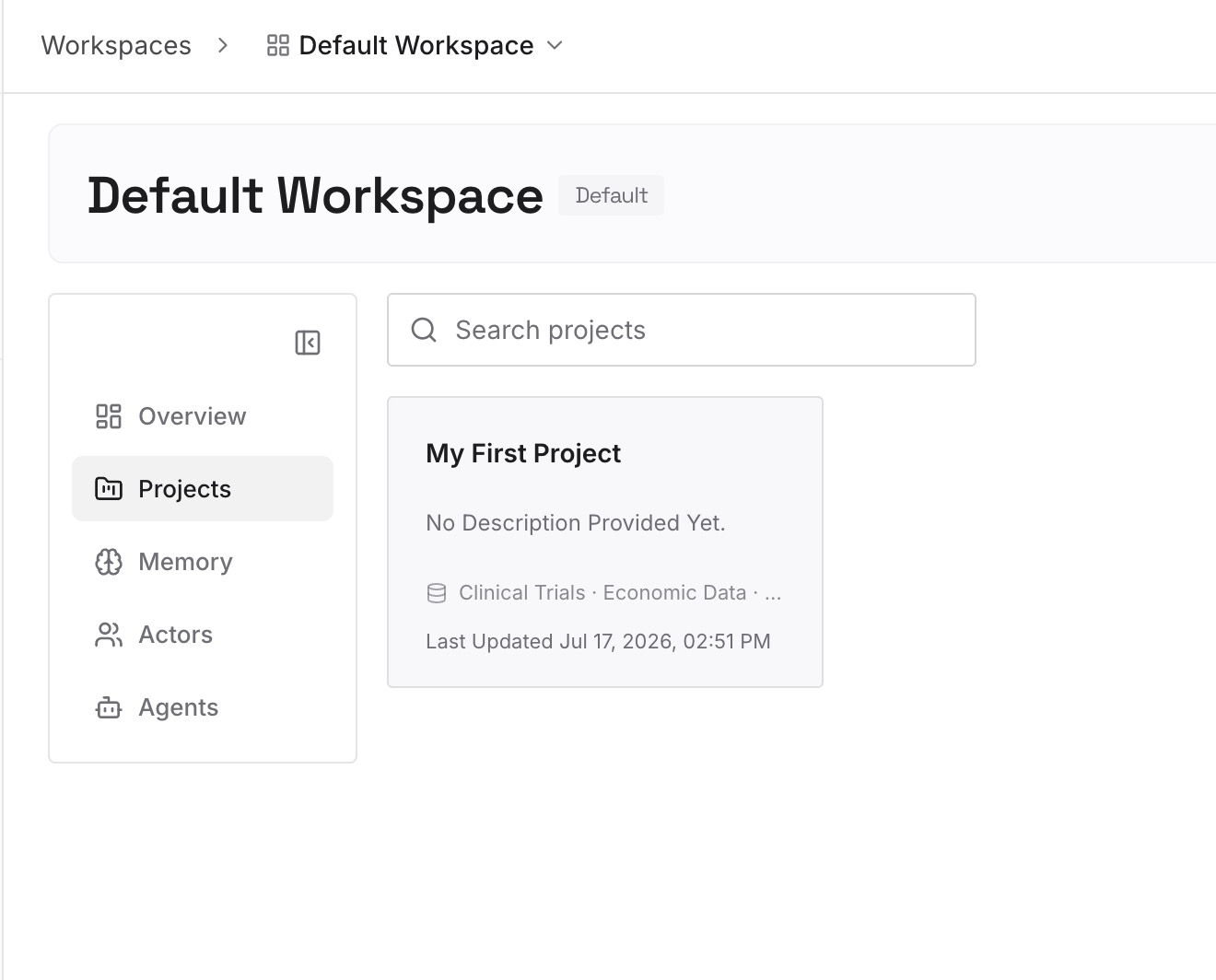
Step 2: Upload your first memories
Start with the handoff note from Step 3 of the fix: the decision, the reason, and the open questions. One point per entry, dated, and labeled with the work it belongs to.
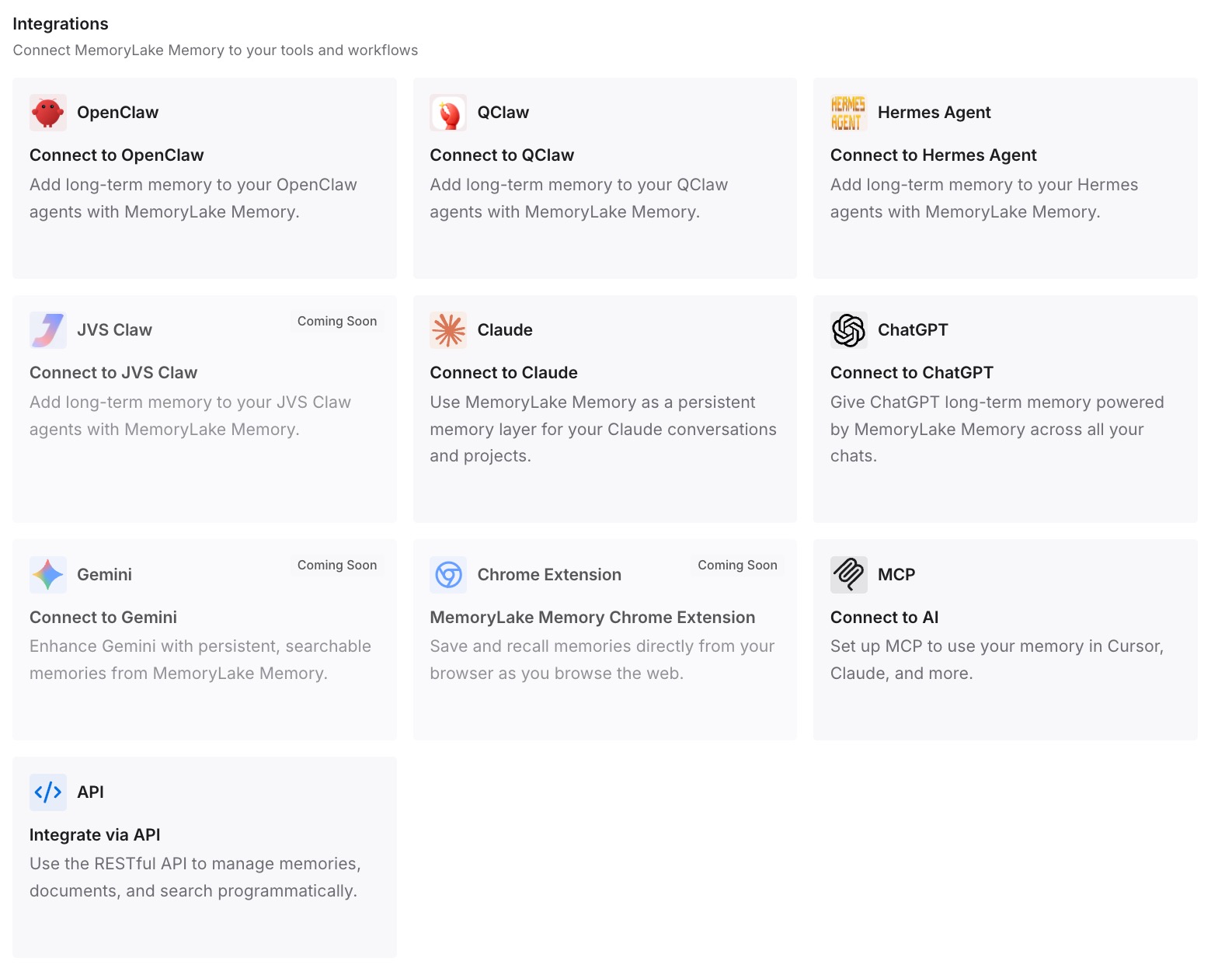
Step 3: Connect your AI & agents
Connect ChatGPT and the other assistants you use. The conclusions from a shared chat are available the next time you work on it, wherever you start.
What this changes in practice
The first difference is that you know what you're sending. The snapshot has the messages and artifacts up to the moment you share. Files, later messages, and raw connector data are outside it.
The second is that the recipient can act on it. A handoff note gives them a starting point for a new chat, which a view-only snapshot can't.
The third is that your own record doesn't depend on the share. If the link is turned off or the chat is deleted, the conclusions are already written down. For handing over work when someone leaves a team, our guide to keeping AI context when someone leaves covers the wider problem.
Best practices for sharing Claude chats
Invite specific people by default. The link only opens for the invited email.
Treat a public link as public. Anyone who has it can open it.
Update the snapshot after more work. Otherwise the recipient sees the old version.
Send files separately. Attached files stay private outside your organization.
Name the data source. The recipient sees Claude's responses, not the raw connector data.
Write a handoff note for anything they'll continue. Shared chats are view only.
Review Settings > Privacy now and then. Turn off shares you no longer need.
Conclusion
A shared Claude chat is a view-only snapshot. It includes the messages and artifacts up to the moment you share and your name. It leaves out later messages, attached files unless you share inside your organization, and the raw data from connector and MCP tool calls, and the recipient can't continue it or copy it to their account.
Share the snapshot for reading. For anything the other person has to carry forward, send the rest yourself: a short note with the conclusions, the files, and where the data came from. To move whole conversations between your own accounts instead, our guide to migrating Claude conversations to another account covers that.