
How ChatGPT updates memory on its own
Memory isn't a fixed list you write once. The FAQ says: "Memory does not retain every detail from every conversation. ChatGPT decides which available information is relevant to a response, and Memory can change as your context changes."
So in principle, as you talk about your new job, ChatGPT's picture of you can shift. Two caveats from the FAQ explain why that doesn't always happen as fast as you'd like.
It isn't instant. "It can take time for deletion and Memory updates to propagate."
Old context is still available. The sources Memory can draw on include past chats, saved memories, custom instructions, saved files, and content from connected apps. The old details are still in many of those places.
That's why relying on ChatGPT to notice a change is slow. Telling it, or editing the right place, is faster.
Two kinds of memory, and why it matters
The FAQ describes two mechanisms that work differently.
Saved memories. "Saved memories are details that you explicitly ask ChatGPT to remember or that ChatGPT saves as useful context when that behavior is available." They're stored on their own: "Saved memories are stored separately from chat history."
Reference chat history. When this is on, ChatGPT can use relevant information from past conversations. The FAQ notes the difference: "Unlike an explicit saved memory, information derived from chat history can change as ChatGPT updates what is most useful to remember."
Some accounts also see two versions of the memory experience. "Improved Memory continually updates a broader summary of relevant context. Legacy saved memories use a more explicit list of individual memory items." You can switch between them in Settings, under Personalization and then Memory, where the option is available.
The practical point: a saved memory is a specific item you can find and edit. Information from chat history is derived from your past chats, so the old chats themselves are part of what keeps it alive.
How to correct a detail
The FAQ gives you three ways to correct something, depending on what your account shows.
Tell ChatGPT. "You can tell ChatGPT that remembered information is incorrect or outdated." A plain statement works: you changed jobs, you now use TypeScript, the old detail no longer applies.
Edit the memory summary. The memory summary is a high-level view of what ChatGPT may use to personalize responses. When it's available, the FAQ lists what you can do there:
- Enter a correction in the text field.
- Highlight text and provide a correction.
- Select Don't mention this again, when that option is available.
- Select Delete and turn off memory from the more options menu.
Edit a saved memory. "You can also edit the memory summary or a saved memory when those controls are available." Depending on your plan and platform, the FAQ says saved-memory controls can also include search, sorting, automatic prioritization, and version history.
To get to these controls, open Settings, select Personalization, then select Memory. The FAQ notes that the available controls vary, and may include Memory, Reference saved memories, Reference chat history, Memory summary, Manage, or Saved memories.
Correcting isn't the same as hiding
Don't mention this again is useful, but it does something narrower than it sounds. The FAQ: "Don't mention this again reduces future references to the information. It does not delete the original source."
The same is true when you ask in a chat: telling ChatGPT not to use something "changes personalization behavior but does not delete the underlying chat, file, email, or other source."
For an outdated job title, that may be all you need. For something you want gone, you'll need the deletion steps below.
How to find where an outdated detail comes from
Before deleting anything, find out which source is responsible.
Check Sources. "When ChatGPT uses relevant personal context, Sources may appear below the response." They can point to a past chat, a saved memory, a custom instruction, a file, or a connected email. Depending on the source, you may be able to open it, correct or delete a saved memory, delete a referenced chat, or mark it as not relevant.
Ask. "You can also ask ChatGPT what it remembers about you."
Check your custom instructions. The FAQ separates the two: "Custom instructions are direct guidance that you provide about what ChatGPT should know and how it should respond." If your old job is written in your custom instructions, no amount of memory editing will remove it. Update the instructions directly.
Keep the FAQ's limits in mind. The memory summary "does not necessarily include every detail or source that Memory can reference", and "Sources may not show every factor that shaped a response."
Why an old chat can bring a detail back
This explains the opening example.
The FAQ says: "Deleting a saved memory prevents it from being used in future personalization, but it does not remove mentions of that information from past conversations."
So if you delete the saved memory about your logistics job but keep the chats where you discussed your logistics job, and Reference chat history is on, ChatGPT can still find the detail in those chats. From your side, it looks like the memory came back. In fact it was never removed from the chats.
The reverse is also true: "Deleting a chat alone does not necessarily delete a separate saved memory created from that chat."
Turning Memory off and on again doesn't reset this either. "Turning off Memory does not delete your past chats. If you turn Memory on later, ChatGPT may create new remembered information from chats that remain in your history."
What deleting a saved memory doesn't remove
The FAQ lists every place a detail can live. To remove information saved as a memory, it says to "delete the saved memory and the chat where you first shared it", and also remove the information from any other sources where it appears:
- the memory summary
- saved memories
- regular and archived chats
- saved files available through Library or Space
- connected apps
A few more details from the FAQ are worth knowing:
- Connected apps. "Disconnecting an app prevents future access to that app. It does not delete past conversations that already used app content."
- Deletion logs. "OpenAI may retain logs of deleted saved memories for up to 30 days for safety and debugging purposes."
- Turning off Reference chat history. "If you turn Reference chat history off, information remembered from past chats is scheduled for deletion from OpenAI systems within 30 days. The original chats remain in your history unless you delete them." This doesn't touch saved memories: "Turning off Reference chat history does not delete your saved memories."
For an outdated job title, you may not need every step. For something sensitive, the full list matters.
When a remembered detail changes the style of answers
Outdated memories don't only affect facts. A saved preference, such as wanting short answers or a formal tone, can shape how ChatGPT responds even after you've changed your style settings. We covered how saved memories interact with tone settings in our guide to what Base style and tone changes in ChatGPT.
If answers still sound wrong after you've updated a setting, check memory for an older preference that contradicts it.
Keeping a one-off chat out of memory
Sometimes the problem is that a temporary situation became a memory. If you help a friend with their résumé in a regular chat, details from that chat can shape memory like any other.
Temporary chat avoids that. "Temporary chats do not create or update memories, even with personalization on." Before starting one, you can choose whether it uses your existing memories and custom instructions, or select Unpersonalized.
One caution: "Saving a temporary chat converts it to a regular chat." After that, it follows your account's personalization settings and can shape memory like any other chat.
What people try first
Deleting the saved memory and expecting it to stay gone. Past chats can still mention the detail.
Deleting the chat and expecting the memory to go. Saved memories are stored separately from chat history.
Using Don't mention this again to remove something. It reduces future references but doesn't delete the source.
Turning Memory off and on. Past chats remain, and new memory can be created from them.
Editing memory when the detail is in custom instructions. Update the instructions directly.
Expecting changes to apply immediately. Updates can take time to propagate.
The Fix: Update the source, then the summary
Step 1: Find the source
Check Sources below a response, ask ChatGPT what it remembers, and review your custom instructions.
Step 2: Correct or edit the memory
Tell ChatGPT the detail is outdated, or edit the memory summary or saved memory.
Step 3: Delete the chats that keep resurfacing it
If an old detail returns, delete the past chats where it's discussed. Archived chats count too.
Step 4: Keep a current record of what has changed
Write down what's true now, such as your role, tools, and current projects, so you have one place to check and update.
Setting this up in MemoryLake
ChatGPT's memory builds up from many sources, and an outdated detail can live in several of them at once. For the facts about your work that change, such as your role, your stack, and what you're working on, it helps to have one record you update on purpose.
MemoryLake is a memory layer for that kind of working context, such as your role, your current projects, and decisions that replaced earlier ones, kept in one place you maintain and available to the assistants you connect, such as ChatGPT, Claude Code, and Codex.
You write the entries yourself, in your own words. Nothing is read out of, written to, or deleted from your ChatGPT memory, your saved memories, your memory summary, your custom instructions, your chats, or any vendor's store. ChatGPT's memory works the way OpenAI describes it.
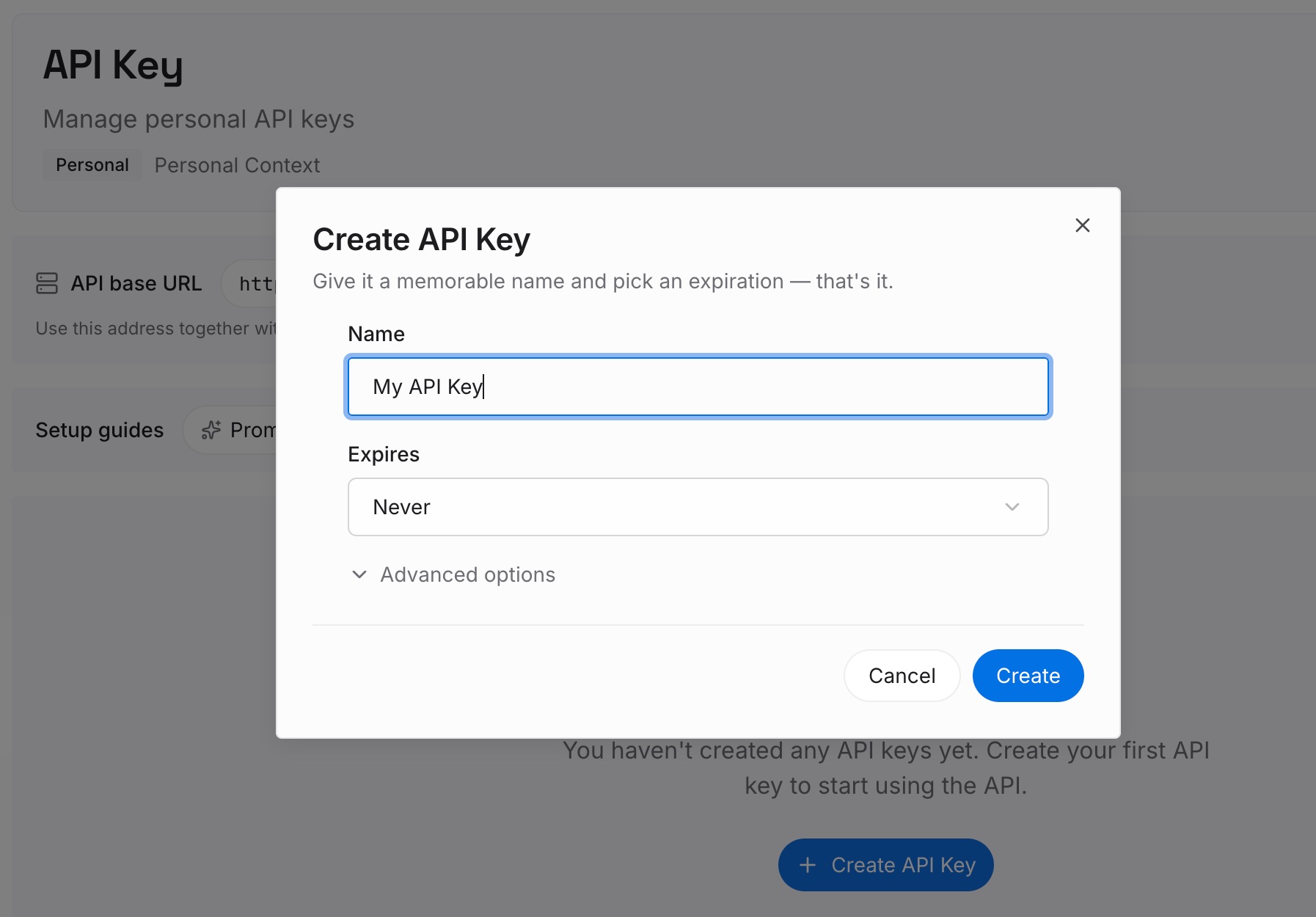
Step 1: Create an API key
Sign in and generate a key from the dashboard. The key belongs to your MemoryLake workspace and is separate from your ChatGPT account.
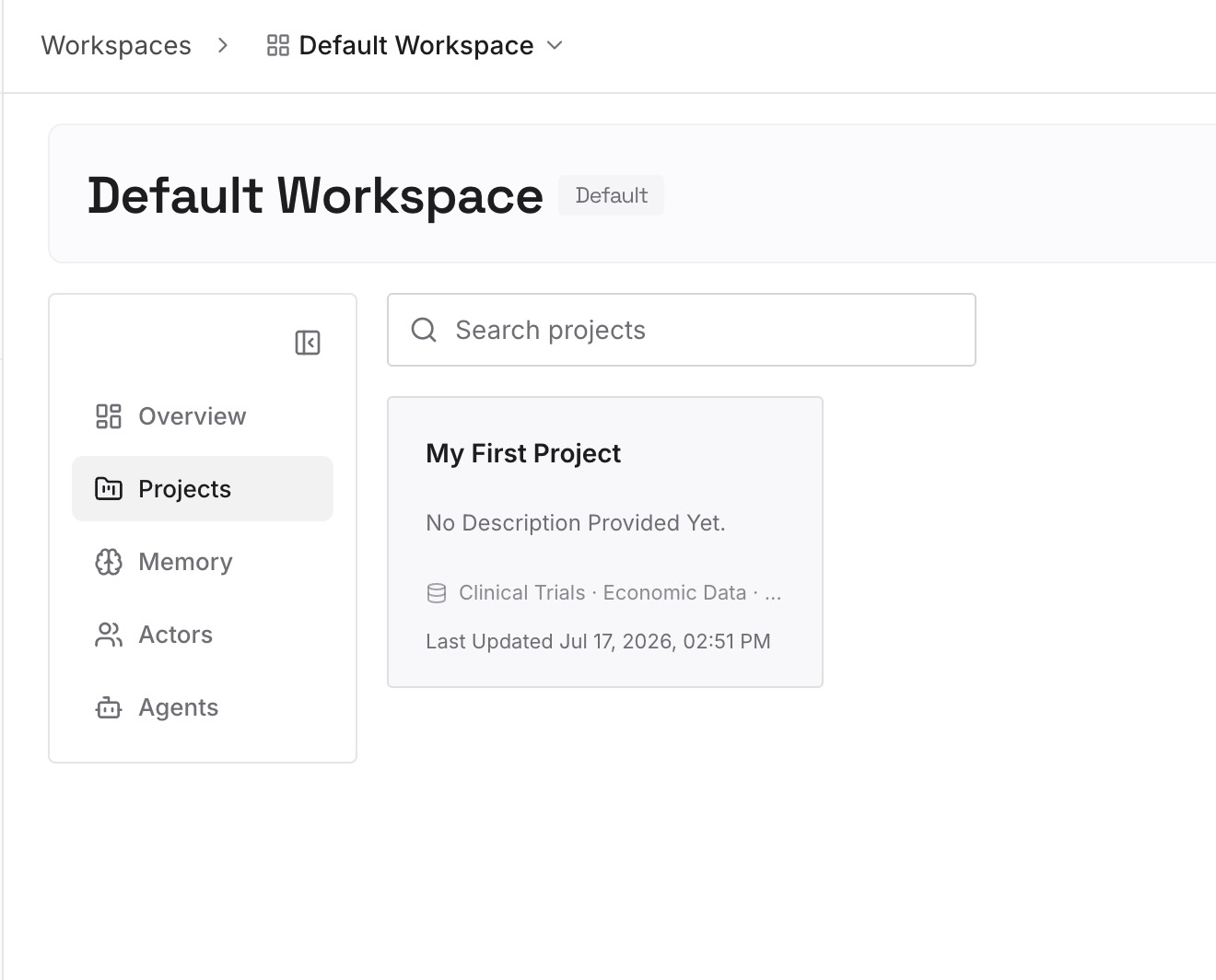
Step 2: Upload your first memories
Start with what you wrote in Step 4 of the fix: your current role, tools, and projects. When something replaces an earlier fact, write the new entry with its date and note what it replaced. One fact per entry.
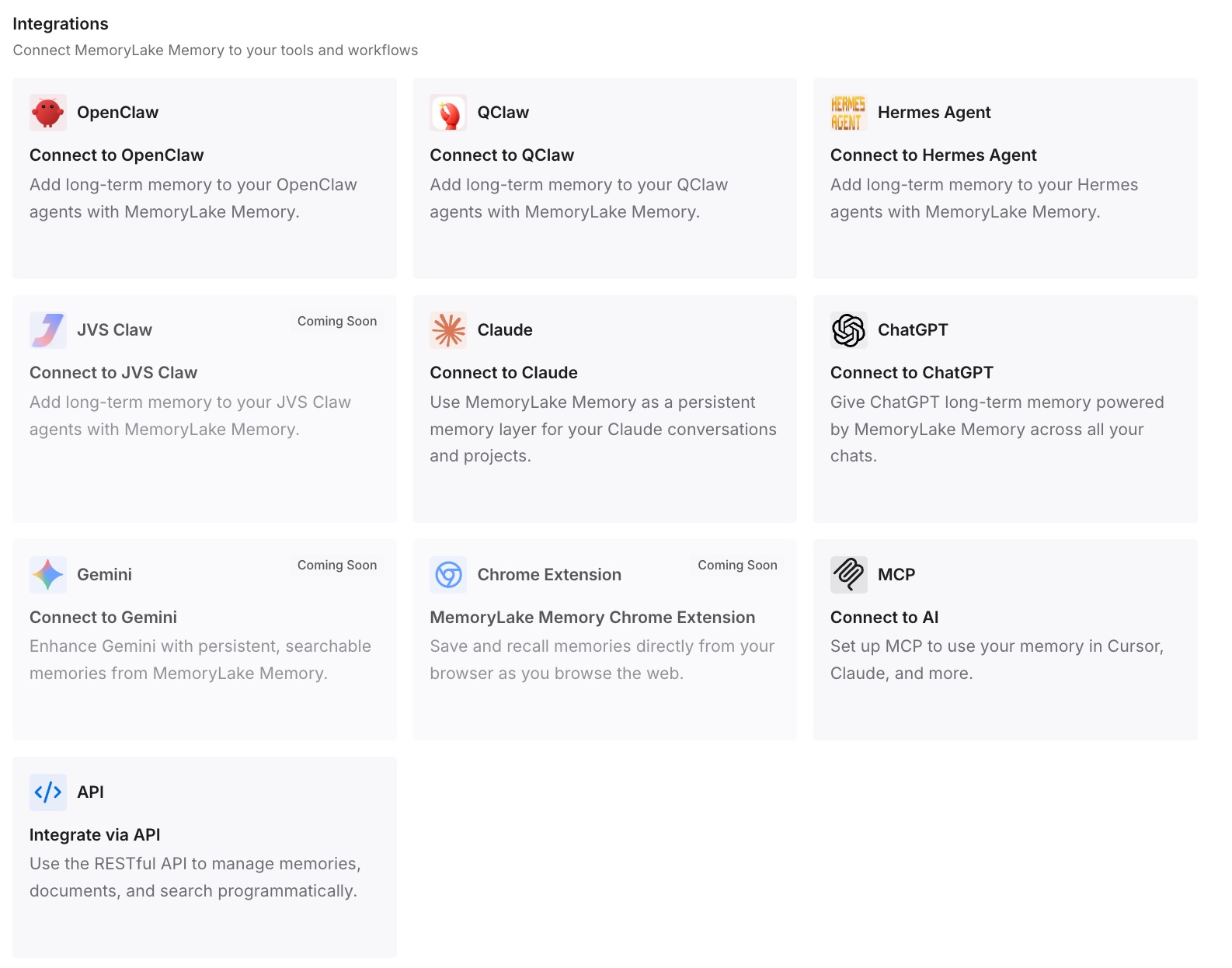
Step 3: Connect your AI & agents
Connect ChatGPT and the other assistants you use. Each can draw on the same current facts.
What this changes in practice
The first difference is a single place to update. When your job or stack changes, you change one entry.
The second is a visible history. An entry that notes what it replaced keeps the old fact from being mistaken for the current one.
The third is consistency across tools. Each connected assistant draws on the same current entries.
Best practices for keeping ChatGPT's memory current
Say when something changes. Tell ChatGPT a detail is outdated.
Check Sources on surprising answers. They show many of the personal details behind a response.
Edit, don't just hide. Don't mention this again doesn't delete the source.
Delete the chats that keep bringing it back. Deleting a saved memory doesn't remove mentions in past chats.
Review custom instructions. They're separate from memory.
Use temporary chat for other people's tasks. It doesn't create or update memories.
Give it time. Updates can take time to propagate.
Conclusion
ChatGPT's memory changes as your context changes, but it can lag, and an outdated detail can live in several places: a saved memory, the memory summary, past chats, files, connected apps, or your custom instructions. You can tell ChatGPT a detail is outdated, edit the summary or a saved memory, or ask it not to mention something, which reduces references without deleting the source.
An old chat can bring a detail back because deleting a saved memory doesn't remove mentions from past conversations, and deleting a chat doesn't necessarily delete a saved memory. Find the source first, then update it.