
What project sources are
OpenAI's help center describes projects this way: "Projects keep related chats, files, and instructions together. ChatGPT can use that context to support ongoing work, such as writing, research, or planning."
The documentation on learn.chatgpt.com names the two parts you see on screen: "Each project has a Chats section that lists project chats and a Sources section for uploaded files and connected context." Project instructions sit alongside both and apply across the project's chats.
One limit shapes everything else. "A ChatGPT project doesn't provide direct access to a folder on your computer, so upload or connect the sources you want ChatGPT to use." If it isn't in the sources list, a project chat can't count on it.
What counts as a source
There are three kinds.
Files you upload
You can add PDFs, spreadsheets, documents, and images, or paste text. OpenAI says "ChatGPT can use what you add to provide more informed answers." Once a file is in the project, you can open it from the sources list to preview, download, or delete it.
If you upload a file with the same name as one already in the project, ChatGPT asks whether to upload it anyway or skip it. In a multi-file upload, skipping only skips the conflicting file.
Links from Google Drive and Slack
You can also connect material that lives elsewhere. The help center says "You can paste links from supported apps to add them as project sources. ChatGPT can use these sources as context for project chats."
Two apps are supported: Google Drive, for files and folders, and Slack, for channels. OpenAI's steps start with opening your private project, then selecting Add sources in the project's sources area, choosing the app, approving access if asked, and pasting the link.
There's one detail about Google Drive worth knowing: "The Google Drive app does not support sync when added within a project." OpenAI adds that you can still use the app to search and access relevant files, but content won't be synced in advance for retrieval.
Responses you save
This is the newest and least used kind. OpenAI explains it: "If ChatGPT produces something you want to reuse (a summary, decision note, draft, or analysis), you can save that response as a project source."
The steps are short. In a project chat, open the message menu on the response you want to keep, select Add to project sources, and find it later in the sources list.
That turns a moment in one conversation into reference material for the whole project. The decision you reached on Tuesday can inform a chat you start next month, without anyone scrolling back to find it.
How sources reach your chats
Every chat in the project can use them
Sources are shared across the project. A chat you start inside the project can draw on its files, connected sources, and instructions. If you move an existing chat into a project, OpenAI says "After moving, the chat inherits the project's instructions and file context." Our guide to moving a chat into a ChatGPT project covers when that move is blocked.
For Plus and Pro users, OpenAI adds that "When you ask a question in a project, ChatGPT prioritizes the project chats and files."
Instructions are a separate layer
Project instructions aren't sources. They tell ChatGPT how to behave, and "Project instructions apply only within that project and override your global custom instructions." Use instructions for how you want answers written and sources for what ChatGPT should know.
Memory is another separate layer
Projects also have a memory setting, and it works differently from sources. A project can use default memory or project-only memory. With project-only memory, OpenAI says your previously saved memories aren't referenced in project chats, and chats can reference other conversations in the same project but not conversations outside it.
The difference matters when you decide where something should live. Memory is built from what you've said and can change as ChatGPT updates what it remembers. A saved source is a fixed piece of text you chose to keep. Our guide to a project's memory modes explains what switching between the two removes.
Sources in Chat and ChatGPT Work
A project isn't limited to one kind of chat. OpenAI's documentation says "The same project can contain chats started with Chat or ChatGPT Work." Both kinds can use the project's files, instructions, and connected sources, so a deliverable you build in Work can rely on the same reference material as a quick question in Chat.
One memory setting changes that. OpenAI lists what happens with project-only memory, and one of the items is "ChatGPT Work is not available in the project." If you plan to use Work on a project, check its memory setting first.
Connected apps work in project chats too, separately from the sources list. You can choose an app from the tools menu or refer to it by name. OpenAI notes that "Before an app searches outside the project, ChatGPT may ask you to confirm." A source is material you've placed in the project; an app search reaches outside it.
Some actions look like they add context and don't. OpenAI says of pinning: "Pinning doesn't add context or change what ChatGPT can access. It only changes where the project or chat appears in the sidebar."
Limits that shape what you keep
The number of files depends on your plan. OpenAI lists 5 files per project on Free, 25 on Go and Plus, and 40 on Edu, Pro, Business, and Enterprise. It also notes that "only 10 files can be uploaded at the same time."
When you hit the limit, the help center's advice is direct: "Remove older or unnecessary uploads, combine file data, or split work into multiple projects."
That advice is also a hint about how to use sources well. A project with many near-duplicate files is harder for ChatGPT to use than one with a few current ones.
Sources in shared projects
When you share a project, the sources are shared too. OpenAI says ChatGPT can draw from anything in a shared project, including chats, uploaded files, and custom instructions.
Two rules change. First, "In a shared project, deleting a file removes it from the project for everyone, but it can be added again later." Second, shared projects use project-only memory and can't be switched back to default memory, so members' own memories outside the project aren't part of it. In a shared project, the sources list is the context everyone has in common. Our guide to moving a group chat into a shared project shows how teams use it.
What happens to sources when a project goes away
Deleting a project is final. OpenAI says "Deleting a project permanently removes its chats and instructions, along with files stored only in the project. Files saved separately in Library are not deleted."
So a file that exists only in the project goes with it. If a source matters beyond one project, keep a copy outside it. Library is one place ChatGPT keeps files, and our guide to cleaning up your ChatGPT Library covers how old files there can keep shaping answers. If a project seems to have vanished rather than been deleted, our guide to missing ChatGPT projects lists where it might be.
What people try first
Uploading every version of a document. Old versions stay sources until you remove them. Keep the current one.
Expecting a connected Google Drive file to stay in sync. OpenAI says the Google Drive app doesn't support sync when added within a project.
Relying on memory for a decision. Memory can change. Save the response that holds the decision as a source.
Putting rules in sources. Instructions control how ChatGPT answers. Put rules there.
Deleting a project to tidy up. Its chats, instructions, and project-only files are removed permanently.
The Fix: Treat sources as the project's reference shelf
Step 1: Save decisions, not whole conversations
When a chat reaches a conclusion, ask ChatGPT for a short summary of what was decided and why, then save that response with Add to project sources. One decision note is easier for later chats to use than a long transcript.
Step 2: Keep one current version of each thing
Before you add a new version of a file or note, remove the old one. If you hit the file limit, combine related notes into one file instead of adding more.
Step 3: Name and date what you save
Give saved responses and uploads clear names with a date, so it's obvious later which conclusion is current. Every few weeks, read through the sources list and delete what no longer applies. If something outdated has already shaped what ChatGPT remembers, our guide to making ChatGPT forget something covers the other places it can live.
Setting this up in MemoryLake
Project sources solve a real problem inside one project: decisions stop getting lost in old chats. They belong to that project, and another project, workspace, or assistant has its own context. Some of the decisions that matter apply in more than one place.
MemoryLake is a memory layer for keeping that kind of context in one list you maintain, available to ChatGPT and the other assistants you connect, such as Claude Code and Codex.
You write the entries yourself, in your own words. Nothing is read out of, written to, or deleted from your projects, your project sources, your Library, your ChatGPT memory, or any vendor's store. Project sources keep working the way OpenAI describes them.
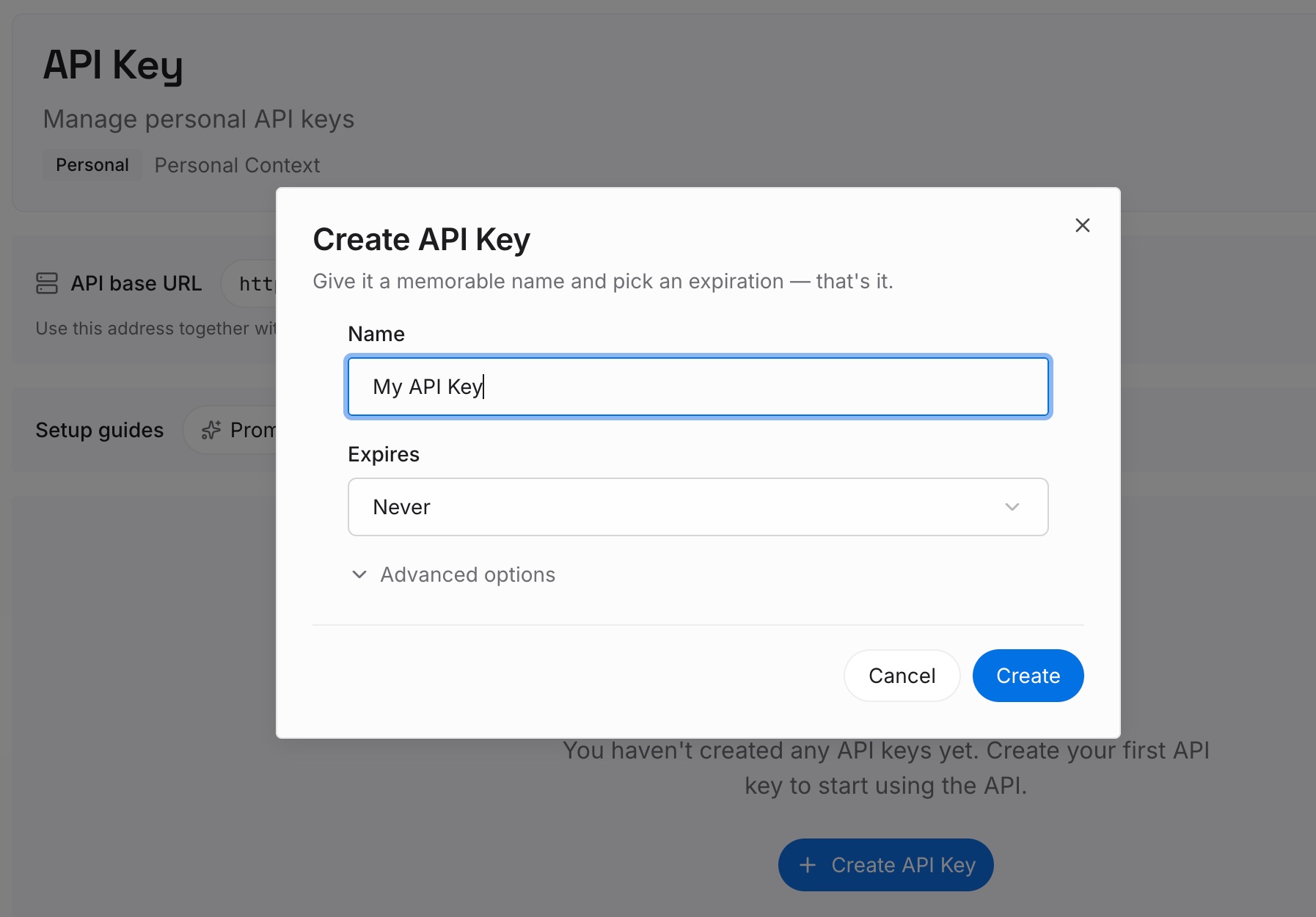
Step 1: Create an API key
Sign in and generate a key from the dashboard. The key belongs to your MemoryLake workspace and is separate from your ChatGPT account.
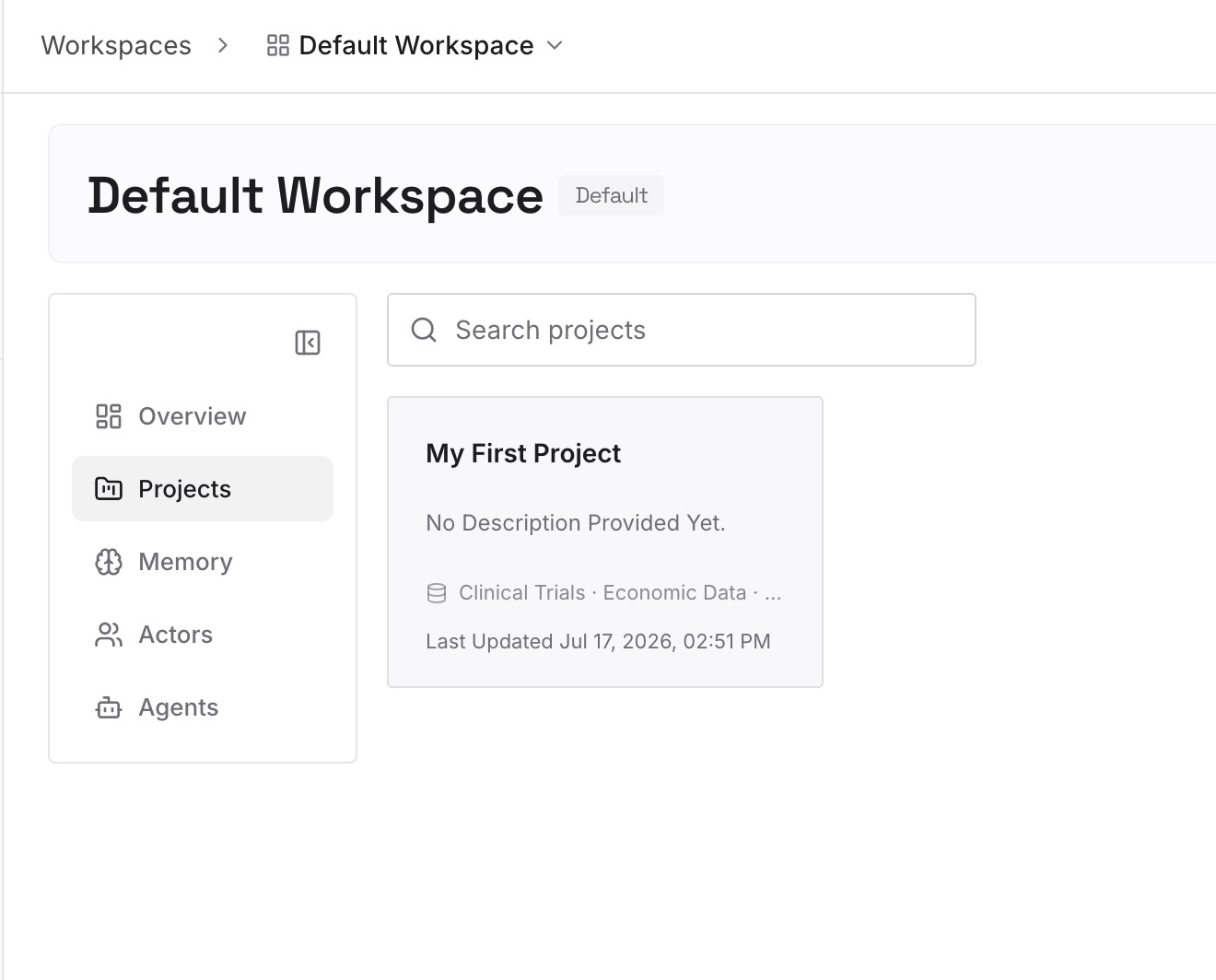
Step 2: Upload your first memories
Start with the decision notes you saved in Step 1 of the fix that apply beyond one project: conventions, constraints, and choices you'd otherwise repeat. One point per entry, dated.
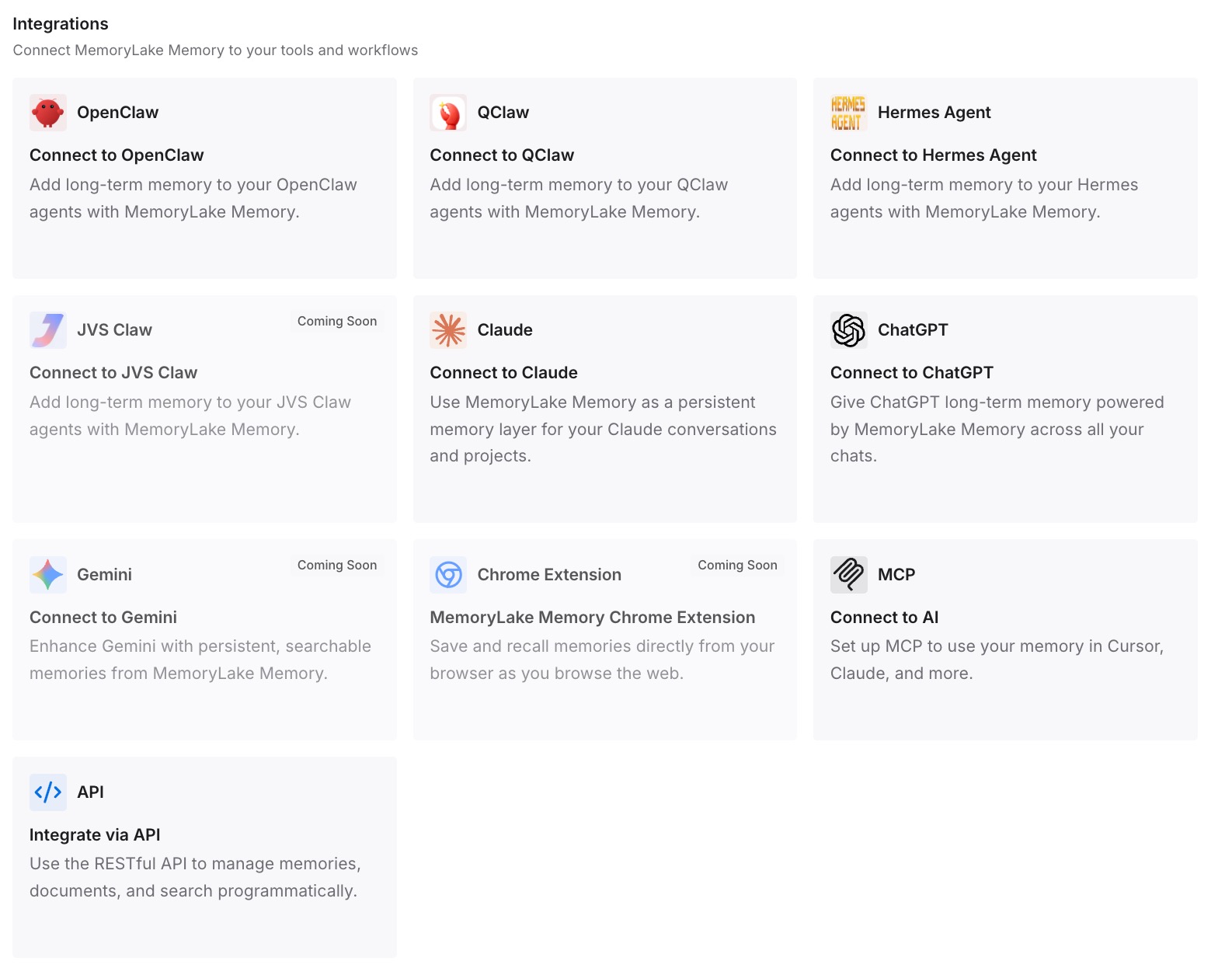
Step 3: Connect your AI & agents
Connect ChatGPT and the other assistants you use. A new project, or a different tool, can start from the same decisions.
What this changes in practice
The first difference is that conclusions stop getting lost. A decision saved as a source is available to every chat in the project.
The second is that each layer does its own job. Instructions shape answers, sources hold reference material, and memory carries what ChatGPT picks up over time.
The third is that the project stays readable. A short, current sources list is easier for ChatGPT and for you to use than a long pile of versions.
Best practices for ChatGPT project sources
Save the response that holds the decision. Use Add to project sources.
Keep sources current. Remove old versions when you add new ones.
Use instructions for rules. Sources are for what ChatGPT should know.
Don't count on Google Drive sync. Re-add updated files when they change.
Name and date what you save. It shows which conclusion is current.
Keep important files outside the project too. Deleting a project removes files stored only there.
Review the list regularly. Delete what no longer applies.
Conclusion
Project sources are the reference material every chat in a ChatGPT project can use: files you upload, links from Google Drive and Slack, and responses you save with Add to project sources. They sit beside project instructions, which shape how ChatGPT answers, and project memory, which carries what ChatGPT picks up over time.
Save decisions as sources instead of leaving them in old chats, keep one current version of each thing, and review the list so the project's shared context stays accurate.