
What Space is
OpenAI describes two building blocks.
A page "is an editable document. For example, you can use a page for a project brief, meeting notes, a research summary, or a team update." You and your collaborators can edit the same page, "and each person can ask their own ChatGPT to help with the content."
A space "groups related content." OpenAI says: "You have a personal space, and you can use other spaces to organize work on a topic or with a team." Spaces can contain folders and pages, and a page can contain subpages.
Pages can hold more than text. OpenAI says "Pages can include charts, trackers, and interactive tools created by ChatGPT."
You can start a page from a conversation, write directly in Space, or use a template. To make one from a chat, you open the conversation and ask ChatGPT to create a page with the material you want, such as the project goals, decisions, and next steps.
Who has Space
OpenAI's article says: "You can create and edit content in Space with ChatGPT Pro, Business, or Enterprise."
There are a few more conditions:
- Managed workspaces. "your organization's sharing settings determine which sharing options you can use." Enterprise administrators may need to enable sharing first.
- Devices. You create and edit pages on the web or in the ChatGPT desktop app. On mobile, you can find, read, and share pages, but "Mobile does not support editing pages."
- Data residency. Space is coming soon for Enterprise and Business workspaces with data residency in Canada or the United Arab Emirates.
OpenAI also says Slides is rolling out to eligible accounts with Space access, and "Sheets are coming soon."
Why Library disappeared
If you're on a plan with Space, this is why your Library tab changed. OpenAI's article says: "Space replaces Library for accounts with access to Space."
Your files didn't go away. In Space, the views are:
- All > Your items "shows content in your personal space, including pages, files, and folders."
- All > Shared with you shows items shared directly with you or with a team you belong to.
- Pages shows pages you own or that have been shared with you.
- Images "separates Your creations from Uploads."
One view has a gap worth knowing. OpenAI notes that items you can access only through a shared space "may not appear here; open that space to find them."
If you're on Free, Go, or Plus, you don't have Space, and Library is still where your saved files live. Our guide to cleaning up your ChatGPT Library covers how saved files can keep shaping answers and how to remove the ones you don't want.
Files from locked chats behave differently. "Files uploaded or created in a chat are hidden from Space while that chat is locked." You can open them only in the originating locked chat.
How Space differs from projects
OpenAI addresses this question twice in the same article. "Projects remain separate, so you can continue using them for your project chats, files, and instructions." And: "Creating or using a space does not replace your existing Projects."
The two do different jobs:
- A project groups chats, files, and instructions so ChatGPT can use the same context in every chat inside it. OpenAI's projects article says: "Projects keep related chats, files, and instructions together. ChatGPT can use that context to support ongoing work, such as writing, research, or planning."
- Space holds pages, uploaded files, and other work you create, organize, and share as documents.
A project is a place to talk. Space is a place for the documents that come out of the talking. You might keep a project for an ongoing piece of work, and turn its decisions into a page you share with a team.
Projects also have memory settings that Space doesn't. A project can use default memory or project-only memory. Our guide to ChatGPT project memory modes explains what each setting lets ChatGPT reference. OpenAI says shared projects "automatically use project-only memory and cannot access an individual member's memories or context from outside the project."
Deleting a project doesn't touch Space either. OpenAI's projects article says "Files saved separately in Library or Space are not deleted."
Sharing pages and files
You can share a single page or a whole space. Collaborators get view or edit access, and "People with edit access can make changes together in real time."
Access can come from several places. OpenAI says: "Access can come from a direct invitation to a page, a parent page, or the space that contains it. Subpages inherit access from their parent."
Sharing a page works differently from sharing a conversation. Our guide to what a ChatGPT shared link carries covers conversation links.
That has a consequence when you remove someone. "Removing a direct invitation does not remove access inherited from a parent page or space." To remove inherited access, you change the sharing settings on the parent that grants it. And moving a page can change who can see it, because it inherits from its new parent.
Files follow their own rules:
- Files uploaded into a page "follow that page's permissions. People who can access the page can access those uploaded files."
- Links to files stored elsewhere don't automatically give readers access. That includes files in Space and in connected services.
- Copied or summarized content is the exception. "If you or ChatGPT copy or summarize information from a source onto a shared page, people who can view the page can read that information, even if they cannot open the original source."
What sharing exposes, and what it doesn't
OpenAI draws a clear line. "Each collaborator works with their own ChatGPT. Sharing a page does not give other people access to your private chats or your ChatGPT Memory."
The companion article on sharing and data says the same: sharing "does not give them access to your private chats or your ChatGPT Memory. Each person works with their own ChatGPT."
Then comes the part that matters. "However, information written onto the page is visible to everyone who can view it."
The risk isn't someone reading your memory. It's ChatGPT writing something from your memory onto a page you then share.
How Memory applies to a page
OpenAI's sharing article explains how that can happen. "If Memory is enabled, ChatGPT may use personal context when helping you write or update a page. Once that information is written onto the page, people who can view the page can read it."
It gives an example. "For example, if ChatGPT uses something from a previous conversation to help write a project brief, that information becomes visible to the people who can read the brief and they may remember relevant information from it if their Memory is enabled, even if yours is off. Your previous conversation itself is not shared."
There are two effects in that example:
- Your context reaches the page. ChatGPT used your earlier conversation while writing the brief, so a detail from that conversation is now on the page.
- Their memory can keep it. A reader's ChatGPT may remember what's on the page, under that reader's Memory setting, not yours.
The second point is the one people don't expect. Turning off your own Memory doesn't stop a collaborator's ChatGPT from remembering a page you shared with them. The getting-started article states the rule: "Each collaborator's training and Memory settings apply when their ChatGPT uses shared content."
Training settings follow the reader too
Model training works the same way. OpenAI's sharing article says: "Use of that interaction for model training follows the settings of the person using the agent." And: "If another person's agent uses a page you shared, their training settings apply to that interaction. Your own training setting does not control theirs."
The getting-started article gives the direct case: "if you turn off training but a collaborator has it on, your contributions may still be used for training through their interaction."
On business plans, OpenAI says it "does not train on business and enterprise data by default."
What people try first
Looking for Library on a Pro or Business plan. Space replaced it. Your files are under All > Your items.
Treating Space as a new kind of project. OpenAI says projects remain separate and Space doesn't replace them.
Turning off Memory before sharing. That governs your ChatGPT, not your collaborators'. What's written on the page is still readable, and their memory can keep it.
Removing a person from a page and assuming they're out. Inherited access from a parent page or space stays until you change it there.
Sharing a link to a file instead of uploading it. Readers need access to the original file.
The Fix: Share pages deliberately
Step 1: Read the page before you share it
OpenAI's advice is direct: "Review the page's content before sharing it." Look for anything ChatGPT brought in from your earlier conversations, such as names, figures, or personal details.
Step 2: Check where access comes from
Before sharing, see whether the page sits under a parent page or a shared space. Access flows down, so the audience may be larger than the people you invite directly.
Step 3: Decide what belongs on the page
If a page is meant for a team, write the shared facts on it on purpose. Keep personal context in your own chats, and remember that whatever lands on the page can be remembered by readers.
Setting this up in MemoryLake
Space makes one thing visible: what ChatGPT writes onto a shared page can come from your memory, and once it's there, other people's ChatGPT can keep it. The safest shared context is the context someone chose to write down for the group.
MemoryLake is a memory layer for keeping shared project context, such as decisions, conventions, and who owns what, in one place you maintain, available to the assistants you connect, such as ChatGPT, Claude Code, and Codex.
You write the entries yourself, in your own words. Nothing is read out of, written to, or deleted from your ChatGPT Space, your pages, your projects, your Library, your saved memories, or any vendor's store. Space sharing, Memory, and training settings work the way OpenAI describes them.
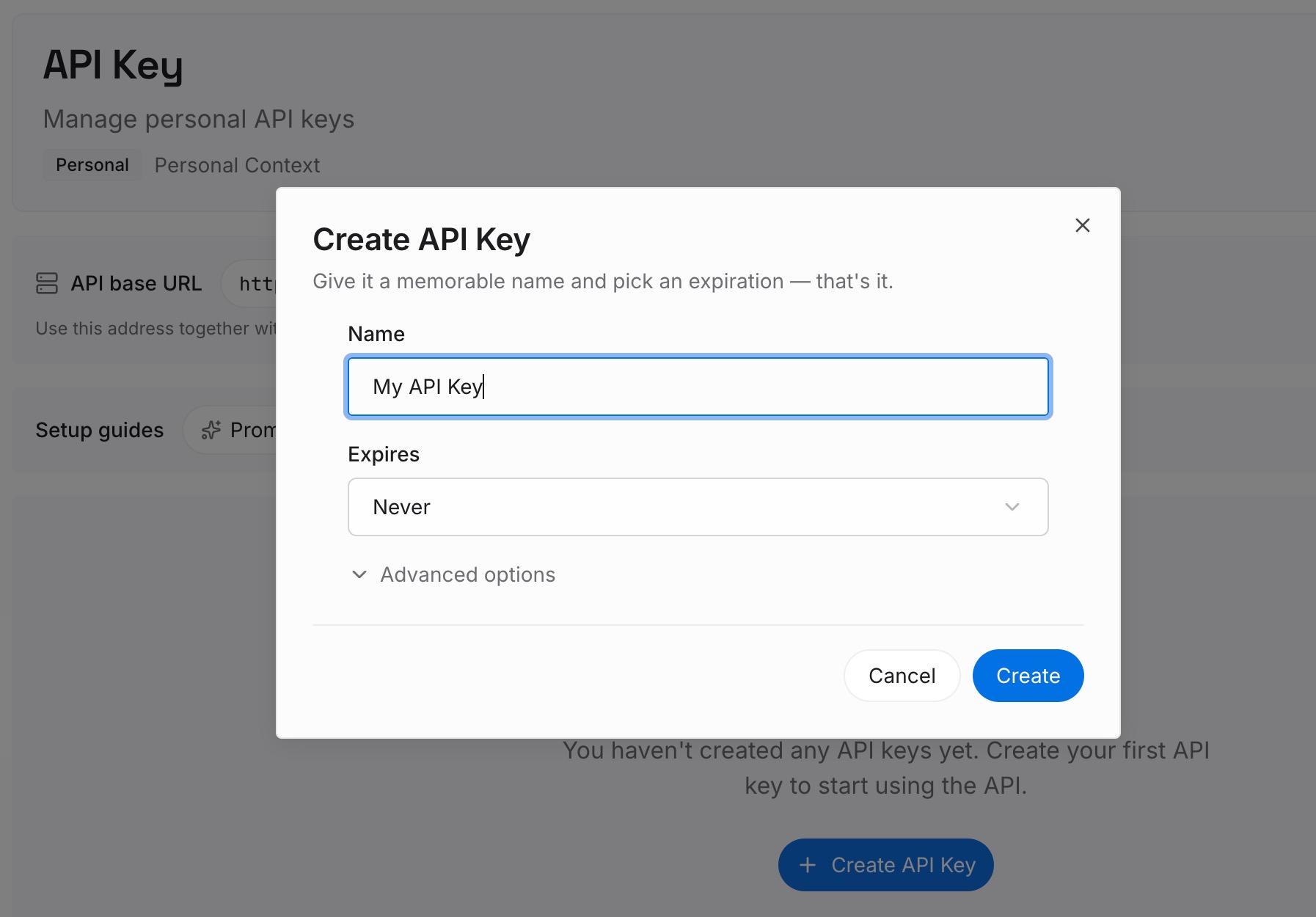
Step 1: Create an API key
Sign in and generate a key from the dashboard. The key belongs to your MemoryLake workspace and is separate from your OpenAI account.
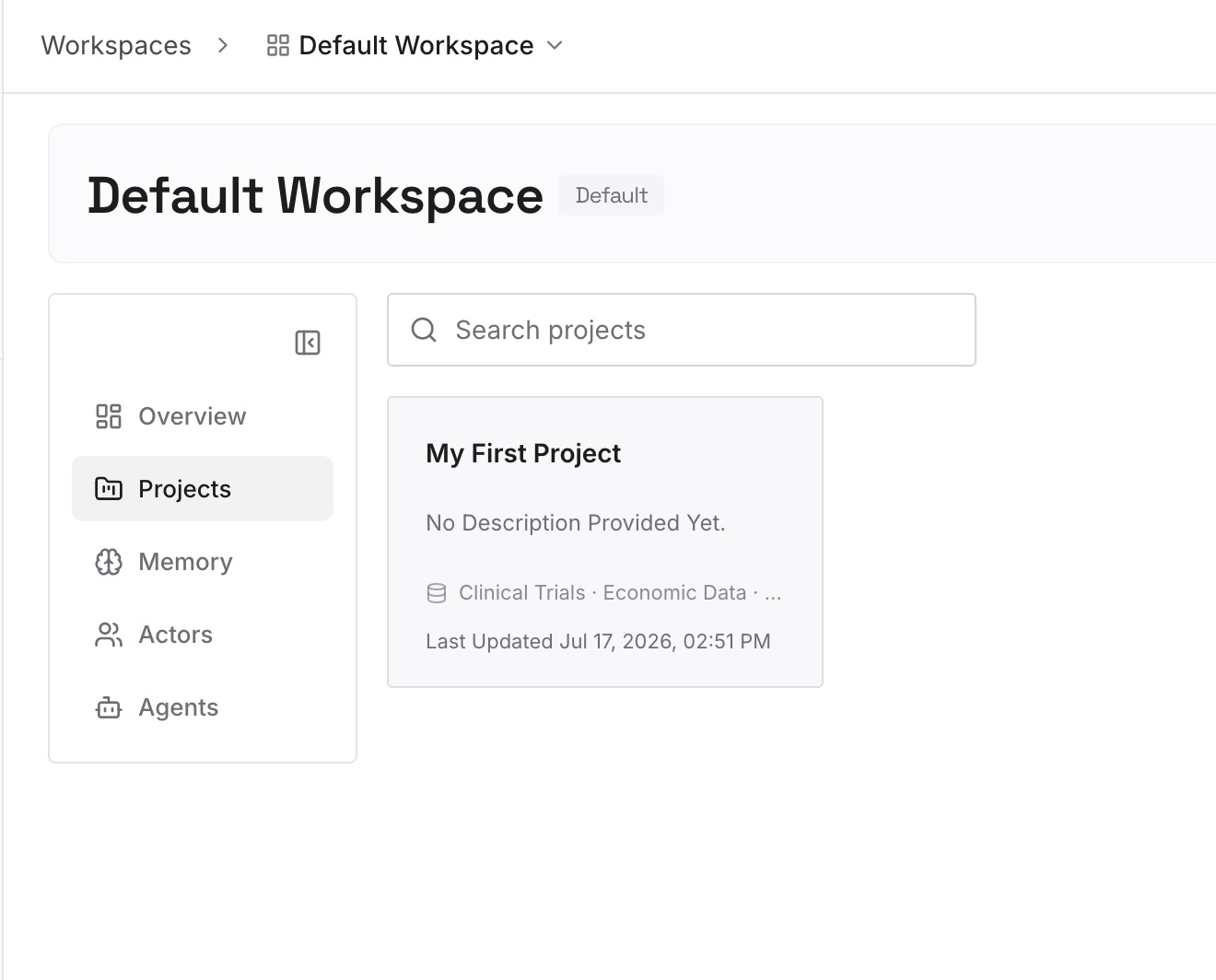
Step 2: Upload your first memories
Start with the facts your team would put on a shared page: decisions, terms, and the status of ongoing work. One fact per entry, written for the group, not copied from your personal chats.
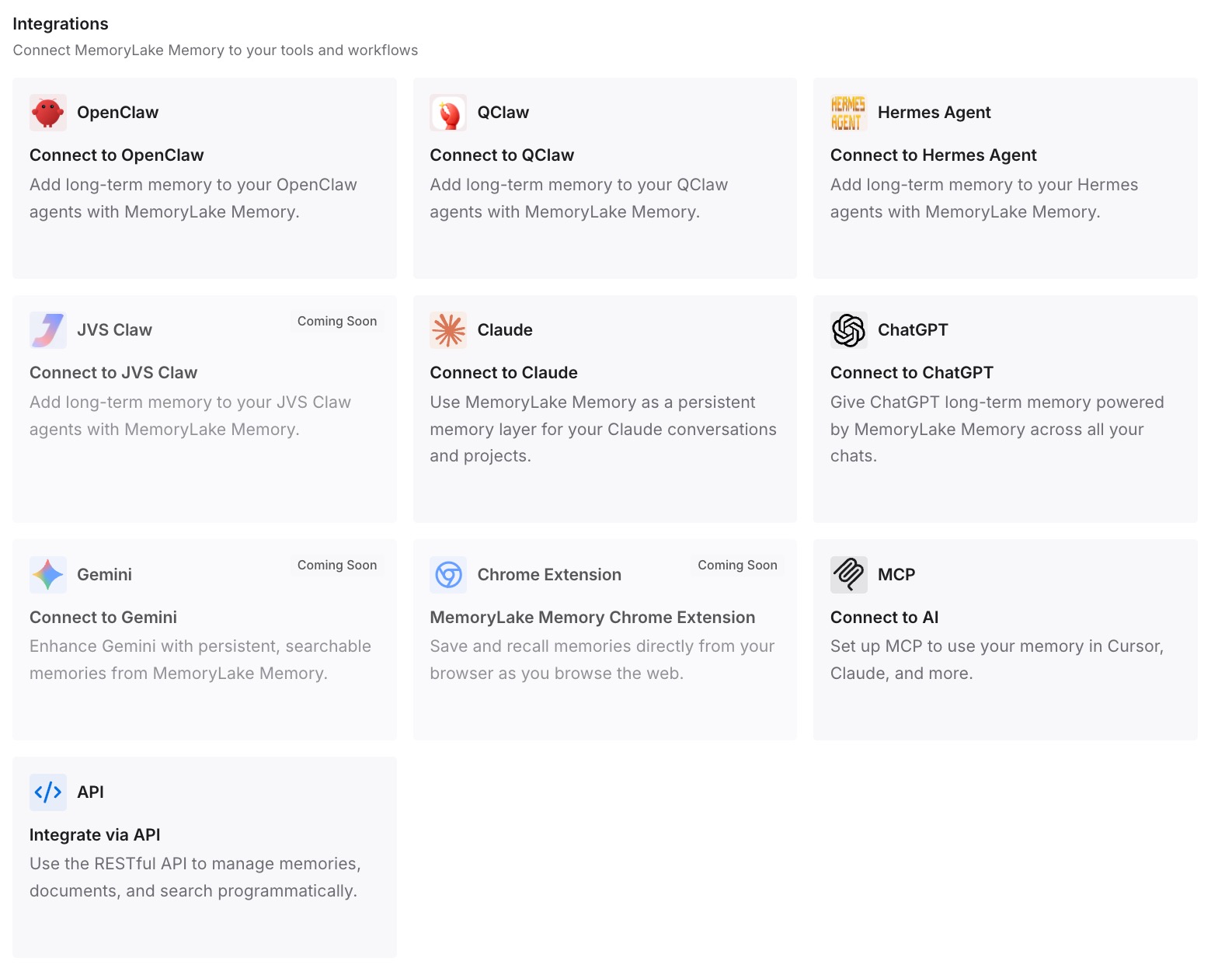
Step 3: Connect your AI & agents
Connect ChatGPT and any other assistants your team uses. Everyone draws on the same written context.
What this changes in practice
The first difference is a cleaner line between personal and shared. Shared context is what someone wrote for the group.
The second is fewer surprises on pages. When the team's facts are written down, ChatGPT doesn't need to bring them in from someone's memory.
The third is consistency across tools. The same context is available in ChatGPT and in the coding agents your team uses.
Best practices for ChatGPT Space
Use projects for chats, Space for documents. They do different jobs.
Review pages before sharing. ChatGPT may have used personal context to write them.
Remember readers' memory settings apply. Your Memory setting doesn't control theirs.
Check inherited access. Parent pages and spaces grant access to subpages.
Upload files you want readers to open. Linked files keep their own permissions.
Edit on web or desktop. Mobile supports reading and sharing, not editing.
Check subpages before deleting. Deleting a page moves its subpages to Trash, including ones owned by other people.
Conclusion
ChatGPT Space is a home for pages, uploaded files, and other work, available on Pro, Business, and Enterprise. It replaces Library for accounts that have it, and it doesn't replace projects, which still organize chats, files, and instructions.
Sharing a page doesn't share your private chats or your memory. But ChatGPT may use personal context while writing a page, anything on the page is visible to its readers, and a reader's ChatGPT may remember it under their own Memory setting, even if yours is off. Review each page before you share it, and check where its access comes from.