
What ChatGPT Work is
OpenAI's help center puts the three side by side: "Chat is for fast, conversational assistance and everyday questions. Work is an agent designed for longer, multi-step work and finished deliverables. Codex remains dedicated to software development and technical work."
The getting-started guide gives the practical version. "Use Chat when you want an answer, explanation, brainstorm, or short draft." And: "Use ChatGPT Work when you want ChatGPT to complete a task with a clear outcome, such as a brief, deck, analysis, recurring update, workflow, or file you can review and use."
Work plans the task, gathers what it needs, uses tools, and produces a result. OpenAI describes it as able to "use your files, plugins, and approved tools to retrieve information, create finished files, run workflows, and complete work that is ready for you to review." On the desktop app it can also use local files, apps, and the browser when you allow it.
How Work differs from Chat
The switch changes more than the tone of the reply.
The models. The help center says "GPT-6.1 Sol, GPT-6.1 Terra, GPT-6 Sol and GPT-6 Luna are models for ChatGPT Work and Codex. They are not available in regular ChatGPT conversations."
The usage. "Work follows the same usage structure as Codex." OpenAI adds that longer or more complex tasks may use more credits.
The starting defaults. For workspaces, admins set a starting model for Work and Codex separately. The help center notes that "Chat uses a separate starting default, so changing the Work & Codex setting does not change the starting model for a regular Chat conversation."
The kind of output. Chat answers and drafts. Work is built for deliverables: documents, spreadsheets, presentations, reports, and Sites.
How Work differs from Codex
Work and Codex share more than they differ. OpenAI's documentation says "ChatGPT Work and Codex have overlapping capabilities", and if you prefer Codex, "you can keep using it for research, documents, presentations, and other knowledge work."
The difference is mostly in presentation. OpenAI's detailed comparison of the desktop app says ChatGPT Work hides "technical details like Git or shell commands" and "Prefers nontechnical language and finished outputs", while Codex lets you "See developer details, including diff and review views". The pull requests pane is available in Codex and not in Work.
What the three share and what they keep separate
This is where the details matter.
Chat history
Chat and Work share one history. The help center says "Chat and Work chats appear together in Recents, where you can sort, filter, and pin chats." The same article explains the filter: "Use the filter to show all chats or only Chat or Work".
Codex keeps its own. "Codex remains a separate view in the ChatGPT desktop app", and "Its history remains separate from ChatGPT history." OpenAI's comparison table says the same from the other side: Codex focuses on "Codex chats and development projects".
So if a chat seems to be missing, check the Recents filter first, and check whether it was a Codex chat. Our guide to finding missing Codex chat history covers the Codex side.
Remote access is separate again. You can open supported desktop Codex chats from the Remote tab in the ChatGPT mobile app, but OpenAI notes that remote access "does not add those desktop chats to your web or mobile chat history."
Projects
Projects are shared between Chat and Work. The help center says "Your existing ChatGPT Projects appear under Projects. From a project, choose Chat to start a new chat, or choose Work to start a Work chat using the project's context."
That means a project's files and instructions are available to a Work chat started from that project. The project's memory settings still apply, and our guide to ChatGPT project memory modes explains what each setting allows.
Memory
Work uses your ChatGPT memory. OpenAI's memories documentation says "ChatGPT Work uses the memory settings available to your account and workspace; it doesn't use a local Codex memory store or local memory controls."
Codex is different on your computer. "ChatGPT web uses ChatGPT memory, while local Codex clients use a separate local memory store and controls." In the desktop app, Codex memories are turned on per machine under Settings, and they live on that machine. Our guide to Codex's local memories covers those settings.
So the same preference you saved in Chat is available in Work. A note Codex saved to its local memory store on your laptop is a separate thing.
Where the task runs
Work on web and mobile runs in the cloud. On desktop, Work can run locally with access to files you grant, and OpenAI notes that "Messages and task context may be stored in the cloud, even when work runs locally." Cloud Work chats sync across web, mobile, and desktop.
Scheduled and triggered Work tasks
Work can also run without you starting each turn. The help center says "Work can also run once, repeat on a schedule or trigger, or monitor for changes through Scheduled Tasks." Eligible plans can set up event-triggered tasks too: "Supported events include new Gmail messages, new Slack channel messages, and GitHub pull request activity in an authorized repository."
These run as Work tasks on your account, so the memory settings OpenAI describes for Work are the ones in play. Two details are worth knowing before you rely on them:
- Where you edit triggers. OpenAI says you create or edit event triggers on the web or in supported mobile apps; "the desktop app can display existing tasks but cannot create or edit their trigger conditions."
- What a shared task includes. When you share a scheduled Work task, the recipient schedules "a separate copy" and needs their own access to Work, the model, and any connected apps. The task instructions travel with the link, so read them before you share.
A scheduled task repeats a saved prompt. If each run should build on the last, the prompt has to say where the previous result lives, such as a document in the project or a file in Library, and the task should read it first. Otherwise every run starts from the same instructions and whatever your memory holds.
What people assume first
That a chat disappeared. It may be filtered out of Recents, or it may be a Codex chat, which lives in a separate history. If you pinned it, our guide to missing ChatGPT pinned chats covers the other common causes.
That Work starts without memory. It uses the memory settings on your account and workspace.
That Codex and Work share everything because they look alike. They share capabilities and usage structure; their history is separate, and local Codex memories are separate from ChatGPT memory.
That the Work models are available in Chat. OpenAI says they aren't available in regular ChatGPT conversations.
That sharing a Work task shares your context. When you share a scheduled Work task, OpenAI says sharing "does not transfer your chat history, local files, folders, device access, connected app credentials, saved memories, custom instructions, or workspace permissions."
The Fix: Pick the right mode, start from the right place, and check what it can see
Step 1: Choose by outcome, not by habit
Ask what you want at the end. If it's an answer or a quick draft, use Chat. If it's a file you'll review and use, a report, a deck, an analysis, use Work. If it's code, tests, or a pull request, use Codex. OpenAI's own table puts it this way: Chat to "Work through something with ChatGPT", Work to "Define an outcome and get a reviewable result", Codex to "Use developer tools and see technical details".
Step 2: Start Work from the project that holds the context
If the task relates to an existing project, open the project first and choose Work there. The Work chat starts with the project's context. Starting Work from an empty chat means adding files and instructions again.
Before a long task, tell Work what it should already know: the outcome, the sources to use, the constraints, and when to stop for review. OpenAI's best practices recommend exactly this.
Step 3: Ask what it knows before it starts
In your first message, ask Work to list what it's using: the project files, the instructions, and anything it recalls about you that applies. If something you expected is missing, add it. If you switch to Codex for the coding part, assume Codex starts from its own history and its own memory on that machine, and bring the decisions along in your first message.
Setting this up in MemoryLake
Chat and Work share your ChatGPT memory and projects. Codex keeps its own history and, on your computer, its own memory. Claude and other assistants keep theirs. The decisions and preferences you want everywhere end up re-explained every time you switch.
MemoryLake is a memory layer for keeping that context in one list you maintain, available to ChatGPT and the other assistants you connect, such as Codex and Claude Code.
You write the entries yourself, in your own words. Nothing is read out of, written to, or deleted from your ChatGPT memory, your projects, your Codex memories, your chat history, or any vendor's store. For work content, follow your organization's policy on what you keep outside its tools.
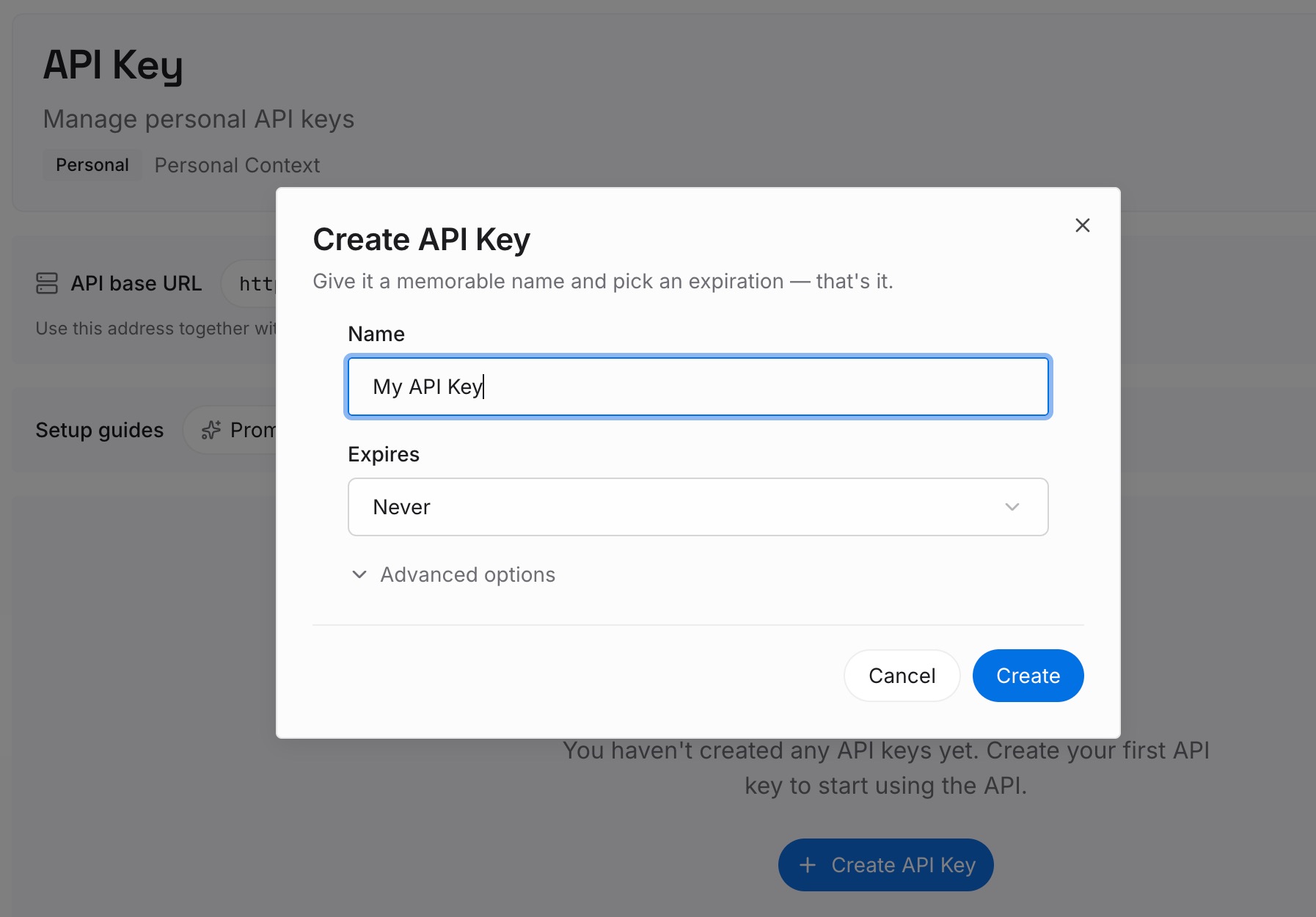
Step 1: Create an API key
Sign in and generate a key from the dashboard. The key belongs to your MemoryLake workspace and is separate from your ChatGPT account.
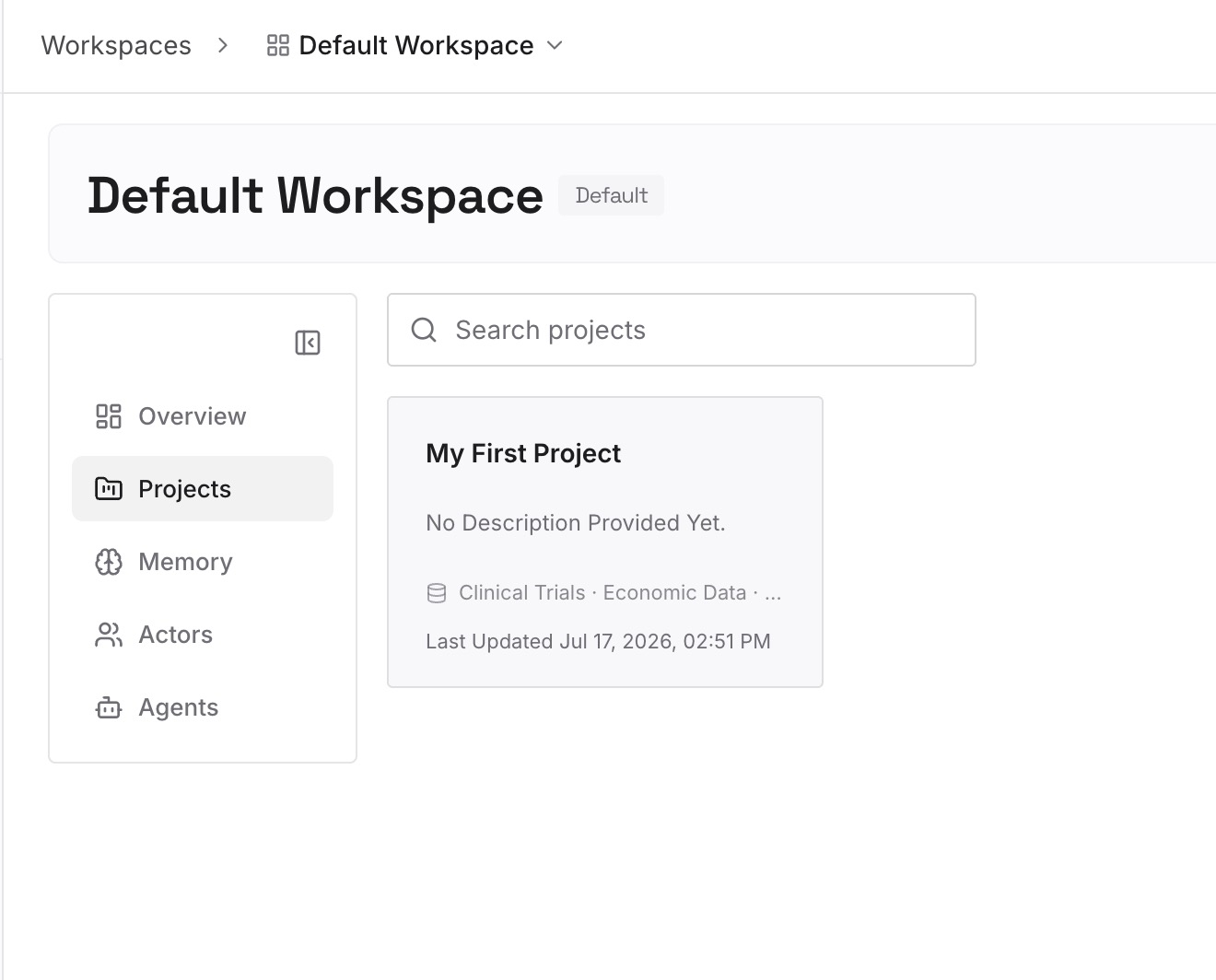
Step 2: Upload your first memories
Start with what you'd tell Work in Step 2 of the fix: the standing constraints, sources, and preferences for your recurring tasks. One point per entry, dated, and labeled with the project it belongs to.
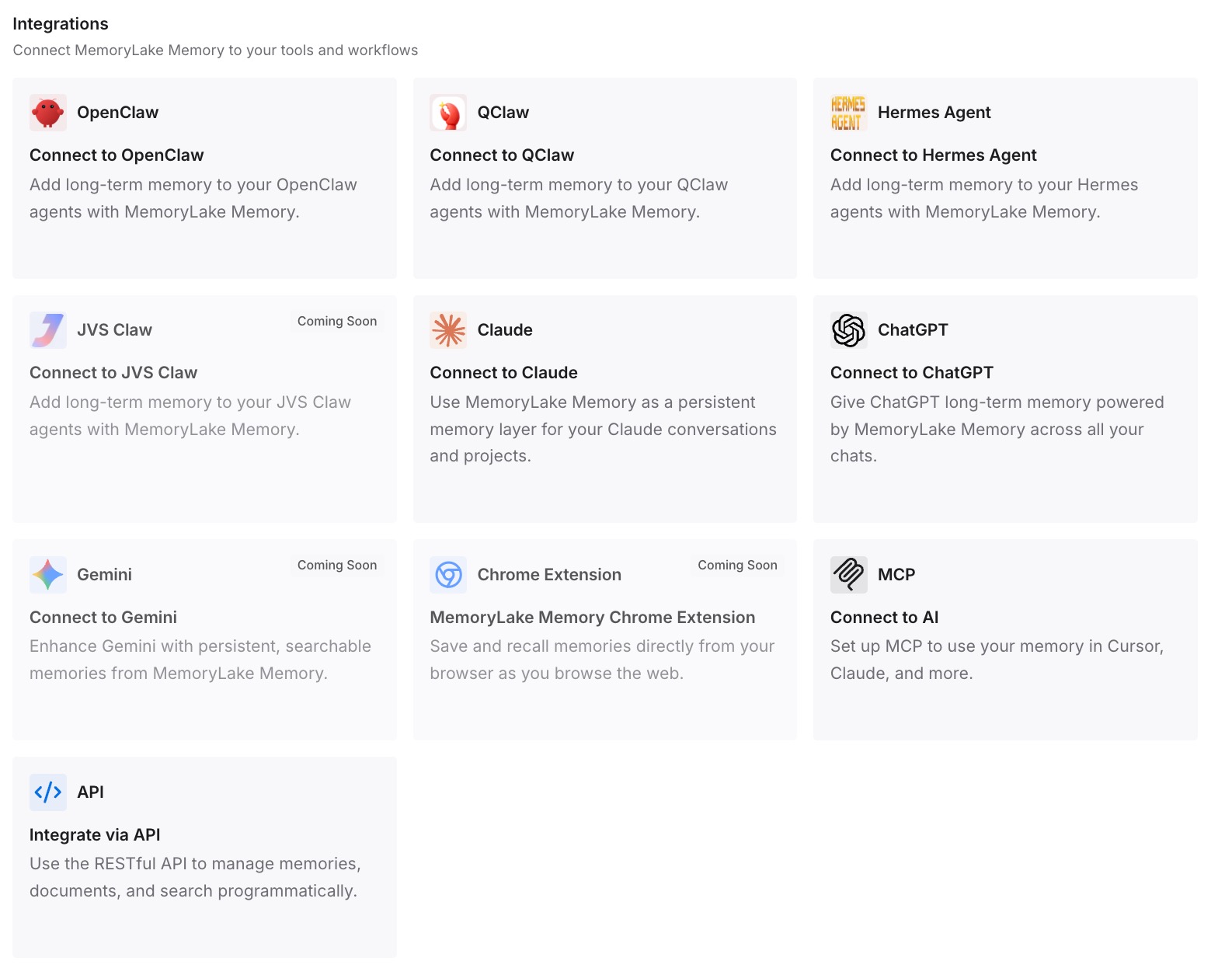
Step 3: Connect your AI & agents
Connect ChatGPT and the other assistants you use. Switching from Work to Codex, or to another assistant, starts with the same context.
What this changes in practice
The first difference is that the switch stops being a guess. You know Chat and Work share history, projects, and memory, and you know where Codex draws the line.
The second is that tasks start from the right place. A Work chat opened from a project starts with that project's context.
The third is that moving between tools costs less. If you're coming to Work from Claude Cowork, our guide to migrating from Claude Cowork to ChatGPT Work covers that move.
Best practices for ChatGPT Work
Use Work for deliverables. Chat for answers, Codex for code.
Start from the project. Work picks up the project's context.
Check the Recents filter. It can show only Chat or only Work.
Look for Codex chats in Codex. Their history is separate from ChatGPT history.
Expect your memory settings to apply. Work uses the same account and workspace settings as Chat.
Bring decisions with you into Codex. Local Codex memories are a separate store.
Review before sharing a Work task. Sharing doesn't include your memories or history, but it does include the task instructions.
Conclusion
ChatGPT Work is the mode for multi-step tasks that end in something you can review. It shares chat history, projects, and memory with Chat, and it uses models that aren't available in regular Chat conversations. Codex shares Work's capabilities and usage structure but keeps its own history, and on your computer, its own memory store.
Start Work from the project that holds the context, check the Recents filter when a chat seems missing, and carry your decisions across when you move to Codex.