
What OpenAI shipped on October 20
The ChatGPT release note says locked chats are "rolling out gradually to Free, Go, Plus, and Pro users on the web, in the iOS and Android apps, and in the new ChatGPT desktop app for macOS and Windows." The Business release note announces the same feature for Business workspaces, and the help article lists the full set: "Locked chats are available on ChatGPT Free, Go, Plus, Pro, Business, Enterprise, and Edu." ChatGPT for Healthcare is excluded.
If you don't see the option yet, the help article explains why: "If you don’t see Lock chat in an eligible chat’s more options menu (•••), the feature may not be available for your account yet."
Locked chats live in one place. OpenAI's help article says "You can find your locked chats under Projects > Locked chats." The sidebar can show that area while hiding the titles inside it until you enter your PIN.
Two limits on where the feature works matter if you use ChatGPT for development. On desktop it requires the new ChatGPT app, and "Codex conversations, including cloud Codex conversations, and local Work conversations can’t be locked."
What locking changes, and what it leaves alone
OpenAI is direct about the scope: "Locking a chat changes where the conversation appears and how you open it." The article then lists what locking does not do. It does not:
- "create end-to-end encryption or a separate encrypted vault"
- "change how long OpenAI retains the chat"
- "change your Improve the model for everyone setting"
- "remove information that ChatGPT remembered before you locked the chat"
- "override applicable workspace policies, safety requirements, or legal and compliance obligations"
That list is the most useful paragraph on the page. A locked chat is hidden from view, not sealed. In a managed workspace, OpenAI says locked chats "do not override your organization’s access to workspace data", and "Locked chats in ChatGPT Enterprise and Edu workspaces are still included in conversation message logs available through the OpenAI Compliance Platform."
Memory: a second pool that only flows one way
The memory section of the help article describes two pools of remembered information, regular and locked, with a one-way connection between them. OpenAI's Memory article, updated the same day, summarizes it in one sentence: "New messages sent while a chat is locked do not personalize regular chats."
What a locked chat can use
A locked chat isn't cut off from what ChatGPT knows about you. When Memory is on, "Locked chats can use relevant information from regular Memory." The exception is a workspace policy: "If your organization turns off Memory for your workspace, locked chats cannot use or create memories."
What a locked chat adds, and where it stays
New messages in a locked chat can still be remembered, but only for other locked chats. The help article says "Information from new messages sent after you lock a chat can be remembered for use in other locked chats", and "Information remembered only within locked chats does not carry into regular chats."
In practice, a decision you reach inside a locked chat informs your other locked chats and stays out of your regular conversations. If you lock a long-running planning chat and keep working in it, your regular chats stop picking up anything new from it.
What unlocking brings back
Permanently unlocking a chat returns it to regular history, and "the full conversation may be used for regular Memory if your settings and workspace policies allow it." But the memories that formed while it was locked don't transfer: "Memories created while the chat was locked are not automatically added to regular Memory when you unlock it."
That sentence is easy to miss and has real consequences. Unlocking makes the conversation available as a source again. It doesn't automatically add the locked pool's entries to your regular memory. OpenAI adds a caution that applies to both pools: "Memory summaries and Sources may not show every factor that shaped a response." Our guide to what ChatGPT's memory summary leaves out covers how to check that view.
Projects: locking a chat takes it out of the project
This effect is easy to overlook. OpenAI's help article says "If you lock an eligible chat from a project, it leaves that project and no longer uses its instructions, files, or memory."
A project chat draws its context from the project: the instructions you set, the files you uploaded, and the project's memory. Our guide to ChatGPT project memory modes explains how that memory is scoped. Once the chat is locked, it has none of that. If you keep working in it, you are working in a chat that no longer knows the project's brief.
Unlocking doesn't restore the link either. The article says "If the chat originally came from a project, it returns to regular history rather than the previous project." You would need to move it back yourself. Eligibility also differs between devices: "Project chat eligibility varies by platform."
Locked chats also lose the organizing actions. "You cannot archive, pin, move, or share a locked chat. Permanently unlock it before using any of these actions."
Files and shared links
Files follow the chat. OpenAI says "Files uploaded or created in a chat are protected when you lock it", including files added after locking. While the chat is locked, "you can open its protected files only in that chat." They "stay hidden from Space and its search results and aren’t available in other chats, including other locked chats, even after you enter your PIN." Files you brought in from elsewhere in Space keep their existing access rules.
Shared links follow a different rule. You can lock a chat that already has a shared link, but "Locking it does not delete the link. Its previously shared content remains available, but new messages sent while the chat is locked are not added." If you want to stop access, delete the link separately. Our guide to what a ChatGPT shared link carries explains what recipients see.
Locking also doesn't stop copying. "Anyone who can open a locked chat can still copy its contents."
The PIN reset is the one step you can't undo
Changing your PIN and resetting a forgotten one are different actions with very different results. "Changing the PIN does not delete locked chats." You need your current PIN to change it.
A reset is destructive. "Resetting your account PIN permanently deletes all locked chats, remembered information stored only within locked chats, and files or other content protected only by your previous PIN." OpenAI adds: "This cannot be undone, and OpenAI Support cannot recover the deleted content." Administrators can't help here either: "A workspace administrator cannot reset your account PIN or unlock your chats for you."
The phrase "remembered information stored only within locked chats" matters. Because locked-chat memories don't carry into regular chats, a reset removes them entirely. Anything you only ever discussed in locked chats, and never wrote down elsewhere, goes with them.
The PIN's scope is worth checking too. "Your account PIN is tied to your OpenAI account, not to a specific workspace." A second OpenAI account has its own PIN.
Chats you can't lock
The help article lists conversation types where Lock chat is unavailable:
- temporary chats
- archived chats
- group chats
- chats in the earlier Health experience
- chats created from a shared link
- chats with scheduled tasks
- chats with meeting recordings
- chats associated with background tasks
- chats with responses saved as project sources
Scheduled tasks need a step before you lock: "Before locking a chat, delete any scheduled tasks associated with it, including paused tasks." After locking, "ChatGPT can’t create or update a scheduled task from a locked chat."
What people try first
Locking a project chat to protect it while continuing the work. The chat leaves the project and loses its instructions, files, and memory. The work continues without the project's context.
Assuming locking removes what ChatGPT already learned. OpenAI lists this explicitly among the things locking does not do. Earlier memories stay in regular memory.
Expecting unlock to bring the locked memories back. The conversation becomes eligible for regular memory again, but memories created while it was locked are not automatically added.
Treating the PIN like a password you can reset later. A reset deletes the locked chats and the information stored only with them.
The Fix: Check what the chat depends on, copy out what you'll need, then lock it
Step 1: Check what the chat is attached to
Before you lock, open the chat and look at its context. Is it in a project? Does it have a scheduled task, including a paused one? Does it have a shared link? Does it hold files you use elsewhere?
Each answer changes the outcome. A project chat leaves the project. A scheduled task has to be deleted first. A shared link stays live until you delete it. Files become reachable only from that chat. If any of these would break your workflow, decide now whether to lock this chat or start a new locked chat for the sensitive part only. If you're using locked chats for the first time, OpenAI's article says to lock an existing conversation first. After that, you can start new conversations from Projects > Locked chats.
Step 2: Write down what you'll need outside the lock
Look for anything in the chat that your regular chats or your projects should still know: a decision, a constraint, a fact about your situation. Once the chat is locked, new information from it stays in the locked pool.
Write those points down somewhere you control, in your own words, and leave out the sensitive details that made you want to lock the chat in the first place. If the chat belongs to a project, add the non-sensitive conclusions to the project's instructions or files before it leaves.
Step 3: Lock it, and set up the PIN as something you won't lose
Open the chat's more options menu, select Lock chat, and confirm. Create the PIN when prompted. On iOS you can turn on Face ID or Touch ID in Account PIN settings, and on Android you can use device unlock, but those are per device and don't replace the PIN.
Store the PIN the way you store other credentials you can't afford to lose. When you're done with the locked area, select Lock now. On the web, access ends when you refresh or close the tab. On mobile, it ends after a minute away.
Setting this up in MemoryLake
Locked chats solve a visibility problem: keeping a conversation off your screen when someone else can see it. They also split your context in two. What you learn in locked chats stays in the locked pool, and a forgotten PIN can remove it.
MemoryLake is a memory layer for keeping the non-sensitive conclusions from those chats in one list you maintain, available to ChatGPT and the other assistants you connect, such as Claude Code and Codex.
You write the entries yourself, in your own words. Nothing is read out of, written to, or deleted from your locked chats, your regular chats, your projects, your ChatGPT memory, or any vendor's store. Leave out the sensitive details that led you to lock a chat, and follow your organization's policy for work conversations.
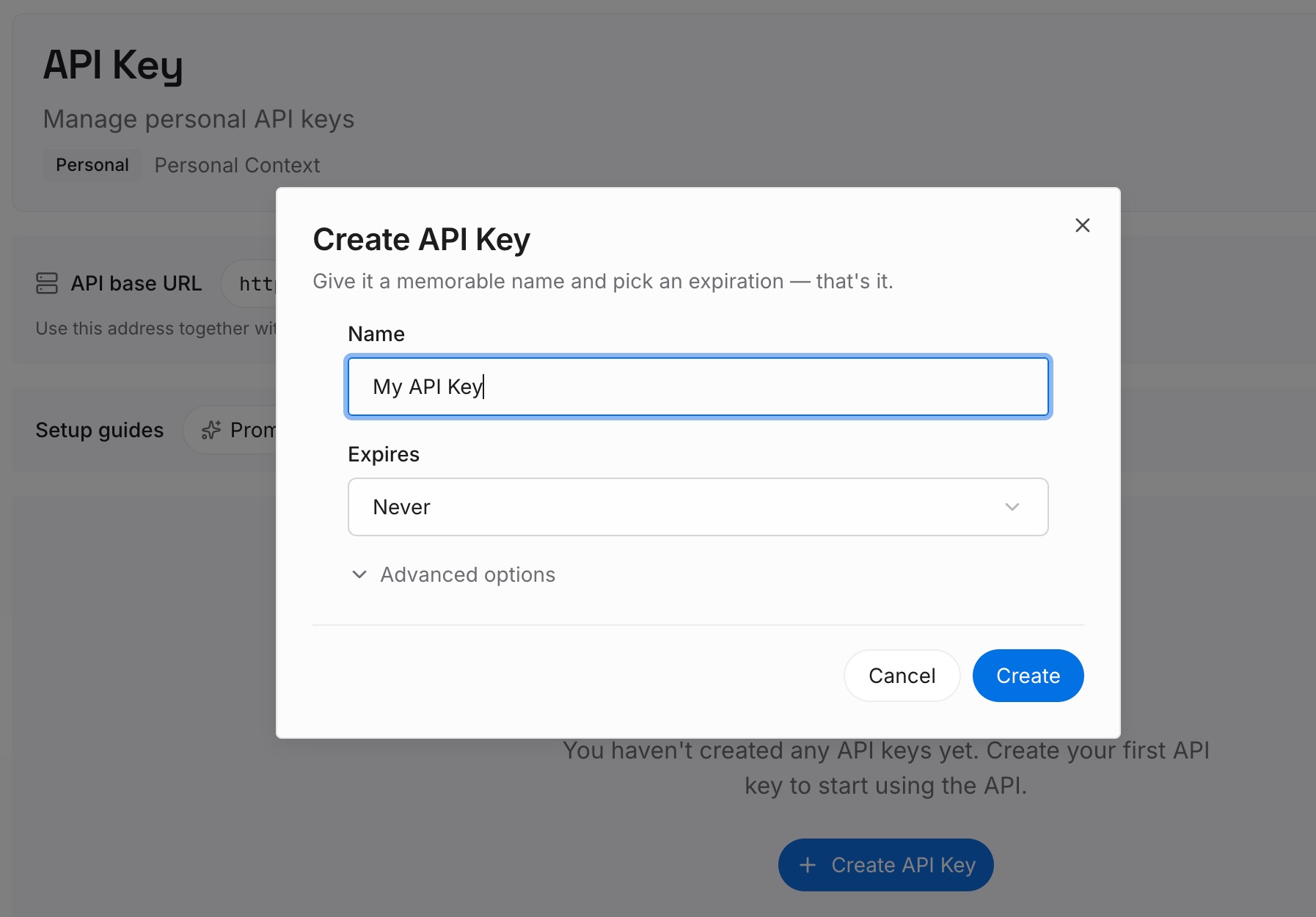
Step 1: Create an API key
Sign in and generate a key from the dashboard. The key belongs to your MemoryLake workspace and is separate from your ChatGPT account and its PIN.
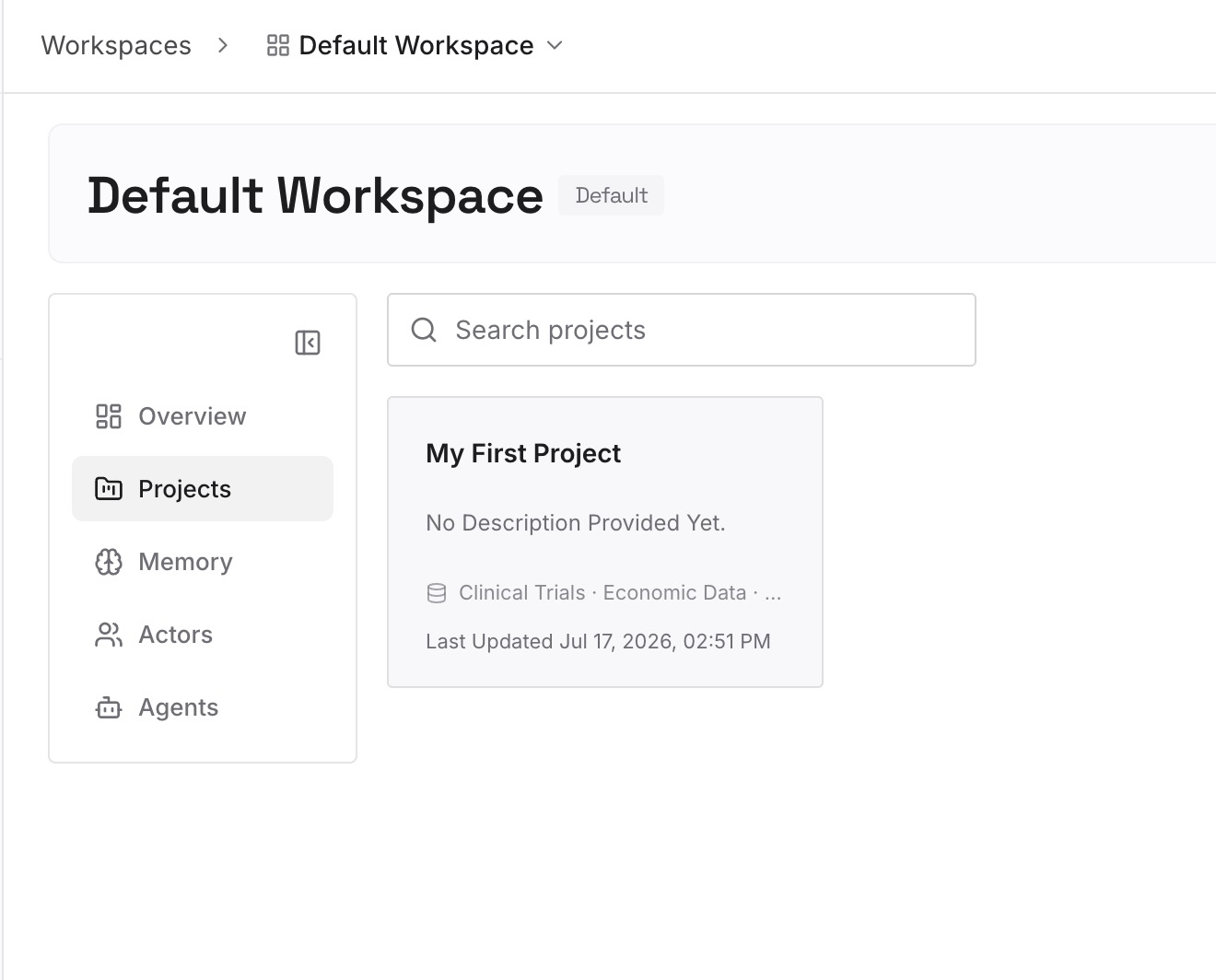
Step 2: Upload your first memories
Start with what you wrote down in Step 2 of the fix: the decisions and constraints from chats you're about to lock that your other work still depends on. One point per entry, dated, without the sensitive specifics.
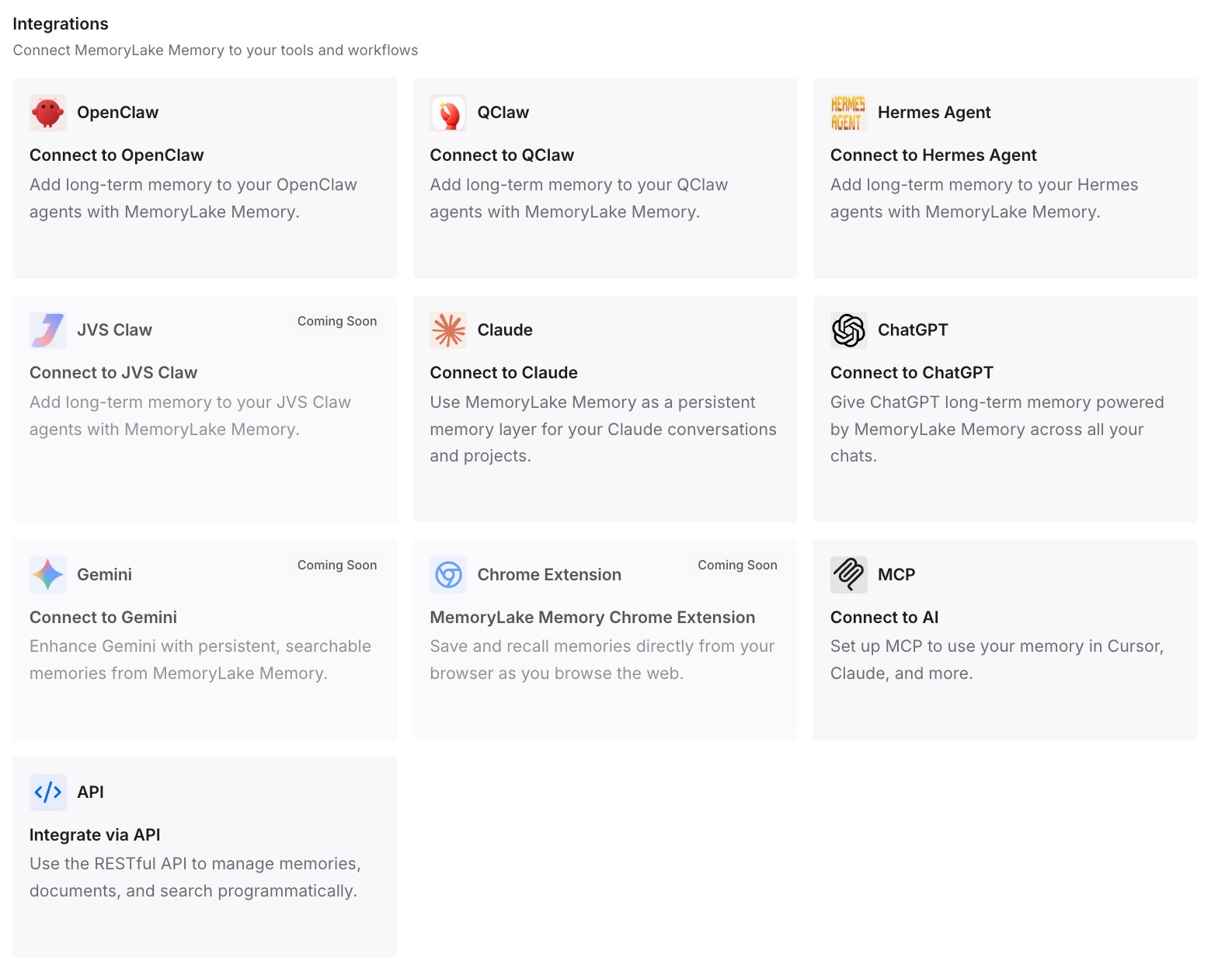
Step 3: Connect your AI & agents
Connect ChatGPT and the other assistants you use. The conclusions stay available in regular chats and in your other tools, whether the original conversation is locked, unlocked, or deleted by a reset.
What this changes in practice
The first difference is that locking becomes a deliberate step instead of a reflex. You check the project, the tasks, the link, and the files before you lock, so nothing breaks without your noticing.
The second is that your regular chats keep the context they need. The decisions you'd otherwise only make inside a locked chat are written down outside it, so regular memory not picking them up stops mattering.
The third is that a PIN reset stops being catastrophic. It still deletes the locked chats, but the parts you needed elsewhere already exist in your own words. If a locked chat seems to be missing from search, our guide to finding old ChatGPT chats covers where else to look.
Best practices for using ChatGPT locked chats
Lock the sensitive conversation, not the whole project's work. Start a new locked chat for the private part if the rest belongs in the project.
Delete scheduled tasks first. Chats with tasks, including paused ones, can't be locked.
Delete shared links you no longer want live. Locking doesn't remove them.
Know the difference between change and reset. Changing keeps your locked chats. Resetting deletes them.
Don't count on unlock to merge memories. Memories formed while locked are not automatically added to regular memory.
Select Lock now before sharing your screen. OpenAI notes that "Other devices where ChatGPT is already open may continue to show the chat title until their conversation lists refresh."
Keep conclusions outside the lock. Write down what your other work needs, without the sensitive details.
Conclusion
Locked chats hide selected conversations behind an account PIN, and OpenAI is clear that they don't change retention, model-improvement settings, or workspace access. The less visible effects are on context. A locked chat leaves its project, its files become reachable only from inside it, its new memories stay in a separate pool, and a PIN reset deletes that pool along with the chats.
Before you lock a chat, check what it's attached to and copy out the conclusions your other chats need. Then lock it and store the PIN somewhere safe. If you're deciding between locking and archiving, our explainer on archived ChatGPT chats covers what archiving keeps.