
How Claude's memory is supposed to work
It helps to know the normal behavior first, because some of what looks like a fault is the design.
Claude saves memory as you chat, not afterwards. The help article says "Claude saves memory as a set of individual topics as you chat, rather than summarizing conversations after they end." You can also ask directly. The article says "Claude saves on its own", and you can tell Claude to remember something to save it on purpose.
Memory focuses on everyday working context. Anthropic lists what it keeps: your role and projects, the people and places in your work and life, communication preferences, technical preferences, and ongoing work.
Separately, on paid plans, Claude can search your past chats when you ask about something you discussed before. That's a different feature with its own toggle and its own limits, covered below.
Everything Claude remembers is visible. In Settings, then Memory, "Everything Claude remembers is listed under Topics." That list is the first place to look when memory seems wrong.
Why Claude's memory isn't working
Memory is off for your account, or your organization hasn't enabled it
On Free, Pro, and Max plans, memory is on by default. Team and Enterprise are different. The help article says "On Team and Enterprise plans, owners control whether memory is available, and it's off for each member until they turn it on."
So on a company account, two things have to be true: your organization's owner has turned memory on, and you've turned it on yourself. If an owner turns it off for the organization, Anthropic is explicit about the consequence: "all existing memory entries for all users are deleted immediately, and users can't access the memory setting."
Some organizations can't use it at all. The article states: "Memory isn't available to organizations with HIPAA, public-sector, or custom data retention agreements."
Memory is paused
When you switch memory off, Claude offers two options, and they behave differently. Pausing keeps what's saved but stops using it: "Claude keeps its existing memory, including sensitive topics if you have it turned on, but won't use memory or make new memories." The detail to note is what happens to the gap: "Conversations while memory is paused won't be added to memory if you turn it back on."
If you paused memory for a while and turned it back on, Claude won't have learned anything from the chats in between.
This chat was started with memory off
You can leave memory on for your account and switch it off for one chat. That choice is locked in early: "You need to turn memory off before you send the first message. Once the chat starts, the setting can't be changed."
The sign is in the title bar. "After you send your first message, a crossed-out memory icon appears next to the chat title. Chats with memory on don't show an icon." If you see that icon, the chat isn't using memory and isn't adding to it, and the fix is to start a new chat with memory on.
It's an incognito chat
Incognito chats are deliberately left out. When incognito is on, "Claude won't remember your chats, so they won't be saved to Claude's memory or your chat history." They're also excluded from past-chat search. If you started a chat from the ghost icon, nothing from it will appear in memory later.
You're inside a project
Projects have their own memory, and it's separate from other projects. The help article explains: "While working in a project, Claude uses the project's memory alongside your memory from chats outside of projects, but not memory from other projects."
That means context you built up in one project won't show up in another. And a project can be fully isolated. The article says to turn off Use account memory under Memory on the project's page "To keep a project's memory fully separate". If that setting is off, chats in the project won't draw on what Claude knows about you from your regular chats.
Search follows the same lines. Past-chat search covers "All chats outside of projects" and "Individual project conversations (searches are limited to within each specific project)." Our guide to searching past chats in Claude projects covers how those boundaries work in practice.
You're using Cowork on your computer
Memory is shared between chat and Cowork, but only one kind of Cowork. The article says "Memory is shared between Chat and Claude Cowork when Cowork runs in the cloud; Cowork sessions that run locally on your computer don't use memory." If a Cowork task didn't know something Claude knows in chat, check where the task ran.
The topic is sensitive, or is never stored
By default, Claude doesn't keep certain personal subjects. The help article lists them: "By default, Claude does not store topics related to personal or sensitive subject matter, like your health, race, ethnicity, religious beliefs, politics, gender identity, and other similar areas."
You can opt in with Include sensitive topics in memory, but it isn't retroactive: "Anything from before you turned it on isn't saved retroactively." On mobile, an older app version won't show the notice and "Claude won't save the sensitive topic to its memory."
Some details are never kept, whatever you choose. "Some information is never saved to memory, even if you ask. This includes government ID numbers, criminal history, financial account numbers, and immigration status."
Your imported memories didn't all arrive
If you brought memory over from another assistant, Anthropic sets expectations plainly. "Memory imports are experimental and still in active development, and at this stage, Claude may not always successfully incorporate imported memories." It also notes that "Claude may not retain imported personal details unrelated to work." Our guide to what arrives after a Claude memory import covers checking an import line by line.
Past-chat search isn't available on your plan or setup
If the problem is that Claude can't find an old conversation, that's search, not memory. Search is "available to users on paid plans (Pro, Max, Team, and Enterprise plans)", it has its own toggle, Search and reference chats, and it has one more limit: "You can't search past chats if your organization uses customer-managed encryption keys on an Enterprise plan because conversation content is encrypted."
If you're trying to find the chat yourself rather than have Claude find it, our guide to finding missing Claude chat history covers that.
You're on the legacy memory experience
Anthropic has moved users to a newer memory experience, but a few organizations still have the old one. The import article explains how to tell: "If you see Settings > Memory, you're using the new memory experience". If instead you find Memory under Settings, then Capabilities, you're on the legacy experience, and the controls described in this guide are in a different place.
What people try instead
Repeating the same instruction in every chat. It works for that chat, and it's a sign memory isn't being used. Check the reasons above before you settle into it.
Turning memory off and on again. If you choose Reset memory instead of Pause, everything is gone. The help article warns that resetting "Permanently deletes all memories including project memories" and "this cannot be undone."
Assuming Claude Code uses the same memory. Claude Code keeps its own: CLAUDE.md files and auto memory on your machine, documented separately from memory in the Claude apps. If that's the memory you're troubleshooting, our guide to sharing context between Claude Code sessions covers it.
The Fix: Check where you're chatting, check your settings, then check what's saved
Step 1: Check the chat you're in
Before you change any setting, look at the chat itself:
- Crossed-out memory icon next to the title? Memory was off for this chat. Start a new one, and leave Memory on in the + menu before sending.
- Started from the ghost icon? It's incognito. Start a regular chat.
- Inside a project? Open the project's page and check whether Use account memory is on, and remember that each project's memory is separate.
- A Cowork task? Check whether it ran in the cloud or on your computer.
Step 2: Check your account settings
Open Settings, then Memory, and work down the list:
- Generate memory from chats should be on. If it's off, check whether you paused or reset.
- Search and reference chats should be on if you want Claude to find old conversations.
- Include sensitive topics in memory is off by default. Turn it on only if you want those subjects kept.
On a Team or Enterprise plan, if you can't find the memory setting at all, ask your owner whether memory is enabled under Organization settings, then Capabilities. On mobile, Anthropic's article says to update to the latest version of the app.
Step 3: Check what's saved, and correct it
Open Topics under Settings, then Memory, and read what's there. Select a topic to read it, then edit or delete it. Anthropic notes: "Fix something in one topic and the change applies to every conversation from then on."
You can also correct memory from a chat. "Tell Claude what you'd like it to remember, change, or forget, and the update applies to your next conversation." For something important, say it directly and ask Claude to remember it, then open a new chat and ask what it knows to confirm.
If you imported memory, compare what you pasted with what's listed under Topics, and add anything missing by hand.
Setting this up in MemoryLake
Most of these causes have the same shape: memory works, but only inside a boundary. One project doesn't see another. Local Cowork doesn't use it. An incognito chat doesn't add to it. And it stays with one account in one product.
MemoryLake is a memory layer for keeping the context you'd otherwise repeat in one list you maintain, available to the assistants you connect, such as Claude Code, ChatGPT, and Codex, alongside the memory each of them keeps.
You write the entries yourself, in your own words. Nothing is read out of, written to, or deleted from your Claude memory, your project memory, your chat history, your Cowork tasks, or any vendor's store. Leave out sensitive personal details, and follow your organization's policy for work information.
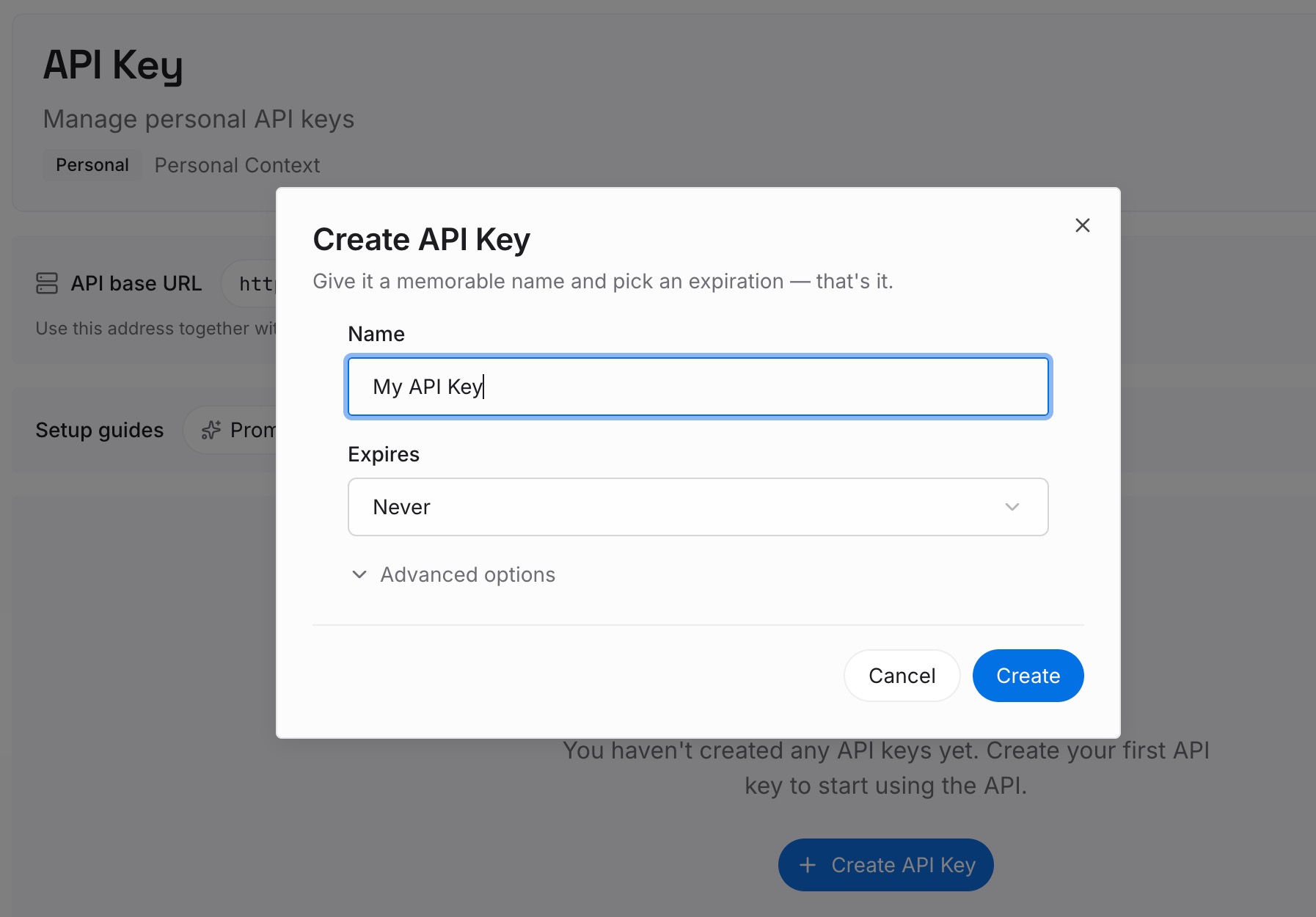
Step 1: Create an API key
Sign in and generate a key from the dashboard. The key belongs to your MemoryLake workspace and is separate from your Anthropic account.
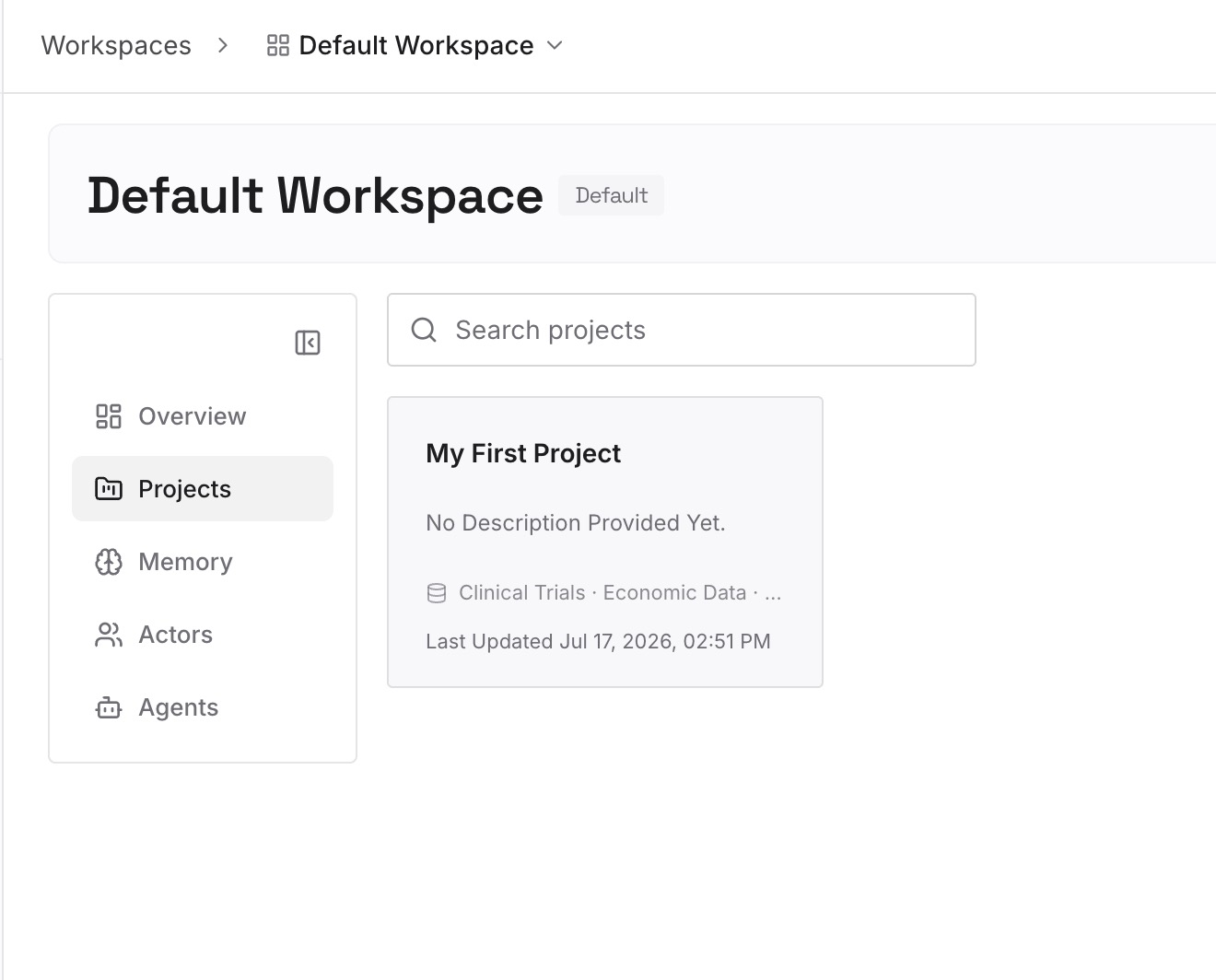
Step 2: Upload your first memories
Start with what you've had to repeat: your role, your current projects, and the preferences you keep restating. One point per entry, in your own words, dated so you can update it.
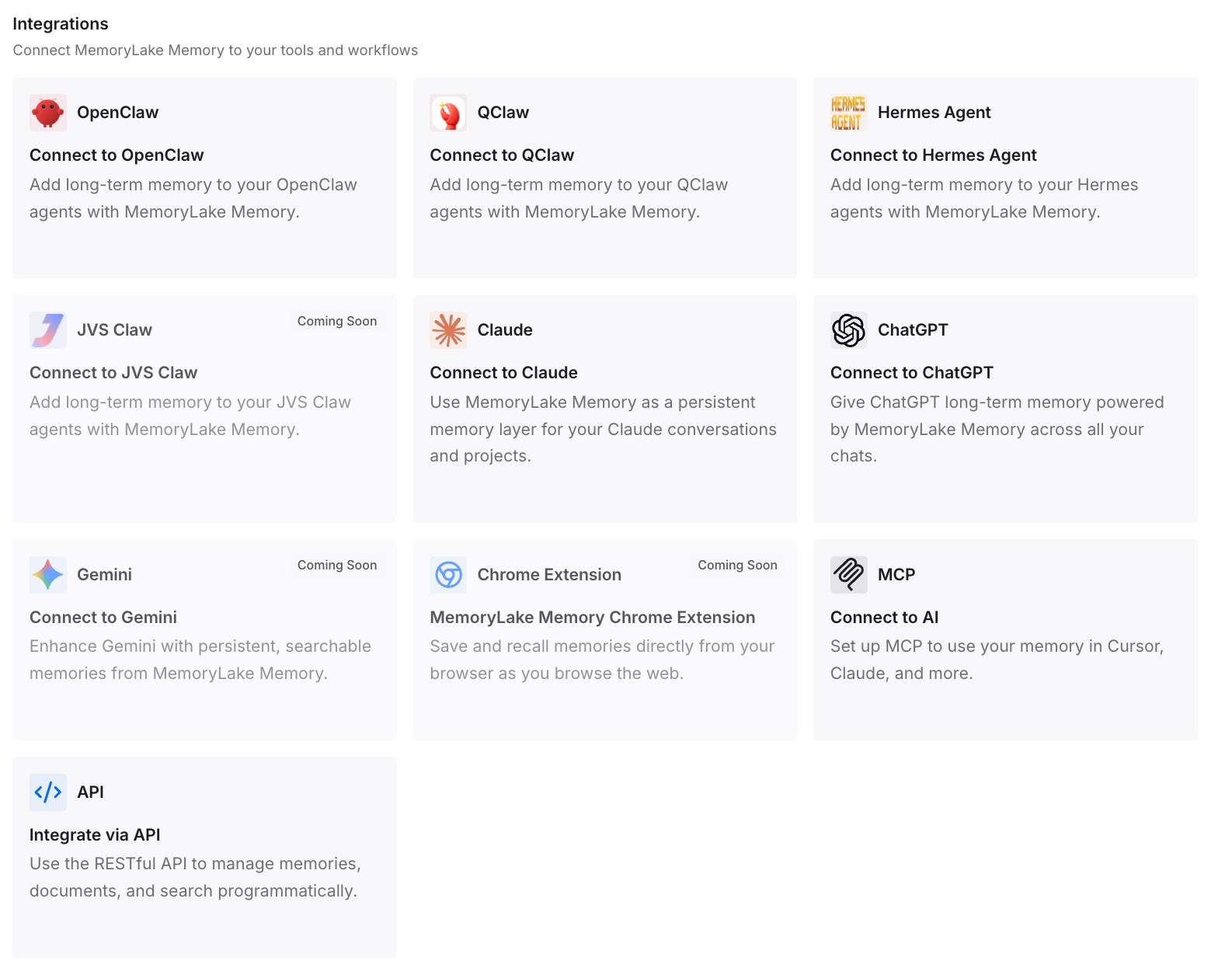
Step 3: Connect your AI & agents
Connect the assistants you use. The context you rely on is in one place you can check, whichever tool you open.
What this changes in practice
The first difference is that you know why a chat forgot. The crossed-out icon, the ghost icon, the project setting, and the Cowork location explain most cases at a glance.
The second is that your settings match what you want. Memory on, not paused, search on if you need it, and sensitive topics only by choice.
The third is that you can see and fix what's saved. Topics in Settings is the record. Editing it there changes every conversation after. For how memory works inside projects specifically, our guide to Claude project thread memory covers that.
Best practices for keeping Claude's memory working
Look for the crossed-out icon first. It means memory was off for that chat from the start.
Pause rather than reset. Reset deletes everything, including project memories.
Know that paused time is lost. Chats while memory was paused won't be added later.
Check each project's Use account memory setting. It decides whether a project sees your wider context.
Run Cowork in the cloud when memory matters. Local sessions don't use it.
Say important things directly. Ask Claude to remember them, then confirm in a new chat.
Review Topics after an import. Add what didn't arrive by hand.
Conclusion
When Claude's memory isn't working, check the documented conditions first: memory is off for the account or the organization, it was paused, the chat started with memory off, the chat is incognito, you're in a project with its own memory, or the Cowork task ran on your computer. Some subjects are never saved by default, and imports are still experimental.
Check the chat first, then Settings, then Memory, then the Topics list. Correct what's there and say important things directly. If what you actually need is a past conversation rather than a remembered fact, check past-chat search and its limits. For a comparison with the other main assistant, our guide to why ChatGPT memory isn't working covers the same problem there.