
Why an old ChatGPT chat leaves the sidebar
It's further back than the sidebar shows
The sidebar doesn't keep every chat in view. OpenAI's answer for an older chat you can't see is search: "Search for a word or phrase from the conversation to find and reopen it."
Search covers more than titles. The article on finding chats says "Search can match words in a chat's title or messages. Regular and archived chats can appear in search results, but deleted chats do not." So a phrase you remember from the middle of the conversation can find it.
It was archived
Archiving hides a chat without deleting it. OpenAI's article on deleting and archiving says "Archiving removes the chat from the regular sidebar but does not delete it. Archived chats remain searchable." Archiving doesn't ask for confirmation: "No confirmation is required." Settings also has Archive all chats, which OpenAI says can affect chats in your current account or workspace, "including chats in projects."
Archived chats are kept like any other. "Archiving keeps the conversation in your account under the same retention rules as other saved chats." Our explainer on what archiving a ChatGPT chat hides covers what archived chats still feed into.
It's inside a project
Chats in a project live in that project. If you used Move to project, the chat moved out of your general history and into the project. The projects article describes it: "drag a chat onto your project, or open a chat's menu and choose Move to project."
To bring one back, open its menu. "When the option is available, select Remove from project from the chat's more options menu (•••) to move it back to your chat history."
You're signed in to a different account or workspace
Each account has its own history. OpenAI's account switching article says switching keeps "chats, memory, history, billing and workspaces fully separate", and "When you switch, all chats, memory, files and settings will reflect the selected account."
If you have a personal account and a work account, or a personal workspace and a Business workspace, the chat may be in the other one. The troubleshooting steps for missing chats start with exactly this: "Confirm that you are signed in to the correct OpenAI account and workspace, including the correct email address or single sign-on (SSO) method."
It was a temporary chat
Temporary chats don't go into your history unless you save them. OpenAI's temporary chat article says "If you do not save a temporary chat, it will not appear in your history and cannot be reopened from history after you leave it." If the conversation you're looking for happened in a temporary chat that you didn't save, it won't be in search or the sidebar. Our guide to ChatGPT temporary chats covers what they keep and what they don't.
It was a group chat
Group chats are being wound down. OpenAI's article says that from July 9, you can't create or join new ones, and "Existing group chats remain active. You can keep using a chat until it becomes read-only." Your history stays: "users will retain access to their group chat history." A read-only group chat can still be opened and reviewed. Our guide to moving a ChatGPT group chat to a shared project covers where to continue.
It was deleted, or a policy removed it
Deletion is the one exit that can't be reversed. OpenAI says "You cannot restore a deleted chat in ChatGPT or through OpenAI Support." Bulk deletion is covered too: "Deleted chats, including chats removed with Delete all chats, cannot be restored."
Deleting a project also removes its chats. The projects article says "Deleting a project permanently removes its chats and instructions, along with files stored only in the project."
In a workspace, a retention policy can remove chats as well. The retention article says regular and archived chats "remain saved to your account until you delete them or an applicable workspace retention policy removes them."
Search hasn't caught up, or something is broken
Two more causes are on OpenAI's list. Search can lag: "Allow time for recently created or deleted items to update in search." And there may be an incident: "Check OpenAI Status for an active incident."
What people try first
Scrolling the sidebar. It works for recent chats. For older ones, search is faster and covers archived chats too.
Assuming the chat was deleted. Deletion is only one of the documented exits. Check the others before you conclude it's gone.
Requesting a data export to get it back. An export is a copy of what's currently in your account. The export article is clear: "An export cannot restore chats that have already been deleted." It's useful for keeping a copy, not for recovering a deleted chat.
Contacting support for a deleted chat. OpenAI's documentation says deleted chats can't be restored through support either. If a chat seems to be missing for another reason, Step 3 below lists what OpenAI asks you to include when you contact support.
The Fix: Search everything, check the places chats move to, then keep a copy
Step 1: Search, with the filter set to All
Open Search from the ChatGPT sidebar. On the web, OpenAI says "you can also press Ctrl+K on Windows or Cmd+K on macOS to open Search." Type a word or phrase you remember from the conversation, not just the title.
If nothing comes up, widen it. OpenAI's tip: "If you cannot find an item, select All to search across available content types." Then try different words. Because search matches messages as well as titles, a distinctive term from the middle of the conversation can work better than a guess at the title. Sidebar search is "available to signed-in users on all ChatGPT plans on web, iOS, and Android."
Step 2: Check the archive, your projects, and your other accounts
If search doesn't find it, work through the places a chat can move to:
- Archived chats. Open Settings, then Data controls, then Archived chats or View archived chats, depending on your device. Select Unarchive to return a chat to your regular history.
- Projects. Open each project you use and look through its chats. If you find the conversation, you can leave it there or use Remove from project to move it back.
- Your other account or workspace. Check the account menu to see which one is active. On ChatGPT web, account switching lets you stay signed in to two accounts and switch between them without logging out.
- Refresh. OpenAI also suggests to "Refresh ChatGPT, or sign out and sign in again."
If the chat still isn't anywhere, think back to how it was created. If it was a temporary chat that you didn't save, it was never in your history. If you or a workspace policy deleted it, or it was in a project that was deleted, it can't be restored.
Step 3: Keep a copy of the chats you can't afford to lose
Once you've found it, protect it. Two options are documented.
Export your data. Go to Settings, then Data controls, and under Export data select Export. The export is a ZIP with your chat history. Keep in mind that "Exports can take up to 7 days to arrive" and "The download link expires 24 hours after you receive it." Self-service export is available for Free, Go, Plus, Pro, and eligible Edu accounts, not for Business, Enterprise, or ChatGPT for Healthcare workspaces.
Or move the conversation somewhere you'll find it again. Putting related chats into a project groups them. Archiving keeps a chat in your account and searchable without cluttering the sidebar. Neither protects against deletion, so for anything important, also write the conclusion down outside the chat.
If you contact OpenAI Support about a chat that's still missing, the deleting and archiving article lists what to include: "your account email and sign-in method, workspace name when applicable, the approximate date of the missing conversations, and the checks you completed."
Setting this up in MemoryLake
Finding an old chat can come down to one thing in it: the decision you reached, the explanation that finally made sense, the draft you agreed on. Keeping that in a chat means keeping it at the mercy of the sidebar, an archive click, a project deletion, or the account you happen to be signed in to.
MemoryLake is a memory layer for keeping that kind of conclusion in one list you maintain, available to ChatGPT and the other assistants you connect, such as Claude Code and Codex.
You write the entries yourself, in your own words. Nothing is read out of, written to, or deleted from your ChatGPT chats, your archive, your projects, your data export, or any vendor's store. Leave out sensitive personal details, and follow your organization's policy for work conversations.
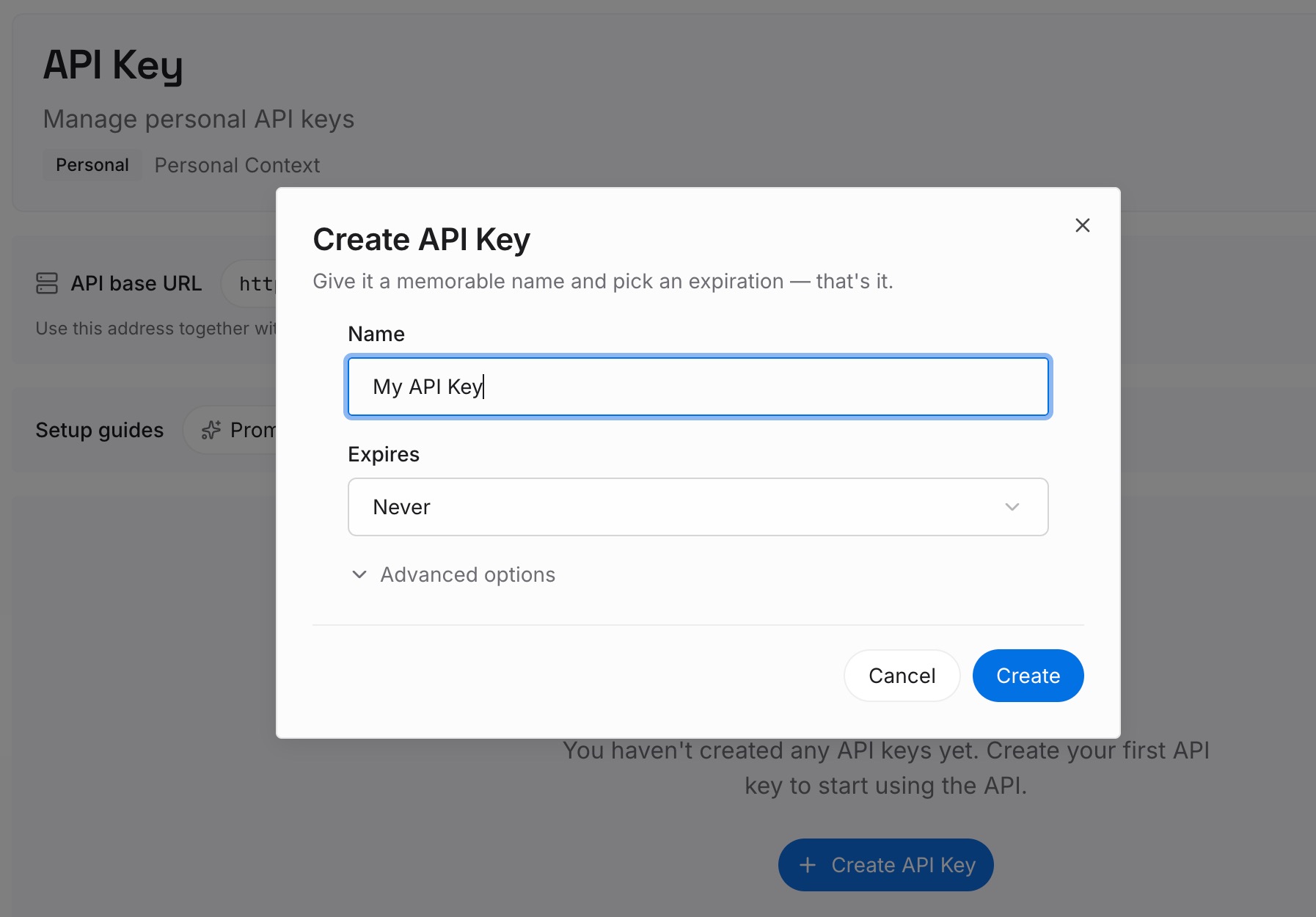
Step 1: Create an API key
Sign in and generate a key from the dashboard. The key belongs to your MemoryLake workspace and is separate from your ChatGPT account.
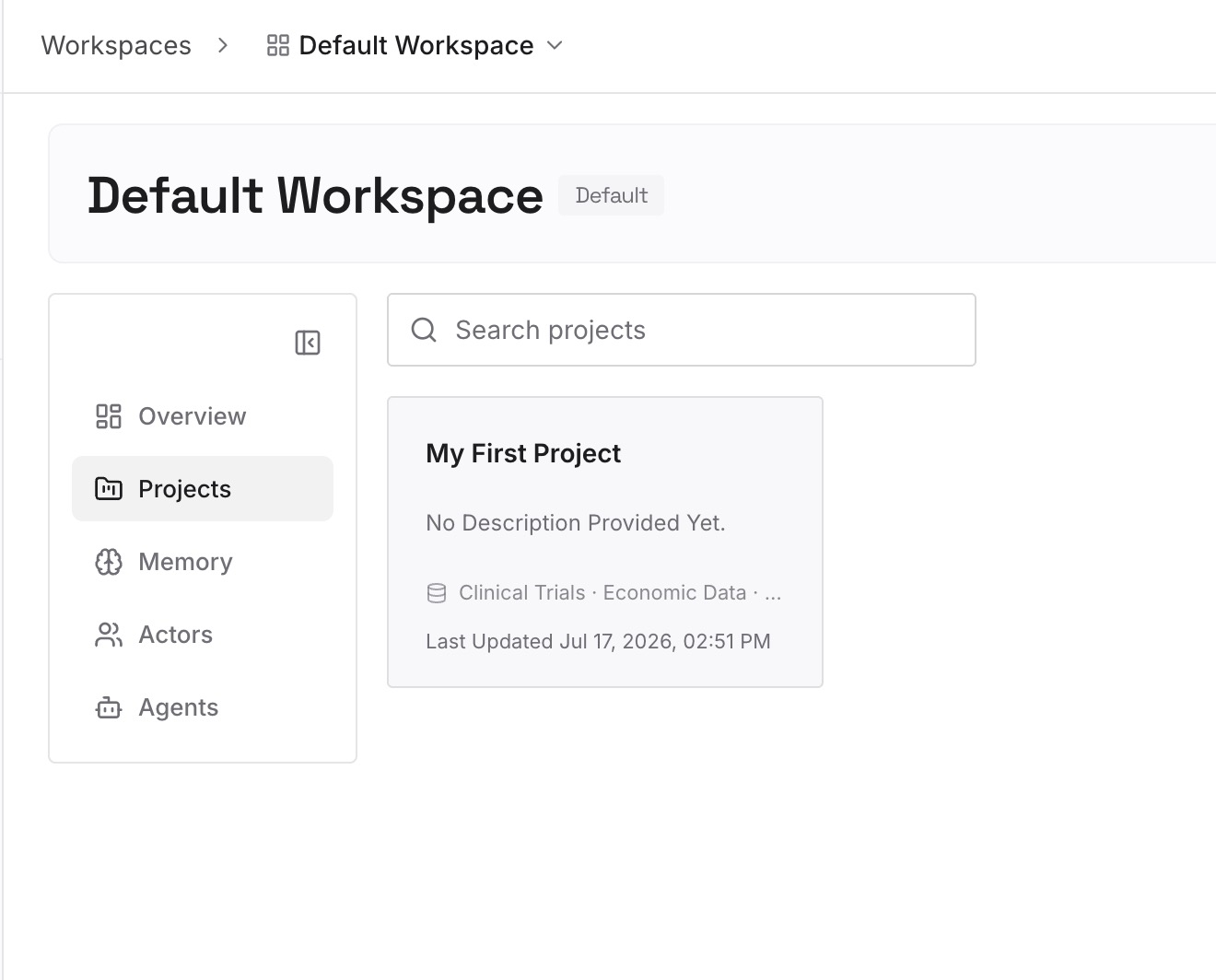
Step 2: Upload your first memories
Start with the chats you searched for today, and others you've had to dig for before. Write down what you needed from each one: the decision, the reason, the useful detail. One point per entry, dated.
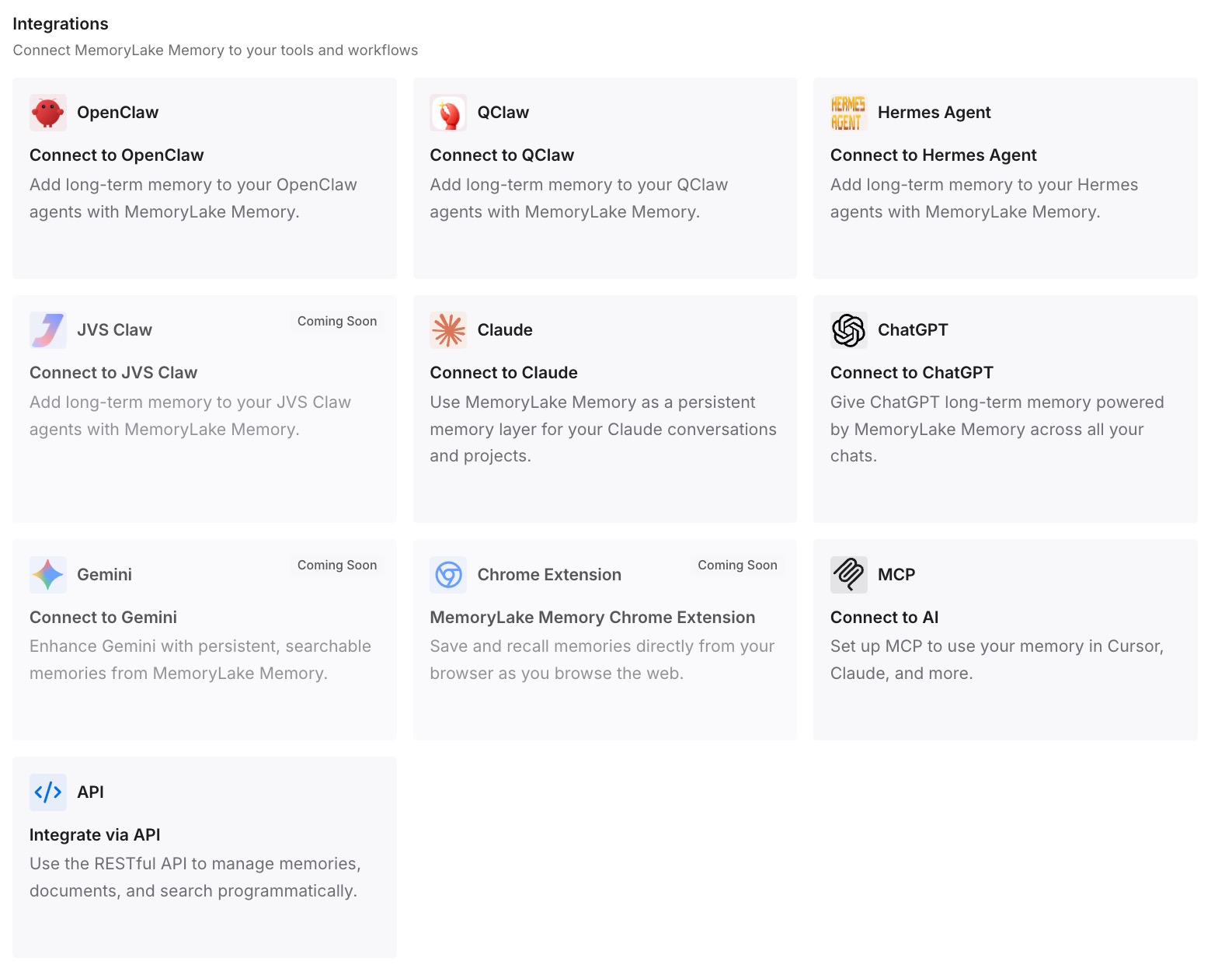
Step 3: Connect your AI & agents
Connect ChatGPT and the other assistants you use. Next time, the conclusion is already in hand, whether or not you can find the chat.
What this changes in practice
The first difference is that you know where to look. Search with All selected, then the archive, then projects, then your other account covers the documented places an old chat goes.
The second is that you can tell recoverable from final. Archived, moved, and other-account chats come back. Unsaved temporary chats and deleted chats don't, and knowing that early saves time.
The third is that the chats that matter get a backup. An export, a project, and a written conclusion each protect against a different way of losing a chat. If old conversations also seem to have stopped informing ChatGPT's answers, our guide to why ChatGPT forgets previous conversations covers the settings behind that.
Best practices for keeping ChatGPT chats findable
Search before you scroll. Search matches messages, not just titles, and includes archived chats.
Set the filter to All. A narrow filter can hide the result you want.
Archive instead of deleting. Archived chats stay in your account and searchable.
Check which account is active. Personal and work accounts keep separate histories.
Save temporary chats you want to keep. Unsaved ones don't appear in history after you leave them.
Be careful deleting projects. Their chats go with them.
Export what you can't lose. Then write the key conclusion down outside the chat.
Conclusion
An old ChatGPT chat that's gone from the sidebar hasn't necessarily been deleted. It may be further back than the sidebar shows, archived, in a project, or in another account, and search finds regular and archived chats by words from their messages. Temporary chats you didn't save were never in your history, and deleted chats can't be restored in ChatGPT or through OpenAI Support.
Search with All selected, then check the archive, your projects, and your other account. Once you've found the chat, keep a copy: export your data, organize it into a project, and write down the part you came back for. If the same thing happens to you in Claude, our guide to finding missing Claude chat history covers that product.