
Where Claude Code keeps your session history
Anthropic's sessions documentation defines the unit: "A session is a saved conversation tied to a project directory." Sessions are written as you work: "Sessions are saved continuously to local transcript files as you work, so you can return to one after exiting or running /clear."
The files are plain JSONL. "By default, Claude Code stores transcripts as JSONL at ~/.claude/projects/<project>/<session-id>.jsonl, where <project> is your working directory path with non-alphanumeric characters replaced by -." The format isn't meant for you to edit: "The entry format is internal to Claude Code and changes between versions, so scripts that parse these files directly can break on any release."
Three settings change where and how long. CLAUDE_CONFIG_DIR moves storage off ~/.claude. cleanupPeriodDays changes how long transcripts are kept. And for one-off runs, --no-session-persistence with claude -p stops a transcript being written at all.
Why a session can seem to be missing
Before assuming a session is lost, check these. Only the last one means the history is gone.
The picker only shows the current worktree
The session picker starts narrow. By default it shows "Sessions from the current worktree, including background sessions," and "Sessions started elsewhere that added the current directory with /add-dir". The documentation names the keys that widen it: "Use Ctrl+W to widen to all worktrees of the repository or Ctrl+A to widen to every project on this machine."
If you started the session in a different folder, or a different worktree of the same repository, it's on disk but outside the default view. claude --continue is narrower still: it "Reopens the most recent session in the current directory".
Some kinds of sessions never appear in the picker
Three kinds of session are left out by design. "Claude Code leaves sessions created with claude -p or the Agent SDK out of the session picker and out of claude --continue." And "Sessions whose first prompt was a /loop command don't appear in the picker, and claude --continue skips them too." You can still reach any of them by ID: "You can still resume one by passing its session ID to claude --resume <session-id>."
A background session is still running
If your most recent conversation is running in the background, claude --continue won't open it. It "exits with Your most recent conversation is running in the background and that session's ID." Attach to it from claude agents instead.
You're looking in a different app's list
The CLI isn't the only Claude Code surface, and the sessions page says "The desktop app, claude.ai/code, and the VS Code extension each keep their own session list". The VS Code documentation describes the relationship with the CLI from the other side: "The extension and CLI share the same conversation history. To continue an extension conversation in the CLI, run claude --resume in the terminal."
The two statements aren't necessarily in conflict: each app has its own list, and the VS Code extension's conversations are also reachable from the CLI. If the missing history is a chat in the Claude app rather than Claude Code, our guide to finding missing Claude chat history covers that. Cloud sessions are different again. They're listed at claude.ai/code, and the web documentation notes that "--resume reopens a conversation from this machine's local history and doesn't list cloud sessions".
The session was moved
"Moving a session with /cd relocates it to the new directory's project storage, so it appears in that directory's picker afterward." If you changed directory mid-session, look under the new one.
The session aged out
This is the one case where the history is gone. Claude Code deletes old transcripts automatically: "Claude Code deletes the files in the paths below once they're older than cleanupPeriodDays, as long as it can safely determine the retention period. The default is 30 days and the minimum is 1". Subagent transcripts go with their parent session.
Two kinds of data follow different rules. Auto memory is kept: "the sweep doesn't delete the memory files in a project's auto memory directory". And sessions you started or last continued in Claude Desktop or Cowork are kept "at any age" unless you set desktopSessionCleanupPeriodDays, on Claude Code v2.1.248 or later.
What people try first
Running claude --continue and assuming that's everything. It only opens the most recent session in the current directory.
Searching the picker without widening it. The default view is the current worktree. Ctrl+A shows every project.
Looking for a claude -p run in the picker. Non-interactive and SDK sessions are excluded. Resume them by ID.
Assuming deleting a session in agent view removes its history. It doesn't. The agent view documentation says that after you delete a session, "Its transcript stays on your machine through claude --resume".
Editing the JSONL to recover or clean up a session. The format changes between versions. Use /export for a readable copy and the documented commands for deletion.
For checkpoints within a single session, our guide to rewinding a Claude Code session covers what comes back when you go back.
The Fix: Widen the picker, resume by ID, then set retention and delete on purpose
Step 1: Find the session
Open the picker with claude --resume. If the session isn't there, press Ctrl+W for all worktrees of the repository, then Ctrl+A for every project on this machine. Picking a session from another worktree resumes it in place. For an unrelated project, "Claude Code copies a cd and resume command to your clipboard instead."
If you know the session ID, you don't need the picker at all. "You can run claude --resume <session-id> from any directory". Claude Code looks in the current project and its worktrees first, then in every other project. You can also pass the file itself: claude --resume <transcript-path> resumes "the session stored in the .jsonl transcript file at that absolute path".
If you only remember roughly when you worked, list the files under ~/.claude/projects/ by date. Each project has a folder named after its path, and each session is one .jsonl file. If nothing older than a month is there, check your cleanupPeriodDays setting: the sweep may have removed it.
Step 2: Resume it with the state you need
Resuming restores more than messages. The documentation lists conversation history "including tool calls and results", the agent the session ran as, its permission mode in the documented cases, any active goal, and notes for background work that didn't finish.
Some launch options don't come back. "If the session depended on --mcp-config, --settings, --plugin-dir, --fallback-model, or directories added with --add-dir, pass them again when you resume". Directories added mid-session with /add-dir aren't restored either. Settings in settings.json and settings.local.json are read again at launch, so those don't need repeating.
If you want to try something different without changing the original, add --fork-session when you resume. The sessions page also covers naming a session, which makes the next search easier: claude --resume <name> resumes an exact match directly. Before a long break, our guide to Claude Code's idle compaction covers what you come back to if a large session was compacted while you were away.
Step 3: Set your retention, keep what matters, and delete on purpose
Choose a retention period. Set cleanupPeriodDays in settings.json to keep transcripts longer or shorter than 30 days. Managed settings can set it for an organization, and Claude Code uses that value when they do.
Keep a readable copy of anything important. "Run /export to open a menu that lets you copy the current conversation to your clipboard or save it as a plain-text file". Save the export outside ~/.claude and the retention sweep, which works on paths under that directory, leaves it alone.
Delete a project's history with claude purge. The command deletes "all local Claude Code state for a project: transcripts, task lists, debug logs, file-edit history, prompt history lines, and the project's entry in ~/.claude.json." Preview first with --dry-run. Note that the purge also removes auto memory: the claude-directory documentation lists "Transcripts and auto memory under projects/" in what it deletes. If you want to keep what Claude Code learned about the project, check the plan before confirming. Before v2.1.288, the command was claude project purge.
Remove a background session from the list with claude rm. That tidies agent view, but the transcript stays on your machine and remains available through claude --resume.
Delete cloud sessions at claude.ai/code. "Deleting a session permanently removes the session and its data. This action can't be undone." You can delete from the archived filter in the sidebar or from the session menu.
Setting this up in MemoryLake
Session history is a record of how the work went. What you come back to an old session for is shorter: the decision you reached, the approach you rejected, the setting that finally worked. Those are easy to lose in a long transcript, and they go away with it when the retention sweep runs or you purge a project.
MemoryLake is a memory layer for keeping that kind of conclusion in one list you maintain, available to Claude Code and the other assistants you connect, such as ChatGPT and Codex, independent of which transcripts are still on disk.
You write the entries yourself, in your own words. Nothing is read out of, written to, or deleted from your session transcripts, your ~/.claude directory, your auto memory, your cloud sessions, or any vendor's store. Leave out secrets and credentials, and follow your organization's policy for project details.
Step 1: Create an API key
Sign in and generate a key from the dashboard. The key belongs to your MemoryLake workspace and is separate from your Anthropic account.
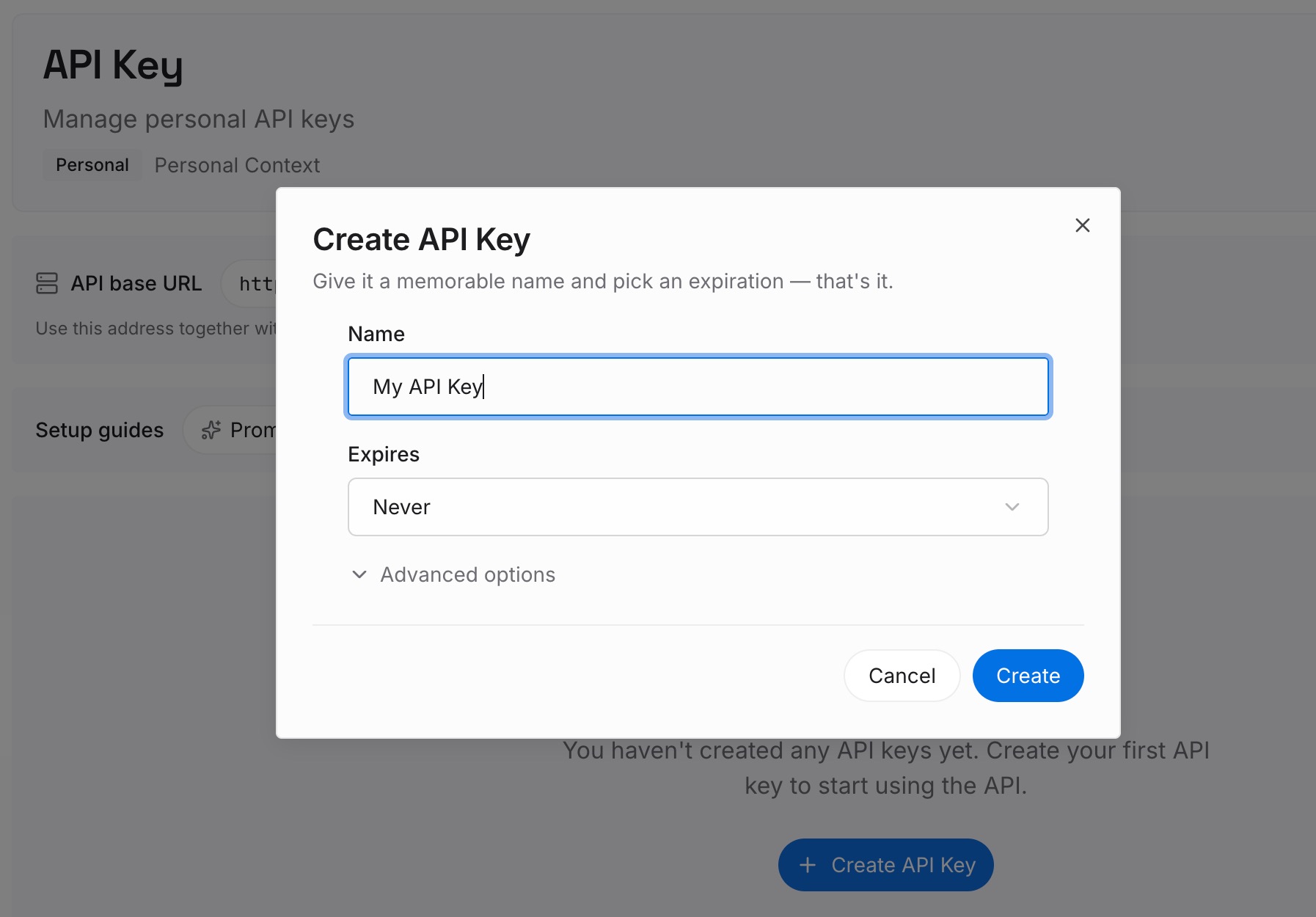
Step 2: Upload your first memories
Start with what you'd otherwise search old sessions for: decisions about the project, approaches that didn't work and why, the commands and settings that fixed a recurring problem. One decision per entry, dated, with the project it belongs to.
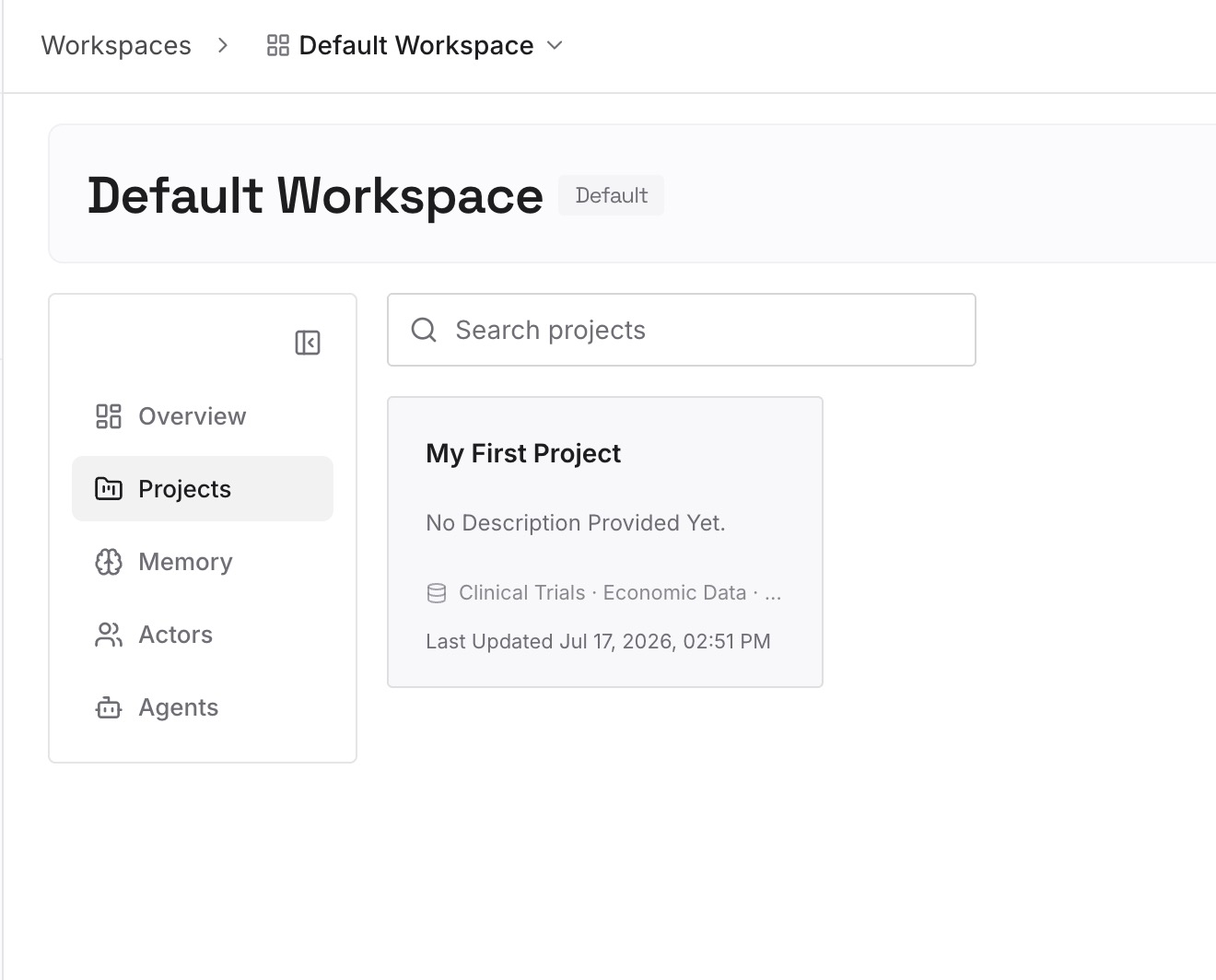
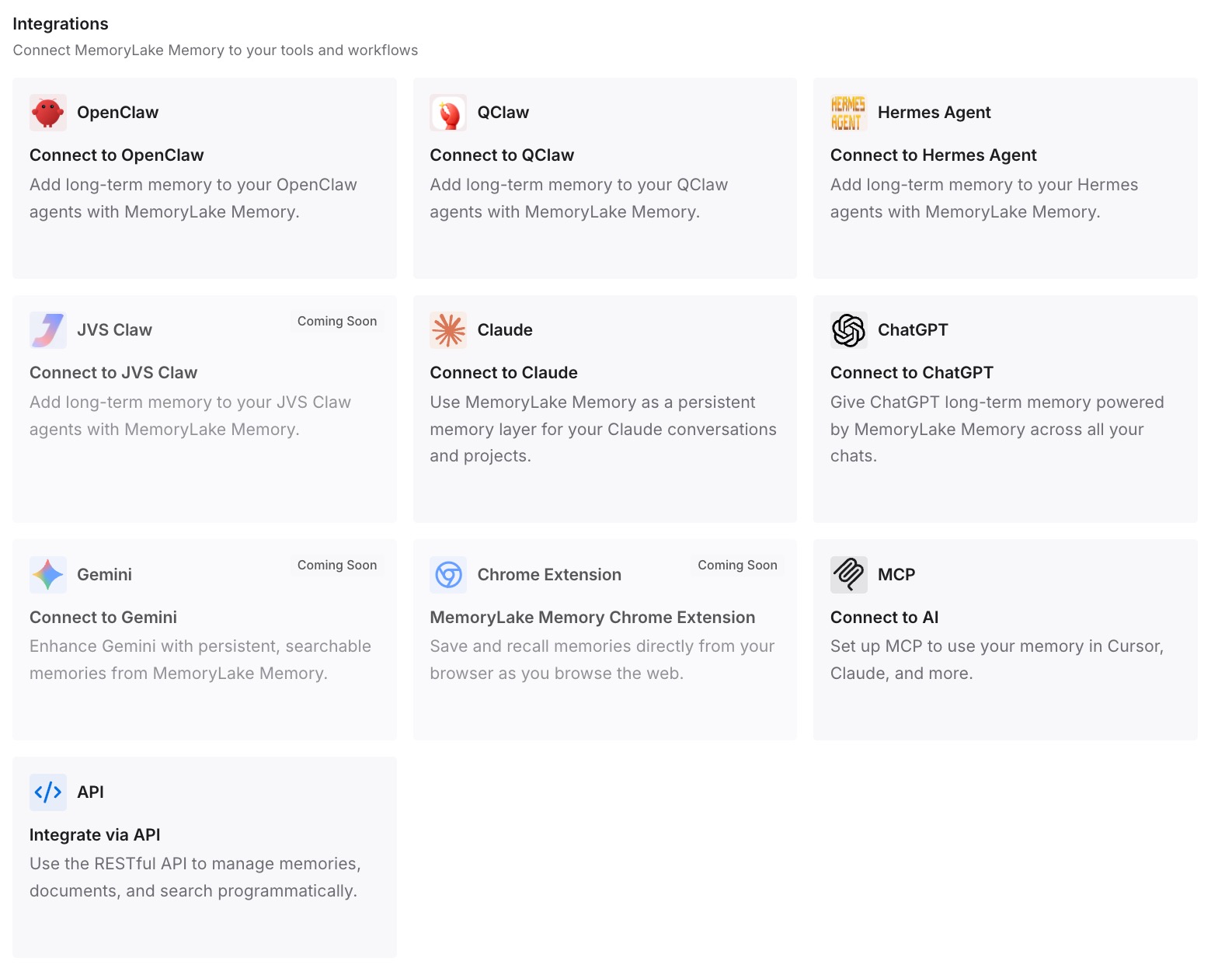
Step 3: Connect your AI & agents
Connect Claude Code and the other assistants you use. A new session can then start from the conclusions you wrote, without anyone resuming last month's transcript.
What this changes in practice
The first difference is fewer sessions that seem to vanish. Once you know the picker starts at the current worktree, Ctrl+A and claude --resume <session-id> reach sessions that are still on disk.
The second is that deletion becomes deliberate. Retention is a setting you choose, claude purge --dry-run shows the plan before anything goes, and you know that removing a session from agent view leaves its transcript in place.
The third is less dependence on old transcripts. Sessions age out by design. Writing down the conclusions means the 30-day sweep removes a record, not your knowledge of the project. Sharing that between parallel sessions is a related problem, which our guide to sharing context between Claude Code sessions covers.
Best practices for Claude Code session history
Widen before you worry. Press Ctrl+W, then Ctrl+A, in the picker.
Resume -p and SDK runs by ID. They never appear in the picker.
Name sessions you'll come back to. An exact name resumes directly.
Pass launch flags again when you resume. MCP config, settings files, plugin directories, and added directories aren't restored.
Set cleanupPeriodDays on purpose. The default is 30 days.
Export what matters. Save /export copies outside ~/.claude.
Dry-run every purge. It removes auto memory along with transcripts.
Remember that claude rm keeps the transcript. Use claude purge when you want history gone.
If you use more than one coding agent, our guide to finding missing Codex chat history covers the same questions for Codex.
Conclusion
Claude Code keeps your sessions as files under ~/.claude/projects/, one folder per project and one file per session, for 30 days by default. A session that seems missing can be outside the picker's default view, a -p or SDK run that never appears there, still running in the background, in another app's list, or moved with /cd. Only an aged-out or purged session is actually gone.
Widen the picker with Ctrl+W and Ctrl+A, resume by ID or transcript path when you know it, and pass your launch flags again. Then choose your retention period, export what you need to keep, and use claude purge with --dry-run when you want a project's history deleted, keeping in mind that it takes auto memory with it.