
Where Codex keeps your chats
Codex runs in several places, and each shows chats a little differently.
The ChatGPT desktop app. Codex chats and projects appear in the Codex sidebar. OpenAI is specific about what doesn't: "ChatGPT chats don't appear in the Codex sidebar, which contains your Codex chats and projects." A Quick chat opens an ordinary ChatGPT chat, so it won't be in the Codex list either.
Codex CLI. The CLI treats the directory where you start it as the chat's project. "The chat keeps its transcript and recorded working directory, while Codex reads files from the current working tree." You return to chats with /resume inside a session or codex resume from your shell.
The IDE extension. The extension treats the open folder or workspace as the project, and you return to chats from Recent chats. OpenAI notes that "The extension doesn't expose the ChatGPT Projects view from the web or desktop app."
Codex cloud. Cloud chats have their own list. From the terminal, OpenAI says codex cloud lets you "Interact with Codex cloud chats from the terminal", and codex cloud list returns recent cloud chats with optional filtering.
On disk. For local chats, the transcripts live on your computer. OpenAI's troubleshooting page lists session transcripts at $CODEX_HOME/sessions, which defaults to ~/.codex/sessions, and archived sessions at $CODEX_HOME/archived_sessions, which defaults to ~/.codex/archived_sessions.
One more boundary is worth knowing. If you use ChatGPT Work as well as Codex, OpenAI says "Work conversation history remains separate from Codex history." A conversation you had in Work won't show up in your Codex lists.
Why a Codex chat stops appearing
These are the documented reasons, starting with the easiest to check.
It was archived
Archiving is the normal way to tidy up finished work. In the desktop app, you can archive a single chat, and you can archive all of a project's chats together from the project's menu.
In the CLI, codex archive does the same for a saved session. OpenAI describes the purpose: "Use these commands when you want to clean up the session picker without deleting the transcript." OpenAI's app-server reference describes archiving as moving the session's log file into the archived sessions directory.
An archived chat isn't gone. It's out of the default lists.
You're looking from a different directory
The CLI scopes some of its shortcuts to where you are. OpenAI's reference says "codex resume scopes --last to the current working directory unless you pass --all." If you started a chat in one repository and run codex resume --last from another, you'll get the most recent chat from the second repository instead.
The IDE extension treats the open folder or workspace as the project, so open the same one before checking Recent chats.
It was a non-interactive run
Sessions started with codex exec are non-interactive, and the resume picker leaves them out unless you ask. The relevant option is described as "Include non-interactive sessions in the picker and --last selection." If the work you're looking for came from a script or a one-off exec command, that's the likely reason it's missing from the list.
You're in the wrong list
A ChatGPT chat won't appear among Codex chats, a Work conversation won't appear in Codex history, and the ChatGPT Projects view won't appear in the IDE extension. If you can't remember where you started a conversation, check each surface before assuming it's lost.
It was never saved, or it's on another machine
Codex can run without saving a session. The --ephemeral flag runs "without persisting session rollout files to disk", so an ephemeral run leaves no session file to find. Configuration can also limit local history: OpenAI's configuration reference describes history.persistence as controlling "whether Codex saves session transcripts to history.jsonl", and history.max_bytes as capping that file "by dropping oldest entries". If you've changed either, check what it's set to.
Local transcripts also live under CODEX_HOME. If you changed that location, switched user accounts, or worked on a different computer, the chats are in that other location.
It was deleted
codex delete is different from archiving. OpenAI describes it as a command to "Permanently delete a saved interactive session by session ID or session name." Its guidance is to use it "only when you want to remove the transcript instead of hiding it from active session lists". A deleted session is the one case in this list where restoring isn't an option.
What people try first
Scrolling the sidebar. It works for recent chats, not for archived ones or chats from another surface.
Searching by title. Titles are often generated, and you may not remember them. OpenAI's suggestion is to search by content instead: open Search chats from the sidebar "to find a past chat when you remember a phrase or branch name but not the title". Search chats has no default shortcut, but you can assign one in Settings under Keyboard Shortcuts.
Reinstalling Codex. It doesn't address any of the causes above.
Assuming the chat was deleted. Check the archive first. Archiving is reversible.
The Fix: Check the archive, search from the right place, then keep the context outside the chat
Step 1: Check archived chats and restore what you find
In the ChatGPT desktop app, open Settings and go to Archived chats. OpenAI's settings reference describes it: "The Archived chats section lists archived chats with dates and project context." Use Unarchive to restore a chat.
In the CLI, restore an archived session with codex unarchive followed by the session ID or name. OpenAI notes that "Session IDs take precedence over session names", so use the ID if you have more than one session with a similar name.
If you're not sure what was archived, the archived sessions directory, ~/.codex/archived_sessions by default, shows you whether anything is there.
Step 2: Search from the right place
If the chat isn't archived, widen the search.
- In the CLI, go back to the original directory. Run
codex resumefrom the repository where you started the chat. If you're not sure which one,codex resume --last --allconsiders sessions from any directory. - Include non-interactive runs. Add
--include-non-interactiveif the work came fromcodex exec. - Use Search chats in the desktop app. Search for a phrase, a file name, or a branch name you remember.
- Open the right workspace in your IDE. Use the same folder or workspace you had open for that chat.
- Check the other surfaces. Look in ChatGPT for a Quick chat, in Work for a Work conversation, and in your cloud chat list for work that ran in the cloud.
- Check the right
CODEX_HOME. Confirm which location your current setup uses, and look on the computer where you did the work.
When you resume from a different directory than the one a chat was saved in, OpenAI says "If the current working directory differs from the session's saved directory, Codex asks which directory to use." Answer with the directory you want Codex to read files from now.
Step 3: Keep the context that matters outside any single chat
Finding a chat solves today's problem. The more durable fix is to stop depending on a chat transcript for things you'll need again.
OpenAI's own guidance points the same way: "Keep durable project guidance in AGENTS.md or checked-in documentation so it is available to future chats." On memories, it adds: "Treat memories as a helpful recall layer, not as the only source for rules that must always apply."
In practice:
- Write decisions into
AGENTS.mdor a decisions file when a chat produces one. That's what every future chat reads, as our guide to Codex forgetting project context explains. - Rename chats by outcome. OpenAI suggests short titles that describe the outcome, which makes them easier to find later.
- Pin the chats you return to. OpenAI suggests pinning a chat you come back to often, so it stays visible even when newer chats appear in the project.
- Archive instead of deleting. Archiving cleans up your lists and keeps the transcript.
- Turn on local memories if they fit your work. Our guide to Codex's local memories covers what they keep and how to control them.
If your AGENTS.md grows long, check that Codex is actually reading all of it. Our guide to Codex skipping AGENTS.md rules covers the size limit and how to check.
Setting this up in MemoryLake
The decisions you'd want from a lost chat are the part worth keeping somewhere more durable than a transcript. MemoryLake is a memory layer for keeping that kind of record in one list you maintain, available to Codex and the other assistants you use.
You write the entries yourself, in your own words. Nothing is read out of, written to, or deleted from your Codex sessions, your archived chats, your CODEX_HOME directory, or any vendor's store. Check your organization's policy before storing project details outside your repository.
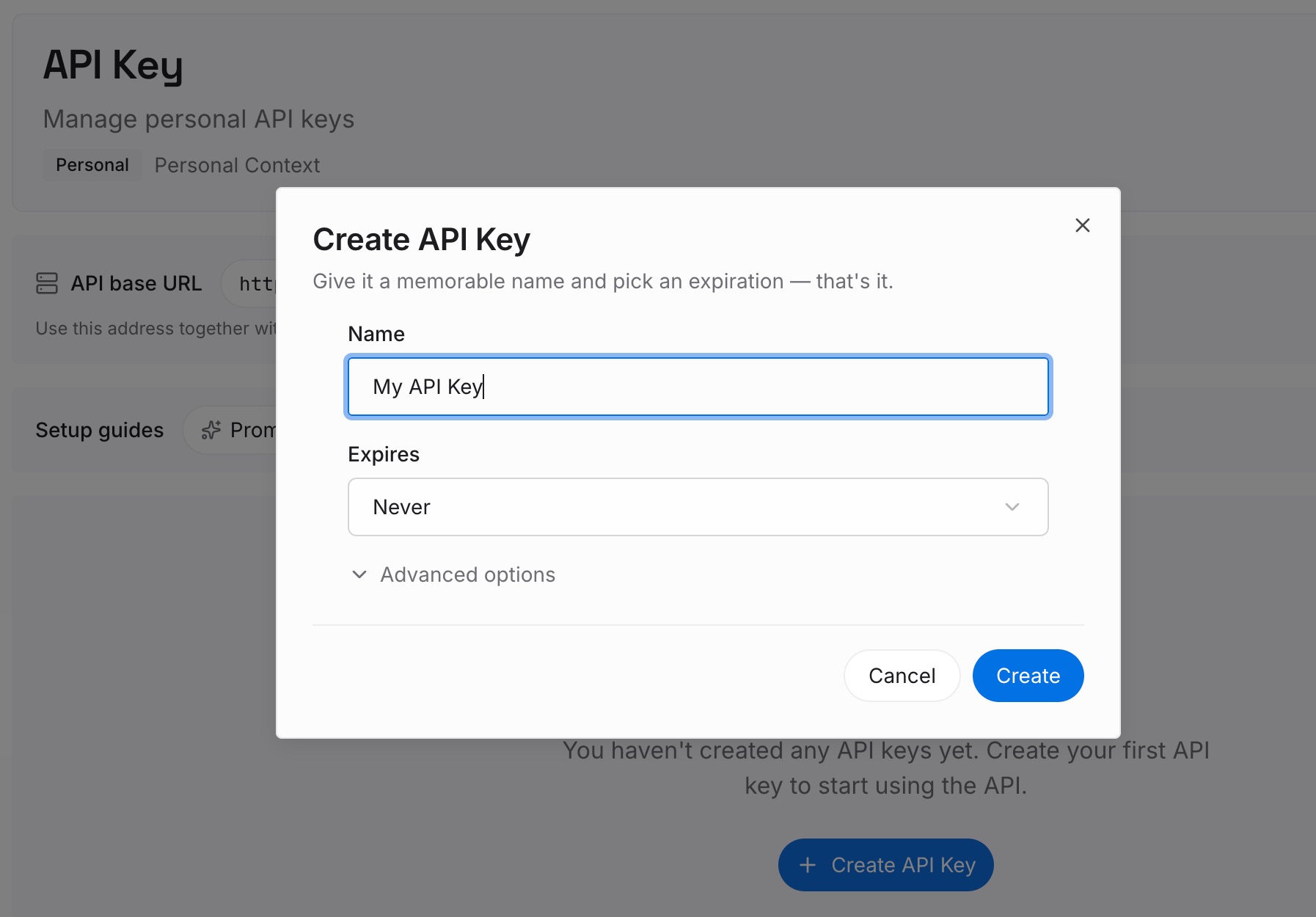
Step 1: Create an API key
Sign in and generate a key from the dashboard. The key belongs to your MemoryLake workspace and is separate from your OpenAI account.
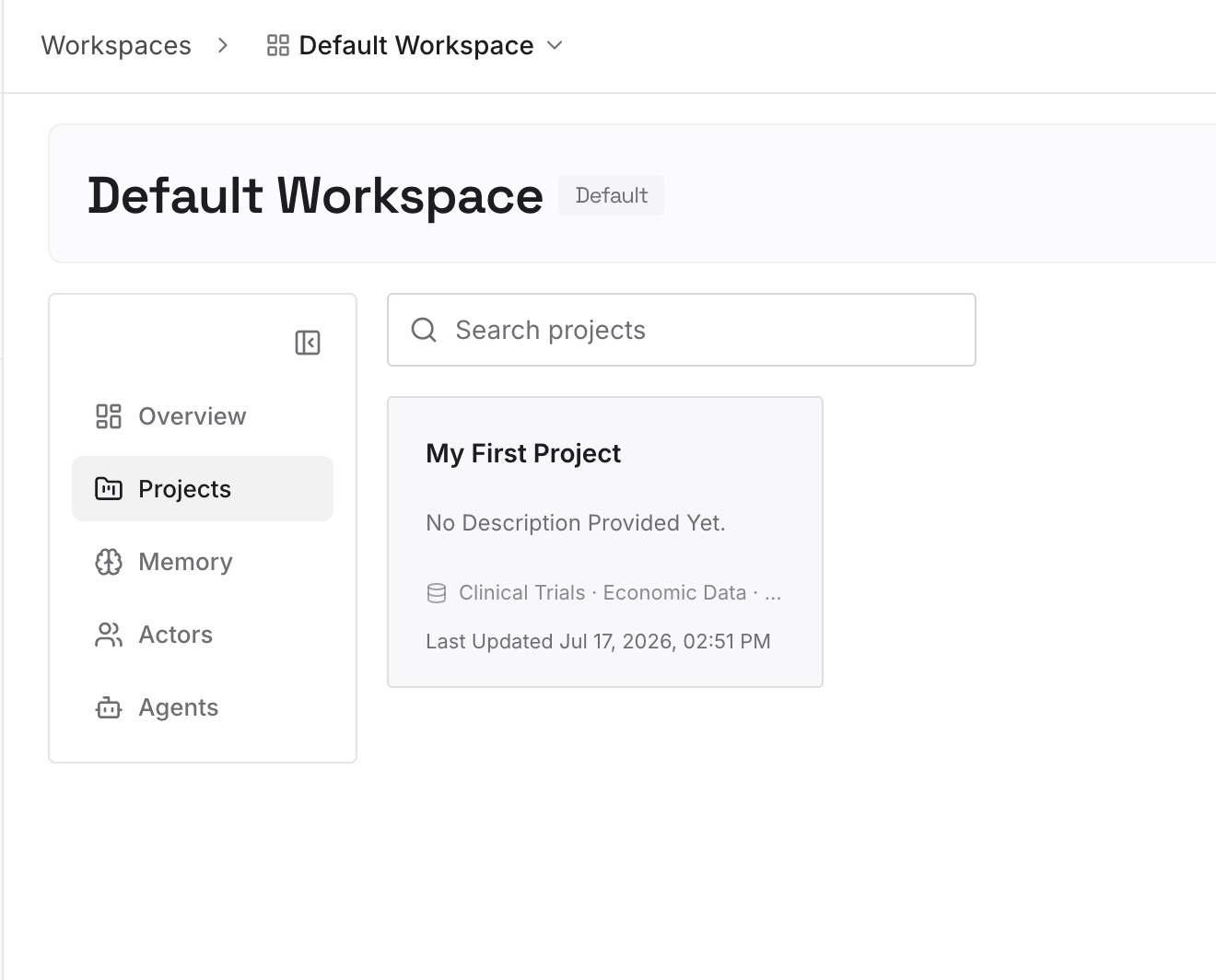
Step 2: Upload your first memories
Start with the decisions you went looking for: the approach that worked, the one that didn't, and why. One decision per entry, dated.
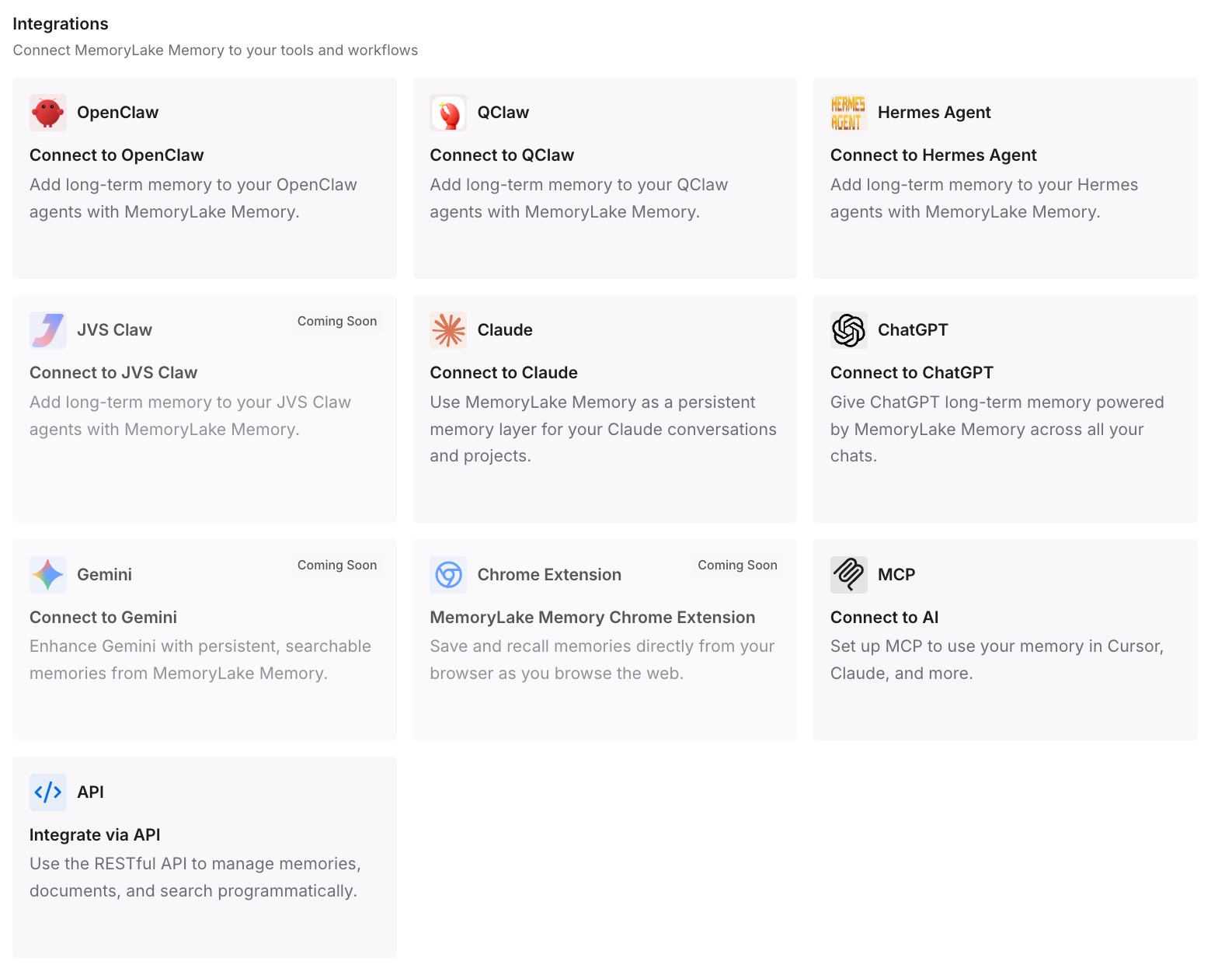
Step 3: Connect your AI & agents
Connect Codex and any other assistants you use. Those decisions are then available in a new chat, whether the old one was archived, started in another directory, or ran in a different tool.
What this changes in practice
The first difference is speed. Knowing that archiving hides and deleting removes, and that the CLI scopes resume to your directory, turns a vague sense that a chat is gone into a short checklist.
The second is fewer false alarms. Checking the archive, the filters, and the other lists first avoids rebuilding work you still have.
The third is less dependence on transcripts. When decisions live in AGENTS.md or a decisions file, a chat you can't find costs you the conversation, not the conclusion.
The fourth is smoother moves between tools. If you bring chats in from elsewhere, our guide to what Codex can import from Cursor and Claude covers what comes across. If you use dots alongside Codex, our guide to how context moves between dots and Codex explains how those chats relate.
Best practices for keeping Codex chat history findable
Check Archived chats first. It's the quickest check, and the fix is one click.
Resume from the original directory. Or use --all with --last when you're not sure.
Remember exec runs are hidden by default. Use --include-non-interactive to see them.
Archive, don't delete. Deleting is permanent.
Name chats by outcome. It helps both the sidebar and search.
Don't use --ephemeral for work you may need again. Ephemeral runs don't save a transcript.
Put decisions in files. A transcript is a record; AGENTS.md is what future chats read.
Use the same checks in other tools. Archive first, then filters and scope, as our guide to restoring Copilot chat history in VS Code shows for VS Code.
Conclusion
A missing Codex chat may be archived, filtered by directory, hidden as a non-interactive run, or sitting in a different list. Codex documents each of these, and each has a direct check: the Archived chats section and codex unarchive, codex resume from the right directory or with --all, the --include-non-interactive flag, and the right surface and CODEX_HOME.
The exceptions are runs that were never saved, such as --ephemeral sessions, and chats removed with codex delete, which OpenAI describes as permanent.
Once you've found what you need, move the important parts into AGENTS.md or a decisions file. That way the next missing chat costs you a conversation, not the conclusions it reached.