
The short answer
Character.AI has no official export to Claude. You'll copy each character's Definition fields (Greeting, Persona, Scenario, Example dialogues) from the character editor by hand and rebuild them as a Claude Project — pasting the Definition into the System Prompt and archiving important chats as plain text in Project Knowledge. Plan 20–40 minutes per character. A shared MCP-based memory layer like MemoryLake lets you keep canonical character memory in one place.
Why people switch from Character.AI to Claude
Three drivers in 2026:
- Longer, more nuanced roleplay. Claude maintains characterization across very long sessions.
- Fewer guardrails surprises. Users seeking adult, dark, or mature creative work move to platforms with different content policies.
- Persistent worldbuilding files. Claude Projects keep large worldbuilding documents attached and searchable.
What "memory" means in Character.AI vs Claude
Different surfaces.
Character.AI memory lives inside each Character: its Definition (Greeting, Description, Persona, Scenario, Example dialogues), the user Persona you've set on your account, and the per-character chat history.
Claude memory lives inside Projects. Each Project has its own Project Knowledge (uploaded files and pasted text) and an optional System Prompt. There is no built-in cross-chat memory.
A Character.AI character usually becomes a Claude Project. The Definition becomes the System Prompt. Important chats become Project Knowledge text or markdown files.
Step 1: Export your Character.AI memory
Character.AI does not offer a one-click export.
- Open each character in the editor. Owned characters expose Definition fields you can see and edit; copy Greeting, Description, Persona, Scenario, and Example dialogues into a text file per character.
- Capture your user Persona. Account settings → Persona. Copy the active Persona into a global file.
- Archive key chats by hand. Open important chats, select and copy turns into a markdown file. There is no bulk chat export today.
- Note worldbuilding context. If your character relies on lore documents you held outside Character.AI, gather those originals.
End state: one folder per character with definition.txt, persona.txt, archived chats, and any external worldbuilding files.
Step 2: Import into Claude
Claude expects per-Project Knowledge.
- Create a Project per character. Projects → Create Project. Name it after the character.
- Paste the Definition as the System Prompt. Combine Greeting, Description, Persona, Scenario, and Example dialogues into a coherent System Prompt addressed to Claude.
- Add your user Persona context. Include it in the System Prompt under a labeled section ("About the user").
- Upload archived chats and worldbuilding files as Project Knowledge. Click Add Content → Upload Files or Paste Text. Worldbuilding lore as PDF or markdown carries cleanly.
- Set tone and content expectations explicitly. Claude's defaults differ; spell out the persona's voice and behavior.
- Probe. Open a chat with the Project and run a representative roleplay scenario.
Claude does not import Character.AI chat history wholesale; only what you archived survives.
What you'll still lose after migrating
- In-platform recommendation feed. Character.AI's discovery surface and shared community don't transfer.
- Auto-saved character memory. Per-character behaviors Character.AI quietly tracks across chats don't have a Claude equivalent.
- Visual character cards. Character art and visual branding stay on the original platform.
- Ongoing sync. New chats on Character.AI next week won't appear in Claude unless you redo the export.
The better way: one memory layer, every AI
If you want your characters portable across multiple AI tools — Claude for one mood, ChatGPT for another, a future agent later — per-tool drift wastes hours.
MemoryLake holds canonical character definitions, worldbuilding lore, and persona files once and exposes them through MCP. Claude Desktop reads MCP natively, so the same canonical material flows in.
- One source of truth. Update the character Definition once; every connected AI sees it.
- Standard file formats. PDFs, Word, Excel, PowerPoint, Markdown, and images live in MemoryLake's Document Drive as-is.
- Drop-in for the next AI. Add ChatGPT or Gemini with a config change.
Connect MemoryLake in 3 steps
Step 1: Create a project and load your context
Sign in to MemoryLake, open Project Management, and click Create Project. Name it after the character. Drag worldbuilding lore and reference images (PDF, Markdown, images) into the Document Drive under My Space, then open the Documents Tab and click Add Documents. Paste each character's Definition, your user Persona, and archived chat highlights into the Memories Tab via Add Memory.
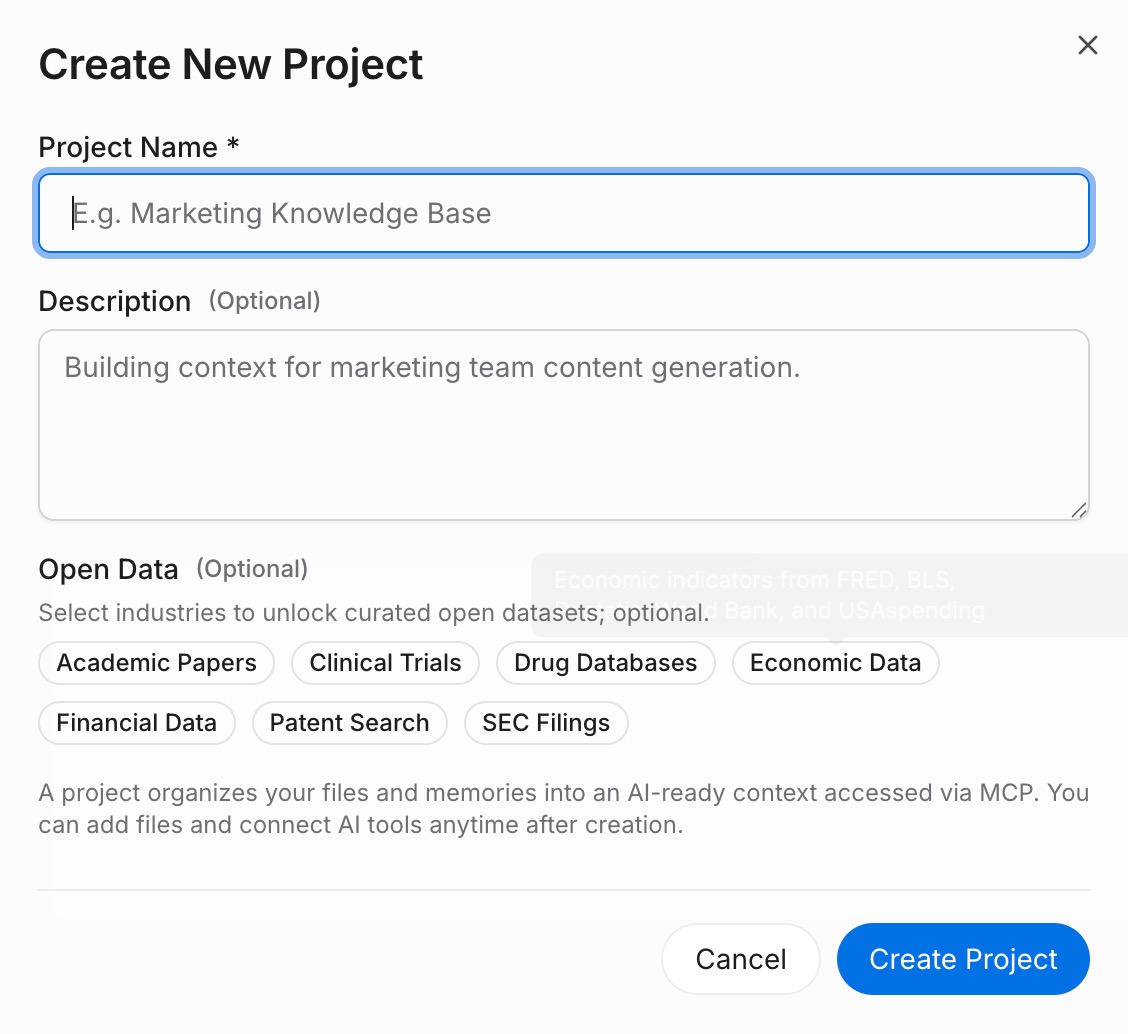
Step 2: Generate an MCP Server endpoint
Open the MCP Servers Tab inside the project, click Add MCP Server, describe it (e.g., "Shared character memory"), and click Generate. MemoryLake returns a Key ID, a Secret, and an Endpoint URL. Copy the Secret immediately — it is shown only once.
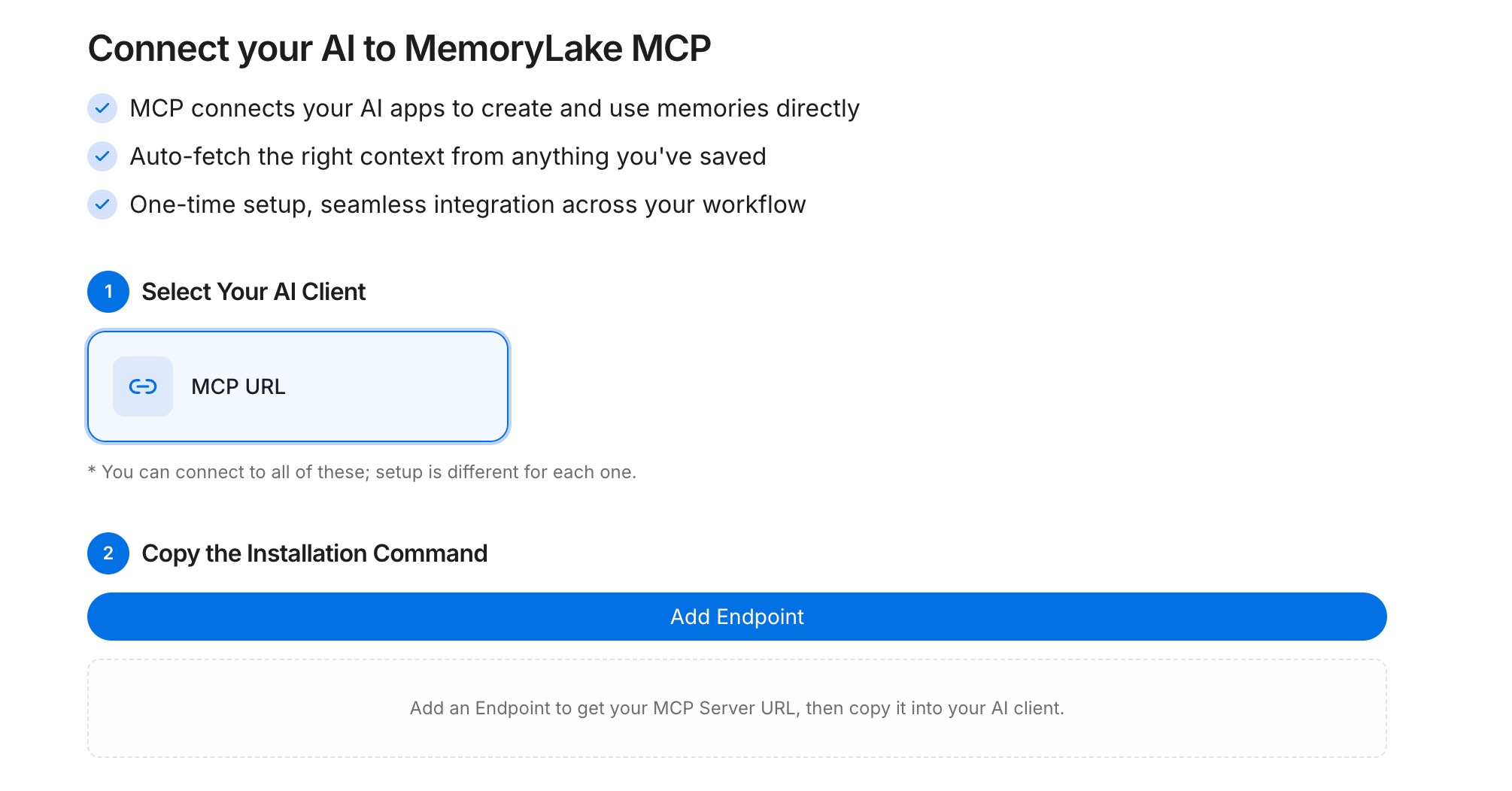
Step 3: Point Claude at the endpoint
Add MemoryLake to Claude Desktop's MCP config with the endpoint URL and the Secret as a Bearer token, then restart Claude. At session start, ask Claude to pull the character's Definition from the MemoryLake project to ground the roleplay.
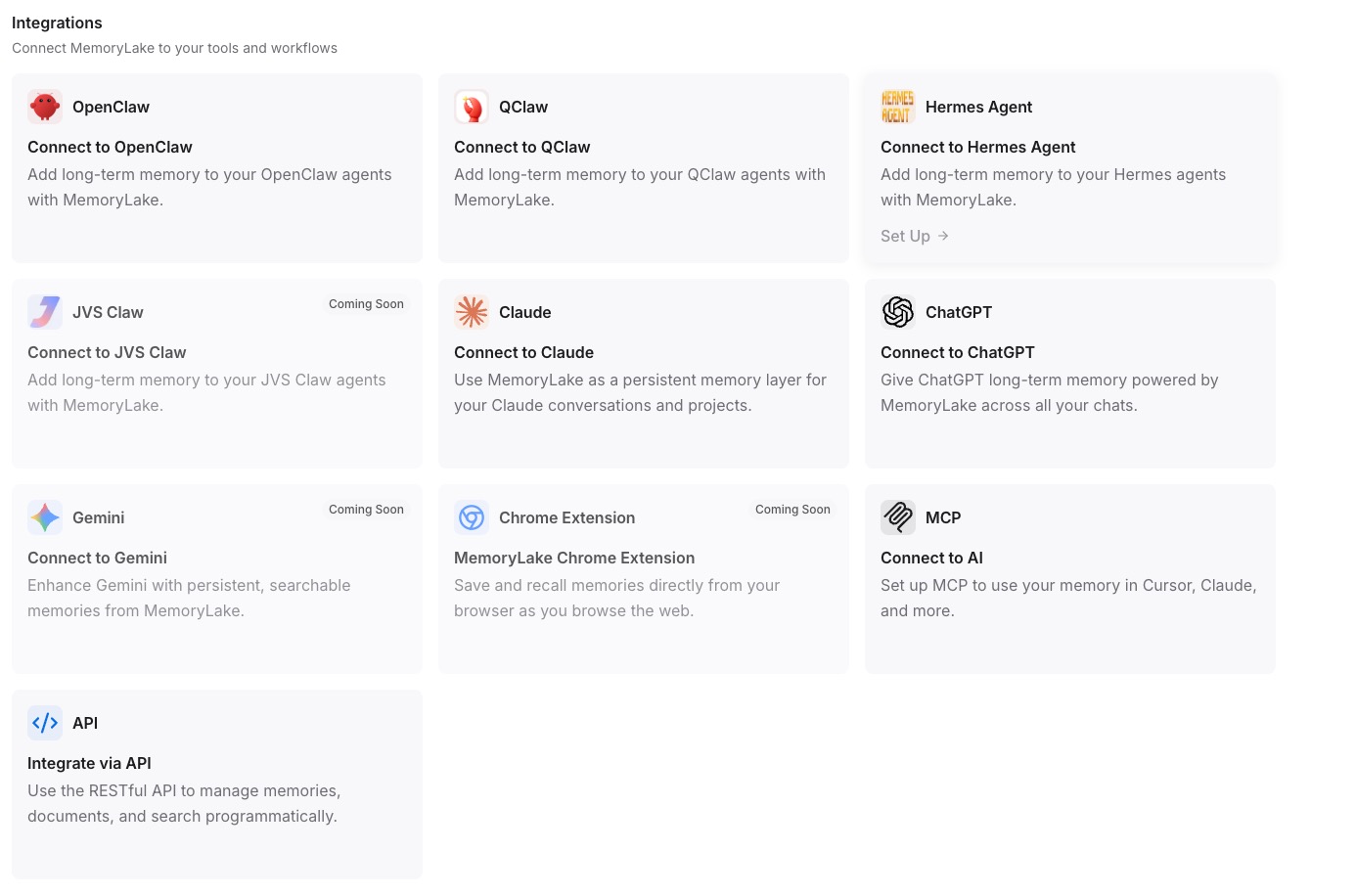
Native migration vs MemoryLake
| Dimension | Native Character.AI → Claude | MemoryLake bridge |
|---|---|---|
| Steps required | 8–11 manual | 3 one-time |
| Estimated time | 20–40 min per character | ~5 min setup |
| Preserves character definition | Yes (manual) | Memories survive verbatim |
| Preserves chat history | Only what you archived | Archived highlights as Memories |
| Syncs ongoing changes | No | Yes (within MemoryLake) |
| Works with a third AI later | No (rebuild) | Yes (add MCP) |