
The short answer
ChatGPT has no native export to Claude. You'll manually copy your Custom Instructions from Settings → Personalization, transcribe stored Memory entries from the same panel, and paste both into a Claude Project as the System Prompt and Project Knowledge. Plan 15–30 minutes per workspace; chat history doesn't carry over. A shared memory layer like MemoryLake lets both tools read the same source instead.
Why people switch from ChatGPT to Claude
Three patterns drive most 2026 moves:
- Longer documents without truncation. Claude's effective context window handles long contracts, codebases, and research dumps without the "I can't see the rest of that file" failure many ChatGPT users hit.
- Stronger reasoning on multi-step instructions. Teams moving editorial, analysis, and code review work cite Claude's accuracy on layered prompts as the deciding factor.
- Projects with persistent knowledge. Claude's Projects keep a curated knowledge area attached to every conversation, which many users prefer to ChatGPT's cross-chat Memory pull.
What "memory" means in ChatGPT vs Claude
The gap between the two memory models is why a one-to-one transfer is impossible.
ChatGPT memory has two parts: Custom Instructions (a global "about you" plus "how you'd like ChatGPT to respond" pair) and Memory (saved facts collected from your chats, visible under Settings → Personalization → Memory). Both apply across every chat in your account.
Claude memory is scoped to a Project. Each Project carries its own Project Knowledge (uploaded files and pasted text) plus an optional System Prompt. Claude does not maintain a global cross-chat memory — context lives where you put it.
Migration is really translation: collapse ChatGPT's global memory into per-Project knowledge in Claude, and decide which subset belongs in which Project.
Step 1: Export your ChatGPT memory
ChatGPT does not expose a single "export memory" button. Pull the pieces separately.
- Open Custom Instructions. Click your profile → Settings → Personalization → Custom Instructions. Copy both fields into a plain text file.
- Export saved Memory entries. Still in Personalization, open Memory. Each saved fact appears as a row. Copy every entry into the same text file, one per line. There is no JSON dump for Memory.
- Request a full data export (optional). Settings → Data Controls → Export Data. ChatGPT emails a download link within a few hours. The ZIP contains
conversations.json,chat.html, and account metadata — useful if you want chat history archived, even though it won't drive Claude's behavior. - Collect uploaded files. If you've shared reference docs with ChatGPT, gather originals from your own source — the ZIP doesn't always include them.
End state: one text file of instructions and saved facts, plus an optional archive of past chats and your own uploaded files.
Step 2: Import into Claude
Claude accepts your memory as Project Knowledge plus a System Prompt.
- Create a Project. Open Projects → Create Project. Name it for the use case (e.g., "Editorial assistant" or "Coding partner").
- Paste your instructions as the System Prompt. Open the Project's Custom Instructions area and paste the former ChatGPT "How would you like ChatGPT to respond?" content. Adapt the voice — addresses to "ChatGPT" should read "Claude."
- Add facts and reference docs as Project Knowledge. Click Add Content → Upload Files or Paste Text. Paste saved Memory entries as a single markdown file (e.g.,
facts.md), and upload any source documents collected in Step 1. - Test with a representative prompt. Run a question that depends on one of the migrated facts to confirm Claude can see the context.
Claude does not import ChatGPT's chat history. If you need past conversations searchable, archive the HTML export separately.
What you'll still lose after migrating
Even a careful manual transfer drops a few things:
- Cross-chat memory behavior. Claude does not auto-pull facts across Projects. If a fact should be available everywhere, you'll re-add it to every Project.
- Conversation history continuity. Old ChatGPT threads stay in the export ZIP but won't influence Claude's responses.
- Version history of edits. Neither side keeps a public change log for memory. Revision history dies on both ends.
- Ongoing sync. This is a snapshot. New facts you teach ChatGPT next week won't appear in Claude unless you redo the whole flow.
The better way: one memory layer, every AI
The real problem isn't ChatGPT vs Claude — it's that every tool keeps memory in its own walled garden. Migrating every six months turns upkeep into permanent busywork.
MemoryLake sits between your tools as a shared, durable memory layer. Load context into a MemoryLake Project once, and both ChatGPT and Claude (and any other MCP-compatible AI) read from the same place via a single MCP Server endpoint.
- One source of truth. Update a fact once; every connected AI sees the change.
- Survives tool switches. Add a third AI later and connect it — no fresh migration needed.
- Real export shape. Standard files (PDF, Word, Excel, PowerPoint, Markdown, images) plus text Memories — not a tool-proprietary dump.
Connect MemoryLake in 3 steps
Step 1: Create a project and load your context
Sign in to MemoryLake, open Project Management, and click Create Project. Name it something like "ChatGPT ↔ Claude shared context." Drag your existing files (PDF, Word, Excel, PowerPoint, Markdown, or images) into the Document Drive under My Space, then open the Documents Tab and click Add Documents to attach them. Paste your ChatGPT Custom Instructions and saved Memory entries into the Memories Tab via Add Memory.
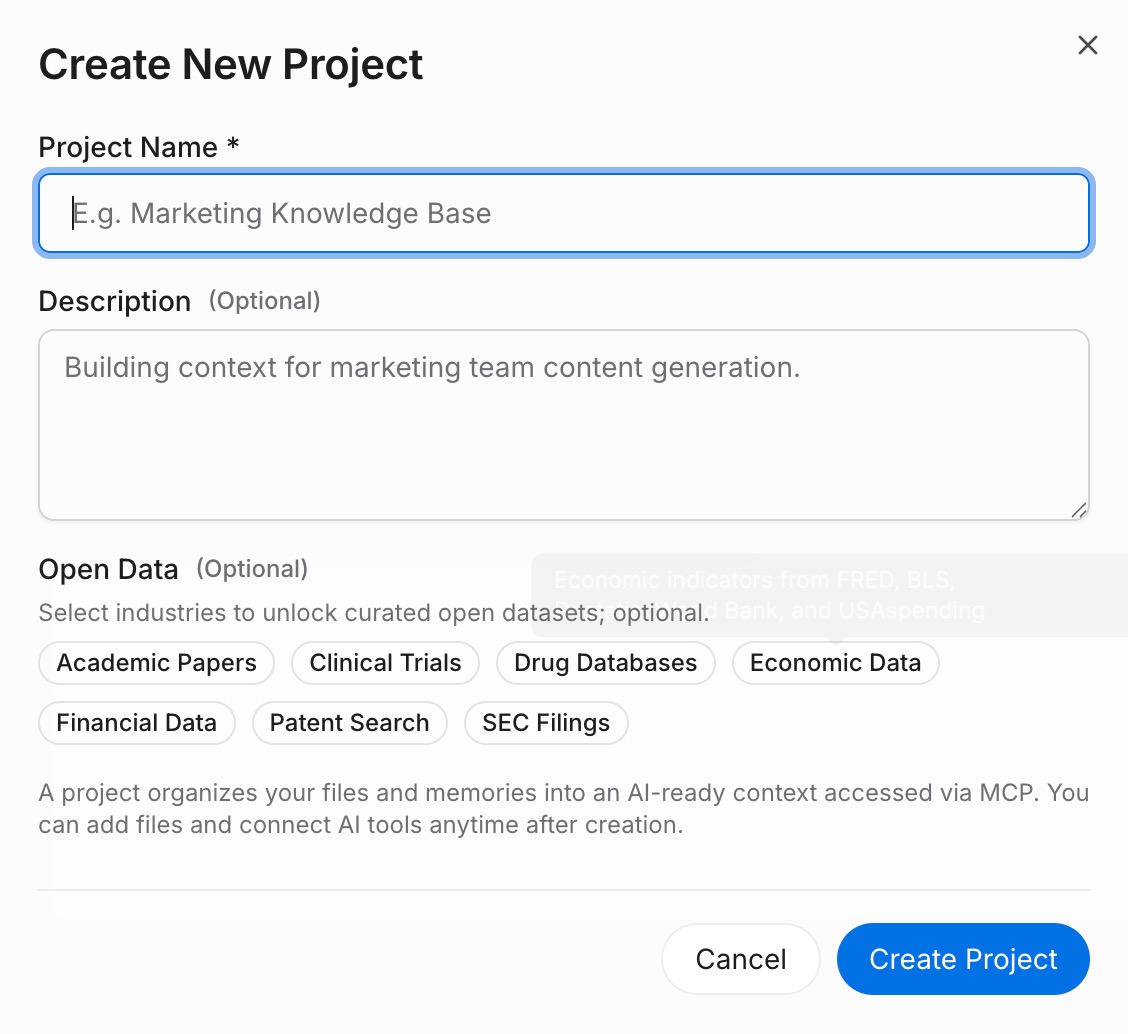
Step 2: Generate an MCP Server endpoint
Inside the project, open the MCP Servers Tab, click Add MCP Server, describe it (e.g., "Shared Claude + ChatGPT access"), and click Generate. MemoryLake returns three values: a Key ID, a Secret, and an Endpoint URL. Copy the Secret immediately — it is shown only once.
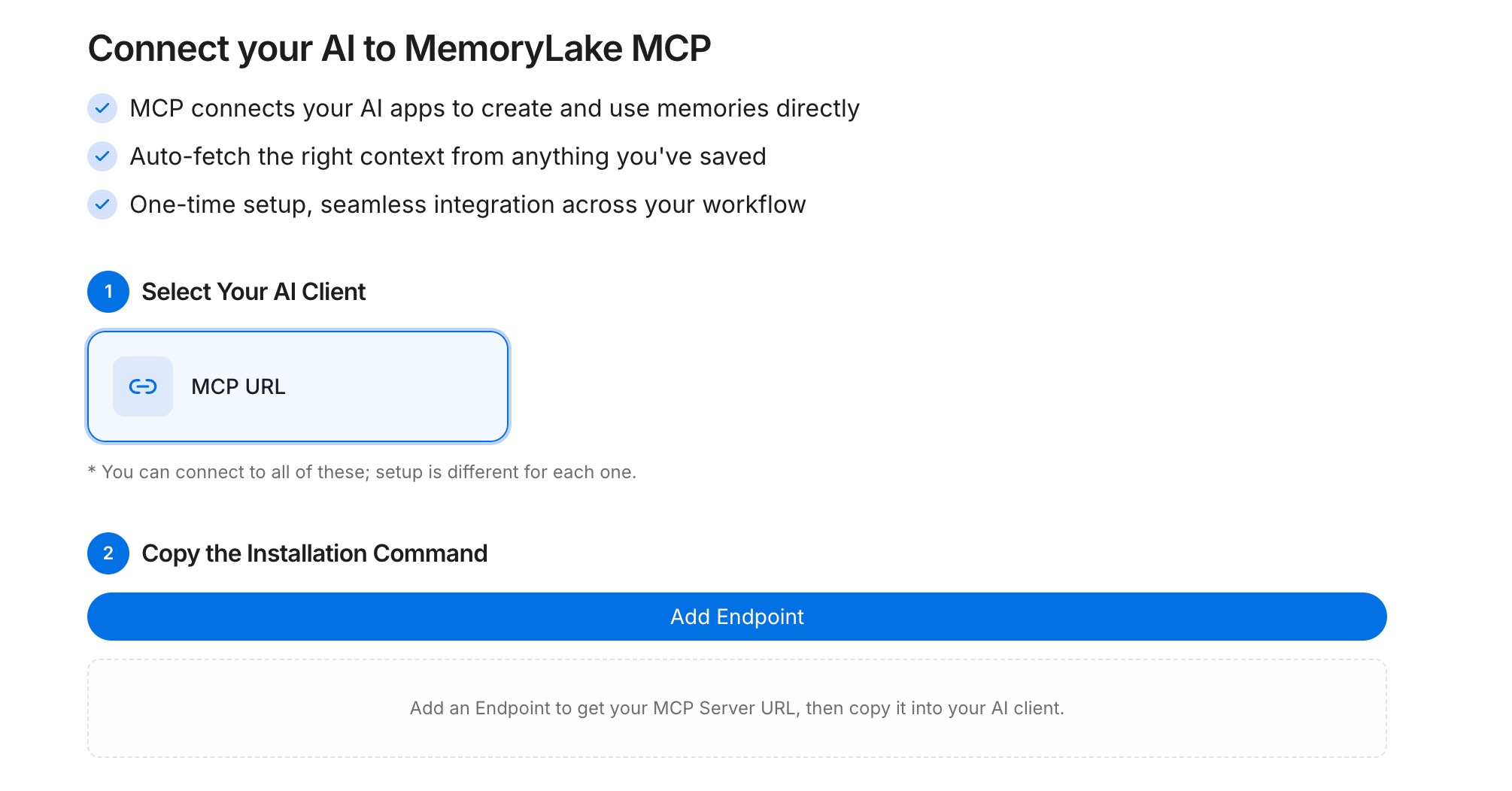
Step 3: Point both tools at the endpoint
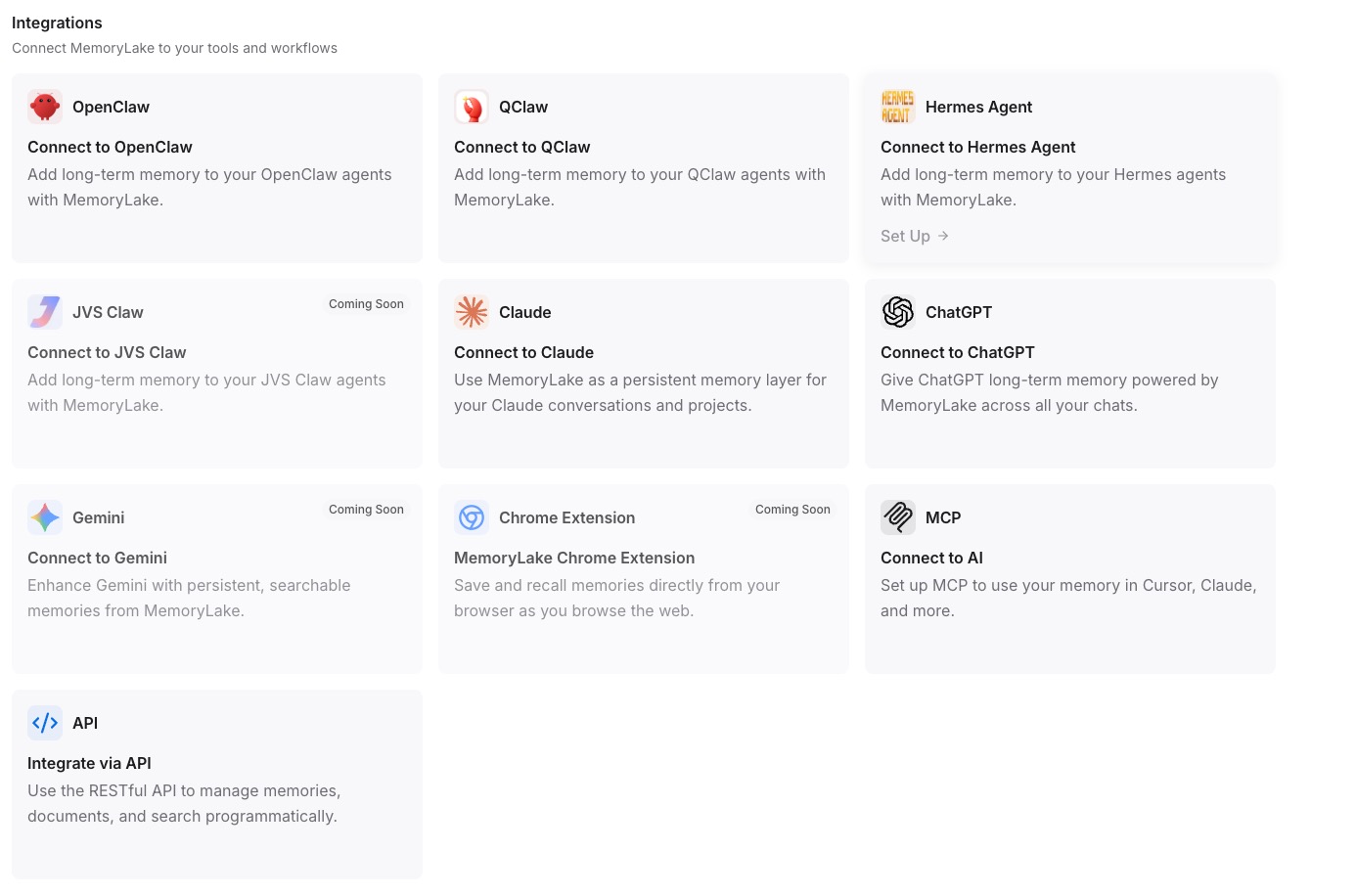
For Claude Desktop, add the MemoryLake server to your MCP config with the endpoint URL and the Secret as a Bearer token, then restart Claude. For ChatGPT, call the REST API with the same Bearer token to pull project memory at session start, or reference the project from a Custom GPT Action.
Native migration vs MemoryLake
| Dimension | Native ChatGPT → Claude | MemoryLake bridge |
|---|---|---|
| Steps required | 7–9 manual | 3 one-time |
| Estimated time | 15–30 min per Project | ~5 min setup |
| Preserves conversation context | No | Yes |
| Preserves version history | No | Yes |
| Syncs ongoing changes | No (snapshot only) | Yes |
| Works with a third AI later | No (start over) | Yes (add MCP) |