
The short answer
Claude has no native push to ChatGPT. You'll download Project Knowledge files from each Claude Project, copy each Project's System Prompt, and reconstruct the same context inside ChatGPT as Custom Instructions plus saved Memory entries (or as a Custom GPT's instructions and Knowledge). Expect 20–40 minutes per Project. Threads do not transfer. A shared MCP-based memory layer lets both tools read the same source instead.
Why people switch from Claude to ChatGPT
Three drivers stand out in 2026:
- Wider plugin and Custom GPT ecosystem. ChatGPT's Custom GPTs, Actions, and third-party integrations cover more end-user workflows than Claude's Projects today.
- Voice mode and multimodal habits. Daily users on phones often prefer ChatGPT's voice interaction and image generation flow.
- Team consolidation. Organizations standardizing on a single AI vendor sometimes pick ChatGPT for the broader org-wide tooling.
What "memory" means in Claude vs ChatGPT
The two systems organize context very differently — that mismatch is where most data quietly goes missing.
Claude memory lives inside Projects. Each Project has its own Project Knowledge (uploaded files and pasted text) and an optional System Prompt that shapes every conversation in that Project. Memory is local to the Project.
ChatGPT memory has two surfaces: Custom Instructions (one global pair of fields per account) and Memory (a list of saved facts pulled across every chat). There is no project-level scope built in unless you use Custom GPTs, which act as project-like containers with their own instructions and Knowledge files.
Migration usually splits one way: a single Claude Project becomes either a Custom GPT (if you want isolation) or a chunk of Custom Instructions plus Memory entries (if you want it everywhere).
Step 1: Export your Claude memory
Claude does not have a one-click Project export, so you'll bundle each Project's pieces yourself.
- Capture each Project's System Prompt. Open the Project → Project Instructions and paste the contents into a text file labelled with the Project name.
- Download Project Knowledge files. Click each attached file in Project Knowledge and download the original. Re-upload originals from your local folder if you still have them — that's faster than the web download path.
- Copy pasted-text knowledge. For knowledge you added as pasted text (not uploaded files), select all and copy it into a
notes.mdfile per Project. - Export chat history (optional). Settings → Account → Export Data. Claude emails a download with your conversation transcripts. Useful for archival, not for replaying behavior in ChatGPT.
End state: one folder per Claude Project containing a System Prompt text file, the original files, and a notes.md.
Step 2: Import into ChatGPT
You have two real paths inside ChatGPT.
- Path A — Custom GPT (project-like). Open GPT Builder, click Create. Paste your Claude System Prompt into Instructions, upload the Project files to Knowledge, and save the GPT. This best preserves Claude's Project boundary.
- Path B — Custom Instructions + Memory (global). Settings → Personalization → Custom Instructions. Paste a shortened version of your Claude System Prompt into "How would you like ChatGPT to respond?" Then open Memory and add key facts from your Claude notes as individual entries.
- Upload reference docs to chats. ChatGPT does not pin files account-wide; attach them to a specific chat or a Custom GPT's Knowledge.
- Verify with a probe prompt. Ask a question that depends on a moved fact to confirm the migration landed.
ChatGPT will not auto-import Claude's saved threads — the export sits as JSON-style data with no replay path.
What you'll still lose after migrating
- Project-scoped isolation. Unless you go the Custom GPT route, ChatGPT's Memory blends into every chat.
- System Prompt fidelity. Long, structured Claude system prompts often need trimming; ChatGPT's Custom Instructions fields are short, and Custom GPT instructions render slightly differently.
- Conversation continuity. Past Claude threads stay in their export but won't shape ChatGPT.
- Ongoing sync. New Project Knowledge you add to Claude next month won't appear in ChatGPT unless you re-migrate.
The better way: one memory layer, every AI
Re-doing this migration every quarter is the real cost. The fix isn't picking the winning tool — it's removing the per-tool walls.
MemoryLake holds your context once and exposes it to any MCP-compatible AI. Claude and ChatGPT both read from the same MemoryLake Project through a single endpoint.
- No more two-sided shuffles. One Project, both tools.
- Drop-in for new AIs. Adding Gemini or a coding agent later is one config change, not a fresh migration.
- You keep the originals. Files stay in MemoryLake's Document Drive in their native formats.
Connect MemoryLake in 3 steps
Step 1: Create a project and load your context
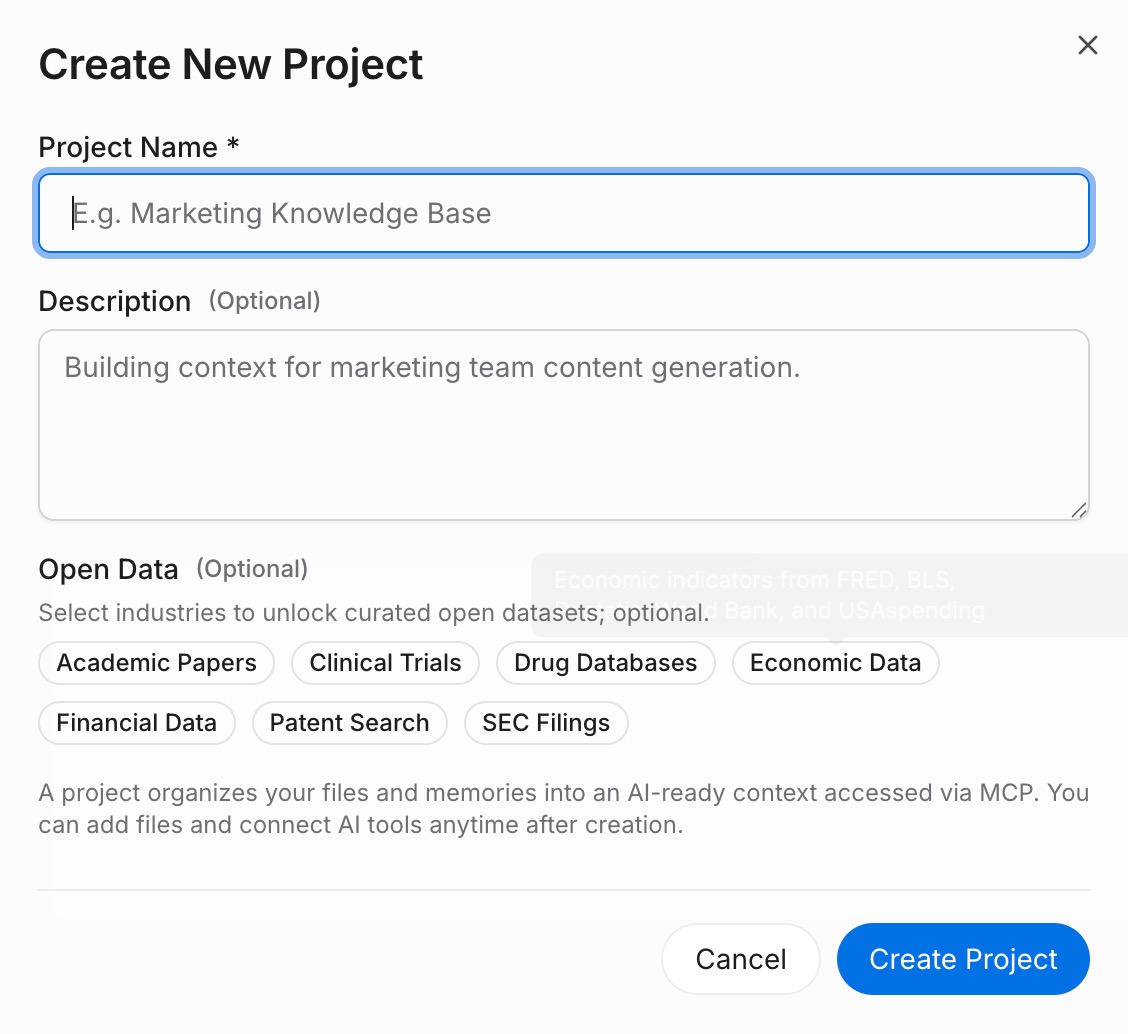
Sign in to MemoryLake, open Project Management, and click Create Project. Name it something like "Claude ↔ ChatGPT shared context." Drag your downloaded Claude Project files (PDF, Word, Excel, PowerPoint, Markdown, or images) into the Document Drive under My Space, then open the Documents Tab and click Add Documents to attach them. Paste each Claude System Prompt and any text notes into the Memories Tab via Add Memory.
Step 2: Generate an MCP Server endpoint
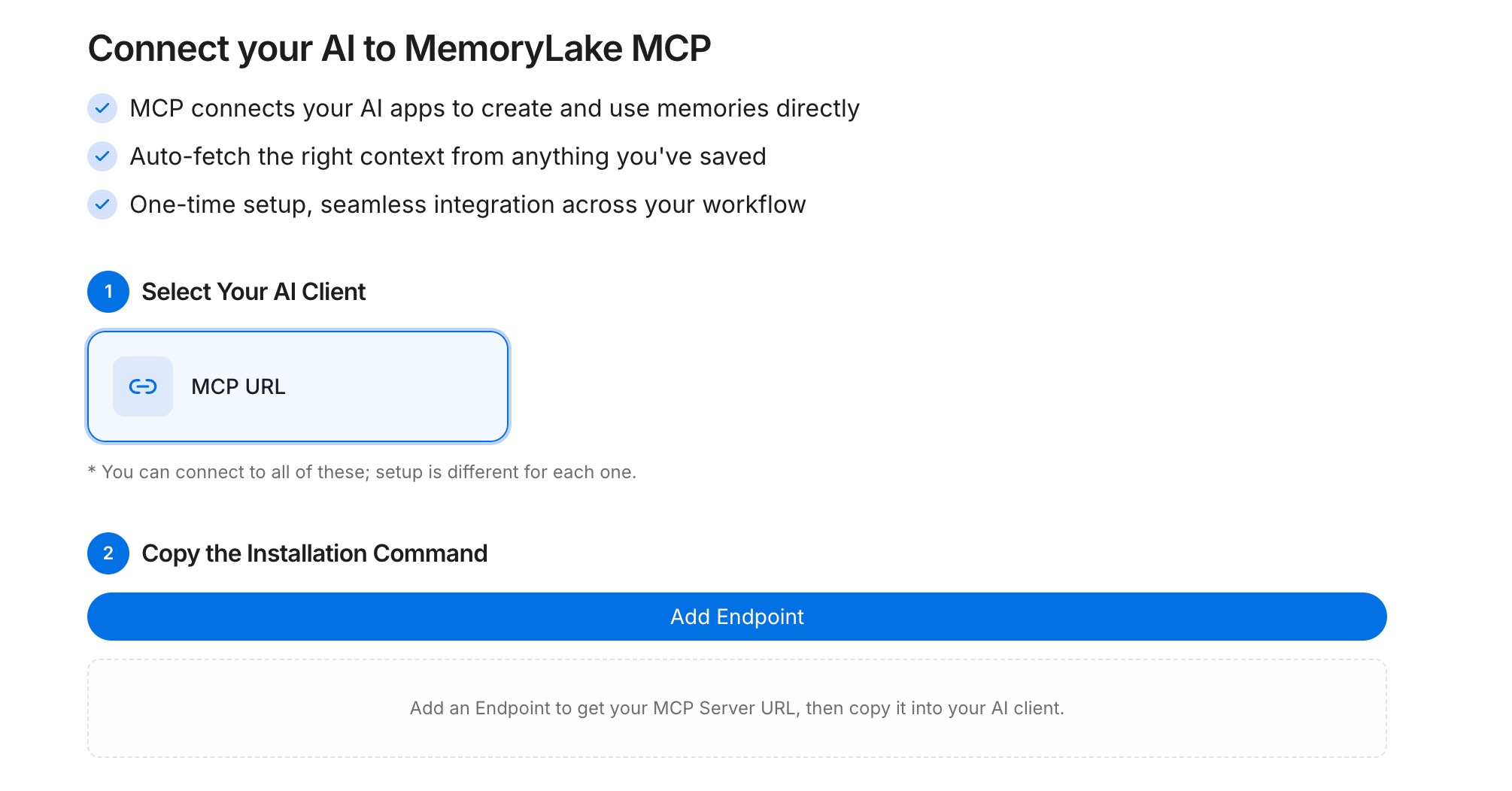
Open the MCP Servers Tab inside the project, click Add MCP Server, describe it (e.g., "ChatGPT + Claude bridge"), and click Generate. MemoryLake returns a Key ID, a Secret, and an Endpoint URL. Copy the Secret immediately — it is shown only once.
Step 3: Point both tools at the endpoint
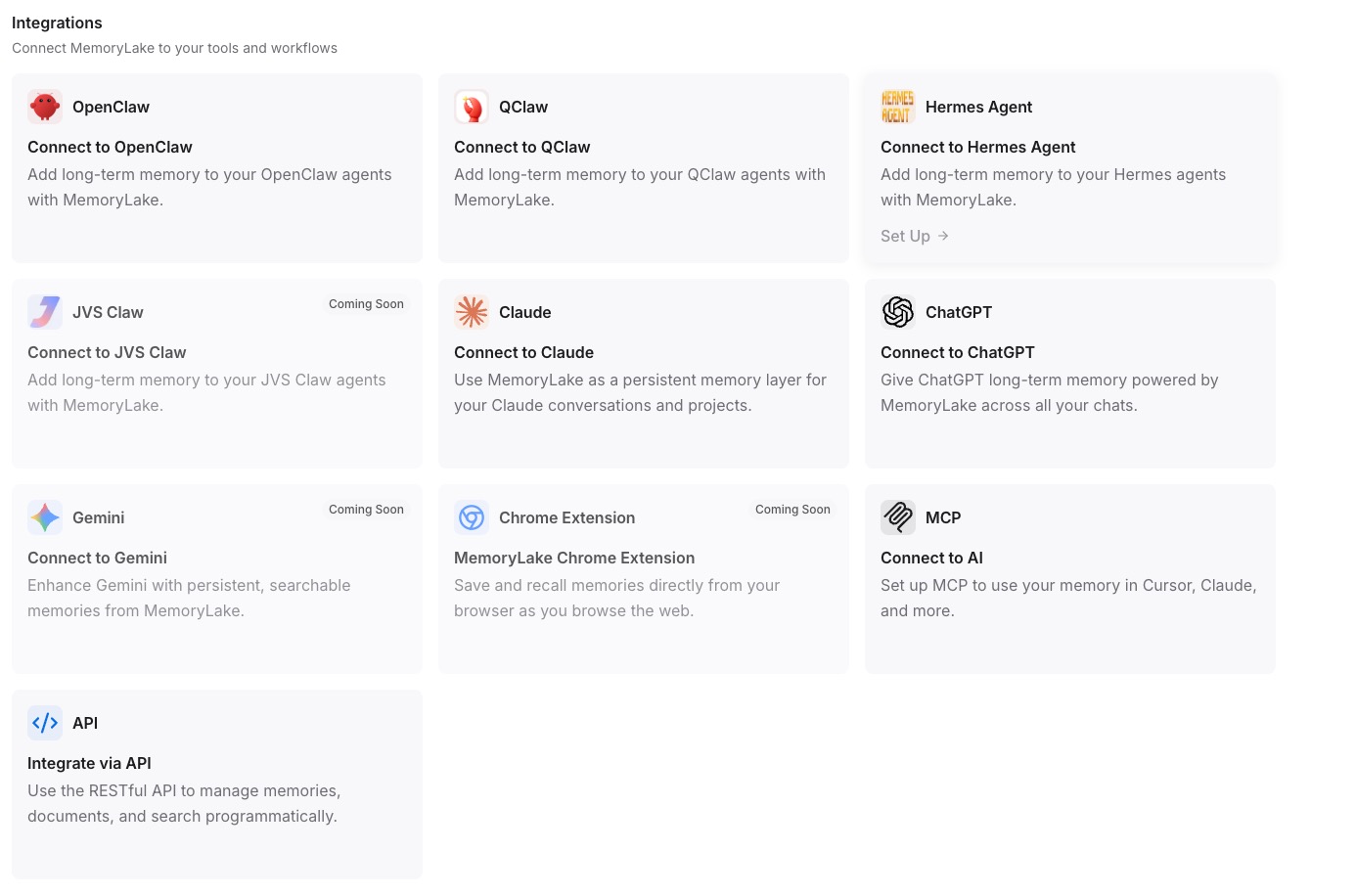
Add MemoryLake to Claude Desktop's MCP config with the endpoint URL and Bearer token; restart Claude. For ChatGPT, call the REST API with the same Bearer token from a Custom GPT Action or your own integration so each chat can fetch the same project context.
Native migration vs MemoryLake
| Dimension | Native Claude → ChatGPT | MemoryLake bridge |
|---|---|---|
| Steps required | 8–10 manual | 3 one-time |
| Estimated time | 20–40 min per Project | ~5 min setup |
| Preserves Project boundary | Only via Custom GPT | Yes |
| Preserves version history | No | Yes |
| Syncs ongoing changes | No (snapshot only) | Yes |
| Works with a third AI later | No (rebuild) | Yes (add MCP) |