
The short answer
Claude Projects cannot push to Custom GPTs directly. You'll copy each Project's System Prompt, download its Project Knowledge files, list any MCP integrations, then rebuild each Project as a Custom GPT in GPT Builder with Instructions, Knowledge attachments, and Actions where needed. Plan 25–45 minutes per Project. A shared MCP-based memory layer like MemoryLake lets both tools read the same source.
Why people switch from Claude Projects to Custom GPTs
Three drivers in 2026:
- GPT Store distribution. Custom GPTs can reach a broad public audience; Claude Projects stay private to your account or team.
- Built-in Capabilities. Web browsing, code interpreter, and DALL·E image generation come bundled in Custom GPTs.
- Familiar Actions framework. Teams already invested in OpenAPI-defined Actions find the GPT Builder integration faster than rebuilding around MCP.
What "memory" means in Claude Projects vs Custom GPTs
The two abstractions overlap but have different surface areas.
Claude Projects are containers with Project Knowledge (uploaded files and pasted text), an optional System Prompt, and access to MCP servers configured at the desktop level.
Custom GPTs are containers with Instructions (system prompt), Knowledge (uploaded files), Capabilities toggles (web browsing, code interpreter, image generation), Actions (OpenAPI-defined external API calls), and a Conversation Starters list.
A Claude Project usually becomes a Custom GPT. The System Prompt becomes Instructions. Project Knowledge becomes Knowledge attachments. MCP-based tools become Actions or get dropped.
Step 1: Export your Claude Project
Claude has no Project-export bundle.
- Capture each Project's System Prompt. Open the Project → Project Instructions. Copy the contents into a text file labelled with the Project name.
- Download Project Knowledge files. Click each file in Project Knowledge and download the original. Re-upload from your local folder if available.
- Copy pasted-text knowledge. Save it into a
notes.mdper Project. - List MCP servers in use. Note which MCP servers the Project relied on (memory layers, vector stores, internal tools). You'll convert any that matter into Custom GPT Actions.
End state: one folder per Claude Project with the System Prompt, original files, notes.md, and mcp-list.md.
Step 2: Import into Custom GPTs
GPT Builder accepts the pieces directly.
- Create a Custom GPT per Project. Open GPT Builder → Create. Name it after the Project.
- Paste the System Prompt as Instructions. Adapt references — Claude-specific phrasing should read "ChatGPT" or "the assistant."
- Upload Knowledge files. Attach every downloaded file from Step 1. Watch Custom GPT Knowledge size limits and split large bundles if needed.
- Toggle Capabilities. Decide which of web browsing, code interpreter, and image generation map to the Project's purpose.
- Rebuild important MCP tools as Actions. For each MCP server you noted, build an OpenAPI spec and add it as an Action.
- Add Conversation Starters. Create four suggested prompts to mirror the Project's typical questions.
- Validate. Test in GPT Builder's preview pane with a prompt that exercises one of the Knowledge files.
ChatGPT does not import Claude's chat threads.
What you'll still lose after migrating
- MCP tool depth. Replacing MCP servers with Actions often means losing fine-grained tool composition.
- System Prompt length. Long, structured Claude prompts may need compression for GPT Builder.
- Project boundary nuance. Custom GPT Knowledge can feel less isolated than a Claude Project.
- Ongoing sync. A snapshot today doesn't propagate later Project Knowledge updates in Claude into your Custom GPT.
The better way: one memory layer, every AI
You're probably moving back and forth between Claude and ChatGPT for different tasks. Each migration is the same rebuild. Put memory outside both.
MemoryLake stores your context once and exposes it through MCP. Claude reads it natively through Desktop's MCP config; your Custom GPT reads it through an Action calling the same REST endpoint.
- One source of truth. Update once; both sides see the change.
- Drop-in for the next AI. Add Gemini or a coding agent later with a config change.
- Originals preserved. Files live in MemoryLake's Document Drive in native formats.
Connect MemoryLake in 3 steps
Step 1: Create a project and load your context
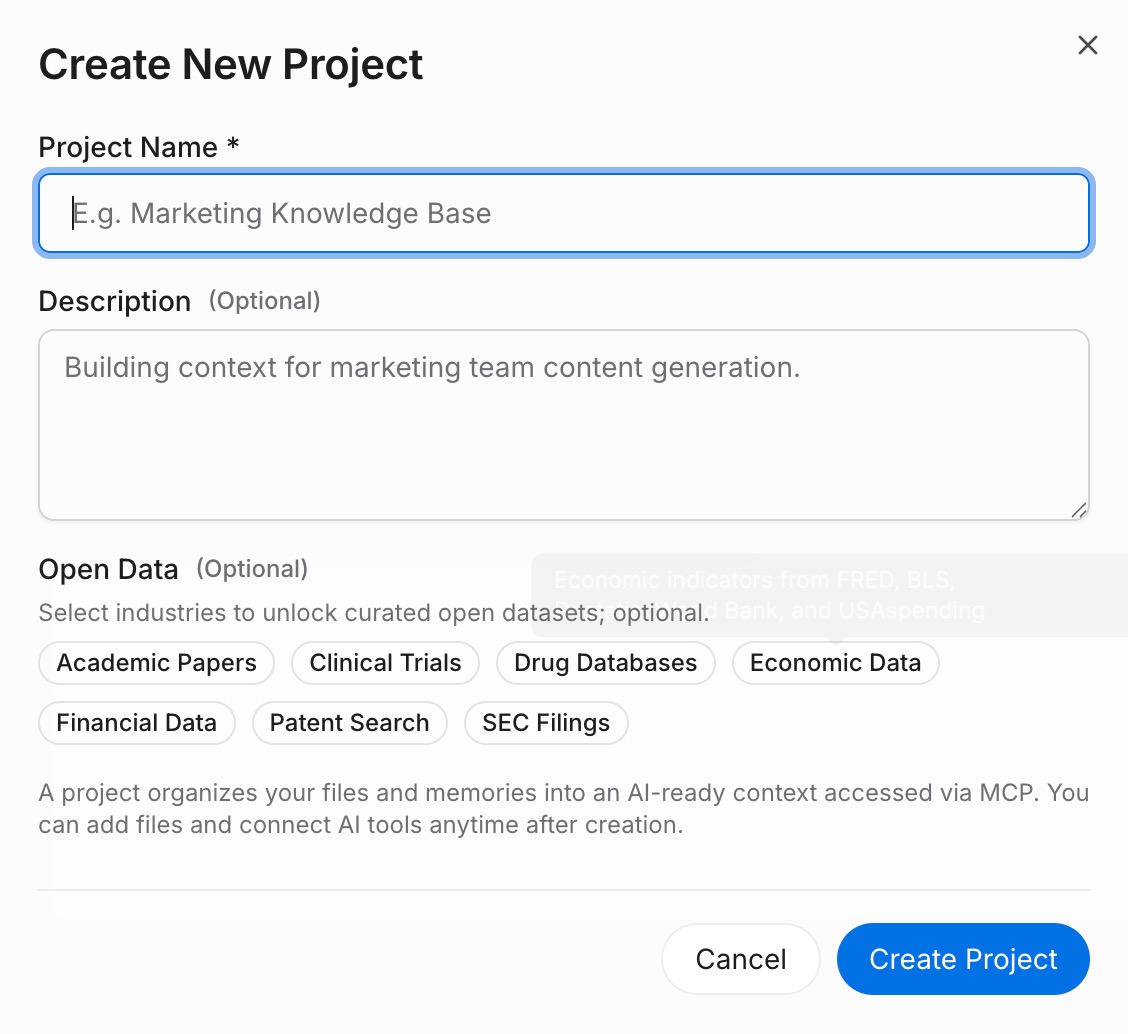
Sign in to MemoryLake, open Project Management, and click Create Project. Name it "Claude Project ↔ Custom GPT shared context." Drag your downloaded Claude files (PDF, Word, Excel, PowerPoint, Markdown, or images) into the Document Drive under My Space, then open the Documents Tab and click Add Documents. Paste each System Prompt and any notes into the Memories Tab via Add Memory.
Step 2: Generate an MCP Server endpoint
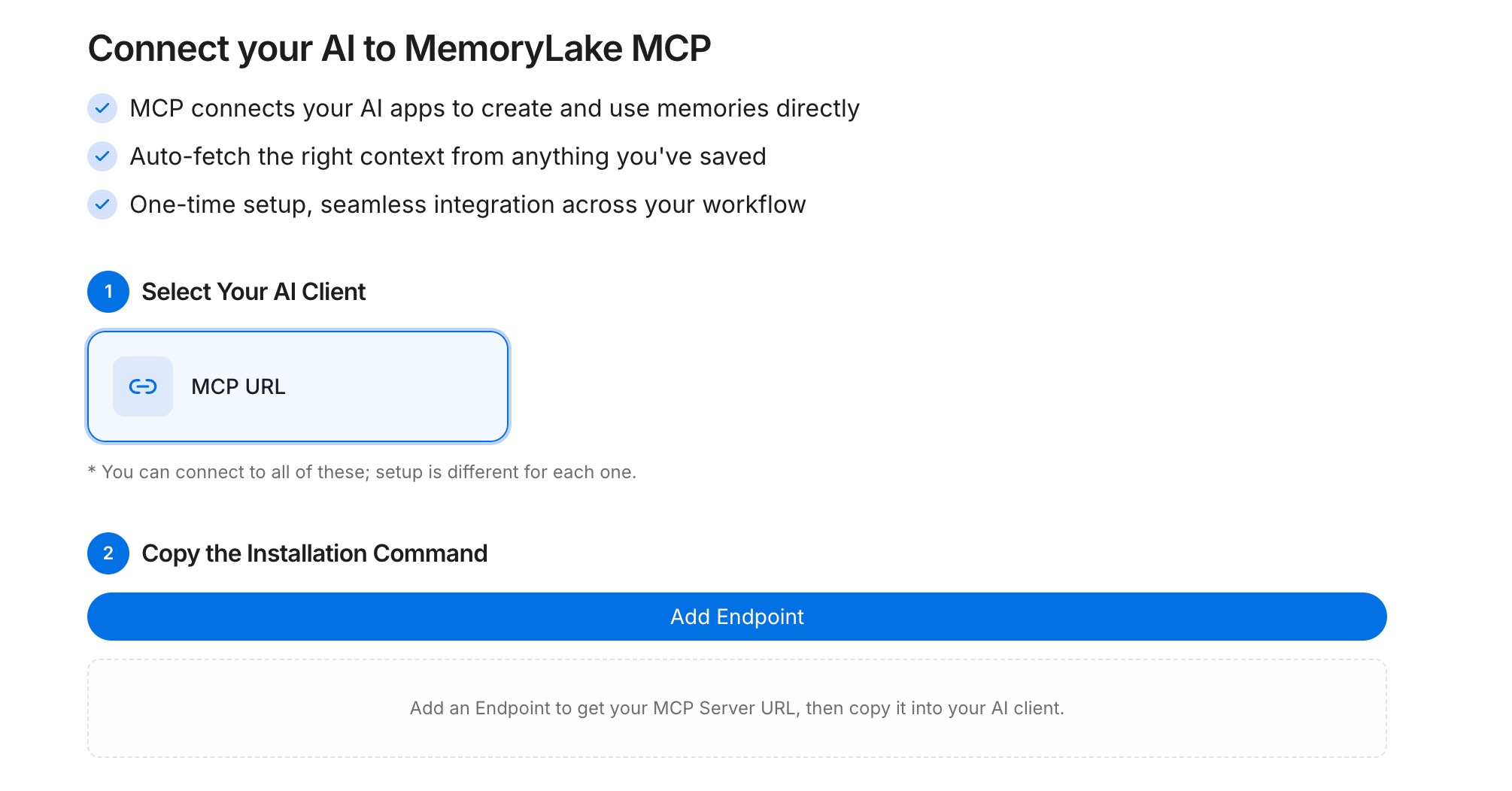
Open the MCP Servers Tab inside the project, click Add MCP Server, describe it (e.g., "Shared Claude + GPT access"), and click Generate. MemoryLake returns a Key ID, a Secret, and an Endpoint URL. Copy the Secret immediately — it is shown only once.
Step 3: Point both tools at the endpoint
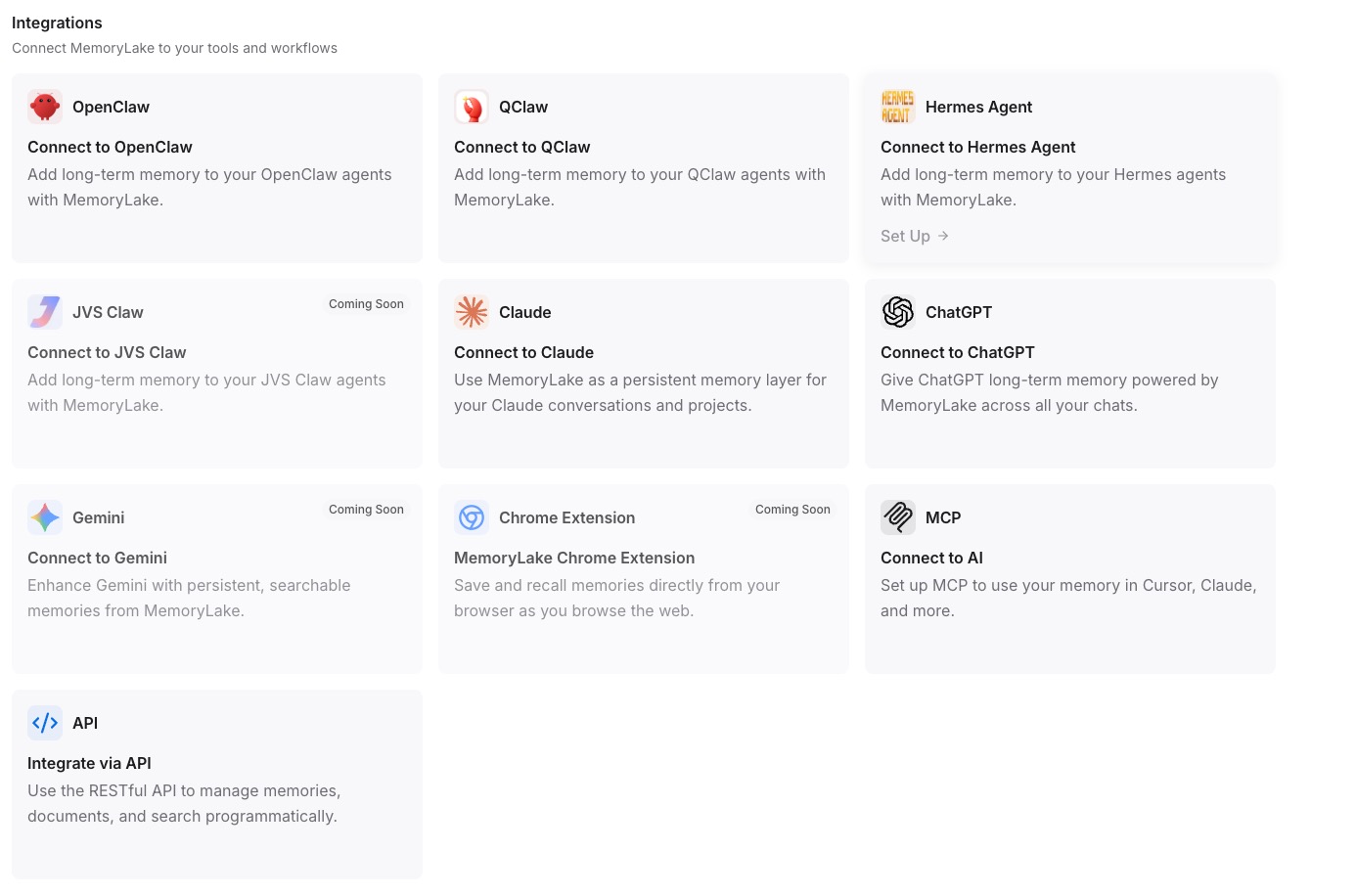
Add MemoryLake to Claude Desktop's MCP config with the endpoint URL and the Secret as a Bearer token, then restart Claude. For your Custom GPT, configure an Action that calls the same REST endpoint with the Bearer token so the GPT can fetch project memory at runtime.
Native migration vs MemoryLake
| Dimension | Native Claude Project → Custom GPT | MemoryLake bridge |
|---|---|---|
| Steps required | 9–13 manual | 3 one-time |
| Estimated time | 25–45 min per Project | ~5 min setup |
| Preserves System Prompt + Knowledge | Yes (manual) | Yes (one Project) |
| Preserves MCP tools | No (rebuild as Actions) | MCP endpoint shared |
| Syncs ongoing changes | No | Yes |
| Works with a third AI later | No (rebuild) | Yes (add MCP) |