
Where your Gemini chats are stored
Google keeps Gemini conversations as activity in your Google Account. Its activity article says: "When you are signed in and Keep Activity is on, Google stores your Gemini Apps activity in your Google Account."
How much you have to export depends on a few settings:
- Keep Activity. Google says it's on by default if you're 18 or over. When it's off, your chats aren't kept in your activity, although Google says conversations are still saved with your account for up to 72 hours to provide the service.
- Auto-delete. Google's default is to delete Gemini Apps activity older than 18 months. You can change the period to 3 or 36 months, or turn auto-delete off. Anything older than your setting may already be gone.
- Gems. Chats with a Gem show which Gem was used, but the Gem is stored separately. Google says that with Keep Activity off, Gems you create are still saved, but "Any chats you create with Gems will not be saved."
- Gemini Live. Transcripts, audio, files, and any video or screenshares you shared with Live are saved in your activity when Keep Activity is on. If you planned something out loud, it's in there.
- Work or school accounts. Google says these settings "are controlled by your Google Workspace administrator". Your organization's rules decide what you can take with you.
To see what you have before exporting, open gemini.google.com, select Settings & help, then Activity. You can also go to myactivity.google.com/product/gemini.
Exporting your Gemini chats with Takeout
Google's article on downloading Gemini Apps data describes the export. The selection has two parts, because chats and Gems live in different places:
- Go to takeout.google.com and sign in with the account you use for Gemini.
- Select Deselect all, so you only export what you need.
- For your chats, check My Activity, select All activity data included, select Deselect all in the pop-up, check Gemini Apps, and select Ok.
- For your Gems, check the box next to Gemini.
- Select Next step, choose a delivery method, frequency, and file type, then create the export.
Plan around four details:
- Timing. Google says that depending on how much you export, "it can take a few hours to a few days".
- The link expires. If you choose email delivery, the download link "is active for 7 days".
- It's a snapshot. The archive "may not include changes made to your data between when you request a download and when you create your archive".
- Nothing is removed. Google's article says: "If you download your Gemini Apps activity, it doesn't delete it from Google's servers."
What you get is a record of your Gemini Apps activity, which Google describes as including your chats, generated media, and uploads, plus your Gems if you selected them. It's raw material. It isn't a summary of what you decided, and it isn't organized the way you'd want ChatGPT to see it.
What ChatGPT can take in
ChatGPT has four places where outside context can live. Each fits a different part of your Gemini history.
Projects
OpenAI's projects article says: "Projects keep related chats, files, and instructions together." A project has its own instructions, which apply within that project and override your global custom instructions. It also has files you can upload as reference material.
Project file limits depend on your plan. OpenAI lists up to 5 files per project on Free, up to 25 on Go and Plus, and up to 40 on Edu, Pro, Business, and Enterprise.
Custom instructions
OpenAI describes these as "direct guidance that you provide about what ChatGPT should know and how it should respond". They apply across your chats, outside of project instructions.
Saved memories
OpenAI's Memory article says saved memories "are details that you explicitly ask ChatGPT to remember or that ChatGPT saves as useful context when that behavior is available". You can tell ChatGPT what to remember in a chat. Memory features vary by plan, region, and platform.
File uploads
You can upload documents and text files to a chat. OpenAI's upload article lists a maximum of 512 MB per document and a cap of 2 million tokens per text or document file. An uploaded file is something ChatGPT can read in that chat. It doesn't become chat history.
That last point is worth stating plainly. OpenAI's article on transferring ChatGPT exports between accounts says the process "is not a full account migration", and that uploading an export doesn't recreate previous conversations as separate chats. That article covers ChatGPT's own export files. For Gemini's archive, there's even less: no import is described at all.
Where each part of your Gemini history goes
With both sides in view, the sorting is straightforward.
Facts about you go into custom instructions or memory
Your role, the way you like answers formatted, what you're working toward. In Gemini, this context built up across many chats. In ChatGPT, write it out once. Stable guidance goes into custom instructions. Individual facts can go into memory by asking ChatGPT to remember them.
Long-running topics go into projects
If you used Gemini for a thesis, a product launch, or a job search, that topic becomes a ChatGPT project. Write a short summary of where things stand and add it to the project as a file, along with any reference documents. Keep the plan's file limit in mind.
Gem instructions go into project instructions
A Gem is a set of instructions for a recurring task. OpenAI's Free tier FAQ says new GPT creation isn't available on personal accounts, including Free, Go, Plus, and Pro. So for a personal account, the closest fit is a project with those instructions. Copy the Gem's instructions from your export, adjust anything Gemini-specific, and paste them into the project settings.
The archive itself stays a reference
Much of your activity record may be questions you already got answers to. Keep the archive in your own files. When you need an old answer, find it there and bring only that part into ChatGPT.
Our guide to ChatGPT project memory modes explains how a project's memory setting decides what it can reference outside itself.
Why a share link isn't a migration
Gemini lets you share a conversation with a public link, so it's tempting to share your important chats and open them elsewhere. Google's own description of sharing is a reason not to.
Google says: "When you share a chat, it creates a public link to that chat. Anyone with the link can read the chat, even if you didn't share the link with them directly." It also says that if you share a chat, anyone with the link can reshare it.
Deleting doesn't clean it up, either. Google's activity article says: "If a shared chat is deleted, it doesn't delete the related public link." You have to delete the link separately from Settings, under Your public links.
A public link is for showing a conversation to someone. For moving your own context, a private export and a written summary are safer.
What people try first
Uploading the whole archive to one chat. ChatGPT can read an uploaded file in that chat, but the chat doesn't become your history, and a large archive is hard to work with.
Looking for an import button. OpenAI's help center doesn't describe importing another assistant's chats.
Sharing Gemini chats as public links. Anyone with the link can read them.
Copying everything into memory. Saved memories hold details, not transcripts. Pick the facts that matter.
Forgetting the Gems. They're exported separately, under Gemini, not My Activity.
The manual migration
Step 1: Export your Gemini chats and Gems
In Takeout, select Gemini Apps under My Activity for your chats, and Gemini for your Gems. Choose email delivery and download the archive within 7 days. If you use a work or school account, check your organization's policy first.
Step 2: Sort what the archive holds
Go through your history by topic. For each topic, write a short summary: what you were trying to do, what you decided, and what's still open. Separately, list facts about yourself that came up repeatedly, and copy out the instructions from each Gem you still use.
Step 3: Set up ChatGPT
Add stable preferences to custom instructions, and ask ChatGPT to remember individual facts. Create a project for each long-running topic, paste the relevant Gem instructions into its settings, and upload the topic summary and any reference files.
The Better Way: Keep your context in one place you control
The manual migration moves your context once, into ChatGPT's settings and projects. The summaries you wrote in Step 2 are the part that matters, and now they live in one assistant. If you add another tool later, you'll copy them again. Our guide to migrating Perplexity chat history to ChatGPT shows the same pattern from another starting point.
MemoryLake is a memory layer for keeping those summaries and decisions in one place you maintain, available to the assistants you connect, such as ChatGPT, Claude Code, and Codex.
You write the entries yourself, in your own words. Nothing is read out of, written to, or deleted from your Google activity, your Takeout archive, your Gems, your ChatGPT projects, your ChatGPT memory, or any vendor's store. Google's export and ChatGPT's features work the way each company describes them.
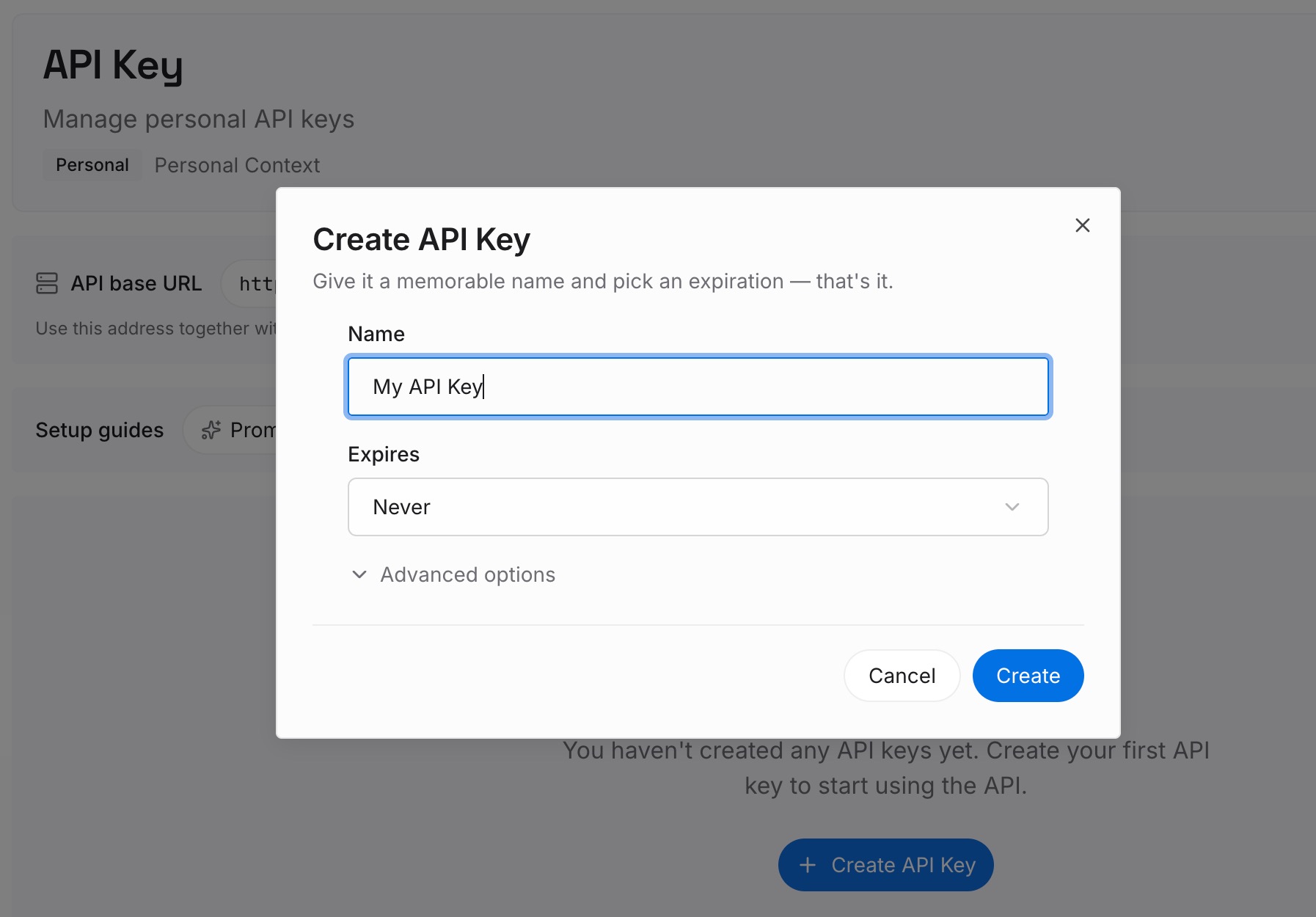
Step 1: Create an API key
Sign in and generate a key from the dashboard. The key belongs to your MemoryLake workspace and is separate from your Google and OpenAI accounts.
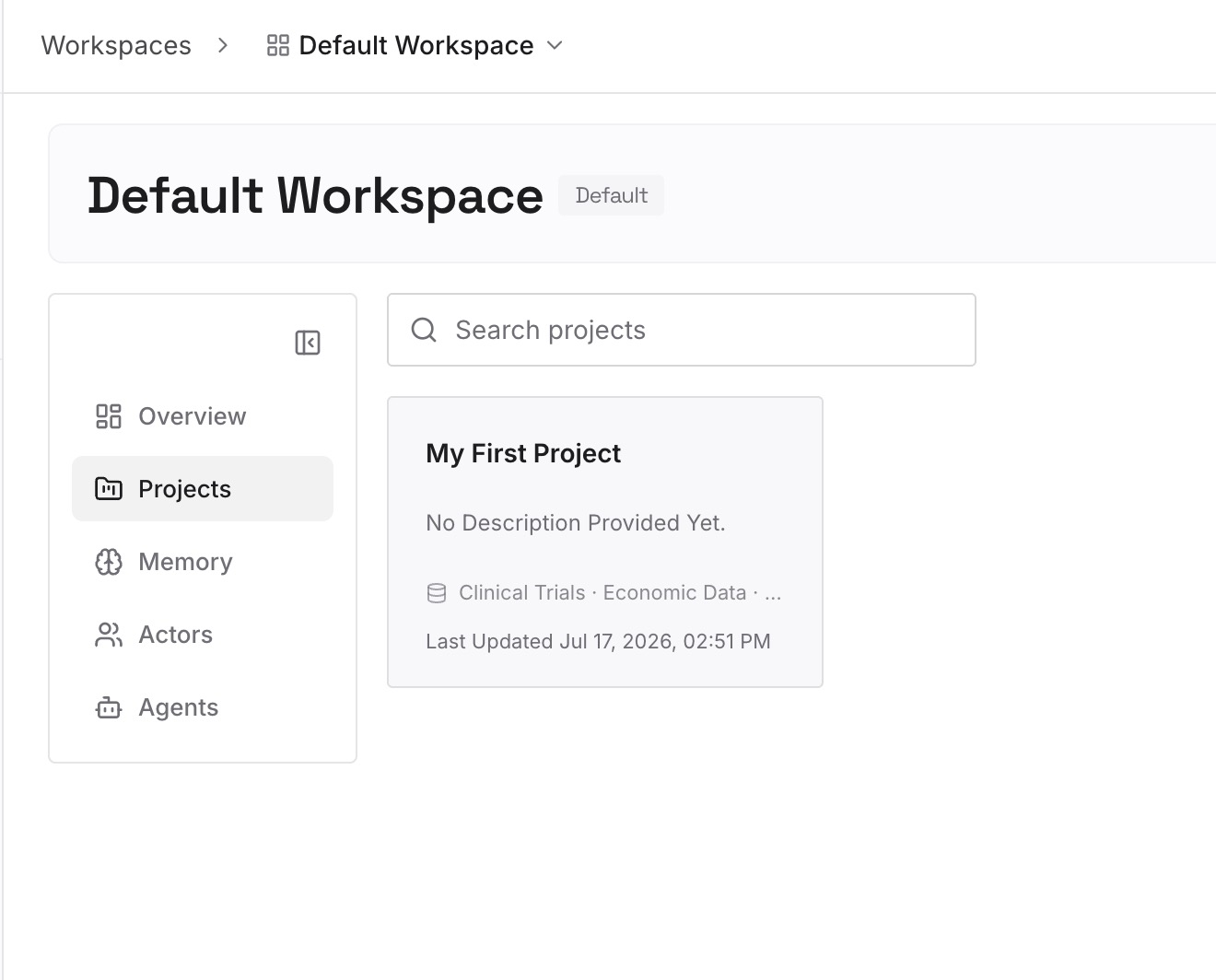
Step 2: Upload your first memories
Start with the topic summaries from Step 2 of the manual migration. One decision or fact per entry, so you can update one without rewriting the rest.
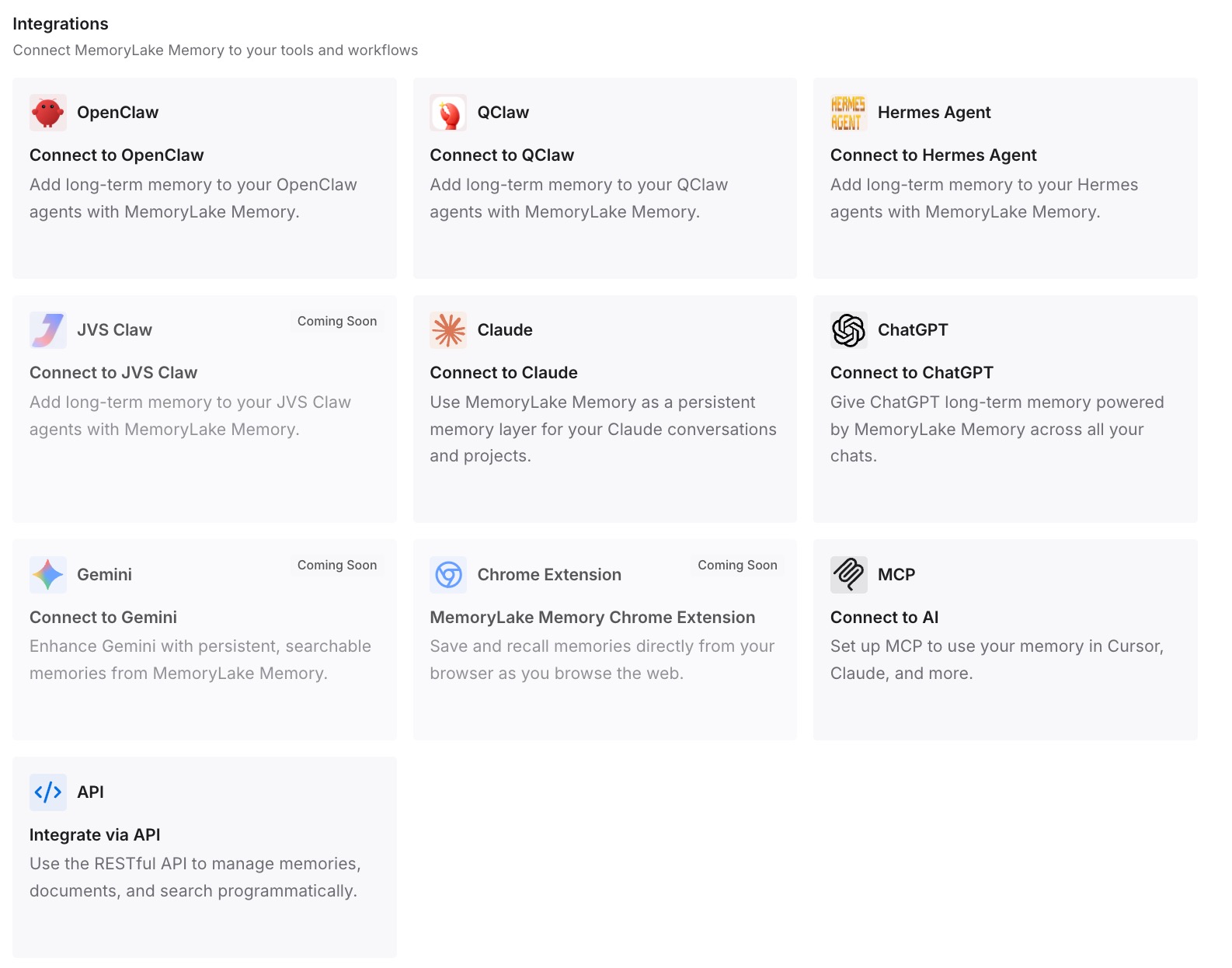
Step 3: Connect your AI & agents
Connect ChatGPT and any other assistants you use. The same entries are available wherever you work next, without another round of copying.
What this changes in practice
The first difference is a shorter move. The sorting you did once doesn't have to be repeated for the next tool.
The second is a cleaner start in ChatGPT. Projects and custom instructions start from a short, current summary rather than an old archive.
The third is fewer surprises. The context you depend on is written down in one place you can read and edit.
Best practices for moving Gemini chats to ChatGPT
Check your auto-delete setting first. Older activity may already be gone.
Export Gems separately. They're under Gemini in Takeout, not My Activity.
Download within 7 days. The email link expires.
Summarize, don't paste. A short summary per topic is more useful than a full transcript.
Use projects for topics. Instructions and files there apply within the project.
Avoid public links. Anyone with the link can read the chat.
Conclusion
Moving from Gemini to ChatGPT is a manual job. Google's Takeout exports your Gemini chats under My Activity and your Gems under Gemini, with a download link that's active for 7 days. ChatGPT can take that context in through custom instructions, saved memories, projects, and file uploads, but OpenAI's help center doesn't describe importing another assistant's chat history.
The reliable approach is to sort before you move. Facts about you go into custom instructions or memory, long-running topics become projects, Gem instructions become project instructions, and the archive stays a reference you search when you need something specific.